Getting started with reporting
You will learn
Learn about the different robust Klaviyo reporting tools available in your account. Klaviyo is built to help your business grow and strengthen your relationships with your audience by putting data to work. Segmentation and automation tools allow you to personalize and target your communication efforts across channels to boost engagement and drive business growth. However, in order to understand how well your business strategies and marketing efforts are working, you need proper reporting to measure and analyze performance trends over time.
Klaviyo offers a full suite of reporting tools to help you understand this. Through our native reporting tools, you can use a wide variety of data points to measure performance, figure out what is and isn’t working, and discover opportunities for improvement.
Before you begin
Owners, Admins, Managers, and Analysts can use reporting tools, but access to individual reports and exports depends on your role. For more information, see our guide on user management and privileges.
Timestamp data within your reports, including exported reports, will display in your account's local time from your settings.
Feature-specific reports
When you grow a subscriber list, send campaigns, and have automations running, Klaviyo offers both high-level and detailed reporting tools to help you understand how these strategic efforts do over time.
Feature-specific reports help you granularly understand the performance of specific Klaviyo tools, such as flows, campaigns, sign-up forms, etc. Below is a brief overview of each of these tools and where to find them.
Campaigns
Jump to the following sections to learn about what is available for Campaign reporting:
List and calendar view
- Navigate to your account's Campaigns tab and you'll see a list of all the campaigns you've created and sent.
- Click Calendar to switch from a list to calendar view of your campaigns.
In List view, select a metric, such as Placed Order, from the Conversion metric dropdown to change the conversion data shown.
Campaign overview
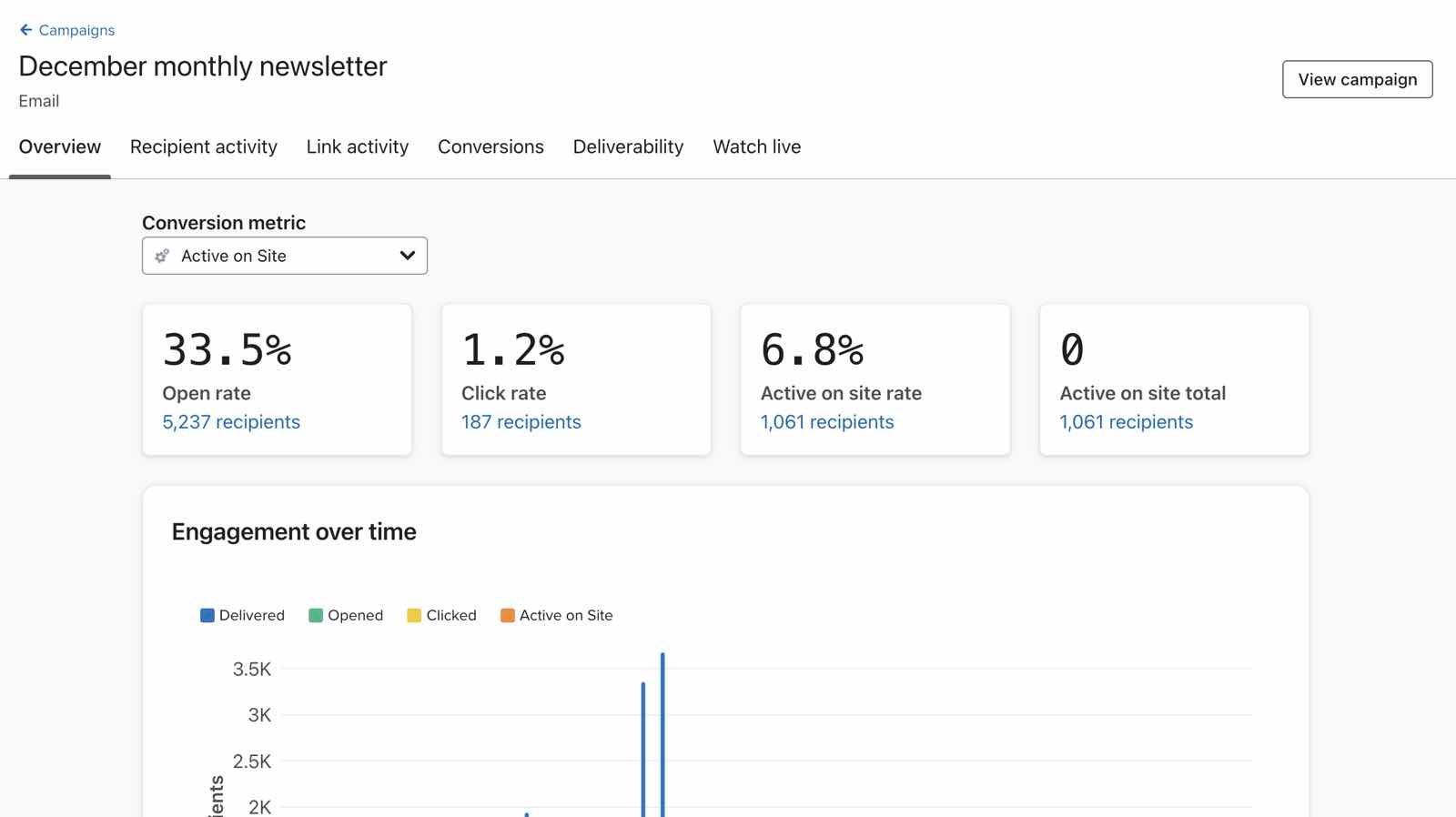
The Campaign overview report provides insight into how individual campaign sends perform so you can easily monitor deliverability and conversion metrics.
Click into a specific sent campaign and you will arrive at the overview page. Here, you can see an overview of performance, recipient engagement, a deliverability snapshot, and a summary of the campaign details.
Campaign conversions
Click Conversions to see a detailed breakdown of your campaign’s impact. To review individual products, select Ordered Product as the Conversion metric, then choose a product property under Group by. The available properties depend on the metric and your integration.
Campaign deliverability
For an email campaign, click Deliverability for a report on your campaign’s deliverability and overall health. This includes open, click, bounce, unsubscribe, and spam rates, as well as deliverability by inbox provider, domain, and country.
Trends report
The trends report tracks overall email campaign performance over time in a series of graphs that focus on clicks, opens, and overall recipients.
To find the email campaign trends report, navigate to Campaigns, open the 3-dot Options menu, and select Email trends.
Learn more about the email campaign trends report.
Campaign exports
- In your main campaigns list view, open the 3-dot Options menu.
- Select Export analytics to open the export options.
- Choose the time range, or All sent campaigns, and any tags to include. Select the channel to export. For email or SMS campaigns, you can select Include all A/B test message variations.
- Click Export and wait for the CSV download. You can save the file for your records and analyze your performance.
Your campaign analytics export contains information about your campaign, such as its name, ID, send date and time, deliverability metrics, and conversion metrics, in organized columns.
You can access exports from the last 30 days by clicking the account name in the bottom-left corner of Klaviyo, then navigating to Settings > Other > Downloads.
Learn more about Campaign exports.
Smart Send Time report
In the Smart Send Time report, you can analyze data from the campaigns that you sent using Smart Send Time.
To find this report, navigate to Campaigns, open the 3-dot Options menu, and select Smart Send Time report.
Here, you can view your Smart Send Time activity, which shows when you sent an exploratory or focused campaign, if the focused time has changed, and more. There are three graphs that show:
- Open Rate per hour
- Open Rate and Placed Order Rate per hour
- Expected Open Rate lift
Learn more about Smart Send Time results.
Lists & segments
Jump to the following sections to learn about what is available for List & segment reporting:
- Engagement reports for lists and segments
- List growth report
- List & segments exports
- Starred lists and segments
Engagement reports for lists & segments
Engagement reports for lists and segments break down how engaged a group of profiles is, making it easy for you to understand the quality of the lists and segments you're sending to.
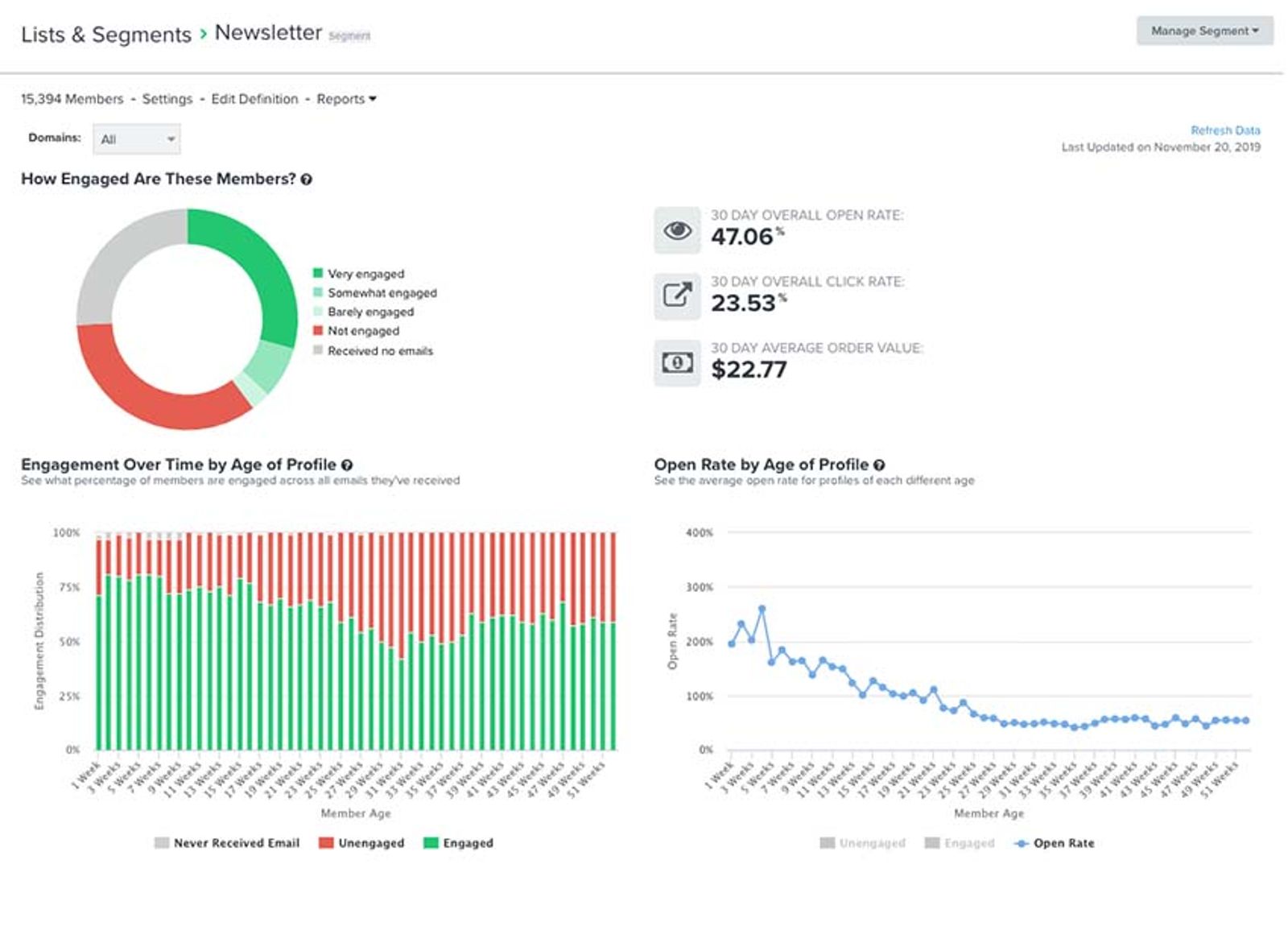
For more information, as well as how to access these reports, head to engagement reports for Lists & Segments.
List growth report
For every list, you can access a growth report to see its growth over time. This report helps you understand profile acquisition and attrition for that list, including the sources through which profiles join or leave it. Use this information to compare your acquisition methods.
- Navigate to Audience > Lists & segments and open a list.
- Select List growth.
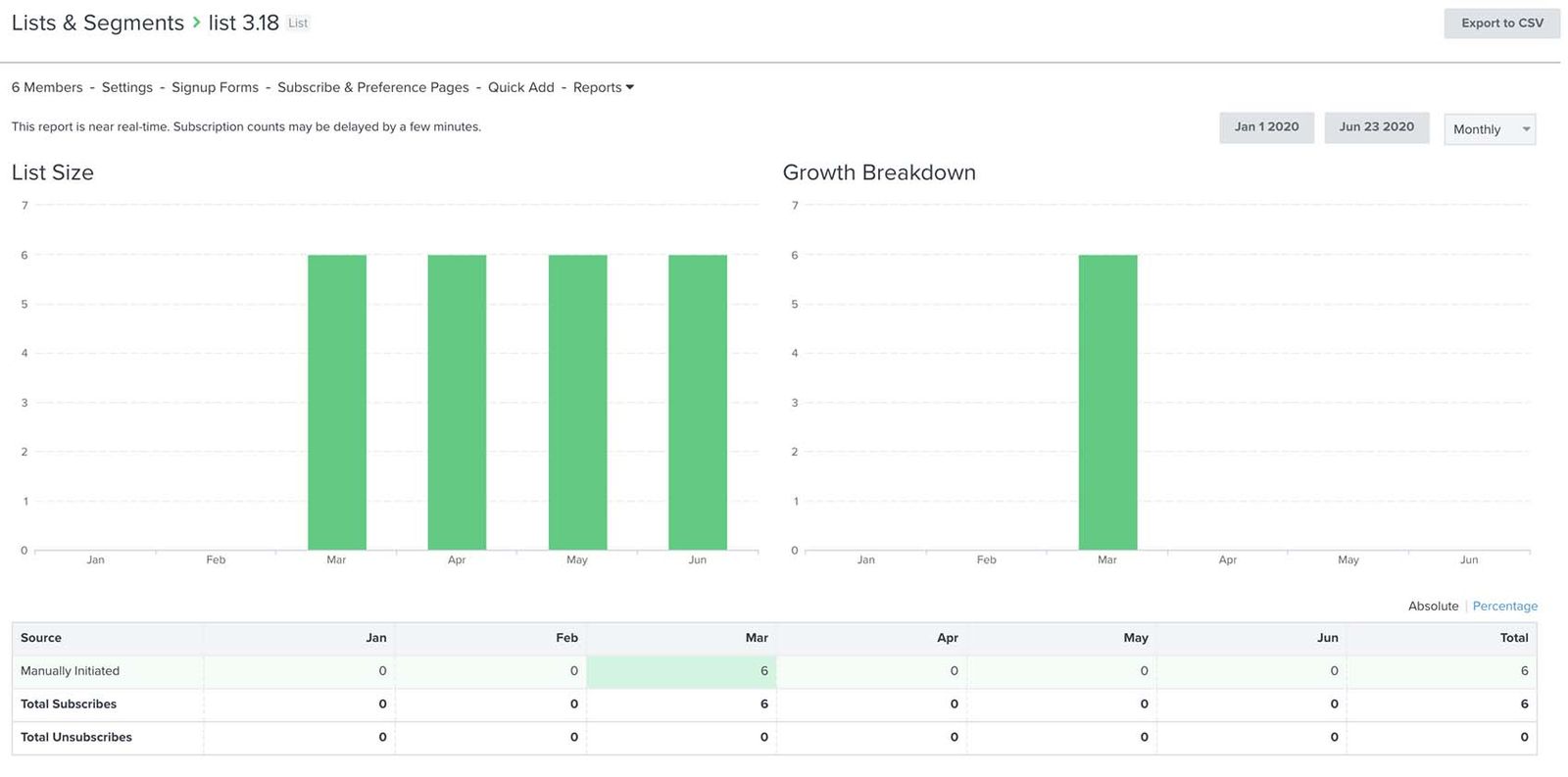
Learn more about list growth reporting.
List & segment exports
Owners, Admins, and Analysts can export list and segment data to a CSV file.
- Navigate to Audience > Lists & segments and open the list or segment you want to export.
- Open Manage list or Manage segment, then select Export to CSV.
- Choose the profile properties to include, then click Start Export. The more content in your CSV, the longer it will take to download.
You can access exports from the last 30 days by clicking the account name in the bottom-left corner of Klaviyo, then navigating to Settings > Other > Downloads.
Learn more about exporting your lists and segments to CSV files.
Starred lists and segments
Star the lists and segments you want to find quickly. To view them together, navigate to Audience > Lists & segments and select Starred from the Type filter. You can review their member counts in the list.
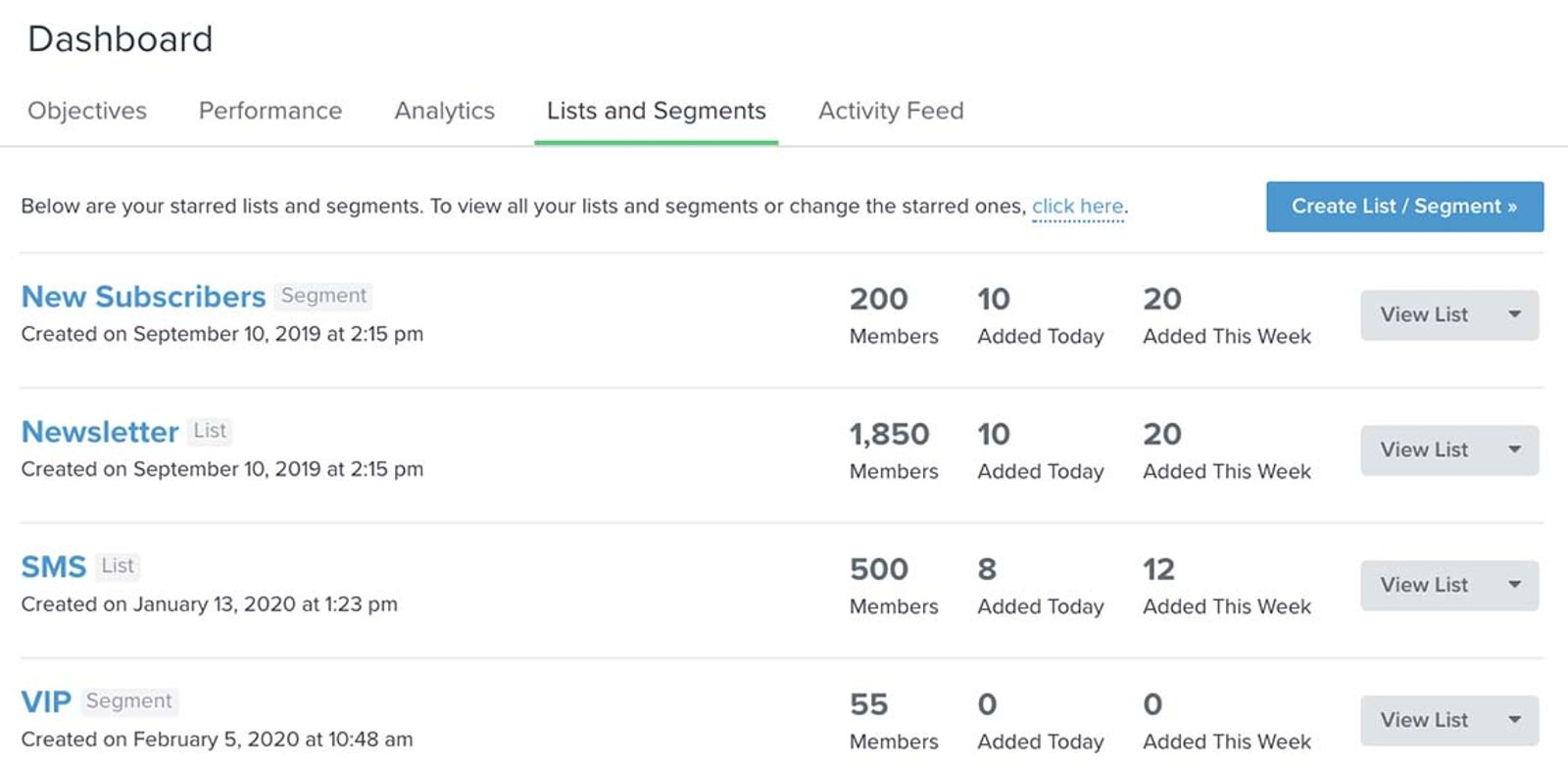
Learn more about the lists & segments main dashboard.
Flows
Jump to the following sections to learn about what is available for flow reporting:
Flow list view page
Navigate to Flows to see the flows you have created. The list includes each flow’s status: Live (green), Manual (yellow), or Draft (gray). You can also create or edit a flow and export analytics.
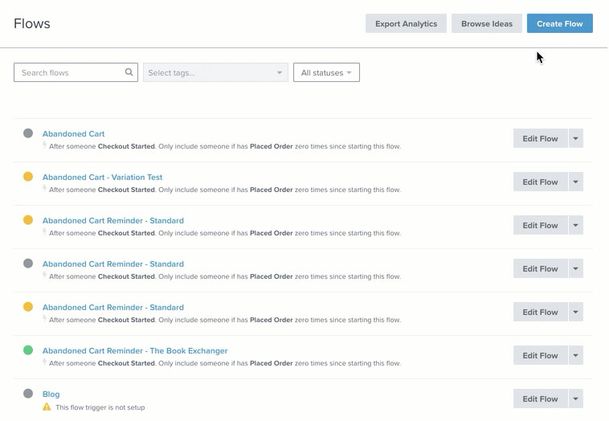
The list shows revenue or conversion totals and performance per recipient for your selected metric. Use the conversion metric selector above the table to choose a metric such as Placed Order, and use the date filter to change the reporting period.
Learn more about flow analytics.
Flow builder analytics
There are two ways to see analytics directly in the flow builder:
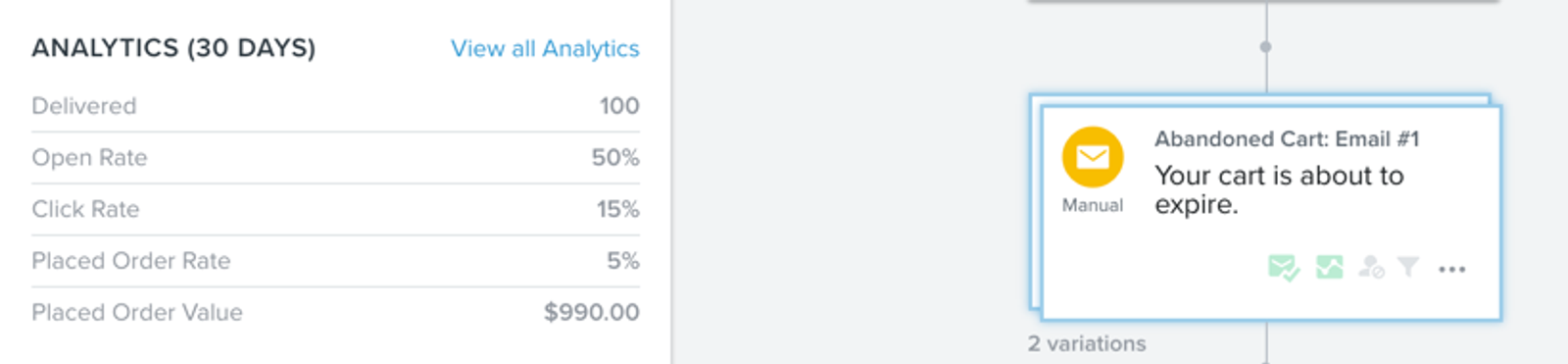
- 30-day analytics snapshot
Click a message card to open its configuration panel. Under Performance, you can review analytics from the last 30 days, including messages waiting to send or needing review, delivery, engagement, and attributed revenue and conversions. Click View details to open that message’s overview report.
- Analytics on the flow canvas
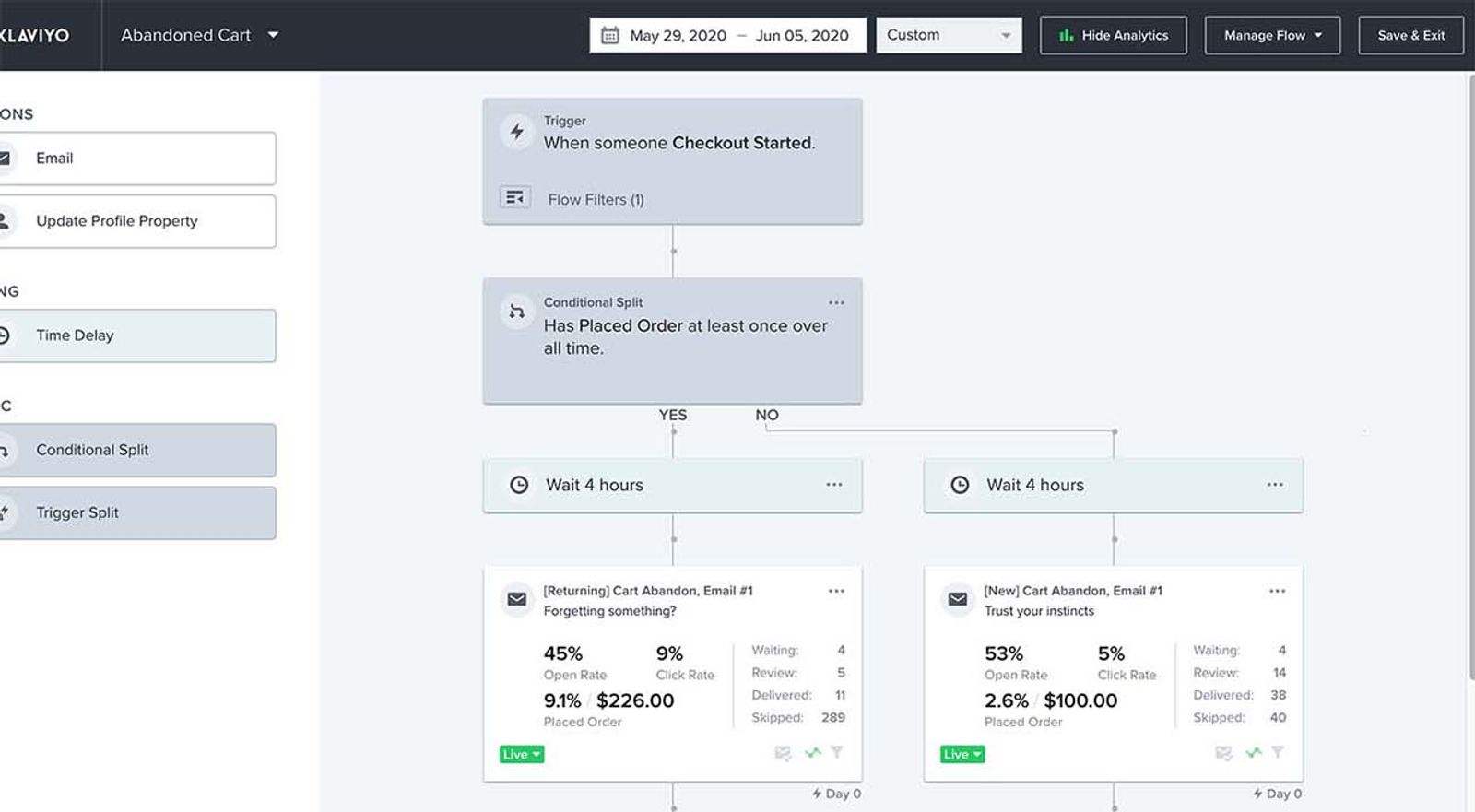
To compare channel performance across the messages in a flow, click the Show analytics icon button in the flow builder header.
You will then see the analytics associated with each individual message in your flow. The data appears within the message cards themselves, showing analytics around deliverability and conversions.
Use the date picker on the flow canvas to adjust the reporting period.

Flow message overview report
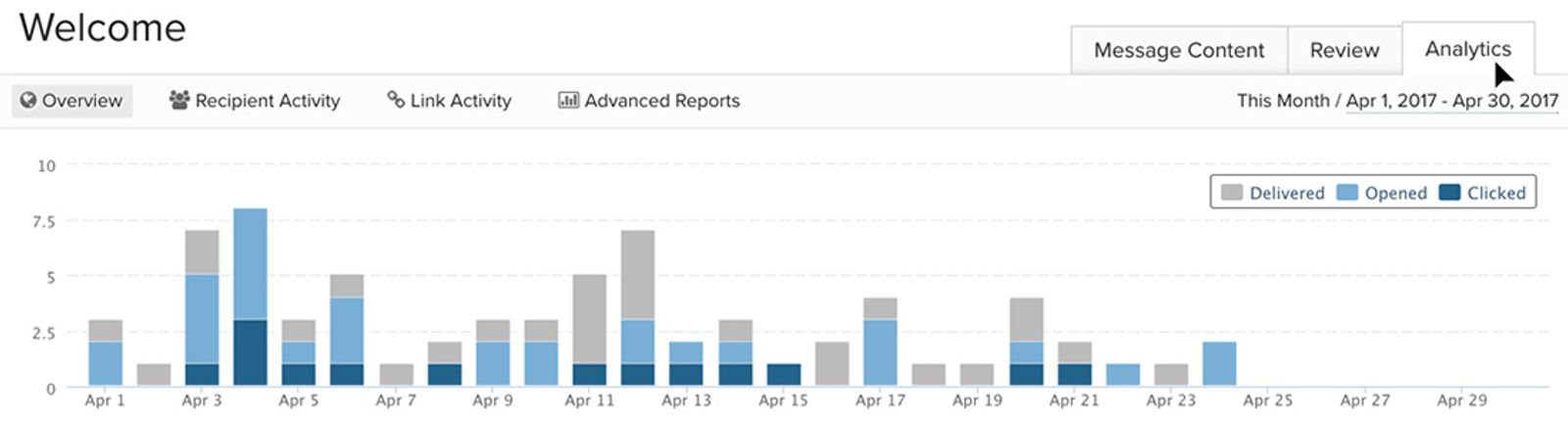
The flow message overview report helps you understand how an individual message performs over time. You can review a performance overview, recipient and link activity, and more detailed reporting.
- Open a flow and click the message you want to review.
- Under Performance, click View details to open the message’s overview report.
For more information, see our article on understanding flow analytics.
Flow exports
To export flow analytics, navigate to Flows, open Options, and select Export analytics. The export options let you:
- Alter the time range of your analytics
- Include flows that use a specific tag
- Aggregate analytics by day, week, or month
- Include all email variations of an A/B test
To export a single flow, create a tag used only for that flow and select it in the export options. When your settings are ready, click Export and wait for the CSV download.
Learn more about exporting flow analytics.
Sign-up forms
Jump to the following sections to learn about what is available for sign-up form reporting:
Sign-up forms list view
In Sign-up forms, you can review how visitors interact with your forms. The list shows each form, the list it submits to, and its submitted form and submit rate metrics from the last 30 days.
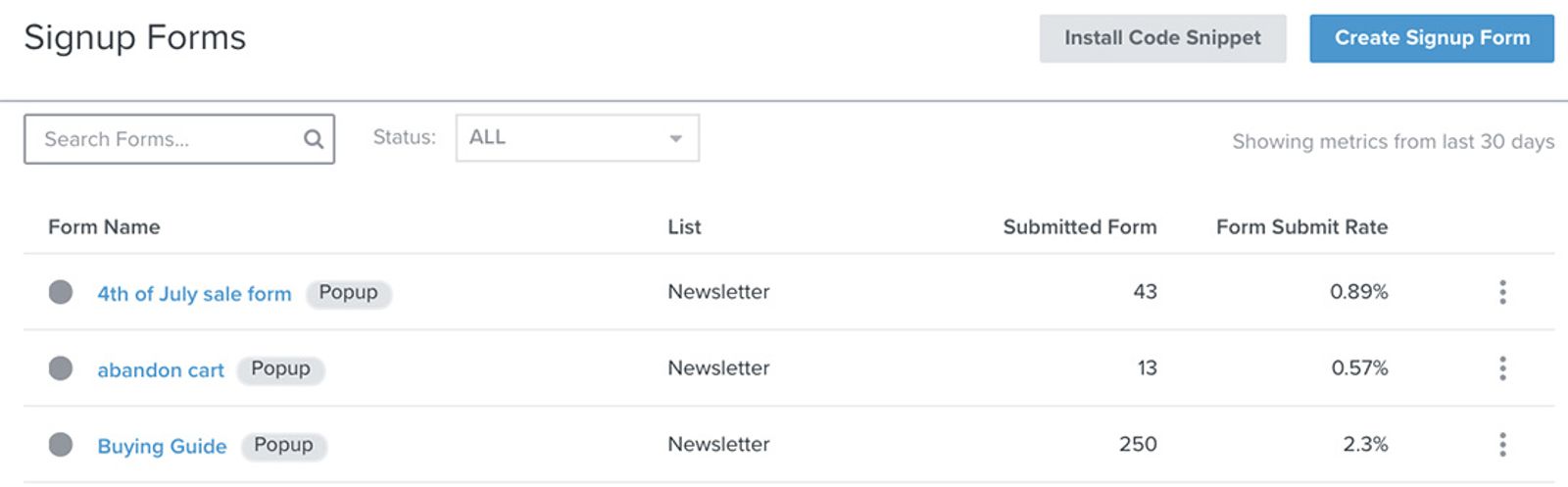
Click a Draft form that has never been published to open the sign-up form builder. Click a form in Editing or Live status to open its overview report.
Sign-up forms overview report
The sign-up form overview report breaks down performance over time, including the form’s name, status, type, views, and submits. On the Overview tab, use Additional reports to see more detailed results, and choose Device type from Split by to compare devices. For forms with an A/B test, use A/B test results to review variation performance.
For information on A/B testing forms, head to A/B testing a sign-up form.
- Navigate to Sign-up forms and select the published form you want to review.
- On Overview, choose the date range for your report.
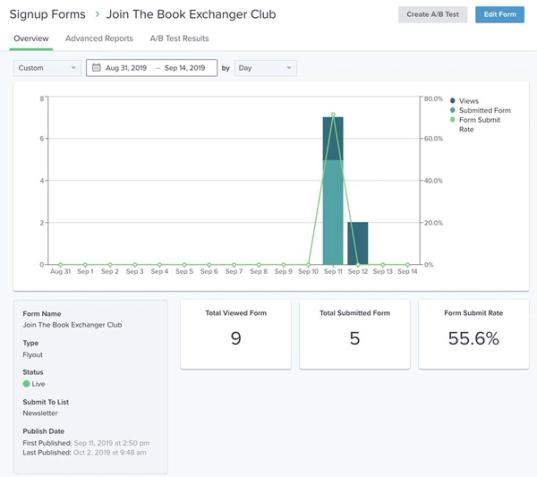
Learn more about how to review sign-up form analytics.
Cross-channel performance reports
Jump to the following sections on cross-channel reporting tools:
Benchmarks
Klaviyo benchmarks let you analyze and compare your data in relation to industry trends and companies similar to your own. As a result, you can see where you excel and which areas of your business and marketing need improvement. Navigate to Analytics > Benchmarks and select one of the following 5 pages.
- Overview
Displays your 5 best and worst performing metrics to get a big-picture idea of how your business is doing overall. - Business performance
Shows your key performance indicators pertaining to business health so that you can monitor trends and focus on areas that need improvement. - Campaigns
Provides email and SMS campaign performance and deliverability benchmarks. - Flows
Hones in on your flow data to showcase performance over time of individual flows and in relation to other companies similar to your own. - Sign-up forms
Compares your sign-up form performance with benchmarks.
The Business performance, Campaigns, Flows, and Sign-up forms pages include tables and charts for comparing performance indicators over time. The Overview page summarizes your top and bottom performing metrics. The example below shows a graph from Business performance.
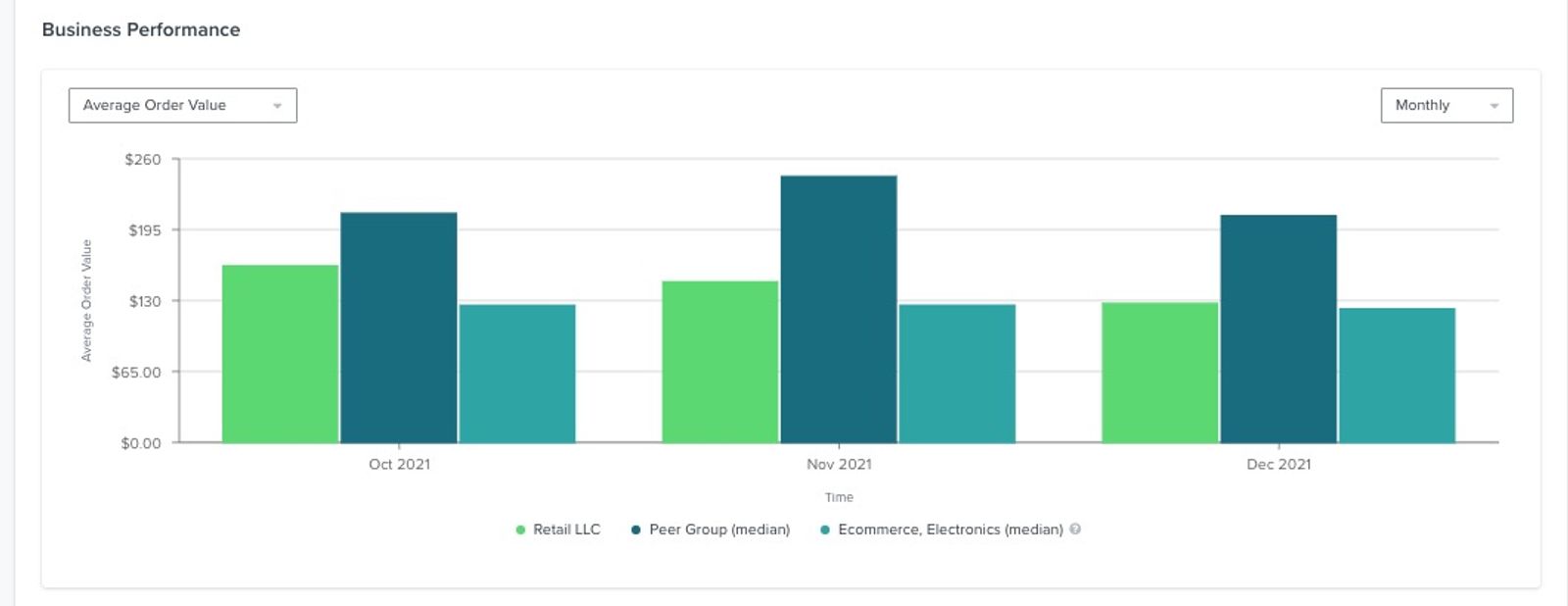
Act upon these newfound insights to help your business grow. For information on how to improve your performance, head to our strategy guide on improving benchmarks for your business.
Activity feed
- Navigate to Analytics > Metrics, then click Activity feed. Here, you can see your most recent customer and subscriber activity, sorted by recency.
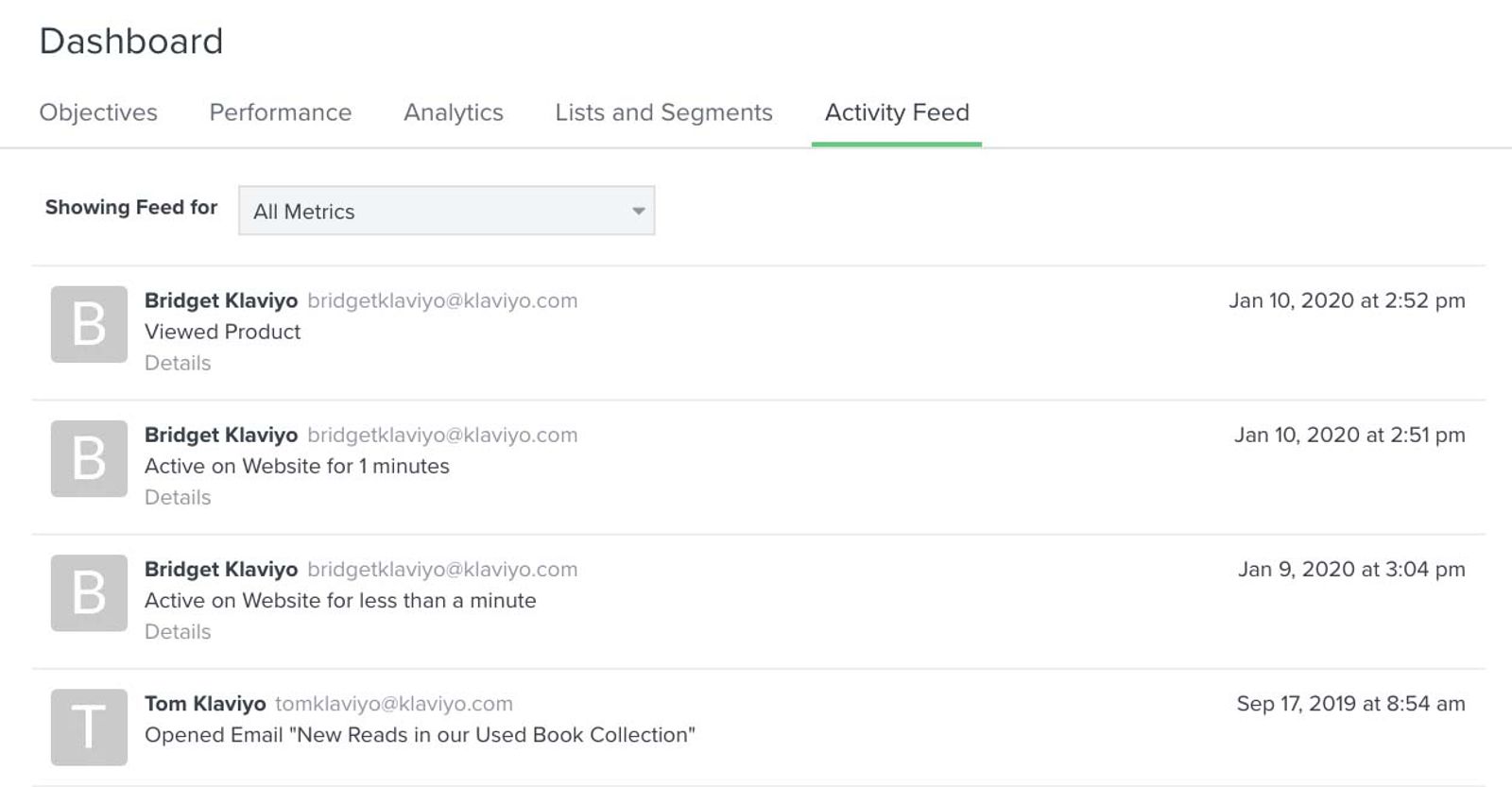
- Use the Metric dropdown to filter the feed. Expand an event row to view its details, or open its menu and select Activity details.
Custom reports
When trying to answer broader questions about your business or marketing performance, you can build custom reports in Klaviyo. Under Analytics, you can review metrics, build reports, and analyze benchmarks.
- Navigate to Analytics > Custom reports.
- Click Create from scratch.
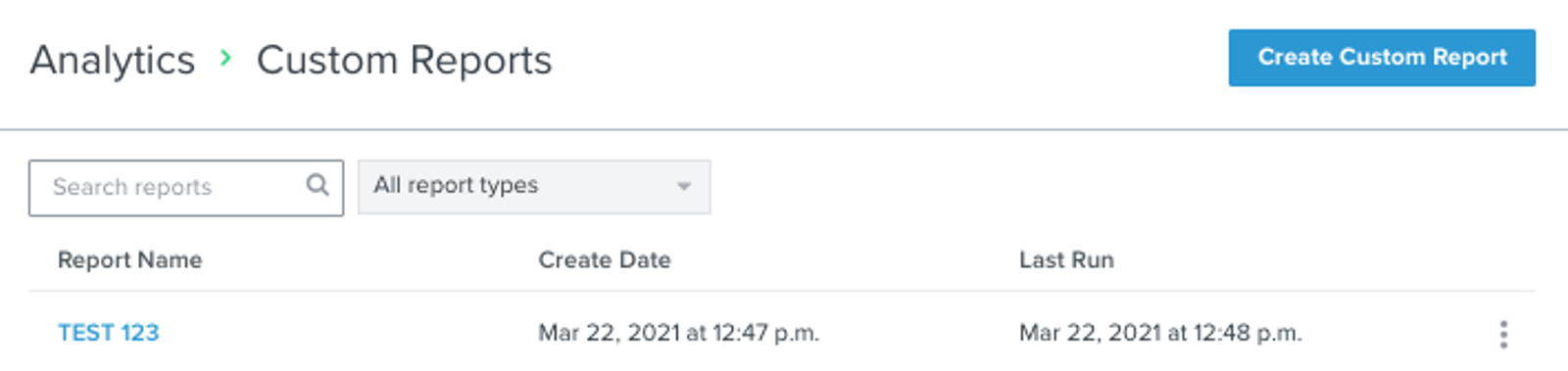
- Choose a Report Type and enter a report name. The available report types are described below; Product Performance Report appears when your account has supported ecommerce metrics.
Each starting point supports custom configurations, so you can tailor the report to your analytics needs. These report types include:
- Single metric deep dive report
- Multi-metric report
- Flows performance report
- Campaign performance report
- Product performance report
- Choose the metrics, time range, filters, and groupings you need for your report. The available choices depend on the report type.
- Click Save & Run Report to generate the results.
Single metric deep dive report
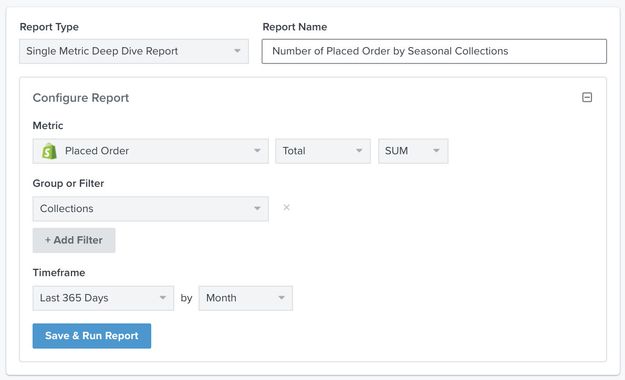
The single metric deep dive report supports slicing and dicing metric data to either gain a broad overview of metric activity or understand trends by key event or profile properties. This report provides a full table view and export of a single metric’s data for any metric in your Klaviyo account. Customize your report with flexible time ranges and make it more granular by incorporating event and profile property groupings and filters into your analysis.
For example, report on Placed Order each month over the last 365 days, grouped by Collection, to compare seasonal collections.
For more information on how to use this report, head to our guide on the single metric deep dive report.
Multi-metric report
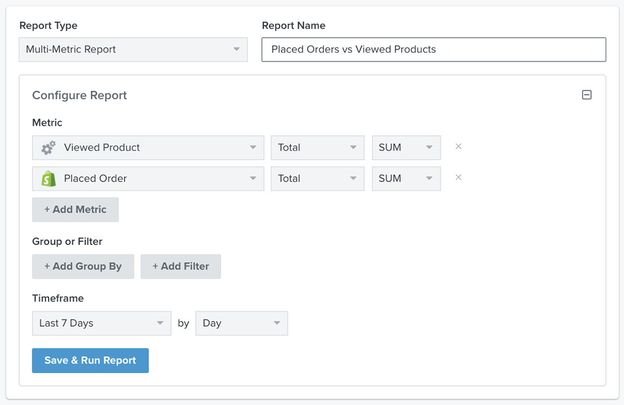
Use the multi-metric report to examine all of your core business metrics at once. This report enables cross-functional business and marketing performance analysis by letting you dive into multiple metrics. Expand on your analysis by customizing the report with time ranges and profile property filters and groupings.
For example, compare the Placed Order and Viewed Product totals for this week to compare product-viewing and purchasing activity. These totals do not show the percentage of individual visitors who went on to place an order.
For more information on how to use this report, head to our guide to the multi-metric report.
Campaign performance report
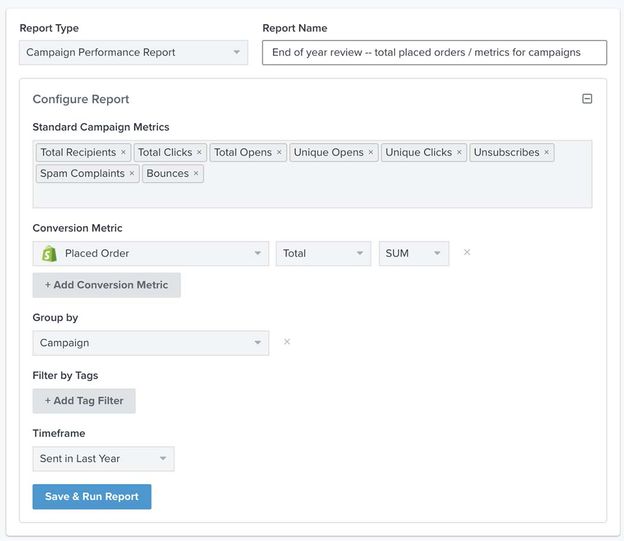
Use the campaign performance report to go deep into campaign-specific engagement and conversion trends. Klaviyo provides a pre-made report that includes standard email metrics neatly grouped by campaign name. Take this starting point and tailor it to your needs by adding or removing metrics as you see fit and focusing your analysis using tags and time range filters.
In the following example, this report will show how Placed Order conversions and an assortment of campaign metrics change over the course of a year; the data will be grouped by Campaign.
For more information on how to use this report, head to our guide to the campaign performance report.
Flows performance report
Use the flows performance report to dig into flow-specific engagement and conversion trends. Like the campaign performance report, Klaviyo saves you time by providing a pre-made report that includes the standard metrics you need to get started. Focus on overall flow performance or go granular on individual messages and variations. Customize the report to better suit your business needs by editing the metrics and filtering on tags and time range.
In the following example, this report will show what all Placed Order conversions and flow metrics amount to in 2020.
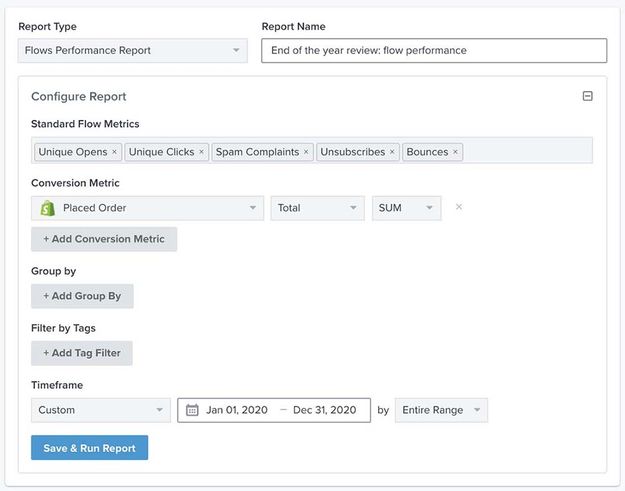
For more information on how to use this report, head to our guide to the flows performance report.
Product performance report
Use the product performance report to analyze product performance across key funnel metrics like browse, checkout, and purchase. Klaviyo helps you get started by providing a pre-built report. Customize it to your needs by honing in on individual products or focusing on high-level trends among collections and categories.
In the following example, this report will show all Ordered Product metrics, grouped by Product Name, to identify your best-selling products over the selected date range.
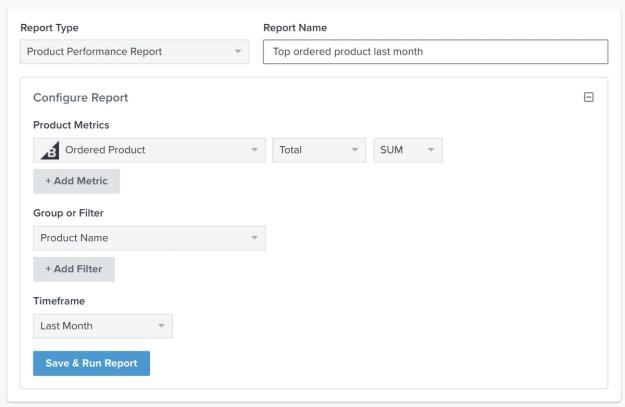
For more information on how to use this report, head to our guide to the product performance report.
Additional resources
- Analytics glossary
The glossary below defines common terms and acronyms used in Klaviyo analytics and data offerings.
- Getting started with metrics
Learn how to access and use your Klaviyo metrics (i.e., events) to better understand your account health and what channels or profiles are creating this data. You can then use this data to create targeted flows and segments. You can also use metrics for light analysis to understand how your data evolves over time.