Getting started with Customer Hub on Shopify
Learn about Customer Hub, a unique personalized experience for online store visitors that guides them from product discovery through purchase and post-purchase support.
Customer Hub for Shopify currently supports standard storefronts and Shopify Headless. For WooCommerce, navigate to https://help.klaviyo.com/hc/en-us/articles/47792369863451. Headless storefronts require additional configuration and storefront code changes. Follow How to set up Customer Hub with Headless Shopify before setting Customer Hub live.
About Customer Hub
Customer Hub gives your customers a place to manage their relationship with your brand. It combines customer account tools with personalized shopping experiences, such as saving products to favorites, displaying unique coupons, and showing product recommendations. You can also connect loyalty, subscription, and support tools so shoppers can access them from your site.
Why use Customer Hub?
Customer Hub brings Klaviyo personalization to your website through integrations and customizable content blocks. You can use these blocks to display customer-specific information and give shoppers access to offers, loyalty data, and subscription information.
Most of my shoppers never log in. Is Customer Hub still valuable?
Yes. Customer Hub can personalize the experience for recognized visitors before they log in. Shoppers can view recently viewed products, save products in Favorites, and browse FAQs without logging in. If web chat is visible to logged out shoppers and Customer Agent is enabled, they can also use web chat without logging in. Otherwise, they must log in before sending a web chat message.
When the user is recognized or logs in, this information is then consolidated into their Klaviyo profile for future personalization across all Klaviyo channels.
Does it work with my existing Shopify account login?
Customer Hub integrates with both new and legacy Shopify Customer Accounts, syncing existing accounts data and tracking new accounts. This integration uses Shopify data to organize customers’ account details and order history while providing personalized shopping experiences and self-service support, all within a cohesive onsite experience.
How does Customer Hub work?
Once live, the Customer Hub onsite experience replaces your default Shopify account login pages with a dynamic sliding drawer or floating panel. Site visitors can access Customer Hub on any page by clicking the account icon or by navigating to your website's /account page. You can also add a small floating widget to every page to help customers access Customer Hub.
The interface adapts based on a visitor’s status to balance personalization with security:
- Logged out shoppers are prompted to sign in or create an account to view their history.
- Recognized shoppers (those recognized via a tracking token but not fully logged in) can receive personalized greetings and see recently viewed items when recognized shopper personalization is enabled. Sensitive account details remain hidden until login.
- Logged in shoppers have full, immediate access to all tabs, including order management, support tools, and unredacted profile details.
Shoppers can log in through their existing Shopify customer account. You can also configure one-time code login in Customer Hub settings. Recognized shoppers can engage with a personalized storefront before logging in.
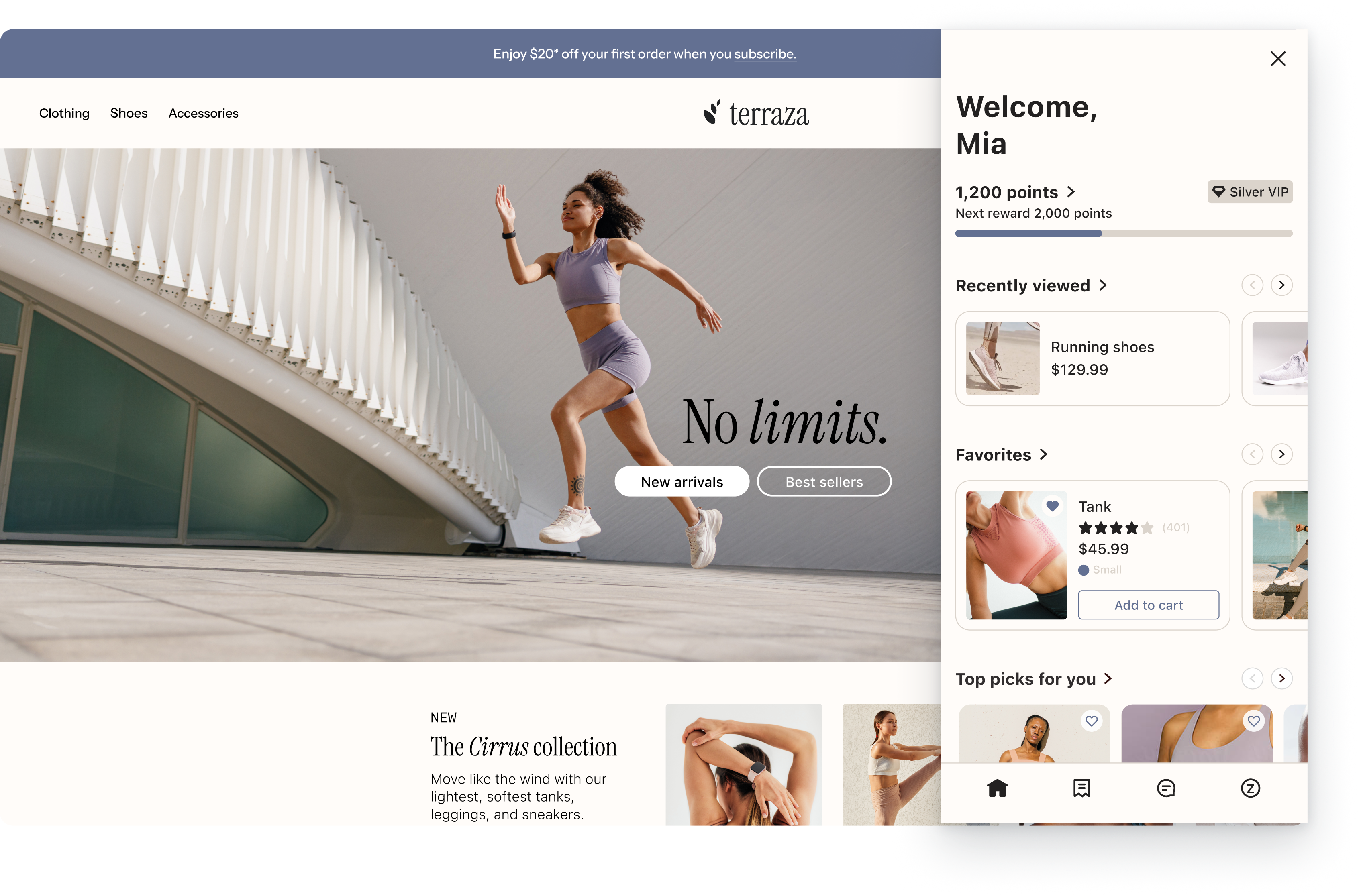
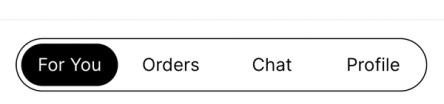
Customer Hub has multiple customizable tabs. You can customize the design and content on each of these tabs to fit your brand’s look, suit your business goals, and align with your support offerings:
- For you - a personalizable hub for your shopper's most common needs
- Add dynamic content blocks (e.g., loyalty points, product announcements, and subscription management) to display personalized information to logged in and recognized shoppers according to your targeting settings. Use these blocks to show upcoming deliveries, personalized coupons, rewards, favorites, and more. Built-in order history and loyalty data require login.
- Orders - offer self-service and drive repeat purchases
- Offer customers a snapshot of their recent order history, as well as self-service help options for viewing individual order details, tracking, initiating a return, escalating a request to an agent, and more. Shoppers can click Buy again to add items from a previous order to their cart. On standard Shopify storefronts, this replaces the current cart contents and takes them to checkout.
- Cart (Optional) - help shoppers complete their purchase by viewing items in their cart
- Display the shopper’s current cart, including item details, quantities, and prices. You can also enable Favorites, product recommendations, and the option to replace storefront cart links with Customer Hub.
- Chat (Optional) - a seamlessly integrated chat experience with AI and human agents
- Enable the Web chat extension to add a conversational support channel within Customer Hub. Use it with Customer Agent or Helpdesk. If you enable FAQs without web chat, Customer Hub displays a separate FAQ tab.
- Profile - your shopper's profile at a glance
- For logged in shoppers, display personal information (name, email address, and saved address), provide links to view or edit profile data, and allow shoppers to control SMS opt-in.
- For logged in shoppers, display personal information (name, email address, and saved address), provide links to view or edit profile data, and allow shoppers to control SMS opt-in.
1. Enable Customer Hub
To enable Customer Hub:
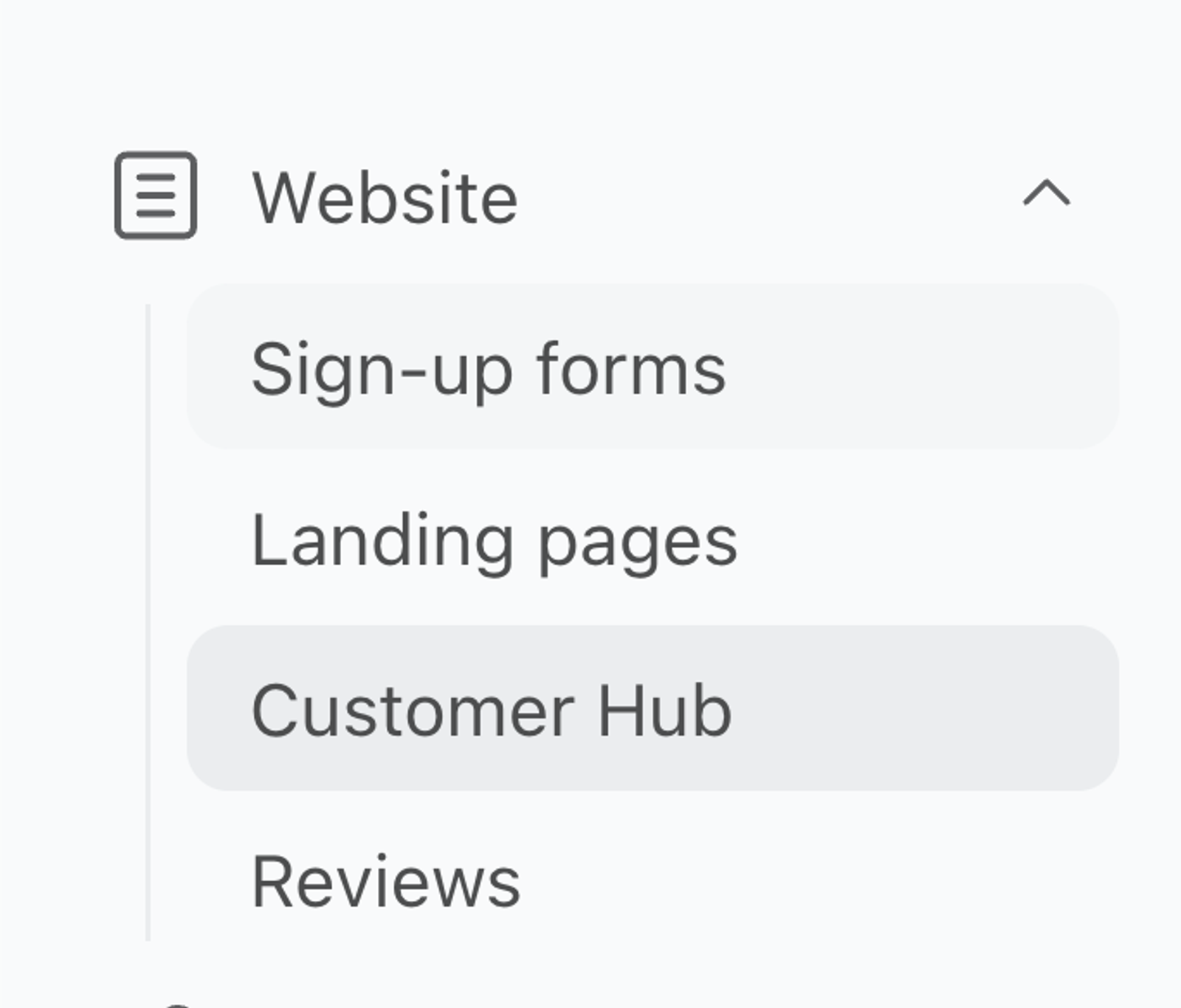
- Navigate to Service > Customer Hub in Klaviyo’s main navigation.
- Click Get started to begin setup and start a free trial. If your account already has a Customer Hub plan or trial, setup continues without starting another trial.
- Use the guided setup to customize your design and add content. Then review these options before launch:
- Customize the design and branding of your Customer Hub.
- Customize your on-site widget to help shoppers discover your Hub.
- Add personalized content to your Hub.
- Choose from our library of pre-built content blocks, including partner-built content blocks that leverage Klaviyo integrations to display dynamic data, such as loyalty points and subscription statuses.
- You can also create your own content blocks with fully personalizable profile data and segment targeting capabilities to display offers and other calls to action to specific shoppers.
- Learn how to create content blocks in Customer Hub
- Target shoppers based on 3 distinct authentication states.
- To personalize content for recognized shoppers, open Settings. Under Recognized shopper personalization, select Enable and click Save. Keep sensitive personal information in content blocks that require login.
- Logged out: New visitors with no tracking history.
- Recognized: Returning shoppers recognized via a
_kxtoken (e.g., from a previous email click or form submission) but not yet logged in. - Logged in: Shoppers who have fully logged into their account.
Content Type | Recognized State | Logged in State |
|---|---|---|
Personalized Greetings | ✅ Visible (e.g., "Hi, Jane") | ✅ Visible |
Recently Viewed/Favorites | ✅ Visible | ✅ Visible |
Loyalty Points (Smile.io and Yotpo) | ❌ Hidden (requires login) | ✅ Visible |
Order history | ❌ Hidden (requires login) | ✅ Visible (Full Details) |
Profile Management | ❌ Prompt to Login | ✅ Full Access |
- Keep Customer Hub hidden while you configure and test it. When you’re ready, follow the Set Customer Hub live steps below.
After completing the guided setup, the Extensions page opens. You can also use the Customer Hub dashboard and settings to review your data and continue customizing the experience.
2. Configure features and extensions
Customer Hub includes Klaviyo features and integrations with 3rd party tools. Use them to tailor the shopping and support experience.
Open Design to configure Favorites, coupons, and FAQs. Open Extensions for product recommendations and the loyalty, subscription, review, order-tracking, returns, web chat, and support options. Save your changes in each area. Review the following options before launch:
- Product recommendations
Allow Klaviyo to surface personalized product recommendations. Learn more about how Klaviyo determines product recommendations. - Favorites
Give shoppers the ability to save their favorite products and enable Customer Hub to display them. Learn how to display favorites in Customer Hub. - Coupons
- Surface unique and static coupons to shoppers, including segment-targeting capabilities, to drive more conversions.
- FAQs
- Create a list of commonly asked questions. They appear in the Chat tab when web chat is available, or in a separate FAQ tab otherwise. FAQs can also be added to the product page (PDP) as an app block.
- Reviews
Showcase star ratings on the products Klaviyo surfaces in Customer Hub. You can use Klaviyo Reviews as well as supported 3rd party providers. Learn more about how to display reviews in Customer Hub. - Loyalty
If you use Smile.io or Yotpo, connect Smile.io or connect Yotpo with your Customer Hub to dynamically surface your customer loyalty data in the on-site customer accounts experience. Note that if you don’t use Smile.io or Yotpo you can still surface loyalty data in a content block. - Subscription management
If you use Recharge, enable this option to display relevant subscription information in Customer Hub's orders page. Shoppers can clearly see which orders include subscriptions, and click a link to manage. - Order tracking
By default, Customer Hub pulls data from Shopify to display shipping status. You can select a supported 3rd party app, such as Wonderment, for greater details and accuracy. - Returns management
Add an option for shoppers to click "start a return" from an order detail page by adding a supported returns management provider. - Web chat
Add the Chat tab in Customer Hub and allow shoppers to chat with Klaviyo's Customer Agent and / or human agents in Klaviyo Helpdesk or a supported Helpdesk provider. To let shoppers send messages without logging in, enable Customer Agent and make web chat visible to logged out shoppers. - Support
Allow shoppers to click "get help" in order detail pages by opening a relevant widget or link to start a conversation or open a support ticket.
3. Link your privacy policy and terms of service
Add links to your site’s privacy policy and terms of service in the Customer Hub settings menu so shoppers can read the terms governing their interactions with Customer Hub.
- Open Customer Hub Settings.
- Under Terms and policy, enter your URLs in Link to privacy policy and Link to terms of service.
- Click Save.
The privacy policy and terms of service links appear in the Customer Hub login prompt. The privacy policy link also appears before shoppers start a web chat conversation.
4. Set Customer Hub live
Before setting Customer Hub live on your site, click View preview to preview and test the functionality you added, including content, links, extensions, and the experience before and after login.
When you’re ready to publish:
- Open Customer Hub Settings.
- Under Customer Hub visibility, select Live, then click Save.
Going forward, you’ll need to save any changes that you make to Customer Hub settings to see them reflected on your site. When Customer Hub is live, all saved changes apply immediately to the on-site experience.
5. Analyze your performance
Once your Customer Hub is live, monitor its performance and impact on the Customer Hub dashboard.
Here, you can analyze key revenue metrics and reports to gain a deeper understanding of the value of customer accounts. This data can inform how you tailor Customer Hub for your specific customer base.
Learn more about the Customer Hub dashboard.
Frequently asked questions
How do my customers discover or open Customer Hub?
When you set Customer Hub to "live", any link to the account experience (frequently the "log in" button or the "profile" icon in most themes) will now open Customer Hub.

We also highly recommend enabling the Customer Hub widget to drive more engagement.
What if I don't want specific account links to open Customer Hub?
When you set Customer Hub to "live", Klaviyo automatically replaces your account links (any links on your site to your account, by default "/account") with a link that ends with "#k-hub". This is what triggers Customer Hub to open instead of your default /account page.
Sometimes, you may have a link that should open the default Shopify account experience directly instead of opening Customer Hub. This can be achieved by adding "data-k-hub-ignore" attribute to your link. For example:
<a href="/account" data-k-hub-ignore>View my account</a>Why can some shoppers see their name without logging in?
When recognized shopper personalization is enabled, Customer Hub uses Klaviyo’s identified state to recognize returning shoppers via browser tokens. This allows you to provide a personalized experience, such as showing a Favorites list, for up to 28 days. Order history and built-in loyalty data require login. Sensitive information, such as full addresses and payment methods, remains hidden until the shopper logs in.