How to add cart to Customer Hub
Customer Hub now includes a built-in cart experience. Shoppers can view and manage their cart directly inside the hub — without navigating away from the page. You can configure what appears in the cart, including product recommendations and saved favorites, and optionally replace your storefront's cart links so they open Customer Hub instead.
Before you begin
This guide explains how to set up content blocks so they display on your site’s Customer Hub. Before proceeding, ensure that you have the Customer Hub feature enabled in Klaviyo.
Setting up the cart
- To configure the cart, go to Customer Hub > Design > Edit your Hub and select the Cart tab in the editor.
- Once you’re in the Editor, click the “Add” icon in the left-hand navigation bar, and scroll down to features.
- Click on Cart to enable cart in your Hub.
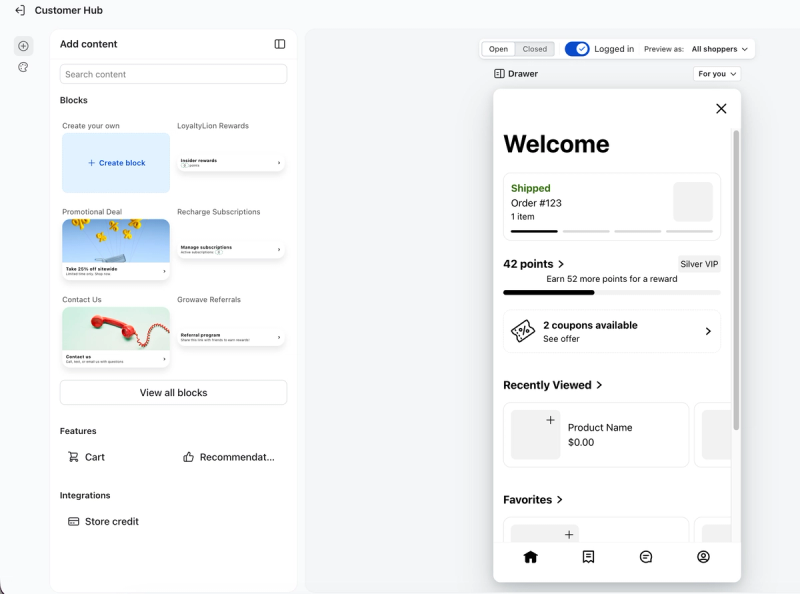
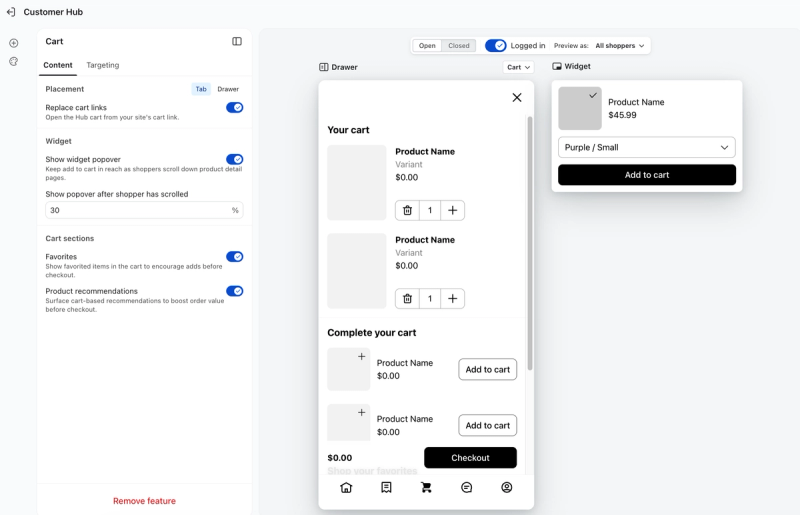
From here you can:
- Enable or disable the cart in Customer Hub
- Specify cart placement as either a Customer Hub tab or its own drawer
- Choose what to show inside the cart (Favorites, Product Recommendations)
- Replace cart links so clicks on your storefront's cart icon open Customer Hub instead of the native cart page
- Turn on the Add-to-Cart widget so shoppers will always have a CTA as they scroll through the screen
What shoppers see
When a shopper opens the Cart tab in Customer Hub, they see:
- Your cart — all items currently in their cart, with the product image, name, variant, and price
- Quantity controls — a stepper with a trash icon to remove an item, and minus/plus buttons to adjust quantity
- Complete your cart — a product recommendations section below cart items, showing personalized suggestions based on the shopper's cart and behavior (if Product Recommendations is enabled)
- Shop your favorites — saved items the shopper can add directly to their cart (if Favorites is enabled)
- Subtotal and Checkout button — pinned to the bottom of the panel
Cart features
Favorites in the cart
When enabled, a Shop your favorites section appears inside the cart, showing the shopper's saved products. They can add any favorited item directly to their cart from this view.
To enable: toggle Favorites in the Cart tab in the Hub Editor.
Requires the Favorites feature to be enabled on your Customer Hub account.
Product Recommendations
When enabled, a Complete your cart section appears below the shopper's cart items. Recommendations are personalized based on what's in the shopper's cart and their browsing history.
To enable: toggle Product Recommendations in the Cart tab in the Hub Editor.
Replace cart links
When enabled, any cart icon or /cart link on your storefront opens Customer Hub instead of navigating to your Shopify cart page. This keeps the entire shopping experience — browsing, favoriting, cart management, and checkout — inside the hub.
To enable: toggle Replace cart links in the Cart tab in the Hub Editor.
This setting works on Shopify and Shopify Headless storefronts. It does not modify your theme files — Klaviyo intercepts the link click via the Customer Hub script.
Cart placement
You can control how and where the cart is accessible via the Cart Placement setting.
Option | Description |
|---|---|
Hub | The cart lives as a tab within the main Customer Hub panel |
Drawer | The cart opens as its own side drawer |
You can also configure the overall hub appearance (shape, dock side, colors, fonts) from the Style tab — the cart inherits these settings.