Understanding your account usage
Understanding your account usage
Learn how to review your account usage in Klaviyo.
Current usage is on Billing > Overview. If your Overview has product cards with View buttons, click View to open a product’s daily and historical usage. If you still see an Account usage tab, use that tab for historical usage.
Note: Only Owners, Admins and Managers can access billing usage details.
What is account usage?
Account usage is a record of how much of each Klaviyo product you’ve used against your plan, including active profiles, email, mobile messaging, Reviews, Advanced KDP, Composer, Helpdesk, and Customer Agent. Customer Hub, Social Marketing, and Marketing Analytics also use active profiles as their meter.
How is account usage measured?
Review your usage against your plan’s limit to see whether you’re approaching a limit or overage. Usage is shown in the units each product uses, such as profiles, emails, mobile spend or credits, and tickets. Contracted accounts can also review usage as a percentage of their contracted amount.
How often does my usage reset?
Usage is tracked over your usage cycle. Consumption, such as emails sent, resets when the next cycle starts. Profile counts do not reset to 0.
For paid self-serve accounts, your usage cycle aligns with your billing cycle. If your cycle starts on the 15th, it renews on the 15th of the following month at the same time. Free accounts use the 1st of the month. For manually billed accounts, your contract determines the usage cycle, which can differ from the invoice schedule.
Self-serve accounts use the account’s time zone for usage cycles. If you use shared billing, the parent account’s time zone applies. Manually billed accounts use Eastern Standard Time (EST, UTC−5) year-round, without daylight saving time.
Learn more about your usage and billing cycles here.
How should I use account usage?
Check current usage when you want a quick read on whether you're approaching a limit this billing cycle, so you can plan ahead before hitting an overage or before service is affected.
Check historical usage when you're looking at trends, such as whether your send volume is growing month over month, when deciding if it's time to change plans, or when you need a downloadable report for finance or reconciliation.
If you are part of an Account Family and utilize shared billing, your usage and limits may be shared across accounts.
Where to find your usage
Current usage is on Billing > Overview. In the layout with product cards, each card’s View button opens a detail page with current-cycle and historical usage.
In the product-card layout, you can review usage alongside your plan information and open more detailed charts from the same page.
What it lets you do:
- See current-cycle usage at a glance on Overview.
- Click View on a product card to open its daily usage chart and, when shown, the Historical section for the last 3, 6, or 12 billing cycles. In classic billing, use Account usage for historical charts.
Where to find it: Billing > Overview, then click View on a product card. For classic billing, open Account usage.
What plans can I view usage for?
Billing usage covers free and paid plans. Composer is an exception for trials: an active free access period can also show a usage card and historical usage.
To review trial usage, open Explore Products in the upper right of Klaviyo. For Composer, you can also use its usage card on Billing > Overview when the card layout is available.

For non-contracted accounts, usage is shown for each plan, such as the number of emails sent or mobile spend used. If you use shared billing, the family’s usage is pooled; see the account family sections below for individual-account views.
If you are manually billed (via a contract), you will see your usage as a percentage of your contracted amount.
How often the account usage updates
The current usage values on Billing > Overview show usage against your current limits. Use these values to check whether you’re approaching a limit. Consumption updates as usage is processed; active profile counts can take longer to reflect a cleanup, as explained below.
A product’s detail page includes current usage values and daily and historical charts. Historical chart data is not real time and can be approximately 15 minutes to 1 hour behind your actions. After sending a campaign, check the current usage value rather than expecting the historical chart to reflect it immediately.
Account families: parent and child accounts
If your accounts are linked for shared billing, a few extra terms and rules apply:
Term | Definition |
|---|---|
Account family | All accounts linked together for shared billing |
Parent account | Holds the billing details and plan info for the account family |
Child account | An account linked to a parent account within the family |
Usage is pooled across the account family. For example, sending an email campaign to 1,000 people from a child account adds 1,000 sends to the family’s shared total and to that child account’s individual usage.
Access also differs by account type: the parent account has full access, including the ability to view usage for each individual child account. Child accounts have more limited access, and in most cases can't reach certain billing pages. A parent account Owner or Admin can change this under Billing > Preferences, where they can choose to let users in every account view plan usage across the family.
See Understanding how shared billing works in Klaviyo for full detail on requesting and managing shared billing.
Point-in-time vs. consumption usage
Usage is charted differently depending on the product:
- Point-in-time counts: active profiles, Advanced KDP, and Marketing Analytics show recorded profile counts rather than a running total of sends. Profile counts do not reset to 0 at the start of a new cycle. Active profile counts can rise or fall as profiles are added, suppressed, or deleted.
- Consumption: email, mobile messaging, Composer, Reviews, Helpdesk, and Customer Agent usage accumulates during the usage cycle and resets at the beginning of the next cycle.
Current usage
This section covers where to check your usage right now and how Klaviyo warns you as you approach a limit.
View your current account usage
- Click your account name in the bottom left corner.
- Click Billing > Overview
- Review the usage and limit for each free or paid product shown on Overview. In the card layout, an active Composer free access period can also have a usage card.
Consumption usage resets based on your usage cycle; profile counts do not reset to 0.
- Monthly subscriptions: consumption resets once a month on your usage/billing cycle.
- Manually billed accounts: consumption resets according to the usage terms in your contract.
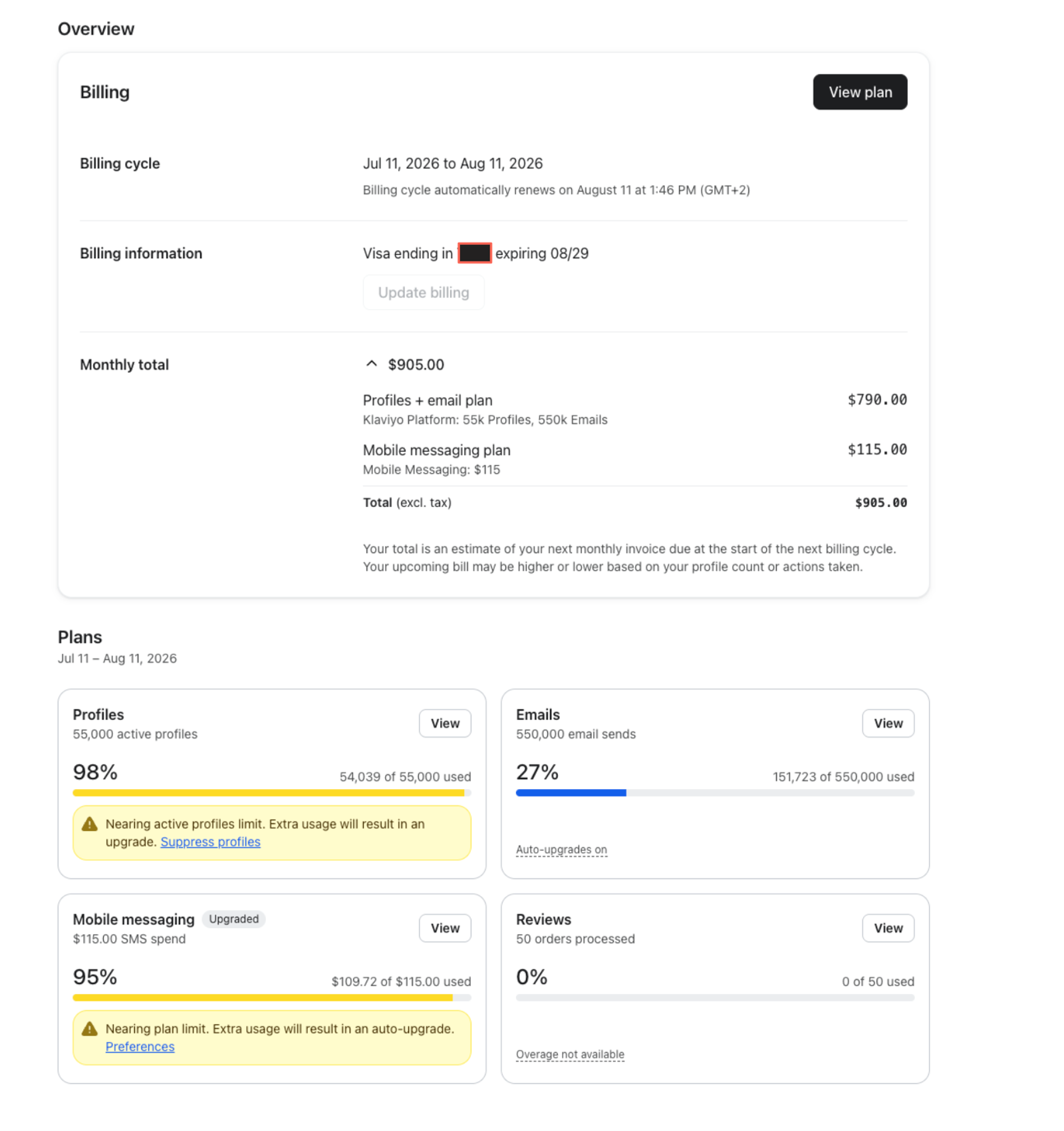
Overview with product cards
Classic Overview
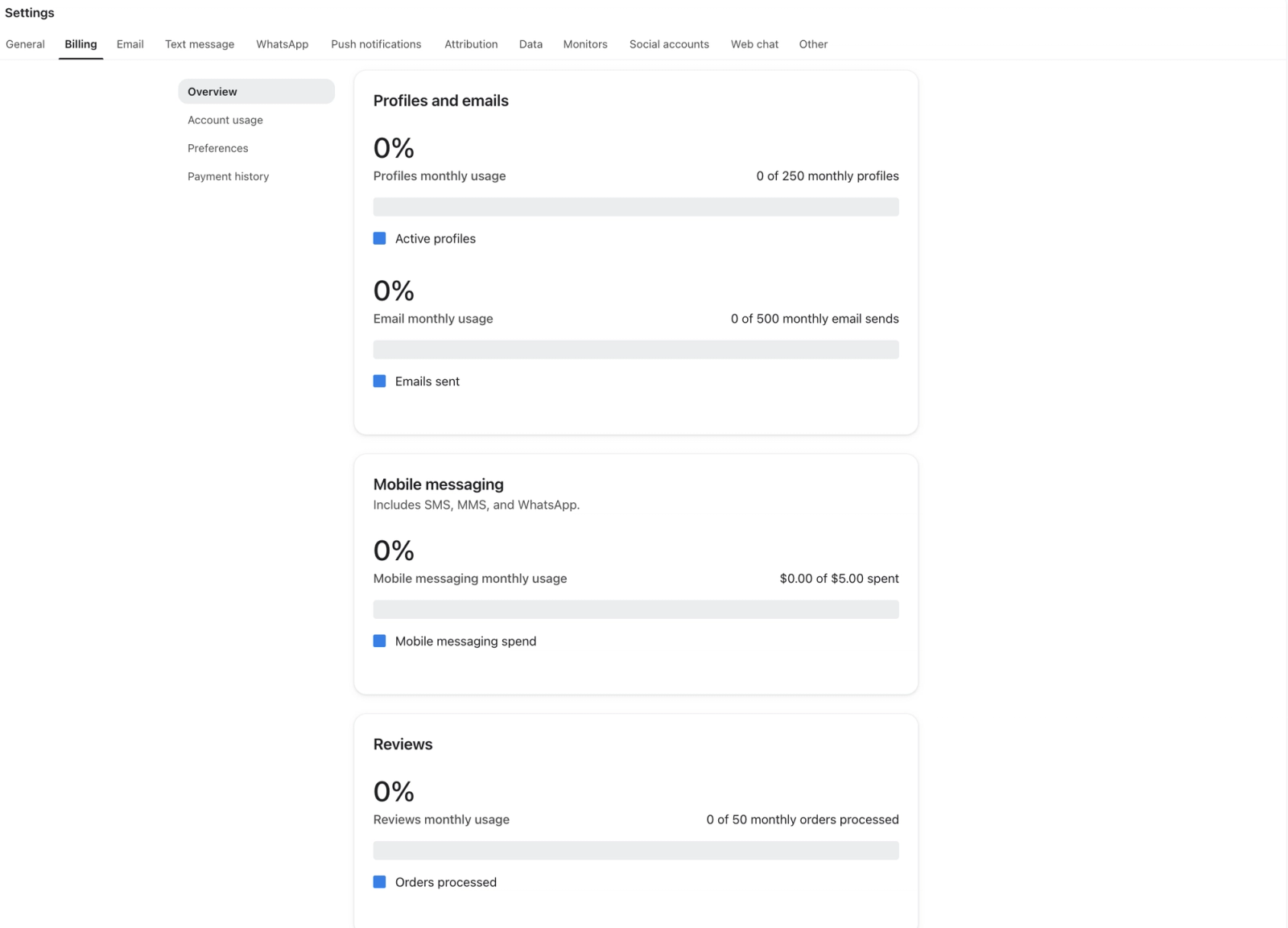
Refresh your current usage
Reload the page to fetch your latest current usage. Active profile counts can take longer to reflect suppression or deletion, as explained in the profile cleanup section below.
Current usage card colors
Klaviyo uses visual indicators to alert you to when you are nearing or exceeding your account limits.
Color | What it means |
|---|---|
Blue | Under 80% of your plan limit used. |
Yellow | 80% or more used — approaching your limit. |
Red | At or over a limit, or a red segment showing contracted overage. Read the card’s message for what happens next. |
Note: These card thresholds (80% amber, 100% red) are separate from your email/in-app usage notifications, which still send at 75%, 90%, 95%, and 100% (see Account Usage Notifications below).
Active profile cards turn red at 100% even when auto-upgrade or flexible overages are enabled. These sending preferences do not change the profile card’s color; read its message for the applicable next step.
Account usage notifications
Klaviyo lets you know proactively if you are approaching your monthly usage limit via in-app notifications and email notifications. Email notifications are sent to the account owner's email address.
If you are a monthly subscription customer, you will receive email notifications when you hit the following thresholds: 75%, 90%, 95% and 100%. If you are a contract customer, you will receive email notifications at the following thresholds: 75%, 90%, 95%, 100%, 110%, 125%, 150%, 200%.
Billing type | Notification thresholds |
|---|---|
Monthly subscription | 75%, 90%, 95%, 100% |
Contract | 75%, 90%, 95%, 100%, 110%, 125%, 150%, 200% |
Current usage for account families
What is an account family?
An account family is a billing structure where all accounts are linked together for shared billing. The Parent account holds the billing details and plan info for the account family. The child account is an account linked to a parent account within the family.
How is usage shared across account families?
Usage is pooled across the account family. For example, sending an email campaign to 1,000 people from a child account adds 1,000 sends to the family’s shared total and to that child account’s individual usage.
Where can you view current usage?
On Overview, a parent account’s cards show the family’s aggregate usage. Click View on a product card to see the Account family breakdown table, including each account’s current usage and percentage of the overall plan limit. Search by account name to isolate an account. Child accounts see this breakdown only if the parent has enabled Allow users in all accounts to view plan usage for each account in the family under Billing > Preferences.
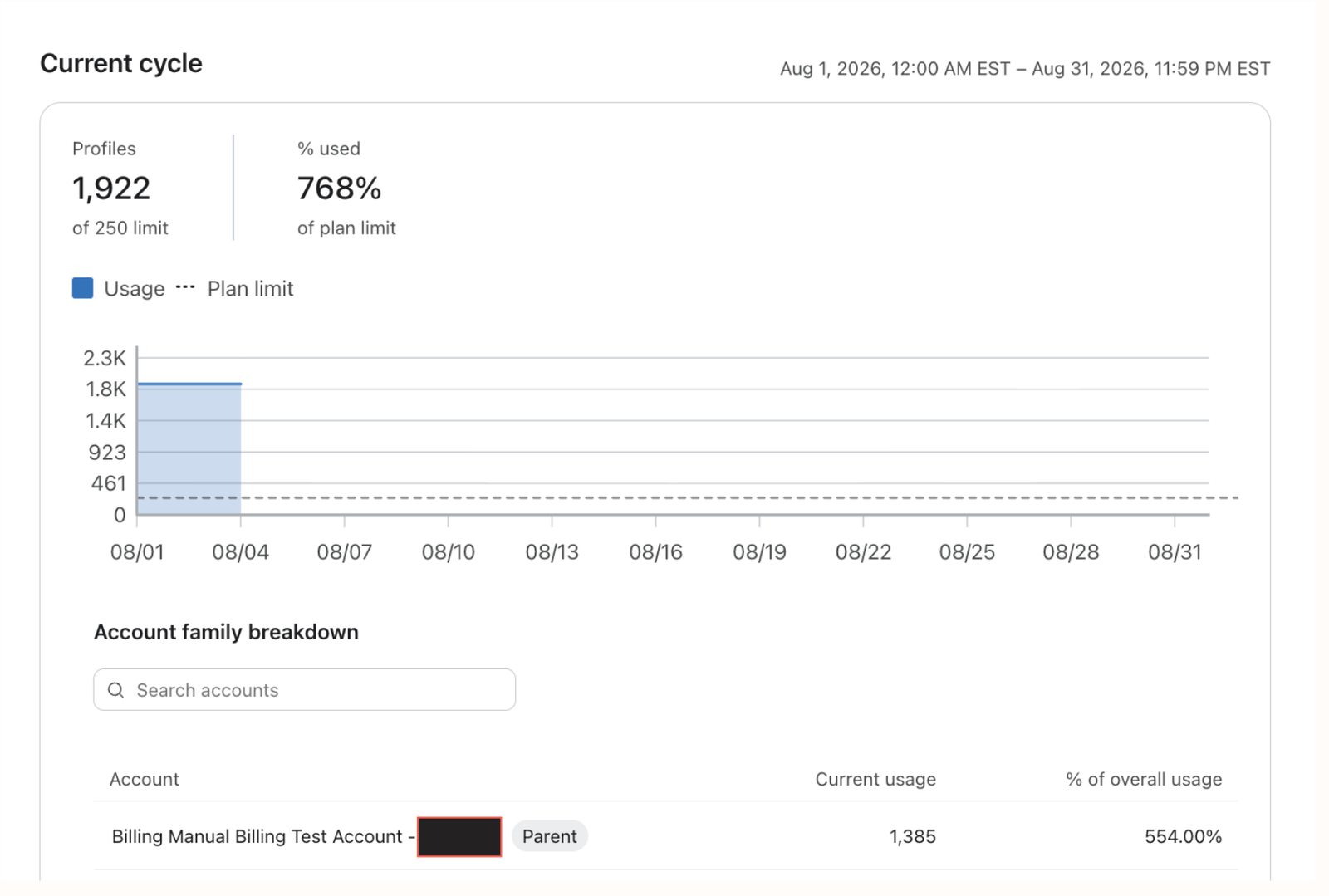
If you're part of an account family, the parent account can always view current usage for itself and for every linked child account. Whether child-account users can also see this depends on the preference set in the parent account under Billing > Preferences ("Allow users in all accounts to view plan usage for each account in the family"). Notification thresholds apply to the family's pooled usage, not to each child account individually.
Learn more about Account Families and Shared Billing here.
Was I upgraded recently? How can I tell?
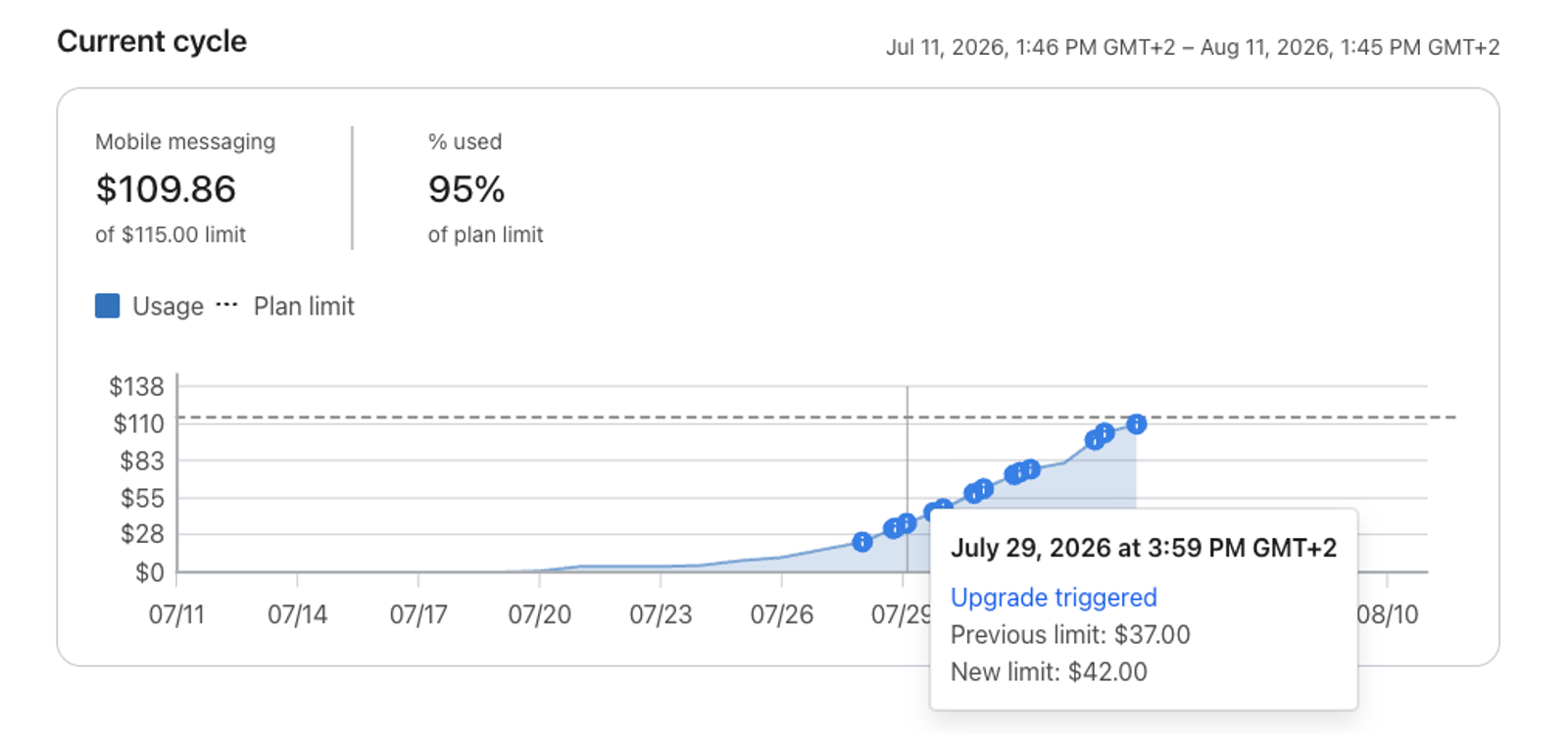
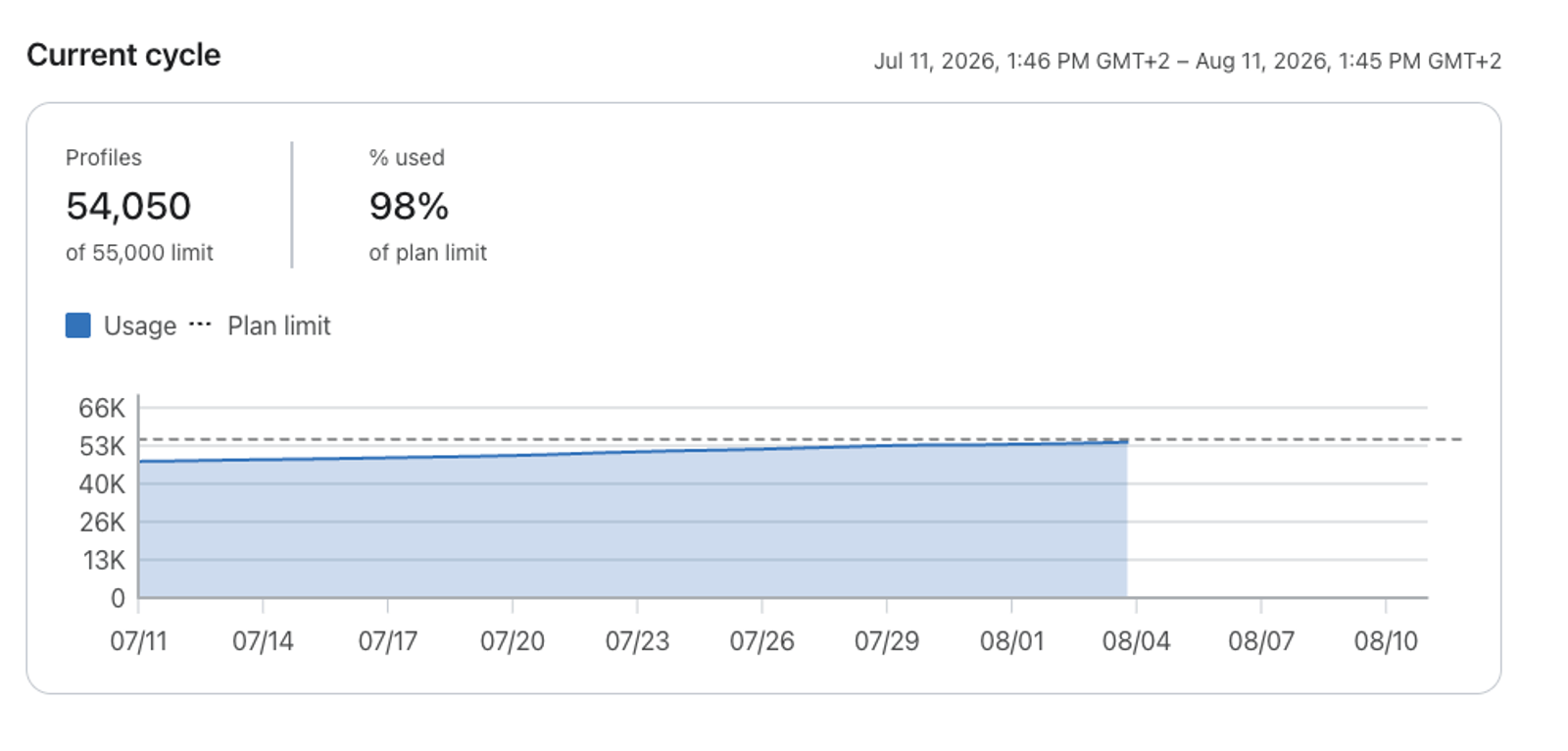
In the card layout, click View on a product and review its Current cycle chart. Hover over an information marker to see an auto-upgrade or flexible overage event, including the previous and new limits.
Note: When you exceed a limit and have opted-in to our Billing Preferences, Auto-upgrade or Flexible overages, the dotted line denoting your limit threshold will adjust accordingly.
Historical usage
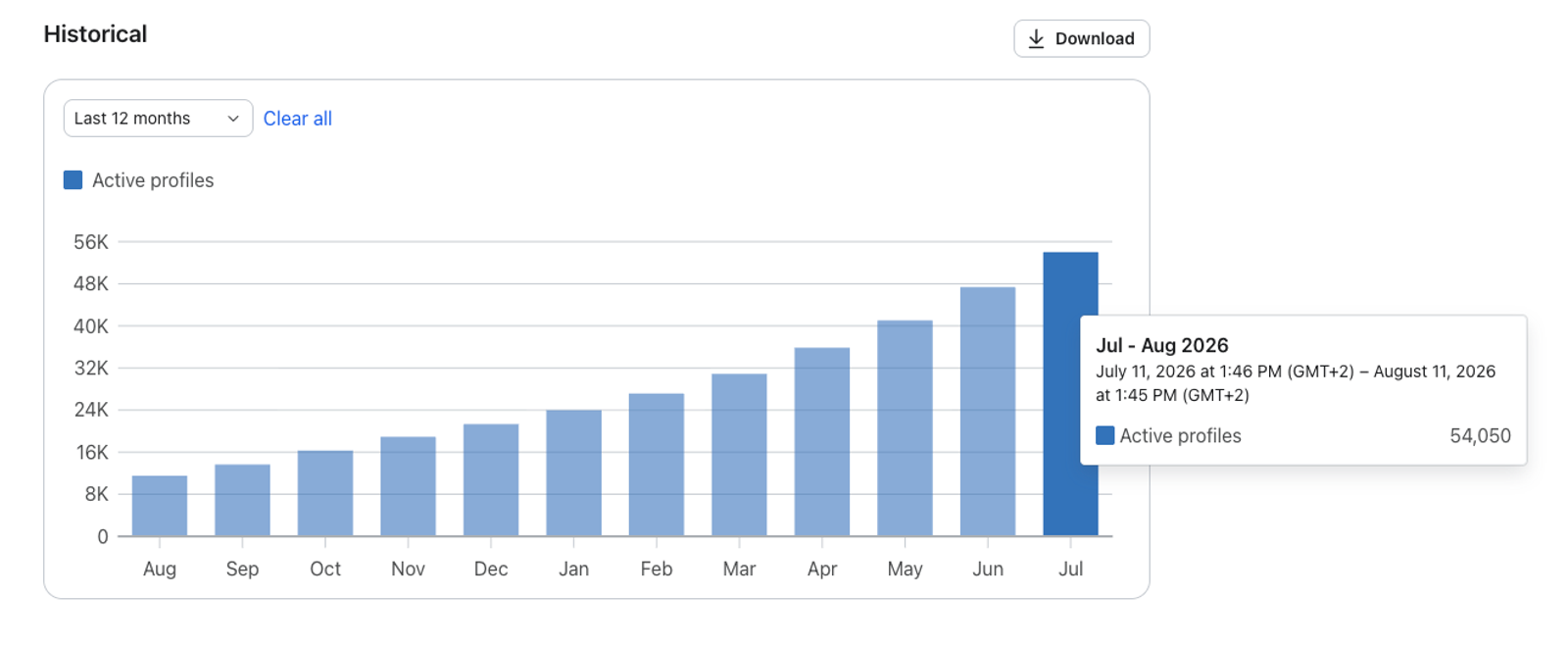
Review usage trends by product, download reports, and check plan change history. Historical charts offer the last 3, 6, or 12 billing cycles. Free and paid plans show historical usage; Composer also includes usage from its free access period.
For self-serve accounts in the redesigned billing layout, open Billing > Payments & Invoices > Plan change history. In classic billing, find Plan change history on Account usage.
You can filter or break down historical usage by:
- Email and text messaging: select Overview for totals or Message types for Campaigns, Flows, Conversations, and Other. Active and total profile charts show overall profile counts.
- Mobile messaging units: use Messages sent for message counts, Spend for usage at your rates when rate-based pricing applies, or Credit usage for credit-based history. In the product detail layout, Spend is initially selected for rate-based plans, and switching units keeps your selected time range.
Your filter and time-range selections are remembered only for your current browser session; they reset if you switch devices or clear your browser data.
Historical usage for account families
In the product detail layout, parent accounts can select Account Family to review pooled historical usage. Use the account selector to choose an individual account. In family view, click a billing-cycle bar to see that cycle’s usage by account, then select an account for its individual history.
See Understanding account billing details in a portfolio if you manage the family from a portfolio view.
You can view your usage over the last 3, 6, or 12 billing cycles.
To check your historical account usage:
- Click your account name in the bottom left corner.
- Click Billing > Overview.
- Click View on the product card you want, then find Historical. If you have classic billing, open Account usage and find the product’s graph.
- Choose a 3, 6, or 12 billing cycle range in the chart’s range selector. In the product detail layout, these choices are labeled Last 3 months, Last 6 months, and Last 12 months. Choose a breakdown if the product offers one.
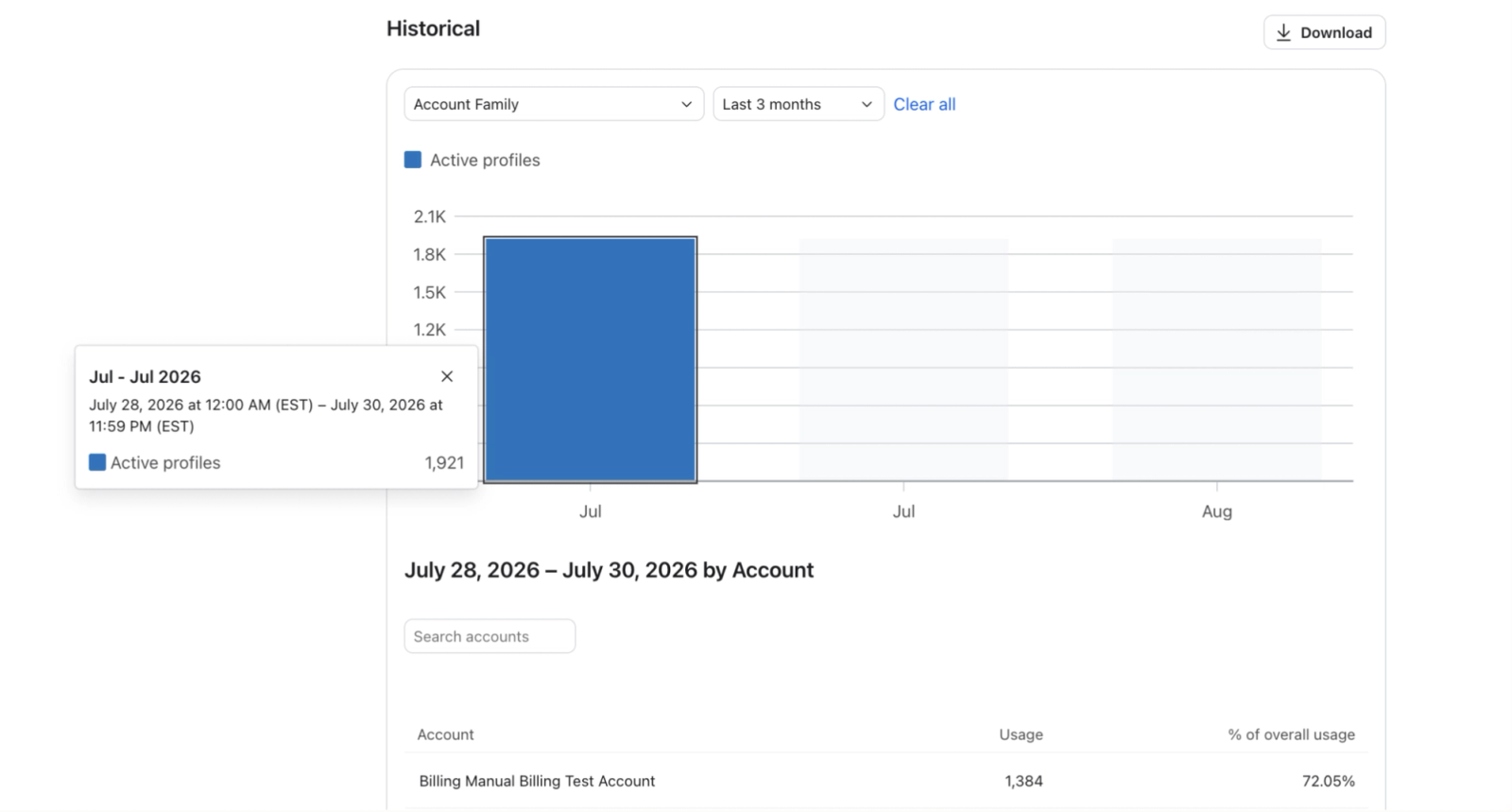
If you are manually billed, note that Klaviyo shows usage as a percentage of your total contracted amount. If you've gone over your plan limits, you'll also see the overage amount.
Historical usage is available for paid and free plans. Composer also includes usage from its free access period.
How often the historical account usage updates
Historical usage can be approximately 15 minutes to 1 hour behind your product usage. It is aggregated for the selected usage cycles, including the current cycle; current-cycle records appear as they are processed.
If you send a campaign and immediately check a historical usage chart, it won’t yet reflect that campaign. Check your current usage value when you need a more up-to-date total.
Usage for Klaviyo products
Active profile usage
View current and historical active profile usage
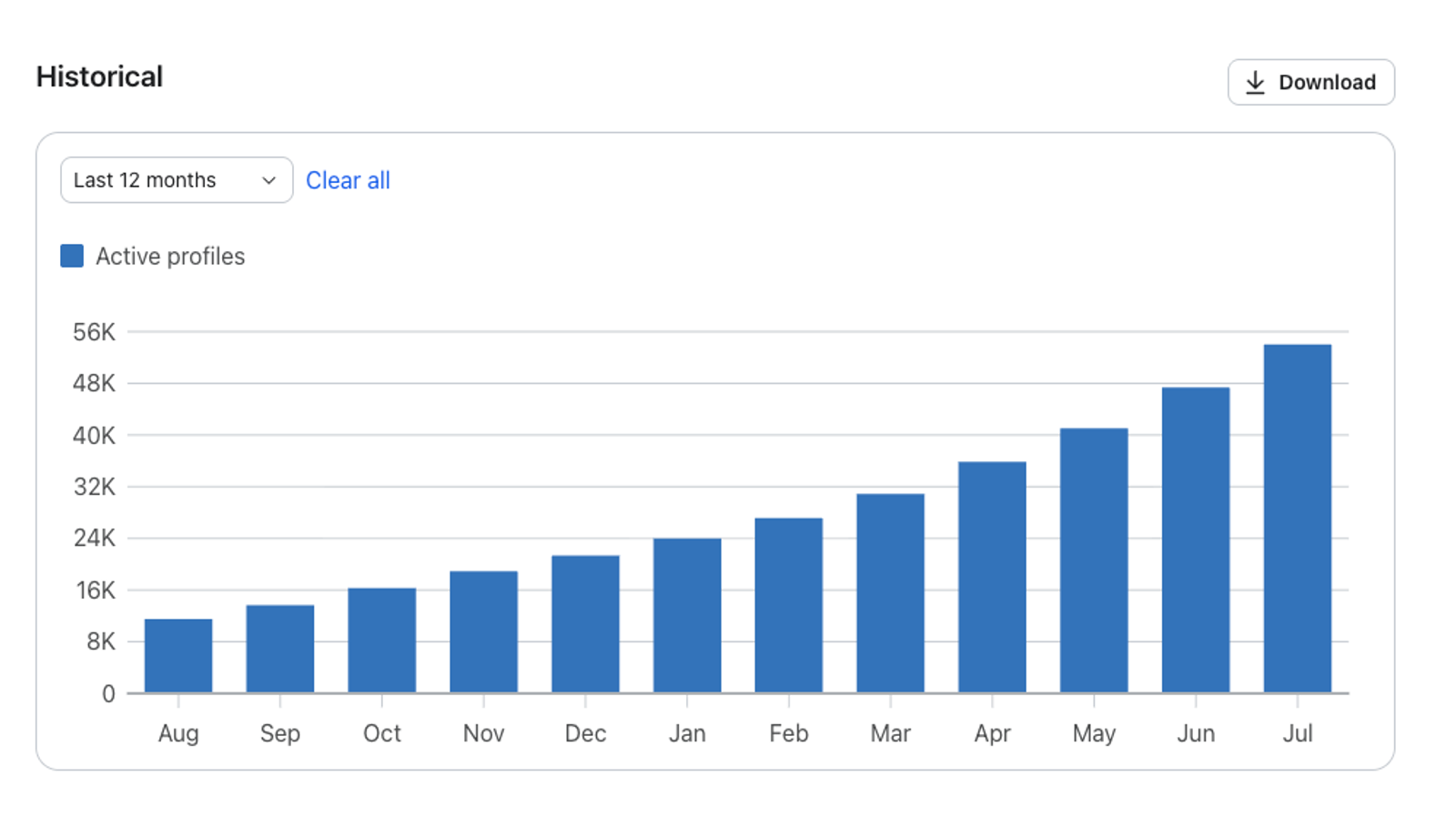
This graph shows how many active profiles you had for email during each usage cycle. Active profiles have an email address and are eligible to receive email through Klaviyo. Profiles suppressed for email and deleted profiles do not count. A profile’s consent or suppression for another channel does not by itself determine this count.
For paid self-serve accounts, your usage cycle matches your billing cycle. If your cycle starts on the 15th, it renews on the 15th of the next month at the same time. Free accounts use the 1st of the month.
Profiles & Emails, Customer Hub, Social Marketing, and Marketing Analytics use active profiles as a meter. Their profile limits can differ. Review the profile usage card shown for your plans and click View for its detail page.
Note: Usage before February 2023 is estimated; usage from that point forward is exact.
Why your active profile count may look out of date after a cleanup
After you suppress, delete, or bulk-remove profiles, there can be a delay before your billing usage reflects the smaller active profile count.
Active profile counts appear in your usage cards and the plan picker. Allow time for a large cleanup to be processed before expecting all of these numbers to update.
What to expect after a cleanup:
- It can take up to 72 hours for your active profile count on Overview to fully reflect a large cleanup.
- If the smaller plans you expect are not yet available, recheck your active profile count and plan options after the cleanup has been processed.
- When you change a paid Profiles & Emails plan, Klaviyo checks that the new plan can cover your active profile count. An option visible in the dropdown can still be rejected if its profile limit is too low.
Check your current count under Billing > Overview, and review plan options under Billing > Change plan.
Email usage
View current and historical email usage
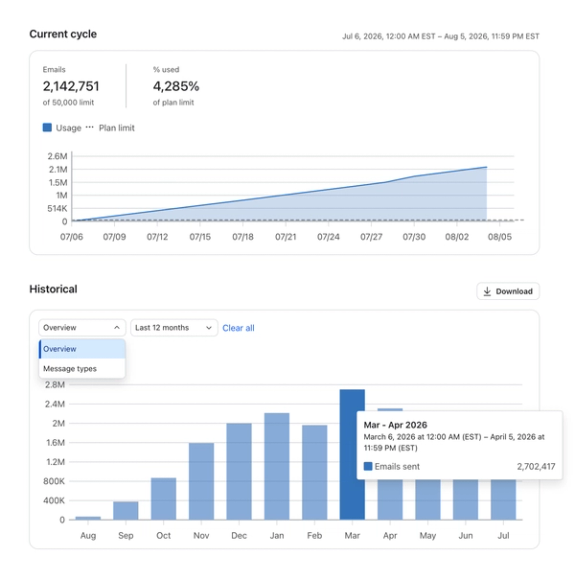
Under email usage, you can check how many total emails you sent in the current and previous billing cycles.
- Total emails sent (under Overview)
- Emails sent via campaigns, flows, conversations, or other sources (under Message types)
Mobile messaging usage
View current and historical mobile usage
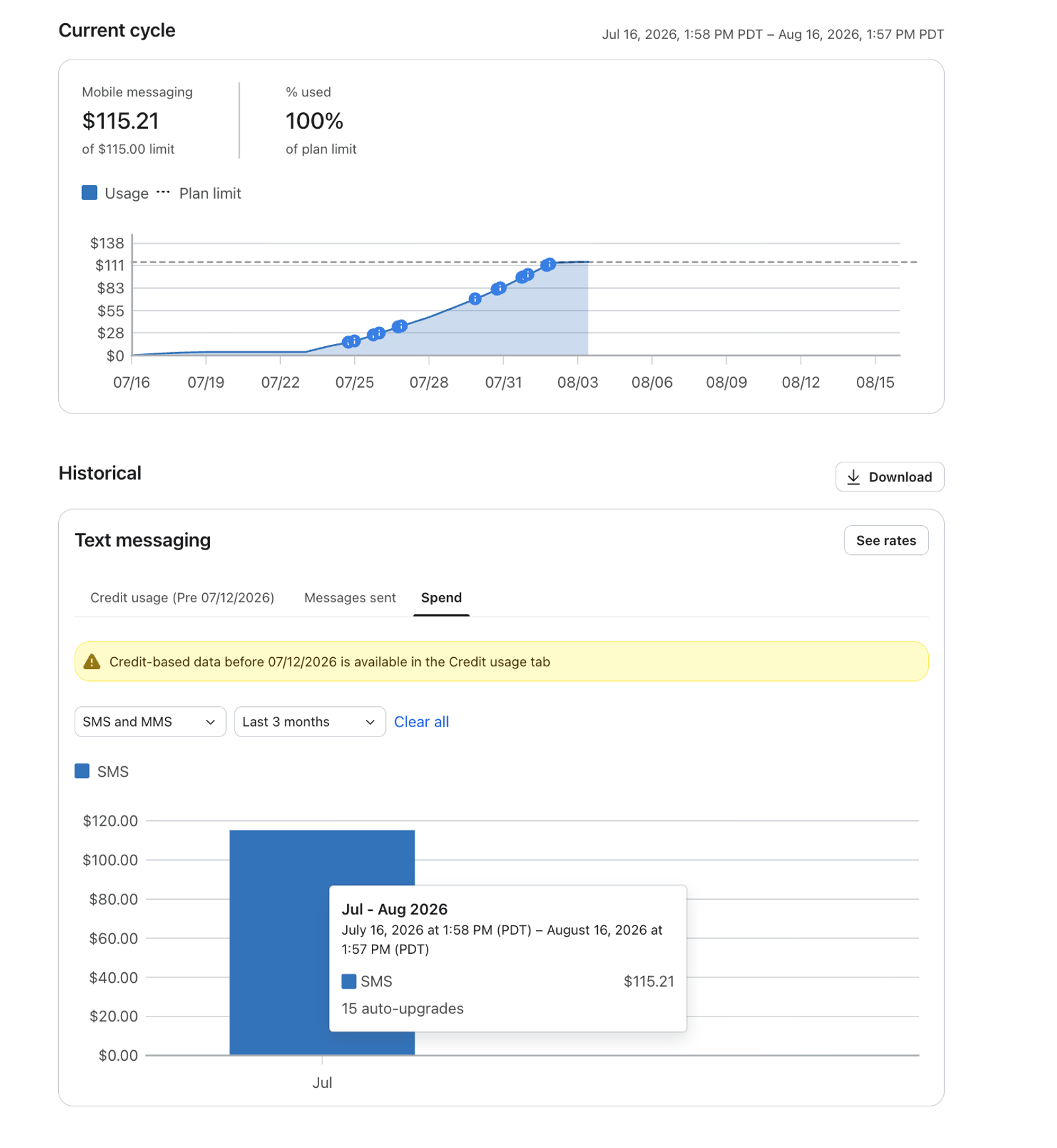
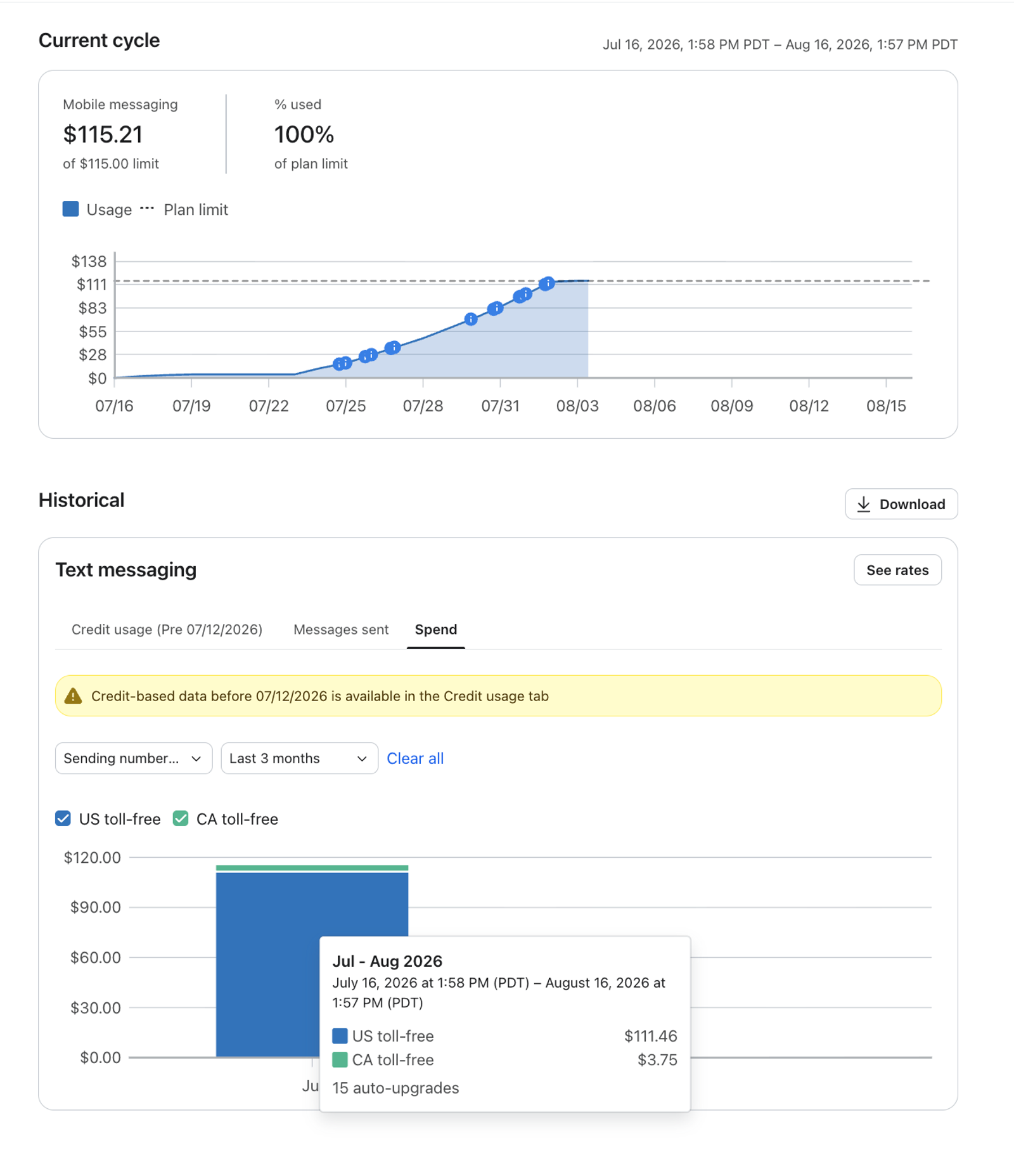
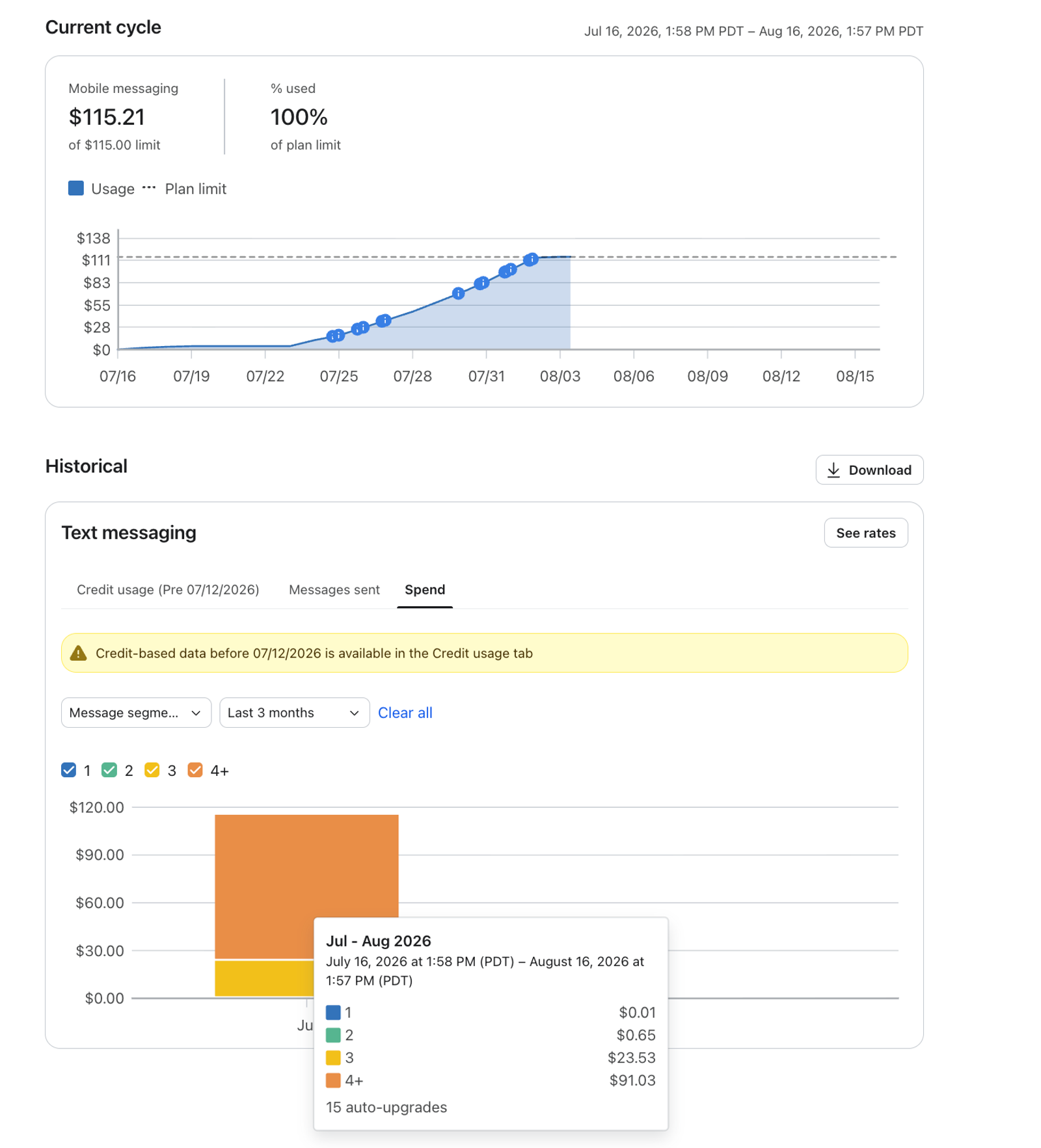
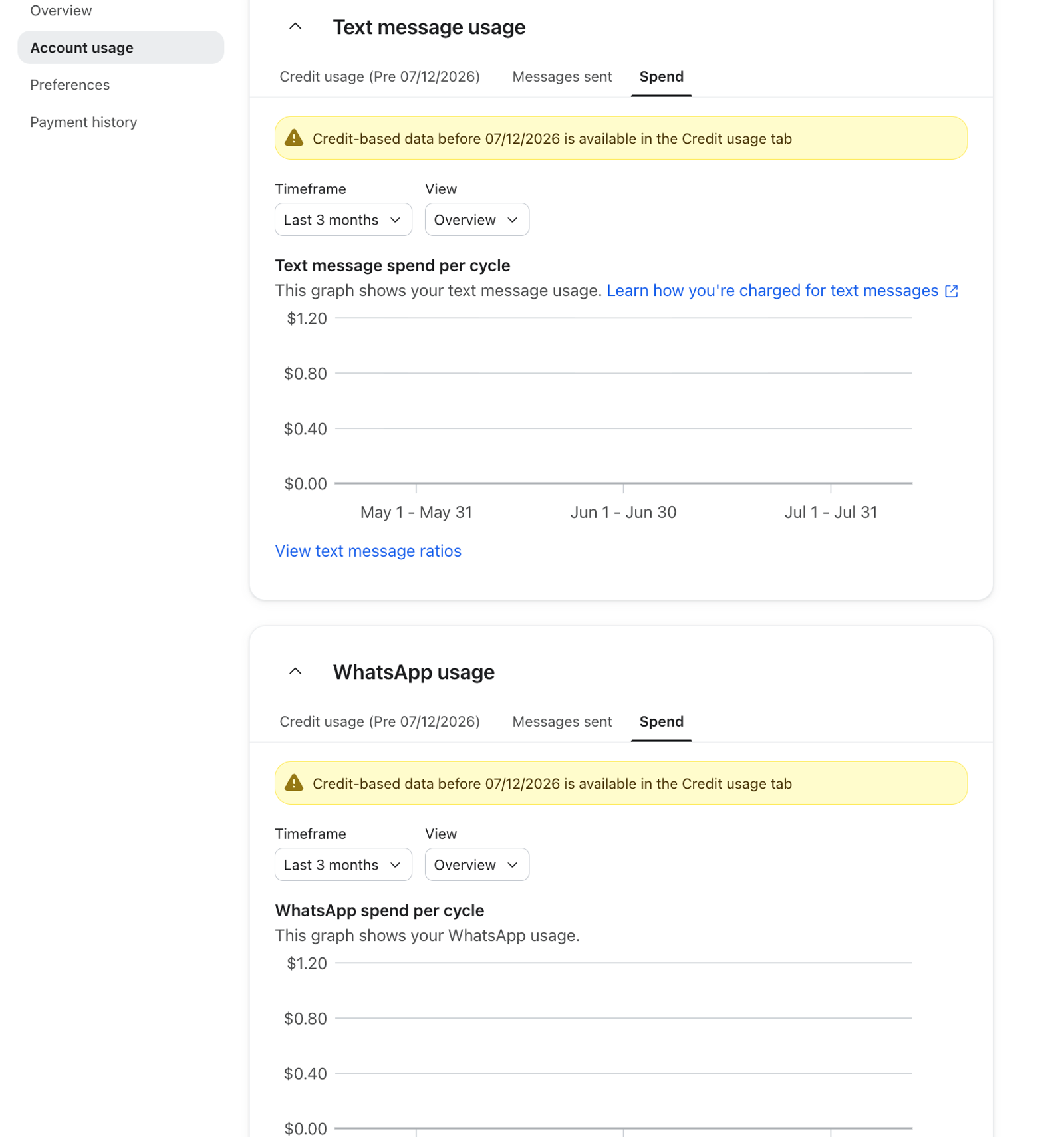
Mobile Messaging has separate historical charts for Text messaging and WhatsApp. The text messaging chart includes SMS, MMS, and RCS where RCS is available.
The WhatsApp graph includes usage for WhatsApp only.
Use the available tabs to choose your usage units:
- Messages sent: number of messages sent during the cycle
- Spend: usage at your rates during the cycle, available for rate-based mobile pricing
Text message filters
On the text messaging chart, select the unit you want to review, then choose a breakdown:
- Total usage in the selected units (under Overview)
- Usage in campaigns versus flows (under Message types)
- Usage by SMS and MMS (under SMS and MMS), or by SMS, MMS, and RCS when available (under Message formats)
- Usage per message segment (under Message segments)
- Usage by country in the selected units (under Countries)
For more information on rates and legacy credits, see Klaviyo’s mobile messaging system.
WhatsApp message filters
The WhatsApp chart offers message counts, credit usage, and spend where rate-based pricing applies. Available breakdowns depend on the selected unit:
- Total WhatsApp usage in the selected units (under Overview)
- WhatsApp usage from campaigns, flows, conversations, and other sources (under Message types)
- Marketing and utility (transactional) usage, with service messages in the message-count view (under Message intent)
- Template and free service message counts (under WhatsApp message types in the Messages sent view)
- Countries the messages were sent to (under Regions)
Note: If you used credits before July 13, 2026, you can review that history in the credit view. For accounts that have transitioned to rate-based mobile pricing, the credit tab can show Credit usage (Pre [transition date]) so you can distinguish earlier credit usage from later spend. The actual date is specific to your account. Learn more about the mobile messaging pricing update.
Composer usage
View current and historical Composer usage
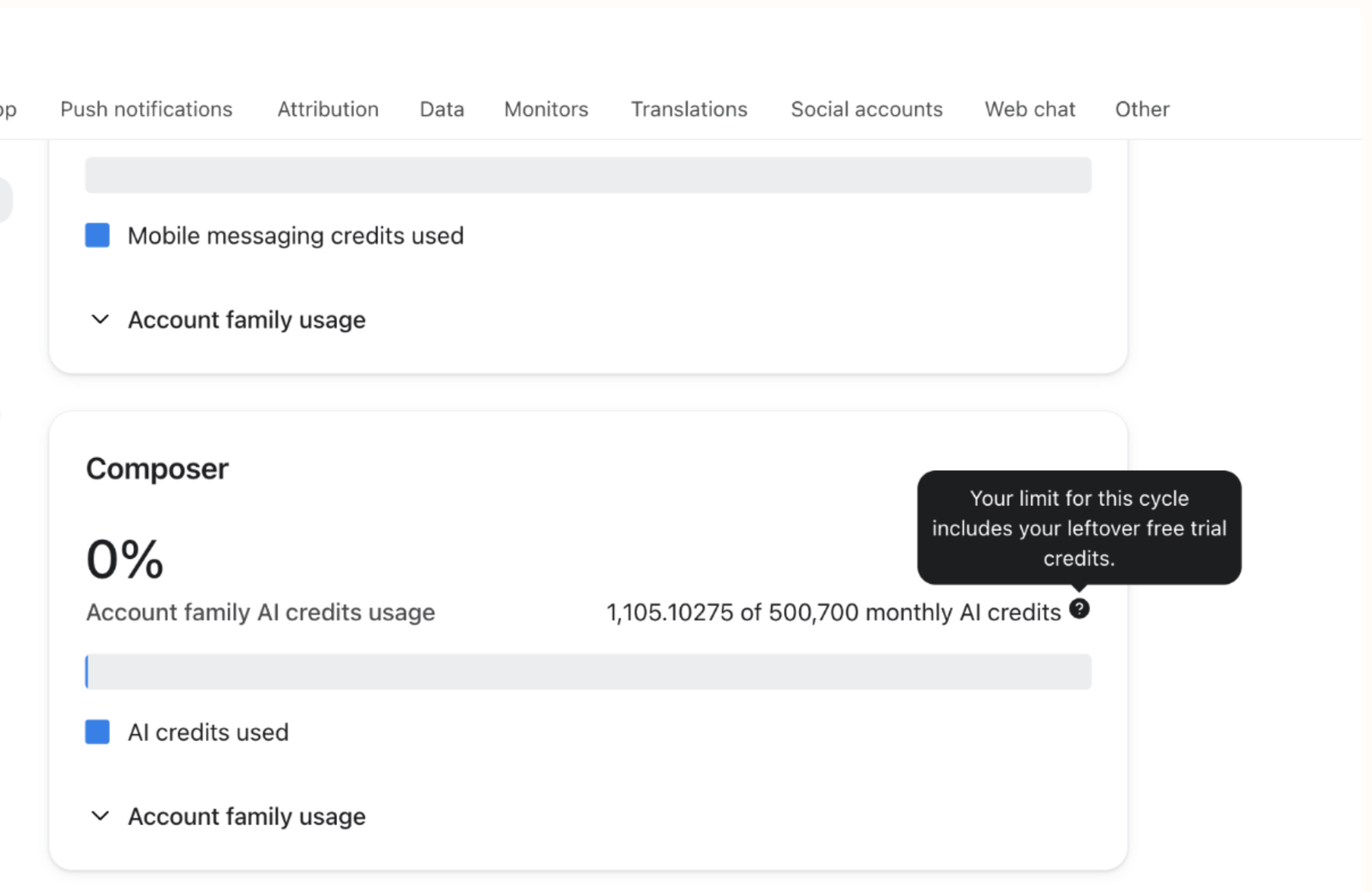
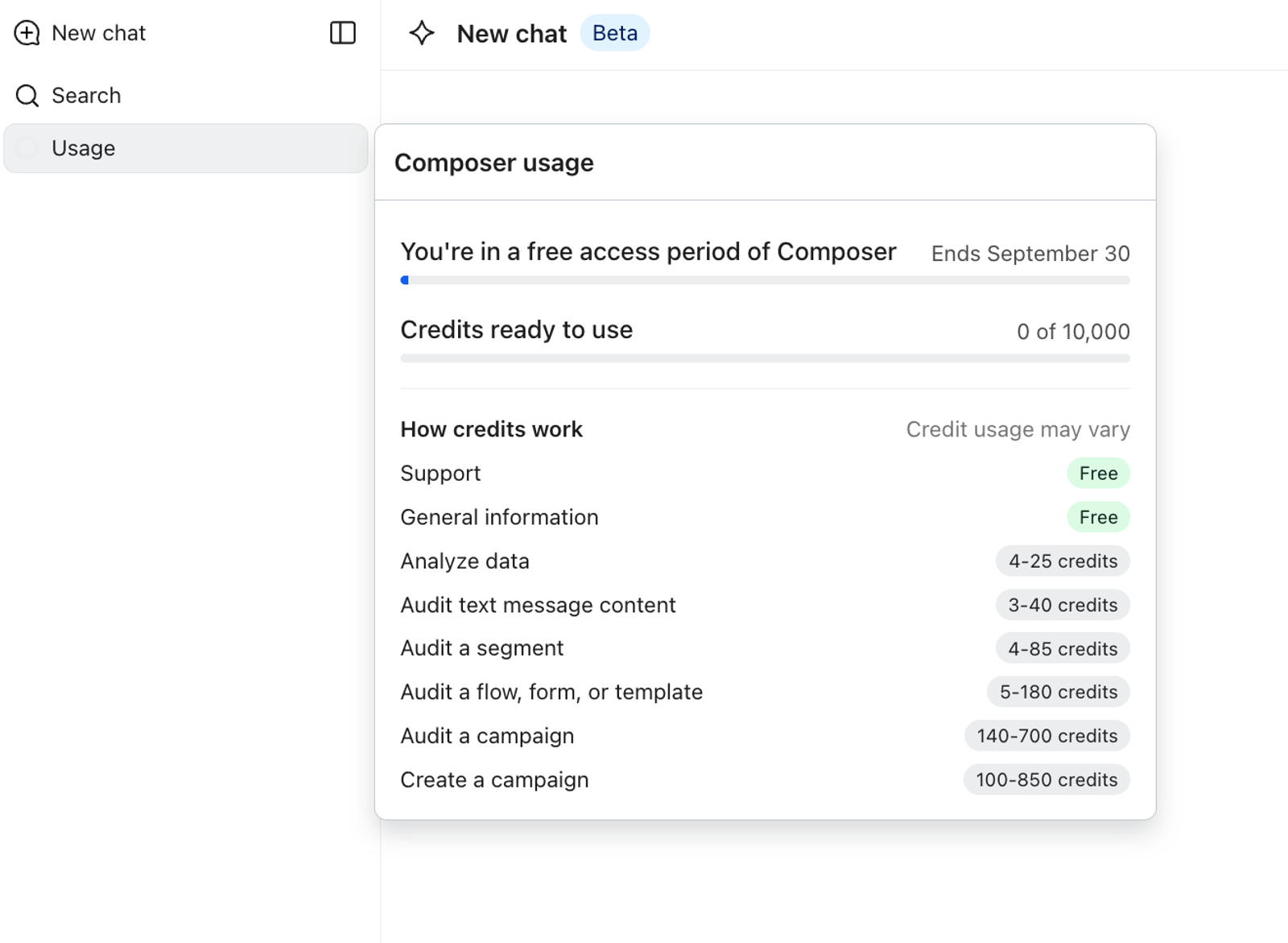
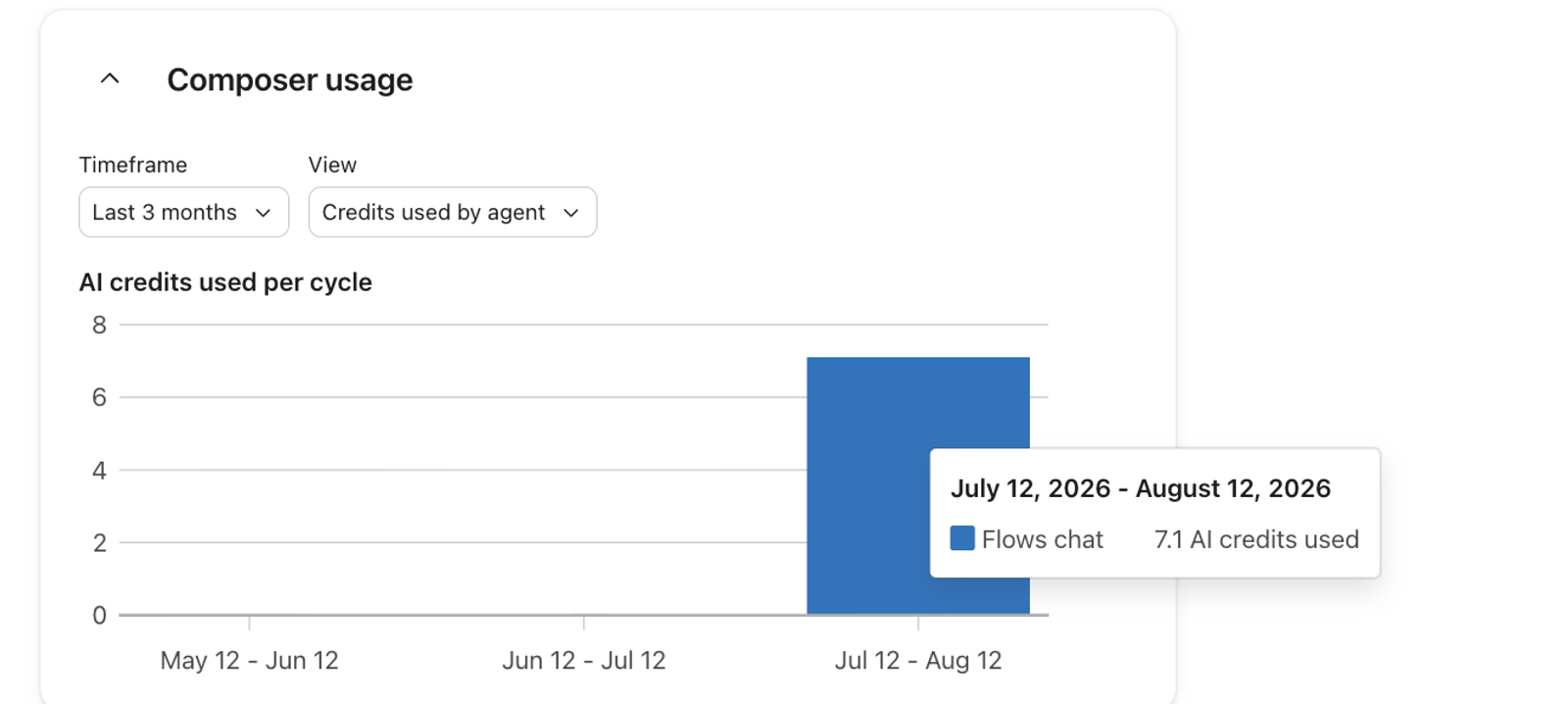
Composer plans are based on the number of AI credits you’ve used within a billing cycle. In the Composer usage section, you can see how many AI credits were used over the past 3, 6, or 12 billing cycles.
In the card layout, click View on the Composer card under Billing > Overview and find Historical. In classic billing, find Composer on Account usage. Select Credits used by agent in the chart’s breakdown selector to see credits used by each agent.
In Composer, hover over the usage card to review your current credit usage. Click the card to open Composer’s billing usage page, or Account usage if you have classic billing.
If you have credits left during your free access period of Composer, you will see them here. If you have purchased Composer, these credits will reflect the availability of the plan you’ve paid for and will reset monthly.
Reviews usage
View current and historical Reviews usage
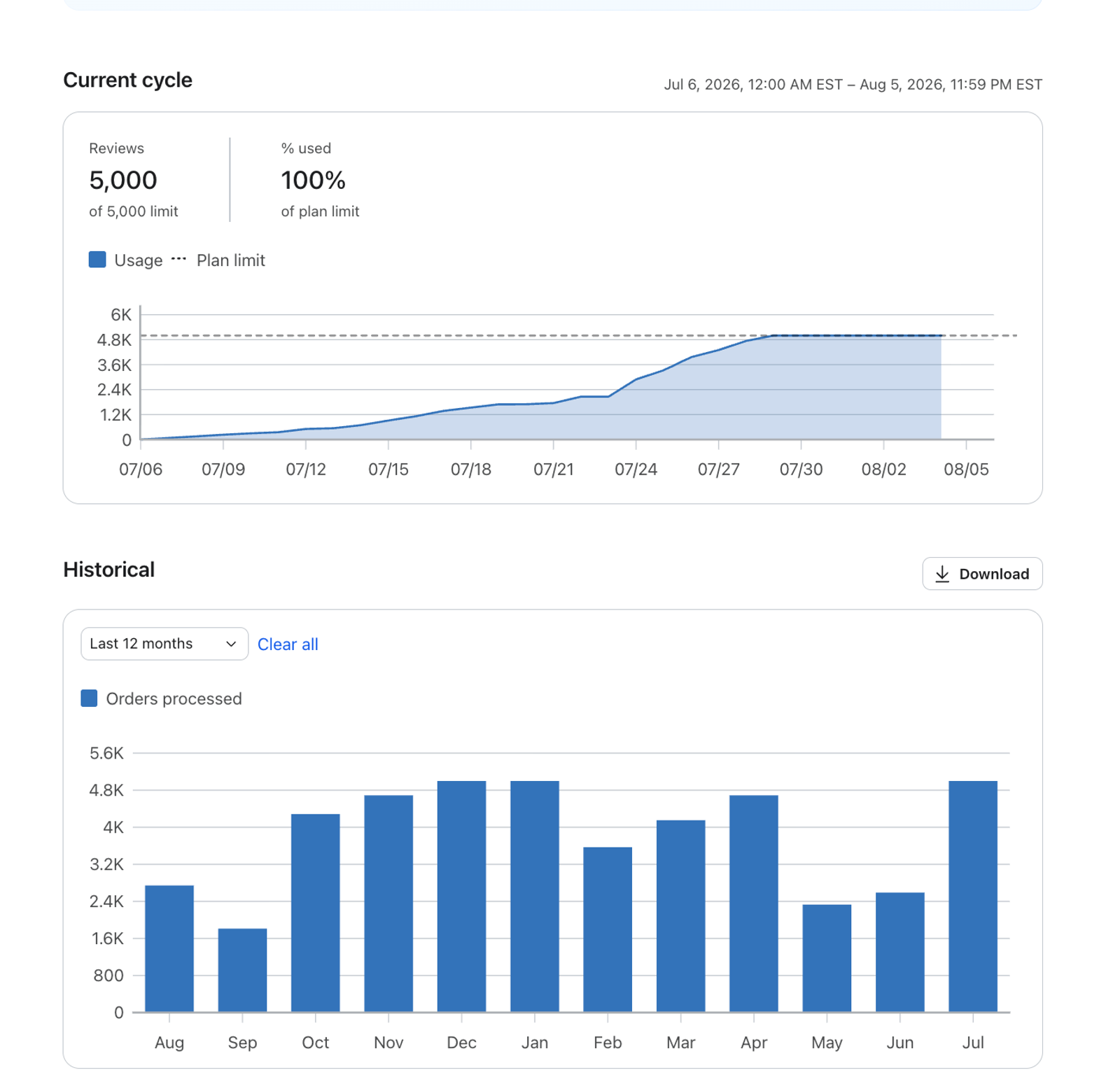
Reviews are metered on Orders. Review plans are based on the number of orders placed within a billing cycle. In the Reviews usage section, you can see how many orders were placed over the past 3, 6, or 12 billing cycles.
Advanced Klaviyo Data Platform usage
View current and historical AKDP usage
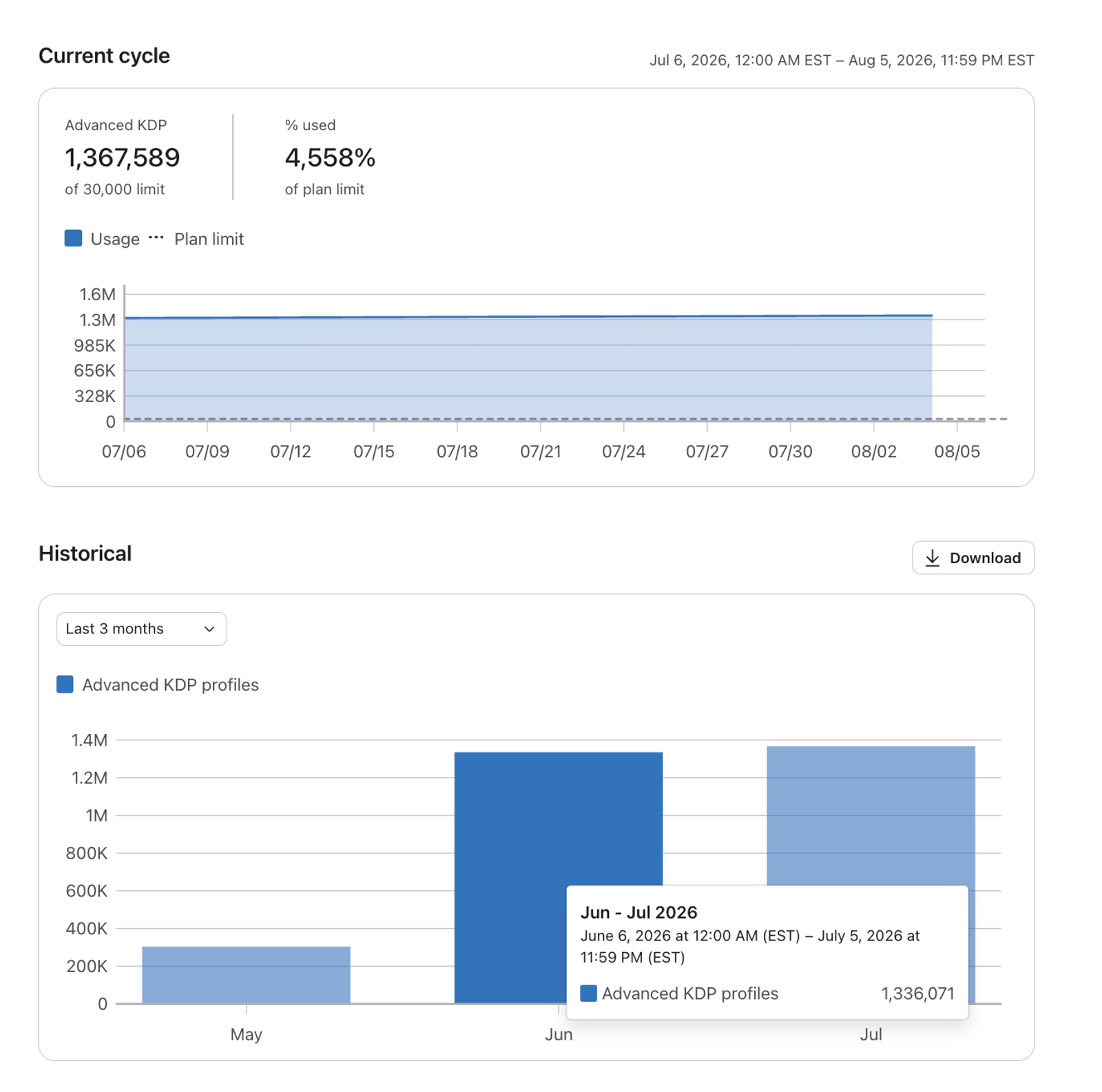
Advanced Klaviyo Data Platform (AKDP) is metered on Total Profiles.
This graph shows your total profile usage for Advanced KDP over the past 3, 6, or 12 billing cycles. Advanced KDP uses the highest total profile count recorded during a cycle, so removing profiles does not lower the usage already recorded for that cycle.
Customer Hub usage
Customer Hub is metered on active profiles. Review the active profile usage shown for your plans on Overview, then click View for its detail page.
Helpdesk usage
View current and historical Helpdesk usage
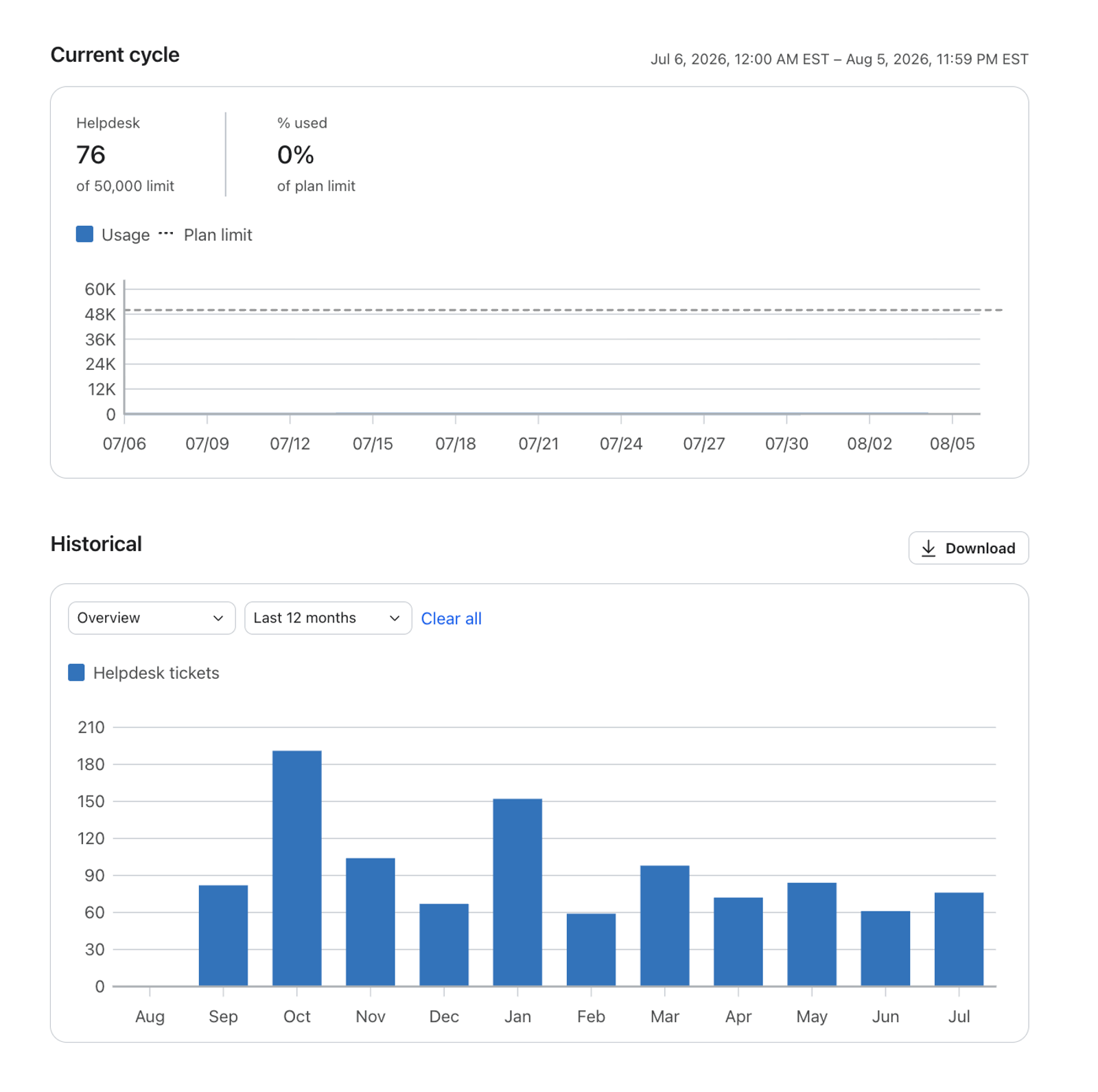
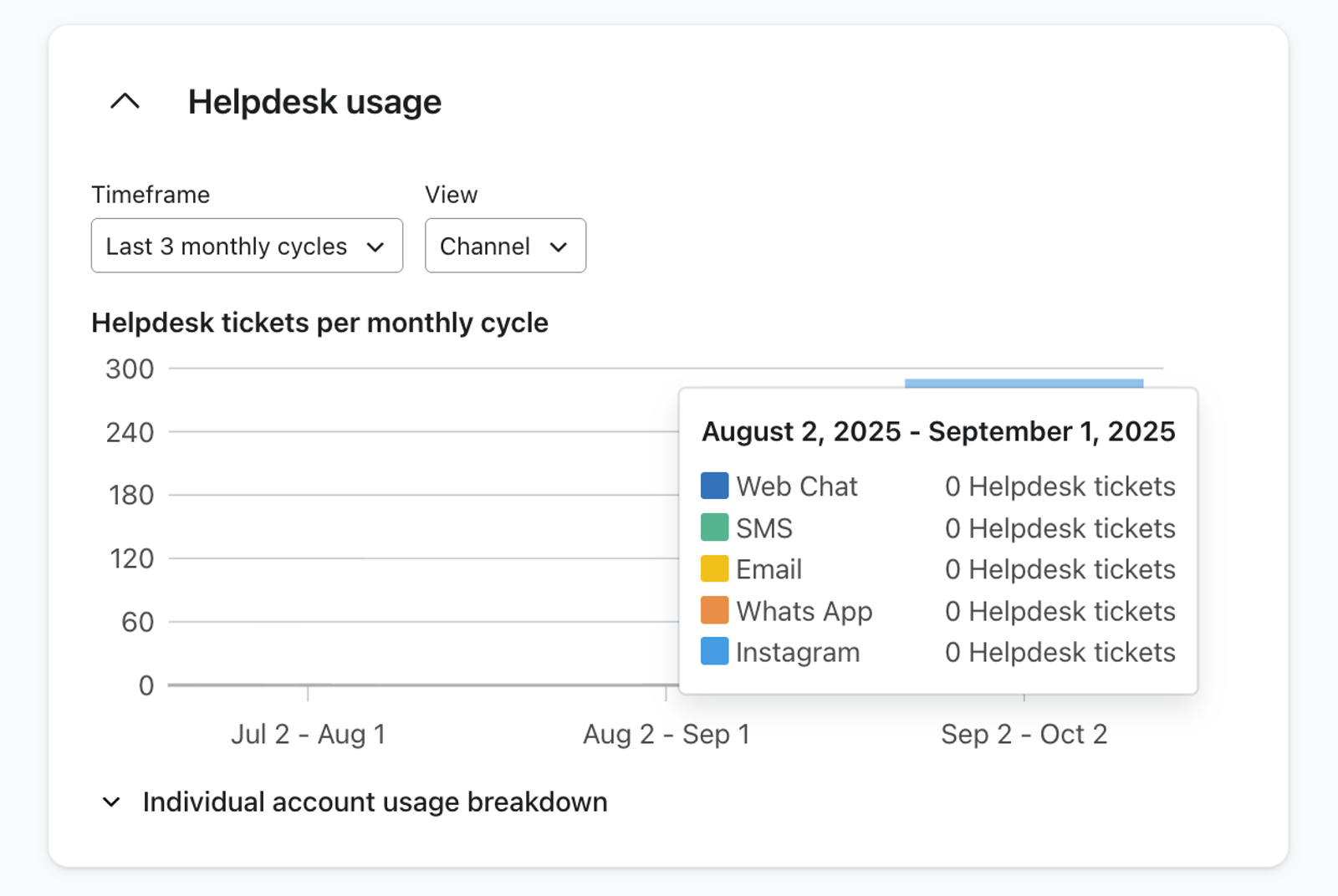
This graph shows the number of Helpdesk tickets that have been opened per billing cycle. You can review the total count over the past 3, 6, or 12 billing cycles.
You can also view a channel breakdown of where your tickets have originated.
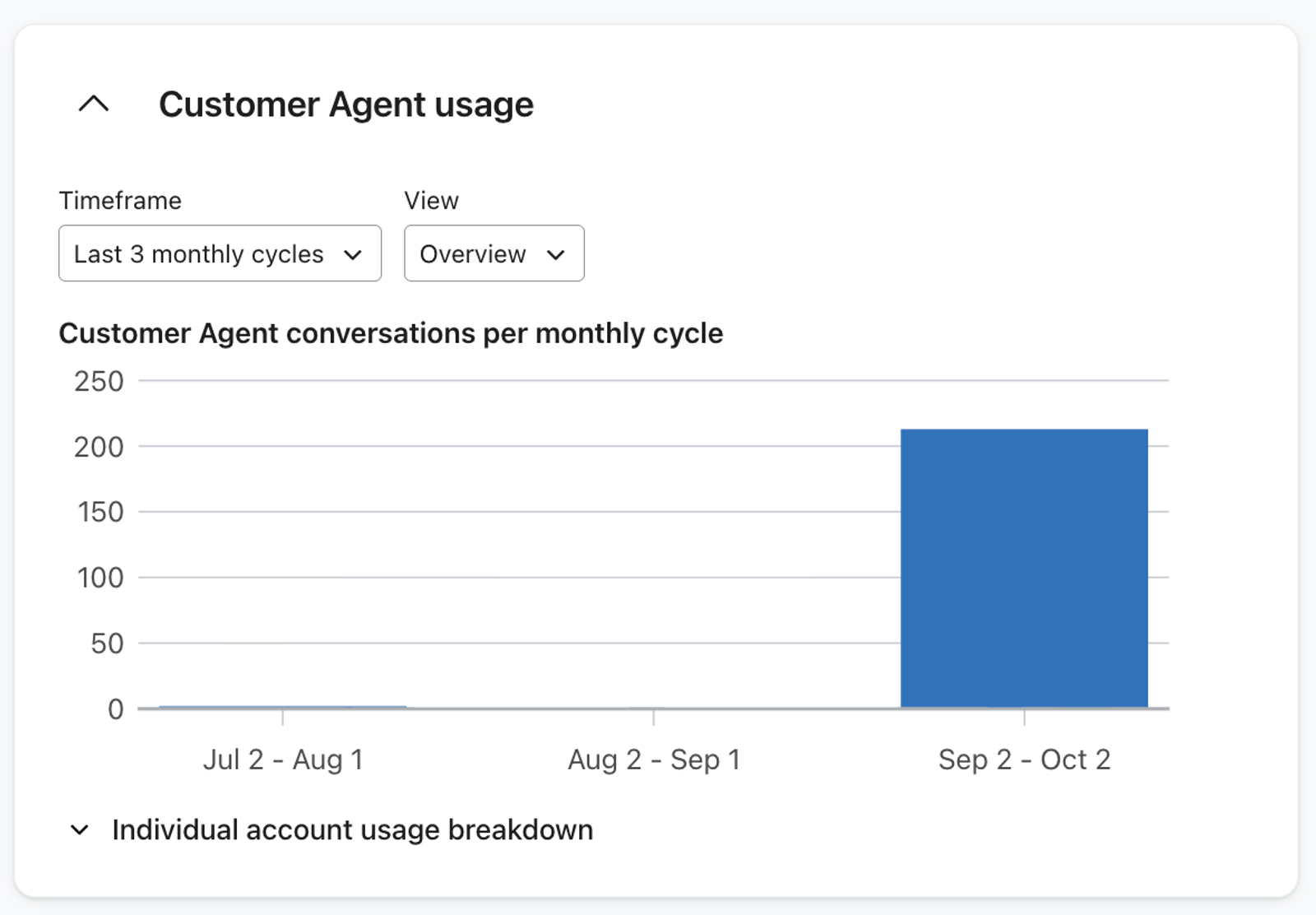
Customer Agent usage
View current and historical Customer Agent usage
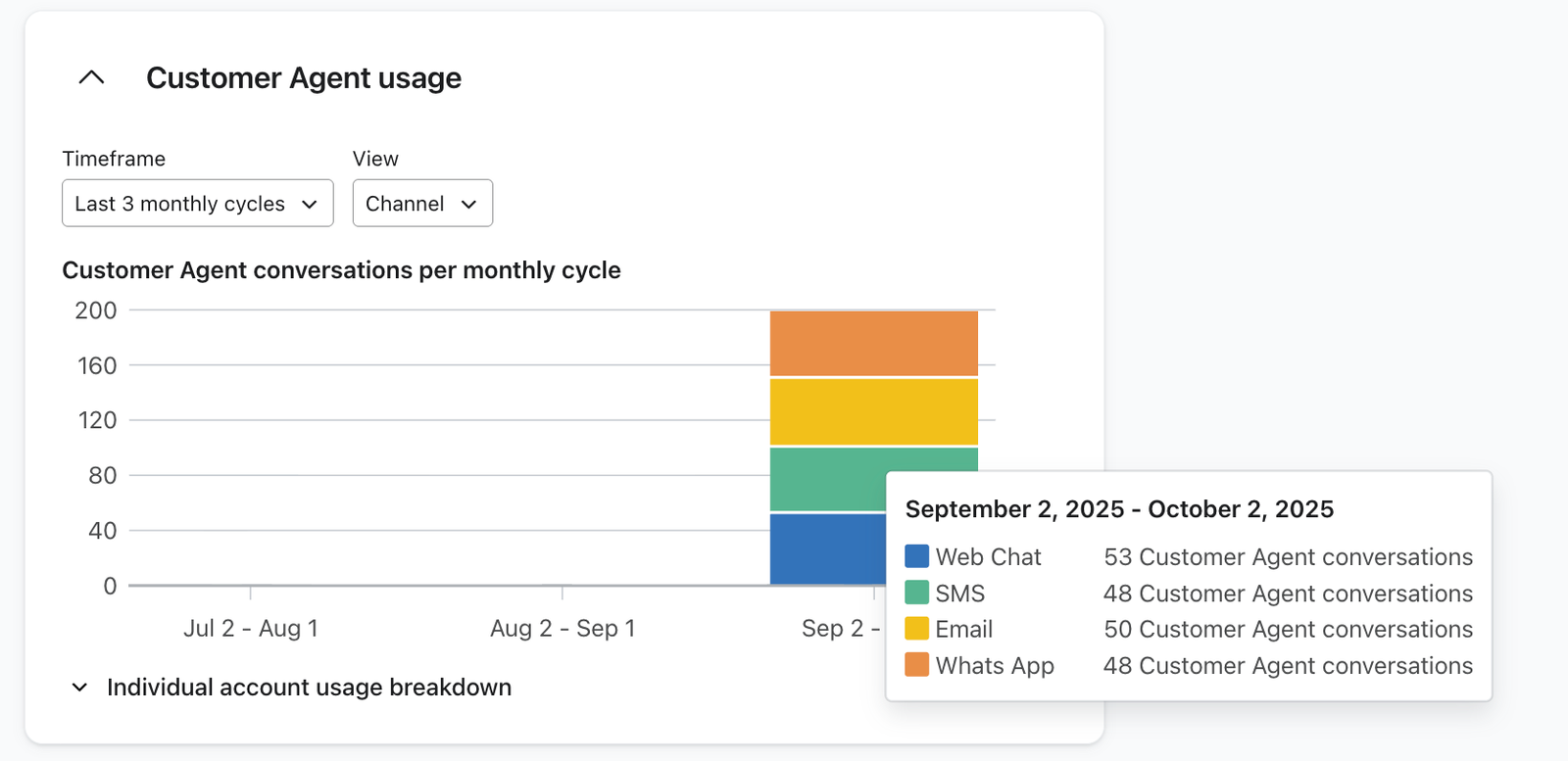
This graph shows the number of Customer agent conversations that have been resolved per billing cycle. You can review the total count over the past 3, 6, or 12 billing cycles.
You can also filter your graph to show a channel breakdown of where conversations have originated.
Klaviyo Social usage
Klaviyo Social Marketing is metered on active profiles. Review the active profile usage shown for your plans on Overview, then click View for its detail page.
Download your account usage
For a more detailed report of past account usage, choose Raw CSV for CSV data or Google Sheets (Formatted) for a formatted spreadsheet export.
If the download button on your classic Account usage page downloads a CSV immediately, your export is complete. The modal and notification steps below apply when a report modal opens.
- Click Download beside the Historical heading on a product’s detail page. In classic billing, use the download button on Account usage.

- Choose Export Type, Date range, and Columns in the modal. If you use shared billing, also choose the available Account Types option for the accounts you want in the report.
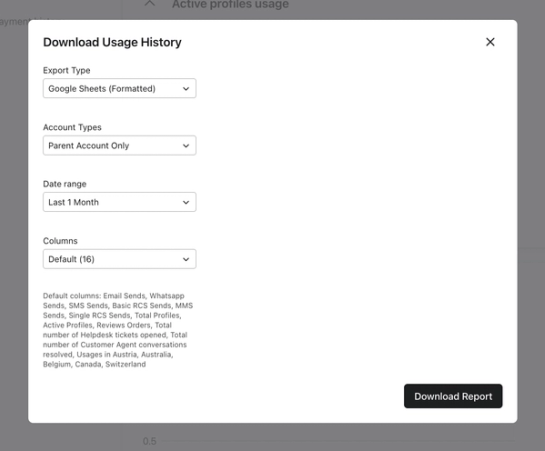
- Click Download Report to request the report.
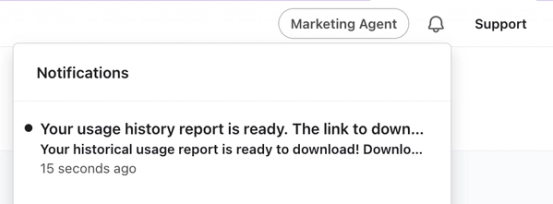
- Open your Klaviyo in-app notifications in the upper right. When the report is ready, click Download here in its notification to get the file. The download link expires in 7 days.
Additional resources
- How Klaviyo billing works
Learn how Klaviyo bills customers for Profiles and Emails, Mobile Messaging, Reviews, Advanced Klaviyo Data Platform (formerly “CDP”), Marketing Analytics, Customer Hub, Helpdesk, and Customer Agent.
- Understand Klaviyo's mobile messaging system
Learn about Klaviyo’s billing system for text messages, such as why countries and channels have different credit values and what’s included in these credits.
- How to add or change a plan in Klaviyo
Learn how to manually upgrade or downgrade your Klaviyo billing plan.
- Understanding manual billing
Learn about manual billing (also called “contract billing”) with Klaviyo.