How to create a multilingual WhatsApp campaign using Smart Translations
Learn how to create a multilingual WhatsApp campaign in Klaviyo using Smart Translations. This feature helps you automatically translate and send your WhatsApp message in each recipient’s preferred language.
With Smart Translations, you can reach global audiences in multiple languages without creating separate campaigns for each one.
Smart Translations is also available for email, SMS, and push campaigns.
Before you begin
Smart Translations is available for paid Klaviyo accounts.
Before you translate a campaign, set up Smart Translations for your account.
In your translation settings, select the profile property that stores your recipients’ preferred language, then click Save. Klaviyo uses Locale by default.
Before submitting templates or sending messages, connect your WhatsApp Business account to Klaviyo.
If you haven't already, learn the basics of how to create a WhatsApp template. This article mainly covers translation features for campaigns.
Create a multilingual WhatsApp campaign
Meta must approve each WhatsApp template and each of its translations before you can send them. Finish editing your message in its original language before you translate it. If you edit the original content after you translate it, you need to update the translations and wait for Meta to approve them again.
- Create a WhatsApp campaign or edit an existing draft WhatsApp campaign.
- On the Recipients step of the campaign wizard, make sure to add lists or segments to your campaign’s audience that you know have multiple language preferences.
- On the Message step, create a new template or select an existing one.
- If you selected an existing template, click Manage template > Edit template. In the template editor, write the message you want to send to customers. You can add an image, links, buttons, rich text, or multiple cards.
- Click Translate in the upper right corner of the editor.
If the template already has translations, the button shows the number of translations instead. Click it to open them and continue with “Review and submit translations” below. If the Edit template confirmation appears, click Edit to continue. Your changes need Meta approval again.

Set up translations
- Under Written in, select the original language of your message. This defaults to your account language.
- From the Additional languages dropdown, select the languages you want to translate your campaign into.
- Review the Default language for recipients whose preferred language is unknown or unavailable. Select your original language or one of your additional languages.
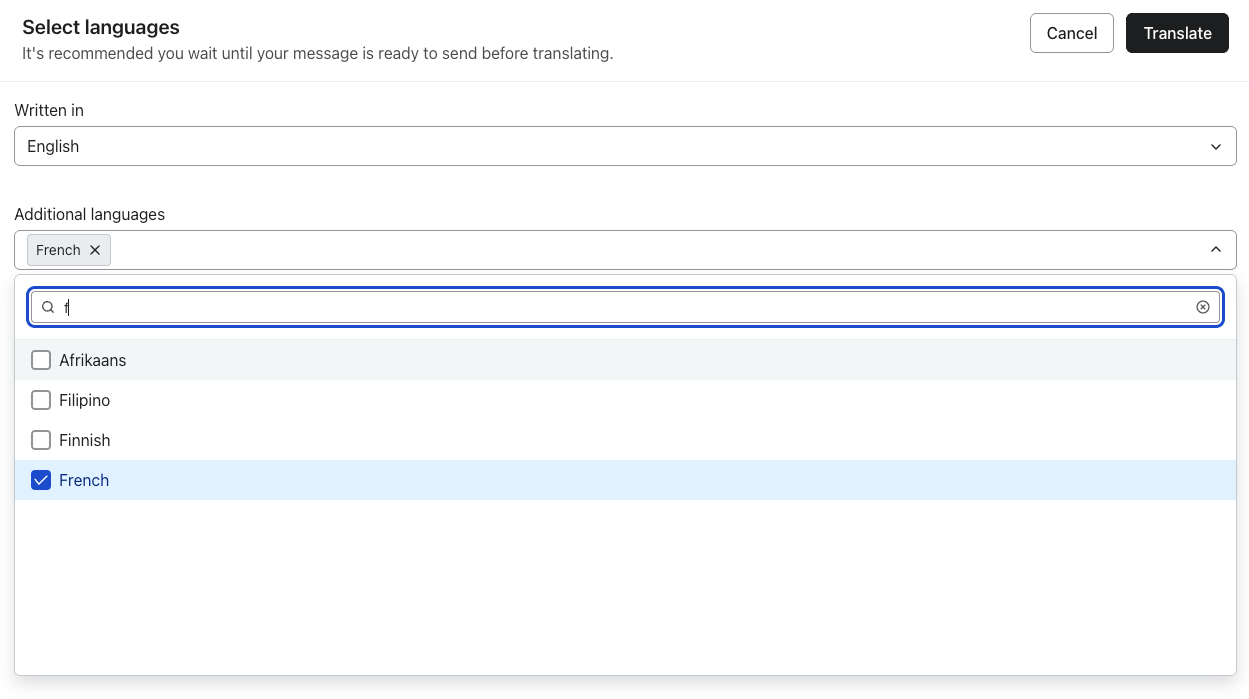
- Click Translate.
Review and submit translations
- Review the translated WhatsApp message for the selected language. You can manually edit the text if needed. You can also click the edit button next to a listed image to change it to one appropriate for the selected language.
- Click the edit button next to the message text to see the full message. Use the back arrow to return to the list of translated elements.
- If you selected multiple languages to translate into, click the arrows at the top or use the dropdown to switch between languages.
- To add or remove languages or change the default language, click Manage languages, make your changes, and click Save.
- Once you’re done, click Done to return to the template editor.
- Click Submit for review, review the submission details, then click Submit.
You cannot edit a translation’s content while Meta reviews that language version. Once the review is complete, you can edit it and submit your changes for review again.
Review and send the campaign
Only approved, available language versions can be sent. If a recipient’s preferred version is unavailable or unapproved, Klaviyo uses the Default language, then the original language if the default version is also unavailable. If none of these versions can be sent, the message is not sent to that recipient.
- Return to the campaign’s Review step and check the approval status of each language. To send recipients their preferred versions, wait until the versions you plan to use are approved. Resolve any errors shown before scheduling.
- Click Schedule or send, select Send now or set a send date and time, then click Send now or Schedule message to confirm.
Editing original content after translating
If you edit the original content of the message after you translate it, a warning appears at the top of the editor. It tells you that your edits affect the translations.
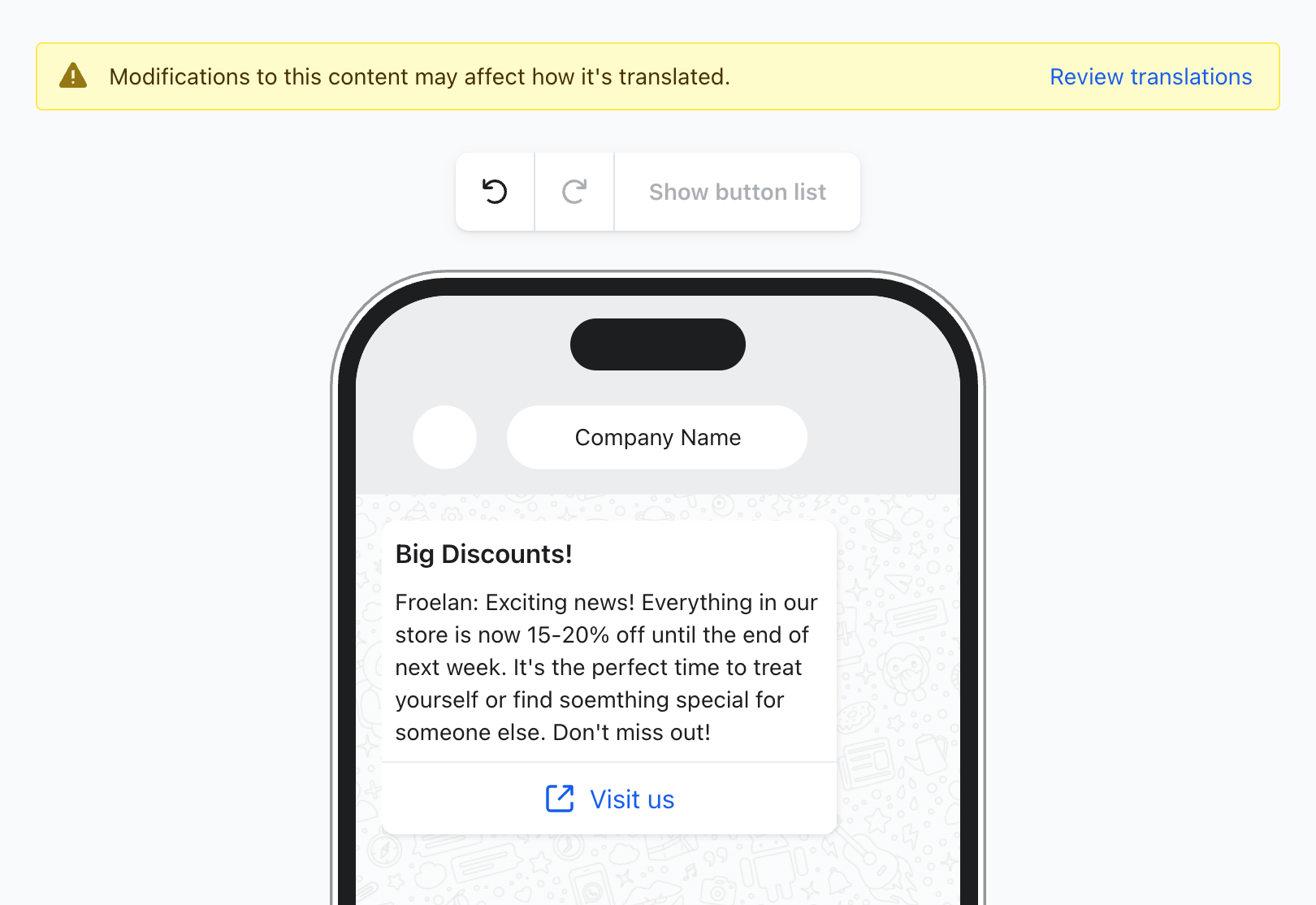
To correct any potential translation errors:
- Click Review translations next to the warning message.
- To update all out-of-sync elements highlighted in yellow for the selected language, click Update translations. To handle individual elements instead, use the options in the next step.
- To update an individual element, open its 3-dot menu. The available options depend on the element:
- Re-translate - translate any changed text.
- Match source - match image or URL to the original source.
- Edit - manually modify the element.
- Ignore - keep element as is.
- Switch languages and repeat for any other translations affected by your edits.
- Click Done to return to the template editor, then click Submit for review and Submit to send the changes to Meta. Check the language approval statuses before sending your campaign.
Translations for cloned messages
If you clone a WhatsApp campaign within the same account, the new campaign uses the same template and translations as the original. Changes to that template or its translations also affect other campaigns and flows using it. To make independent changes, create or select a separate template for the cloned campaign and translate that template. Learn how to clone a campaign.
Best practices
- Keep messages concise. The WhatsApp message body has a 1,024-character limit, including in translated versions.
- Avoid slang or idiomatic expressions that may not translate clearly.
- Always double-check punctuation and line breaks in translated versions.
- Use consistent formatting across all language versions.