How to clone forms, flows, segments, campaigns, and templates
You will learn
Learn how to clone forms, flows, segments, campaigns, and templates. When cloning, you can either clone to the same account or another account(s).
Before you begin
You must have the appropriate user permissions both in the account you’re cloning from and the account(s) you’re cloning to. For instance, say you’re an Admin in accounts A and B, but an Analyst in account C. In this case, you can clone a flow from account A to B (or vice versa), but cannot clone a flow to or from account C.
You can create a clone in up to 100 other accounts at once.
Before cloning a campaign to another account, set up all the channels used by that campaign in the destination account. Accounts missing a required channel cannot be selected.
Back-in-stock forms can only be cloned to another account that does not already have a back-in-stock form.
What changes when you clone
Cloning allows you to copy a form, flow, segment, campaign, or template.
In the same account, cloning copies the content and settings. Cloned forms, flow actions, and campaign messages start as drafts. Review the copy before publishing the form, setting flow actions live, or scheduling campaign messages.
When cloning to another account, some information may be left out in the transfer. This is because the 2 accounts may have different channels, metrics, list names, etc. You can match details such as metrics and lists during cloning. Other settings, such as campaign recipients, must be set in the destination copy afterward.
When cloning to another account, review these content differences:
- Universal content is copied into email templates but is no longer linked to the original universal content.
- Selected products and product feeds are cleared from email product blocks. Configure these blocks in the destination account, and review other dynamic content, such as personalization properties and web feeds.
- Coupon blocks are removed from email templates, and coupon settings are cleared from forms. Set up coupons again in the destination copy.
- Review quote blocks are cleared if Klaviyo Reviews is set up in the destination account. If it is not set up, the blocks are removed.
Price drop flows can be cloned to accounts that meet the price drop flow requirements.
Any time you’re cloning flows, you cannot change the trigger type (e.g., you can’t turn a metric-triggered into a list-triggered flow). You can, however, change which metric, list, segment, or date triggers the flow (e.g., Placed order instead of Order confirmed).
Segments using advanced operators (i.e., event operators beyond "equals" and "includes any of") or multiple where clauses can be cloned across accounts. Review and fix their conditions for each destination account.
Segments with custom object conditions can only be cloned within the same account. Selecting Clone opens the segment builder directly. Review the name and conditions, then click Clone segment.
How to clone
The process of cloning is almost exactly the same for segments, flows, forms, campaigns, and templates. Cloning flows and campaigns requires additional details to be selected (e.g., send date, trigger).
- Click the 3 vertical dots to the right of the form, flow, segment, campaign, or template that you want to copy.
- Select Clone.
- If an account choice appears, choose either:
- Clone to this account for forms, flows, segments, and templates, or Clone to the current account for campaigns (the account you are in)
- Clone to multiple accounts for forms, flows, segments, and templates, or Clone to other account for campaigns (other accounts where you have the appropriate permissions)
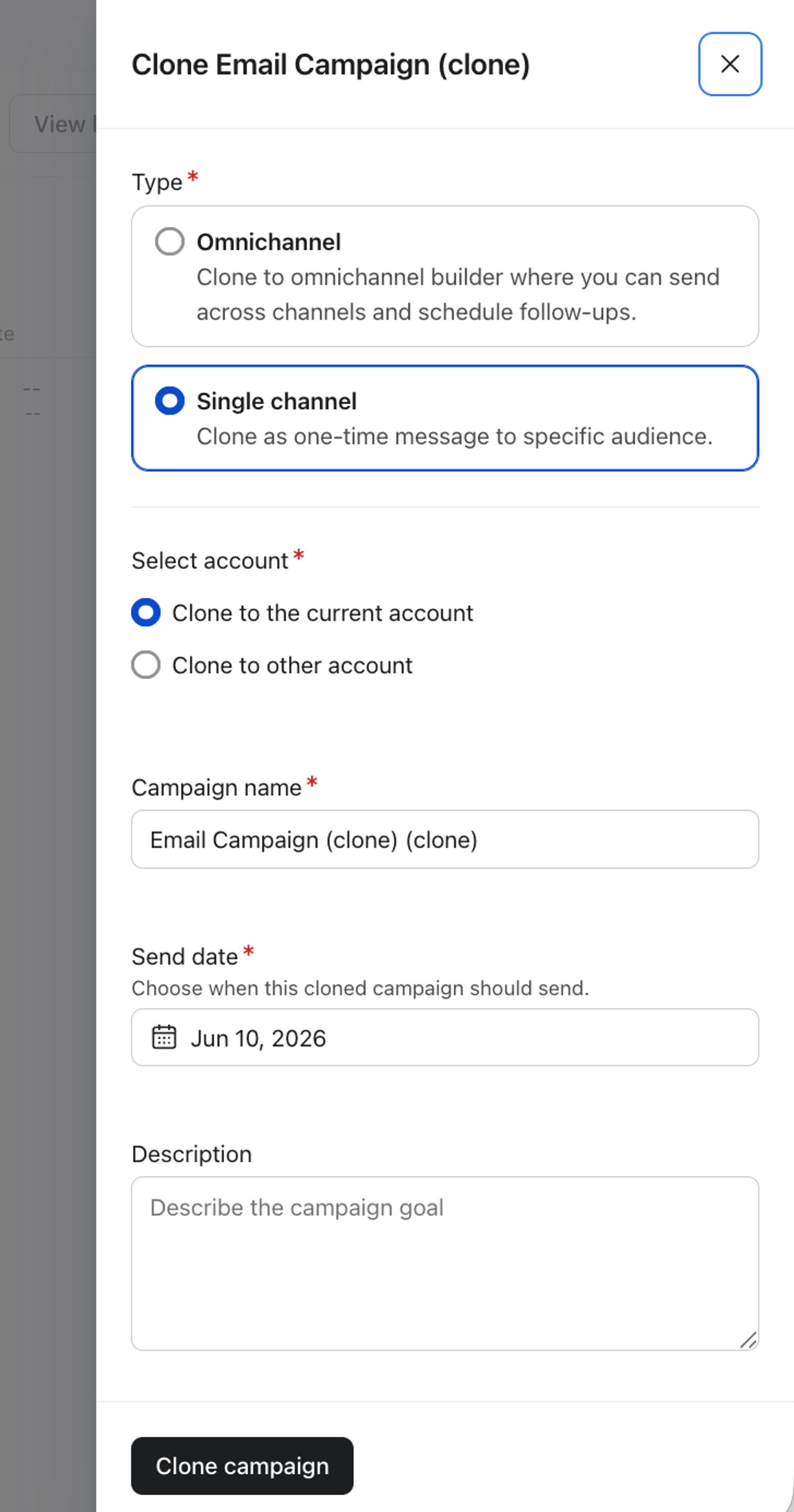
Clone to the current account
If cloning within the same account, all you need to do is:
- Name the cloned object and select additional details if applicable.
- Select send date for cloned campaign.
- If you are cloning a single-channel campaign, you will see an additional option to convert to omnichannel campaign. If selected, the cloned campaign will open in the omnichannel canvas.
- Click Clone campaign for campaigns, or Continue for forms, flows, segments, and templates.
- For flows, select the trigger if a choice is shown, then click Clone flow.
- For segments, review the name and conditions in the segment builder, then click Clone segment.
You can find the clone under the name you chose in the current account.
Clone to other account(s)
- Click Continue for forms, flows, segments, and templates, or Clone campaign for campaigns, to open account selection.
- To clone to another account, search for and then check the account(s) you’d like to copy to. You can select up to 100 accounts.
Note: you must have the appropriate user permission in the accounts you are transferring to and from.
If an account is unavailable, resolve the issue shown before selecting it. If it shows Requires log in, log in to that account, then return to the cloning tab and refresh.
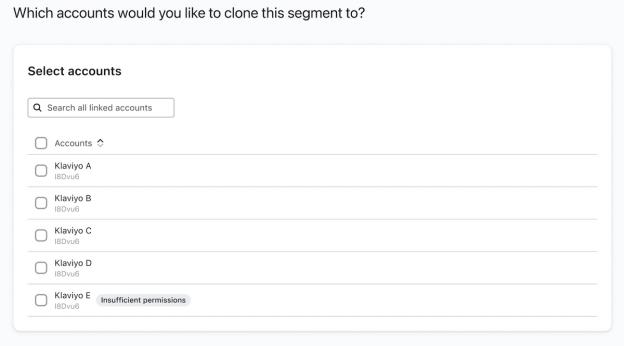
- Click Next.
- Optional: edit the name of the clone for each account. For campaigns, select the Start date of first message for each account. Subsequent messages keep the same time intervals.
- Select Next.
- For forms, flows, and segments, review and fix the destination details, such as lists, metrics, and segment conditions, then click Next to reach the final review. Campaigns and templates go directly to the final review after naming.
Review the final cloning details and warnings. Use the checklist below during setup and when reviewing the destination copy; campaign recipients, UTM tracking parameters, and tags need to be set or reviewed after cloning.
Forms | Segments | Flows | Campaigns | Templates |
Destination list | List names | Metric, list, segment, date property | Recipients (set lists or segments after cloning) | Links |
Targeting settings (optional) | Date ranges | Any filters (trigger, flow, or additional) | Channels (must be set up before cloning) | |
Age-gating block (if needed) | Profile properties | Any profile or event properties | UTM tracking parameters (review after cloning) | |
SMS settings (if needed) | Custom metrics | Tags (add after cloning) |
- Click Distribute form for forms, Clone flow for flows, Clone template for templates, or Submit for segments and campaigns.
The cloning process may take several minutes. You can view the progress in the loading window, or if you navigate away, a bell icon will alert you when the clone is complete.
Note that if there are any errors with the destination account, a clone will not be created. For instance, if there is an error in a segment condition for one of the destination accounts, a clone of the segment will not be created in that account.
Open the copy in each destination account and finish the settings and content checks above before publishing the form, setting flow actions live, or scheduling campaign messages.
Additional resources
- How to create and manage multiple accounts
Learn about multi-accounts in Klaviyo, which allow you to access and switch between different accounts with a single login. This is particularly helpful for brands that have multiple websites (e.g., for different countries) or have several brands under a single parent company.
- Basics: multinational SMS sending with Klaviyo
Learn tips for using Klaviyo to send SMS in multiple different countries.
- Getting started with omnichannel campaigns
Learn how to create and send an omnichannel campaign, which is a campaign that contains multiple messages across one or more channels.
- Getting started with portfolios
Learn about portfolios in Klaviyo, including what they are, who should use them, and how to set them up.