How to update Klaviyo after switching ecommerce platforms
You will learn
Learn about the areas of Klaviyo that need to be updated when you switch from one ecommerce platform to another. It is completely possible to switch ecommerce platforms while keeping the same Klaviyo account, but there are some important steps to keep in mind to ensure that your sign-up forms, flows, and other Klaviyo features continue to perform as expected.
1. Migrate historical data
Between ecommerce platforms
Before integrating a new ecommerce platform with Klaviyo, make sure you've migrated the historical purchase data you need from your old ecommerce platform to your new ecommerce platform. After integrating, confirm that this history has synced to Klaviyo under the new platform's metrics. Metrics from different integrations remain separate, so update your flows and segments to use the new metrics. Keep references to the old metrics wherever you still need history that hasn't synced through the new integration.
From your ecommerce platform to Klaviyo
If you need to add historical purchase data directly to Klaviyo from a previous ecommerce platform that Klaviyo doesn't have a prebuilt integration for, you can follow these steps to manually add event data to Klaviyo.
2. Integrate with your new platform
For each of our built-in ecommerce integrations, we have corresponding documentation. After finding the appropriate instructions for your new platform, you can integrate and new metrics will begin to populate in your account.
- Shift4Shop (formerly 3dcart)
- BigCommerce
- Magento 2
- OpenCart
- PrestaShop
- Salesforce Commerce Cloud
- Shopify
- Spree
- Volusion
- Wix
- WooCommerce
If your new ecommerce platform isn't listed above, go to Integrations and select Explore apps to search for it in the app marketplace. If no integration is available, use a custom integration instead.
3. Confirm new data is syncing to Klaviyo
After you integrate your new platform, you will be able to view your metrics from 2 different stores by clicking the Analytics dropdown and selecting Metrics. This includes metrics like Placed Order and Checkout Started.
Use the integration icon to distinguish metrics with the same name. Open a metric from your new platform and select Activity feed to check recent events, their timestamps, and their details. Compare these with activity in your new store to confirm that data is syncing.
You may wish to delete the legacy metrics from your old platform, but deleting a metric also removes its historical event data from your account and disables flows triggered by it. Only do this after confirming that you no longer need that metric or its history, including in segments and flows. If you migrated the data to your new platform, first verify that the history you need is available under the new metrics in Klaviyo.
4. Set up onsite tracking
Be sure to follow all the integration instructions listed in the respective documents, including enabling Active on Site and Viewed Product tracking (known together as "onsite tracking") on your new site.
5. Update sign-up forms
Update your ecommerce platform's sign-up forms to make sure they are syncing to a Klaviyo list. With many ecommerce integrations, this is done through a setting when you enable the integration. You can also replace your platform's sign-up forms with Klaviyo sign-up forms.
If you already use Klaviyo sign-up forms, review any URL targeting rules for changes to your domain or page paths. Test the forms on your new site and confirm that subscribers reach the intended list.
6. Clone and update flows
You will likely have metric triggered flows in your account that need to be connected to the new metrics. While you cannot change a flow trigger directly, you can clone the flow and select a new trigger for the correct metric.
Review the trigger and profile filters in each cloned flow. Update references to the old platform's metrics and check any event properties used in the filters against the new platform's data. Keep old-platform conditions where you still need purchase history that isn't available under the new metrics.
If you don't clone your metric triggered flows, no new contacts who take the trigger action will be queued up, since no more data will be flowing into Klaviyo from your legacy platform.
Any ecommerce metric triggered flow templates must also be updated if they include dynamic data. For example, the template tags used in your abandoned cart flow for Platform A will be different from the template tags used for Platform B. These flows include:
- Abandoned cart
- Post-purchase
- New customer thank you
- Repeat customer thank you
- Product review / cross sell
Cloned flow actions start in Draft. Keep messages in Draft or Manual while updating them so they do not send automatically during migration. Learn how to set flow statuses.
To reuse dynamic blocks or sections from a pre-built flow for your new platform:
- Navigate to Flows and click Create flow to open the flow library.
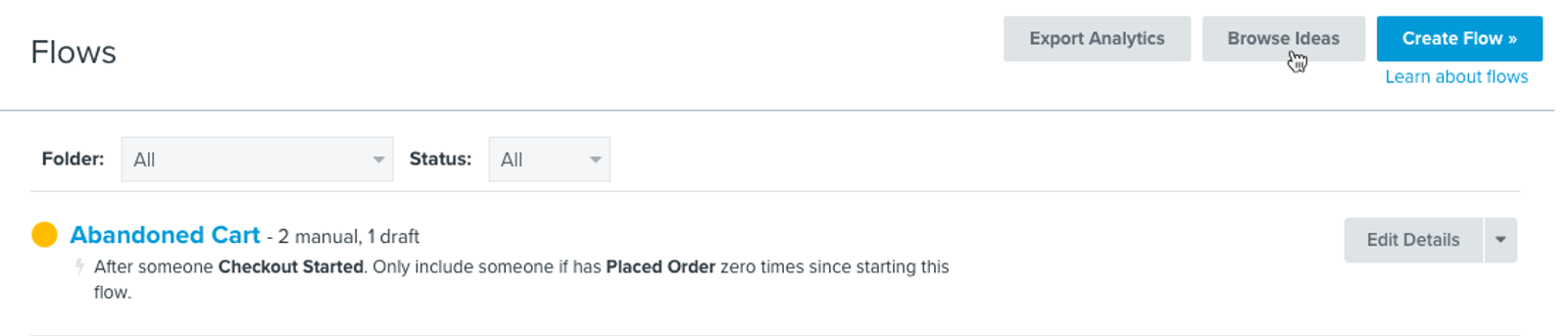
- Select a flow template for your new ecommerce platform. For example, if you are migrating to Platform B, choose the template for Platform B. Enter a name, select a trigger if prompted, and click Use template.
- Open the relevant email in the template editor. Hover over the dynamic block or section you want to reuse and click the star icon labeled Save as universal content. Name the content and click Create. Learn more about saving and reusing content.
- Open the corresponding email in your cloned flow and replace the old dynamic content with the saved block or section from the Universal tab. This saves you the time of redesigning your existing flow templates from scratch.
Preview the updated messages and check their dynamic content and links. Once you have completed the migration and checked the flows, click Review and turn on or Update status in the flow builder. Select Live, keep Update status now selected, and click Save.
7. Confirm welcome series setup
Klaviyo's ecommerce integrations are not set up to exclude purchasers who subscribe at checkout from entering a welcome flow. If you want to exclude purchasers from your welcome messages, add a profile filter for the new platform's Placed Order metric: zero times over all time. If purchase history remains only under your old platform's metric, add the same condition for that metric with AND so purchasers from either platform are excluded.
8. Update segments
Review segments with conditions that use your old platform's metrics. You can edit an existing segment using Update definition, select the new metrics, and click Update segment. If you want to keep the original segment, clone the segment and edit the copy instead. Retain conditions for the old metrics wherever you still need history that is not available under the new metrics.
9. Disable your old integration
Once you have completely stopped using your legacy platform, select Integrations and open the old integration. Click Manage integration > Disable integration, then click Disable integration in the confirmation dialog. This pauses future syncing while keeping the settings and data already in Klaviyo.
Outcome
You've now updated Klaviyo after switching ecommerce platforms.