Getting started with Shopify
You will learn
Learn how to integrate Klaviyo with Shopify in order to bring your customer profile and order data into Klaviyo and reach customers with targeted messaging. Additionally, enable Klaviyo onsite tracking and sign-up forms, and sync data from Klaviyo to Shopify.
Before you begin
If you are migrating from another ESP that is currently integrated with your Shopify store, make sure to disconnect your prior ESP from Shopify before integrating Shopify with Klaviyo. Failure to disconnect your old integration could result in double opt-in emails sending to your existing subscriber list.
Video help
Learn how to integrate with Shopify using our step-by-step video!
How to integrate
- In Klaviyo, select the Integrations tab.
- Click Explore apps.
- Search for Shopify and click the card, then click Install.
- Paste the URL of your Shopify store in the box. Make sure that it is in the format mystore.myshopify.com.
- Review Sync data from Shopify and Sync data to Shopify before connecting. If email subscriber syncing is selected, choose a list or clear that setting. Choosing All profiles for outbound syncing creates customers in Shopify for Klaviyo profiles that do not already exist there, including profiles from imports and other integrations. Choose Profiles that already exist in Shopify if you only want to update existing customers. You can adjust these settings after connecting.
- Click Connect to Shopify. This will take you to your Shopify account. You may be prompted to log in to Shopify.
- After being brought into Shopify, review the permissions and click Install app to be redirected to Klaviyo.
- Confirm that the correct Klaviyo account and Shopify store are shown, then click Integrate. This connects your store and returns you to the integration settings page.
- Under Sync settings, select From Shopify to configure subscriber and Shopify Markets syncing.
- Check the Sync your Shopify email subscribers to Klaviyo box to automatically add customers who accept email marketing at checkout, or sign up to any Shopify sign-up form, to the list you select from the dropdown.
- As a best practice for collecting consent, you should customize the Accepts marketing checkbox label in Shopify within your checkout settings.
- If you selected the prior setting: Select a list to add email subscribers to from the dropdown. We recommend selecting your main email list that triggers your welcome series.
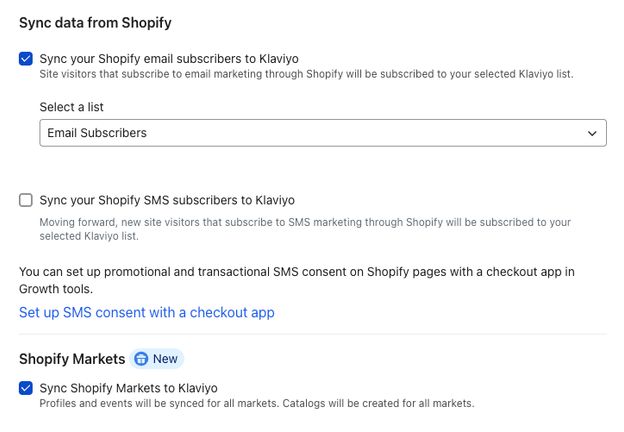
- Set up text messaging in Klaviyo before selecting this setting. Check the Sync your Shopify Text Message subscribers to Klaviyo box to automatically add all future customers who accept SMS marketing in Shopify (including at checkout and in Shopify sign-up forms) to the list you select from the dropdown. You can return to configure this setting later. Note that consent will only sync to Klaviyo if the person is subscribing to SMS in Shopify for the first time. To add historical SMS subscribers, follow the steps in How to add historical Shopify SMS subscribers to your list.
- If you selected the prior setting: Select a list to add SMS subscribers to from the dropdown. We recommend using separate lists for email and SMS subscribers.
- If you use Shopify Markets and the option is available, select Sync Shopify Markets to Klaviyo to sync your international market catalogs. This requires the latest version of Shopify Markets, and Markets syncing can only be enabled for your store in 1 Klaviyo account at a time.
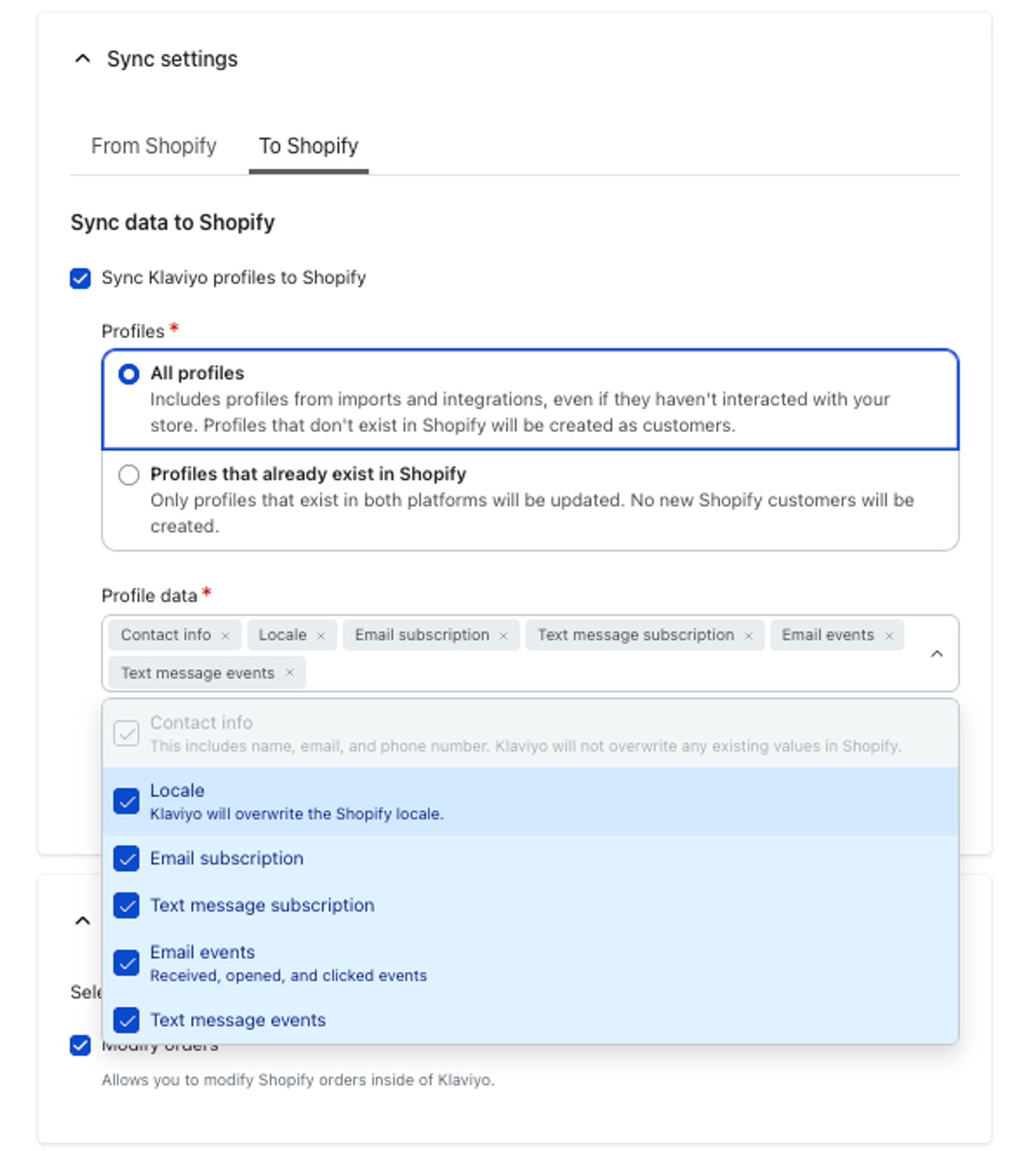
- Select the To Shopify tab, then select Sync Klaviyo profiles to Shopify if you want to sync data from Klaviyo. We recommend syncing all profiles and all types of data to Shopify. If you select this setting, do the following:
- Under Profiles, choose All profiles or Profiles that already exist in Shopify.
If you choose all profiles, Klaviyo will create new customers in Shopify for all profiles (existing and new) created in Klaviyo. This includes profiles synced from other Klaviyo integrations, or added through list imports, even if they have not interacted with your Shopify store.
- Under Profile data, choose what to sync: Contact info (name, email address, and phone number), Locale, Email subscription, Text message subscription, Email events, and Text message events. Include Contact info, Locale, or a subscription option. Event options alone are not enough. Contact info is required when you sync All profiles. Text message subscriptions and events sync after text messaging is set up.
- Contact info does not overwrite existing values in Shopify. Locale can overwrite the customer’s existing locale in Shopify.
- If you do not have any custom properties yet, you can select Sync all custom properties to sync new properties as they are added. If you already have custom properties, save your integration settings first, then select the properties as described below.
- After configuring your settings, click Update Settings. Complete any authorization prompts, then click Update Integration when you return to Klaviyo.
- Check the Historical data section to see the progress of your initial data sync.
Sync custom properties
- To sync existing custom properties, open Sync settings > To Shopify. Under Custom properties, click Select properties, or Edit properties if properties are already selected.
- Add the properties you want to sync to Selected properties, then click Save.
- Confirm by clicking Sync property or Sync properties, depending on how many you selected.
It is not recommended to update custom profile properties in Klaviyo that were synced via Shopify (such as Shopify tags), since these will be overwritten the next time your integration syncs.
Enable onsite tracking
Next, you’ll enable Klaviyo onsite tracking, which consists of multiple events. Using these tracking events can help you engage identifiable browsers of your store. Additionally, enabling tracking will allow you to use Klaviyo sign-up forms. Please note that enabling the sync of Shopify data to Klaviyo, and Klaviyo data to Shopify will help you see more onsite tracking events in your account due to more profiles syncing.
Based on your Customer Privacy settings in Shopify, Klaviyo may not track onsite events for visitors to your Shopify store in the EU, EEA, UK and Switzerland, unless they have provided consent.
To track Viewed Collection, Submitted Search, and Added to Cart events from Shopify’s server-side pixel, Shopify Network Intelligence must be enabled in your Shopify admin under Settings > Customer privacy. If it’s disabled, Shopify may send these events without the shopper’s identity, so Klaviyo can’t attribute them to profiles, and flows that use them may not trigger. Learn more about Shopify Network Intelligence.
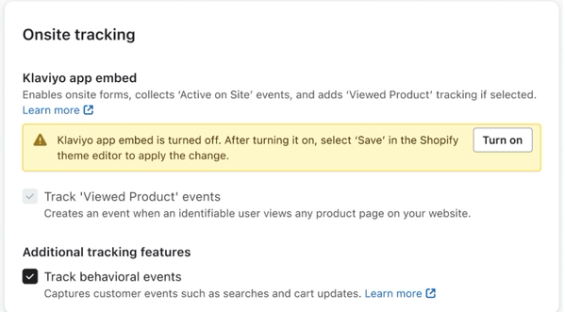
- In the Onsite Tracking section, check Track behavioral events to enable tracking for Viewed Collection, Submitted Search, and Added to Cart. Two other events, Viewed Product and Active on Site, are enabled by default and they will start tracking once you enable the app embed. If you change a tracking setting, click Update Settings and complete any authorization and Update Integration prompts before continuing.
- You’ll see a message calling out that your Klaviyo app embed is turned off. Click Turn on to be brought to Shopify.
- If prompted, sign in to Shopify using the account you integrated with Klaviyo.
- You’ll be brought to your theme settings’ App embeds tab. Make sure the Klaviyo app embed is toggled on.
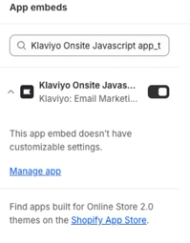
- Click Save in your theme editor.
- Navigate back to your Shopify integration settings page in Klaviyo, and refresh the page if needed. You should see a green banner indicating that your app embed is now enabled.
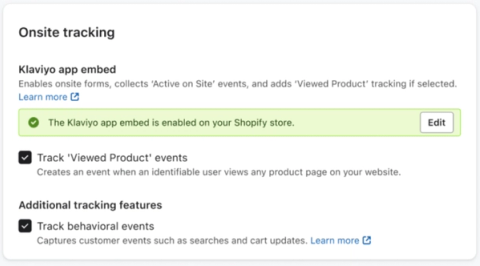
You’ve now integrated Klaviyo with Shopify and set up onsite tracking.
If you need to update these settings, return to Integrations > Shopify. Use Sync settings > From Shopify for subscriber and Markets settings, or Sync settings > To Shopify for outbound data. Make your changes, click Update Settings, and complete any authorization and Update Integration prompts.
Note that your product catalog in Klaviyo will autopopulate with the myshopify.com URL. Contact Klaviyo support to request an update to this setting.
The URL can be updated from this:
https://[INSTANCE].myshopify.com/products/[PRODUCT_HANDLE]
To this:
https://[STOREFRONT_URL]/products/[PRODUCT_HANDLE]
Troubleshooting
Having trouble resolving errors with your Shopify integration? Check out our article Troubleshooting your Shopify integration.
Are you trying to understand more about the behavior of Klaviyo’s Shopify integration?
- Learn about onsite tracking and how to test it
- Learn about the email subscriber sync
- Learn about data synced from Shopify to Klaviyo
- Learn about data synced from Klaviyo to Shopify
- Learn about Shopify Markets in Klaviyo
Outcome
You've now integrated Shopify with Klaviyo, and enabled Klaviyo onsite tracking and sign-up forms for your Shopify store.
Additional resources
- Getting started with sign-up forms
Learn how to create and customize sign-up forms in Klaviyo to publish on your website so you can engage shoppers, collect emails and phone numbers, and build long-lasting customer relationships.
- How to create and send an email campaign
Learn about the basics of email campaigns, including what they are and how to send them in Klaviyo.