How to integrate with OpenCart
You will learn
Learn how to integrate OpenCart with Klaviyo. After completing these steps, you'll be able to personalize and target emails based on each customer's purchase and website activity. The OpenCart integration syncs every hour.
Before you begin
Please note that Klaviyo does not sync your catalog from OpenCart.
Add the OpenCart integration
The process of adding Klaviyo's OpenCart integration is multi-step and requires taking actions inside of both OpenCart and Klaviyo.
To get started, Klaviyo currently supports OpenCart 1.4.x and 1.5.x. Download the Klaviyo OpenCart module from here: https://www.klaviyo.com/media/downloads/OpenCartKlaviyo-1.1.0.tgz.
- Extract the archive into the root of your OpenCart installation.
- Log in to the OpenCart admin section and go to the Extensions > Modules page.
- Install the Klaviyo module and then click Edit for the Klaviyo module.
- Copy and paste the following PHP code at the end of
upload/index.php, right before the$response->getOutput();line:
// [Klaviyo] Save customer cart if it exists.
if ($registry->get('cart')->hasProducts()) {
  $registry->get('load')->model('module/klaviyo');

  if ($registry->get('customer')->isLogged()) {
    $registry->get('model_module_klaviyo')->saveCustomerCart(
      session_id(),
      $registry->get('customer')->getId(),
      $session->data['cart']
    );
  } else if (array_key_exists('guest', $session->data)) {
    $registry->get('model_module_klaviyo')->saveGuestCart(
      session_id(),
      $session->data['guest'],
      $session->data['cart']
    );
  }
}- In Klaviyo, select the Integrations tab.
- Click Explore apps and search for OpenCart, then click the card. Then, click Install.
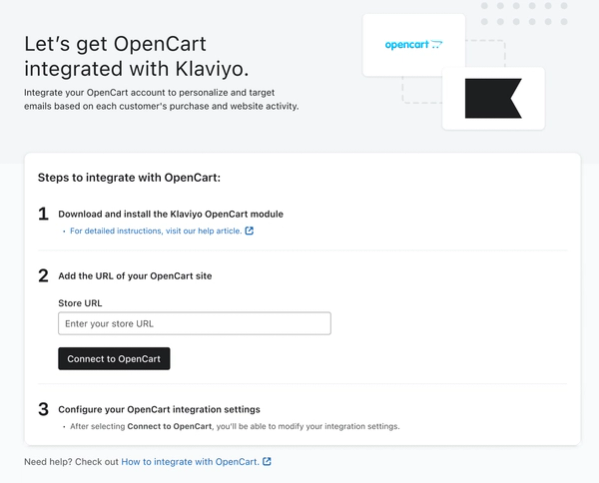
- Enter the URL of your OpenCart site in Store URL, then click Connect to OpenCart.
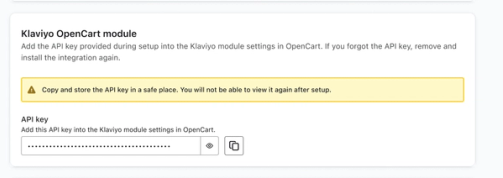
- On the next page, copy the API key under Klaviyo OpenCart module and paste it into the Klaviyo module settings in OpenCart. Save the Klaviyo module settings in the OpenCart admin. Store a copy of this key securely before completing setup; Klaviyo will not show it again afterward.
- In Klaviyo, select Add new OpenCart customers to a Klaviyo list and choose a list if you want to add customers who opted in to your OpenCart newsletter when their order data syncs. This setting does not subscribe them to marketing messages in Klaviyo. If you do not want to add customers to a list, clear the checkbox.
- Back in Klaviyo, click Complete setup to start syncing data.
Install Klaviyo onsite tracking
To track onsite activity in OpenCart, first find your Klaviyo public API key by clicking your account name in the lower left corner and navigating to Settings > API keys. Copy the key under Public API Key / site ID. Your public key is 6 characters long and is different from the OpenCart module key used above. There are 2 types of onsite tracking you can install:
- Active on Site
This metric is tracked whenever an identifiable browser visits your website - Viewed Product
This metric is tracked whenever an identifiable browser views a product page on your website
Add "Active on Site" tracking
This metric is tracked whenever an identifiable browser visits your website. To begin tracking Active on Site activity:
- Add the following snippet of code to your main store template so it's included on all pages. You should place this snippet either with other analytics scripts you use or right before the closing </body> tag:
<script type="text/javascript" async="" src="https://static.klaviyo.com/onsite/js/PUBLIC_API_KEY/klaviyo.js"></script>
<script type="text/javascript">
//Initialize Klaviyo object on page load
!function(){if(!window.klaviyo){window._klOnsite=window._klOnsite||[];try{window.klaviyo=new Proxy({},{get:function(n,i){return"push"===i?function(){var n;(n=window._klOnsite).push.apply(n,arguments)}:function(){for(var n=arguments.length,o=new Array(n),w=0;w<n;w++)o[w]=arguments[w];var t="function"==typeof o[o.length-1]?o.pop():void 0,e=new Promise((function(n){window._klOnsite.push([i].concat(o,[function(i){t&&t(i),n(i)}]))}));return e}}})}catch(n){window.klaviyo=window.klaviyo||[],window.klaviyo.push=function(){var n;(n=window._klOnsite).push.apply(n,arguments)}}}}(); </script>- Make sure to replace
PUBLIC_API_KEYwith your Klaviyo account's Public API key. - If visitors or customers can create accounts for your store, adapt the following example to your OpenCart template language, then add it directly below the first snippet. Replace the example customer fields with your store’s logged-in customer data before publishing:
<script type="text/javascript">
  var klaviyo = window.klaviyo || [];
  {% if user.is_logged_in %}
  klaviyo.identify({
    $email: '{{ user.email }}',
    $first_name: '{{ user.first_name }}',
    $last_name: '{{ user.last_name }}'
    });
  {% endif %}
</script>- Depending on the types of templates you use for your website, the {% if user.is_logged_in %} and {{ user.email }} syntax are likely different. Using the template language available, you want to check if the person viewing the current page is logged in. If so, you should output their email and name, if available. If you don't have name information, remove those two lines and the trailing comma after the email $email line. Escape email and name values for JavaScript so quotation marks do not break the snippet.
Add "Viewed Product" tracking
If you'd like to set up a Browse Abandonment flow or build segments based on product browsing data, you'll want to add JavaScript event tracking for a "Viewed Product" metric.
- On your product page template, add the following example after the main onsite tracking snippet and its initialization code. Adapt the placeholders to your OpenCart template language before publishing:
<script type="text/javascript">
    var klaviyo = window.klaviyo || [];
    klaviyo.track("Viewed Product", {
      Title: '{{ product.title }}',
      ItemId: {{ product.id }},
      Categories: {{ category in product.categories|json }}, // The list of categories is an array of strings.
      ImageUrl: '{{ product.image_url }}',
      Url: '{{ product.url }}',
      Metadata: {
        Brand: '{{ product.brand }}',
        Price: {{ product.price }},
        CompareAtPrice: {{ product.compare_at_price }} // If you have a compare at price. You could also include this for a sale or special price.
      }
  });
</script>- The snippet above uses example
{{ }}placeholders. Replace them with values rendered dynamically for the product being viewed, using your OpenCart template language. Render categories as an array of strings and prices as numbers, and escape text values for JavaScript so names containing quotation marks do not break the snippet. Remove the compare-at price field if your store does not use it. - After Viewed Product tracking has been configured for your site, Viewed Product data should begin populating in your Klaviyo account as known visitors browse your product pages.
How onsite tracking works
Klaviyo associates onsite activity with a profile once the visitor’s browser is identified. A previous visit is not required. Your store can identify a visitor in the following ways:
- If someone has, at some point, clicked through a Klaviyo email to your website
- If someone has, at some point, subscribed/opted-in through a Klaviyo form
- If someone logs in to your store and the identification snippet above sends their customer information to Klaviyo
If Anonymous backfill is enabled, Klaviyo can store onsite activity in the visitor’s browser before they are identified and add it to their profile afterward. Learn more about anonymous visitor activity backfill.
Monitor the Klaviyo sync
The time it takes to sync historic customer and order data from your OpenCart store depends on the size of your store. To check progress, open Integrations and select OpenCart, then open the Data tab. The Historical data section shows sync progress and confirms when the historical sync is complete.
To check your integration:
- Navigate to Analytics > Metrics and filter by OpenCart. Open Placed Order and select the Activity feed tab. If your integration has begun syncing data, you will start to see Placed Order events populate here.
- Klaviyo automatically imports historic orders with valid customer email addresses and the order statuses listed below. After the historical sync finishes, compare the number of Placed Order events on a particular day with the matching orders in OpenCart.
- For example, open the Chart tab for Placed Order, choose Daily and Total, and select a date range that includes yesterday. Hover over yesterday’s data point or look at the table below the chart to see how many orders were reported.
- Compare that count with OpenCart orders from the same day that meet the email and status requirements above. If the counts differ, check that syncing has finished and that both views use the same time zone.
- To check or update your account's timezone:
- Click your account name in the bottom left.
- Select Settings.
- Go to the Account tab and find Time zone.
- If needed, select the correct time zone and click Save.
Data synced from OpenCart
- Sales and order data
Which products were purchased, including product details and images. - Customer information
Email address, first name, last name, phone number, customer group, OpenCart store, and newsletter opt-in information. - Started checkout data
Used to trigger abandoned cart emails. This requires the PHP code snippet you added when integrating and a cart associated with a logged-in customer or guest checkout details containing a valid email address. - Fulfilled order data
Used to track when orders are shipped. - Onsite tracking
Active on Site and Viewed Product activity collected by the JavaScript snippets you install separately. These events are separate from the OpenCart order and checkout sync.
To view your OpenCart metrics, navigate to Analytics > Metrics in Klaviyo, where you can filter by OpenCart.
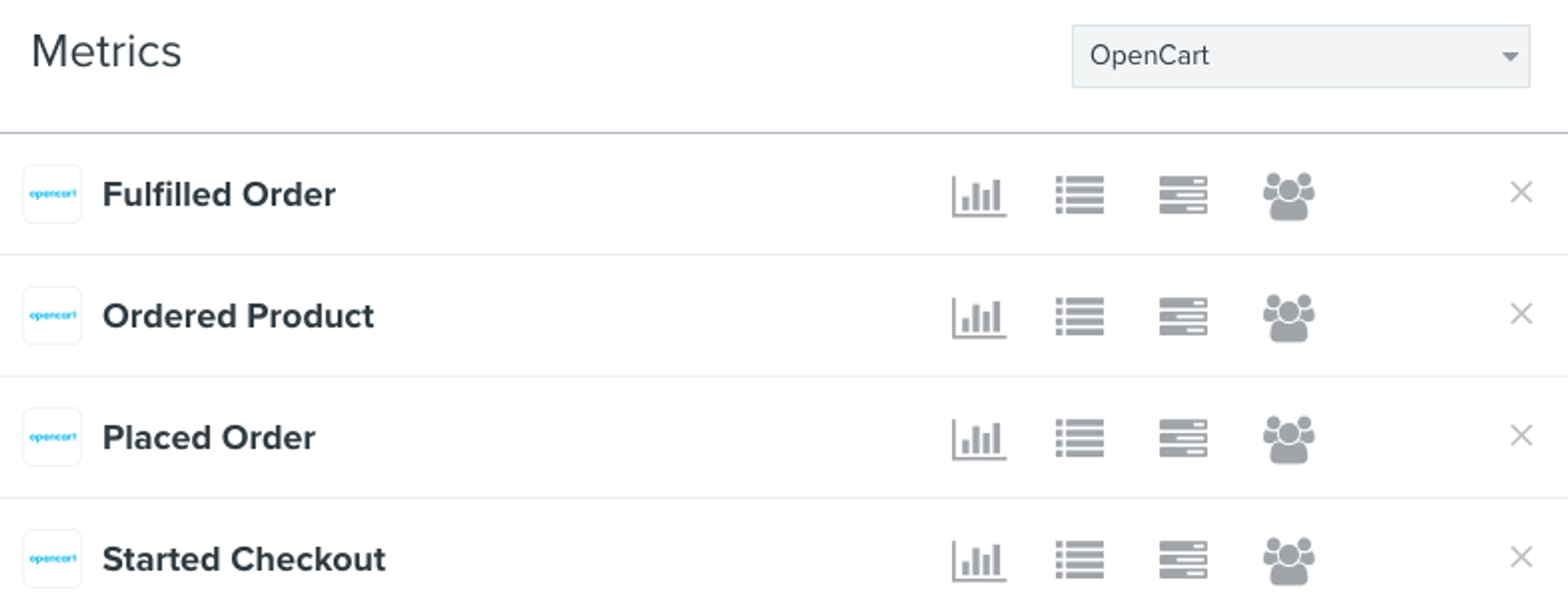
By default, Klaviyo syncs the following statuses for Placed Order and Fulfilled Order metrics:
- Placed Order: Pending, Processed, Processing, Shipped, Complete
- Fulfilled Order: Shipped, Complete
Additional resources
- How often integrations sync reference
Learn what data syncs from a particular Klaviyo integration and how often the sync runs. We've organized these integrations by ecommerce platforms, email service providers, and other data integrations.
- Klaviyo's Agency Partners