Getting started with Shift4Shop
You will learn
Learn how to integrate Shift4Shop (formerly 3dcart) with Klaviyo in order to personalize and target emails based on each customer's purchases and website activity. The data synced from Shift4Shop to Klaviyo includes:
- Data about orders your customers make, including sales, fulfilled orders, and cancelled orders
- Customer details from orders, including email addresses, names, and phone numbers
Website visits and product views are tracked separately after you add Klaviyo onsite tracking to your site.
The initial order sync uses a 3-year lookback based on when orders were last updated and imports customer details from those orders.
Table of contents
- Add the Shift4Shop Integration
- Add Klaviyo onsite tracking
- Monitor the data sync
- Data synced from Shift4Shop
- Update your Shift4Shop integration
- Additional resources
Add the Shift4Shop integration
- In Klaviyo, select the Integrations tab.
- Select Explore apps.
- Search for Shift4Shop and click the card, then click Install.
- To find your Shift4Shop store URL (also known as your secure URL), open your Shift4Shop account in a new tab.
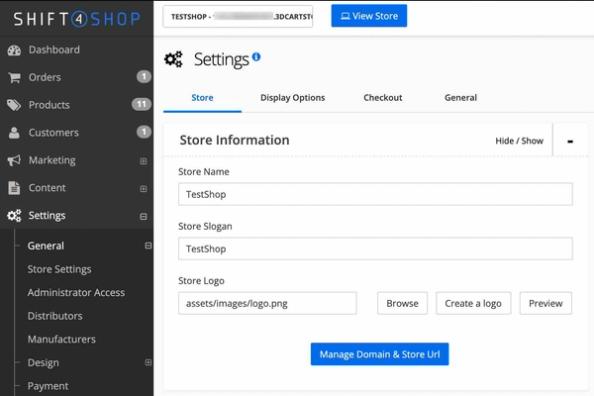
- In Shift4Shop, go to Settings > General > Store Settings.
- Under Store Information, click on Manage Domain & Store URL.
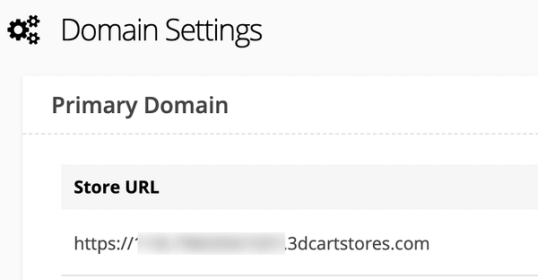
- Copy the Store URL from beneath Domain Settings.
- Back in Klaviyo, paste your Store URL in the box and click Connect to Shift4Shop.
- Copy the Klaviyo public API key that appears on the next page.
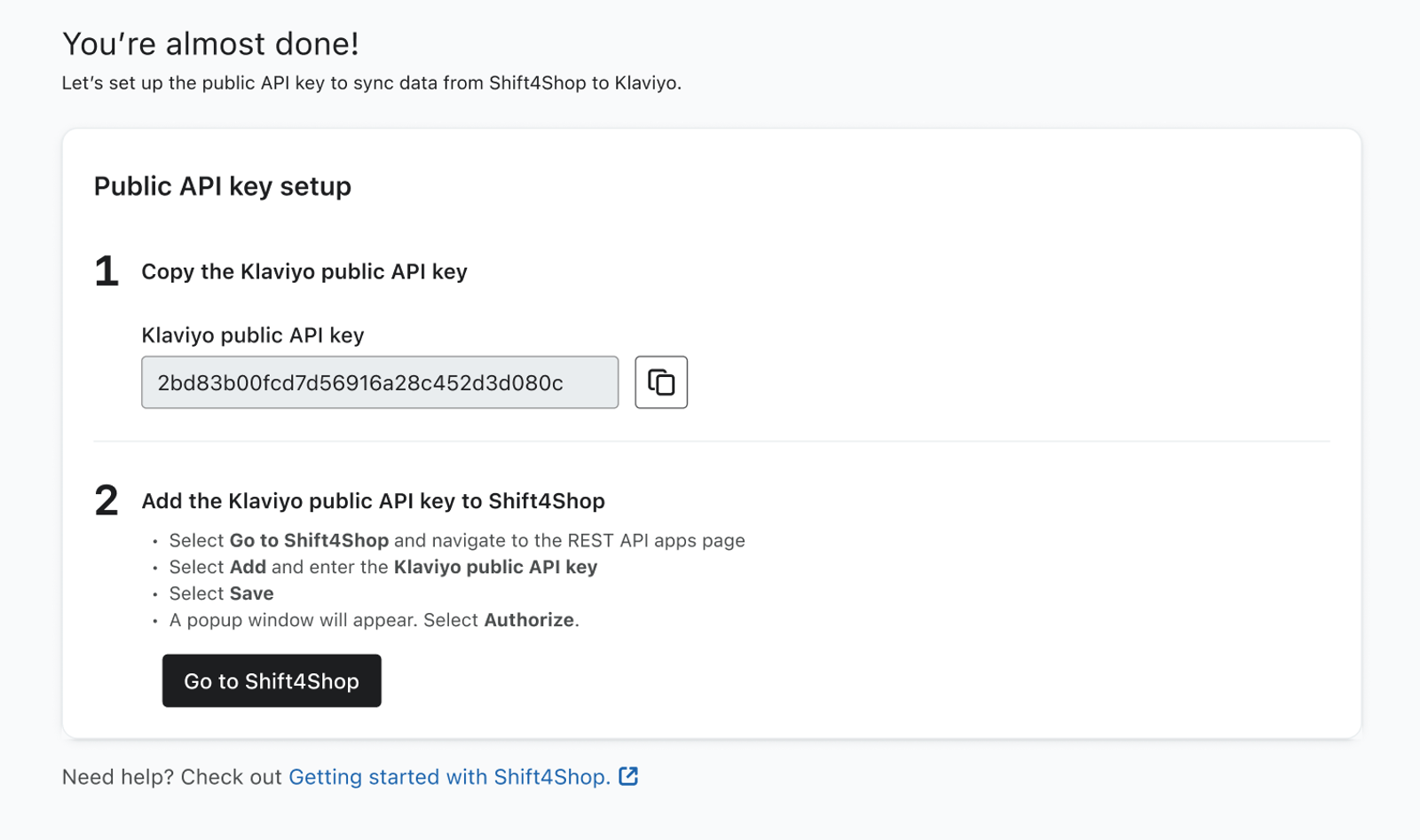
- Click the Go to Shift4Shop button.
- On the REST API Apps page in Shift4Shop, click Add in the top right hand corner to add the Klaviyo API key.
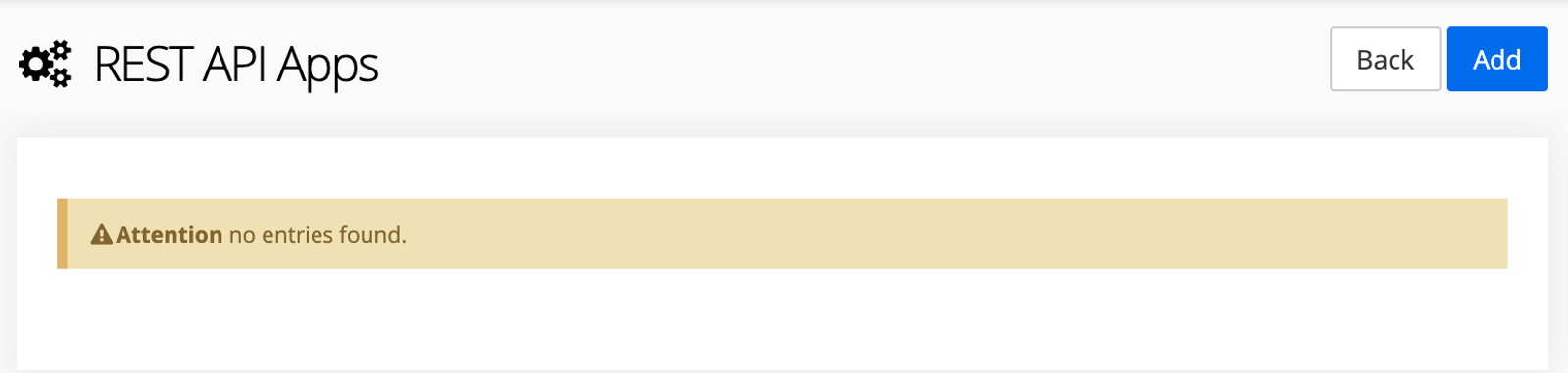
- Paste the Klaviyo public API key you copied from the Shift4Shop integration setup page.
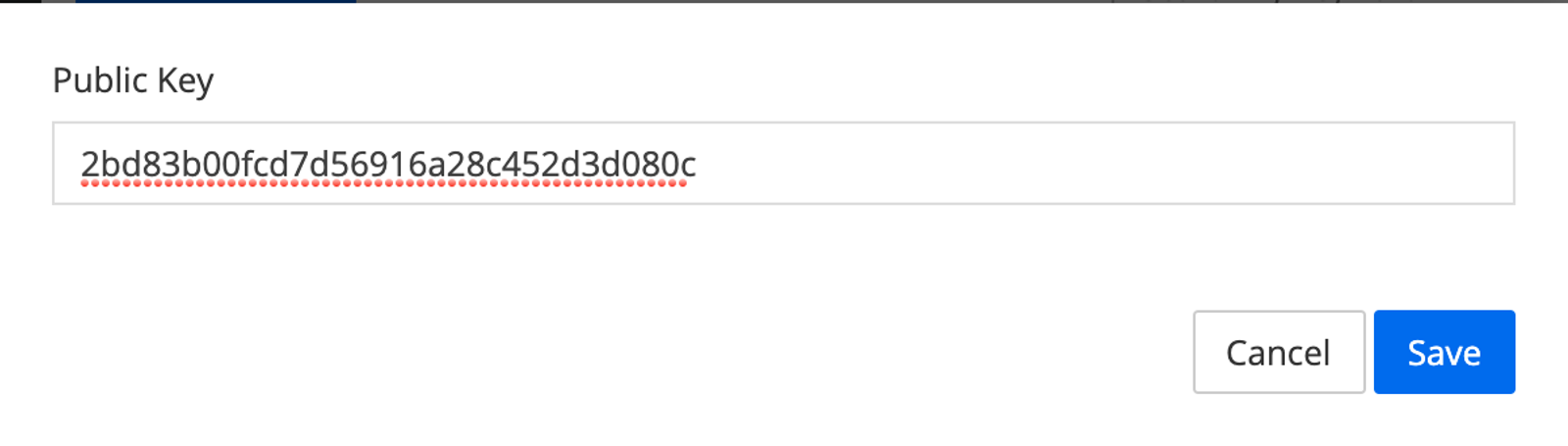
- Click Save.
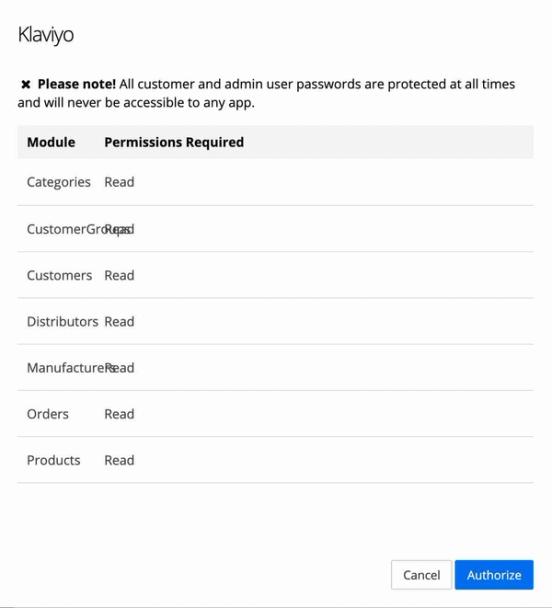
- A popup window will appear, asking you to give Klaviyo authorization to pull the Shift4Shop data into our platform; click Authorize.
- You will be redirected back to your Klaviyo account. A confirmation modal will indicate that your Shift4Shop account is connected and historical data has started syncing.
Add Klaviyo onsite tracking
There are 2 Klaviyo onsite tracking code snippets you can add to your Shift4Shop site. The first onsite tracking snippet allows you to track when cookied users are active on your site (the Active on Site metric) and the second onsite tracking snippet allows you to track what products they view (the Viewed Product metric).
You can then use the Active on Site metric to create segments of known browsers who have visited your site but haven't purchased anything. The Active on Site snippet (also known as Klaviyo.js) also enables the use of Klaviyo sign-up forms.
Viewed Product tracking is most often leveraged to trigger a Browse Abandonment automated email flow. For more information, see our article on creating a browse abandonment flow.
- Log in to your Shift4Shop store admin and navigate to Content > Site Content.
- Click on the Edit button under Header & Footer.
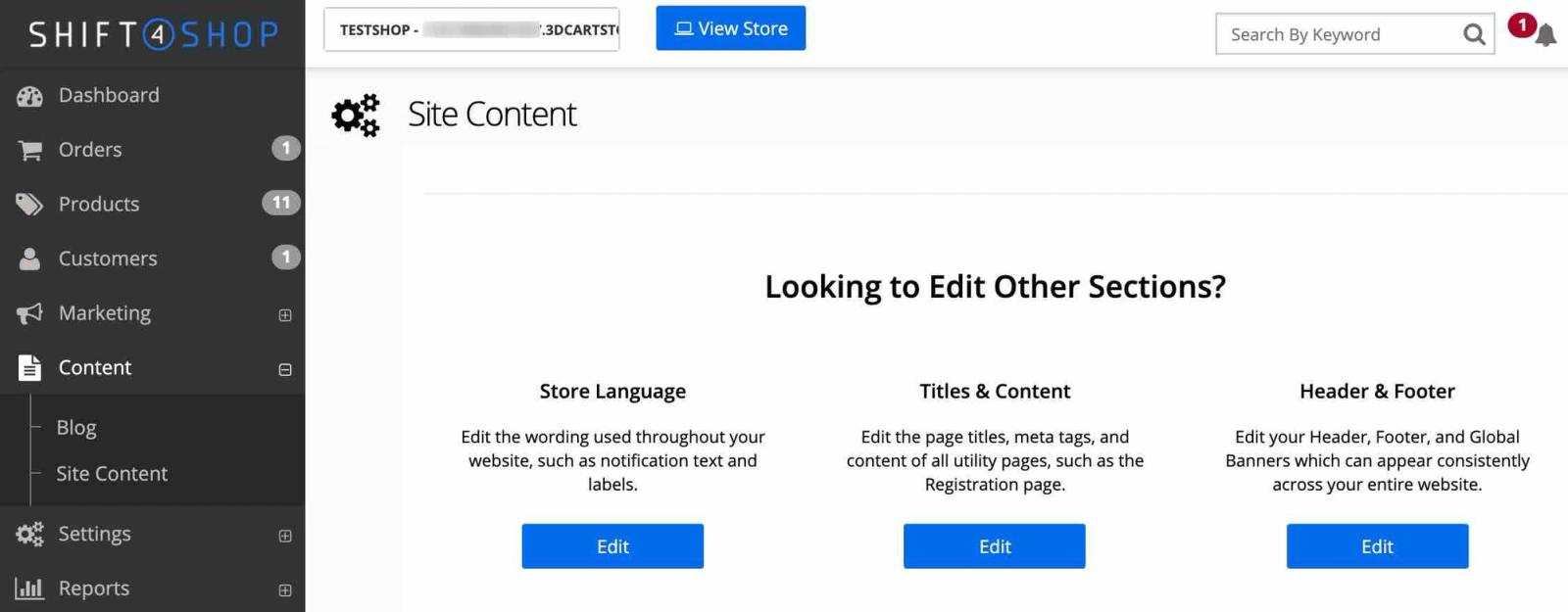
- Click the + to the right of Global Header to open the header editor.
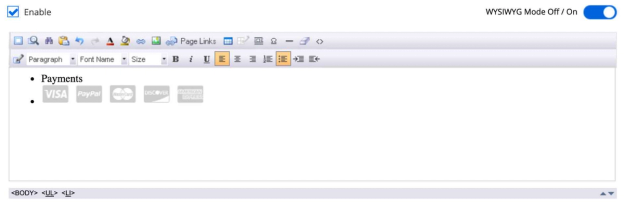
- Click the slider next to WYSIWYG Mode Off / On to toggle the view to the HTML editor.
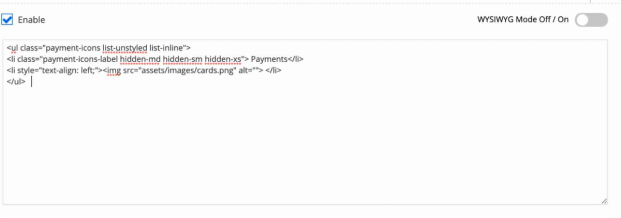
- To add Active on Site tracking, paste the following script at the bottom of the HTML editor:
<script type="text/javascript" async="" src="https://static.klaviyo.com/onsite/js/PUBLIC_API_KEY/klaviyo.js"></script>
<script type="text/javascript">
//Initialize Klaviyo object on page load
!function(){if(!window.klaviyo){window._klOnsite=window._klOnsite||[];try{window.klaviyo=new Proxy({},{get:function(n,i){return"push"===i?function(){var n;(n=window._klOnsite).push.apply(n,arguments)}:function(){for(var n=arguments.length,o=new Array(n),w=0;w<n;w++)o[w]=arguments[w];var t="function"==typeof o[o.length-1]?o.pop():void 0,e=new Promise((function(n){window._klOnsite.push([i].concat(o,[function(i){t&&t(i),n(i)}]))}));return e}}})}catch(n){window.klaviyo=window.klaviyo||[],window.klaviyo.push=function(){var n;(n=window._klOnsite).push.apply(n,arguments)}}}}(); </script>- In Klaviyo, click your account name, then go to Settings > API keys and copy your Public API Key / site ID. Replace
PUBLIC_API_KEYin the first line of the snippet with this value. Use your account’s site ID here, not the app authorization key copied during the Shift4Shop integration setup. - To add Viewed Product tracking, add this script underneath the Active on Site script in the header:
<script type="text/javascript">
var klaviyo = window.klaviyo || [];

// Track each product view.
if ('[price]' !== '[' + 'price]') {
   klaviyo.track("Viewed Product", {
      ProductID: "[id]",
      Name: "[name]",
      Description: "[description]",
      URL: [location.protocol, '//', location.host, location.pathname].join(''),
      Categories: "[catid]",
      ImageURL: [location.protocol, '//', location.host, '/[image1]'].join(''),
      Price: parseFloat("[price]".slice(1), 10)
   });
}</script>- In the top right corner of the page, click Save.
After saving, test your onsite tracking to confirm that Active on Site and Viewed Product events appear when an identified visitor browses your site.
Monitor the Klaviyo sync
To view your Shift4Shop integration data:
- In your Klaviyo account, navigate to Analytics > Metrics.
- Click the Placed Order metric for Shift4Shop to verify that data has started to populate. Data in the chart shows that orders are syncing, but does not mean the historical import is complete.
- To check historical import progress, go to Integrations > Shift4Shop > Data and review Historical data. When the import finishes, this section confirms that the data has been synced.

- After the historical import finishes, compare a sample of eligible Shift4Shop orders with the Placed Order events in Klaviyo. By default, orders with statuses 2 and 4 create these events, using the order’s last-updated time.
- If dates or daily totals differ, check that both accounts use the same time zone. In Klaviyo, click your account name, then go to Settings > Account.
- In the Time zone section, select the correct time zone and click Save.
Data synced from Shift4Shop
The Shift4Shop integration syncs data into Klaviyo once every hour. API delays or rate limits can cause events to take longer than 1 hour to appear.
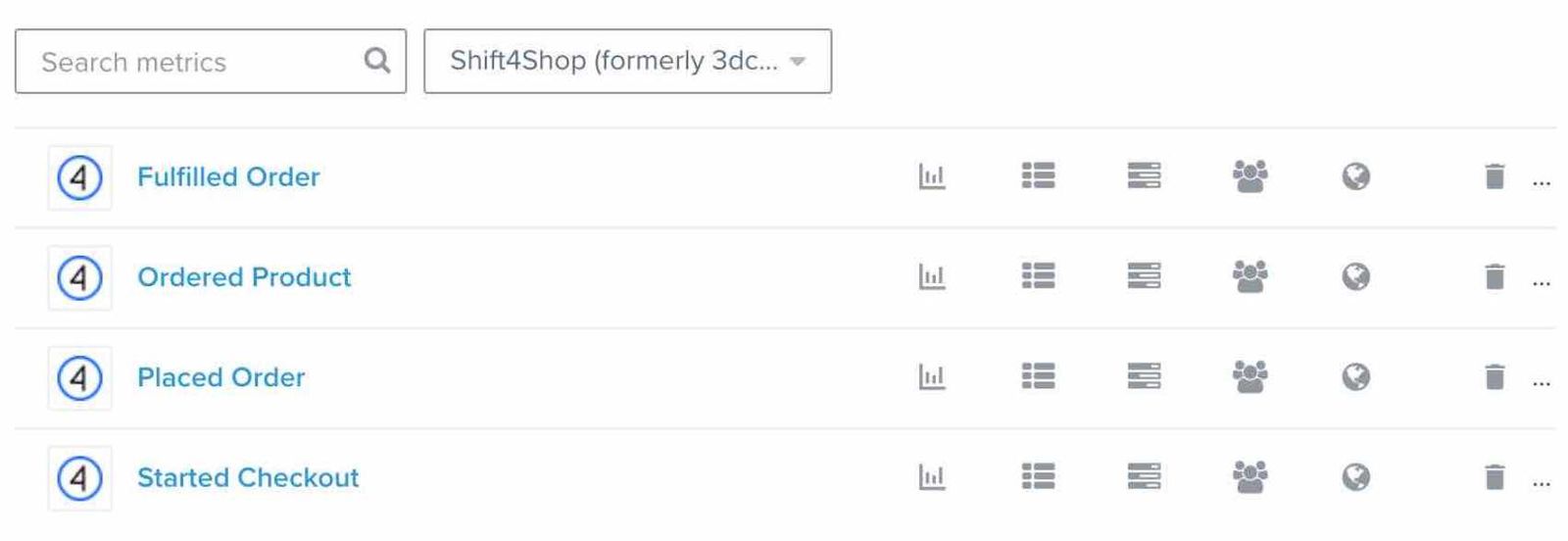
The following metrics are synced from Shift4Shop:
- Cancelled Order
- Fulfilled Order
- Ordered Product
- Placed Order
- Started Checkout
Cancelled Order
This event is tracked when an order is cancelled in Shift4Shop (status 5). It includes the order’s items and categories.
Fulfilled Order
This event is tracked when an order is fulfilled in Shift4Shop (status 4). It includes all the product information about the items someone purchased including product names, images, and variation information to use in purchase follow-up emails. You can filter and target Fulfilled Order events based on the following criteria:
- ItemNames: the names of the products in someone's order, e.g., t-shirt or pants
- Categories: the complete set of the categories of the products in someone's order, e.g., t-shirts, men's, pants, and sale
Ordered Product
This metric is tracked when an eligible order creates a Placed Order event, and records an event for each unit purchased, up to 100 units per item in an order. For example, if someone buys a t-shirt and a pair of pants, 2 Ordered Product events are created: 1 for the t-shirt and 1 for the pants.
The Ordered Product event includes detailed information about each product someone purchases. This is useful when creating behavioral segments based on individual product names, SKUs, and categories. You can filter and target Ordered Product events based on the following criteria:
- Name: the name or title of the product in Shift4Shop, e.g., t-shirt or pants
- SKU: the SKU of the product variation e.g., REDMEDIUMTSHIRT
- Categories: the complete set of the categories of the product, e.g., t-shirts, men's, and sale
Placed Order
This event is tracked when a customer completes the checkout process and creates an order in your Shift4Shop store. It includes all of the product information about the items someone purchased including product names, images, and variation information to use in purchase follow-up emails. You can filter and target Placed Order events based on the following criteria:
- ItemNames: the names of the products in someone's order, e.g., t-shirt or pants
- Categories: the complete set of the categories of the products in someone's order, e.g., t-shirts, men's, pants, and sale
Note: By default, Shift4Shop syncs 2 statuses for Placed Order: 2, 4
Started Checkout
This event is tracked when Klaviyo syncs a Shift4Shop checkout or order with a valid billing email address and, by default, status 2, 4, or 7. It includes all of the product information about the items in someone's cart, including product names, images, and variation information to use in your abandoned cart emails. You can filter and target Started Checkout events based on the following criteria:
- ItemNames: the names of the products in someone's cart, e.g., t-shirt or pants
- Categories: the complete set of the categories of the products in someone's cart, e.g., t-shirts, men's, pants, and sale
Customer data
In addition to metrics, Klaviyo imports customer details from orders. You can use these profile properties in segments and flows. The following properties are synced when available:
- First Name
- Last Name
- Phone Number
Klaviyo can also estimate the following location details from the IP address supplied with an order. These are not copied from the order’s billing or shipping address:
- City
- State/Region
- Country
Outcome
You’ve now integrated with Shift4Shop, enabled Klaviyo onsite tracking, and verified your synced Shift4Shop data. Now, you can view your Shift4Shop data in Klaviyo and personalize and target emails based on each customer's purchases and website activity.
Update your Shift4Shop integration
If you integrated Klaviyo with Shift4Shop before May 12, 2025 and have not updated the app, follow the steps below to switch to Klaviyo v2. The deadline to update from the old app was September 6, 2025.
To update to Klaviyo v2, re-authenticate your Shift4Shop integration in Klaviyo. You do not need to reinstall Klaviyo onsite tracking.
- In Klaviyo, click the Integrations tab.
- Select Shift4Shop from the list of enabled integrations.
- In the upper right corner, click Manage integration.
- Select Re-authenticate.
- Copy the Klaviyo public API key.
- Click the Go to Shift4Shop button.
- On the REST API Apps page in Shift4Shop, click Add to add the Klaviyo API key, and paste the key.
- Click Save.
- On the authorization request modal that appears, click Authorize.
- You will be redirected back to your Klaviyo account, where a confirmation modal will indicate that your Shift4Shop account is now connected.
Your integration has now been updated and will begin using the new app.
While not necessary, you may wish to remove the deprecated Klaviyo app from your Connected Apps in Shift4Shop. To do so, remove the "Klaviyo" app from the Shift4Shop REST API Apps page.
Additional resources
- Getting started with Klaviyo onsite tracking
Learn about the different ways that Klaviyo can support onsite tracking on your ecommerce site. There are 2 key types of onsite tracking:
- How to update Klaviyo after switching ecommerce platforms
Learn about the areas of Klaviyo that need to be updated when you switch from one ecommerce platform to another. It is completely possible to switch ecommerce platforms while keeping the same Klaviyo account, but there are some important steps to keep in mind to ensure that your sign-up forms, flows, and other Klaviyo features continue to perform as expected.