Understanding in-app forms
You will learn
Learn about in-app forms and how you can use them to share important messaging with your mobile app users.
This guide provides an overview of in-app forms, including how they work and customization options in the form editor. To learn how to create a new in-app form, please refer to our guide on How to create an in-app form.
What are in-app forms?
Mobile in-app forms are messages that appear to users inside your mobile app, similar to how a sign-up form would appear on a website. They are designed to capture the attention of users at opportune moments when they open the app.
In-app forms created in Klaviyo can be shown to all mobile app profiles or specific profiles in a list or segment. Users see the form while using your app, according to its targeting and display settings.
In-app forms are supported on iOS and Android devices. Before creating a form, set up mobile push notifications in Klaviyo and configure in-app forms in your mobile app. Your mobile app must be using at least version 4.2.0 of the iOS SDK, version 3.2.0 of the Android SDK, or version 1.2.0 of the React Native SDK to display in-app forms. Some features, including flyouts, time delays, and event triggers, require newer SDK versions. Ensure your app is updated to the latest Klaviyo mobile SDK version before using these features.
In-app forms vs. mobile push notifications
Both in-app forms and mobile push notifications serve to communicate with your app users, but they function quite differently. Understanding these differences is crucial for building these communication strategies.
Feature | Display location | Purpose | User details |
In-app forms | Within the mobile app, on an app screen | Update users on news and/or prompt specific actions within the app | Users do not need to enable notification settings to see in-app forms |
Mobile push notifications | On lock screens or within the notification center | Drive users into the mobile app | Users must have enabled app notifications to receive push notifications |
In short, mobile push notifications and in-app forms are different but complementary: push notifications drive app opens, where in-app forms provide visual content integrated into the app experience.
How are in-app forms used?
In-app forms allow you to communicate with users while they use your mobile app, including those who have disabled push notifications. Users must meet the form’s targeting and display conditions to see it.
Unlike web forms, in-app forms cannot be used to gather consent or profile data and, therefore, do not need to be connected to a list.
In-app forms are ideal for:
- Informing users about important updates such as promotions, product launches, or live events.
- Encouraging users to take specific actions that can increase engagement and conversion rates.
Building an in-app form
The form editor allows you to create popup, full page, and flyout forms for your mobile app. You can modify the appearance, content, and behavior with the various customization options in Klaviyo's form editor.
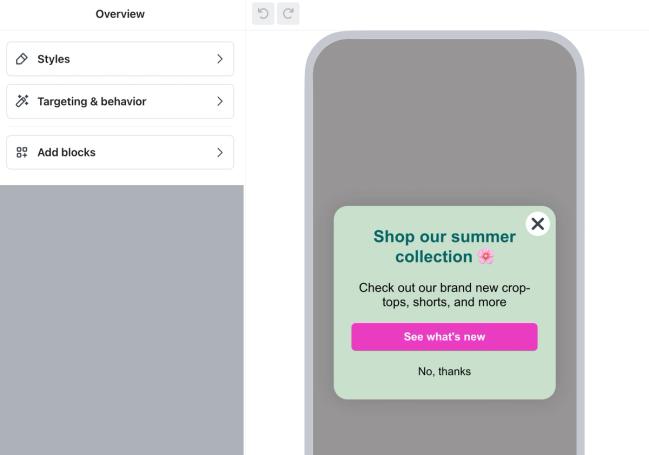
As you build, use the undo and redo buttons (rounded arrows) in the menu bar as needed. The editor automatically saves your work as you make changes, even if you leave and return later. Note that you must publish changes to see them live on your in-app form.
Add content to in-app forms
You can customize the content in your in-app forms to fit your needs. In-app forms are single step only as they’re focused on effective message delivery, making them ideal for announcement style messages. They do not include a success step or support consent collection for email or phone number input fields.
From the Add blocks panel, drag and drop the following content blocks into your form preview:
- Text
- Button
- To open a specific screen in your app, such as a featured collection, select the button in the preview and set its Action to Go to app screen. Enter a Deep link. This requires deep linking to be set up for your app. For help, talk to your developer or refer to Using deep links in push notifications.
- To open a web page, select the button in the preview and set its Action to Open external URL. Enter the web address in External URL. Opening a web page does not require app deep-link setup.
- Image
- Coupon (static codes only)
- Countdown timer
- Reviews
- Custom HTML (available with a paid account)
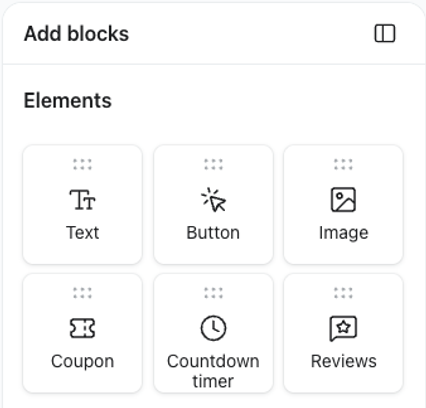
Once added to the form preview, click on any block to access its styling and customization options (e.g., font style, size, and color).
Style an in-app form
Use the Edit styles panel in the form editor to modify your form’s design, including:
- Form type
- Popup
Appear in the middle of the mobile app screen. Popups draw attention to your message, but can interrupt a user's experience. - Full page
Display over the entire mobile app screen. Users must interact with the form to close it, so full page forms are more intrusive than smaller forms. - Flyout
Slide in from the top or bottom of the mobile app screen. Flyouts keep more of the app screen visible and allow users to continue interacting with the rest of the screen.
- Popup
- Height
- Adjust the form's size and how much space it occupies on the screen.
- Background color
- Choose the background color of the form.
- Background image (optional)
- Include a background image and adjust its settings.
- Overlay color (popup forms)
- Select a color to display behind your form. A semi-transparent overlay will highlight the form and dim the app’s content.
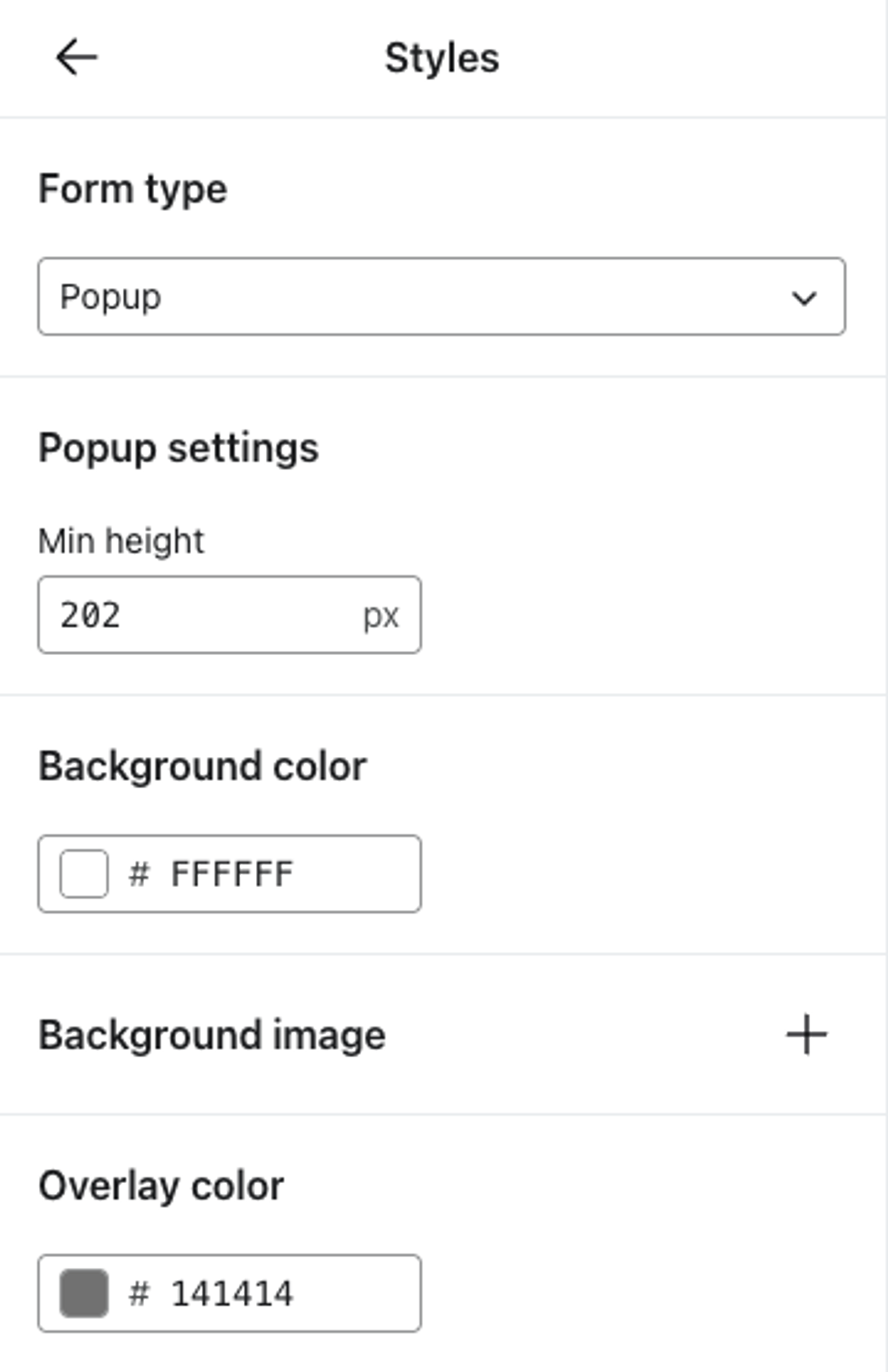
These settings are some of the key design elements, but there are additional styling options available, which you can learn more about in our guide on How to style a sign-up form.
Configure your form’s behavior
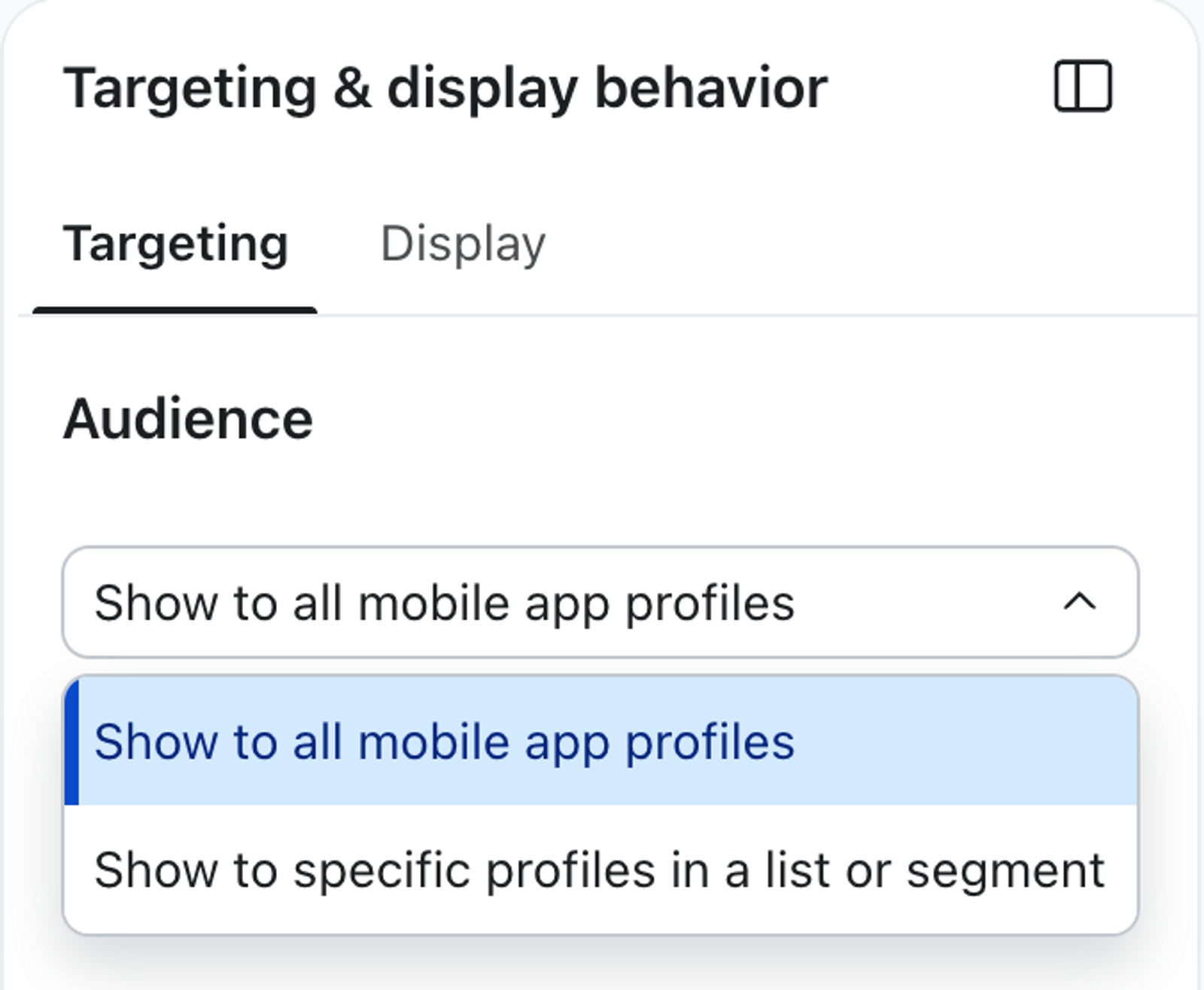
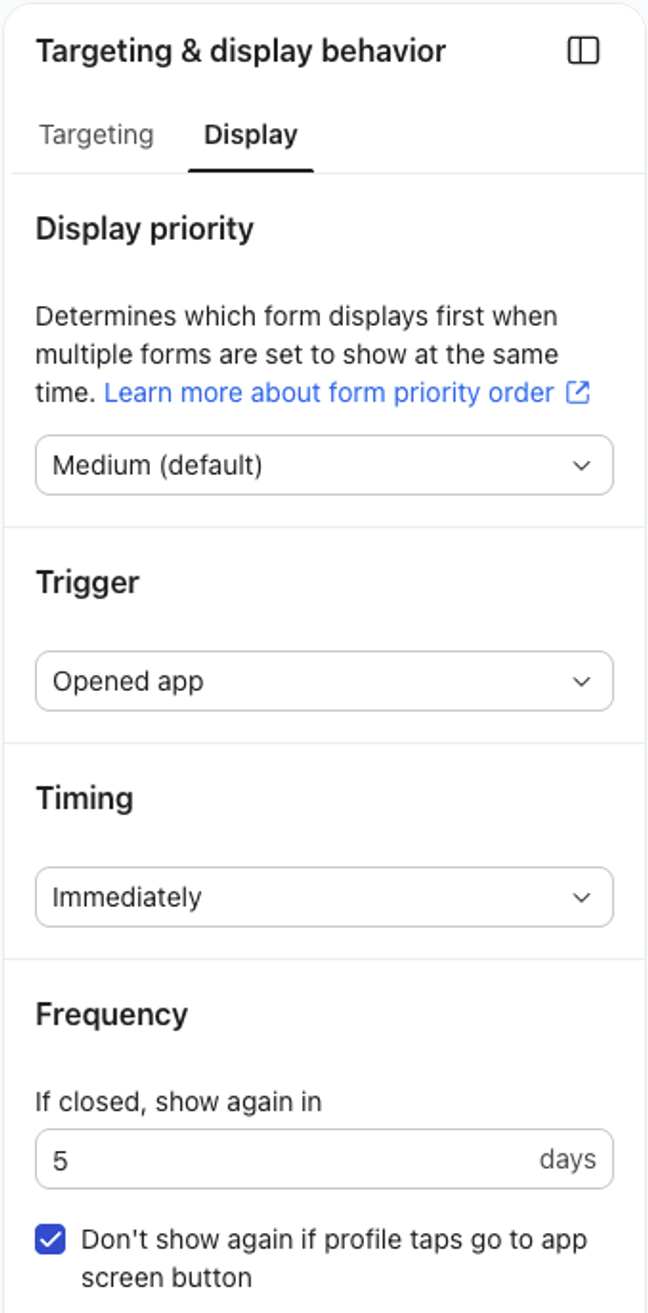
In the Targeting & display behavior panel, use the Targeting tab to choose your Audience: all mobile app profiles or specific profiles in lists or segments. Use the Display tab to set Display priority, Trigger, Timing, and Frequency. These settings control which eligible form appears first, what action triggers it, when it appears, and how often it reappears. For setup instructions, see How to create an in-app form.
We also recommend enabling Don't show again if profile taps go to app screen button to prevent the form from reappearing after a user taps a button that opens an app screen or an external URL.
Note that in-app forms can be scheduled to go live or to be reverted to draft status. Learn more in the How to schedule a sign-up form guide.
Analytics for in-app forms
After you create an in-app form draft, you can find it in the forms list under Sign-up forms. A phone icon identifies in-app forms and distinguishes them from website forms.
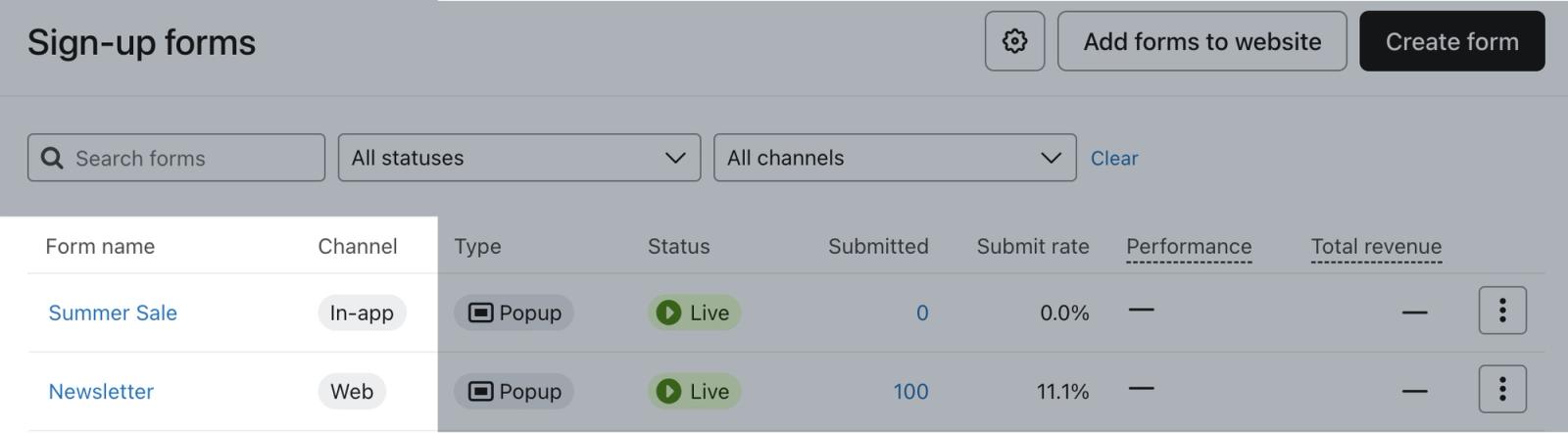
Once published, you can view the analytics for an in-app form by clicking the additional actions menu (3 dots), then Analytics. The analytics page shows metrics for:
- Viewed form: the total number of times the form was viewed, rather than the number of unique users.
- Submits: the number of times users tapped a button with the Go to app screen or Open external URL action.
- Submit rate: submits divided by views, expressed as a percentage.
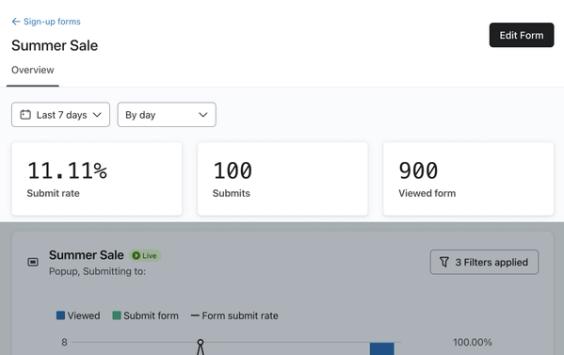
Klaviyo records a view when the form appears and a submit when a user taps a Go to app screen or Open external URL button. These aggregate counts appear in the form’s Overview report. A submit does not indicate that the user gave marketing consent or provided profile information.
Refer to our guide on Understanding form analytics for more information on these metrics and how to evaluate your in-app form's performance.
Additional resources
- How to create an in-app form
Learn how to show a form to users directly in your mobile app. You can use these forms to share information about new or back-in-stock products, sales, app updates, and more.
- Introduction to mobile push notifications
Get familiar with mobile push notifications, including what they are, what they look like, and what information you need to start sending.
- Getting started with sign-up forms
Learn how to create and customize sign-up forms in Klaviyo to publish on your website so you can engage shoppers, collect emails and phone numbers, and build long-lasting customer relationships.