Introduction to mobile push notifications
You will learn
Get familiar with mobile push notifications, including what they are, what they look like, and what information you need to start sending.
What are push notifications?
First, let’s clarify what we mean by push notifications, as there are actually 2 types:
- Mobile push notifications are messages that are sent by a mobile app to users and that typically appear on the lock screen of a mobile device.
- Web push notifications, also called “browser notifications.” These are sent by a website to a browser and can appear even when that website is not open. Web push notifications are available on desktop and mobile devices. Klaviyo does not support web push at this time, although you can trigger web notifications via API calls.
In both cases, the notifications appear as clickable messages that take the user directly to an app or website.
These 2 types are often talked about together; however, they are actually quite different from each other in terms of setup, requirements, and even how they look.
Here, we only focus on 1 type of push notification: mobile.
How are mobile push notifications used?
Mobile push notifications are highly effective at driving people into your app. Just like with SMS, app users almost always see push notifications. The difference is that push notifications are:
- Often seen as less sales-driven by recipients
- Helpful in a wider range of use cases
- Usually less expensive to send
Mobile push notifications are great for:
- Reminders (e.g., to exercise, practice a language, watch a show)
- App-only deals or collections
- Time-sensitive alerts
- Product alerts
- Asks for information (e.g., “fill out your profile”)
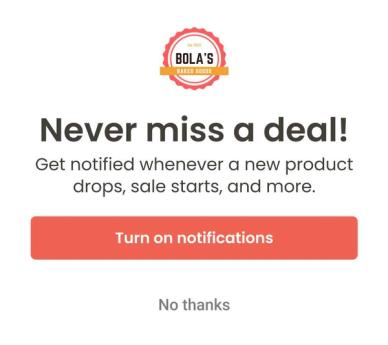
Someone must have app notifications turned on in order to receive push notifications.
How often should I send mobile push notifications?
The answer depends on how often your app users want notifications. Here are a few examples:
- Health, wellness, or educational brands might send daily reminders (e.g., to take medicine, work out, study, etc.).
- For apparel and accessory companies, it can depend on how often customers are likely to shop:
- Most apparel and accessory brands might send weekly or every 2 weeks.
- Luxury brands may split their sending by audience.
- Weekly or every 2 weeks for frequent and high-value shoppers.
- Monthly to all other customers.
- Furniture stores may send out push notifications less frequently: for new product launches or the holidays, for example.
Generally, though, don’t send more than 3–5 push notifications per week unless you see high engagement from customers. Sending more than that can overload subscribers and cause them to unsubscribe.
Structure of a push notification
Let’s examine the anatomy of a push notification when it is delivered. Below is an example Android push notification, although iOS notifications will look similar.
From left to right:
- App logo
- Title
- Timestamp
- Message body
- Rich media
- Android: image only
- iOS: image, GIF, or video
- Arrow to expand
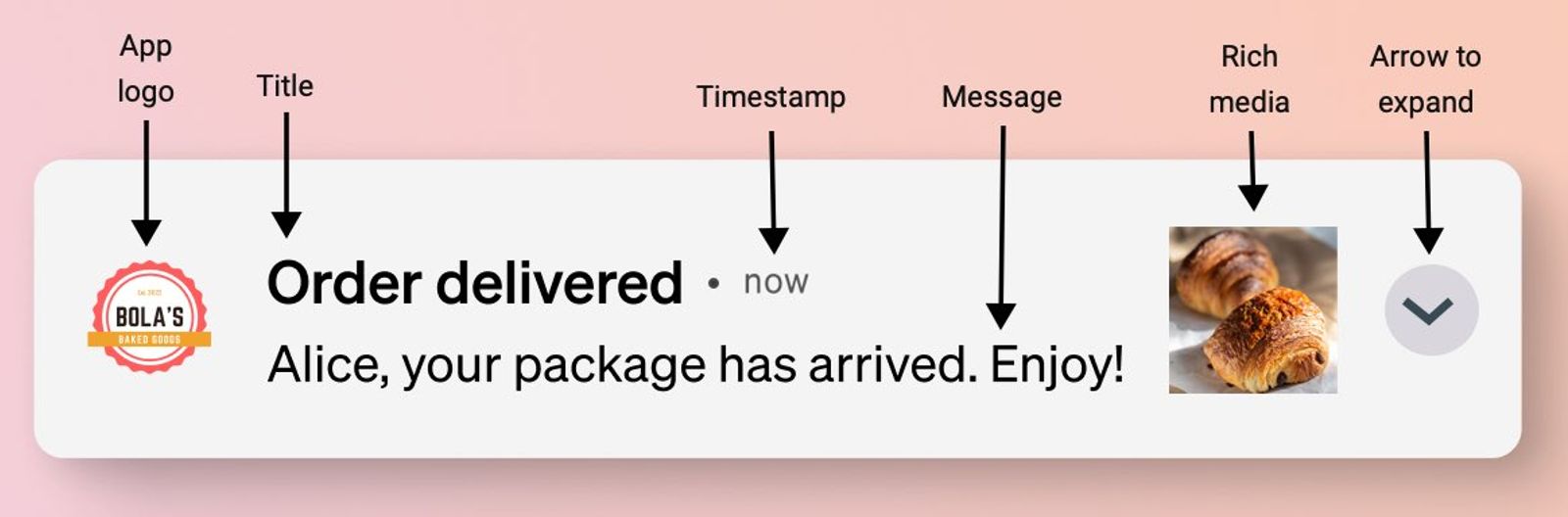
Note that the look of a notification changes based on whether there’s an image or GIF attached, how long the message is, and the recipient’s device.
Character limits and display
As a general rule, you want to keep your push notifications clear and concise.
Klaviyo allows up to 255 characters for the title and 512 for the body. A device may display less text, so your notification can be cut off even when it fits within these limits.
Use the following character counts as display guidelines and test your notification on actual devices. The amount of text displayed can vary by:
- The phone's software version (e.g., older versions may allow for more characters than newer ones, or vice versa).
- The message content:
- Emojis take up more space than regular characters
- When you include rich media, push notifications tend to display fewer characters.
Title | Body | |
Android | 65 | 240 |
iOS | 178 | |
What you need to send push notifications
The first thing you need for push notification marketing is an app.
If you don’t have an app yet, we recommend contacting a developer or other third party to create one for you.
A developer is usually required to set up push notifications as well as your app. To connect your app with a push provider, someone must use an SDK (recommended) or create a custom integration.
What’s an SDK?
SDK stands for a software development kit, and it is a set of tools, libraries, and programs used to develop apps for a specific platform or service. Basically, it’s a developer’s toolkit for connecting an app with any other platform (e.g., Klaviyo).
Decide what features you want
Your app must be able to send push notifications. The most basic content is the title and message body of the notification. However, there are other, optional features that you may need to work with your app developer to include:
- Rich media
Allows you to include images, GIFs, and videos in your push notifications. - Action buttons
Include buttons that enable recipients to take action from their device’s lock screen or notification center - Deep linking
Deep linking is the ability to link directly to a screen in your app or a page on your website. Without a deep link, all your push notifications will take recipients to the app’s home screen.
For deep linking, you will need to confirm the correct links to screens in your app with your app developer. These links may be universal links (i.e., standard https:// links that work for your website and app) or custom URIs, like myapp://products.
Further, you may want to consider what information you want to use in your push notifications. Your developer will need to configure any custom profile properties or events when setting up the connection between your app and push provider. For instance, some helpful custom metrics are:
- Opened app
- Viewed product
- Added to cart
Provide key information to your push provider
After everything is set up in your app, you’ll have to connect it to your push provider.
To do this, you must provide certain information about your app. While the requirements may slightly change depending on the provider, the table below shows what you need in Klaviyo, and other providers should be similar.
You may need to work with your app developer to get this information.
Platform | Required information |
Package name, Google service authentication key (JSON private key file) | |
APNs authentication key (.p8 file), key ID, team ID, bundle ID |
Note that if your app is listed in both the Apple App and Google Play stores, you’ll have to set each up individually.
Test via your push token
What’s a push token?
A push token is a unique ID to identify a certain app on a certain device and serves as a delivery address for push notifications. Tokens are generated by Apple Push Notification Service (iOS) or Firebase Cloud Messaging (Android).
Once you connect your app and push platform, it’s important to test that:
- Your app can send push notifications.
- A push notification can deep link or include media (if you intend to use these features).
- Your push provider is properly receiving information from your app.
See the sections below for details on what to do.
Opt in to push
- Open your app on your device.
- Opt in to push notifications.
If you’re not automatically prompted to enable push, go to your device’s notification settings and turn notifications on for your app. - In Klaviyo, navigate to Audience > Profiles and open the profile associated with your test device. Under Channel consent, expand Mobile push notifications and copy the Token for that device. If no token appears, ask your app developer to confirm that your app forwards push tokens to Klaviyo.
Create a list to test your push notifications
- Open your push provider’s tool. Here, we use Klaviyo as an example.
- Create a list for your test profiles by:
- Navigating to Audience > Lists & segments > Create > List.
- Naming the list (e.g., “Push preview”) and selecting Create list.
- Find your test profile. In Klaviyo, navigate to Audience > Profiles and search for your profile. To find recent changes, sort by Profile updated with the newest updates first.

- Click into that profile.
- Go to the Lists and segments tab within the profile and click Add to list.
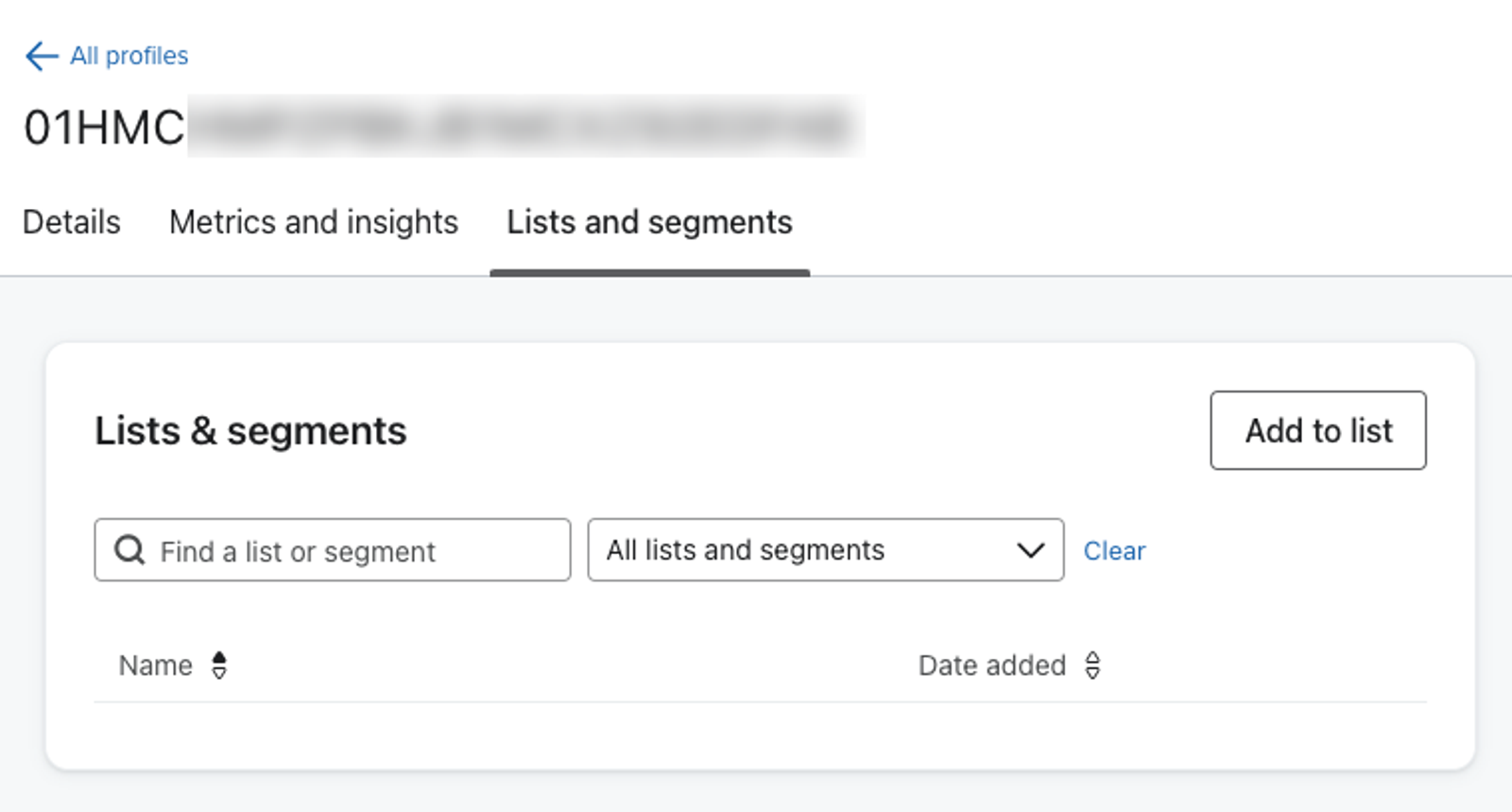
- Find the list you created and then select Add to list.
If you have both an Android and iOS app, we recommend adding test profiles with a push token for each type of device to the test list. Doing so allows you to check how your push notifications appear on both systems, as they tend to look slightly different from each other.
To test campaign sending, select only this test list as your push campaign’s audience, then schedule or send the campaign. See how to use push notifications for campaigns for the full steps.
Perform your tests and checks
We recommend performing several separate tests:
- Send a simple push notification (i.e., content only).
- Add an image to test rich push.
- Include a deep link.
- Add buttons with various actions.
For each test, send a preview from the push editor:
- Create or open a push campaign or flow message, and enter the content for the test.
- Click Preview & test in the upper right of the push editor.
- Paste the push token you copied from your test profile. To test another device, click Add push token and enter its token.
- Click Send test.
On your test device, confirm that the notification appears and that the text is readable. Check that any attached media displays and then tap the notification or its action buttons to confirm that they open the intended destination or perform the intended action.
Also, go into your app and click around to test your custom metrics (e.g., if you added a custom metric for Completed profile, fill out your profile in your app). Then go back to your push provider to see if these metrics and events are being logged properly.
Additional resources
- Push notification glossary
- Basics: push notification best practices
- Getting set up with mobile push on Android or iOS.