How to use deep links in push notifications
You will learn
Learn how to use deep linking in Klaviyo push notifications so that you can direct customers to a specific in-app screen. Deep links make it easy for your profiles to access the content they want with a simple tap.
You can deep link from email and text messages by linking your click tracking domains to your app.
What is a deep link?
A deep link is a link that opens your mobile app to a certain page. It’s a common feature for push notifications, allowing marketers to link to, for example, a specific product page rather than the app’s home page. This way, recipients don’t need to search your app or navigate through menus to find the page they are interested in.
What’s a URI?
URI stands for uniform resource identifier. A URI identifies a resource, such as a page in your app. A URL is a type of URI that also tells you where to find the resource, such as a web page.
Before you begin
To use deep links in your push notifications, you must have connected Klaviyo to your iOS or Android mobile app.
To open a specific page in your app, you must also have deep linking set up for your app. If you aren’t sure if your app has deep linking, please talk with your developer.
To use deep links in email and SMS, configure universal links or Android App Links and connect your click-tracking domains to your app, as described in the linked setup guide above.
Note that deep links can offer a potential way for unauthorized users to gain access to your app. You should always validate your URIs and their parameters, making sure to test and get rid of any that are formatted improperly. Also, add limits to any actions so that other apps can’t affect a user’s data (e.g., deleting content).
About deep linking
Deep links traditionally are custom URIs that go to a specific part of your app. You may also use iOS universal links or Android app links (i.e., https:// links that apply to both your website and mobile app).
There are 3 parts to a deep link:
- Identify your app
- Tell the app what action to take
- Include any additional data about the action
These parts make up how your URI should look.
Note that deep links can offer a potential way for unauthorized users to gain access to your app. You should always validate your URIs and their parameters, making sure to test and get rid of any that are formatted improperly. Also, add limits to any actions so that other apps can’t affect a user’s data (e.g., deleting content).
Deep linking example
A URI can use this format: scheme:[//authority]path[?query][#fragment]
Let’s break it down using an example:
myapp://product/123abc
- myapp://
The scheme is myapp, which identifies your mobile app. Use the scheme already configured in your app. For example, a Klaviyo app could be configured to use: klaviyo:// - product/
In this example, the app uses product to open a product page (the action), according to its deep-link configuration. - 123abc
This provides the app with additional information; in this case, to open the page for product 123abc.
Can I include UTM parameters in deep links?
Yes, you can use UTM parameters in both campaign and flow push notifications. This way, you can monitor the performance of push notifications in Google Analytics or other software.
Klaviyo appends UTM parameters when UTM tracking is enabled for the message. New push messages use your account’s default UTM tracking setting. You can turn tracking on or off or customize the parameters for a campaign or flow message. Learn more about configuring UTM tracking.
Can I include dynamic variables and personalization tags in deep links?
Yes, you can include both dynamic variables and personalization tags in deep links. You can thus personalize the links so that you can direct someone to their profile, cart, or favorites.
Add a deep link or external URL to a push notification
You can add a deep link or external URL when creating the message text for a standard push notification. Use a deep link to direct recipients to a specific in-app screen. To send them to a web page, such as a product review page or survey, use Open external URL to open it in their default browser.
When you select Deep link, the fields you see depend on whether you set up push for iOS, Android, or both. If you only have iOS set up in Klaviyo, you won’t have the option to add an Android deep link (and vice versa). With both platforms set up, you can use the same link or different links for each platform.
- In Klaviyo, navigate to the campaign or flow message where you want the deep link.
- Go into the message editor.
- In the Content tab, select Standard and enter your push notification content.
- On the left-hand menu, click the Behaviors tab.
- Click the dropdown under Open action.
- Select Deep link for a destination in your app. To open a link outside your app, select Open external URL and enter the complete link in External URL. Supported links begin with https://, http://, mailto:, tel:, or sms:.
Note that for the deep-link example below, the account only has iOS push notifications enabled.
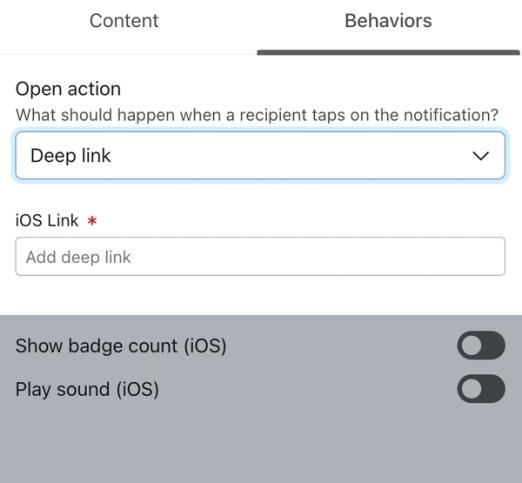
- If you selected Deep link, enter your link in the field for your platform. When both platforms are set up and a single Deep link field is shown, enter one link for both platforms. To use different destinations, turn on Use separate Android and iOS links and enter a link in each of the iOS link and Android link fields. If separate fields are already shown, fill in both, even when you use the same link.
- Click Preview & test and send a test notification to your test device’s push token. Tap the notification to confirm it opens the intended destination. Test each platform you use, including links with personalization or UTM parameters.
- Save the message: for a campaign, click Next or Save and return, depending on the campaign builder. For a flow, click Save & continue.
When you are ready, finish scheduling or sending your campaign or set your flow message live.
Outcome
After including a deep link or external URL in your push notification, anyone who taps the message will automatically be directed to the destination you specified.
This makes it easy for you to promote new products, encourage recipients to fill out their profiles, and more.
If you’re experiencing issues with your deep link (e.g., if it doesn’t open the right page), we encourage you to talk to your developer, as Klaviyo cannot help you troubleshoot these issues.
Additional resources
- How to send a push notification campaign
Learn how to use Klaviyo to send push notification campaigns via your iOS or Android app.
- How to add a push notification to a flow
Learn how to use Klaviyo to send push notifications from your iOS or Android app via flows.
- How to set up iOS universal links and Android App Links
Universal links (for iOS) and App Links (for Android) direct your customers to content within your mobile app or, if the app isn't installed, to the same content on your website. Using these links in email and text messages allows you to use consistent URLs across all your marketing channels while creating a seamless experience for your customer, no matter their device. It's similar to traditional deep linking, but with additional functionality.