How to create content blocks for Customer Hub
You will learn
Learn how to create content blocks for your Customer Hub. Use them to display personalized offers and information from Klaviyo profiles, such as a loyalty point balance synced from an integration.
Customer Hub for Shopify currently supports standard storefronts and Shopify Headless. For WooCommerce, navigate to https://help.klaviyo.com/hc/en-us/articles/47792369863451
For feedback about Customer Hub functionality, email customerhub@klaviyo.com.
Before you begin
This guide explains how to set up content blocks so they display on your site’s Customer Hub. Before proceeding, ensure that you have the Customer Hub feature enabled in Klaviyo. Content blocks require a paid Customer Hub plan or an active free trial.
Learn more about Customer Hub.
What you can do with content blocks
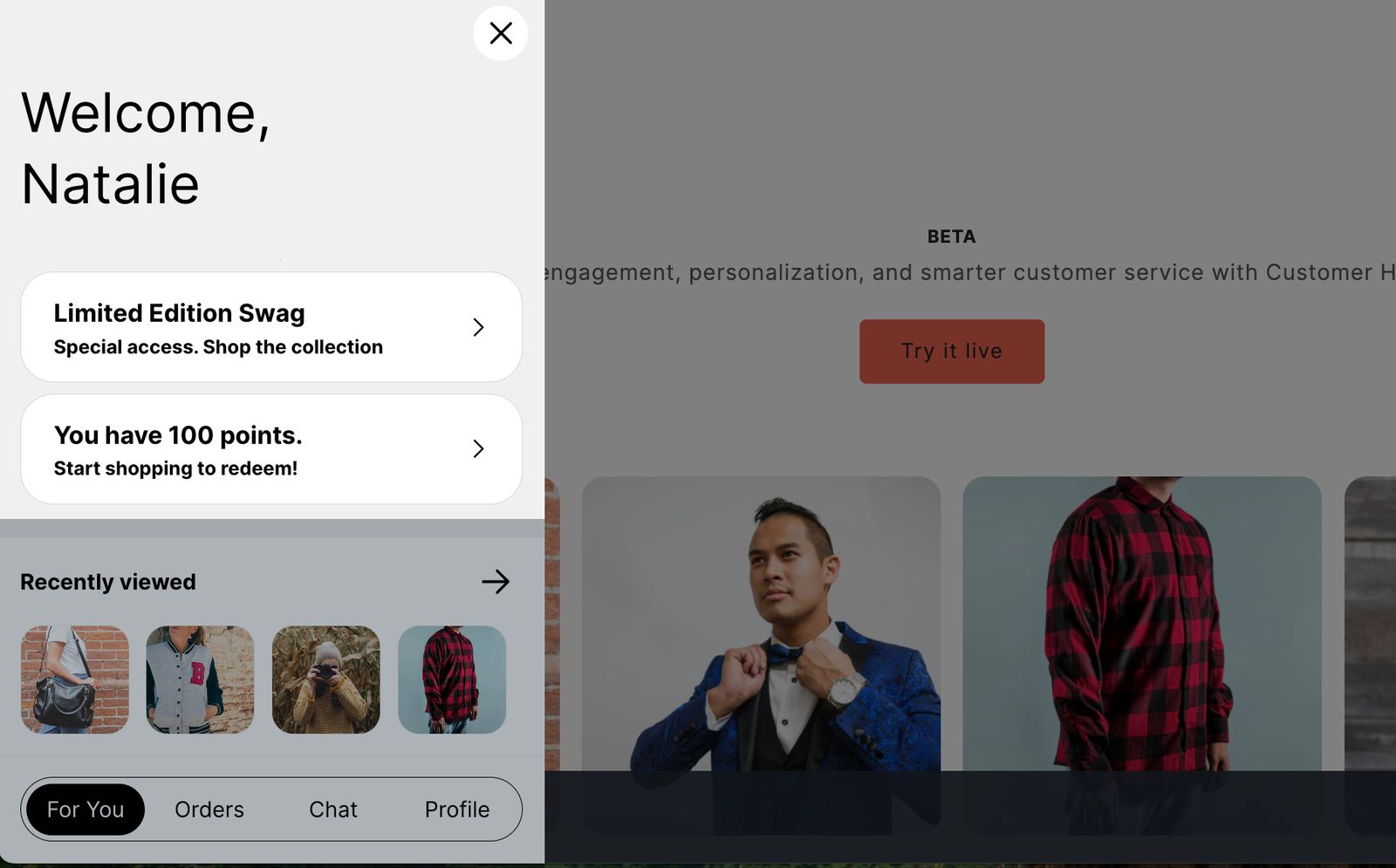
Content blocks help you customize the For you tab of the Customer Hub interface. You can use them to display customer-specific information or encourage visitors to take a certain action, so each person enjoys a tailored experience when interacting with your onsite Customer Hub. You can create your own custom content blocks or use a template from Klaviyo's content block library, which includes pre-configured blocks for common scenarios and surfacing customer data (e.g., loyalty points or subscription status) from various integrations.
Common use cases for content blocks
- Encourage actions
- Prompt visitors to contact you (e.g., “Email us”)
- Send shoppers to a specific URL or page (e.g., subscription management or referral information pages)
- Highlight and guide customer journeys
- Promote special offers or exclusive collections for signed-in shoppers
- Showcase a highly-rated product with reviews and images
- Display personalized information from a Klaviyo profile
- Use personalization tags to dynamically show customer-specific details from their Klaviyo profile. This can be information you’ve collected via Klaviyo, imported, or synced from other platforms or integrations, such as:
- Loyalty points
- Subscription status
- Membership tier
- Use personalization tags to dynamically show customer-specific details from their Klaviyo profile. This can be information you’ve collected via Klaviyo, imported, or synced from other platforms or integrations, such as:
- Advanced personalization
- Use if/else conditional logic to control what information displays in a content block based on customer profile data (e.g., display rewards information exclusively to rewards program members and present a default message to everyone else).
Content block events
When you create a content block, you must give it a name. Klaviyo tracks each time a site visitor clicks on a content block as a Customer Hub clicked on content block event, using the name you provide for reporting and filtering. For this reason, it’s best to choose names that are familiar and relevant to the content in each block.
Keep in mind, names are for internal use only; they aren’t visible to your customers. You also cannot change a block’s name after it’s created.
Create a new content block
There are a few steps to follow to create and publish content blocks to your Customer Hub interface. The next few sections walk through this setup.
Access content blocks
- Navigate to Customer Hub under the Website tab.
- Select Design in the Customer Hub navigation.
- At the top of the Design page, you’ll see a card that displays the status of your Hub. Select the Edit your Hub button to enter the Customer Hub Editor.
- In the editor, select For you, then click Add block (+) in the preview.
- Use a pre-built template from the content block library.
- Browse the library by category (e.g., loyalty, deals, list growth) or filter by integration. Click Add block on any template to open it in the content block editor with pre-filled, fully editable fields.
- Use a pre-built template from the content block library.
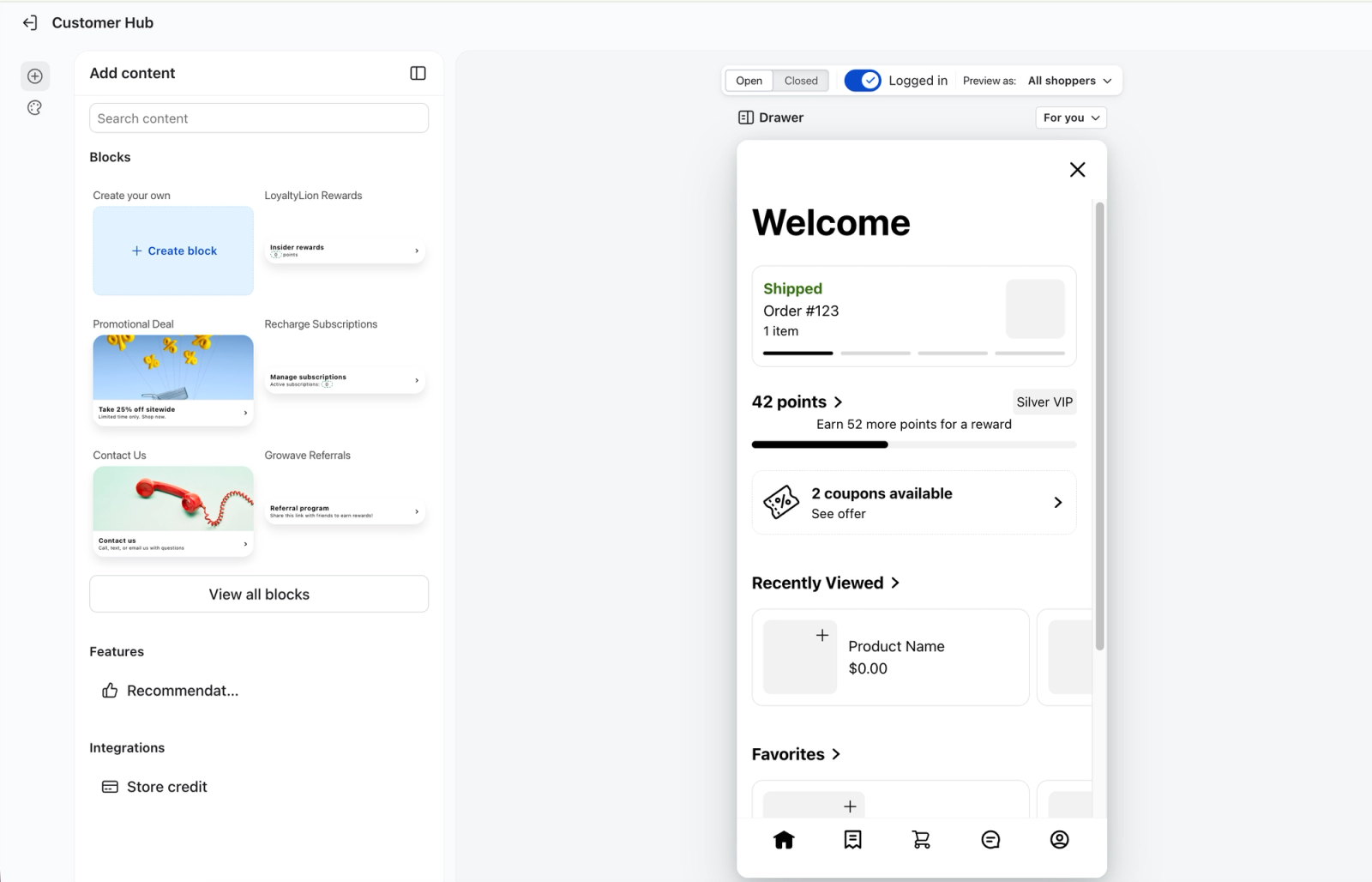
Integration-specific content blocks require that you have already enabled that respective integration in Klaviyo.
- Build your own content block.
- Click Build your own to open a blank setup menu in the editor.
Configure your content block
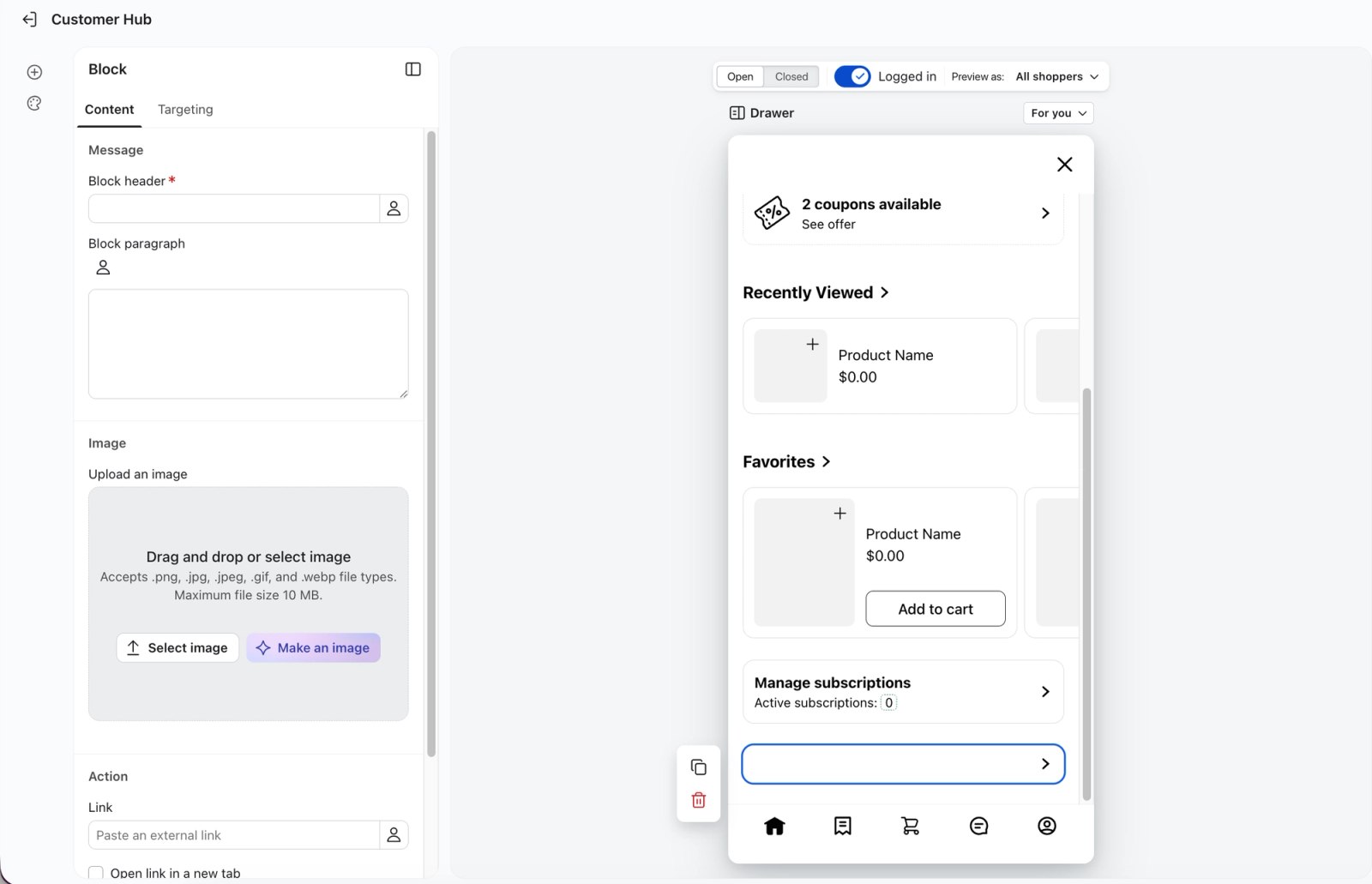
Once you've chosen your starting point (template or from scratch), the content block will show in the editor. You can click on any content block to edit its configurations.
- In the block's settings, edit:
- Block header
- Write a heading or a call to action (e.g., Shop Spring Collection).
- Block paragraph
- Add details or context using regular, static text, or insert personalization tags to pull dynamic, customer-specific information (e.g., available rewards points). Event data is not supported.
- Image (Optional)
- Upload an image to display at the top of this content block.
- Block header
If you use an integration-specific template, personalization tags are pre-configured to match the platform's custom property names.
- Link (Optional)
- Provide a URL to direct visitors when they click the block (e.g., to a product page). You can also choose if the link should open in a new tab.
- Internal name
- Create a recognizable name (e.g., “Rewards” for a block showing rewards points). Note that this name is used for reporting and cannot be changed once saved.
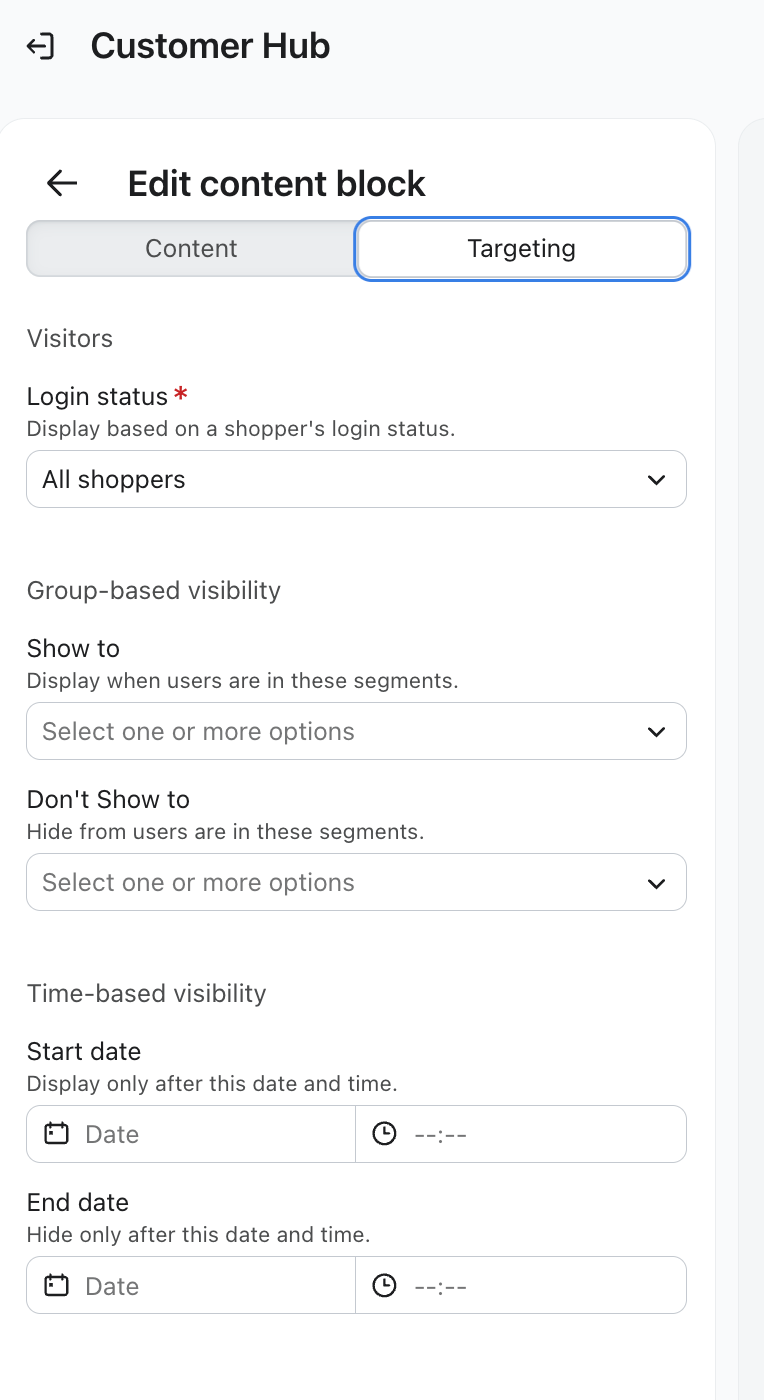
- Configure the block's targeting settings:
- Login status
Choose which types of visitors can see the content block based on login status.- Note: If you choose to display a custom content block to Logged in or recognized shoppers, please ensure the block does not contain sensitive personal information (PII). While Klaviyo automatically redacts PII in native tabs like Orders and Profile, brands are responsible for the privacy of data added to custom content blocks.
- Group-based visibility
Show or hide the block for certain lists or segments:- Show to groups: Select the lists or segments that should see the block.
- Hide from groups: Select the lists or segments that should not see the block.
- Schedule block
You can schedule start and end dates and times for when you want certain blocks to be visible. - Display context
You can dictate which URLs you want certain blocks to appear on or not appear on.
- Login status
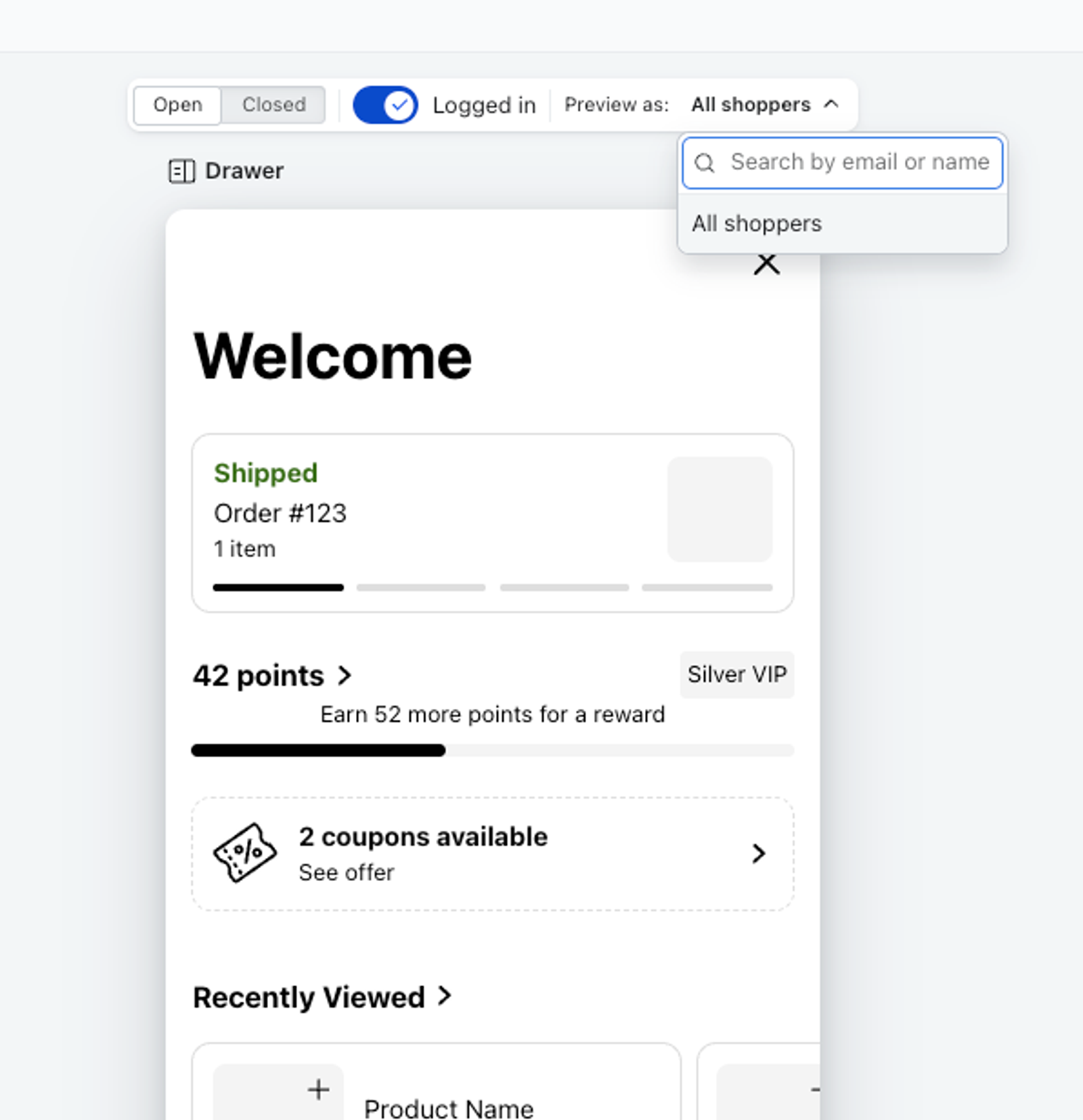
Use Preview as to select a profile and compare Logged in and Logged out views. If the Preview button is available, click it to check the block on your site before publishing.
Click Publish to save your content block and its settings. To display it on your site, your Customer Hub must also be live.
Scheduling content blocks
Use Schedule block to set when a block starts or stops appearing on your site. This is useful for flash sales, holiday promotions, and other time-sensitive content. Publishing saves the block’s current content and its visibility dates together.
A scheduled block still follows its login status, list or segment targeting, and display context settings. To reach anonymous visitors, choose All shoppers and leave group targeting empty.
Schedule a new content block
Create and configure your block before setting its visibility dates. Leave Start date empty if you want the block to appear when you publish and its targeting conditions are met. Dates and times use your browser’s local timezone.
- Select your block in the Customer Hub editor to open its settings.
- Under Schedule block, set a Start date and Start time for when the block should begin appearing.
- Optionally, set an End date and End time for when the block should stop appearing.
- Click Publish to save the block and its schedule.
Hide a content block when a promotion ends
Set an end date to stop showing a block automatically when a promotion ends. The end date controls visibility; it does not delete the block.
- Select the content block in the Customer Hub editor.
- Under Schedule block, set the End date and End time.
- Click Publish. The block is hidden after the end date and time.
Check a content block's schedule
Review the block’s start and end dates in its settings before publishing. The editor preview lets you check content and audience targeting, but it does not simulate future scheduled dates.
Change or clear scheduled dates
To change when a block appears, edit its visibility dates in the Customer Hub editor.
- Go to Customer Hub > Design > Edit your Hub and select the block.
- Under Schedule block, change the start or end date and time. To remove a date restriction, clear that date.
- Click Publish to save your changes.
How customers will see your content blocks
The content blocks your site visitors see, and the details displayed in those blocks, depend on whether they’ve signed in to their account and if Klaviyo has identified them. Keep in mind that:
- Klaviyo can only display content blocks targeted to specific lists or segments to visitors who have signed in to an account or who have been identified by Klaviyo in another way (e.g., followed a link in an email or filled out a sign-up form). Anonymous, signed-out visitors will not see these blocks.
- Content blocks with personalization tags will only display profile data for signed-in visitors. If a visitor is signed out, the default value will display. If there is no default value, the text will not show.
If you configure a content block to only show to a specific segment, and that segment becomes inactive, the content block will no longer be visible or accessible to anyone. To extend a segment’s inactivity window, click the star icon next to the segment’s name on the Lists & segments page. Starring extends the window from 45 to 365 days. Continue using or viewing the segment to keep it active. Accounts with Advanced KDP or Marketing Analytics are exempt from automatic deactivation of starred segments.
Using personalization tags to surface profile data
Content blocks support the use of profile and custom personalization to dynamically pull information from each customer's Klaviyo profile.
The content block library features several integration-specific templates that are already set up with the correct personalization tags for that platform and specific use case. However, if you have a different integration or use case in mind, you can add or modify personalization tags in your content block's description to display the data you need.
Note that event data is not currently supported for content blocks in Customer Hub.
Example use cases with personalization tags
When referencing a custom profile property in a personalization tag, make sure the value in the “lookup” section matches how you’re storing that property in Klaviyo. Custom properties may be formatted or named something different than the examples provided.
- Surface available loyalty points:
You have{{ person|lookup:'loyalty_points'|default:'0'|floatformat:0 }}points - Remind a shopper of their membership tier (e.g., Bronze, Silver, Gold):
{{ person|lookup:'Membership Tier'|default:'No membership' }}Status - Prompt a certain shopping journey with personalization:
Celebrate your{{ person|lookup:'breed_type'|default:'dog' }}
Tip: Keep in mind that when using personalization tags, there may be some visitors who haven’t provided all the data your tags reference. To account for these instances, use default text to prevent blank spaces in place of the missing data.
Using conditional logic
For more advanced customization, you can use conditional if statements to control how a block appears to different shoppers based on their profile information.
Example if/else statements
- Help members manage their current subscription while incentivizing non-members to start a subscription plan:
{% if person.subscription_status and person.subscription_status != "Cancelled" %}Manage your subscription {% else %}Start a subscription & save! {% endif %} - Engage VIP loyalty members while showing non-members a CTA to join:
{% if person|lookup:'Loyalty Points' > 150 %}Hey VIP! You’ve always got free shipping & free returns {% else %}Have you heard about our VIP program? Join today on our website to start earning rewards. {% endif %}
Learn more about if statements.
Additional resources
- How to style your Customer Hub
Learn about design options for styling your Customer Hub drawer, and how you can design it to match your brand. Because the Customer Hub interface is ingrained in the customer experience, it’s best practice to style it to appear as an extension of your website.
- How to display product recommendations in Customer Hub
Learn how to display personalized product recommendations in the Customer Hub drawer to tailor shopping experiences for your customers and drive conversions. By showing products that appeal to customers, you can improve conversion rates and provide cross-sell opportunities to increase average order value.
- Message personalization reference
Learn how to use Klaviyo’s personalization variables, or tags, to customize the experience for your customers.