How to migrate off of Klaviyo
You will learn
Learn which steps to take when you're migrating off of Klaviyo, regardless of whether you're changing to another provider for SMS, email, or both.
If you're moving only SMS or only email to another provider, follow the shared steps below for the channel you're moving, along with the sections labeled for that channel. Keep the code snippets and integrations you still need for Klaviyo. If you're leaving Klaviyo entirely, follow all the steps below.
How to migrate off Klaviyo
- Turn off or update your flows
- Cancel your scheduled campaigns
- Turn off or update your sign-up forms
- Export your contacts
- SMS subscribers
- Email list
- Email suppression list
- Other SMS or email segments
- SMS: remove or port your number to your new provider
- SMS: audit your custom keywords
- Email: export your templates
- Remove or update your hosted pages
- Remove code snippets
- Export your analytics
- Remove your integrations
- Cancel your plan or account
Turn off or update your flows
If you would like to continue using Klaviyo for email but not SMS or vice versa, you must check each flow and remove either all the SMS messages or all the emails. You can either delete these messages or set the messages to Draft. Audit each of your flows and update all flow filters, branches, and message statuses.
If you are migrating away from Klaviyo completely (i.e., stopping both email and SMS), turn off any flows you have live by deleting them or by turning them to draft. We recommend turning the flows to draft mode, as you cannot recover flows (or their data) once they're deleted.
To turn a flow to draft:
- Open the flow from Flows.
- Click Update status. If the panel lists scheduled status changes, click Edit next to Current status.
- Choose Draft from the Flow status dropdown.
- If Flow status options appear, select Update status now. Click Save.
Also remove future status changes for any flow you are retiring, including flows that are already in draft. A scheduled change can turn the flow back on.
- In Update status, review the scheduled changes in Status details.
- For each scheduled change, open its 3-dot menu, select Delete, and click Delete in the confirmation dialog.
Cancel your scheduled campaigns
Cancel scheduled campaigns for the channel you're moving. If you're leaving Klaviyo entirely, cancel all scheduled campaigns:
- Head to the Campaigns tab.
- Filter by the status Scheduled.
- Open the 3-dot menu for the campaign you want to stop and select Cancel.
- Click Cancel campaign in the confirmation dialog. Repeat for each campaign you want to stop.
For a campaign with multiple messages:
- Open the campaign, then open the 3-dot menu on a scheduled message you want to stop and select Cancel.
- Click Cancel sending to confirm. Repeat for each affected message.
Turn off or update your sign-up forms
If you plan to continue using Klaviyo for one channel (SMS but not email or vice versa), edit your sign-up forms so they no longer collect consent for the channel you're moving. If you have forms only for that channel, delete them or set them to draft.
If you are migrating away from Klaviyo completely, you can turn off your sign-up forms by either setting them to draft or deleting them. Note that deleting your forms will permanently erase all data about them.
To update a form you want to keep live:
- Go to Website > Sign-up forms, open the form’s 3-dot menu, and select Edit. Remove the fields or consent options for the channel you are moving.
- Click Publish or schedule, select Publish now, then click Publish now to apply your changes.
To turn off a form by setting it to draft:
- Go to Website > Sign-up forms, open the form’s 3-dot menu, and select Edit.
- In the editor header, open the status dropdown (Live or Editing) and select Draft.
If the form’s menu shows Edit A/B test instead of Edit, end the test before updating or turning off the form:
- Select Edit A/B test and click Choose Winner.
- Select the variation to keep and choose End test and set selected variation to draft.
- Click Choose Winner to confirm.
To keep the selected form live for your remaining channel, edit and publish it using the steps above.
Export your contacts
Export the lists and segments below that you want to move to your new platform. To export a list or segment:
- Click into the list or segment (under Audience > Lists & segments).
- Select Manage list or Manage segment, depending on what you opened.
- Choose Export to CSV.
- You need permission to export lists and segments. If Export to CSV is unavailable, ask your account Owner or Admin for access.
- Choose the properties you want to export.
- Click Start Export and wait for the CSV file to download.
- Navigate to Settings > Other > Downloads to access exports from the last 30 days.
SMS subscribers
To move your SMS contacts to your new platform, export them from Klaviyo along with their consent records.
Include Phone Number, SMS Marketing Consent, and SMS Marketing Consent Timestamp, along with any other fields you need. Upload the CSV file to your new provider according to their instructions.
Email list
Export the email lists and segments you want to move using the steps above. Include email addresses, Email Marketing Consent, and Email Marketing Consent Timestamp to keep consent records with your contacts.
Email suppression list
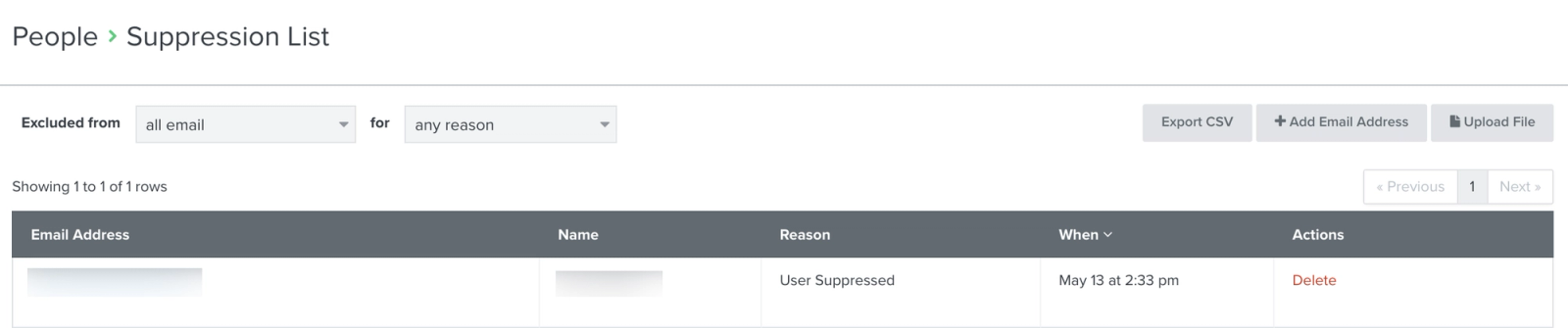
We recommend exporting your suppression list so you can preserve email opt-outs and other suppressions in your new platform. Follow your new provider’s instructions for importing these contacts as suppressed. To export the list:
- Navigate to Audience > Profiles
- Click View suppressed profiles.
- Clear any suppression-reason filters if you want to export the full suppression list.
- Click Export CSV. If you see a 3-dot menu instead, open it and select Export to CSV.
Other SMS or email segments
Check on your other lists and segments. For instance, you may want to export your engaged or VIP segments.
SMS: remove or port your number to your new provider
Port your number
If you wish to keep the sending number you use with Klaviyo, you will need to port this number over to your new SMS provider. In order to export a number from Klaviyo, please contact your new SMS provider to initiate the porting request. Then, if you need any information about your SMS phone number or Klaviyo account in order to complete your porting request with your new provider, please reach out to support.
Porting is not available for branded sender IDs. However, you can simply create the same sender ID with your new SMS provider. This way, your messages will still show as coming from your brand.
Remove your number
If you do not wish to keep your sending number, you can remove it. When you remove a number, you are releasing it, so you won't still receive texts.
Removing a number is permanent and irreversible. If the same number is used in multiple countries, it is removed from all of them. If you plan to port your number, do not remove it.
To remove an active short code, contact support. Active short codes cannot be removed using the steps below.
To remove your number:
- Click your account name in the bottom left.
- Navigate to Settings > SMS > Sender information.
- Open the 3-dot menu next to the number you want to remove.
- Select Remove.
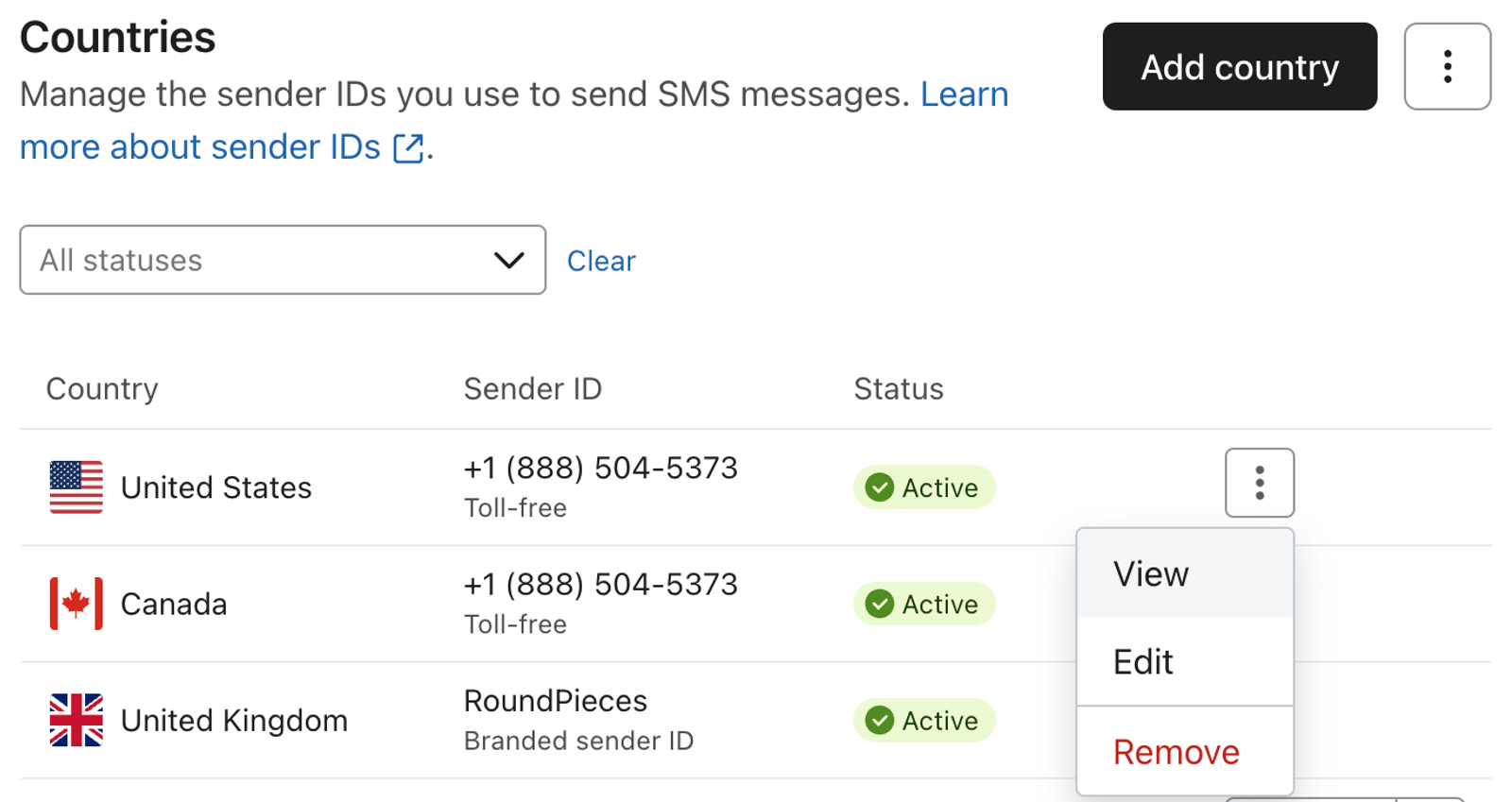
- Review the warning and click Remove in the confirmation dialog.
SMS: audit your custom keywords
Audit any existing custom keywords you’ve configured within Klaviyo and remove any reference to those keywords on your website, email banners, or any in-store advertisements.
Email: export your templates
To export the HTML of any of your email templates for future use:
- Navigate to Content > Templates.
- Locate the template you want to export.
- Click the additional options menu on the right.
- Click Export.
- In the Export template HTML dialog, copy the HTML and save it for import into your new provider.
Remove or update your hosted pages
If you plan to continue using Klaviyo for a single channel (email or SMS), edit your custom hosted pages, such as subscribe and manage preference pages, to reflect your migration away from Klaviyo for that channel. For instance, if you keep email but migrate SMS providers, you'll want to remove mention of collecting SMS consent.
If you are migrating away from Klaviyo completely, remove any links on your site to custom hosted pages you've set up in Klaviyo.
Remove code snippets
This is only if you are migrating away from Klaviyo for both email and SMS. If you still plan to use Klaviyo for one of these channels, skip to the next section.
You can remove Klaviyo’s web tracking snippets from your site since you’ll no longer need them. This is recommended because leaving them in place could unnecessarily slow site performance. These 2 snippets are Klaviyo’s Active on Site tracking and Viewed Product tracking. When you originally integrated your ecommerce platform with Klaviyo, you either added the snippets to your site manually, or they were added automatically, depending on your platform.
If the snippets were automatically added with your ecommerce integration, they should be automatically deleted when you remove it.
If you added the snippets manually, see Getting started with Klaviyo onsite tracking to find where they live on your site and remove them. You should also remove any other Klaviyo JavaScript that you manually added to your site.
Export your analytics
To save analytics from your Klaviyo account, export custom reports from Analytics > Custom reports and flow analytics from Flows. For instructions, see:
Remove your integrations
This is only if you are migrating away from Klaviyo for both email and SMS. If you still plan to use Klaviyo for one of these channels, skip to Cancel your plan or account.
Klaviyo recommends removing your ecommerce platform integration before canceling your account. This stops new data from syncing through that integration. Automatically added tracking snippets should be removed with it; remove any manually added snippets separately.
- Click Integrations in the sidebar.
- Under My apps, find your ecommerce platform integration.
- Open the integration’s options menu and select Remove integration.
- Review the dialog and click Remove integration to confirm.
- Repeat for any other integrations you have.
Cancel your plan or account
If you want to cancel one or both of your plans, follow the process outlined in How to downgrade to free, cancel a plan, or close your Klaviyo account.
Additional resources
- How to export a list or segment to a CSV file
Learn how to export any list or segment in Klaviyo to a CSV file.
- How to add or change a plan in Klaviyo
Learn how to manually upgrade or downgrade your Klaviyo billing plan.
- How to downgrade to free, cancel a plan, or close your Klaviyo account
Learn how to downgrade your plans to free, cancel a single plan (e.g., email and profiles, SMS, or Reviews) or your account, as well as how to close your Klaviyo account.
- How to contact support
Start in Composer for Klaviyo support. Use klaviyo.com/support as a backup or to submit an email support ticket if your account is eligible.