How to migrate from Sailthru
You will learn
Learn how to migrate from Sailthru to Klaviyo. While Klaviyo does not have a built-in integration with Sailthru, you can migrate your data over by exporting it from Sailthru and importing it into Klaviyo. Additionally, when you integrate your ecommerce store with Klaviyo, you will be able to trigger emails based on a shopper's onsite activities.
Before you begin
This guide will walk you through migrating your data from Sailthru to Klaviyo. As you migrate your Sailthru lists, keep in mind that the main objectives for migrating data are to ensure that all relevant contacts and fields are represented in Klaviyo and that any opted-out contacts are treated as such in Klaviyo.
Below we provide a recommended approach for uploading opted-in contacts to Klaviyo and suppressing contacts who opted out in Sailthru. We recommend that you review how Sailthru defines your contacts' status so you can check your source data and decide which contacts to import or suppress.
This guide gives you general guidelines for migrating your data from Sailthru to Klaviyo. Contact Sailthru support for the most up-to-date instructions on exporting your Sailthru data.
Checklist
Migrating from Sailthru to Klaviyo requires several key steps:
- Export all Sailthru Opt-ins
- Format CSV file
- Import CSV files to a Klaviyo list
- Export Sailthru Opt-outs
- Add Opt-outs to your Klaviyo Suppression list
- Migrate email templates
- Export additional Sailthru data
- Set key Klaviyo flows live
- Sunset your Sailthru account
- Send your first Klaviyo campaign
Export Sailthru opt-ins
First, you’ll want to export your Sailthru opt-in contact list.
For enhanced security, only Sailthru seats (admins) that have been assigned PII (Personally Identifiable Information) permissions by their administrator are able to download raw email addresses. As such, be sure that you have the necessary permissions before you begin your Sailthru data export. Sailthru seats who do not have PII permissions are only able to download “hashed” email addresses which cannot be used in Klaviyo.
To isolate your opt-in contacts, you’ll need to use Sailthru’s audience builder to create a Smart List containing contacts who have opted in. For example, set up your Audience Builder filters to exclude users who have opted out. Also include filters for specific fields and VARS (custom fields/variables) in your export.
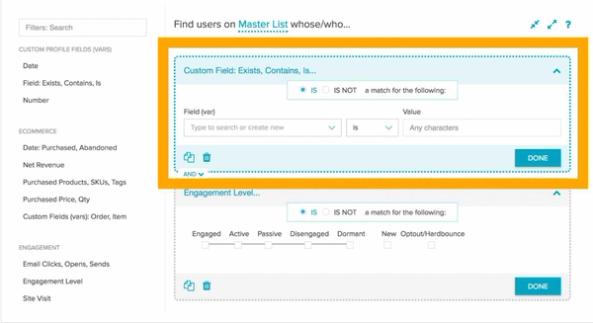
Once you’ve created your opt-in list, export your list in CSV format. Follow these Sailthru instructions for exporting your list:
- In My Sailthru, go to Users > Lists.
- Locate the list you want to export, and in the rightmost column, click the Excel icon.
- Select All Emails, and click Export.
- When your file is ready, the download begins automatically. Or, while your export is processing, you can navigate away from the page, and return later to the Jobs page:
- At the top of My Sailthru, click the Menu icon.
- Find your job in the table. If it is complete, at the end of its row, click to download the file.
- Contact Sailthru support if you need assistance creating and exporting your opt-in list.
Format CSV files
You'll need to format each CSV file before importing it into Klaviyo. To do that, open the CSV file and comb through the list, paying special attention to the column headings.
- Column headings should be in the first row of the CSV file. If Sailthru adds additional rows before the column headings, delete these extra rows.
- Your CSV file must include an "Email" or an "Email Address" column.
- You may want to include a "First Name" and "Last Name" column.
- Include any VARS (custom profile properties), such as "Gender," that you'd like to upload to Klaviyo.
- Timestamp fields such as "date added," "last opened," and "last clicked" need to be specifically formatted or Klaviyo will not recognize them as timestamp fields. Make sure timestamp data is formatted in one of these formats:
YYYY-MM-DD HH:MM:SS
MM/DD/YYYY HH:MM:SS
MM/DD/YY HH:MM:SS
MM/DD/YYYY HH:MM
MM/DD/YY HH:MM
YYYY-MM-DDTHH:MM:SS
Below is an example of how your CSV file should be formatted.
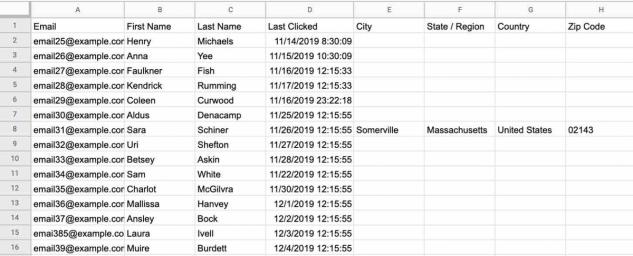
Review your CSV file carefully, editing and deleting column headings and contact entries as appropriate.
Remember, it's much easier to parse and edit data within a CSV file before it is uploaded into Klaviyo.
For more detailed instructions on formatting CSV files, see how to import profile properties using a CSV upload.
Import CSV files to a Klaviyo list
After you've formatted your exported data, you can import it to a list in Klaviyo. Some Klaviyo flows are triggered by an email address being added to a list. Before you begin uploading contacts to a list, make sure these related flows are turned to draft or manual mode.
- Navigate to Audience > Lists & segments.
- Select the list where you would like to add your contacts. For this example, we're going to add subscribers to the Newsletter list.
- Open Manage list > Import contacts.
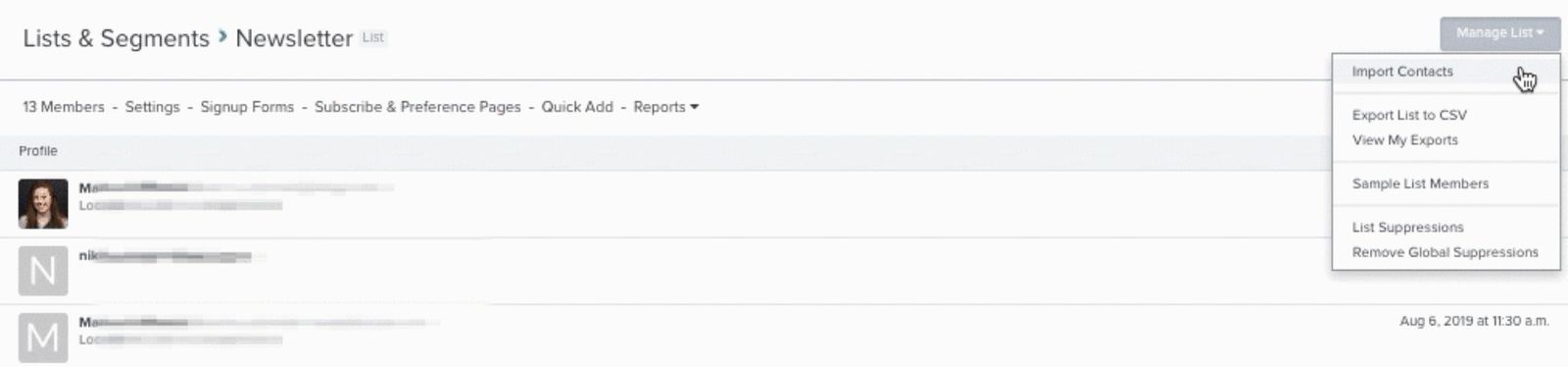
- Drag and drop your CSV file into the upload area. After the upload finishes, review the field mapping.
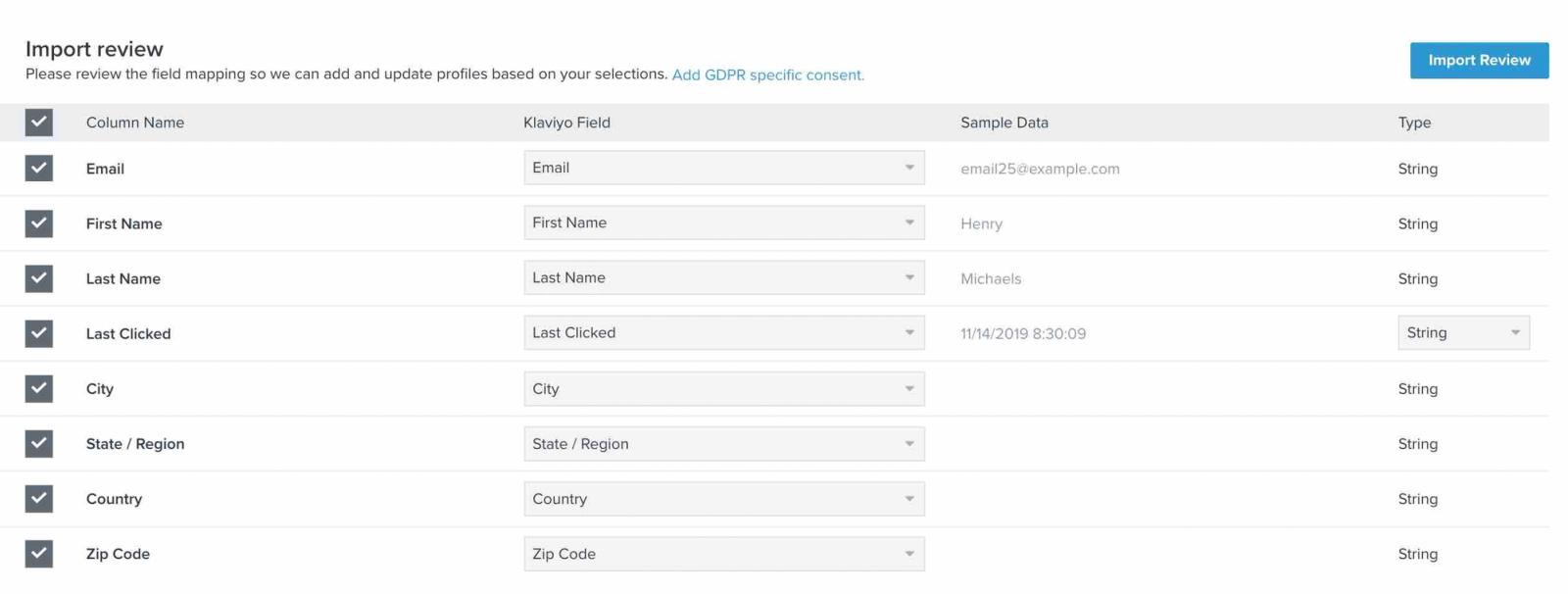
- Review each CSV column and its corresponding Klaviyo profile property. Select the columns you want to import, map your email address column to Email, and deselect any columns you want to omit.
- For an unmapped column, select an existing property or choose Create new property and enter a name. Choose the appropriate data type: Text, Boolean, Number, Date, or List, then click Create for a new property. Map imported timestamps, such as "date added," "last opened," and "last clicked," as Date properties. If you’re unsure which type to choose, see Understanding data types. Below is an example of field mapping for a Sailthru contacts import.
- Review any mapped consent statuses. If Next is shown, click it. If asked to apply bulk consent, choose Apply bulk consent only when every contact in this file has explicitly opted in to email marketing. If channel choices appear, select email marketing only. If Only import the consent in my file appears, select it to keep the consent statuses from your file without applying consent to all contacts.
- Click Import, then review the import history for completion and any skipped records. For more information, see how to import your contacts from a previous ESP or CRM.
Export Sailthru opt-outs
Export the email addresses that opted out in Sailthru for upload to your Klaviyo suppression list. Include contacts who unsubscribed, hard bounced, or marked your emails as spam. Complete this upload before turning on Klaviyo flows or sending campaigns.
Follow Sailthru’s instructions for exporting your opt-out data:
- In My Sailthru, go to Users > Lists.
- Locate the list you want to export, and in the rightmost column, click the Excel icon.
- Select Optouts, and click Export.
- When your file is ready, the download begins automatically. Or, while your export is processing, you can navigate away from the page, and return later to the Jobs page:
- At the top of My Sailthru, click the Menu icon.
- Find your job in the table. If it is complete, at the end of its row, click to download the file.
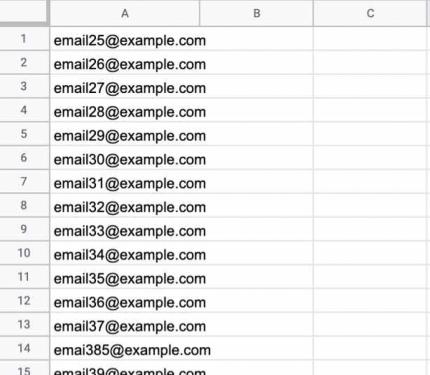
- Format the opt-out list so that it contains a single column of email addresses. There can be an "Email" column heading, but this is not necessary for the import into Klaviyo.
- This is an example of how your Suppression list CSV file should be formatted:
Add opt-outs to your Klaviyo suppression list
- Navigate to Audience > Profiles and click View suppressed profiles.
- Open the More actions menu and select Import suppressions. If your page has an Import button instead, click that button.
- Select or drag in the CSV file containing your Sailthru opt-outs, then click Upload.
- Wait for the upload to finish and confirm that your suppression list has been updated. These profiles are suppressed from email marketing; uploading suppressions does not change their consent status.
Migrate your email templates from Sailthru to Klaviyo
Klaviyo has an intuitive drag-and-drop template builder that you can use to recreate your Sailthru email templates. We highly recommend using this method to rebuild your templates because it will ensure that they are mobile-optimized, responsive, and easy-to-edit moving forward.
Check out our guide to using Klaviyo's template editor.
If you don't have time to recreate your Sailthru templates using Klaviyo's template builder, it is possible to export your email templates from Sailthru in raw HTML and then upload the updated raw HTML into Klaviyo.
Export your entire template HTML from Sailthru
To find the code for your Sailthru templates:
- Click on the template and then click the Code tab.
- Here, you will have access to the HTML of a given template.
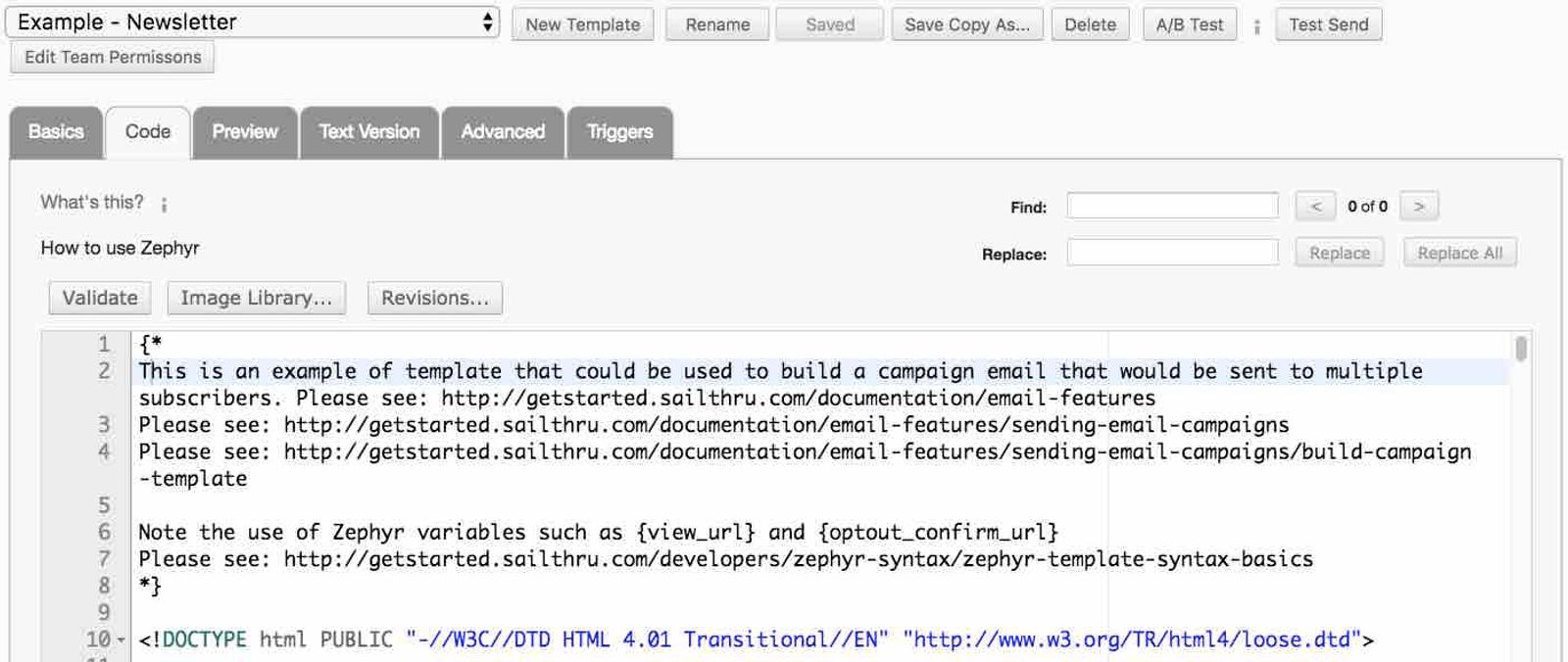
- You can copy the template code in its entirety and save it as an HTML file.
- Remember to swap out any Sailthru-specific tags with the applicable Klaviyo tags (e.g., first name tags, the unsubscribe link, etc.).
- To upload your file, navigate to Content > Templates and select Create > Import email template.
- Enter a Template name, select Upload HTML file, and choose your .html file. Include a Klaviyo unsubscribe tag, such as {% unsubscribe %}, in marketing templates. If the template references local images or other assets, upload them together in a ZIP file. Click Import template.
- Open the imported template and select Preview to check its appearance. Edit its HTML to make changes, then click Save.
For more information about importing raw HTML templates, you can reference our article on importing a custom HTML template.
Copy Sailthru template HTML in batches
Alternatively, you can export chunks of code from your Sailthru templates, and then import them into HTML blocks in Klaviyo's drag-and-drop editor. To do this:
- In your Sailthru account, find the code of a particular template in the Code tab.
- In Klaviyo, navigate to Content > Templates and select Create > New template. Choose Email, enter a name, and click Create to open a blank template in the drag-and-drop editor.
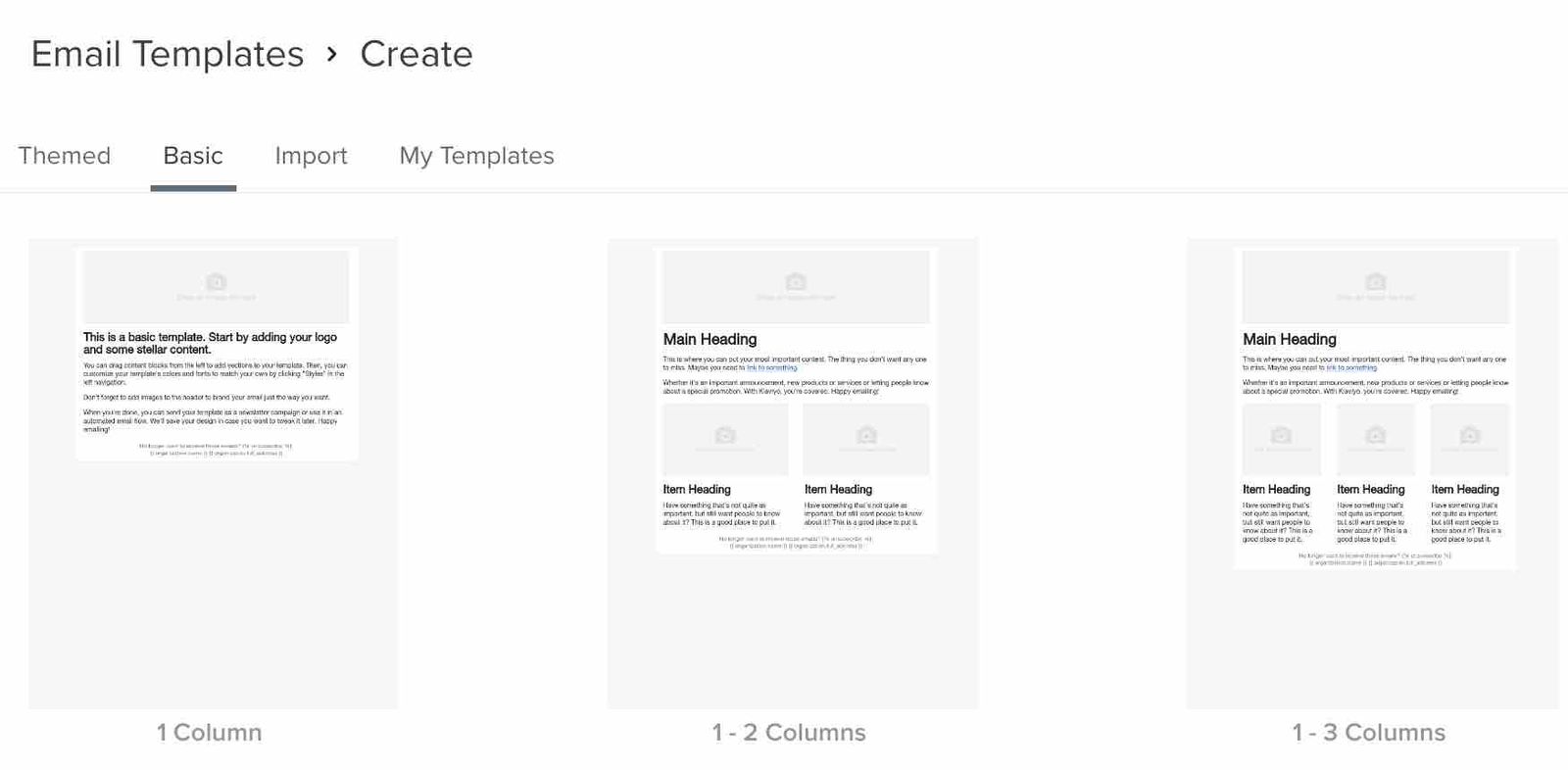
- Add an HTML block to the template, then click into it to edit its code.
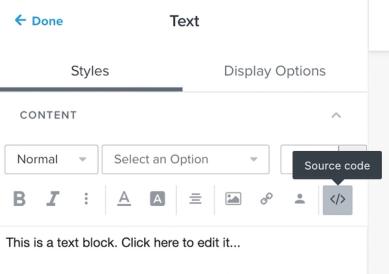
- Replace the existing text with the HTML from your Sailthru template, and repeat this process for the parts of the code you would like to migrate directly to Klaviyo. You can then fill in any blanks using Klaviyo's drag-and-drop editor.
- Remember to swap out any Sailthru-specific tags with the applicable Klaviyo tags (e.g., first name tags, the unsubscribe link, etc.).
Export additional Sailthru data
Instructions in this article help you extract the data you’ll need to get up and running in Klaviyo. If you need to export additional data from Sailthru that is not included in these exports, you may want to consider using Sailthru’s paid Data Exporter service.
Set key flows live
Setting flows live is a key step in ensuring that you properly warm your sending infrastructure. Flows are action-based automations that allow you to trigger messages based on customers' activity on your storefront. Because of this, emails sent through flows typically have much higher engagement rates than campaign emails, which are sent in bulk.
After importing your opt-outs into the suppression list, turn the following flows live. Turn off the matching Sailthru messages as you switch each flow to avoid duplicate emails.
Sunset your Sailthru account
After you've moved all your data over to Klaviyo, there are three key steps you can take to ensure that you no longer need your Sailthru account:
- Ensure that your sign-up forms and list growth tools point to Klaviyo, not Sailthru
- Recreate your Sailthru workflows as Klaviyo flows
- Discontinue use of Sailthru
Sign-up forms and list growth tools
Recreate any Sailthru sign-up forms in Klaviyo so that your list continues to grow in Klaviyo rather than in Sailthru. You can:
- Use the Klaviyo sign-up form builder to re-create your forms from scratch
- Use a third-party list growth tool that integrates with Klaviyo
- Integrate your custom form through your ecommerce platform
If you are using third-party list growth tools, make sure that these sync to Klaviyo. Klaviyo integrates with a number of tools for list growth and landing pages. Scan our list of app integrations to find the tool that you're using. If you don't see it listed, consider using Klaviyo's native Sign-up Form Builder to create your forms, or try switching to a different third-party tool.
New email lists use your account’s default opt-in setting. Check the destination list’s Settings > Consent before connecting your forms. For details on double opt-in and how to change a list to single opt-in, see our guide to the double opt-in process.
If you’re using a custom-coded form, sync these contacts to Klaviyo by ensuring that your custom form syncs new subscribers directly to your ecommerce platform, and that your ecommerce platform is integrated with your Klaviyo account.
After switching or syncing all your sign-up forms to Klaviyo, wait a few days and watch your lists in Sailthru. If you notice subscribers are still being added to these lists, there's probably at least one form that still needs to be swapped out.
Next, you'll want to turn off your Sailthru sign-up forms. Contact Sailthru support for information on how to turn off your Sailthru sign-up forms.
Triggered messages
You may have a sequence of triggered messages running in Sailthru that you will want to recreate in Klaviyo. In Klaviyo, these types of messages are referred to as flows. As you move from Sailthru, it’s a good time to refresh and update your automated messaging. We recommend that you turn on your welcome series and abandoned cart flows as soon as possible (see above). A welcome series is particularly important to engage new subscribers, and abandoned cart flows have the highest ROI of any other type of flow.
Once your Klaviyo flows are live, you'll want to turn off all of your triggered messages in Sailthru to ensure that you're not double-emailing people. Contact Sailthru support for more information.
Sunset your Sailthru account
Once you’ve pointed all of your list growth tools to your Klaviyo account, paused your Sailthru triggered messages, and turned your Klaviyo flows live, you can discontinue using Sailthru. Before you close your Sailthru account, double-check that everything is working as expected. Enter a test email into your sign-up form and other list growth tools, abandon a cart, and sign up for your newsletter to trigger a welcome series. Go to the Profiles tab in your Klaviyo account (found under Audience) to make sure that the information in the profile reflects all of the correct communication. If the list you sign up to is double opt-in, be sure to confirm your email first.
After you've taken these steps and are fully migrated to Klaviyo you can close your Sailthru account.
Send your first Klaviyo campaign
Once your Klaviyo account is integrated with your store and all of your data is ported over from Sailthru, you can send your first campaign with Klaviyo.
Choose your warming process before sending. If you use shared IPs and a previously used sending domain registered at least 30 days ago, follow the platform introduction process when bringing over only date properties such as "last opened" and "last clicked." These imported properties can help you select an audience, but they do not create Klaviyo Opened Email or Clicked Email events. Use the warming-process guide for newer domains, domains that have never sent email, or dedicated IPs.
Create and send to a 30-day engaged subscriber segment
In Klaviyo, build a segment of your 30-day engaged subscribers.
- Navigate to Audience > Lists & segments and select Create > Segment. Name the segment, for example, "Sailthru 30-day engaged."
- Use Properties about someone to include contacts whose imported "last opened," "last clicked," or "date added" property is in the last 30 days. Join these date conditions with OR. Add an AND condition that requires membership in the opt-in list you imported, so the segment stays limited to that audience.
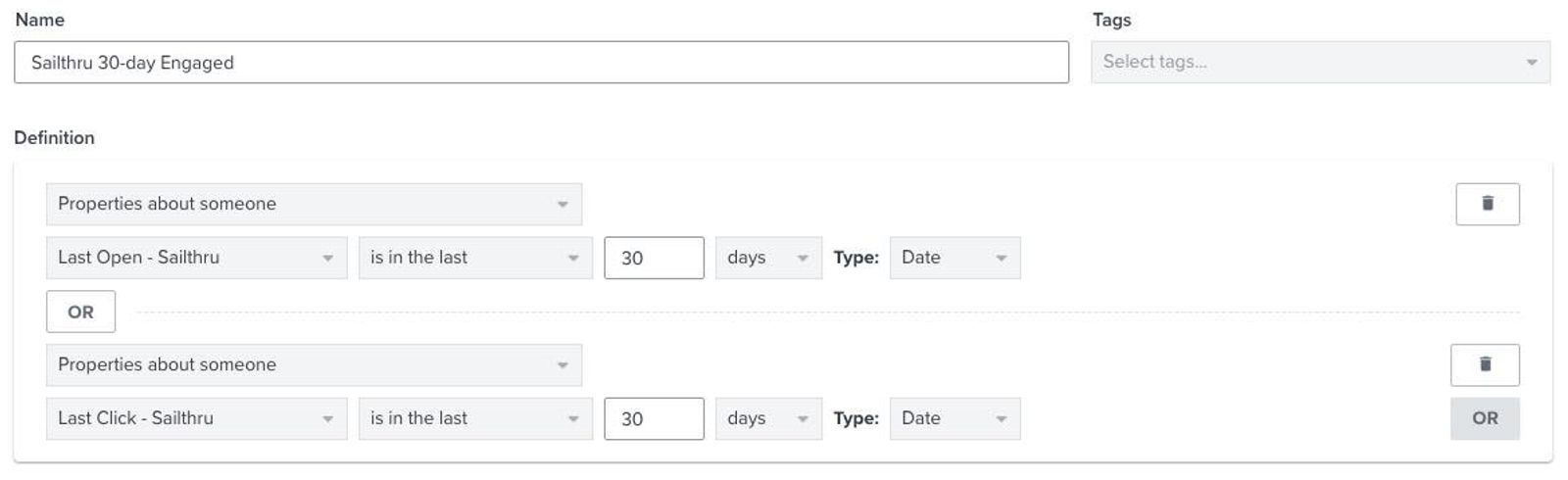
- Click Create segment, then note how many people are in your 30-day engaged segment.
- Use the sending volumes in your chosen warming process, even if your 30-day engaged segment is larger. To create a smaller audience, open your segment and select Manage segment > Create random sample. Enter a List name and Sample size, then click Create list. Use this sample list as your campaign audience.
- To spread a selected audience across hourly batches, use Gradual send. For example, 20% per hour creates 5 batches, and 10% per hour creates 10 batches.
- Gradual sending does not replace increasing your daily or weekly sending volume over the course of your warming plan.
- Navigate to Campaigns > Create campaign and create an email campaign. Select your 30-day engaged segment, or a sample sized for your warming plan, as the target audience.
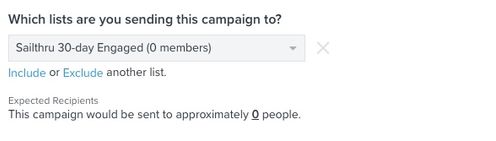
- Fill in the content of this campaign using one of the templates you migrated over from Sailthru, or create a new one from scratch.
- When you are finished editing the campaign content, click Next to reach Review. Check the audience, content, and sending settings, then click Schedule or send.
- Choose when to send. If using batches, select Gradual send, set the start date and time, and choose the percentage of recipients to send to per hour. If an interval selector is shown, select Hour. Gradual send is unavailable for A/B tests and campaigns with follow-up messages enabled.
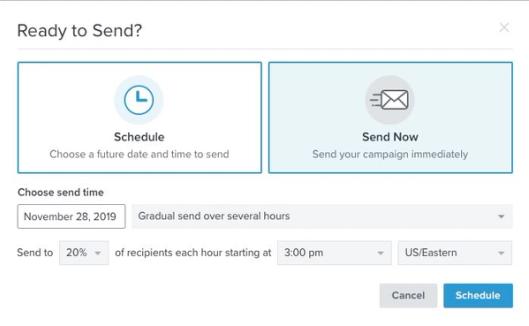
- Review your selections, then click Schedule message for a scheduled send or Send now for an immediate send.
For more information, check out our Getting started with Klaviyo course.
Monitor performance
After sending your first campaign, monitor its performance. The table below shows the email deliverability rating thresholds used in Klaviyo’s Deliverability hub. Check clicks, bounces, unsubscribes, and spam complaints alongside opens, since privacy-related opens can affect open rates.
Unique open rate | Unique click rate | Bounce rate | Unsubscribe rate | Spam complaint rate | |
Excellent | More than 39% | More than 1.6% | 0.5% or less | 0.1% or less | 0.005% or less |
Good | More than 33% up to 39% | More than 1.2% up to 1.6% | More than 0.5% up to 1% | More than 0.1% up to 0.3% | More than 0.005% up to 0.01% |
Fair | More than 27% up to 33% | More than 0.8% up to 1.2% | More than 1% up to 2% | More than 0.3% up to 1% | More than 0.01% up to 0.05% |
Poor | 27% or less | 0.8% or less | More than 2% | More than 1% | More than 0.05% |
Increase your audience gradually according to your warming plan while performance stays healthy. If your metrics fall into Fair or Poor, investigate the cause and improve performance with your engaged audience before expanding further.
Next steps
Build an excellent sender reputation with Klaviyo
Once you begin sending to your most engaged segment of customers, you can gradually send to more of your customers. This gradual increase in volume helps build your sender reputation as you warm your sending infrastructure.
Head over to our articles on deliverability to read more about warming your sending infrastructure.
Use advanced segmentation to reach your customers
After your initial ramp-up, expand to additional engaged subscribers only while your deliverability remains healthy. Use the segments below to reach a broader audience.
- Keep your 30-day engaged segment for your most active subscribers.
- Create and send to a 90-day engaged subscriber segment
- Use historical Sailthru data to refine and build out your segments
Create and send to a 90-day engaged subscriber segment
To create a broader segment of engaged subscribers:
- Navigate to Audience > Lists & segments and select Create > Segment. Name the segment, for example, "90-day engaged."
- Require membership in your imported opt-in list AND at least 1 of these conditions: an imported "last opened," "last clicked," or "date added" property is in the last 90 days, or the profile has opened or clicked an email in Klaviyo in the last 90 days. Join the engagement conditions with OR. Use Properties about someone for the imported dates and What someone has done (or not done) for Klaviyo email events.
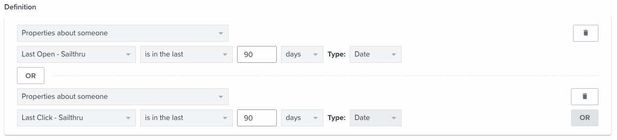
- Click Create segment, then create and schedule a campaign for this group using the steps above. Keep the audience size within your warming plan.
- Be sure to closely monitor your deliverability to ensure that your performance remains strong.
Outcome
You've now migrated from Sailthru to Klaviyo and have learned best practices for migrating email providers.
Additional resources
- Troubleshooting list imports
Learn how to troubleshoot errors that occur when uploading a CSV of contacts to a new or existing list in Klaviyo. Uploading reviews? Head to our article on how to import reviews.
- Understanding email deliverability
Learn about email deliverability, including the steps you can take to establish a strong sender reputation so that your emails are delivered to the inbox.
- Profile properties reference
Learn about the difference between custom and Klaviyo properties, how to use them to track information about your subscribers, how to remove them, best practices, and more.