How to migrate from HubSpot
You will learn
Learn how to migrate from HubSpot to Klaviyo. While Klaviyo does not have a built-in integration with HubSpot, you can export your data from HubSpot and upload it into Klaviyo.
Before you begin
This guide will walk you through migrating your data from HubSpot to Klaviyo. As you migrate your HubSpot lists, keep in mind that the main objectives for migrating data are to ensure that all relevant contacts and fields are represented in Klaviyo, and that any opted-out contacts are treated as such in Klaviyo.
Below, we provide a recommended approach that will allow you to upload your HubSpot contacts to Klaviyo and treat various contacts as unsubscribed based on the contact's status in HubSpot. We recommend that you also review how HubSpot defines these statuses so you can verify data quality in HubSpot and ensure that this approach of uploading active and unsubscribed profiles aligns with your intended use of Klaviyo.
Only include contacts who explicitly subscribed to your email marketing in your Everyone - Active list. A contact record or the absence of an unsubscribe does not establish consent. Keep unsubscribed contacts, hard bounces, and spam complaints out of your subscriber imports, and include them in your suppression upload before sending from Klaviyo.
This article gives you general guidelines for migrating your data from HubSpot to Klaviyo. Contact HubSpot support for the most up-to-date instructions on exporting your HubSpot data.
Migration strategy
Before migrating your data from HubSpot to Klaviyo, we suggest creating several HubSpot lists:
- Everyone - Active
- All Unsubscribes
- 7 Day - engagement
- 14 Day - engagement
- 30 Day - engagement
- 60 Day - engagement
Each of these lists will be treated differently in Klaviyo.
- Everyone - Active: Add this list to your Email List or list of choice
- All Unsubscribes: Add this list to your Klaviyo Suppression List
- 7 Day, 14 Day, 30 Day, 60 Day: These lists will be retained for later use when you will begin warming your account by using these lists to send strategic campaigns
Checklist
Migrating from HubSpot to Klaviyo requires several key steps:
- Export active HubSpot contacts into a CSV file
- Format the CSV file
- Import the CSV file to a Klaviyo list
- Export HubSpot unsubscribes
- Upload unsubscribes to your Klaviyo Suppression List
- Export and import 7-day, 14-day, 30-day, and 60-day engagement lists
- Migrate your HubSpot email templates to Klaviyo
- Sunset your HubSpot account
- Send your first Klaviyo campaign
Export your HubSpot lists
Each HubSpot account is set up uniquely. The following instructions are guidelines for exporting your HubSpot lists. Contact HubSpot support and consult their documentation for the most up-to-date export instructions.
These instructions are for both free and paid accounts.
- In HubSpot, select your Everyone - Active list or a filtered view containing only the email subscribers you intend to migrate. Use HubSpot’s documentation linked above for current export instructions.
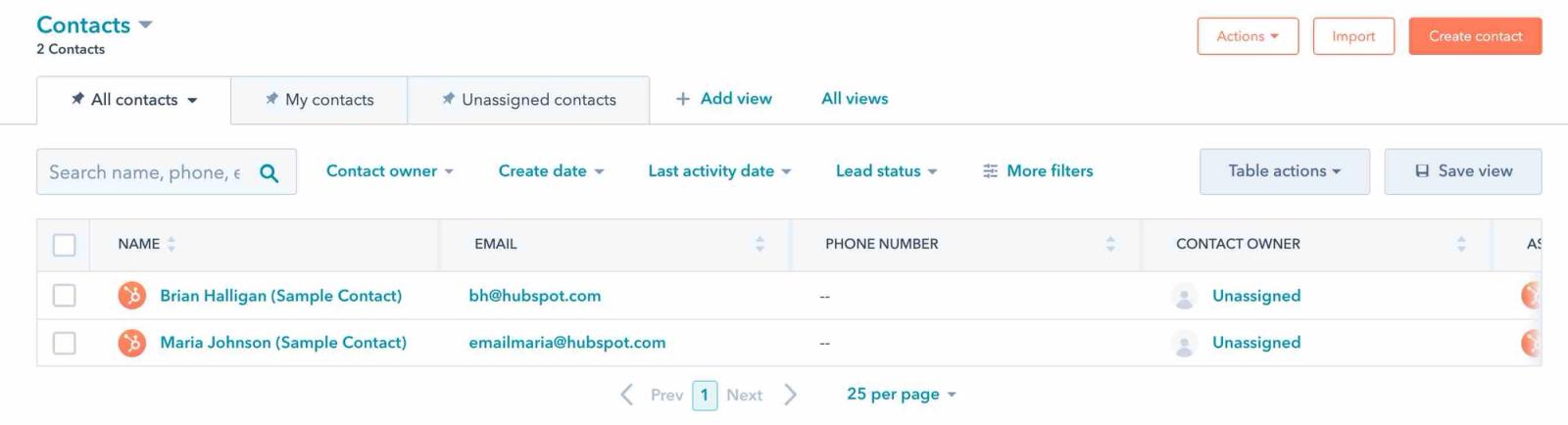
- In the Options dropdown, choose Export view.
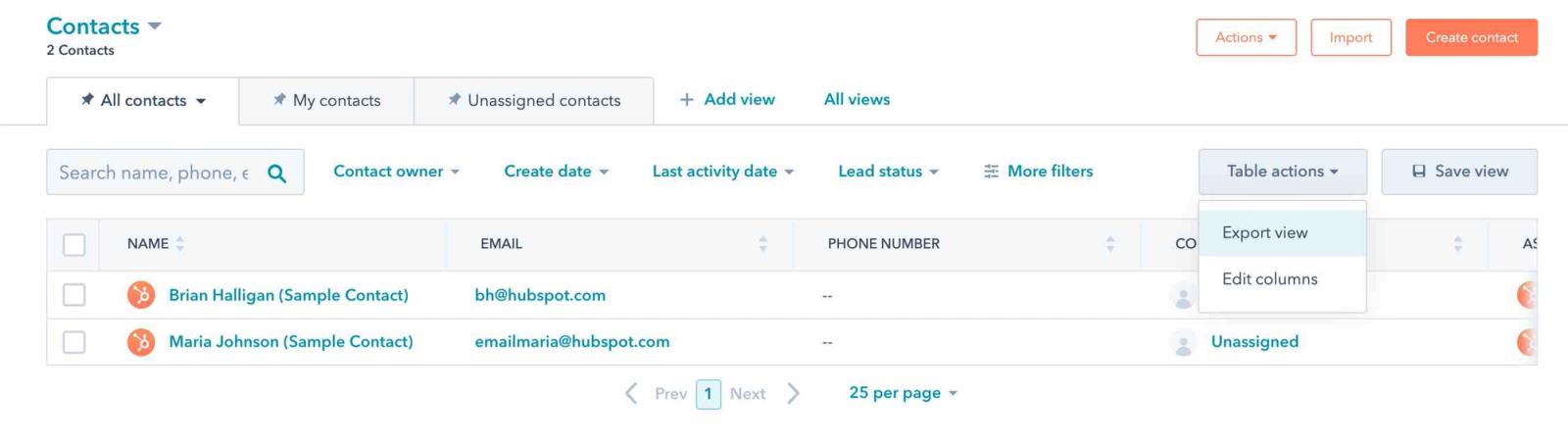
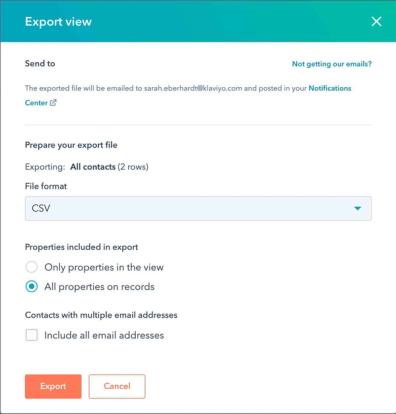
- Choose CSV as the file format, and select All properties on records.
- Since HubSpot can also serve as a CRM, you may want to export all associated contact data. Exporting all properties is also the fastest way to export your contacts. You’ll be able to map the export properties later in this process, and reference those fields for segmentation later in Klaviyo.
- Click Export. The file will be sent to the email address you logged in with.
Format CSV files
Contacts are imported into Klaviyo in CSV format. Carefully format each CSV file before it is imported into Klaviyo to ensure that your contacts are imported smoothly and accurately.
Open each CSV file. Carefully comb through each list, paying special attention to the column headings:
- Column headings should be in the first row of the CSV file. If HubSpot adds additional rows before the column headings, delete these extra rows.
- Include a column of email addresses and map it to Email during import. This column does not need to be first.
- You may want to include a "First Name" and a "Last Name" column.
- Include any custom profile properties, such as "Gender", that you'd like to upload to Klaviyo.
- Timestamp fields such as "Date Added", "Last Opened", and "Last Clicked" need to be formatted correctly or Klaviyo will not recognize them as timestamp fields. Make sure timestamp data is in one of these formats:
YYYY-MM-DD HH:MM:SS
MM/DD/YYYY HH:MM:SS
MM/DD/YY HH:MM:SS
MM/DD/YYYY HH:MM
MM/DD/YY HH:MM
YYYY-MM-DDTHH:MM:SS
This is an example of how your CSV file should be formatted:
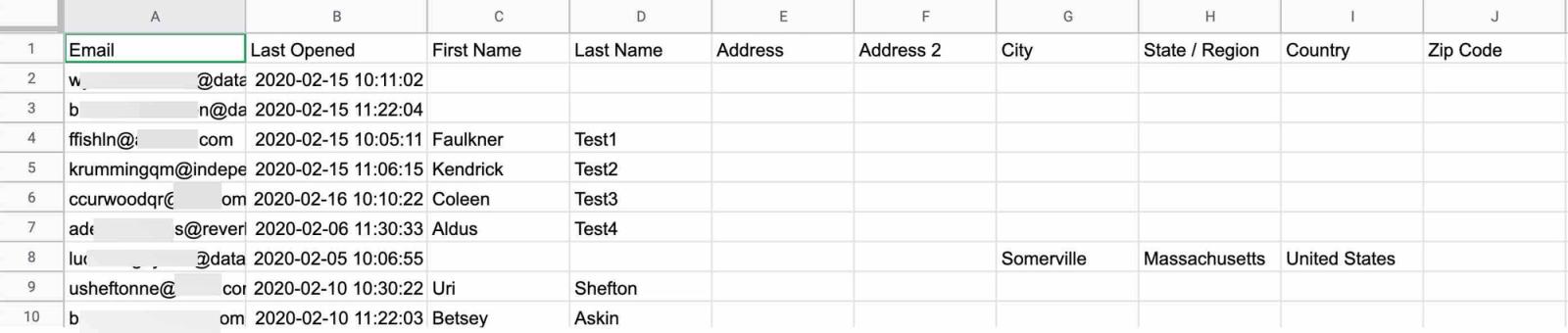
Review your CSV file carefully, editing/deleting column headings and contact entries as appropriate.
Remember that it is much easier to parse and edit data within a CSV file before it is uploaded into Klaviyo.
For more detailed instructions on formatting and importing CSV files, see how to migrate existing email subscribers and unsubscribes into Klaviyo.
Import CSV files to a Klaviyo list
After you format your exported data, import it to a list in Klaviyo.
Some Klaviyo flows are triggered by an email address being added to a list. Before you begin uploading contacts to a list, make sure these related flows are turned to draft or manual mode.
- Log in to your Klaviyo account and navigate to Audience > Lists & segments.
- Select the list where you would like to add your contacts. For this example, we're going to add subscribers to the Email List since they have already opted in.
- In your list, select Manage list > Import contacts.
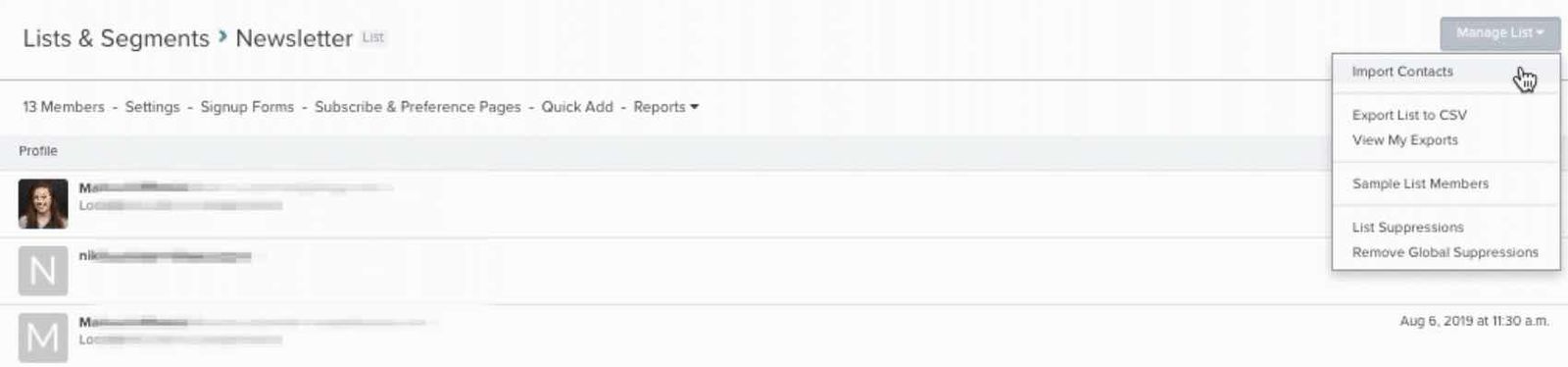
- Upload your CSV file. After it uploads, click Next to review the field mapping.
- Carefully review each import field/corresponding Klaviyo field, and modify as appropriate. By default, all identified fields are included in the import. You can omit a field from import by unchecking the box to the right of the field name.
- Map each selected column to an existing Klaviyo property, including your email addresses to Email. To add a custom property, select Create New Field, enter its name, choose Text, Boolean, Number, Date, or List, then click Create. You can also change the data type of an existing custom property in the mapping table. If you’re unsure which type to use, see data types in Klaviyo. This is an example of field mapping for a HubSpot contacts import:
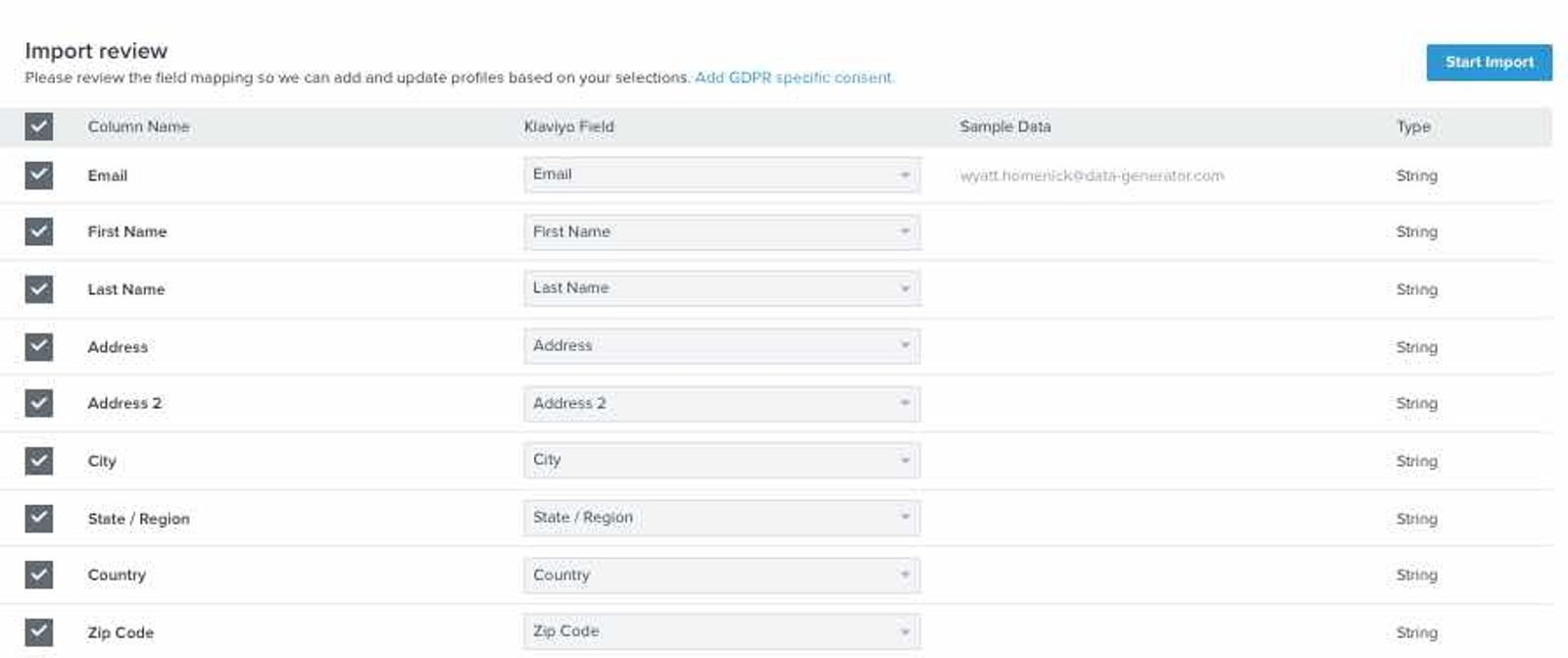
- When you finish mapping the fields, click Next to review consent. If your mapped file already contains all the consent information needed, you can proceed directly to Import.
- If prompted, select Apply bulk consent only when everyone in the file explicitly consented to email marketing. If channel choices appear, select Email and Marketing messages for these subscribers. To use only the consent recorded in your mapped file, select Only import the consent in my file.
- Click Import. Review the import history to confirm that the import completed and check any errors before sending.
For a deeper dive into importing contacts, head to our article on migrating existing subscribers and unsubscribes into Klaviyo.
Export HubSpot unsubscribes
It is important to import your HubSpot unsubscribes into your Klaviyo suppression list to help you comply with spam laws and protect your deliverability. Suppressed contacts cannot receive marketing emails. They can still receive transactional emails, unless they are suppressed because of bounces or an invalid email address.
Unsubscribed from email is a default property in HubSpot, so you’ll export this list, format it, and upload it into your Klaviyo Suppressions List.
- Navigate to Contacts > Lists > Create list.

- Name your new list descriptively. For Filter type, choose Contact-based. Under What kind of list are you creating? choose Active list.
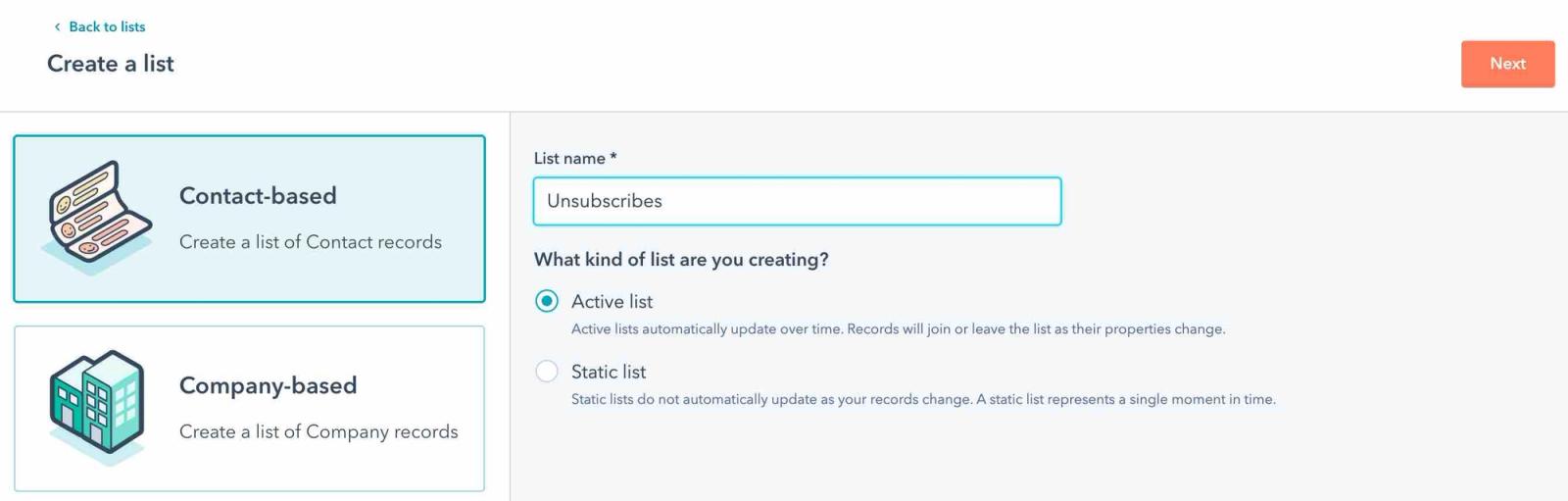
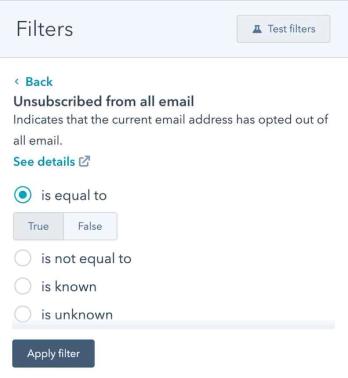
- From the list on the left, choose Contact properties and search for unsubscribes. Select Unsubscribed from all email.
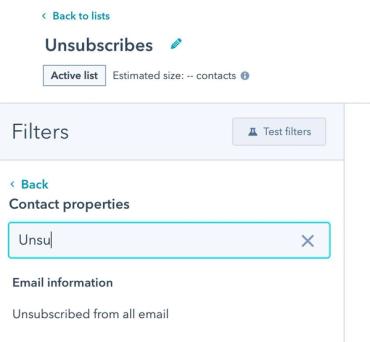
- Set Unsubscribed from all email > is equal to > True, and click Apply filter.
- Save the list.
- Navigate to Lists and find your Unsubscribe list. Hover over the list options and select the More dropdown. Choose Export.
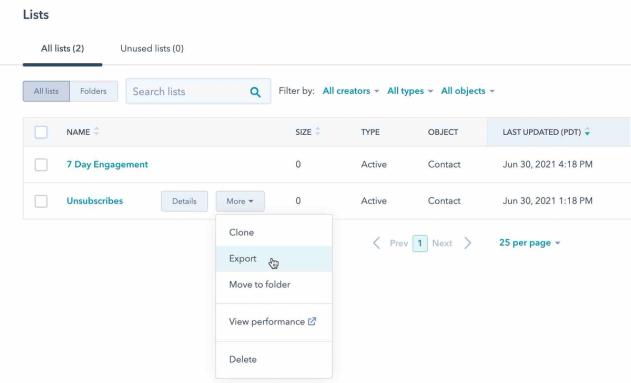
- You only need to upload email addresses to your Klaviyo Suppressions list. In the search field, type Email. Select the Email field and click Next. Follow the wizard to export your unsubscribes in the CSV format.
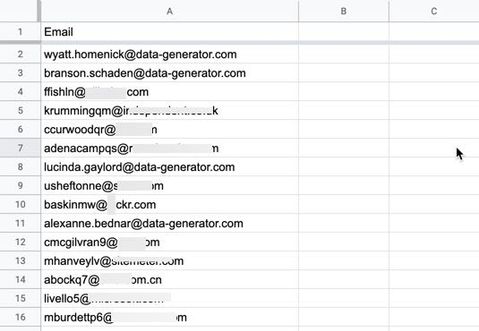
- Format the CSV download so that it contains a single column of email addresses. Below is an example of how your suppression list CSV file should be formatted:
- Now you're ready to upload your unsubscribes into Klaviyo.
Upload unsubscribes to Klaviyo
- Navigate to Audience > Profiles, then click View suppressed profiles.
- Click Import, or open More actions > Import suppressions. Upload the CSV containing your HubSpot unsubscribes.
- Click Upload.
- Wait for confirmation that your suppressions list has been updated before sending marketing emails.
Export and import 7-day, 14-day, 30-day, and 60-day engagement lists
- Navigate to Contacts > Lists > Create list in HubSpot.

- Name your new list descriptively (e.g., 7-day engagement). For Filter type, choose Contact properties. Under What kind of list are you creating? choose Active list.
- On the next page, select Last marketing email open date.
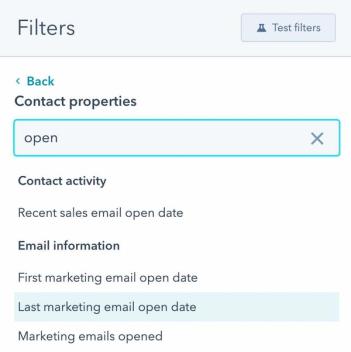
- Click is after. You’ll need to calculate your desired date. For example, if today is June 30, 2021, then 7 days prior is June 23, 2021.
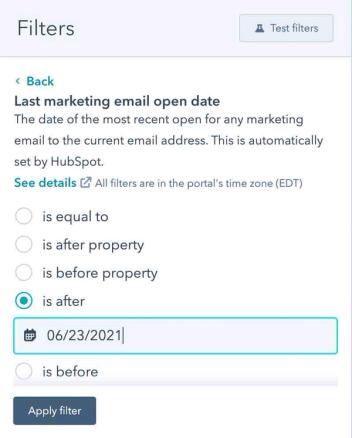
- Apply the filter, and then save your list.
- Follow previous instructions to export the list.
- Repeat these steps to create 14-day engagement, 30-day engagement, and 60-day engagement lists. You'll use these lists later to send strategic campaigns.
Import each engagement CSV into a separate Klaviyo list using the import steps above, with names such as “HubSpot 7-day engagement” and “HubSpot 30-day engagement.” Include only contacts who are still subscribed. Keep related list-triggered flows in draft or manual mode during these imports.
These lists record engagement at the time of your HubSpot export. Imported dates such as Last Opened and Last Clicked are profile properties; they do not create Klaviyo email open or click events. Use the imported lists or properties when identifying your initially engaged audience.
Migrate email templates from HubSpot to Klaviyo
Klaviyo has an intuitive drag-and-drop template builder that you can use to recreate your HubSpot email templates. We highly recommend using this method to rebuild your templates because it will ensure that they are mobile-optimized, responsive, and easy-to-edit moving forward.
Check out our guide to using Klaviyo's template editor.
If you don’t have time to recreate your HubSpot templates using Klaviyo’s template builder, it is possible to export your email templates from HubSpot in raw HTML and then import a custom HTML template into Klaviyo. Before importing, replace HubSpot-specific personalization tags with Klaviyo tags and include a Klaviyo unsubscribe tag, such as {% unsubscribe %}. Preview and test the imported template before sending.
Sunset your HubSpot account
After you've moved all your data over to Klaviyo, there are three key steps you can take to ensure that you no longer need your HubSpot account:
- Check that your sign-up forms and list growth tools point to Klaviyo, not HubSpot
- Recreate your HubSpot workflows as Klaviyo flows
- Discontinue use of HubSpot
Sign-up forms and list growth tools
Recreate any HubSpot sign-up forms in Klaviyo so that your list continues to grow in Klaviyo rather than in HubSpot. You can:
- Use the Klaviyo sign-up form builder to re-create your forms from scratch
- Use a third-party list growth tool that integrates with Klaviyo
- Integrate your custom forms through your ecommerce platform
If you are using third-party list growth tools, make sure that these sync to Klaviyo. Klaviyo integrates with a number of tools for list growth and landing pages.
New email lists use your account’s default opt-in setting. Check the setting for each list connected to your forms. To change a list to single opt-in, follow our guide to the double opt-in process. CSV list imports do not trigger double opt-in.
If you’re using a custom-coded form, you should ensure your custom form syncs new subscribers directly to your ecommerce platform and that your ecommerce store is integrated with your Klaviyo account.
After switching or syncing all your sign-up forms to Klaviyo, wait a few days and watch your lists in HubSpot. If you notice subscribers are still being added to these lists, there's probably at least one form that still needs to be swapped out.
Next, you'll want to turn off your HubSpot sign-up forms. Contact HubSpot support for information on how to turn off your HubSpot sign-up forms.
Email automations
Klaviyo refers to automated workflows as "flows" which allow for more advanced and targeted sequences. It is important to recreate these in Klaviyo so that you don't need to continue to use HubSpot to send triggered emails.
As you move from HubSpot, it may be a good time to refresh and update your automated messaging. We recommend that you turn on your welcome series and abandoned cart flows as soon as possible. A welcome series is particularly important to engage new subscribers, and abandoned cart flows have the highest ROI of any other type of flow.
Once your Klaviyo flows are live, you'll want to turn off all of your workflows in HubSpot to ensure that you're not double-emailing people. Contact HubSpot support for more information about turning off your HubSpot workflows.
Discontinue HubSpot use
Once you’ve pointed all of your list growth tools to your Klaviyo account, paused your HubSpot workflows, and turned your Klaviyo flows live, you can discontinue using HubSpot. Before you close your HubSpot account, double-check that everything is working as expected. Enter a test email into your sign-up form and other list growth tools, abandon a cart, and sign up for your email list to trigger a welcome series. Go to the Profiles tab (under Audience) in your Klaviyo account to make sure that the information in the profile reflects all of the correct communication. If the list you sign up to is double opt-in, confirm your email first.
After you've taken these steps and are fully migrated to Klaviyo, you can close your HubSpot account.
Send your first campaign with Klaviyo
Once your Klaviyo account is integrated with your store, your imports are complete, and your suppressions are up to date, send your first campaign to your most recently engaged subscribers. Use your imported HubSpot engagement lists to choose this audience, and follow the warming guidance below before expanding your sends.
For more information, check out our Getting started with Klaviyo course.
Next steps with Klaviyo
Build an excellent sender reputation with Klaviyo
After you begin sending to your most engaged subscribers, gradually increase your sending volume while monitoring engagement, bounces, and spam complaints. This ramp-up is part of warming your sending infrastructure and building your sender reputation.
Head over to our articles on deliverability to read more about warming your sending infrastructure.
Use advanced segmentation to reach your customers
Use engagement and deliverability performance to decide when to broaden your audience. Keep regular campaigns focused on engaged subscribers. You can also create more focused segments for different levels of engagement.
- If you already have a 3-month engaged segment, duplicate it and decrease the timeframe to 30 days to create a more focused audience.
- Use historical HubSpot data, such as your 7-day, 14-day, 30-day, and 60-day engagement lists, to refine and build out your segments
For a deeper dive into segmenting and approaching the rest of your customer base, read about creating customer engagement tiers.
If you have questions about transitioning from HubSpot or getting started with Klaviyo, please reach out to our Support team.
Outcome
You've now migrated from HubSpot to Klaviyo and have learned best practices for migrating email providers.
Additional resources
- Troubleshooting list imports
Learn how to troubleshoot errors that occur when uploading a CSV of contacts to a new or existing list in Klaviyo. Uploading reviews? Head to our article on how to import reviews.
- Understanding email deliverability
Learn about email deliverability, including the steps you can take to establish a strong sender reputation so that your emails are delivered to the inbox.
- Profile properties reference
Learn about the difference between custom and Klaviyo properties, how to use them to track information about your subscribers, how to remove them, best practices, and more.