Understanding the Klaviyo home dashboard
You will learn
Learn how to use the Klaviyo Home dashboard to analyze how your email, SMS, push, or WhatsApp marketing channels are contributing to your conversion goals. You can also review data insights from your recent campaign messages and top performing flows.
About the Home dashboard
Your Home tab in Klaviyo is customized to your brand. Depending on your setup, you may see personalized recommendations and next steps for your account, a Pick up where you left off section with links to recent forms, flows, and campaigns you’ve worked on, and more.
All accounts have access to these core sections of the Home dashboard:
- Business performance summary
An overview of your marketing performance, including comparisons to your performance from a previous period. - Top-performing flows
Up to 10 of your top-performing flows, based on the conversion metric you select. - Recent campaign messages
A summary of your recent campaign messages’ performance.
All of these sections use the conversion metric and time period you select in the Conversion metric section (discussed below).
About the conversion metric
The conversion metric selected on the Home dashboard is saved as your personal reporting preference for this account. This metric represents the conversion activity you’re trying to achieve through your marketing; for most Klaviyo users, Placed Order is the best conversion metric.
Learn more about conversion tracking in Klaviyo.
How to adjust the conversion metric and time frame
- Navigate to the Home tab.
- Under Conversion metric, select a conversion metric from the dropdown.
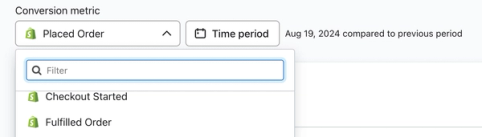
- Select a date range and comparison period in the Time period selector, then click Apply.
For a custom range, the start and end dates can be up to 180 days apart. Dates are inclusive and use your account’s timezone. For example, select Custom and choose September 1 through September 7 to include both dates.
Your conversion metric selection also applies to your campaign and flow reporting. Other users keep their own selections. The selected time period applies only to the Home tab.
If the conversion metric you choose has monetary value (e.g., Placed Order), you will see revenue in the analytics sections of your Home dashboard. If you do not choose a conversion metric with an associated monetary value (e.g., Active on site), you will instead see the total number of conversions.
Reviewing your alerts
The alerts section at the top of the Home dashboard provides an easy way to review important information, potential issues with your account, and how to resolve these items quickly. By clicking View more, you can see all of your current alerts.
Since alerts depend on potential billing or account problems, you may not see the alerts section if you are not experiencing these issues or if your user role does not provide access to that area of Klaviyo.
In this area, you may see notifications related to billing and payments, or issues with specific flows or campaigns. For example, these messages could include:
- Failed payments
- Flow metric anomalies; e.g., if a flow’s triggering metric has seen a decrease in its volume of events, compared to historic performance
- Message delivery; e.g., if a specific message in a flow (email, SMS, or push notification) sees a sudden decrease in its volume of received events, compared to historic performance
Using the business performance summary card
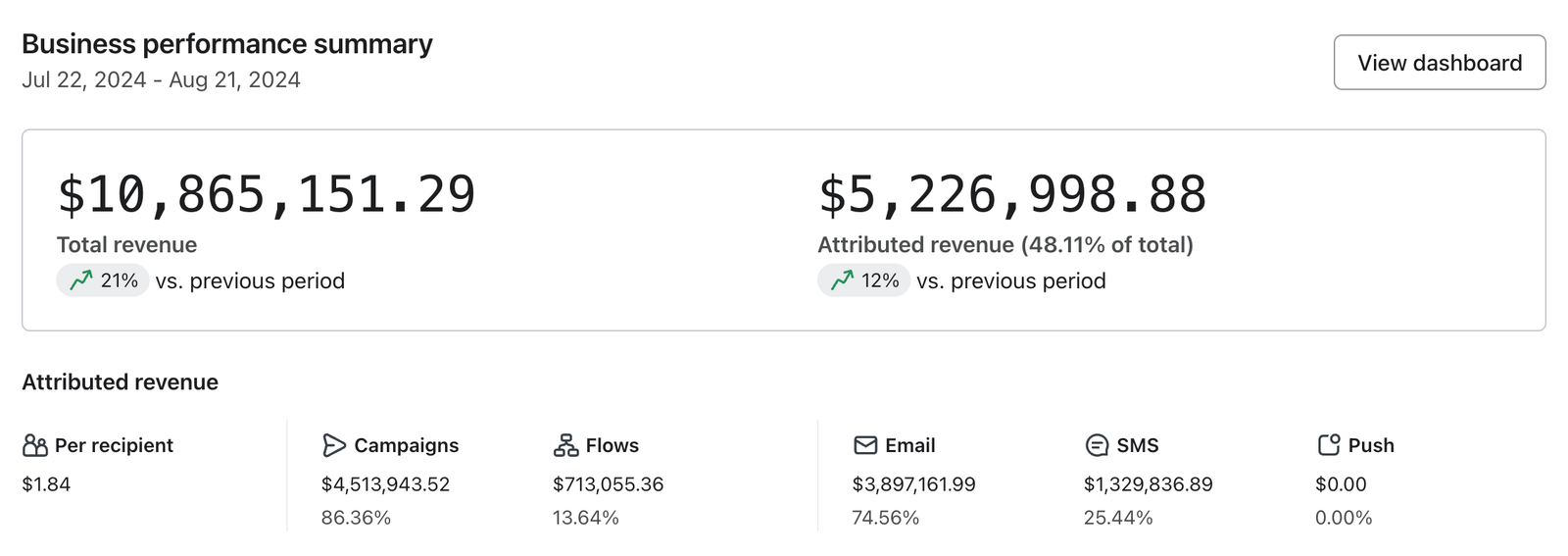
The business performance summary card enables you to see:
- Your total revenue or number of conversions
- The conversions or revenue by specific channel (i.e., email, SMS, push notifications, or WhatsApp)
- How these messages were sent (i.e., via a flow or campaign)
Total vs. attributed revenue or conversions
At the top of the business performance summary card, you’ll see Total revenue and Attributed revenue for a metric with monetary value. For a metric without monetary value, you’ll see Total conversions and Attributed conversions instead.
- Total revenue
Revenue recorded for your selected conversion metric during the selected period, whether or not it is attributed to a Klaviyo message. - Attributed revenue
Revenue that can be attributed to your marketing efforts through Klaviyo (i.e., your email, SMS, push, and WhatsApp messages sent during the selected period). Conversions that occur after the selected period can still contribute to this total if they are attributed to those messages.
Reviewing your Klaviyo attributed revenue or conversions breakdown
At the bottom of your business performance summary card, you will see a breakout by channel of either revenue or conversions, depending on whether or not the selected conversion metric relates to monetary value.
If your metric is associated with monetary value (e.g., Placed Order), you will see the Attributed revenue section. This section provides a breakout of revenue totals and where this revenue came from (i.e., flows, campaigns, email, push notifications, SMS, or WhatsApp).
If you did not choose a conversion metric with an associated monetary value (e.g., Active on site), you will see the Attributed conversions section instead, with a count of conversions attributed to each category.

Viewing all analytics data
To see more analytics, click View dashboard in the top-right corner of the business performance summary card. If the button reads View dashboards, click it and select a dashboard from the list.

Analytics dashboards can show campaign and flow revenue or conversions, form views and submissions, deliverability, and industry benchmarks. The available information depends on the cards in your dashboard. Read more in our guide about getting started with analytics dashboards.
Using the Top performing flows card
The Top performing flows card lists flows by descending order of conversions or revenue. In other words, your most successful flow will be at the top of the list. Only flows with a Manual or Live status will appear in this card.

The columns in the card represent the following:
- Flow
The flow name and trigger. - Status
Live or Manual, depending on what status the flow is currently set to. - Type
Icons representing the flow’s message channels and A/B tests, including:- Email
- Email

- SMS

- Push notification

- A/B test

- Deliveries
The total number of successfully delivered flow messages in the selected time period. - Conversion metric
Your selected conversion metric, with either the monetary value of those conversions or a count of unique conversions. Below the total, the card shows revenue per recipient or the percentage of recipients who converted, respectively. - Percent change
Whether revenue or conversions have increased, decreased, or stayed the same compared to your selected comparison period.
See analytics for all your flows by clicking the View all flows button in the top-right corner of the card.
Using the Recent campaign messages card
The Recent campaign messages card shows up to 10 recent email, SMS, push notification, or WhatsApp campaign messages within the time frame you chose, with the most recent send date at the top of the list.
Draft, scheduled, and currently sending messages do not appear here. Canceled messages can appear, so this card is not limited to messages that completed sending.
The conversion column is labeled with your selected metric. For a metric with monetary value, such as Placed Order, it shows revenue. For a metric without monetary value, such as Active on site, it shows a count of unique conversions.

The columns in the card represent the following:
- Campaign message
The name of the campaign message and the date and time when it was sent. Click the message name to open its report. - Type
Icons representing the message’s channel and whether it has an A/B test, including:- Email
- Email

- SMS
- Push notification
- A/B test

- Open rate
The open rate for each email, push, or WhatsApp message: unique opens divided by total delivered messages. SMS and silent push messages show a dash instead of an open rate. - Click rate
The unique number of clicks for an email, SMS, or WhatsApp message, divided by the total number of delivered messages. Push notifications show a dash because clicks are not tracked for this channel. - Conversion metric
Your selected conversion metric, with either the monetary value of those conversions or a count of unique conversions. Below the total, the card shows revenue per recipient or the percentage of recipients who converted, respectively. Silent push messages show a dash instead of conversion results.
See analytics for all your campaigns by clicking the View all campaigns button in the top-right corner of the card.