How to translate email templates and Universal Content
Translate a saved email template once, and every campaign or flow email you build from it starts with those translations. Translate a Universal Content block once, and every email that uses the block shows that translation.
You need a paid Klaviyo account to use Smart Translations. Owners, Admins, Managers, Campaign Coordinators, and Content Creators can translate templates and Universal Content. Analysts can view translations but can't change them. Support users can't view translations. For a custom role, give it Edit access to Content to translate, or View access to see translations only.
Smart Translations uses machine translation and AI to generate translated content, which may contain errors. Review all translations before sending your message.
This article covers saved email templates, custom HTML templates, and Universal Content. It explains which translation an email uses when a block is translated in two places. It also shows how to update translations when the source changes. To translate a single campaign or flow email, see How to translate campaigns or How to translate flows.
Before you begin
To translate templates and Universal Content, make sure:
- Smart Translations is turned on and your languages are added. Learn how in How to set up Smart Translations.
- Your glossary and do-not-translate terms are in place. They apply to templates and Universal Content the same way they apply to messages. Learn more in How to use the glossary and do-not-translate list.
- Your source content is final. If you edit the source after you translate, you need to review the translations of every block that changed.
Translate a saved email template
Translate a template you reuse often, so each new campaign or flow email built from it starts translated. Saved templates don't send on their own. Recipients see the translations only in campaigns and flows that use the template.
To translate a saved email template:
- Navigate to Content > Templates.
- Click the template you want to translate to open it in the template editor.
- Click Translate in the upper right corner. If you don't see Translate, check that Smart Translations is turned on in Settings > Translation > Enablement.

- Under Written in, select the language the template is written in.
- Select the languages to translate the template into. A template has no audience of its own, so Klaviyo suggests languages based on all the profiles in your account.
- In Default language, select the language recipients see when their language isn't one of the template's languages.
- Click Translate. With the Enhanced engine, translating can take up to 30 seconds. You can leave the page while it runs.
- Review each language and edit any text that needs changes. Learn how in How to review and edit translations.
- Click Done. Hover over Translate to see the number of languages in the template.
Use a translated template in a campaign or flow
When you create a campaign or flow email from a translated template, Klaviyo copies the template's translations into the email. If the email already has languages, it gains the template's languages that it doesn't have yet. It keeps the languages it already has.
- The copy belongs to the email - edits to the email's translations don't change the template.
- Existing emails don't change - translating or updating a template doesn't translate emails you already created from it.
- Translate shows the copied languages - in the email editor, hover over Translate to see the number of languages.
Translate Universal Content blocks
Universal Content is a block or section you save once and reuse across emails, such as a header or footer. In this article, block means either. Translate a block in the Universal Content library, and every email that uses it shows that translation in the languages the email is translated into. Translating a block doesn't translate the rest of the email. An email that isn't translated shows the block in its source language.
Translate a block from the Universal Content library
To translate Universal Content:
- Navigate to Content > Universal content.
- Click the block you want to translate.
- Click Edit universal content.
- Click Translate in the upper right corner. If the block already has translations, click the button that shows the number of translations (e.g., 3 translations).
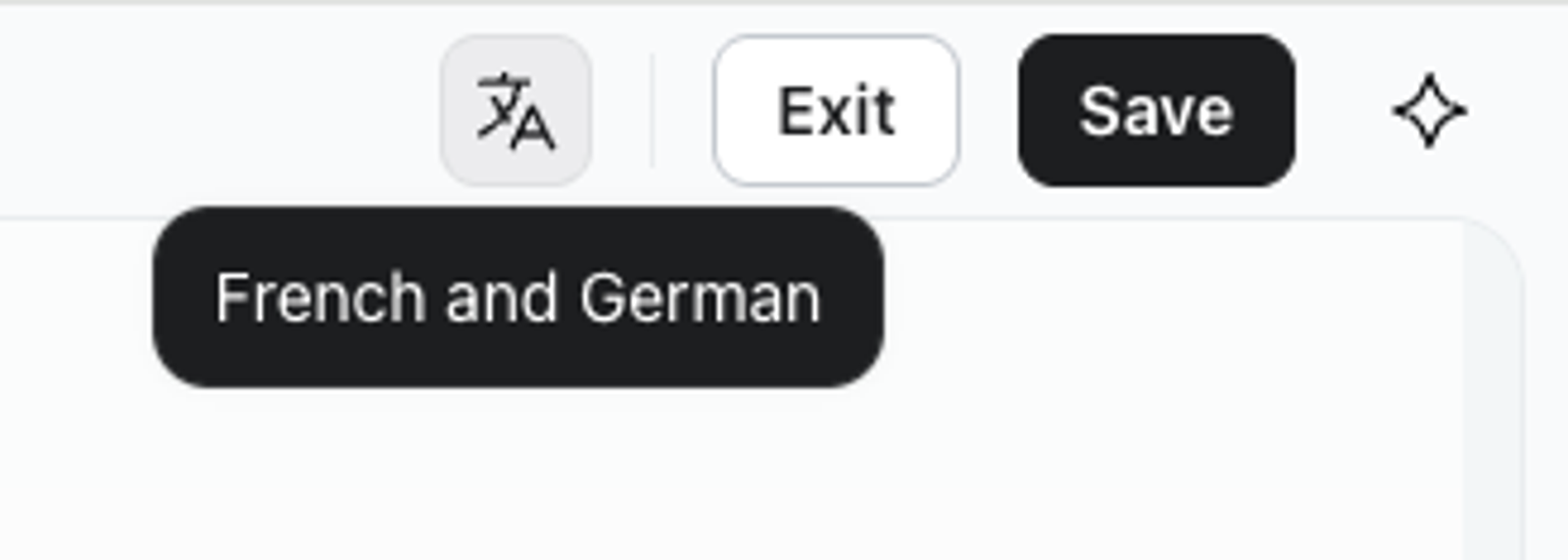
- Under Written in, select the block's language. Then select the languages to translate it into, and a Default language. These settings belong to the block, not to the emails that use it.
- Click Translate.
- Review and edit each language, then click Done.
The block's translations apply to every email that uses it as soon as you click Done. You don't need to click Save & publish unless you also changed the block's source.
Edit a block's translations from an email
When you translate an email that contains Universal Content, you can't edit the block's translations in that email. Click the block in the translation editor to see its name and the message You manage and translate universal content outside the template. To change the block's translations, click Edit universal content.
Changes you make there apply to every email that uses the block, not only the email you're working on. When you finish, click Done to go back to the email.
Save translated content as Universal Content
If you save a block or section from a translated template as Universal Content, Klaviyo copies the template's translations of that content into the new block. The new block uses the template's languages. Review each language in the new block after you save it.
If the section contains Universal Content blocks, saving it unlinks those blocks, as it does for any section. Their translations carry over into the new section. Learn more about sections in How to create and manage universal and saved content.
Clone, unlink, or delete a block
Translations follow the block in each of these cases:
- Clone - the clone gets its own copy of the block's translations. Changes to one don't affect the other.
- Unlink in one email - the email keeps the block's translations for the languages the email has. Later changes in the library no longer reach that email.
- Delete - every email that uses the block keeps its content, and its translations for the languages each email has.
Universal Content vs. template translations
A block can have a translation in the Universal Content library and another inside a template or email. When it has both, recipients get the library's translation.
A template holds its own translation of a block when you translated the block in that template before you saved it as Universal Content. The new block gets a copy, and the template keeps its own. You can't edit a linked block's translation inside a template.
For example, your footer is Universal Content translated into French. A template that uses the footer also has its own French translation of it. French recipients of every email built from that template get the footer's French translation from the library.
- The template's translation isn't deleted - it stays in the template, but it isn't used while the block is linked to Universal Content.
- A language the block doesn't have - recipients in that language see the block in the default language of the template that uses it. If the block isn't translated into that default language either, they see the block's source language. Translate the block into every language your emails use.
- A different translation in one email only - in the email editor, select the block and click Unlink and edit independently. The email keeps the block's translations for the languages it has, and you can edit them there. An unlinked block no longer gets updates from the library.
Update translations after the template or block changes
When you edit the source of a translated template or Universal Content block, the blocks you changed go out of sync with their translations. Update them before you use the template, and right after you publish the block.
Update a template's translations
To update a template's translations:
- Open the template in the template editor. A message at the top says Modifications to this content may affect how it's translated.
- Click Review translations next to the message.
- Out-of-sync blocks are highlighted in yellow. Select Update translations to translate only the fields that are out of sync. Hand edits in other fields stay.
- Review each language, then click Done.
To translate every field again with your current engine and glossary, select Retranslate instead. Retranslate replaces any text you edited by hand. Learn about every option for out-of-sync blocks in How to review and edit translations.
Updating a template doesn't change emails you already created from it. Update the translations in each email.
Update a Universal Content block's translations
Publishing changes to Universal Content updates every email that uses it, including scheduled campaigns and live flows.
You can update a block's translations only after you publish the block. Update them right away. Until you do, recipients in other languages get the block's last translation, which no longer matches the source.
To update a block's translations:
- Edit the block, then click Save & publish. Klaviyo saves the block and leaves the editor.
- Navigate to Content > Universal content and open the block again.
- Click Edit universal content. The block's editor is the only place that shows its translations are out of sync. Emails that use the block don't show it.
- Click the button that shows the number of translations.
- Select Update translations, review each language, then click Done.
Translate custom HTML templates
Smart Translations translates custom HTML templates that you code yourself. It translates the text and keeps your HTML markup, comments, template tags, and links as they are.
To translate a custom HTML template:
- Open the template in the HTML editor, as in steps 1–2 of Translate a saved email template, above.
- Click the Translate icon in the toolbar at the top of the editor.
- Follow steps 4–8 in Translate a saved email template, above.
- Click Done. Hover over the Translate icon to see the number of languages in the template.
In the translation editor, a custom HTML template has one Body row for each language. Click Body to see the source and edit the translation as raw HTML. The preview on the right shows the translated email. To switch languages, use the language menu in the upper left or the arrows in the upper right. Custom HTML templates can't contain Universal Content.
Before you send, preview each language and send yourself a test. Check these closely:
- Template logic - text inside conditions, such as
{% if %}blocks. - Images - Smart Translations translates text in images only when you use image translation. Learn how in How to translate images with Smart Translations.
- Links - add URL entries to your glossary to send each language to its own page. Learn how in How to use the glossary and do-not-translate list.
Limitations
- Transactional flow emails - when you mark a flow email as transactional or submit it for transactional review, Klaviyo unlinks its Universal Content. The email keeps the block's translations for the languages it has. Later changes to the block's translations no longer reach the email, so update them in the email itself.
- No way to keep a whole block untranslated - you can't mark a block, such as a footer, to stay in the source language. Select Match source on the block in each language, or use a Universal Content block that has no translations. Saving a block from a translated template copies its translations, so create the Universal Content before you translate.
- Template translations are copied once - emails built from a template don't get later changes to its translations. Put content you change often, such as a footer, in Universal Content, so one update reaches every email that uses it.
Additional resources
- About Smart Translations
- How to set up Smart Translations
Learn how to enable Smart Translations for messages so you can send campaigns and flows in multiple languages based on the language preferences of your audience. Klaviyo can translate email content to 60+ languages.
- How to translate campaigns
Translate an email, text message, push, or WhatsApp campaign so each recipient gets it in their preferred language.
- How to translate flows
Translate emails, text messages, push notifications, and WhatsApp messages in a flow so each recipient gets them in their preferred language.
- How to translate images with smart translations
- How to use the glossary and do-not-translate list
- How to create and manage universal and saved content
Learn how to create, edit, and use universal or saved content to reuse specific blocks or sections within a template and avoid duplicative work. For example, if you have a header or a footer that you use in all your email templates, you can save it to avoid recreating it from scratch in every new email.