How to use the Translation Settings Glossary
You must have a paid Klaviyo account and Smart Translations enabled to use this feature.
What a glossary does
A glossary tells Klaviyo to always translate specific words and phrases your way — brand names, product terms, or regional spelling — instead of leaving it to the default smart translation.
It's especially useful for:
- Brand and product names that shouldn't be translated at all, or that have an official localized form.
- Regional spelling, like translating "color" to "colour" for a British English audience.
- Store-specific terms — loyalty program names, size charts, or shipping terms your team has already translated by hand.
- URLs that need to point to a locale-specific version of your site.
Before you begin
Choose a source and target language pair, such as English → French, to manage its terms. If you translate into several languages, add terms for each pair. Exact entries also work in reverse: an English "hello" → French "bonjour" entry translates "bonjour" to "hello" when you translate French content into English.
Your account can store up to 3,000 glossary entries across all language pairs. Each source or target term can be up to 200 characters long.
Open glossary settings
- From any page, go to Settings → Translations.
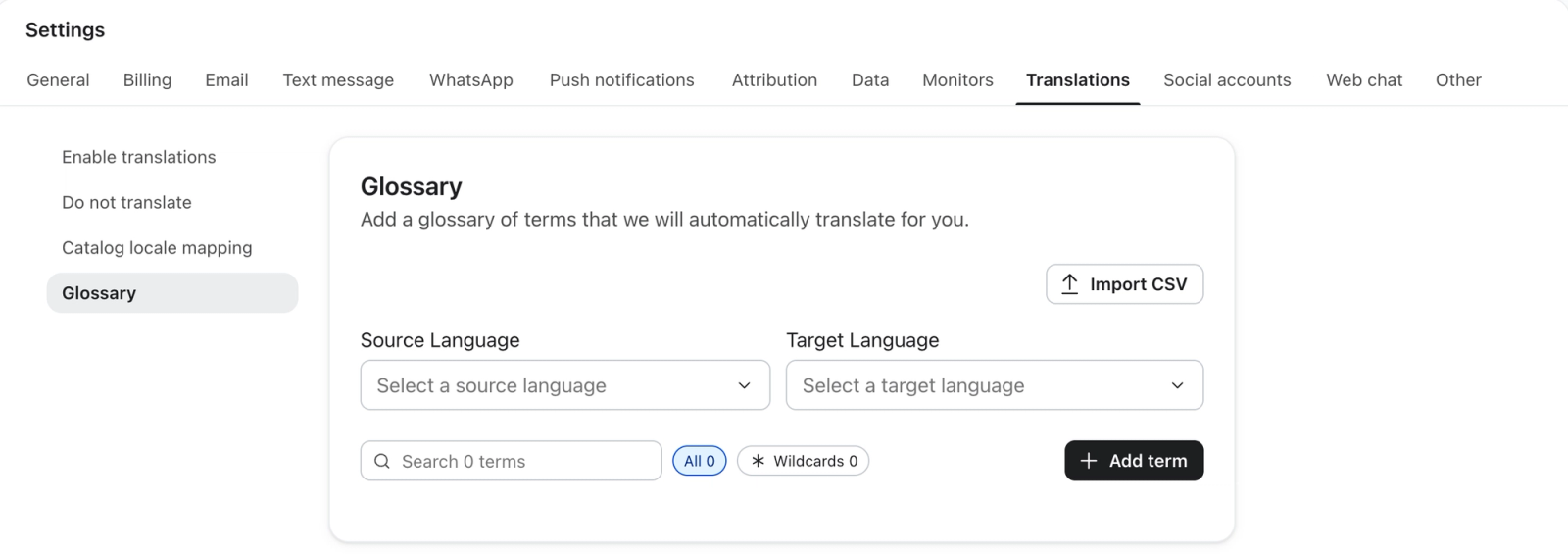
- Select Glossary from the left-hand menu.
- Use the Source Language and Target Language menus at the top of the page to choose the language pair you want to manage.
Normal glossary entries
A normal entry is a simple, one-to-one swap: the exact word, phrase, or URL you enter is replaced with the exact translation you provide. No patterns, no wildcards.
Replace a single word or phrase
- With the right language pair selected, click + Add term.
- Enter the word or phrase as it appears in your source content under Source term.
- Enter the exact translation you want to use under Target term.
- Click Save.
The term takes effect the next time matching content is automatically translated.
The term has to appear as a whole word — it won't match as part of a longer word (a rule for "Sale" won't touch "Salesforce"). Matching is also case-sensitive: if a term appears both capitalized and lowercase in your content ("Sale" and "sale"), add both as separate entries.
Replace one exact URL
Same idea as above, but the source term is a full URL — most often used to point a link at the locale-specific version of a page. Because it's an exact match, the destination can be completely different from the source; unlike a wildcard (below), it doesn't have to follow any pattern.
https://example.com/dog → https://example.fr/chien

The translated slug can be completely unrelated to the original — "dog" becomes "chien," not a rewritten version of "dog."
An exact URL entry only ever matches that exact URL. It won't accidentally catch a longer, different URL that happens to start the same way — https://example.com/dog/puppies and https://example.com/dog-toys are left completely untouched by the entry above.
Wildcard glossary entries
A wildcard entry uses an asterisk (*) to match a whole family of similar text or URLs at once, instead of listing every variation individually.
To add a wildcard entry, use + Add term and enter your pattern under Source term and its replacement under Target term. Then click Save.
Match a pattern in ordinary text
Use an asterisk (*) in a source term to match 1 or more consecutive characters without spaces. For example, Brand* matches BrandPremium but not Brand alone. Matching is case-sensitive. Wildcards work in ordinary text and in URLs (next section).
Brand* → Marque*

Turns "BrandPremium" into "MarquePremium" — "Premium" is carried straight through, untranslated.
Each source or target term can contain only 1 wildcard, and it must include some fixed text. A term that is only * isn't supported. Use the Wildcards filter above the term list to see entries containing an asterisk in either field.
Match a pattern in a URL
The most common use of a wildcard: rewriting a whole family of URLs to a different domain or path, without listing every single page.
https://example.com/*→https://example-france.fr/*

Converts https://example.com/hello to https://example-france.fr/hello — and works exactly the same way for any other page under that domain.
This only works this cleanly because the * appears on both sides. What happens when it's only on one side — the source, or the target — is different, and covered in full below.
Wildcard on the source, the target, or both
A wildcard entry has two sides — the source term and the translation — and each side can either carry an asterisk or not. Which side has it changes the entry's behavior completely:
WHERE THE | WHAT HAPPENS | EXAMPLE |
Source only | The matched text is dropped entirely. Every match — no matter what it captures — is replaced with the one fixed translation. | Sale |
Target only | Not treated as a wildcard at all. Klaviyo only looks for a | Hello → Hola* |
Both |
| Brand* → Marque* |
"Source only" is what makes a fallback rule possible — sending every unmapped page to one safe destination, like a homepage, instead of a guess that might point somewhere that doesn't exist. "Both" is what makes a passthrough rule possible — assuming every page really does have a matching page at the same path on the other domain. Pick whichever matches how much of your site is actually translated.
Which rule wins: exact vs. wildcard
Once you're using both exact entries and wildcard entries, it matters which one "wins" when more than one could apply to the same piece of content. Two rules govern this, and they always apply — you don't need to configure anything for them to take effect.
An exact entry wins when it overlaps a wildcard's fixed text
If an exact entry overlaps the fixed part of a wildcard pattern, the exact entry wins, even when the overlap is only partial. For example, an exact URL entry can override a broader wildcard for that page. The wildcard still applies normally to other matching content.
Glossary Entry | Applies To |
| Exact - this one page only |
| Wildcard fallback - every other page |
Captured text stays unchanged when carried into the translation
When both the source term and the translation contain *, the text captured by the source's * is carried through unchanged. An exact entry that matches only text inside that captured part does not replace it.
.../blog/* → .../blog-fr/*
newsletter → bulletin (a separate, unrelated entry)

.../blog/newsletter-signup becomes .../blog-fr/newsletter-signup — the word "newsletter" inside the captured segment is not swapped for "bulletin," because it's part of what the wildcard matched, not separate text the exact entry can reach.
Import terms from a CSV
If you're bringing in a large glossary — from a spreadsheet, a translation vendor, or another store — you can import it in one pass instead of adding terms one at a time. That process, including the file format and import options, is covered in its own article: Import glossary terms from a CSV.
Find, edit, and remove terms
- Use the search field above the term list to find a term by name.
- Switch between All and Wildcards to show entries with an asterisk in either the source term or the translation.
- To edit a term, open its
⋮menu and select Edit term. Change the source or target term, then click the checkmark (Confirm edit). Your change is saved automatically. - To remove a term, open its
⋮menu and select Delete. The deletion is saved immediately and affects future translations.
Good to know
- Manage terms by language pair. Switching the Source Language or Target Language menu shows the terms available for that pair. Reversing the menus shows the same entries in the opposite direction.
- Exact matching is case-sensitive and whole-term. Add separate entries for different capitalizations if your content uses more than one.
- Changes apply going forward. Editing or removing a term doesn't rewrite content you've already translated — it takes effect the next time that content is machine-translated.
- Wildcards are limited to one per term, and need at least some fixed text alongside the
*. - Only the source term's
*makes an entry a wildcard. A*in the translation only does something if the source term has one too — otherwise it's just a literal character in your translation. - An exact entry wins when it overlaps a wildcard's fixed text, even if the overlap is only partial. You don't need to remove a broader wildcard to special-case one page; just add an exact URL entry for it alongside the wildcard.
- Captured text stays unchanged when carried through. The free-form part matched by
*passes through untouched when the translation also contains *. An exact entry that matches only text inside that captured part does not replace it.