How to import glossary terms in bulk with CSV
You must have a paid Klaviyo account and Smart Translations enabled to use this feature.
Import an existing glossary
Klaviyo's Smart Translation feature uses a glossary to control how specific terms are translated — brand names, product names, slogans, or technical terms that need a consistent translation across every campaign.
If you already maintain a glossary in another translation system (DeepL, Lokalise, Phrase, an internal spreadsheet), you can import it directly into Klaviyo as a CSV instead of recreating each entry by hand.
When to use CSV import
CSV import is useful when you want to:
- Bring an existing glossary into Klaviyo from a TMS (Translation Management System) like DeepL, Lokalise, Phrase, or memoQ.
- Add a large batch of terms at once (dozens or hundreds), rather than typing each one in the UI.
- Migrate a glossary maintained in a shared spreadsheet to a single source of truth in Klaviyo.
For just a handful of terms, adding them manually one-by-one in the glossary panel is usually faster.
Import is one-way. You upload terms into Klaviyo, but there is no CSV export at this time. Keep a copy of your source file if you need a backup.
Prepare your CSV file
File format
- Encoding: UTF-8
- File type: .csv
- Delimiter: comma (,)
- Header row: required (see below)
Sample file
source term | target term | source locale | target locale |
|---|---|---|---|
hello | bonjour | en | fr |
hello | hallo | en | de |
tschüß | good bye | de | en |
Required columns
Every row must include four columns:
source term— the term in the source languagetarget term— how the term should be translatedsource locale— the BCP-47 locale tag of the source languagetarget locale— the BCP-47 locale tag of the target language
All four headers must be present in the first row of the file. Column order does not matter.
Locale codes (BCP-47)
Locale codes follow the BCP-47 standard. The most common form is a two-letter language code, optionally followed by a region:
en— Englishen-US— English (United States)en-GB— English (United Kingdom)fr— Frenchfr-CA— French (Canada)de— Germanja— Japanesept-BR— Portuguese (Brazil)
Use the most specific tag that matches the locale you've configured in Klaviyo.
Multiple language pairs in one file
A single CSV can include entries for many language pairs. Each row is treated independently, so you can mix pairs freely:
source term | target term | source locale | target locale |
|---|---|---|---|
hello | bonjour | en | fr |
hello | hola | en | es |
hello | hallo | en | de |
bonjour | buenos días | fr | es |
This is useful if you maintain one master glossary that powers translation in several locales.
Glossary terms are symmetric
Each glossary entry defines a bidirectional equivalence between terms. If you import:
source term | target term | source locale | target locale |
|---|---|---|---|
hello | bonjour | en | fr |
Klaviyo will:
- Translate
helloasbonjourwhen translating English → French. - Translate
bonjourashellowhen translating French → English.
This means you cannot define asymmetric mappings such as:
source term | target term | source locale | target locale |
|---|---|---|---|
hello | bonjour | en | fr |
bonjour | hi | fr | en |
Both rows map bonjour to a different English term, which is a conflict. Only one mapping per locale-pair-term combination is allowed. The importer will skip the conflicting row and report an error (see Troubleshoot import errors).
If you need different English translations for bonjour depending on context, glossary terms aren't the right tool — they're meant for terms that translate the same way every time.
Import modes
When you import, choose one of two modes:
- Add — Existing glossary entries are kept. New entries from the CSV are added. Rows that conflict with existing entries are skipped.
- Replace all — Your entire current glossary is deleted and replaced with the contents of the CSV.
Replace all deletes the entire current glossary.
Use Replace all only when you're confident the CSV is the new source of truth. There is no undo.
Import the file
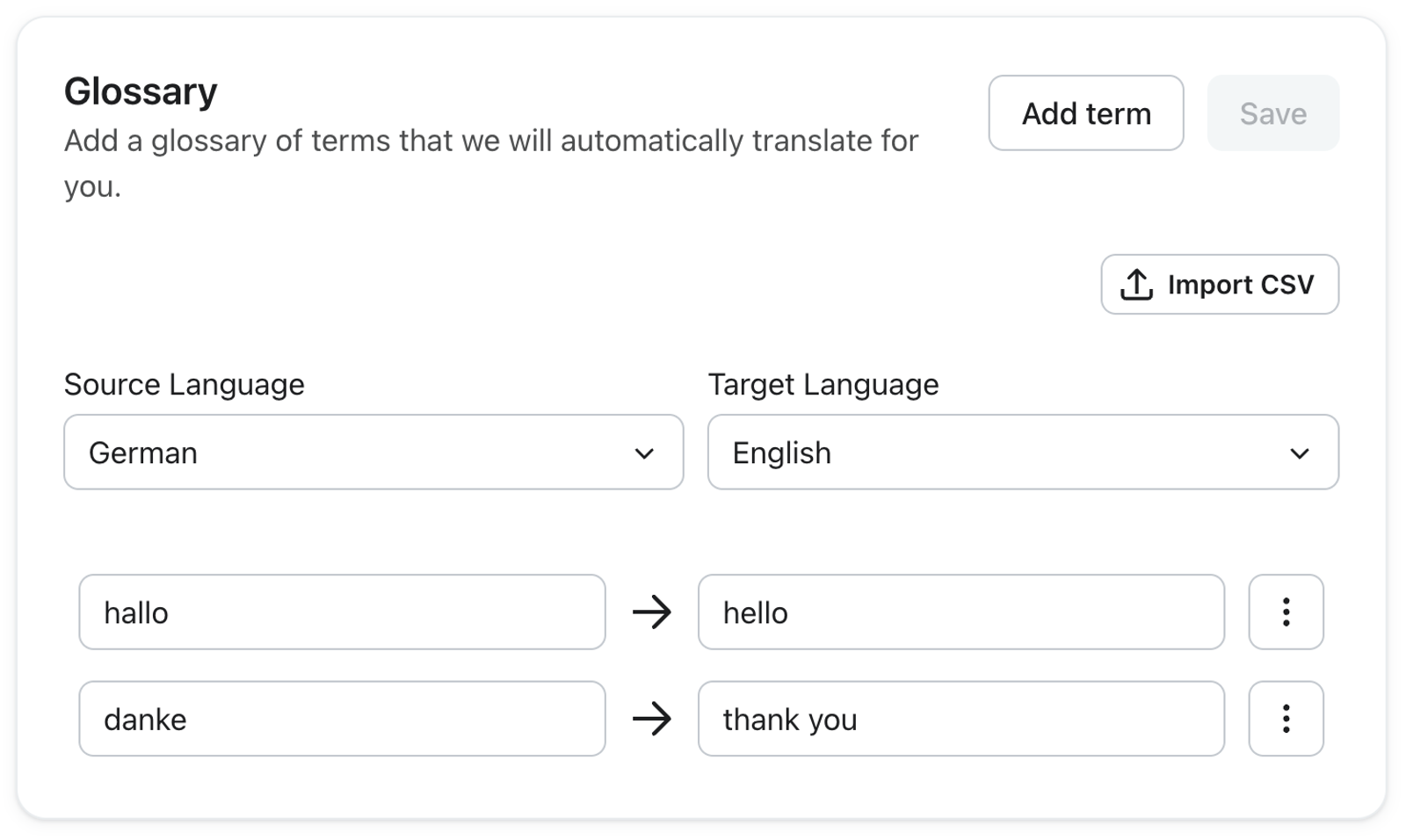
1. Go to Account → Settings → Translations → Glossary.
2. Click Import CSV.
3. In the dialog, choose Add or Replace all.
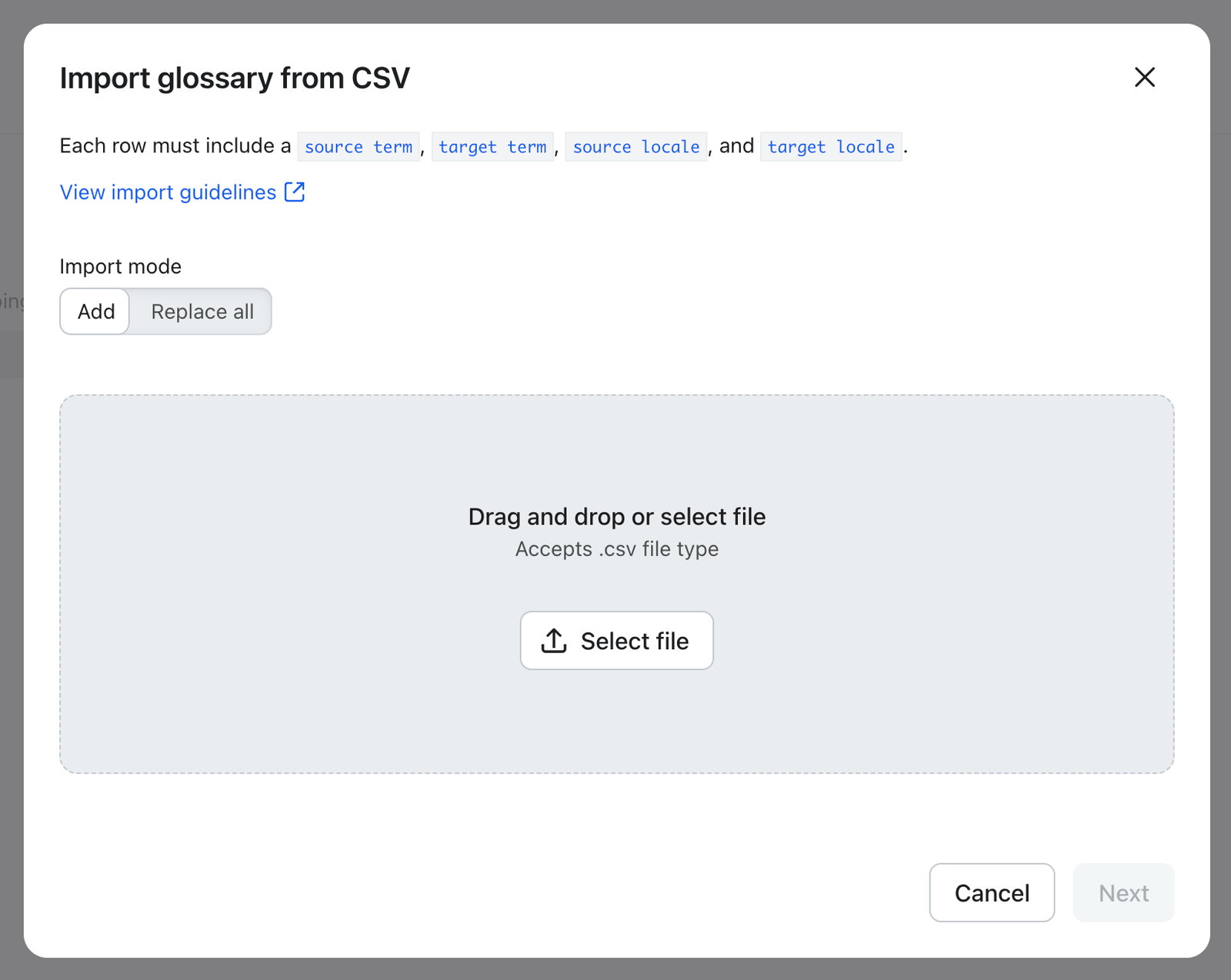
4. Click the file area and select your .csv file (or drag the file into the area).
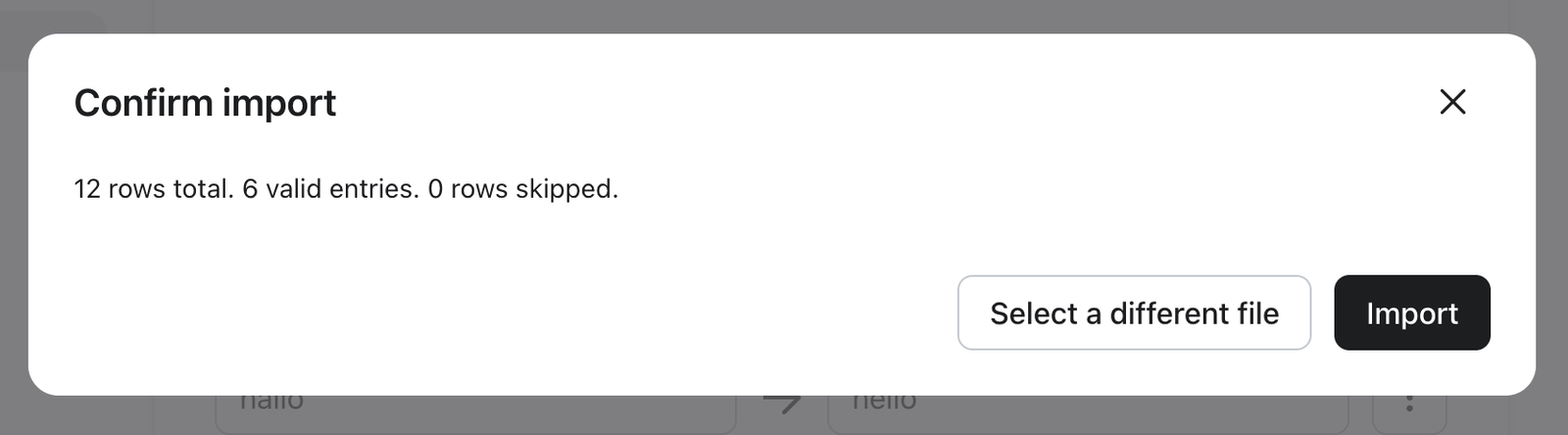
5. Click Next. Klaviyo validates the file but does not save anything yet. You'll see a preview screen.
6. Review the preview:
- Total rows — how many rows were in the file.
- Valid entries — how many will be imported.
- Rows skipped — how many were dropped due to validation issues.
7. If any warnings appear, you can still proceed, or go back and fix the file first.
8. Click Import to save the changes.
If something is wrong with the file, you'll see an Import failed screen instead of the preview.
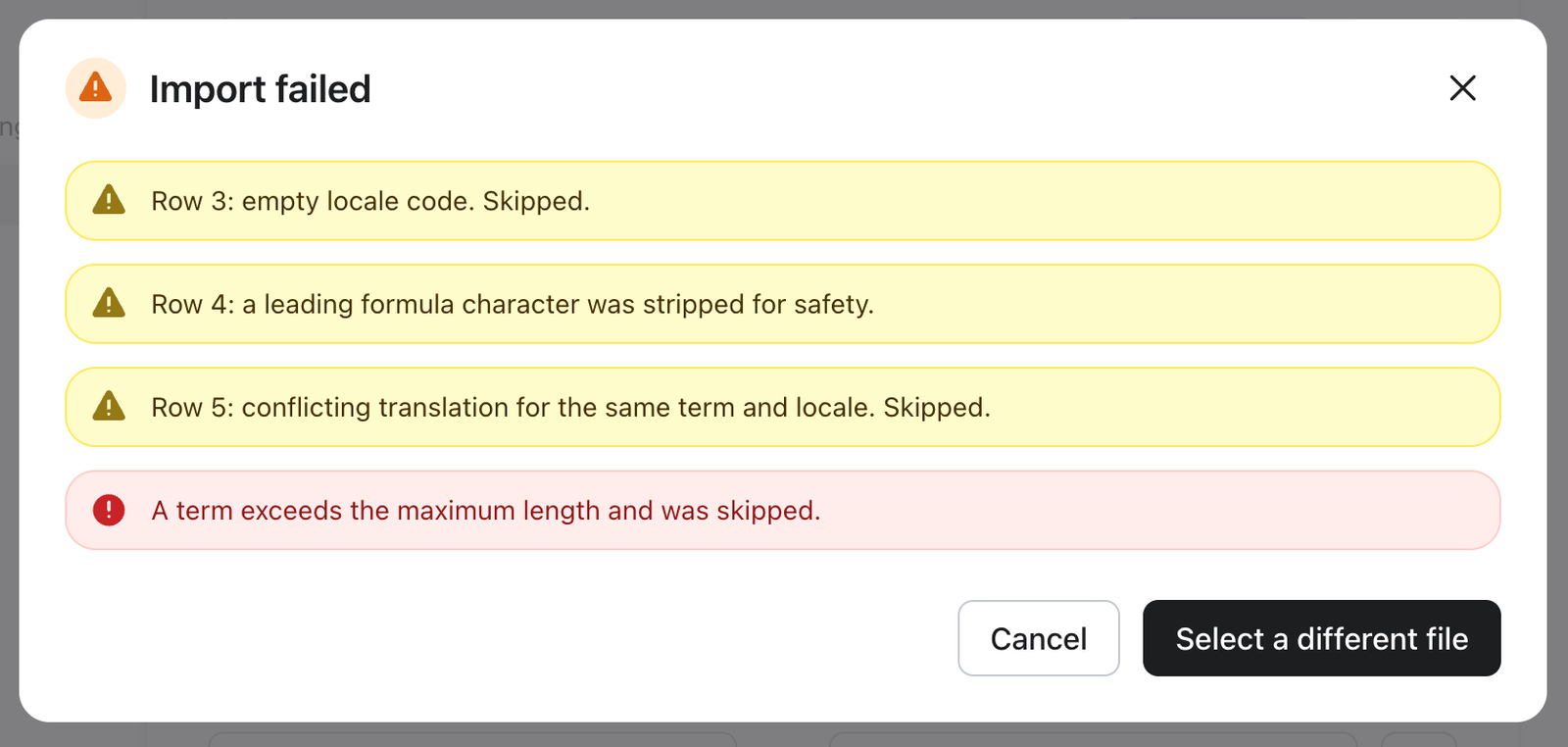
Troubleshoot import errors
When the import fails, Klaviyo shows one or more error messages explaining what went wrong. Some errors apply to the entire file; others point to a specific row.
File-level errors
These stop the import entirely. Fix them and try again.
"The uploaded file is empty."
What it means: The file contains no content.
What to do: Make sure the file isn't 0 bytes and has at least one row plus the header.
"Missing required headers."
What it means: The header row doesn't include all four required columns.
What to do: Check the first row contains source term, target term, source locale, and target locale. Header order doesn't matter; spelling does.
"No valid glossary entries."
What it means: After validation, no row could be imported.
What to do: Open the file and check that the data rows match the expected format.
"Encoding error."
What it means: The file isn't UTF-8 encoded
What to do: Re-save the file from your spreadsheet tool with UTF-8 encoding. In Excel, use Save As → CSV UTF-8.
"A term exceeds the maximum length."
What it means: One or more terms is too long.
What to do: Glossary terms should be short phrases. Shorten or split very long entries.
Row-level errors
These flag a specific row. The rest of the file can still import — the bad row is skipped.
"Row N: unexpected number of columns"
What it means: The row has too few or too many comma-separated values.
What to do: Check the row in your CSV — extra commas inside a term need to be wrapped in quotes ("hello, world").
"Row N: empty term value"
What it means: The source or target term cell is blank.
What to do: Fill in the missing term, or remove the row.
"Row N: empty locale code"
What it means: The source or target locale cell is blank.
What to do: Fill in the missing locale (e.g. en, fr-CA).
"Row N: unrecognized locale code"
What it means: The locale string isn't a valid BCP-47 tag.
What to do: Use a standard locale code like en, fr, de, pt-BR. See Locale codes.
"Row N: duplicate locale column detected"
What it means: The same locale appears more than once in a single entry context.
What to do: Each row needs distinct source and target locales — you can't translate en → en.
"Row N: conflicting translation for the same term and locale"
What it means: The row tries to map the same source term to a different target than another row in the file.
What to do: Decide which translation is correct and remove the duplicate.
"Row N: term conflicts with an existing entry"
What it means: The row tries to define a translation that contradicts a term already in your glossary (Add mode only).
What to do: Either update the existing entry in the UI, or use Replace all mode if the new file is correct.
"Row N: a leading formula character was stripped for safety"
What it means: A term started with =, +, -, or @, which spreadsheet apps would interpret as a formula.
What to do: This is a warning, not a failure. The term is imported with the leading character removed. If you need the character, wrap the term in quotes.
Generic validation error
If you see “A validation error occurred. Please check your file and try again.” the importer hit a problem it couldn't categorize. Double-check the file matches the expected format, and contact support if the error persists.
Additional resources
- How to enable Smart Translations
Learn how to enable Smart Translations for messages so you can send campaigns and flows in multiple languages based on the language preferences of your audience. Klaviyo can translate email content to 60+ languages.