How to connect an existing Klaviyo account with Klaviyo in Wix
You will learn
Learn how to connect your Wix site to a Klaviyo account that you already have. This article also explains how to connect a second Wix site and what to do if the connection is blocked.
Note: The app offers two ways to set up Klaviyo for your site. You can create an account or connect an account.
- Create an account: If you are new to Klaviyo, create an account. The app makes a new Klaviyo account with your Wix site owner email. You finish setup inside Wix. See Getting started with Klaviyo in Wix.
- Connect an account: If you already have a Klaviyo account, connect it. You link your site to that account. This needs extra steps at klaviyo.com, and this article explains them.
Before you begin
- One Klaviyo account connects to one Wix site. One Wix site connects to one Klaviyo account.
- If you have more than one Wix site, each site needs its own Klaviyo account. For more detail, see How to create and manage multiple accounts.
- If you do not have a Klaviyo account, see Getting started with Klaviyo in Wix.
How connecting an existing Klaviyo account works
The connection has two steps. You finish both steps before the app shows your Klaviyo results.
- At klaviyo.com, you set up the Wix integration and select your site. The integration syncs your Wix data to Klaviyo.
- In the app, you select the same Klaviyo account and approve the Klaviyo permissions. The app needs this access to show your results and to create forms, campaigns, and automations. The Wix integration does not include this access.
Connect your Wix site to an existing Klaviyo account
Important: Log in to the correct Klaviyo account before you click Connect Wix. Wix connects to the account that you are logged in to.
- In your Wix dashboard, open the Klaviyo app.
- On the welcome screen, click Connect Wix to your existing account.
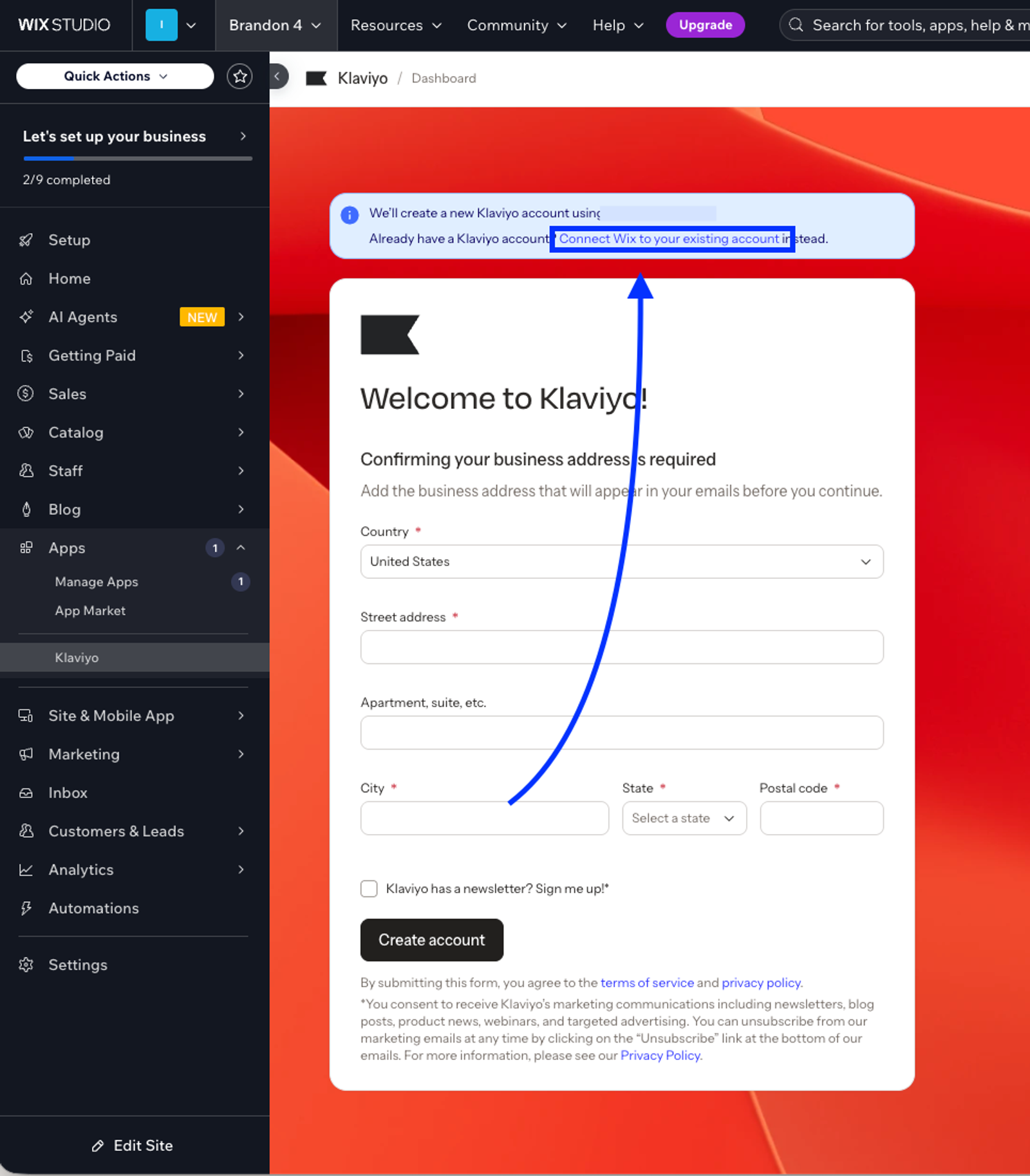
- Klaviyo opens in a new tab. Log in to Klaviyo if you haven’t done so already
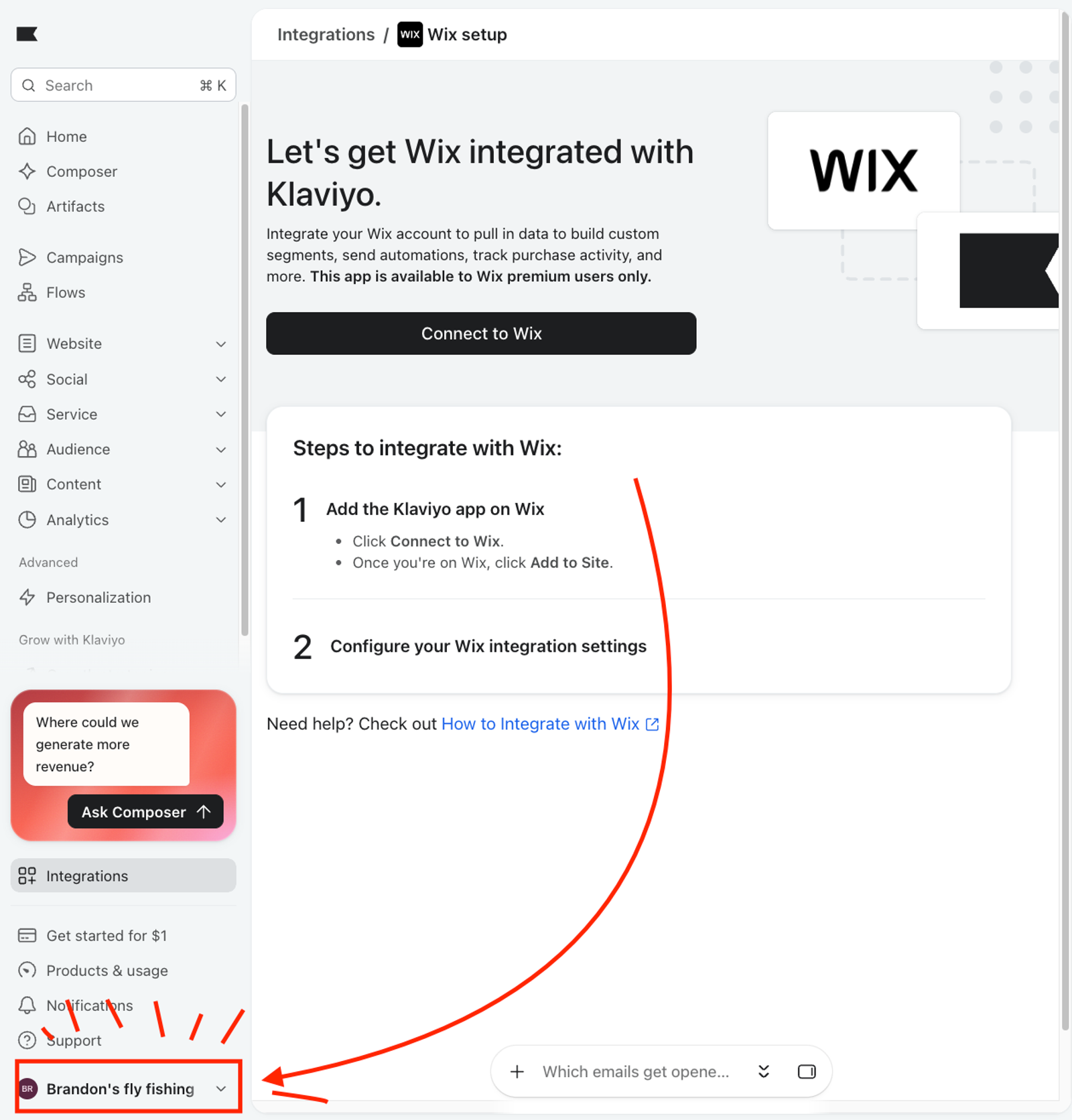
- Click your account name in the lower left corner. Check that this is the account that you want to connect. If it isn't, log in to the correct Klaviyo account, and repeat steps 2-3.
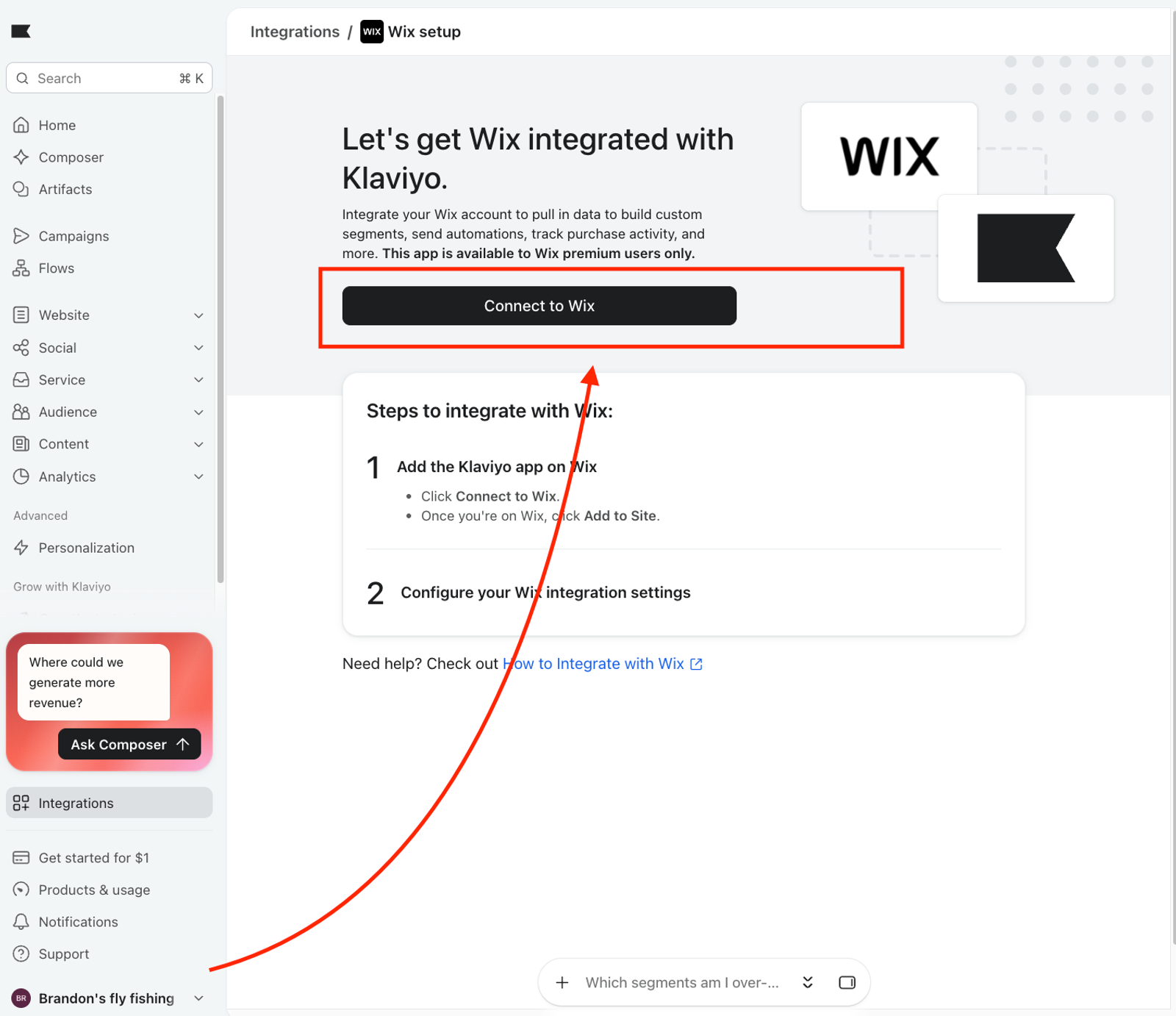
- On the Wix integration setup page, click Connect to Wix.
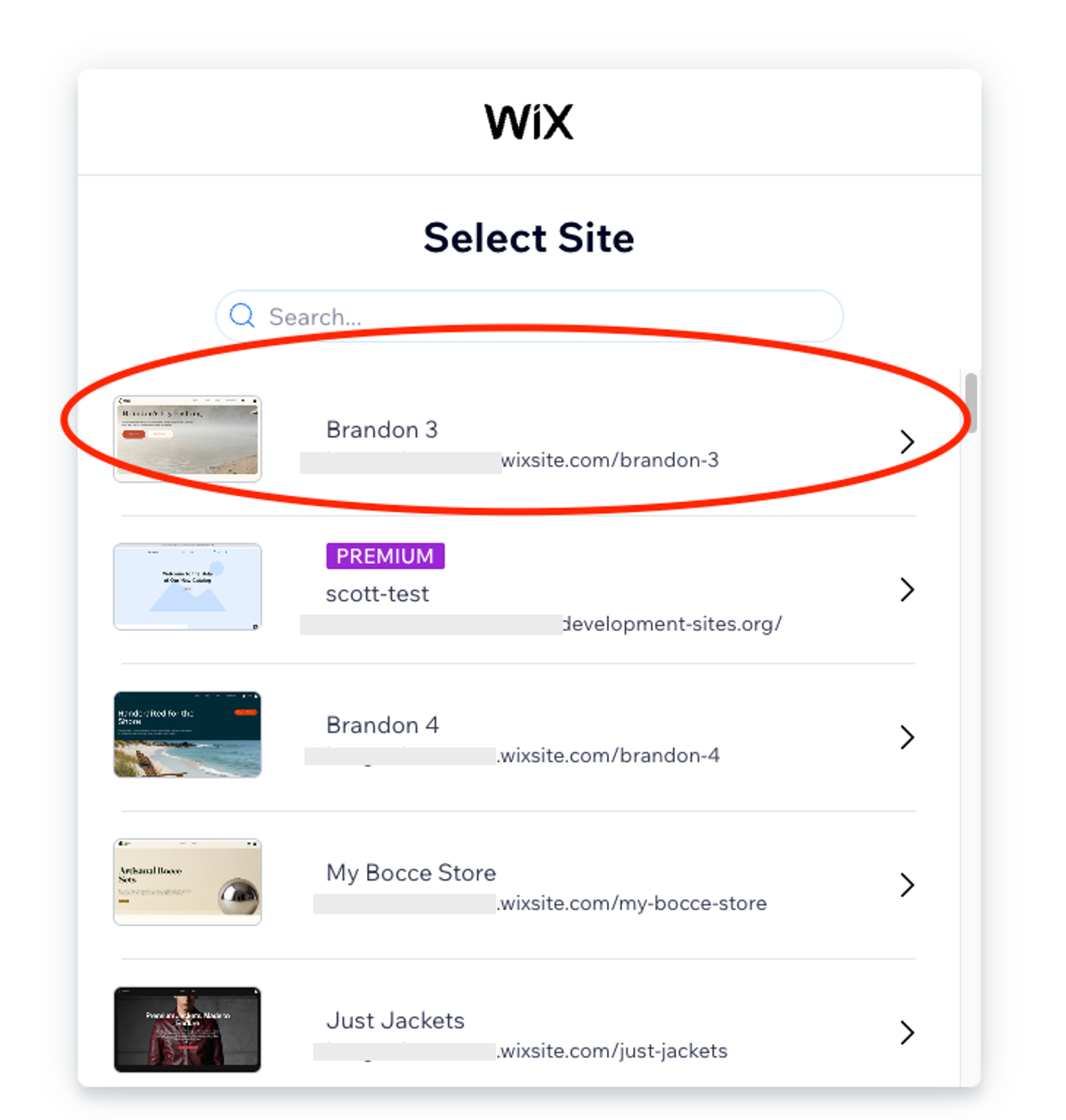
- From the Wix Site selector, select the same Wix site you are connecting to the Klaviyo account
- Review the permissions that the Klaviyo app requests, then approve them.
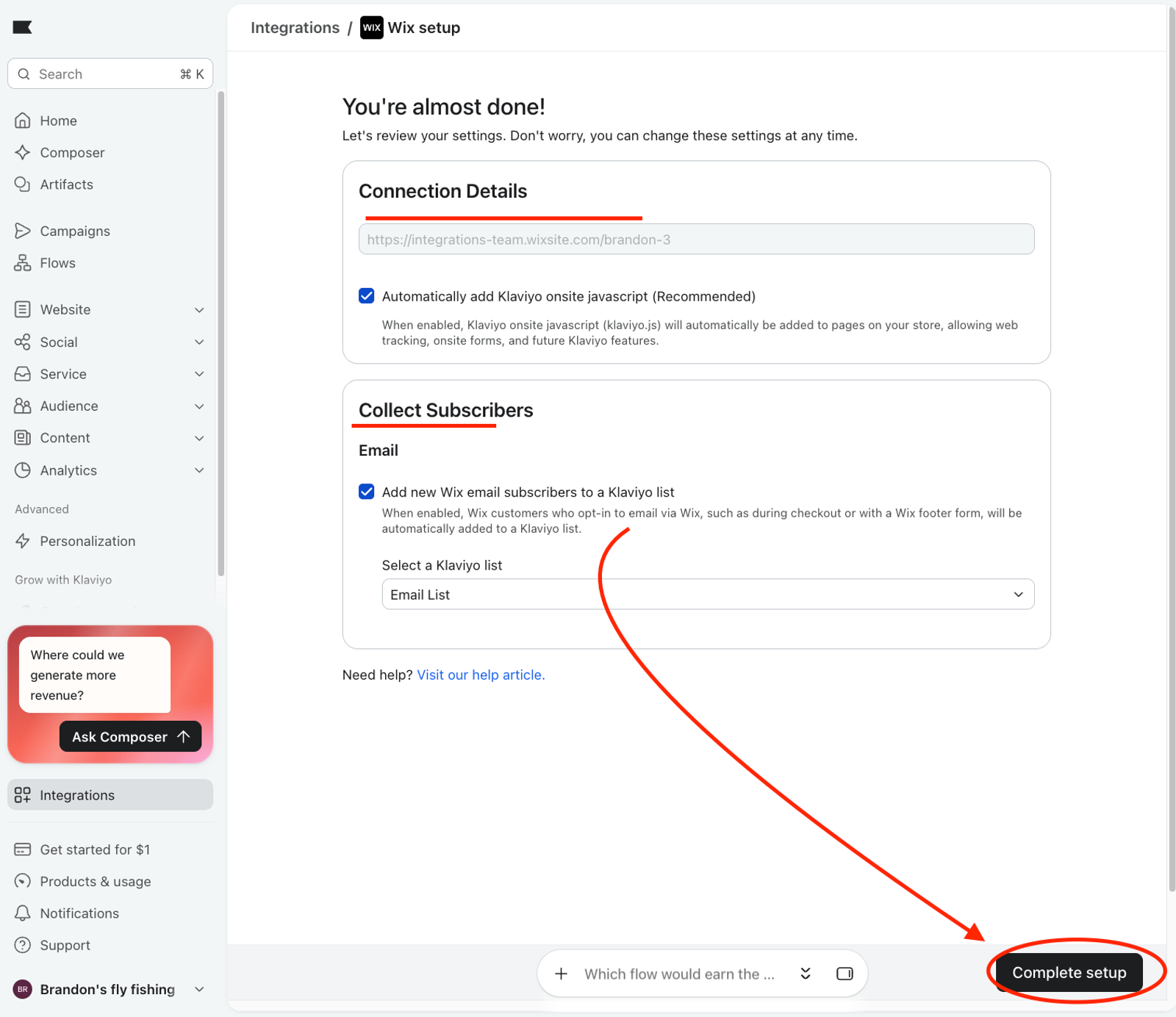
- Review your Wix integration settings. Then click Complete setup.
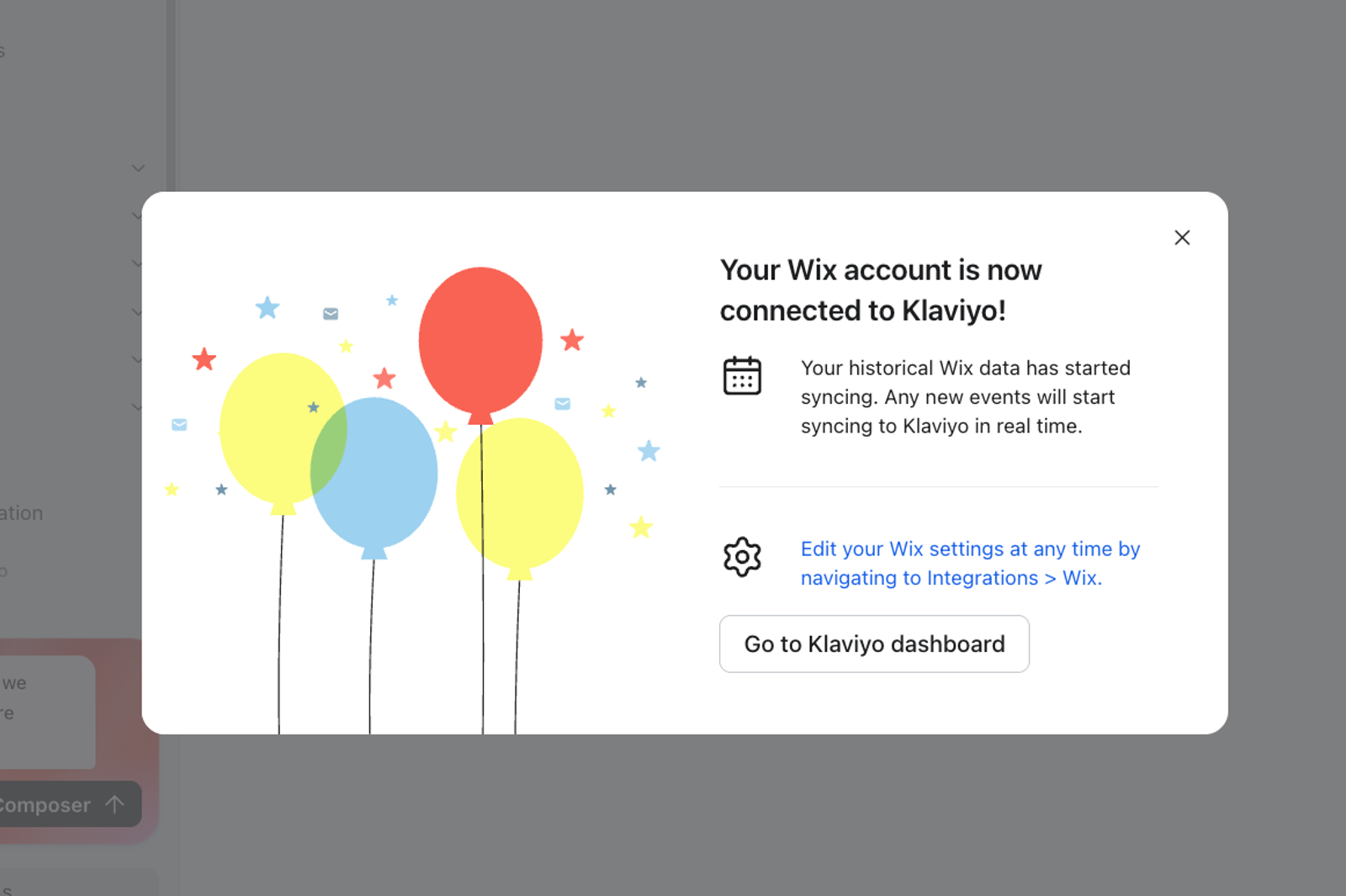
- Verify that Klaviyo finished connecting to Wix. Then, go back to your Wix site and open the Klaviyo app
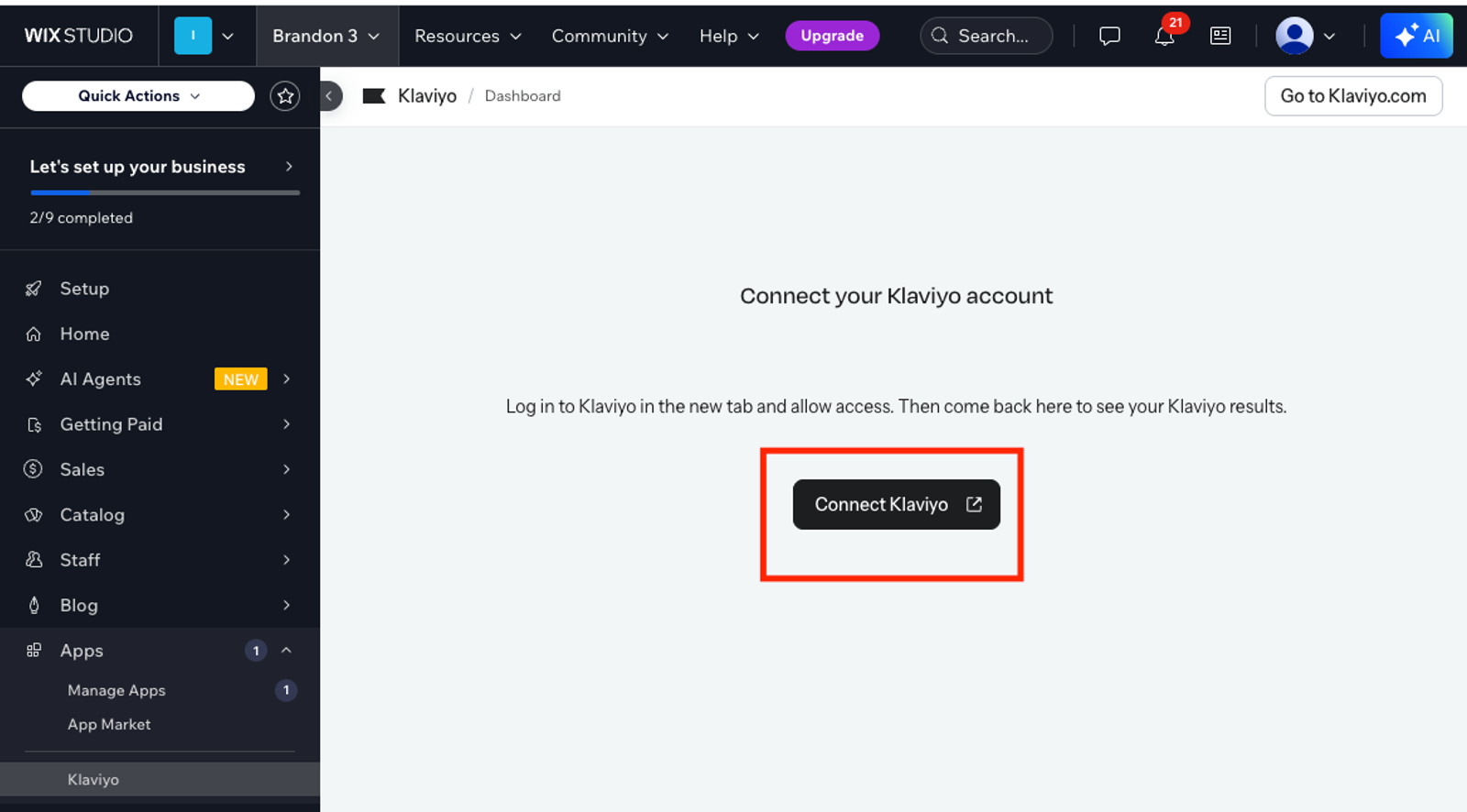
- Refresh the Klaviyo app page on your Wix site. The app should show a new page that says Connect your Klaviyo account. Click the Connect Klaviyo button. Klaviyo opens in a new tab.
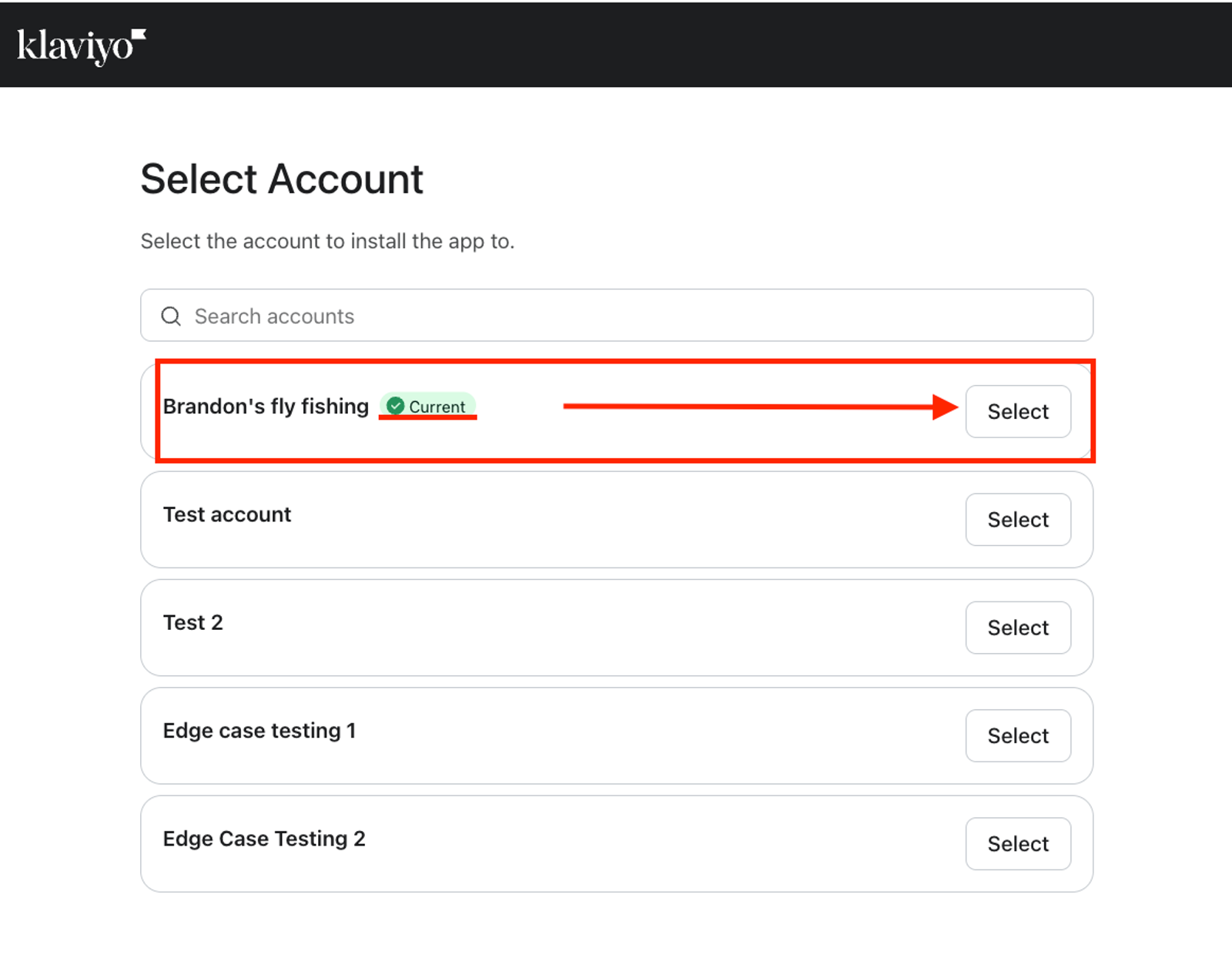
- Select the same Klaviyo account you are connecting to Wix
- Then review and approve the permissions.
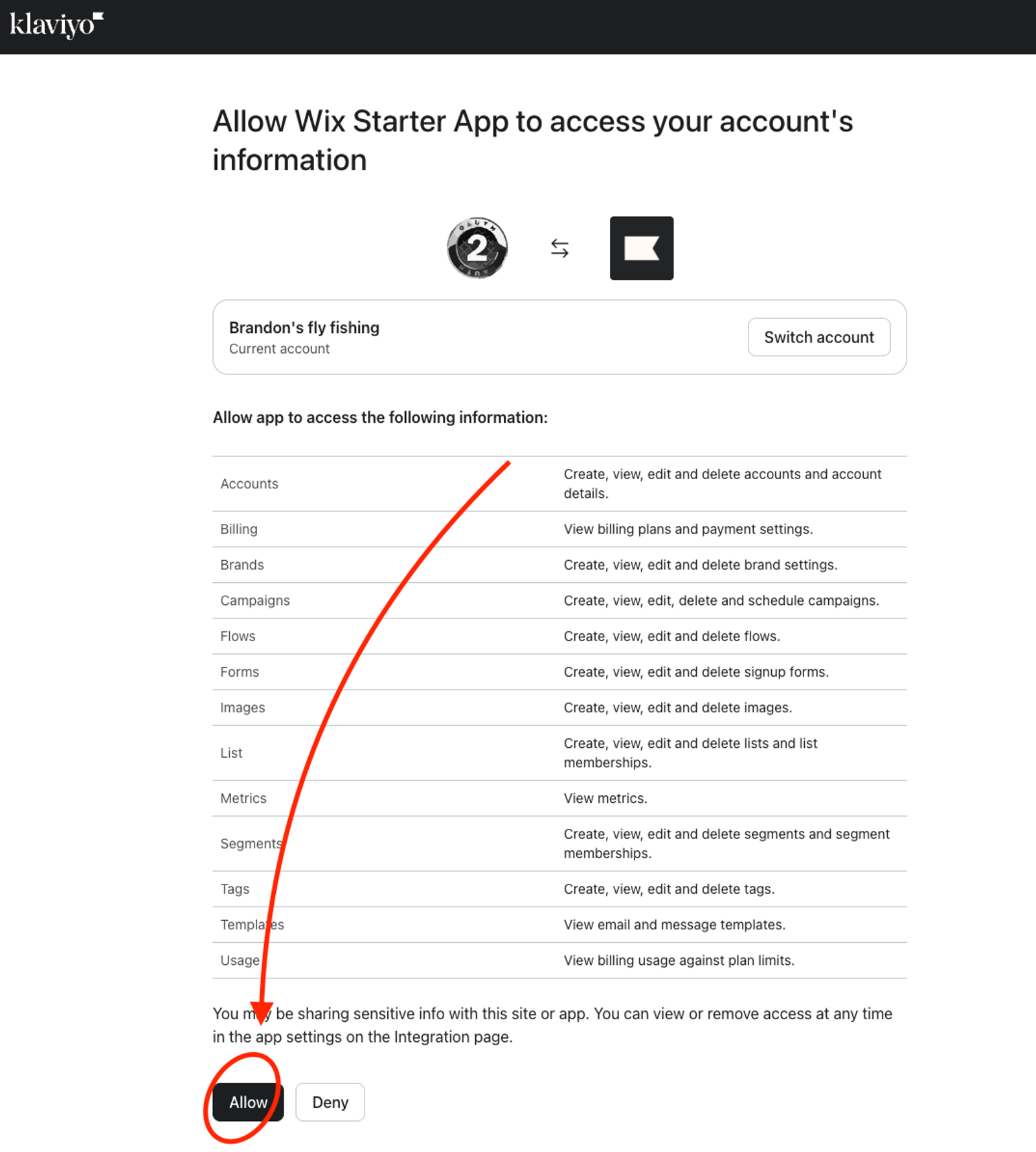
- After approving the permissions, you will be brought back to the Klaviyo app in Wix. At this point, your Wix site is connected to Klaviyo, and the Klaviyo app in Wix is fully functional.
Connect a second Wix site
If your Klaviyo account already has a Wix site, you cannot connect another Wix site to it. Create a second account under your login, then connect the second site to that account. For more details, see How to create and manage multiple accounts.
- Log in to Klaviyo with the email address of your first account.
- Click your account name in the lower left corner, then click Settings > General > Personal.
- Scroll to Create a new account and click Create account.
- Enter the Company name, Company website, and Company phone number. The company name must be different from your other accounts.
- Click Continue, then finish the setup screens.
- Make sure that you are logged in to the new account.
- Open the app on your second Wix site. Follow the steps in "Connect your Wix site to an existing Klaviyo account".
Klaviyo fills in the email address for the new account. You cannot change it. Both accounts share one email address and one login. Click your account name in the lower left corner to switch between them.
Each account keeps its own data, and each account connects to one Wix site.
Move a site to a different Klaviyo account
Use these steps to change which Klaviyo account your Wix site is connected to. The steps disconnect your site from its current account and connect it to a different account.
In the steps below, Klaviyo account A is the account that your site is connected to now. Klaviyo account B is the account that you want your site to connect to.
- Log in to
Klaviyo account Aand click the Integrations tab. - Under My apps, find Wix and click the action button next to it. Select Remove integration.
- Log out of
Klaviyo account A, and log in toKlaviyo account B. - In your Wix dashboard, open Manage Apps and uninstall Klaviyo.
- Go to the Wix App Marketplace and re-install Klaviyo. The app opens on the welcome screen.
- Follow the steps in "Connect your Wix site to an existing Klaviyo account".
New data from your site goes to the new account. The old account keeps the data that it already has and gets no new data. Forms, automations, and campaigns that you made in the old account stay in the old account.
If the connection is blocked
If the Klaviyo account already has another Wix site integrated, the connection does not complete.
Choose one of these options:
- Connect the site to a different account. See "Connect a second Wix site".
- Remove the Wix integration from the account, then connect the new site.
Before you remove the integration, make sure that the first site does not need to send data to this account. After you remove it, the first site no longer sends data to this account. Profiles and events that Klaviyo already synced stay in the account.
To remove the Wix integration, you need permission to manage integrations in Klaviyo.
- In Klaviyo, click the Integrations tab.
- Under My apps, find Wix and click the action button next to it.
- Select Remove integration.
- In the dialog, click Remove integration.
- Open the Wix dashboard for the first site. Click Manage Apps and uninstall Klaviyo.
For more detail, see How to edit, disable, or remove a Klaviyo-built integration.
Additional resources
- Getting started with Klaviyo in Wix
- Troubleshooting Klaviyo in Wix
- Using Klaviyo in Wix vs. klaviyo.com
- How to create and manage multiple accounts
Learn about multi-accounts in Klaviyo, which allow you to access and switch between different accounts with a single login. This is particularly helpful for brands that have multiple websites (e.g., for different countries) or have several brands under a single parent company.