How to migrate your email sending infrastructure with the Klaviyo migration wizard
The migration wizard is currently in closed beta. If you don't see it in your account, there's nothing you need to do. Your sending is unaffected, and Klaviyo will let you know before anything changes.
You will learn
Learn how to use the migration wizard to move your email sending infrastructure from Klaviyo's legacy platform to Klaviyo's new, fully Klaviyo-built sending infrastructure.
Depending on how your account is set up, that can include your branded sending domain, your dedicated click-tracking domain, and your dedicated IP address(es). Not every account has all three. The wizard detects how your account is set up today and shows only the steps that apply to you, but you should arrange access to your DNS settings before starting. Your existing sending continues normally throughout.
Nothing about this migration requires you to change how you send email. There is no need to adjust your volume, your cadence, or your audiences for it, and doing so is not recommended. The migration works best when your sending stays consistent.
If you are moving to Klaviyo from a different email service provider, this is not the guide you want. See How to migrate your branded sending domain from a previous email service provider (ESP) to Klaviyo instead.
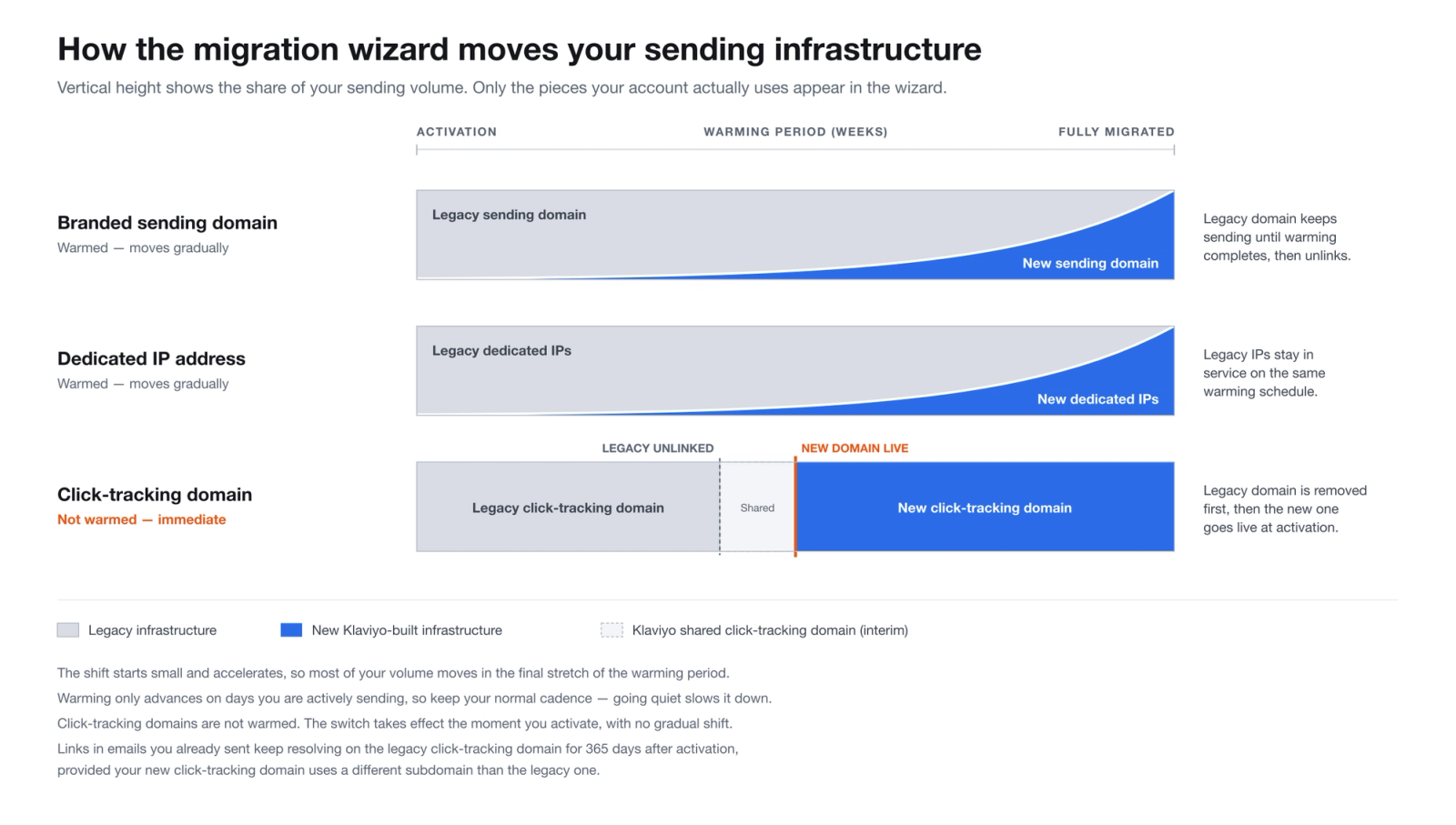
What the migration wizard is
Over the past several years, Klaviyo has built and refined its own email sending infrastructure, and it now carries email for tens of thousands of Klaviyo accounts. Because Klaviyo controls this infrastructure end to end, deliverability issues are diagnosed and fixed faster, and as a result, senders may see improved inbox placement and more consistent delivery.
Some accounts are still on Klaviyo's legacy infrastructure, and the migration wizard is how those accounts move across. It is a guided, in-app checklist: it inspects your account, works out which pieces of dedicated infrastructure you have, and walks you through moving each one.
Your existing sending continues while you set up the new infrastructure. When you replace an existing branded sending domain, your root domain stays the same and sending volume moves gradually from the old subdomain to the new one during warming.
The wizard appears on your Klaviyo dashboard home page: klaviyo.com/dashboard.
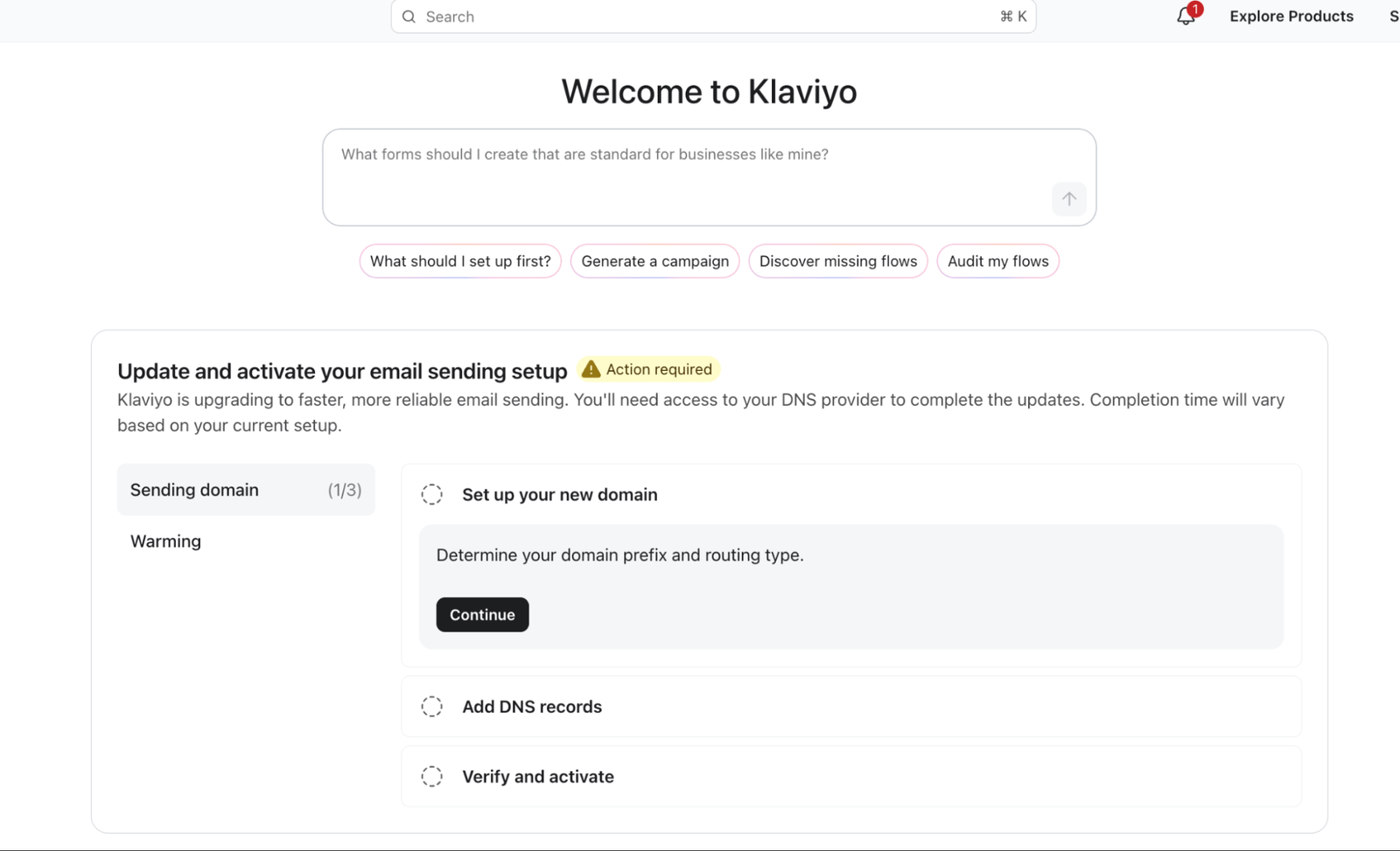
What the wizard migrates
The wizard covers up to 3 pieces of infrastructure and shows the steps your account needs. Many accounts have only a branded sending domain; dedicated click tracking and dedicated IPs are less common.
Infrastructure | What it is | Shown if |
|---|---|---|
Branded sending domain | The subdomain your email is sent from, so messages appear to come from your brand instead of Klaviyo. See Understanding branded vs. shared sending domains. | Your account has a legacy branded sending domain to migrate, or needs a sending domain for its dedicated IP migration. |
Dedicated click-tracking domain | The domain shown on click-tracking links in your emails. See How to set up dedicated click tracking. | Your account has a dedicated click-tracking domain on the legacy infrastructure |
Dedicated IP address | An IP address used only by your account. See Understanding dedicated vs. shared IPs. | Your account has a dedicated IP on the legacy infrastructure |
If your account has all 3, the wizard shows all 3 and enforces an order between them. If you only have a branded sending domain, you will see the Sending domain and Warming steps.
If your dedicated IP migration requires a sending domain and you have no legacy branded sending domain to replace, selecting Activate activates the new domain without domain warming. Your dedicated IPs still warm gradually.
Before you begin
- You need access to your DNS. This migration can require new records in your domain's DNS. You must either control the DNS yourself or be able to reach whoever does. If you do not have access to make DNS changes or are unsure how to make them, we recommend contacting your network administrator or IT team.
- You do not need to pause or change your sending. Unlike setting up a branded sending domain for the first time, this migration does not interrupt your existing sending. Campaigns and flows continue to go out on your legacy infrastructure until each new piece is activated, and volume then shifts gradually.
- You do not need to re-warm from scratch. Your domain's sending reputation carries over. The wizard warms your volume onto the new infrastructure automatically, and you do not need to build a manual warming schedule.
- Permissions. You need the same permissions required to set up a branded sending domain: an Owner, Admin, Manager, or Campaign Coordinator role. See User management and privileges reference for Static User Roles.
Checklist of actions within the migration wizard
- Open your dashboard home page and find Update and activate your email sending setup.
- Review which steps the wizard shows you. These are the pieces of infrastructure your account is moving.
- Set up and verify your new branded sending domain, if shown. When replacing an existing branded sending domain, use a new subdomain on the same root domain.
- Create and activate your new dedicated IP addresses, if shown.
- Remove your legacy click-tracking domain and set up the new one, if shown.
- Activate your new branded sending domain, if shown.
- Let warming run. Keep sending at your normal cadence.
Step order and dependencies
The wizard enforces an order. You can click any step in the list to look at it, but a step that is not ready yet shows a message explaining what has to happen first. This is deliberate: activating one piece of infrastructure before another is ready can cause your email to fail authentication.
If your account is migrating more than one piece of infrastructure, these are the dependencies:
Step | Becomes available once | Blocked by |
|---|---|---|
Sending domain | Immediately | — |
IP address | Your sending domain is verified and its records have finished being set up, if the wizard includes sending domain setup | Required sending domain setup that is unverified or still in progress |
Click-tracking domain | Your sending domain is verified and its records have finished being set up, if the wizard includes sending domain setup | Required sending domain setup that is unverified or still in progress |
Activate domain | Your new sending domain is verified and its records have finished being set up Your dedicated IPs are activated (if applicable) Your legacy click-tracking domain has been deleted (if applicable) | Any required condition still outstanding |
Warming | The sending domain and dedicated IPs included in your migration have been activated | A required activation is not complete |
A step only appears if the matching infrastructure is in scope for your account. If you have no dedicated IP, nothing waits on the dedicated IP step.
Verifying and activating your sending domain are two different things. Verification confirms your DNS records are correct and published. When replacing an existing sending domain, activation starts moving your sending gradually to the new domain. See Warming and moving your volume below.
About the DNS records you will need to add
Do not remove existing DNS records that are being used by your current legacy Klaviyo sending infrastructure.
When you set up your new sending subdomain, you choose a routing type, and that choice determines how much DNS work the rest of the migration requires.
Dynamic routing delegates your sending subdomain to Klaviyo using NS records, so Klaviyo manages that subdomain and chooses the best sending path for each message. You add the generated sending-domain DNS records, including the NS records. Klaviyo then creates the dedicated IP records for you. For click tracking, choose Automatic, when available, to have Klaviyo create its records too.
Static routing points your sending subdomain at a single, fixed sending path using CNAME records. You add a separate set of records for each piece of infrastructure, presented within that piece's own step. There is no single consolidated list of every record at the start, so plan for your DNS to be edited more than once.
Klaviyo recommends dynamic routing, both for sending performance and because it removes most of the DNS work from this migration. Static is the right choice if your DNS provider does not support NS records.
Delegation applies to your sending subdomain only. It does not affect your root domain or any other subdomain, and you can revoke it by removing the NS records. Removing records that are still in use can interrupt sending, so leave them in place during the migration.
The records are copy-pasteable. If your IT team, developer, or agency controls the domain, forward them the records and ask them to add them. If you use static routing, you may need to send them additional records as you reach the IP and click-tracking steps.
Migrate your branded sending domain
This section has three parts: setting up the domain, adding its DNS records, and verifying it.
When replacing an existing branded sending domain, your new sending domain uses a new subdomain on the same root domain. You cannot move your existing sending domain across in place. This is what makes the migration safe: your current sending domain stays live and keeps sending while the new one is set up and warmed, so there is no cutover moment and no interruption. Your root domain, and therefore your brand and your sender reputation, do not change.
For a full explanation of branded sending domains, see Understanding branded vs. shared sending domains.
We recommend using "kmail" or something similar as your subdomain, as it helps a DNS administrator easily identify which DNS records relate to Klaviyo.
Set up your new sending subdomain
- Open Sending domain in the wizard, then select Continue under Set up your new domain.
- Enter a new subdomain to send from. Your root domain stays the same, but the subdomain has to be one that isn't already in use, including the one your legacy sending domain uses today.
- Choose your routing type, Dynamic or Static. Dynamic delegates your sending subdomain to Klaviyo using NS records, so Klaviyo manages that subdomain and picks the best sending path for each message based on performance, reputation, and stability. Static points your sending subdomain at a single, fixed sending path using CNAME records. Klaviyo recommends Dynamic; choose Static only if your DNS provider does not support NS records. Your choice also determines how much DNS work the rest of this migration takes. See the section above. Select Next to continue.
- If your root domain does not already have a DMARC record, you are offered the option to add one. Select Next after making your choice. If your root domain already has a DMARC record, you will not see this step.
Klaviyo never overwrites an existing DMARC record. If you have already published a DMARC policy, including a strict one such as p=reject, the wizard leaves it exactly as it is.
Your new sending domain is set up with its own SPF and DKIM records, provided during setup, either by the records you add or by Klaviyo if you chose dynamic routing. Because that subdomain sits under the same root domain you send from today, DMARC alignment works exactly as it does now, and your DMARC record at the root domain is left untouched. Your root domain, your other subdomains, and any other service that sends on your behalf are unaffected. While warming runs, both your legacy and your new sending domain are fully authenticated, so your email passes authentication whichever one it goes out on.
Add DNS records
Continue to DNS setup. If you returned to the checklist, select Continue under Add DNS records to reopen it. You can have Klaviyo publish the records for you, or add them yourself.
Automatically via Entri. Select Connect with Entri. Klaviyo detects your DNS provider and prompts you to sign in, then publishes the records on your behalf. If someone else manages your DNS, you can forward the login to them. This option is available for supported DNS providers; otherwise, select Set up manually.
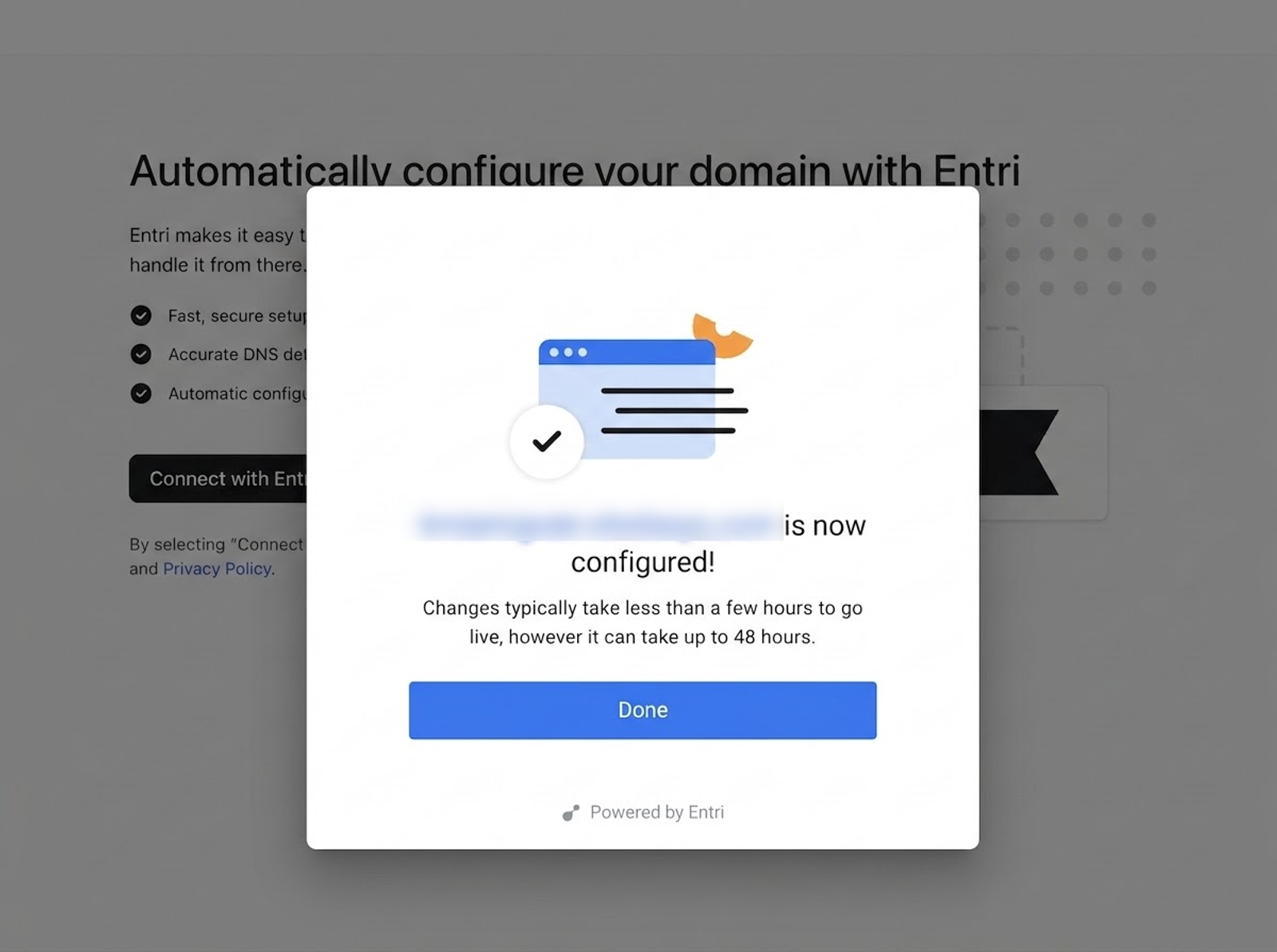
When verification begins, select Finish to return to the checklist. Once verification succeeds, activate the domain as described below.
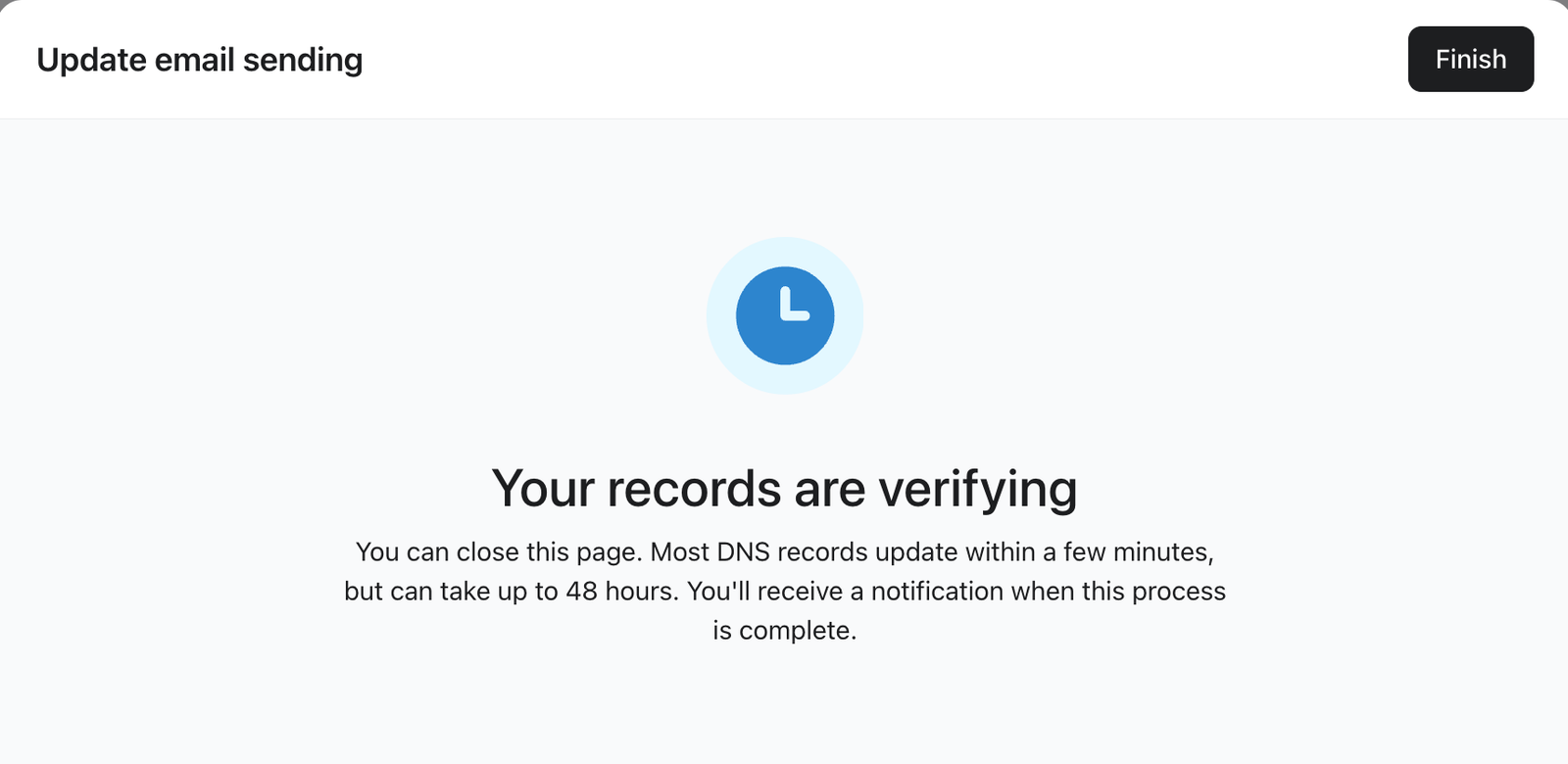
Most DNS records update within a few minutes, but changes can take up to 48 hours. You can leave the page and return while verification runs.
Manually. Select Set up manually, then follow these steps:
- Select your DNS provider, then select Next.
- Copy the generated records into your DNS provider's zone file.
- Return to Klaviyo and select Verify. When verification begins, select Finish to return to the checklist.
For the record structure, provider-specific quirks, and troubleshooting, see How to set up a branded sending domain.
Verify and activate
Once your records are in place, the wizard checks them. Verification is not instant. DNS changes can take up to 48 hours to propagate, though they are usually much faster. The wizard checks periodically on its own, so you can leave the page and come back.
When your domain is verified:
- If your sending domain is the only thing you are migrating, select Activate to switch your sending over.
- If you are also migrating a dedicated IP or click tracking, your domain stays verified and waits. Activation happens later, in its own Activate domain step, once the rest of your infrastructure is ready.
Migrate your dedicated IP address
If your account has dedicated IPs on the legacy infrastructure, Klaviyo provisions the equivalent IPs on the new infrastructure for you: the same number of IPs, in the same pool types you have today. There is nothing to configure or size. Your part is to add any DNS records that apply and then activate.
- Open IP address and select Get started under Review your existing IPs.
- Review your existing IPs, then select Create.
- Add any required DNS records. The work depends on the routing type you chose for your sending domain:
- If you chose dynamic routing, Klaviyo creates the DNS records for your dedicated IPs automatically. This step completes without asking you for anything.
- If you chose static routing, select Continue under Add DNS records. Use Connect with Entri if available, or Set up manually to add an A record for each new IP. For manual setup, select your DNS provider, select Next, add the records, then select Done.
- Select Activate under Verify and activate when it becomes available. Klaviyo checks the DNS records and activates the IPs if verification succeeds. Your dedicated IPs are warmed gradually; there is no option to move all of your volume across at once.
Migrate your click-tracking domain
Klaviyo supports 1 dedicated click-tracking domain at a time. Remove the legacy domain in Klaviyo before setting up its replacement. A paid Klaviyo plan is required to manage dedicated click tracking.
Remove your legacy click-tracking domain
Removing the old click-tracking domain disconnects any associated universal and app links. If you use these features, contact Klaviyo Support before removing the domain to plan their transition.
- Open Click-tracking domain in the wizard, then select Get started under Remove old click-tracking domain.
- Select Remove & continue.
- Select Remove in the confirmation dialog.
Between removing your legacy click-tracking domain and activating the new one, links in your emails use Klaviyo's shared click-tracking domain.
Previously sent emails. Links in emails you have already sent keep working if you use a different subdomain for the new click-tracking domain. Removing the click-tracking domain in Klaviyo does not delete the underlying DNS record. Klaviyo preserves it so that click-tracking links in emails you have already sent continue to resolve for 365 days from the day you activate your new click-tracking domain. If you set your legacy domain up manually and you later delete that CNAME record at your DNS provider yourself, those links will stop working sooner, so leave it in place.
Set up your new click-tracking domain
- Choose Automatic, if available, or Manual, then select Next. Automatic uses your dynamic branded sending domain for marketing email. If you return to the checklist, select Set up under Set up new click-tracking domain to continue.
- For Automatic, enter a Click-tracking subdomain prefix and review the complete domain shown. For Manual, enter the full Click-tracking domain. Choose a different subdomain than your legacy domain used. If you reuse the same one, the links in emails you have already sent will stop working. For example, if your legacy click-tracking domain was links.yourbrand.com, use a new label such as click.yourbrand.com for manual setup. The root domain can stay the same.
- Select Next.
If you chose Automatic, Klaviyo manages the DNS, begins verification, and returns you to the checklist. If you chose Manual, follow these steps:
- Publish the generated records using Connect with Entri, when available, or Set up manually. For manual publishing, select your DNS provider and select Next to view the records, then add them at your DNS provider.
- After the records are published, select Verify in Klaviyo, then Finish to return to the checklist.
Verify and activate your click-tracking domain
Once the records are verified, select Activate. Your new click-tracking domain is now the one used on links in your emails.
Click-tracking domains are not warmed. Unlike your sending domain and your dedicated IPs, this step takes effect as soon as you activate it.
Activate your branded sending domain
If your migration includes more than just a sending domain, activation is the final setup step, and it only unlocks once the rest of your infrastructure is ready: your dedicated IP is activated and your legacy click-tracking domain has been removed.
Select Activate to move your sending onto the new domain.
Warming and moving your volume
Setup is typically a single session. Warming then runs automatically over the following weeks, and your existing sending continues normally while it does.
Your volume moves onto the new infrastructure in stages rather than all at once, and it only advances on days your account is actively sending. The most useful thing you can do is keep sending at your normal cadence. There is no need to increase volume, and going quiet will simply slow the transition down.
How long warming takes depends on your sending profile. You can follow its progress in the Warming step of the wizard, which lists your migrating infrastructure with its current status. Open the domain's actions menu and select View domain to see how far warming has progressed.
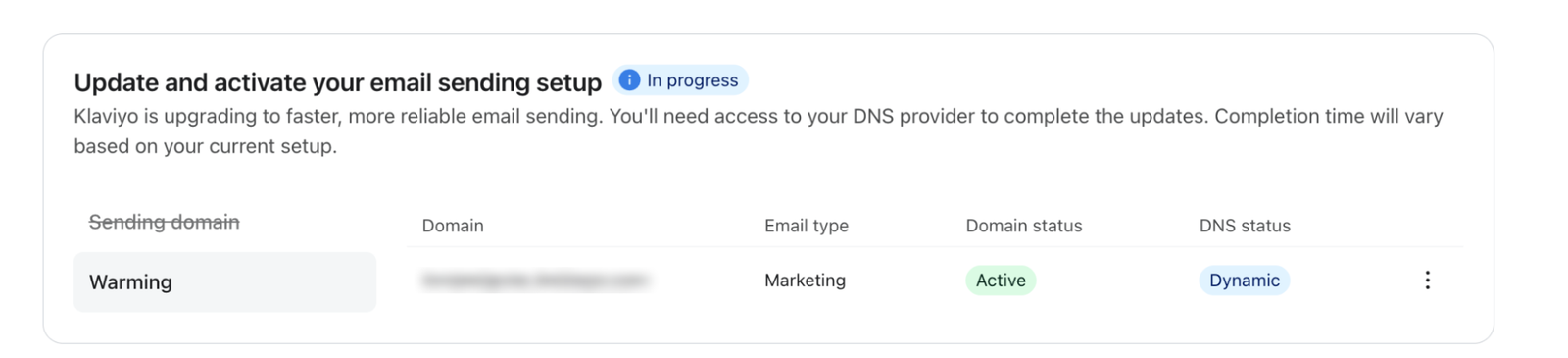
You may see one of the following states:
- Warming. Volume is moving onto the new infrastructure on schedule.
- Active. Warming is complete and all of your volume is on the new infrastructure.
You do not need to follow a manual warming schedule or adjust a setting.
What happens to your legacy infrastructure
Your legacy sending domain stays in place while warming runs. It keeps sending for you until your volume has fully moved across. Once warming is complete, the link between that domain and your Klaviyo account is removed.
Your legacy dedicated IPs work the same way. They stay in service while warming runs, and the link between them and your account is removed once warming is complete.
If other Klaviyo accounts use the same domain, they are unaffected. Only the link to your account is removed. The same is true for a shared click-tracking domain.
Your legacy click-tracking domain comes down earlier in the process, as part of the click-tracking step.
Legacy DNS records. After migration and warming finish, remove only records that are no longer used by any account or service. Keep the old click-tracking records in place so links in previously sent emails can continue to work. If other Klaviyo accounts share the legacy sending domain, retain the records they still need.
Other accounts on the same legacy setup
If you manage other Klaviyo accounts under the same brand that share the same infrastructure, such as the same branded sending domain or click-tracking domain, and you would like them migrated at the same time, contact Klaviyo Support and we will review them for inclusion.
Do not attempt to migrate accounts separately if they share a sending domain. Let Support coordinate them so the domain moves cleanly.
Troubleshooting
If a step will not verify, the cause is almost always the DNS records. Check that the records were added exactly as shown, with no extra characters and no root domain appended to the host by your DNS provider.
Use a free online DNS record checker to confirm your records are live before contacting Support. For detailed diagnosis of sending domain records specifically, see Troubleshooting branded sending domain issues.
If a step in the wizard says it is not available yet, check the dependency table above. Another step almost certainly needs to be completed first.
If you are stuck, contact Klaviyo Support.
Outcome
Your email now uses Klaviyo's own sending infrastructure. Whichever pieces applied to your account have been recreated on the new infrastructure and activated, and your sending volume has moved across gradually without interrupting your campaigns or flows.
Frequently asked questions
Will my subscribers notice anything?
Your email content and from-address stay the same. Your tracked links use the new click-tracking domain after activation. If you use universal or app links, contact Klaviyo Support before removing the old click-tracking domain.
Will this affect my deliverability?
The migration is designed to protect your sending performance. Your sender reputation is primarily tied to your domain, which remains yours, and your volume moves onto the new infrastructure gradually rather than all at once.
Do I need to pause my sending to migrate?
No. Your new sending domain is created alongside your existing one, and your campaigns and flows keep going out normally while it is set up and warmed. There is no cutover moment and no blackout period.
Do I need to change my volume, cadence, audiences, or flows?
No. Once you have completed setup, you don't need to change your audiences, timing, cadence, or flows. Warming and the traffic ramp-up happen automatically in the background. The most useful thing you can do is keep sending at your normal cadence.
Does this affect SMS or branded short links?
No. This is about email sending infrastructure only. Nothing about SMS, including branded short links, needs to change.
Why do I need a new subdomain? Can I keep the one I use now?
Your root domain stays the same, but the subdomain changes. This is what makes the migration safe: your current sending domain has to stay live and keep sending while the new one warms, and a single subdomain cannot point at both at once. Your brand, your from-address, and your domain reputation are unaffected.
My agency or IT team manages our domain. Who does what?
You complete the wizard; whoever controls your DNS makes the record changes. The records are copy-pasteable and the instructions are self-contained, so you can forward them on.
I don't know how to make DNS changes. Where do I do that?
If you don't have access to make DNS changes or aren't sure how to do so, we recommend contacting your network administrator or IT team. If you don't have either, reach out to your DNS provider's support team for guidance. If you're unsure who your DNS provider is, feel free to contact Klaviyo Support. We can look it up, as this information is publicly associated with your domain. Every DNS provider offers a way to add or update DNS records, but the location of these settings varies.
I have multiple sending domains, or a non-standard setup.
Contact Klaviyo Support before starting. Accounts with multiple sending domains, custom double opt-in, or other non-standard configurations are reviewed by Klaviyo's deliverability team so the migration is sequenced correctly for your setup.
What happens to links in emails I have already sent?
They keep working, provided your new click-tracking domain uses a different subdomain than the legacy one. Removing your legacy click-tracking domain in Klaviyo does not delete the underlying DNS record. Klaviyo preserves it so those links continue to resolve for 365 days after you activate your new click-tracking domain. If you reuse the same subdomain for your new domain, those older links stop resolving. If you set your legacy domain up manually, leave that CNAME record in place at your DNS provider so the links are not broken early.
What happens to my old sending domain?
It stays in place while warming runs, and once warming is complete the link between that domain and your Klaviyo account is removed. If other Klaviyo accounts use the same domain, they are unaffected.
How long does this take?
The initial setup typically takes a single session, provided DNS administrators are available in real time. Otherwise, you may need to ask them to add the required DNS records before verifying them and initiating the new sending domain in your wizard.
Migration warming then runs automatically over the following weeks, depending on your sending cadence and volume, and requires no manual intervention.
How do I know when the migration is finished?
The wizard shows a completed state once all of your infrastructure is configured, activated, and fully warmed, with your volume sending on the new infrastructure.
Why is Klaviyo making this change? What are the benefits?
Klaviyo has built its own email sending infrastructure, and this feature helps move your account onto it. Owning the platform end to end means Klaviyo sets its roadmap: when something goes wrong, we can see the full path a message takes and fix it directly, and when there's an improvement worth making, we can build and ship it ourselves. In practice that means faster diagnosis when there's a problem, and new sending capabilities reaching your account sooner. It also lets Klaviyo scale more efficiently as the platform grows, which is how we sustain the speed, reliability, and deliverability standards you depend on.
Are we among the first customers on this infrastructure?
No. Klaviyo's new infrastructure is our own mail-sending platform, built to scale with our customers as the company grows, and tens of thousands of senders already send on it. What's new is the migration wizard, which makes moving across something you can do yourself.
Do I have to migrate?
Not at this time. Klaviyo continues to invest in its own sending infrastructure, and we'll keep evaluating what best supports our customers. If the wizard isn't in your account, there's nothing you need to do today.
Will I be able to choose when this happens?
There's no timeline established for when the migration wizard becomes available to everyone. When it does reach your account, you choose when to start it. The wizard is designed so that you don't need to adjust your sending tactics around it. We do recommend continuing to follow email deliverability best practices.
I don't see the migration wizard in my account.
The wizard is only available in a closed beta program. If you don't see it yet, there is nothing you need to do. Your sending is unaffected, and Klaviyo will let you know before anything changes.
How does email authentication (SPF, DKIM, DMARC) work after I migrate?
Your new sending domain is authenticated in its own right. SPF and DKIM authentication is configured for the new sending domain as part of setup. Klaviyo manages them for you if you chose dynamic routing, or the wizard gives you the records to add if you chose static routing. This is new authentication for a new subdomain, not a change to how your domain authenticates overall.
Your DMARC record lives on your root domain, and the wizard never modifies it. If you already publish a policy, including a strict one such as p=reject, it stays exactly as it is. Alignment continues to work the way it does today, because your new sending subdomain sits under the same root domain as your current one. If your root domain has no DMARC record at all, the wizard offers to add one during setup.
Your legacy sending domain keeps its own records and stays authenticated for as long as it is in use, so your email passes authentication throughout the migration and while warming runs.
Nothing changes for your root domain, your other subdomains, or any other service that sends email on your behalf.
Can the migration be rolled back if I see a deliverability problem?
A rollback may be possible if your legacy sending infrastructure is still available and usable. If your sending performance changes during or after the migration, contact Klaviyo Support and we'll look at it with you. Deliverability issues usually have an underlying cause that may be unrelated to the migration: list quality, a change in content or cadence, or a shift at a particular mailbox provider. Reverting would leave that cause in place, so the first step is to identify what is actually driving it and help you address it. If we find the migration is a factor, we will check whether your account can return to the legacy infrastructure.
Additional resources
- How to set up a branded sending domain
Learn how to set up a branded sending domain (also known as a dedicated sending domain) so that when emails reach inbox providers, they will appear to come from your brand instead of Klaviyo.
- How to set up dedicated click tracking
Learn how to set up dedicated click tracking and best practices when doing so. Dedicated click tracking allows you to show your own domain on click tracking links rather than the default Klaviyo domain.
- Understanding dedicated vs. shared IPs
Learn more about dedicated vs. shared IPs, their benefits and drawbacks, and how IPs are used in your sending infrastructure.
- How to warm your sending domain in Klaviyo
Learn about how to warm your sending infrastructure in Klaviyo. Warming your sending infrastructure trains inbox providers to view you as a good sender, and is essential any time you move to a new email service provider.
- Troubleshooting branded sending domain issues
Learn how to diagnose verification issues when setting up your branded sending domain (also known as a dedicated sending domain) in Klaviyo.