How to manage click tracking
Klaviyo can stop recording email click events at 3 levels: across your whole account, for individual recipients, or for a single link.
This article explains what click tracking is, what turning it off does, and how to manage it at each of those 3 levels, including how recipients can give or withdraw consent themselves.
What click tracking is
Klaviyo records an email click using a tracked link. Links in the messages you send are rewritten to route through Klaviyo, and when a recipient clicks one, Klaviyo records a “Clicked Email” event on that recipient’s profile before sending them on to the destination. Click events feed downstream systems such as reporting, attribution, segmentation, and flow triggers.
When you turn off click tracking for your account or for a recipient, links still route through Klaviyo, but Klaviyo does not record the click. Recipients still reach the destination normally, and unsubscribe links are unaffected.
These controls change whether Klaviyo records a click, not the domain your tracking links use. If you have a dedicated click-tracking domain, turning click tracking off does not remove or change it. To show your own domain on tracking links instead of Klaviyo’s, see How to set up dedicated click tracking.
Click tracking controls apply to email clicks only. Turning click tracking off does not affect open tracking or any other channel. To stop recording both opens and clicks, turn off open tracking separately. See How to manage open tracking for those steps.
Before you begin
- You decide who is in scope. You are responsible for determining which recipients you want to stop recording clicks for, and for setting these controls accordingly. Klaviyo does not decide this for you.
- Click tracking is on by default. Klaviyo records clicks unless tracking is off for your account, a recipient is unsubscribed from click tracking, or tracking is turned off on a specific link.
- Account and recipient changes apply to future click events. Once your account setting is saved or a recipient’s consent update has been processed, it applies to new clicks, including clicks on emails already in the recipient’s inbox. Clicks that were already recorded stay in place. Imports, syncs, and API consent updates must finish processing before the new consent applies. Changing a single link’s HTML only affects emails sent with that updated HTML.
- Your account setting overrides individual consent. If click tracking is off for your account, Klaviyo records no clicks at all, whatever individual recipients are set to.
- Click tracking consent is separate from email marketing consent. Changing a recipient’s click tracking consent never changes whether they are subscribed to your email marketing.
What turning off click tracking affects
When click tracking is off for your account or for a recipient, Klaviyo does not record click data for them. This affects:
- Click rate, clicks, and click to open rate, along with the human click variants of those metrics, and the clicks shown in recipient activity, link activity, and audience or segment breakdowns. Recipients who still receive your emails but aren’t tracked won’t register clicks, so these numbers reflect fewer people than actually clicked.
- Conversions and revenue attributed to a click. If a click is not recorded, it cannot qualify for attribution. Klaviyo can attribute the conversion to another qualifying touchpoint in your attribution window, such as an email open or an engagement event on another channel, according to your attribution settings. Your attribution model settings aren’t changed by click tracking consent, only the click data feeding into them. See How to change your attribution model to review which interactions count toward attribution for your account.
- Segmentation based on click activity. This includes engagement based segments you may already rely on for list hygiene and sunset flows.
- Flow triggers that rely on click events.
- Bot click reporting. Bot click filtering works by classifying recorded click events, so clicks that were never recorded do not appear in bot click reports either.
If you turn off click tracking on a single link, only clicks on that link are affected. Everything else in the message is tracked as usual.
Metrics based on other activity, including open rate, delivery rate, bounce rate, spam complaint rate, unsubscribe rate, and conversions or revenue attributed to another non-click touchpoint, are not affected.
Turn off click tracking for your entire account
This is the simplest way to stop recording clicks. It applies to every email your account sends. You need permission to edit account settings to change this setting.
- Click your account name in the lower left, then click Settings.
- Go to Email > Tracking.
- Uncheck Track email clicks.
- Click Save.
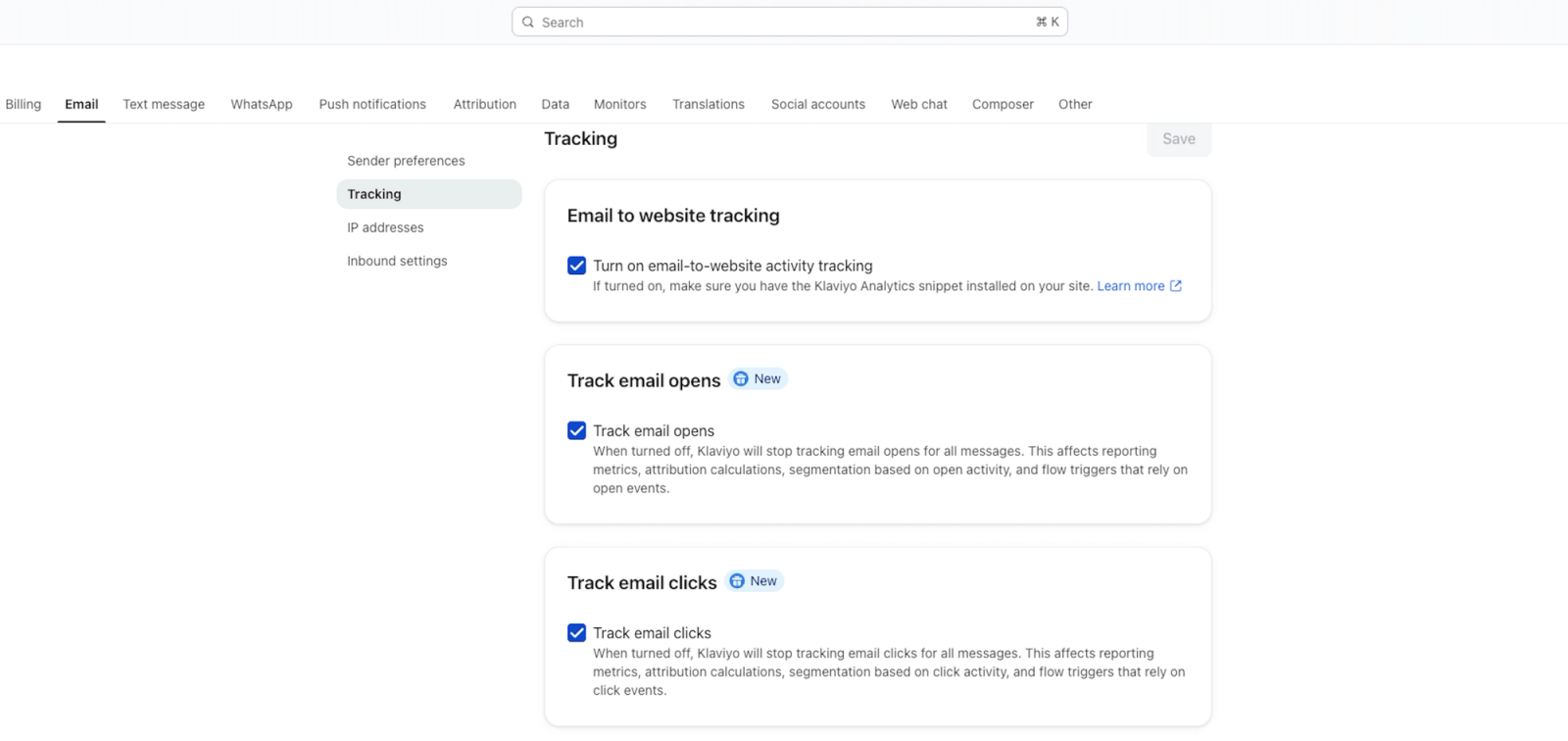
When Track email clicks is off, Klaviyo stops recording clicks for all of your account’s email messages.
Manage click tracking for individual recipients
Collecting a recipient’s consent before tracking their clicks may be required under certain regional privacy laws. Setting click tracking consent per recipient lets you scope tracking to the recipients who have given consent, rather than turning off click tracking for everyone you send to. You can set it yourself, or let recipients give or withdraw it.
Click tracking consent is stored per recipient and per email address, so a profile with more than one email address needs consent set for each email you want to stop tracking. A recipient can be:
- Subscribed: clicks are recorded.
- Unsubscribed: clicks are not recorded.
- Never Subscribed: no explicit consent has been set. Clicks are recorded.
Because click tracking is on by default, you only need to act on the recipients you want to stop tracking. Set those recipients to unsubscribed from click tracking using any of the methods in Step 2. To let recipients give or withdraw consent themselves, see Step 3.
A recipient’s click tracking status only appears on their profile once an explicit choice is recorded, by you or by the recipient. Until a recipient is Subscribed or Unsubscribed, Click tracking doesn’t appear on their profile. If it isn’t listed, no explicit choice has been recorded, and clicks are still recorded if account-wide click tracking is on and tracking has not been turned off for the link.
Step 1: Identify the recipients in scope
Decide which recipients you need to stop recording clicks for. You can use profile data to help build this audience.
Step 2: Set click tracking consent to unsubscribed
Using a CSV file (list import)
You can set click tracking consent in bulk with a list import, the same way you bulk-remove email marketing consent. Include a column for click tracking consent in your file and set the value to unsubscribed for each recipient you want to stop tracking:
Email,Click Tracking Consent
sarah@example.org,UNSUBSCRIBED
Before importing, check any flows triggered by the destination list. An import can trigger those flows before the click tracking consent update finishes. If tracking must be off before any flow email is sent, use a list without active flows and wait for the consent update to finish before sending.
To import:
- Go to Audience > Lists & segments and select the list you want to use, or create a new one.
- Open the Manage list dropdown and click Import contacts.
- Click Upload and select your CSV file.
- Map your email address column to Email and your click tracking consent column to Click Tracking Consent. Click Next to continue to the consent choices. If your file already covers all consent choices and the button says Import, click it to start the import.
- If prompted to apply bulk consent, select Only import the consent in my file to update click tracking consent without adding marketing consent. Click Import.
Wait for the import to finish, then check the recipients’ click tracking consent as described below.
Setting click tracking consent does not change a recipient’s email marketing consent. As with any list import, the contacts in your file are added to the list you import into. For more on the import flow, see How to import subscribers to a list.
Using SFTP or a data warehouse sync
The same Click Tracking Consent column works for SFTP imports and data warehouse syncs. Map the column to click tracking consent and set the value to UNSUBSCRIBED.
Using the API
You can set click tracking consent with the Subscribe and Unsubscribe Profiles bulk endpoints. Click tracking consent is a separate object under subscriptions.email, alongside marketing consent, and changing it does not affect marketing consent.
To stop recording clicks for a recipient, unsubscribe them from click tracking with POST /api/profile-subscription-bulk-delete-jobs:
{
  "data": {
    "type": "profile-subscription-bulk-delete-job",
    "attributes": {
      "profiles": {
        "data": [
          {
            "type": "profile",
            "attributes": {
              "email": "sarah@example.com",
              "subscriptions": { "email": { "click_tracking": { "consent": "UNSUBSCRIBED" } } }
            }
          }
        ]
      }
    }
  }
}
To start recording clicks again, subscribe them to click tracking with POST /api/profile-subscription-bulk-create-jobs and a consent value of SUBSCRIBED.
Setting consent for new recipients (advanced)
If new subscribers sign up through a Klaviyo sign-up form that includes a Tracking consent block, the block records their choice when they sign up (see Step 3). For recipients who join another way, such as through an integration, you can add a webhook action to a flow that calls the API to set click tracking consent. There is no built-in flow action for this. Put the webhook before any send action and trigger the flow as early as possible.
A successful webhook response confirms that the API accepted the request, not that the consent update has finished. Before sending messages that require click tracking to be off, confirm that the recipient’s click tracking consent is Unsubscribed. Webhook order alone does not guarantee that no click will be recorded.
Step 3: Let recipients give or withdraw consent
Recipients can give or withdraw click tracking consent themselves through a Tracking consent block, in a sign-up form or on your preference page. Their choices are saved to their profile the same way as consent you set using the methods above.
- In a sign-up form: new subscribers choose whether to give consent when they sign up. See Understanding form blocks and fields.
- On your preference page: recipients can give or withdraw consent whenever they update their preferences. See How to let recipients manage email tracking consent on your preference page.
With both blocks, a recipient who leaves the click tracking box unchecked, or leaves No selected on the preference page, is set to unsubscribed from click tracking when they submit. This includes recipients whose clicks Klaviyo was recording by default.
Show the blocks only to the recipients you want to ask. For sign-up forms, use location targeting to show the form only where you collect consent. On your preference page, use the block’s location settings, which go by the recipient’s IP address when they open the page, not their profile location.
The preference page block also asks about open tracking until you change it. To ask only about clicks, select only Email clicks in the block’s settings.
Check a recipient’s click tracking consent
Open a recipient’s profile, then on the Details tab, expand their email address in the channel list. Under Tracking consent, Click tracking shows Subscribed or Unsubscribed, along with the method and date of the most recent change. If no explicit choice has been recorded for that recipient, Click tracking isn’t listed. This means their clicks are recorded if account-wide click tracking is on and tracking has not been turned off for the link. Once a recipient is set to Subscribed or Unsubscribed, by you using any of the methods above or by the recipient through a sign-up form or your preference page, Click tracking appears with that status. This status is read-only. To change it, use an import, sync, or the API. Recipients can also update it through a sign-up form or your preference page.
You can also retrieve click tracking consent through the Get Profiles API. Include additional-fields[profile]=subscriptions in the request, then read subscriptions.email.click_tracking in the response.
Track consent changes over time
Every change to a recipient’s click tracking consent, whether made through a list import, sync, the API, a sign-up form, or your preference page, is recorded as a timestamped event on their profile, the same way other consent changes are.
Use the Events API to retrieve this history:
- Filter by
profile_idand the click tracking consent metric IDs to retrieve one recipient’s click tracking consent events. Filtering by profile alone also returns their other events. - Filter by
metric_idto retrieve changes across your account. Consent grants and revocations are separate metrics, Consented to Click Tracking and Revoked Click Tracking Consent, so request each metric’s events separately. Add the profile filter to each request when checking one recipient.
Follow the pagination links to retrieve all matching events. This is the recommended way to produce a record of when a recipient’s click tracking consent changed.
Manage click tracking for a single link
If you want to keep click tracking on generally but stop recording clicks on one specific link, add clicktracking=off to that link’s HTML tag before sending the email:
<a clicktracking=off href="https://example.com">Klaviyo Homepage</a>Klaviyo will not record clicks on that link in emails sent with the updated HTML. This does not change links in emails already sent. Every other link in the message is tracked as usual, and neither your account setting nor any recipient’s click tracking consent is changed.