How to manage open tracking
Klaviyo can stop recording email open events, either across your whole account or for individual recipients. Some regulators in the EU, including France’s data protection authority (CNIL) and Italy’s data protection authority (the Garante), now require prior consent for using tracking pixels, tiny invisible images loaded when an email is displayed, for most marketing purposes, and these controls give you a way to honor that.
This article explains what open tracking is, what turning it off does, and how to manage it at both the account and recipient level.
What open tracking is
Klaviyo records an email open using a small tracking pixel, an invisible image included in the messages you send. When a recipient opens your email, their email client loads the pixel from Klaviyo, and Klaviyo records an “Opened Email” event on that recipient's profile. Those open events feed reporting, attribution, segmentation, and flow triggers.
When you turn off open tracking, the pixel still loads, but Klaviyo does not record the open. Turning off open tracking does not remove the pixel from your messages.
Open tracking controls apply to email opens only. Turning open tracking off does not affect click tracking or any other channel. Opens and clicks are controlled separately, so if you want to stop recording both, you also need to turn off click tracking. See How to manage click tracking for those steps.
Before you begin
- You decide who is in scope. You are responsible for determining which recipients require consent and for setting these controls accordingly. Klaviyo does not decide this for you. If you mail recipients in France or Italy, those recipients are a common starting point.
- Open tracking is on by default. Klaviyo records opens unless you turn tracking off at the account level or set a recipient to unsubscribed from open tracking.
- Changes take effect going forward, right away. When you turn off open tracking, Klaviyo stops recording new opens immediately, including opens on emails already sitting in a recipient's inbox. Opens that were already recorded stay in place. Likewise, when open tracking is turned on, Klaviyo begins recording new opens immediately.
- Open tracking consent is separate from email marketing consent. Changing a recipient's open tracking consent never changes whether they are subscribed to your email marketing.
What turning off open tracking affects
When open tracking is off for a recipient, Klaviyo has no open data for them. This affects:
- Open rate, and other reporting built from opens, including the opens shown in recipient activity and audience or segment breakdowns, and the percentage of opens by inbox provider. Recipients who still receive your emails but aren’t tracked won’t register opens, so these numbers reflect fewer people than actually opened.
- Conversions and revenue attributed to an open. If a conversion’s only qualifying touchpoint in your attribution window was an open, and that open wasn’t recorded, Klaviyo will attribute the conversion to another touchpoint if one exists (like a click), or the conversion won’t be attributed to that message at all. Your attribution model settings aren’t changed by open tracking consent, only the open data feeding into them. See How to change your attribution model to review which interactions count toward attribution for your account.
- Segmentation based on open activity.
- Flow triggers that rely on open events.
Metrics based on other activity, including click rate, delivery rate, bounce rate, spam complaint rate, unsubscribe rate, and conversions or revenue attributed to a click or another non-open touchpoint, are not affected.
Turn off open tracking for your entire account
This is the simplest way to stop recording opens. It applies to every email your account sends.
- Click your account name in the lower left, then click Settings.
- Go to Email > Tracking.
- Uncheck Track email opens.
- Save your changes.
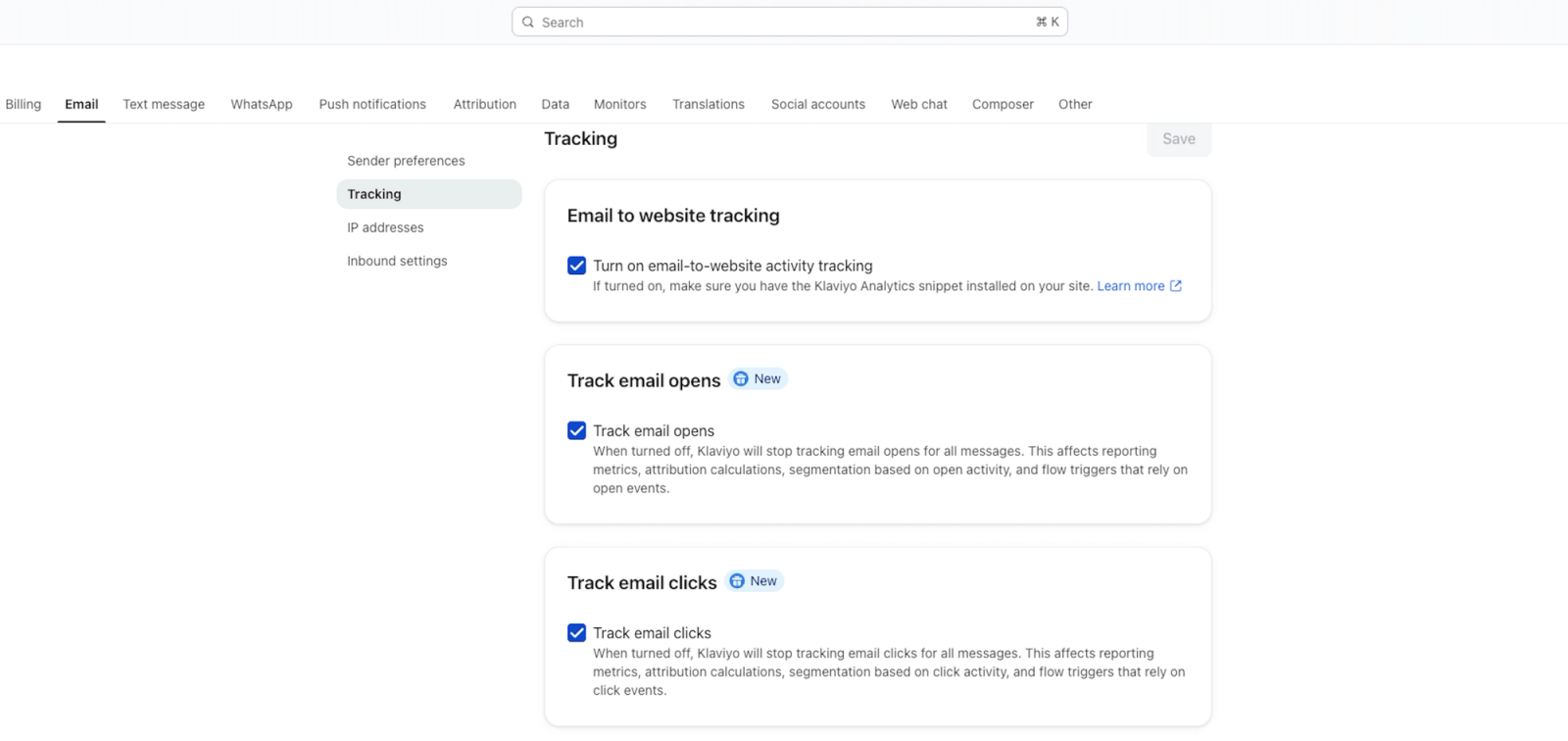
Any user with access to your email settings can change this. When Track email opens is off, Klaviyo stops recording opens for all of your account's email messages.
Manage open tracking consent for individual recipients
If you only need to stop recording opens for some recipients, you can set open tracking consent per recipient instead of turning it off for the whole account.
Open tracking consent is stored per recipient and per email address, so a profile with more than one email address needs consent set for each email you want to stop tracking. A recipient can be:
- Subscribed: opens are recorded.
- Unsubscribed: opens are not recorded.
- Never Subscribed: no explicit consent has been set. Opens are recorded.
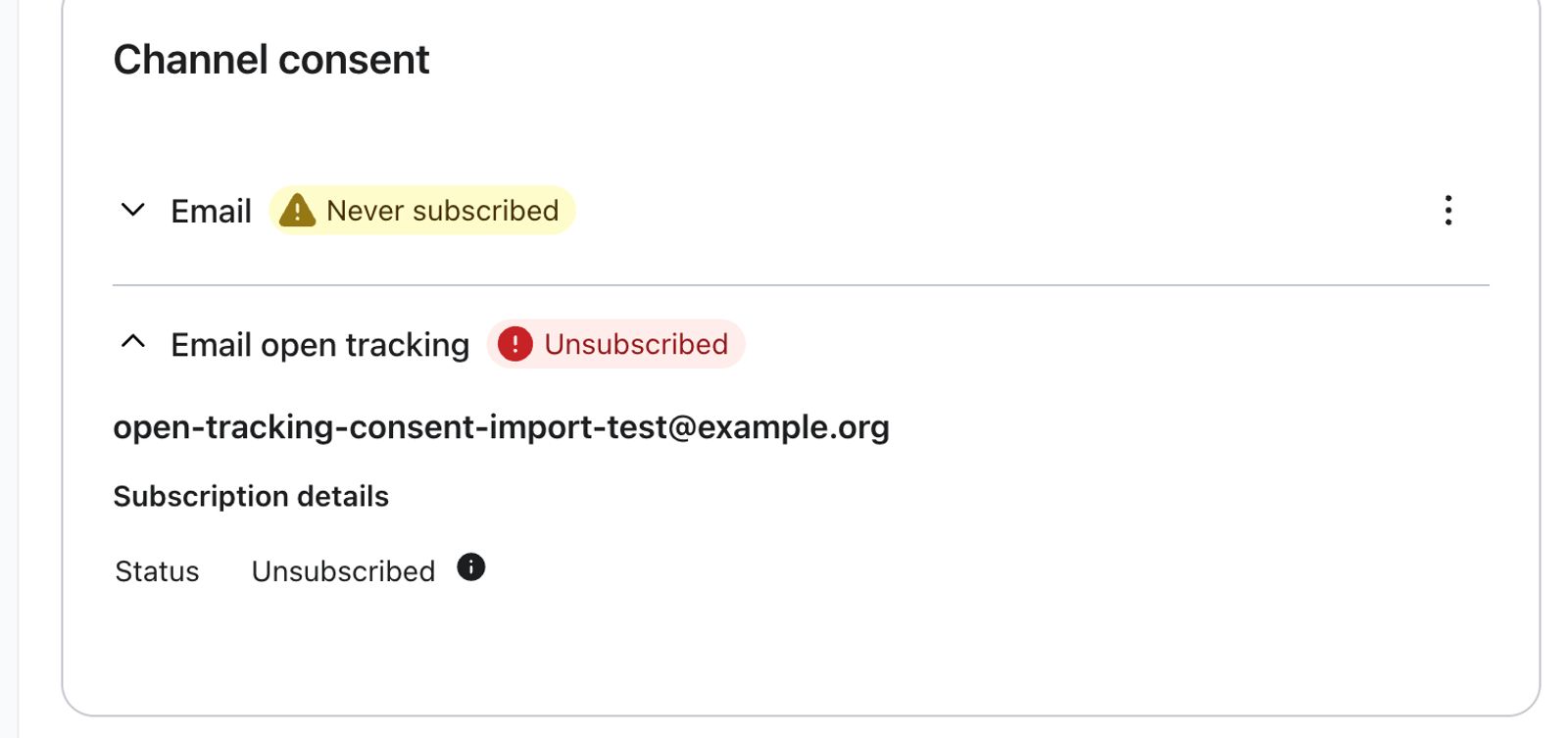
Because open tracking is on by default, you only need to act on the recipients you want to stop tracking. Set those recipients to unsubscribed from open tracking using any of the methods below.
A recipient’s open tracking status is only visible on their profile once you set it explicitly. Until a recipient is set to Subscribed or Unsubscribed, their profile shows no Email open tracking row at all, even though Klaviyo is recording their opens by default in the meantime. The absence of a row doesn’t mean tracking is off, it means no explicit choice has been recorded yet.
Step 1: Identify the recipients in scope
Decide which recipients you need to stop recording opens for. If you are responding to the CNIL or Garante requirements, you might start with recipients in France or Italy. You can use profile data such as location to help build this audience.
Step 2: Set open tracking consent to unsubscribed
Using a CSV file (list import)
You can set open tracking consent in bulk with a list import, the same way you bulk-remove email marketing consent. Include a column for open tracking consent in your file and set the value to unsubscribed for each recipient you want to stop tracking:
Email,Open Tracking Consent
sarah@example.org,UNSUBSCRIBED
To import:
- Go to Audience > Lists & segments and select the list you want to use, or create a new one.
- Open the Manage list dropdown and click Import contacts.
- Click Upload and select your CSV file.
- Map your open tracking consent column to Open Tracking Consent, then finish the import.
Setting open tracking consent does not change a recipient's email marketing consent. As with any list import, the contacts in your file are added to the list you import into. For more on the import flow, see How to import subscribers to a list.
Using SFTP or a data warehouse sync
The same Open Tracking Consent column works for SFTP imports and data warehouse syncs. Map the column to open tracking consent and set the value to UNSUBSCRIBED.
Using the API
You can set open tracking consent with the Subscribe and Unsubscribe Profiles bulk endpoints. Open tracking consent is a separate object under subscriptions.email, alongside marketing consent, and changing it does not affect marketing consent.
To stop recording opens for a recipient, unsubscribe them from open tracking with POST /api/profile-subscription-bulk-delete-jobs:
{
  "data": {
    "type": "profile-subscription-bulk-delete-job",
    "attributes": {
      "profiles": {
        "data": [
          {
            "type": "profile",
            "attributes": {
              "email": "sarah@example.com",
              "subscriptions": { "email": { "open_tracking": { "consent": "UNSUBSCRIBED" } } }
            }
          }
        ]
      }
    }
  }
}
To start recording opens again, subscribe them to open tracking with POST /api/profile-subscription-bulk-create-jobs and a consent value of SUBSCRIBED.
Setting consent for new recipients (advanced)
There is no built-in flow action to set open tracking consent, so there is no fully native way to set it for brand-new recipients as they are added. If you need to do this, you can add a webhook action to a flow that calls the API to set open tracking consent for the new recipient. Because open tracking is on by default until consent is set, order the webhook before any send action and trigger the flow as early as possible, so no open is recorded before the recipient is set to unsubscribed.
Check a recipient's open tracking consent
Open a recipient’s profile to see their open tracking status. If you haven’t set explicit consent for that recipient, you won’t see an Email open tracking row on their profile at all. That’s expected: it means Klaviyo hasn’t recorded an explicit choice for them, so their opens are still being tracked under the default. Once you set a recipient to Subscribed or Unsubscribed, using any of the methods above, an Email open tracking row appears on their profile with that status. You can also retrieve open tracking consent through the Get Profiles API under subscriptions.email.open_tracking.
Track consent changes over time
Every change to a recipient’s open tracking consent, whether made through a list import, sync, or the API, is recorded as a timestamped event on their profile, the same way other consent changes are.
Use the Events API to retrieve this history:
- Filter by
profile_idto see one recipient’s complete open tracking consent history. - Filter by
metric_idto see every open tracking consent change across your account.
This is the recommended way to produce a record of consent changes, for example, if you need to demonstrate compliance in response to a data protection inquiry.