How to let recipients manage email tracking consent on your preference page
Add a Tracking consent block to your preference page to let recipients give or withdraw consent to email open tracking, email click tracking, or both. Their choices are saved to their profile when they update their preferences, and Klaviyo stops recording opens or clicks for any tracking type they don't consent to.
You decide which recipients to ask for tracking consent, working with your legal or privacy team. The block's location settings let you show it only to the recipients you want to ask.
When recipients who see the block save their preferences, Klaviyo saves a choice for every tracking type the block shows, even if they didn't touch the block. Anyone who leaves a box unchecked, or leaves No selected, is set to Unsubscribed from that tracking type. This includes recipients you have never asked. To avoid turning off tracking for recipients you don't intend to ask, show the block only in the locations where you collect tracking consent.
Before you begin
- Tracking consent is separate from email marketing consent. Giving or withdrawing tracking consent doesn't subscribe or unsubscribe anyone from your emails.
- Tracking is on by default. Klaviyo records opens and clicks unless a recipient is set to Unsubscribed from that tracking type, or you turn tracking off for your account. If open or click tracking is off for your account, Klaviyo doesn't record that activity for anyone, whatever recipients choose on this page.
- The block is for preference pages only. You can add it to your account's default preference page and to preference pages for specific lists. It isn't available on subscribe or unsubscribe pages, or on custom-coded hosted pages. (Note: Coming soon to subscribe pages.)
- Add the block to every preference page your emails link to. Recipients open your preference page from the manage preferences link in your emails (
{% manage_preferences %}, or{% manage_preferences_link %}in buttons and images). Emails sent to a single list that has its own consent pages open that list's preference page. All other emails open your account's default preference page. See Getting started with consent pages for details. - New subscribers can give consent when they sign up. To ask for tracking consent in a sign-up form, use the Tracking consent block for sign-up forms. It works the same way: a visitor who leaves a tracking box unchecked is set to Unsubscribed from that tracking type when they submit the form. To show the form only where you collect consent, use its location targeting.
How the block works
What recipients see
The block shows a checkbox or a pair of Yes and No buttons for each tracking type you collect. You can also use a single input that covers opens and clicks together.
A box is checked, or Yes is selected, only if the recipient has already given consent to that tracking type. Everyone else sees an unchecked box or No selected, including recipients who were never asked. Their tracking doesn't change unless they save the page. With a single input for opens and clicks, the box is checked, or Yes is selected, only if the recipient has given consent to both.
What happens when recipients save their preferences
When a recipient submits the preference page, Klaviyo saves a choice for each tracking type the block shows:
- A checked box or Yes records their consent. Their profile shows Subscribed for that tracking type, and Klaviyo records that activity.
- An unchecked box or No records that they don't consent. Their profile shows Unsubscribed for that tracking type, and Klaviyo stops recording that activity for them.
Tracking types the block doesn't collect stay as they are. If a recipient doesn't see the block because of its location settings, saving their preferences doesn't change their tracking consent.
Add the Tracking consent block
- Go to Audience > Growth tools. Under Customize subscribe and preference pages, click Customize.
- Select Account default pages, or select For a specific list and choose a list with its own consent pages.
- Find the preferences page and click Edit Page.
- Click Add blocks. Under Input Fields, drag Tracking consent onto the page.
- Click the block to open its settings, then set it up using the sections below.
- When you've finished setting up the block, including its location settings, click Publish.
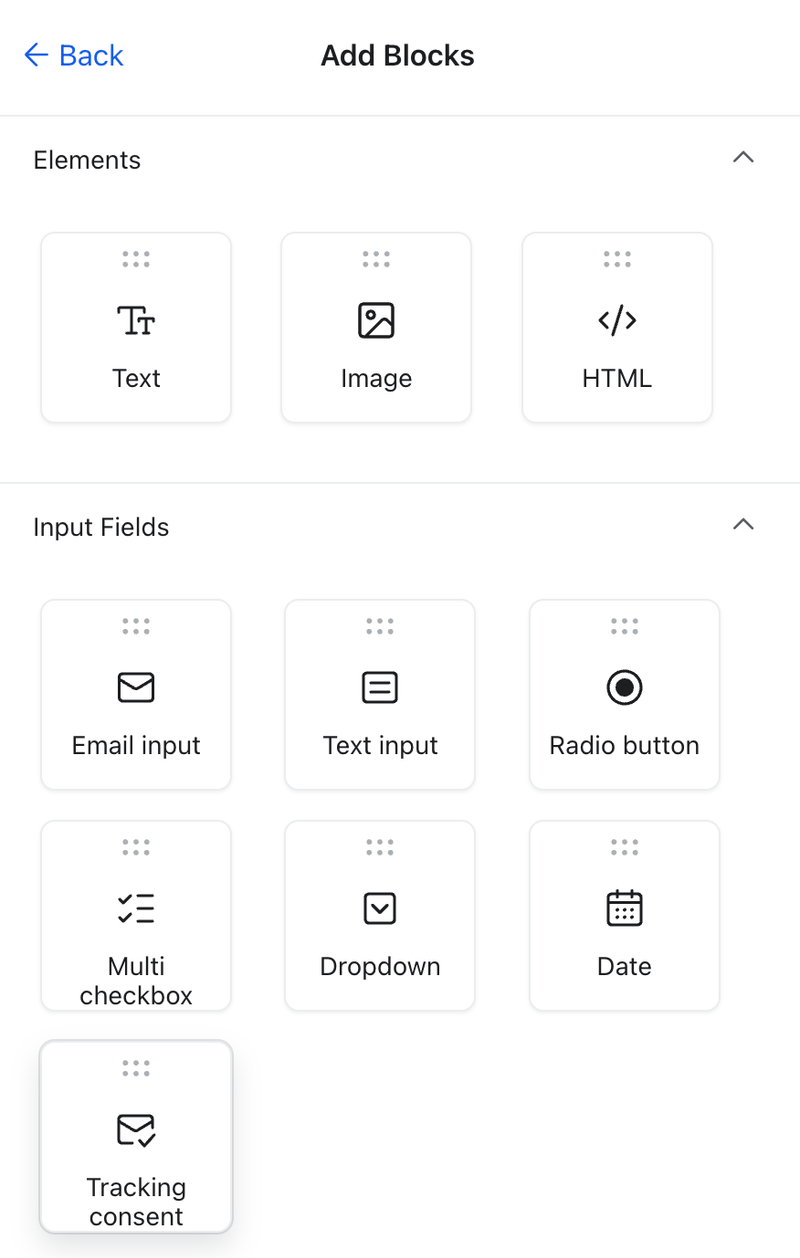
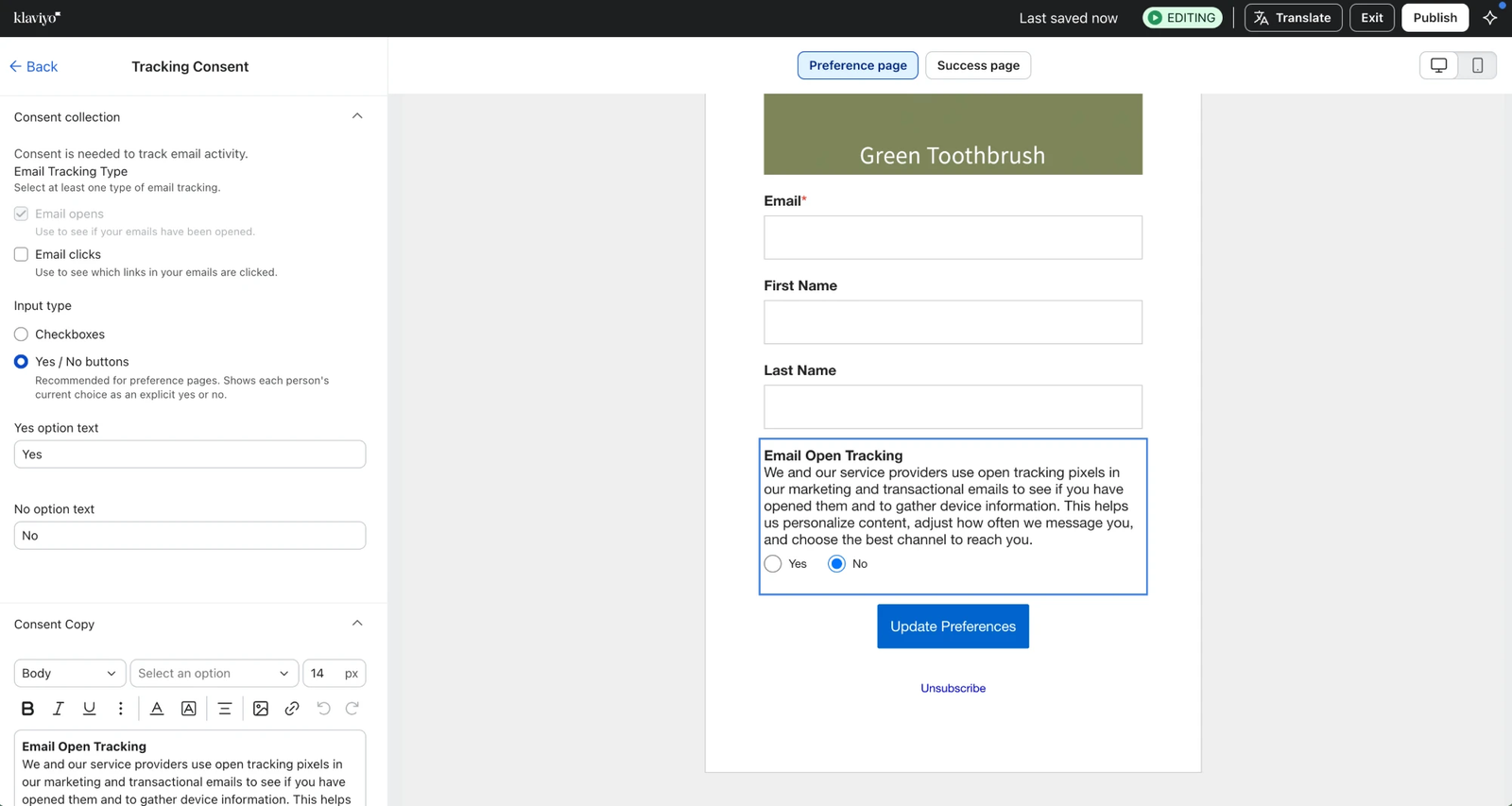
When you add it, the block asks about both opens and clicks with separate checkboxes, and it shows to everyone who opens the page. Change these settings before you publish.
Choose what the block collects
Under Consent collection, set the following:
- Email Tracking Type: select Email opens, Email clicks, or both. At least 1 must stay selected.
- Input type: choose Checkboxes or Yes / No buttons. The builder recommends Yes / No buttons for preference pages, because recipients who have already answered see their answer as an explicit Yes or No. Recipients who haven't given consent see No selected. To change the button wording, edit Yes option text and No option text.
- Use one input for opens and clicks: when you collect both, turn this on to ask about opens and clicks with a single checkbox or pair of buttons.
Show the block only where you collect consent
Under Location, choose who sees the block:
- Show to audience in certain locations shows the block only in the regions and countries you select.
- Don’t show to audience in certain locations shows the block everywhere except the regions and countries you select.
You can select regions, such as a continent or the European Union, or individual countries, and you can use both options together. While the block's settings are open, you can't publish with a location option turned on and no locations selected. If you close the settings first, the empty option turns off and the block shows to everyone, so select locations before you move on.
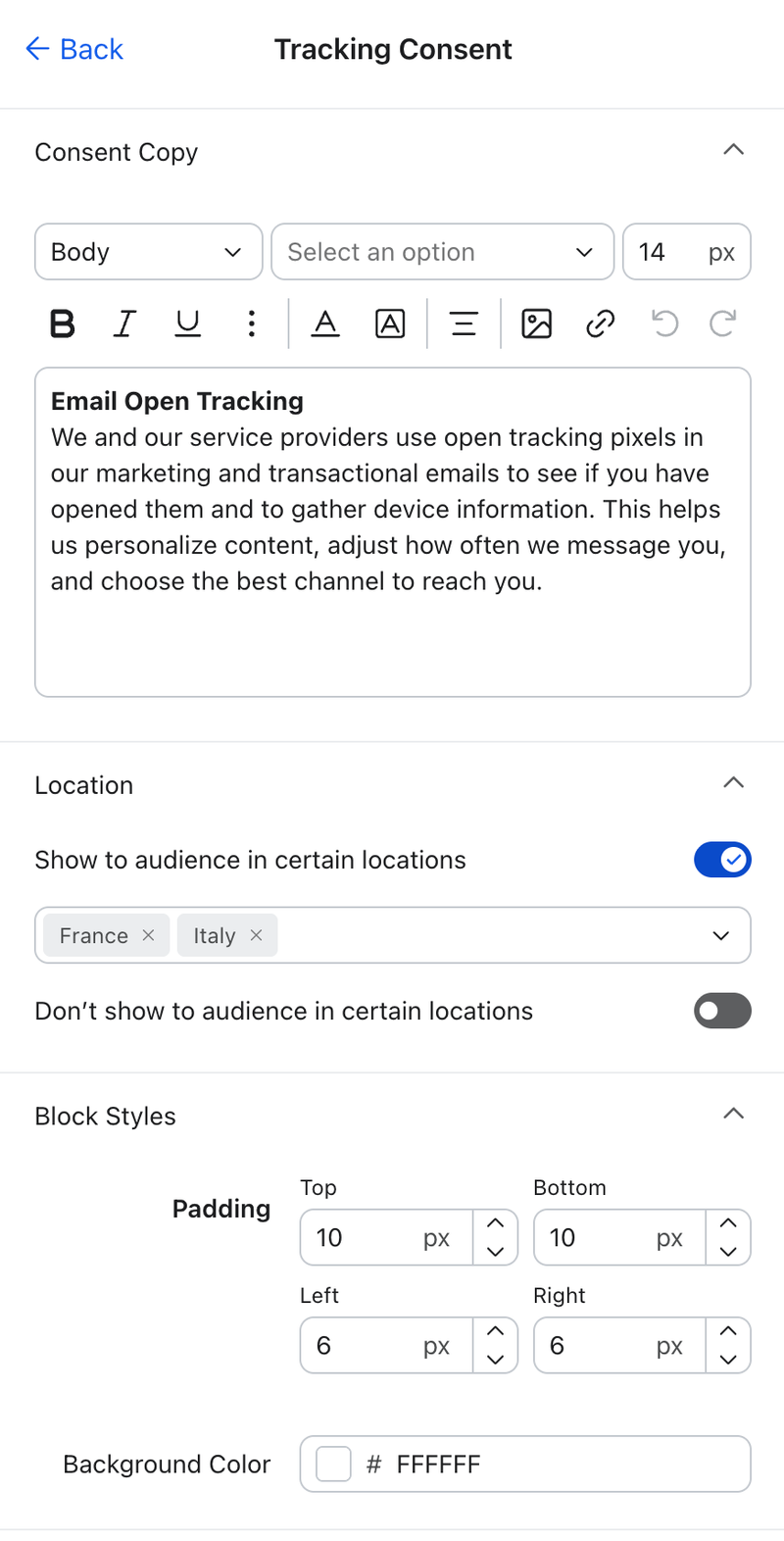
Klaviyo determines location from the recipient's IP address when they open the page, not from the location on their profile. If Klaviyo can't determine a recipient's location, a block set to Show to audience in certain locations stays hidden, and a block that only uses Don’t show to audience in certain locations still shows.
Use different setups in different locations
To ask for consent differently in different places, add more than 1 Tracking consent block to the page and give each its own location settings. For example, one block can ask about opens and clicks together while another asks about them separately.
Each recipient sees at most 1 block, so you can't publish the page if 2 blocks could show in the same location, or if more than 1 block doesn't use Show to audience in certain locations.
Edit the consent text
Under Consent Copy, edit the text shown with each input. Replace the suggested text with wording approved by your legal or privacy team.
The block doesn't have a separate disclosure field. If your legal or privacy team wants recipients to know how to withdraw consent, add that to the consent text or to a text block on the page.
If you translate your consent pages with Smart Translations, the block's text is included. Review it in each language before you publish. See How to translate consent pages into different languages.
To change the block's padding or background color, use Block Styles.
Check a recipient's tracking consent
To see a recipient's current choice, open their profile. On the Details tab, expand their email address in the channel list. Under Tracking consent, Open tracking and Click tracking show Subscribed or Unsubscribed, along with the method and date of the most recent change. A tracking type with no recorded choice isn't listed.
Each change is also recorded as an event on the profile: Consented to Open Tracking or Revoked Open Tracking Consent for opens, and Consented to Click Tracking or Revoked Click Tracking Consent for clicks. To retrieve this history, see "Track consent changes over time" in How to manage open tracking and How to manage click tracking.
Related articles
- How to manage open tracking
- How to manage click tracking
- Email tracking pixel regulations (CNIL, Garante, and beyond): Managing your open tracking settings
- Getting started with consent pages
- Understanding form blocks and fields
- Understanding consent in profiles
- How to translate consent pages into different languages