How to set up and use passkeys
Estimated 4 minute read
Table of contents
- You will learn
- Before you begin
- Set up a passkey
- Log in with a passkey
- Manage your passkeys
- Remove a passkey
- Frequently asked questions
- Additional resources
You will learn
Learn how to set up and use a passkey to log in to Klaviyo.
A passkey lets you sign in using your device's Face ID, fingerprint, or PIN instead of typing a password.
Why use a passkey?
Passkeys are a faster and more secure way to log in. A biometric or PIN check replaces typing a password and entering a separate MFA code.
Setting up a passkey does not remove your password. If you lose access to your passkey, you can still log in with your password and complete MFA.
Before you begin
Please note the following:
- If your company requires single sign-on (SSO), you must be on its SSO exemption list to log in with a passkey. If SSO is enabled but not required, you don't need an exemption to use passkey login.
- Set up multi-factor authentication (MFA) before adding or removing a passkey. This is required on both free and paid accounts. You'll also need your Klaviyo password to confirm these changes.
- You can set up passkeys on multiple devices. Each one appears as its own entry, and none of them affect your password or your other passkeys.
- Passkeys require a device and browser that support the WebAuthn standard. Most modern phones, laptops, and browsers support this. If yours doesn't, you can continue to log in with your password.
Set up a passkey
- Click your organization name in the bottom left corner.
- Click Settings.
- Select Security.
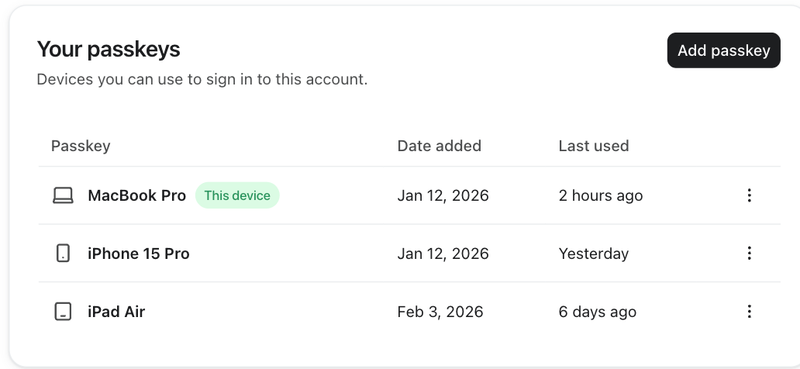
- In Your passkeys, click Add passkey.
- Enter your Klaviyo password, then click Next.
- Enter a recognizable Passkey name, or keep the suggested name, then click Next.
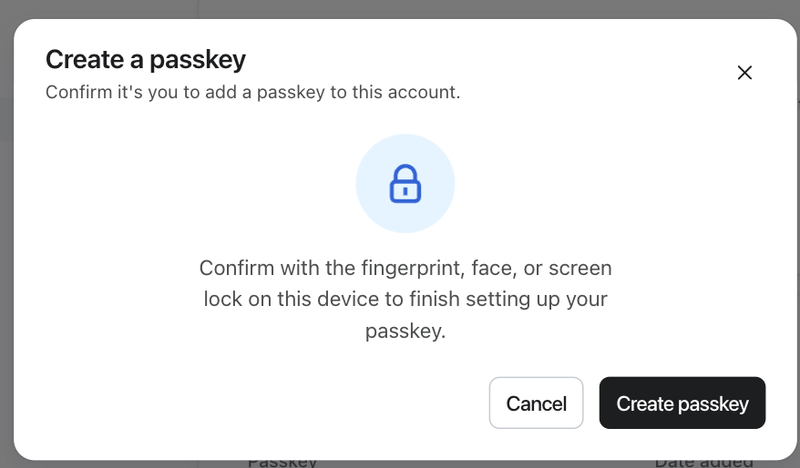
- Follow your device's prompt to verify with Face ID, fingerprint, or PIN.
When setup is complete, your passkey appears under Your passkeys.
Passkey names
Choose a recognizable name when you add a passkey. You can't rename a saved passkey in Klaviyo.
Log in with a passkey
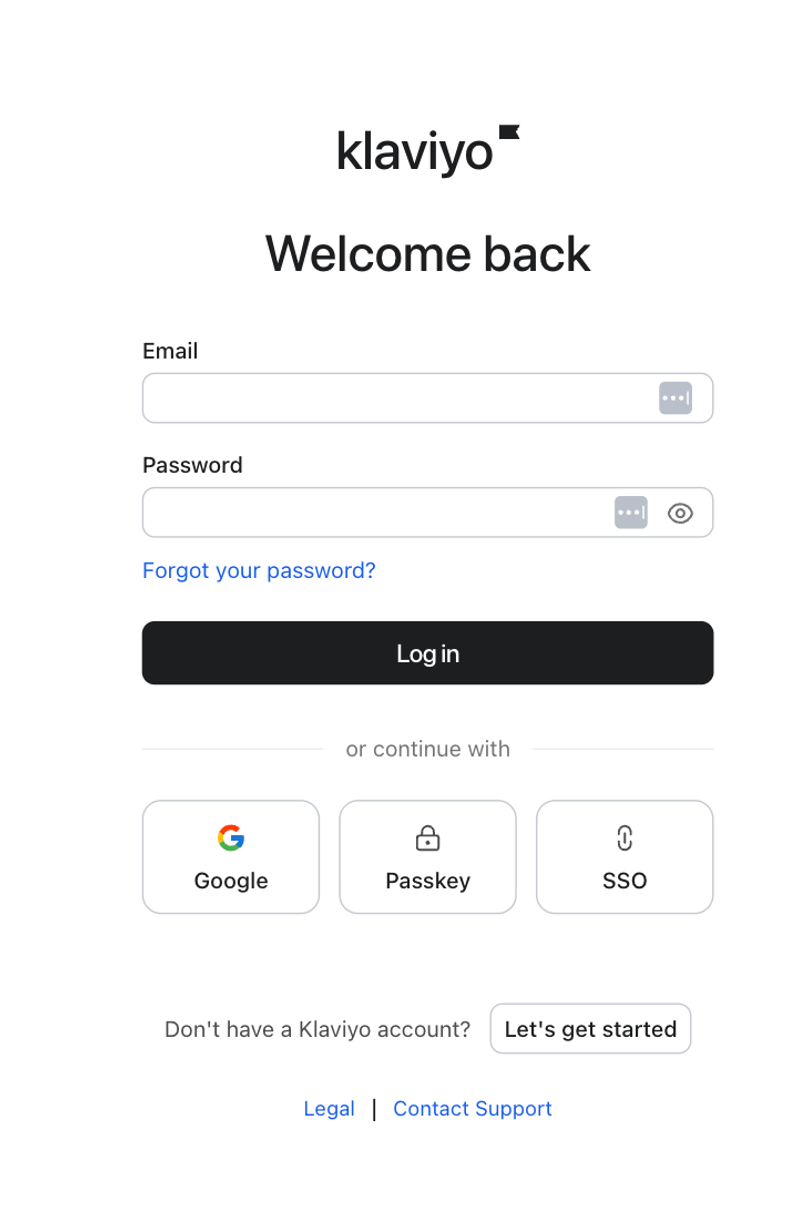
- Enter your email address on the login screen.
- Click Passkey.
- Follow your device's prompts to select your passkey and verify with Face ID, fingerprint, or PIN.
- Once verified, you're signed in. No password needed.
You can also click Passkey without entering your email address and select a saved passkey when prompted. Follow any further verification prompts to finish logging in.
Manage your passkeys
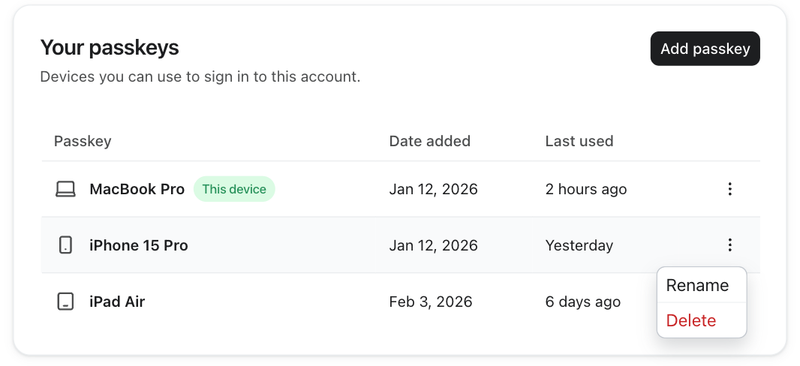
All of your registered passkeys are listed under Settings > Security, in Your passkeys. From there, you can view your passkeys, add another, or remove one.
Remove a passkey
Removing a passkey stops it from being used to log in to Klaviyo. Your password and other registered passkeys stay active.
- Navigate to Settings > Security.
- Find the passkey you want to remove.
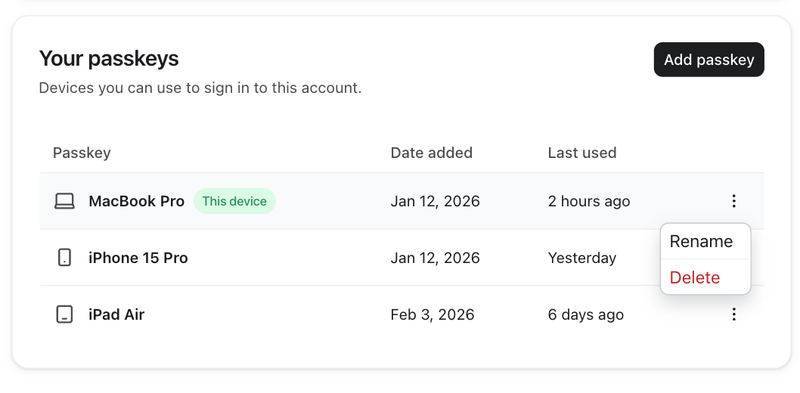
- Open the menu next to the passkey and select Delete.
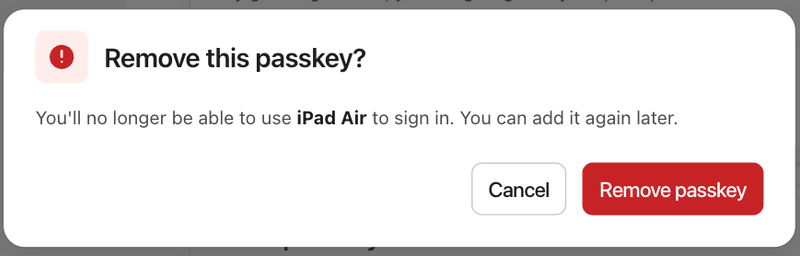
- Click Remove passkey to confirm.
- Enter your Klaviyo password, then click Remove passkey again.
The passkey is removed from Your passkeys.
Frequently asked questions
Does setting up a passkey remove my password? No. Your password stays active even after you register a passkey.
Can I use passkeys with SSO? Yes, if SSO is optional or you're on your company's SSO exemption list. If SSO is required and you're not exempt, use SSO to log in.
Can I use passkeys and MFA together? Yes. You must set up MFA before adding a passkey on both free and paid accounts. Passkey login does not require a separate MFA code. You can still log in with your password and MFA.
Can I sign up for Klaviyo using a passkey? Not in this release. Passkeys can be added after you've signed up, but not used to create a new account.
What if multiple people share the same login? Each person can register their own passkey on their own device, since an account can have multiple passkeys. We don't recommend shared logins, as they introduce security and accountability risks.
Additional resources
- How to set up multi-factor authentication (MFA) Learn how to set up multi-factor authentication (MFA) to help make your Klaviyo account or portfolio more secure.
- How to set up single sign-on (SSO) Learn how to set up single sign-on (SSO) for your Klaviyo account or portfolio.
- How to reset multi-factor authentication for a user Learn how to reset multi-factor authentication (MFA) for a user.