How to create follow-up messages in omnichannel campaigns
Follow-up messages let you re-engage recipients based on how they interacted with a previous message in your omnichannel campaign, without manually building audience filters. For example, you could send an email to your full audience, then create an SMS follow-up that only targets people who didn't open it. Klaviyo automatically sets up the right audience filters for you, so you can build multi-step, cross-channel sending strategies in just a few clicks.
Already familiar with follow-up emails in single-channel campaigns? Follow-ups in omnichannel campaigns expand on that feature — you can create follow-ups across any channel (not just email), target based on a wider range of engagement conditions, and use custom audience filters for more advanced targeting.
Before you begin
- This feature is available in omnichannel campaigns only.
- You must have at least one existing message in your omnichannel campaign before you can create a follow-up.
- If you haven’t already, learn the basics of how to create and send an email campaign.
Create a follow-up message
- Create an omnichannel campaign and add a message, or open an existing omnichannel campaign that contains at least one message.
- On the message you want to follow up on, click the overflow menu (3-dot icon).
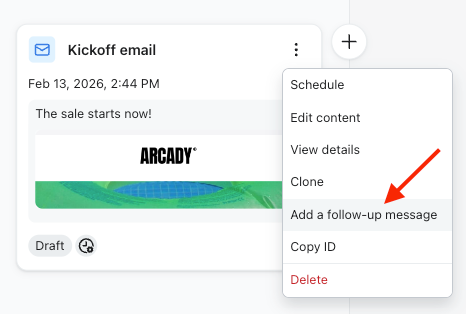
- Select Add follow up. A dialog appears where you configure your follow-up.
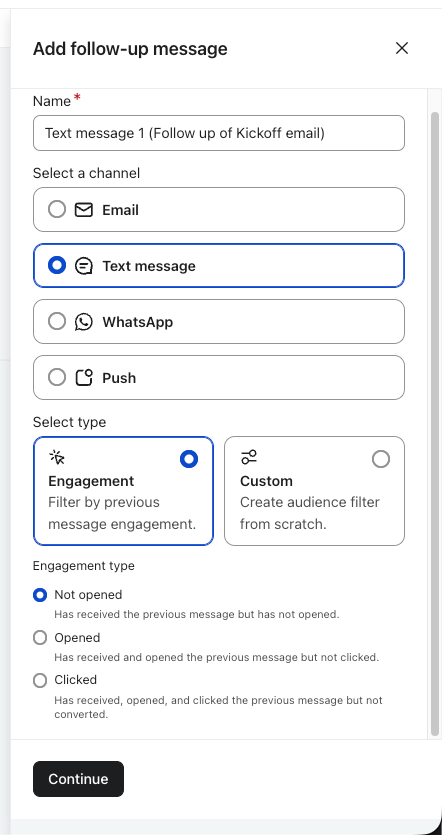
- Choose the channel for your follow-up message (Email, SMS, Push, or WhatsApp).
- Select a follow-up type — either an engagement-based option or a custom filter.
- Click Confirm.
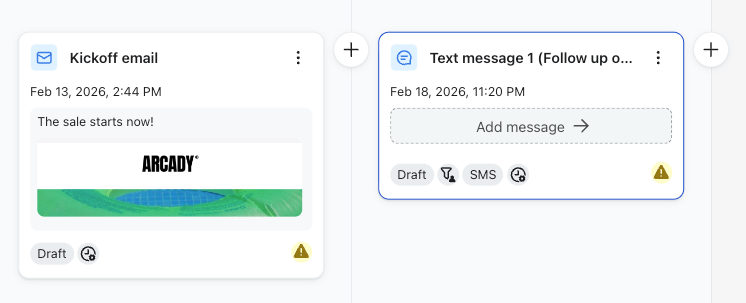
Your follow-up message now appears in your omnichannel campaign with the audience filters already applied. From here you can edit its content, adjust the send time, or make any other changes — it behaves just like any other message.
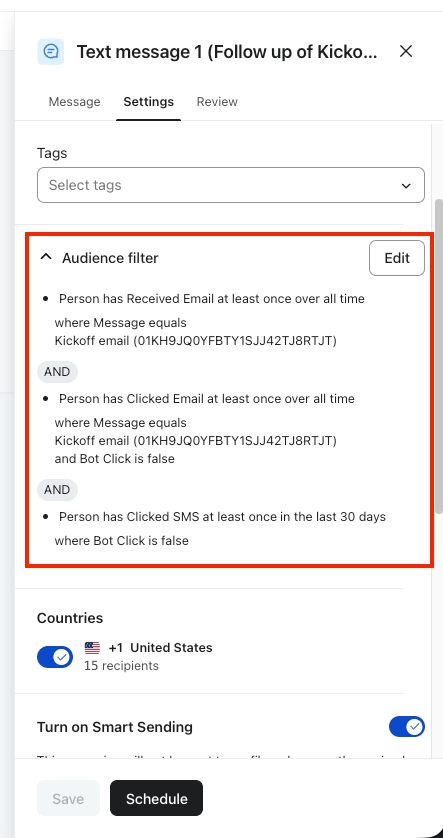
Tip: The follow-up feature is a quick-start tool. Once the message is created, you have full access to edit the audience filters — adjust the engagement window, add conditions, or replace the filters entirely. Navigate to the Audience Filters section on the follow-up message to make changes.
Choose your follow-up type
When creating a follow-up, you choose between two types: engagement or custom.
Engagement
Engagement options automatically build audience filters based on how recipients interacted with the source message. The options you see depend on which channel the source message uses.
If your source message is an email, push, or WhatsApp message:
- Not opened — Targets recipients who did not open the source message.
- Opened — Targets recipients who opened the source message.
- Clicked — Targets recipients who clicked a link in the source message.
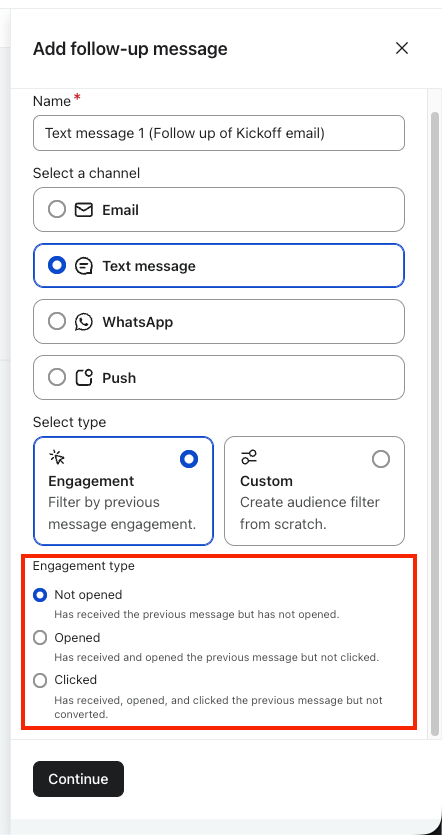
If your source message is an SMS:
- Not clicked — Targets recipients who did not click a link in the source message.
- Clicked — Targets recipients who clicked a link in the source message.
Standard SMS does not support open tracking, so only click-based options are available.
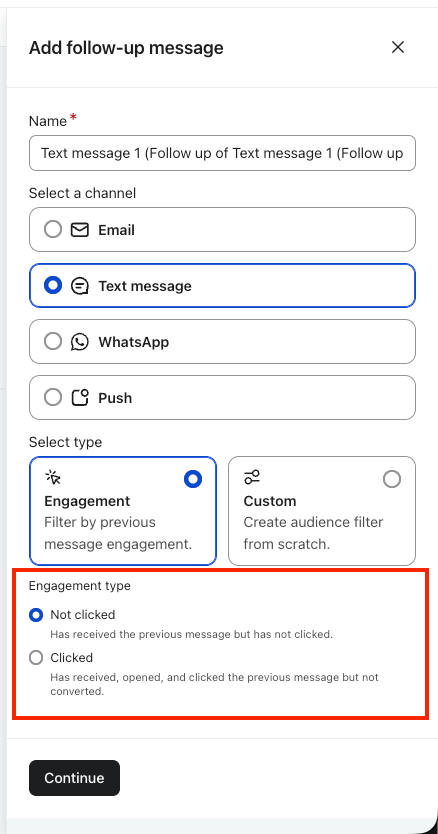
Note: If your account has RCS enabled and the source message is an RCS message, all three options (Not opened, Opened, Clicked) are available.
Whichever option you select, Klaviyo automatically configures the audience filter with your chosen engagement condition plus a "Received [source message]" condition. The engagement window defaults to 30 days but can be adjusted after creation.
Custom
Choose custom when you need targeting beyond standard engagement conditions, or want to combine multiple criteria.
The custom option opens the full audience filter builder with a "Received [source message] since all time" condition pre-populated. From there, add any conditions you need.
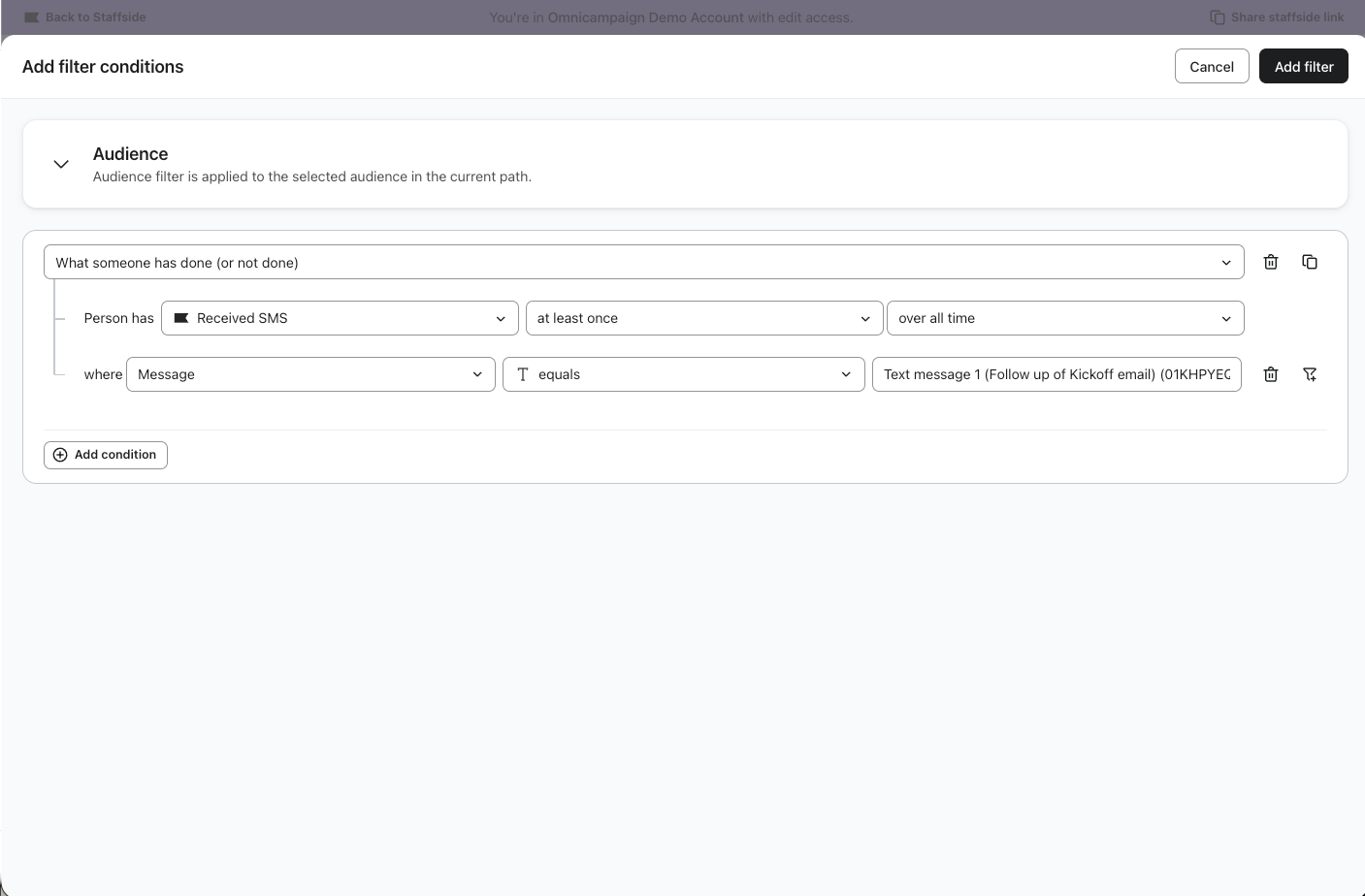
Follow-up defaults
- Send time: Scheduled 24 hours after the source message.
- Name: [Channel] [Message number] (Follow up of [source message name])
Important: Content is not cloned from the source message. Your follow-up is created with a blank template. If you want to reuse the source message's content, use the clone message feature separately.
Follow-up messages are regular messages — you can edit them, create additional follow-ups from them, or delete them at any time.
Deleting a source message that has follow-ups
If you delete a message that has follow-ups referencing it, a warning modal lets you know that downstream messages have filter conditions tied to this message.
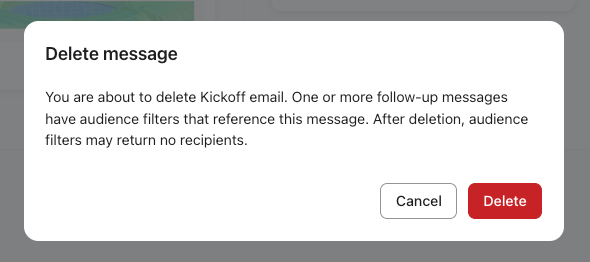
The follow-up messages will remain in the campaign, but their audience filters will reference a message that no longer exists. The Review tab will flag this as an error. Update or remove the affected filters before sending.
Additional resources
- Understanding Audience Filters in Omnichannel Campaigns
Learn how audience filters allow you to target specific customer sub-segments for each message in your omnichannel campaign. By targeting these specific groups, you deliver the right message at the right time and on the right channel. As a result, your campaigns become more personalized and will drive engagement over time.
- How to create and send an email campaign
Learn about the basics of email campaigns, including what they are and how to send them in Klaviyo.
- How to include a follow-up email to resend a campaign to "non-openers"
Learn how to use the include a follow-up email setting to resend a campaign to recipients that didn't open the original email. This option is available in the campaign wizard when setting up a new campaign.