Understanding Audience Filters in Omnichannel Campaigns
You will learn
Learn how audience filters allow you to target specific customer sub-segments for each message in your omnichannel campaign. By targeting these specific groups, you deliver the right message at the right time and on the right channel. As a result, your campaigns become more personalized and will drive engagement over time.
Before you begin
This article covers how to set up exit criteria for omnichannel campaigns. If this is your first time creating a campaign, learn how to create and send an email campaign.
How it works
Audience Hierarchy and Targeting
Audience filters take the audience you selected, and narrow it down to target a specific subset of that larger group.
A profile must meet two criteria to receive the message:
- It must qualify for the main Campaign Audience defined at the top level.
- It must qualify for the specific Audience Filter configured for that message.
If a profile doesn’t meet one, they’re excluded from that message.
Filter Logic and Processing
Filters are calculated immediately before the message send time. This ensures accuracy by using the profile's most recent activity and attribute changes.
(For more details on calculating recipients at send time, read more about Understanding campaign schedule and send options.)
To create more precise targeting, you can combine multiple conditions with:
- AND Logic: Requires a profile to meet all conditions.
- OR Logic: Requires a profile to meet at least one condition.
Locking and Unlocking
Audience filters are locked when the message is scheduled. If the message is reverted to draft status, the filters become unlocked and can be reconfigured. Once the message starts sending, the filter configuration becomes permanent.
Configuring audience filters
- Click the message to open the message details panel
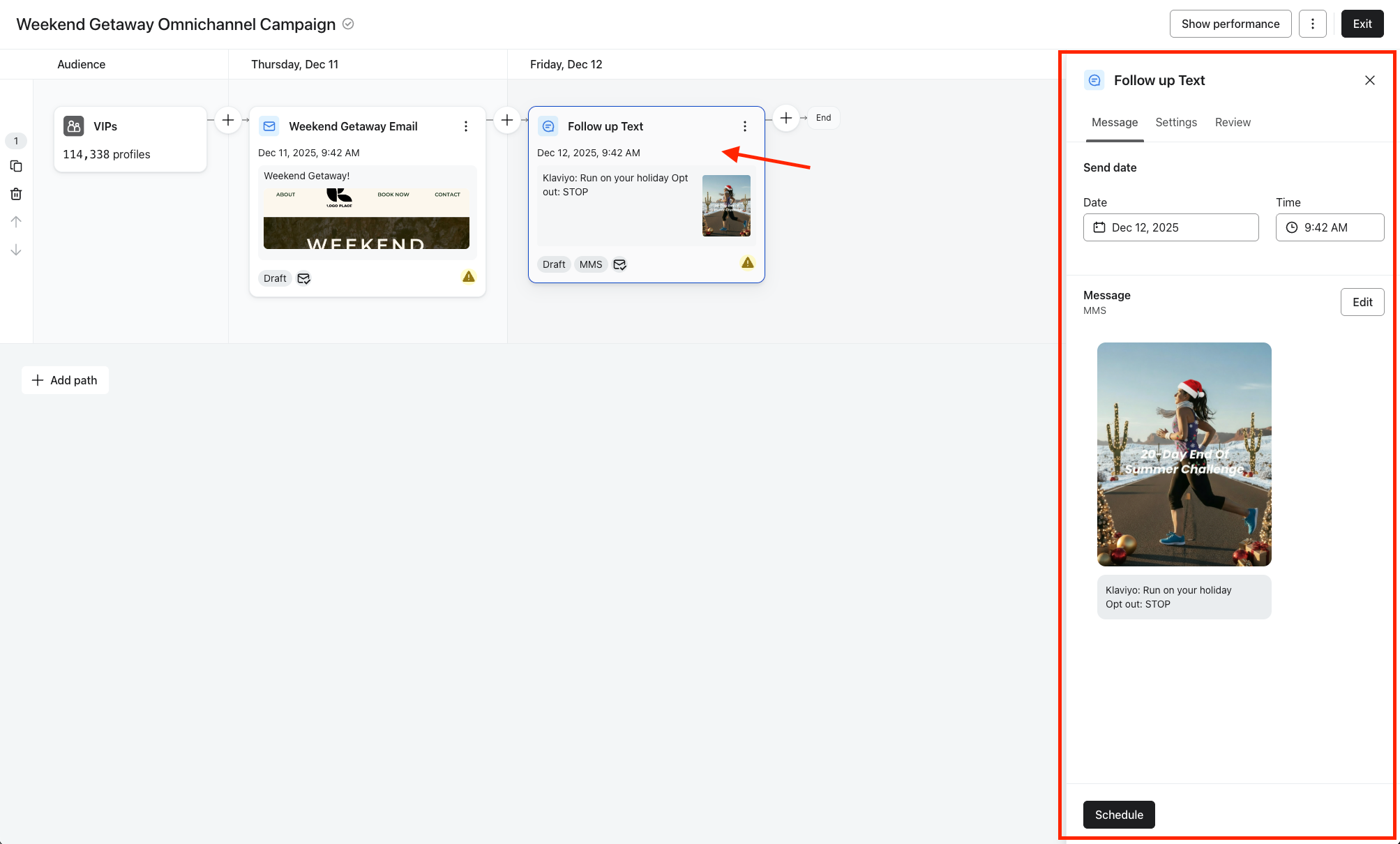
- Click the Settings tab
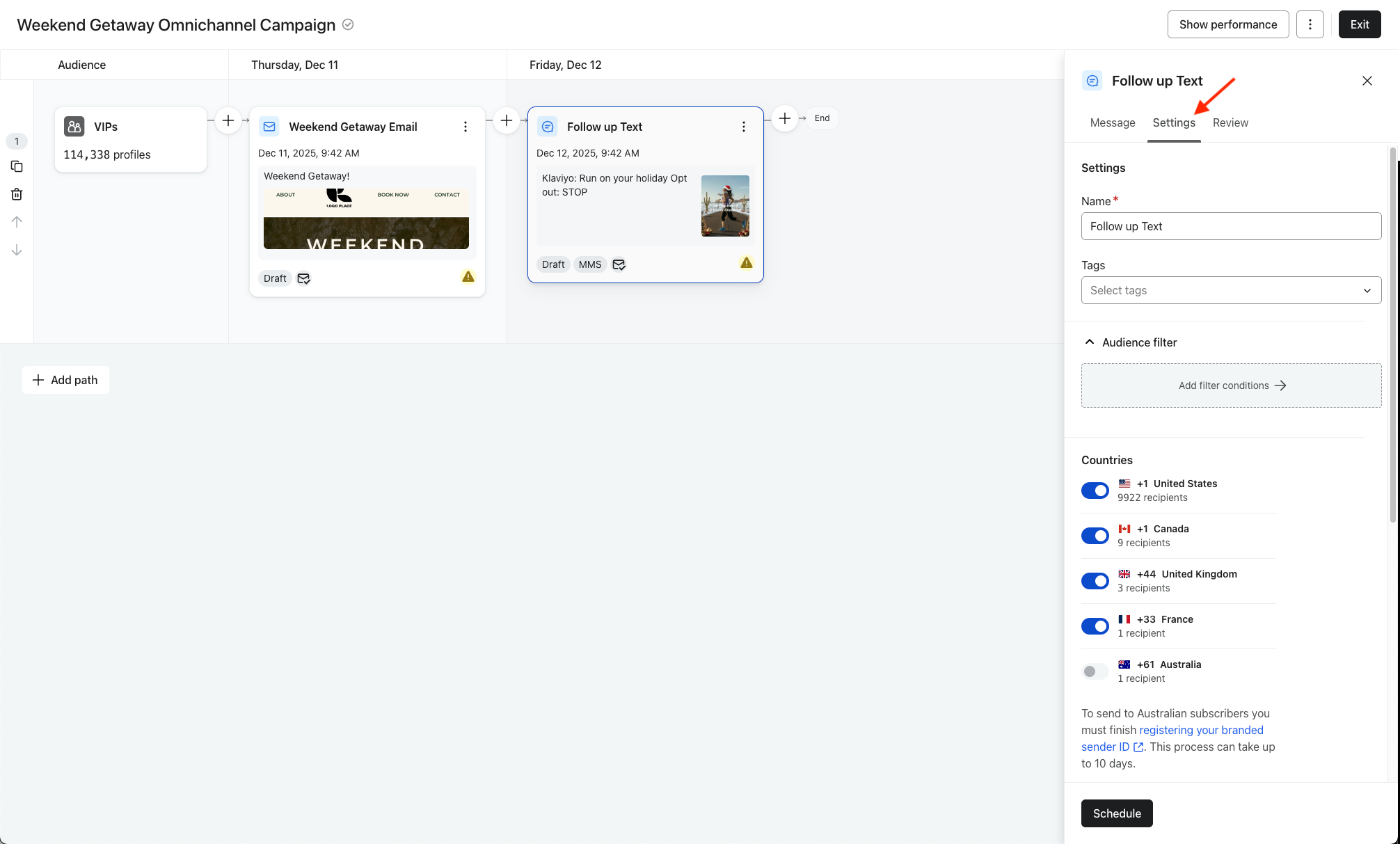
- In the Audience filter section, click Add filter conditions
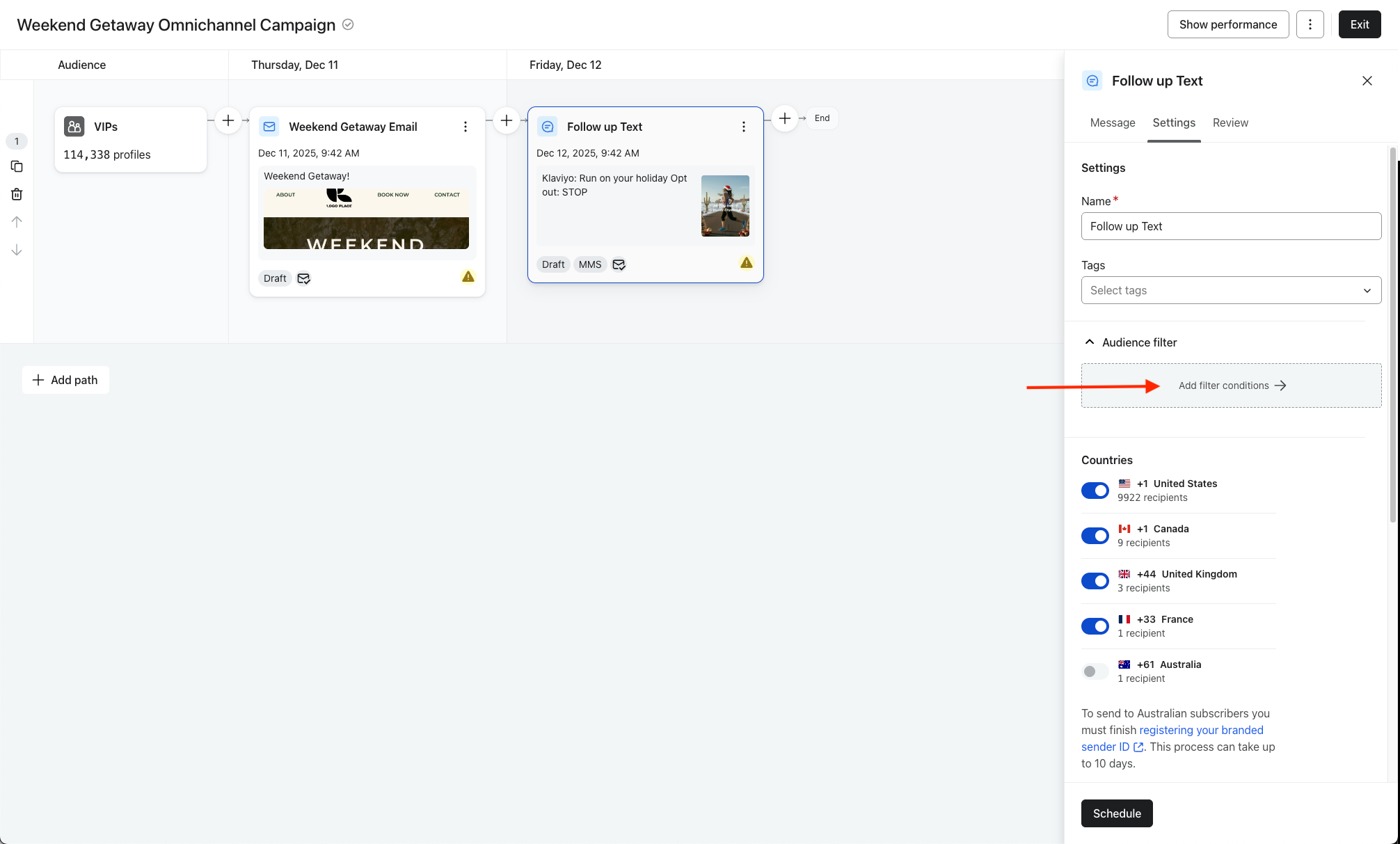
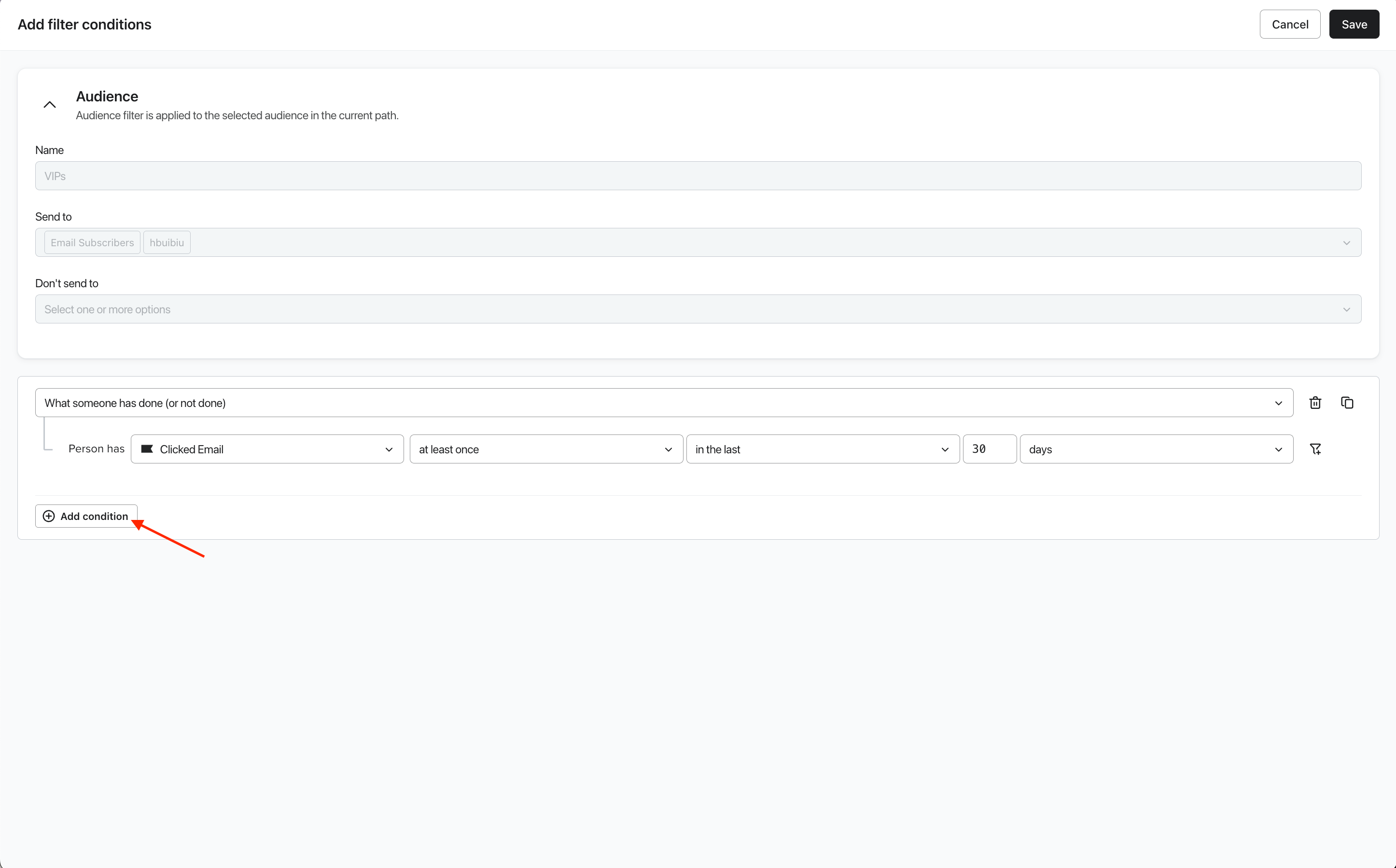
- Next, define your filter conditions. Note that the audience shown at the top is the overall, top-level audience; the conditions you add will narrow down this group into a smaller, targeted subset.
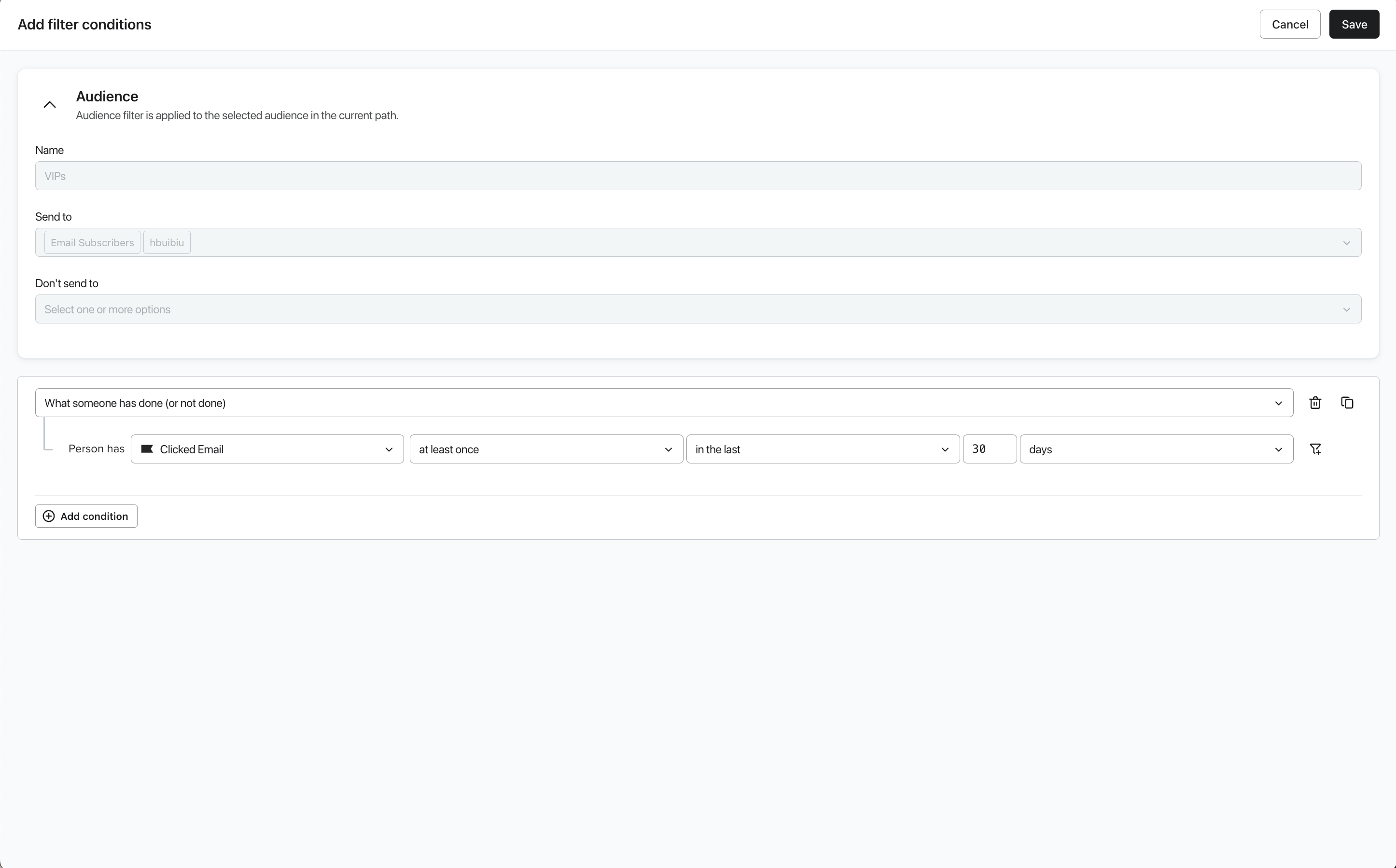
- Click Add condition to chain additional filter conditions. Use AND or OR operators to link the conditions.
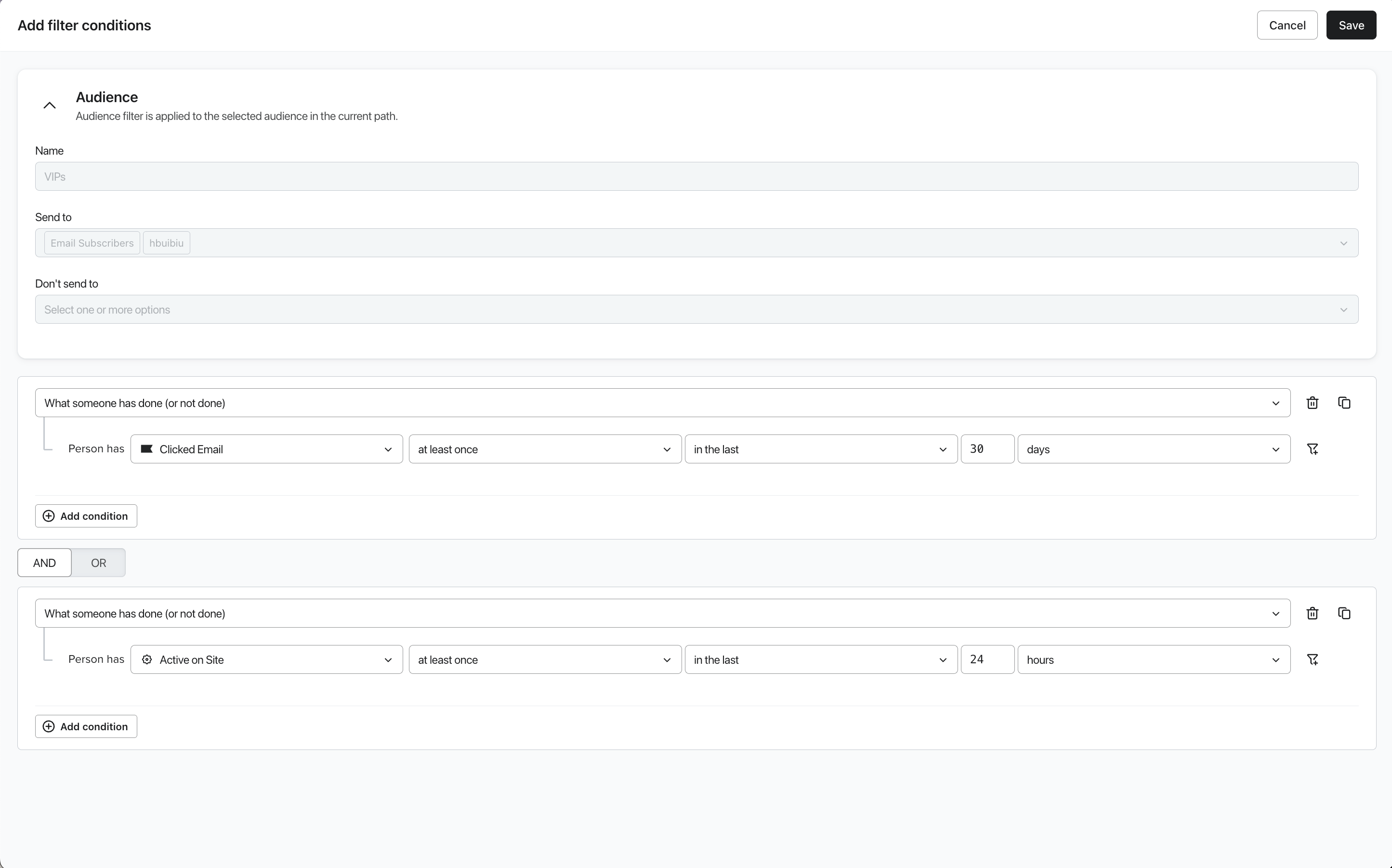
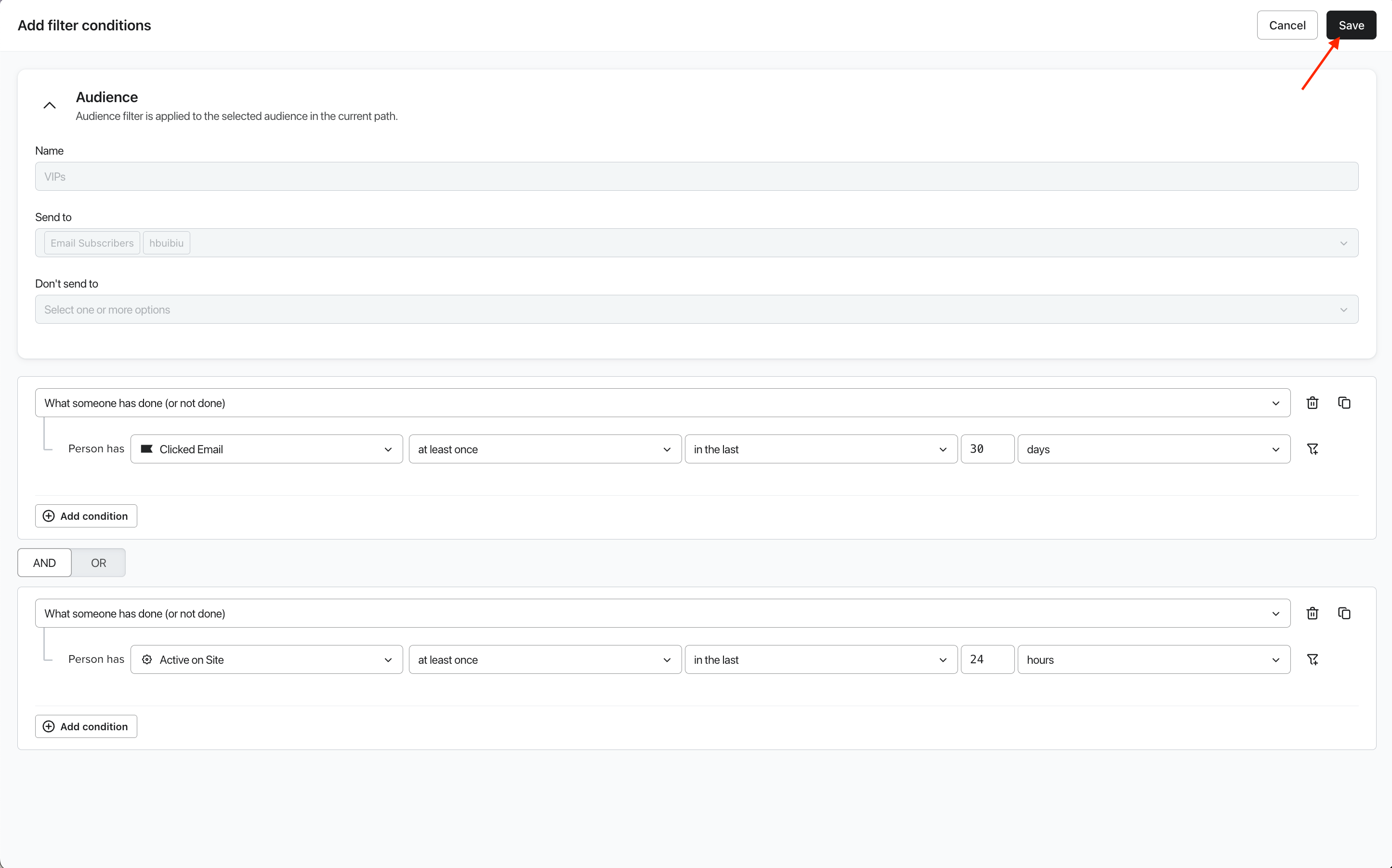
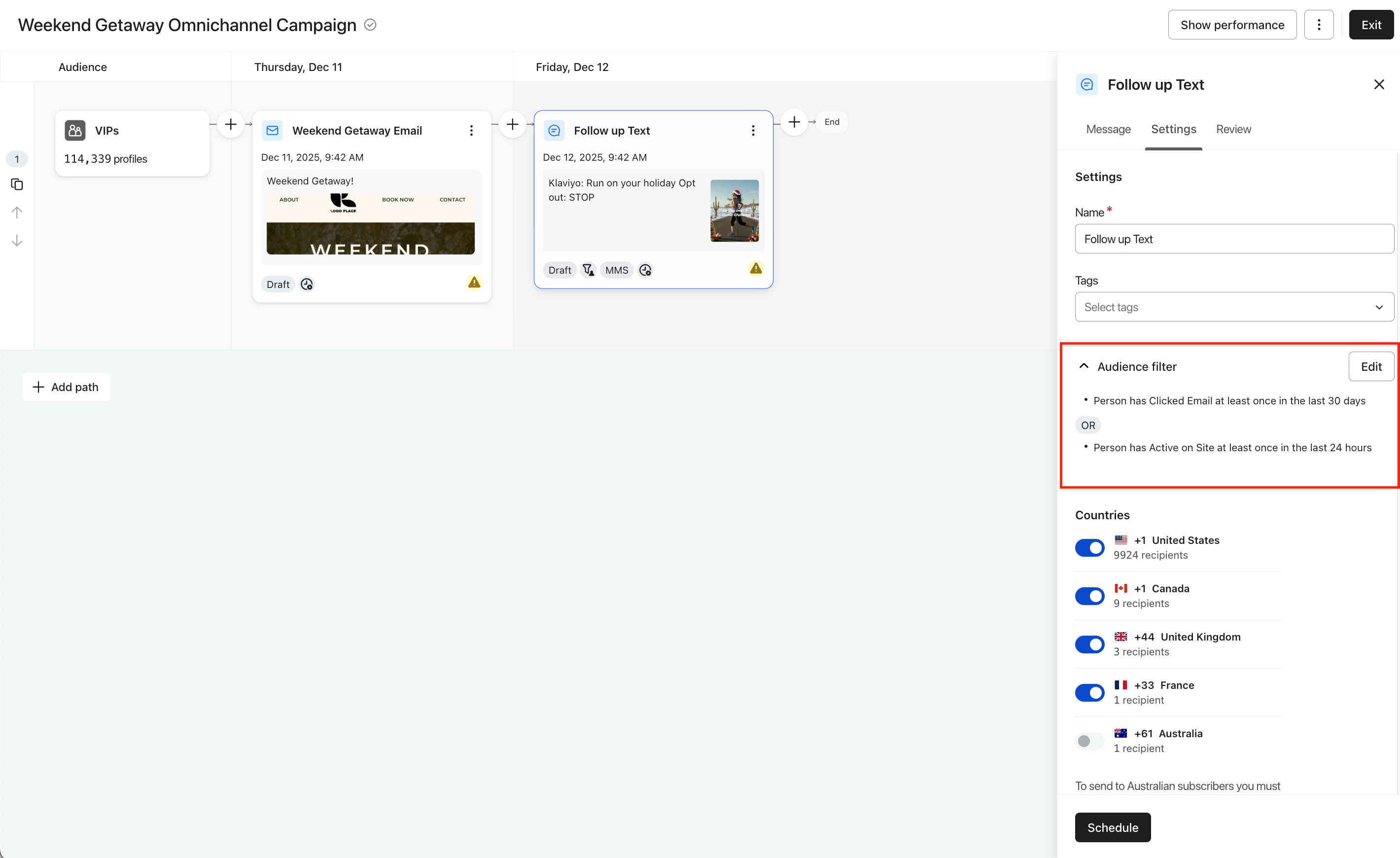
- Click Save and review the applied conditions in the message details panel.
- To confirm filter impact, click the Review tab and check the estimated recipients. This updated number reflects the audience subset that meets the filter criteria.
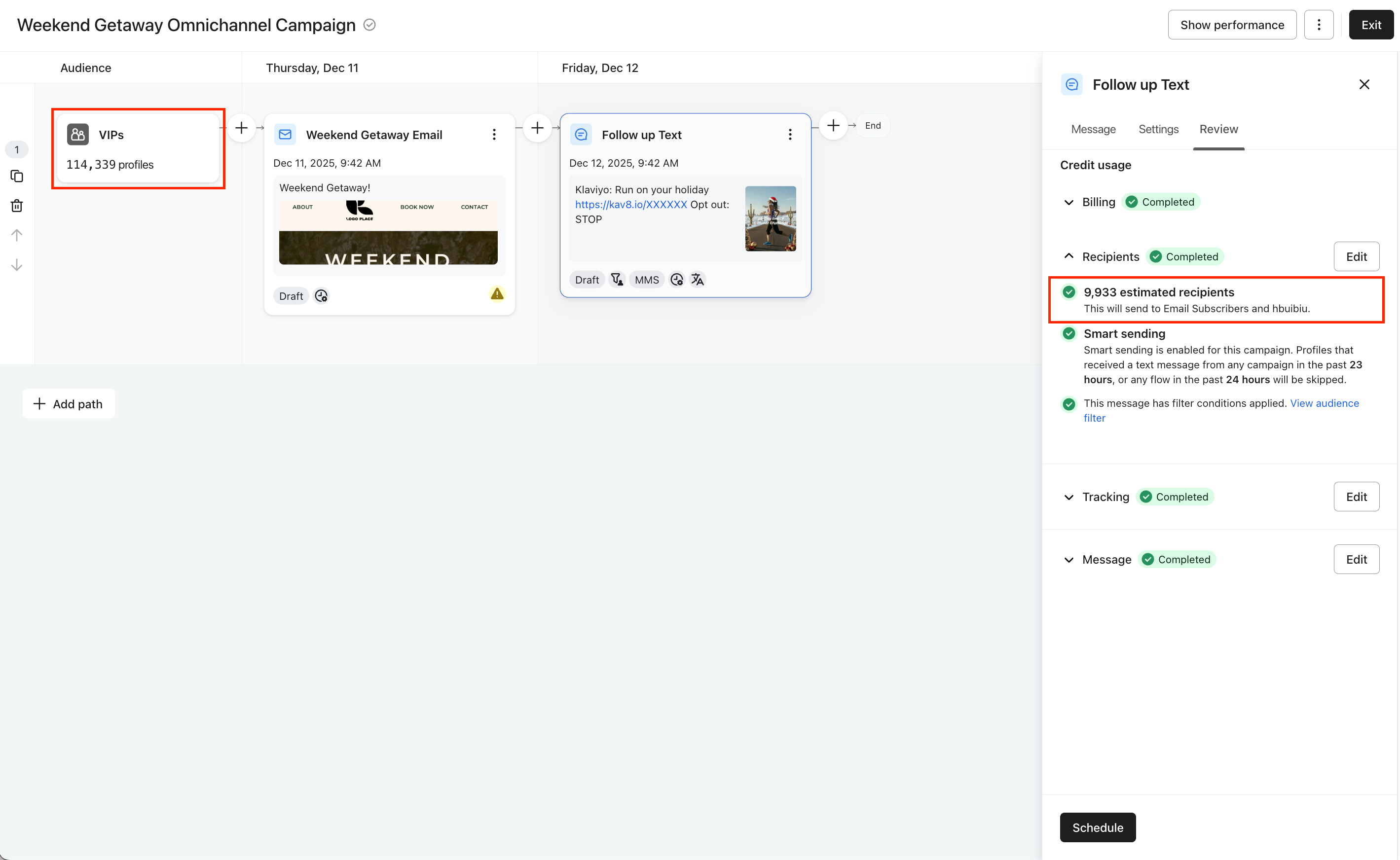
Audience filter examples
Engagement filters
- Has clicked on a specific message
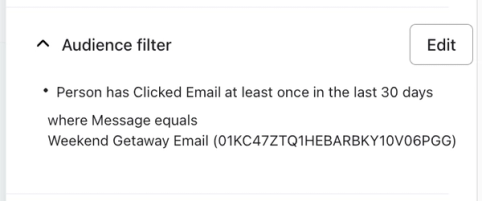
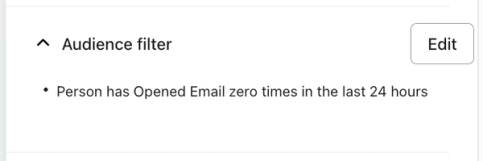
- Has not opened a message in last 24 hours
Channel affinity filters
- Engagement preference is email first
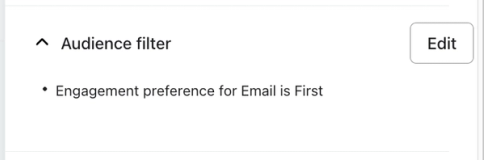
- For more details on channel affinity and engagement preference, read more about Understanding channel affinity in Klaviyo.
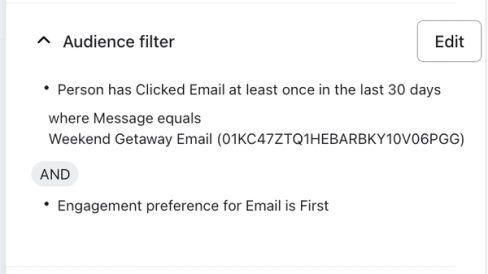
Combined filters
- Has clicked on a specific message and engagement preference is email first
Troubleshooting
If you encounter unexpected recipient counts or messaging issues when using audience filters, review these common scenarios:
Profiles Are Receiving No Messages or Too Many Messages
Audience filters are applied to each message independently and do not interact with filters set on other messages in the campaign path. This can lead to two issues:
- Profiles are excluded (receive no message):
- Cause: The combined filters for all messages are not comprehensive enough to cover the entire primary audience.
- Solution: Review your filter logic (AND/OR chaining) to ensure every profile is eligible for at least one message. Alternatively, set one message with no filter to serve as a catch-all.
- Profiles receive multiple messages:
- Cause: You created overlapping filters across different messages (e.g., Message A targets "Location = CA" and Message B targets "Gender = Female").
- Solution: Review all message filters and define mutually exclusive groups. You may need to add exclusion criteria (e.g., exclude profiles who received Message A) to prevent duplicate messaging.
Recipient Count Shows Zero
This occurs if you use a future engagement condition in your filter (e.g., "Clicked Message A" or "Opened Message B") and the corresponding message has not yet been sent.
- Cause: The filter cannot find profiles that qualify because the required action (like clicking the message) has not occurred yet.
- Solution: This is expected behavior during the drafting phase. The actual audience is calculated precisely at send time, including only profiles that have performed the engagement action. You can proceed with launching your campaign.
Additional resources
- How to create and send an email campaign
Learn about the basics of email campaigns, including what they are and how to send them in Klaviyo.
- Understanding channel affinity in Klaviyo
Criteria for channel affinity differs from other Predictive Analytics features, and you can qualify for it independently. You will only see channel affinity on profiles if your account meets the following conditions:
- Understanding campaign schedule and send options
Learn what sending options are available for campaigns and how you can use them. When you schedule or send a campaign, you can choose things like your send time, send strategy, timezone, and other details.