Getting started with SMS automations
Only Owners, Admins, and Managers can access this feature.
You will learn
Find out about Automations in Klaviyo, which you can use to create automated 1-on-1 conversations with your SMS subscribers. Automations make it easy to ask questions, recognize responses, and provide personalized recommendations to your customers.
By building automations, you can:
- Create surveys to gather customer feedback.
- Build buying guides that provide personalized recommendations.
- Run quizzes to learn more about your subscribers and collect profile properties.
For step-by-step instructions, see how to build an automation.
Before you begin
Please note the following:
- You must set up SMS before using automations.
- Automations only reply to SMS subscribers.
- SMS automations are not available for branded sender IDs, as this number type cannot receive text messages.
- Your outbound SMS messages count against your Mobile Messaging spend.
- Inbound SMS (i.e., messages sent to your brand) do not consume Mobile Messaging spend.
- Each automation must include at least:
- 1 message.
- OR
- 1 recommendation with questions preceding it.
Flows vs. conversation automations
In both cases, these features work as automatic touch points for you to communicate with customers and can be used to:
- Create custom messages
- Collect profile properties on the trigger keyword and choices
- Automate communications
The main differences between them are shown in the table below.
Flows | Conversations | |
Trigger | Can be triggered by a customer’s actions on your website, segments and lists, dates, etc. | Triggered when an SMS subscriber texts a trigger keyword. Message response triggers also require the subscriber to have received a selected campaign or flow message recently. |
Message types | Any channel (email, SMS, mobile push) | Only SMS |
Response timing | Sends messages according to the flow’s configured timing and conditions. | Waits for a subscriber’s text to contain a recognized answer. |
This means that flows are better for reaching out to subscribers at key moments in their customer journey (such as via welcome messages, abandoned cart reminders, post-purchase follow-ups).
As for automations, these are better at handling back-and-forth communication, asking questions and following up with recommendations.
Automation example: survey
Automations are a type of conversational SMS: say that you are a pet shop wanting to gather information about your customers’ pets.
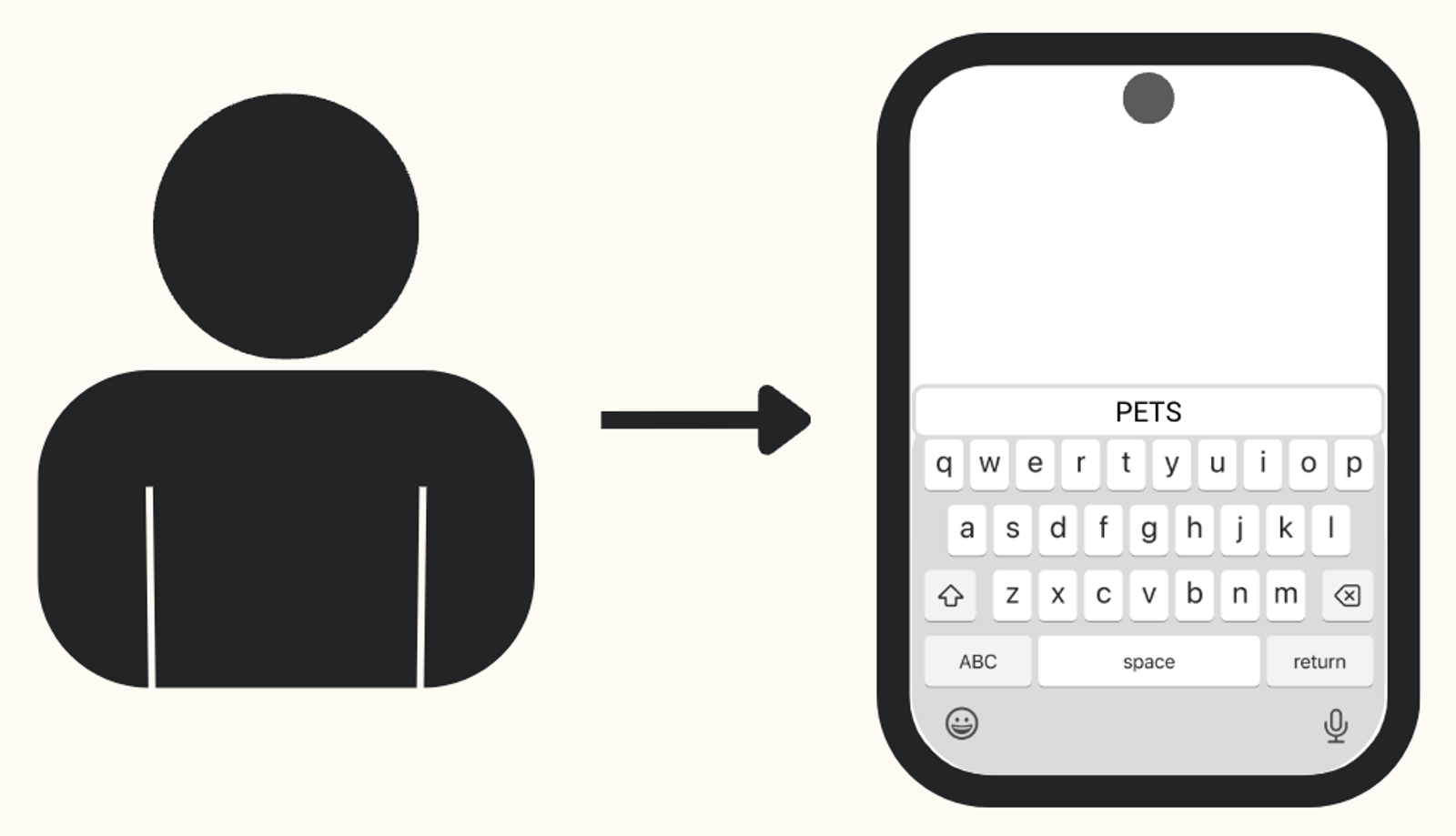
In this case, you can send an SMS campaign that asks subscribers to send the word “PETS” to enter a survey and receive a custom coupon.
When they text back “PETS,” the subscriber enters an automation.
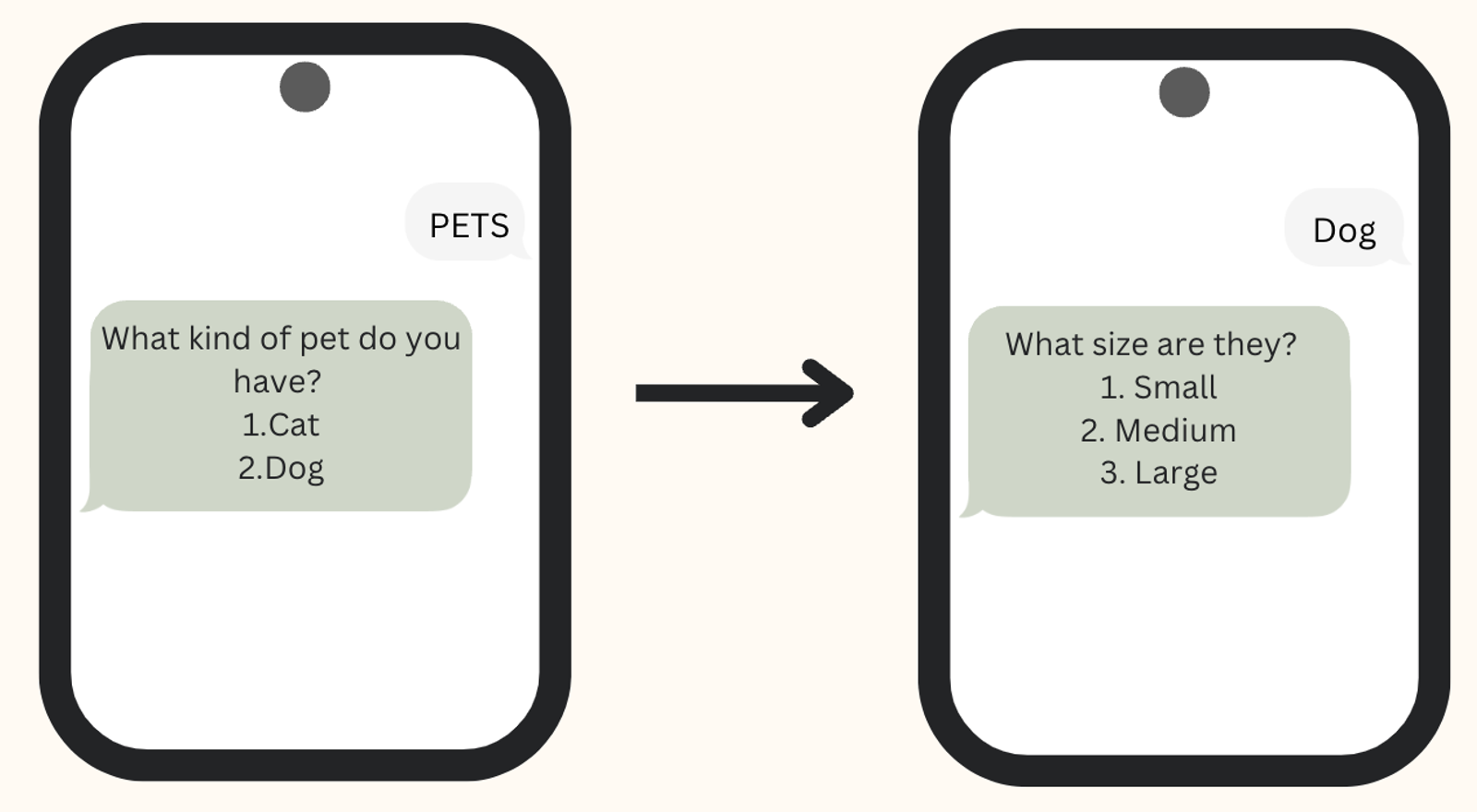
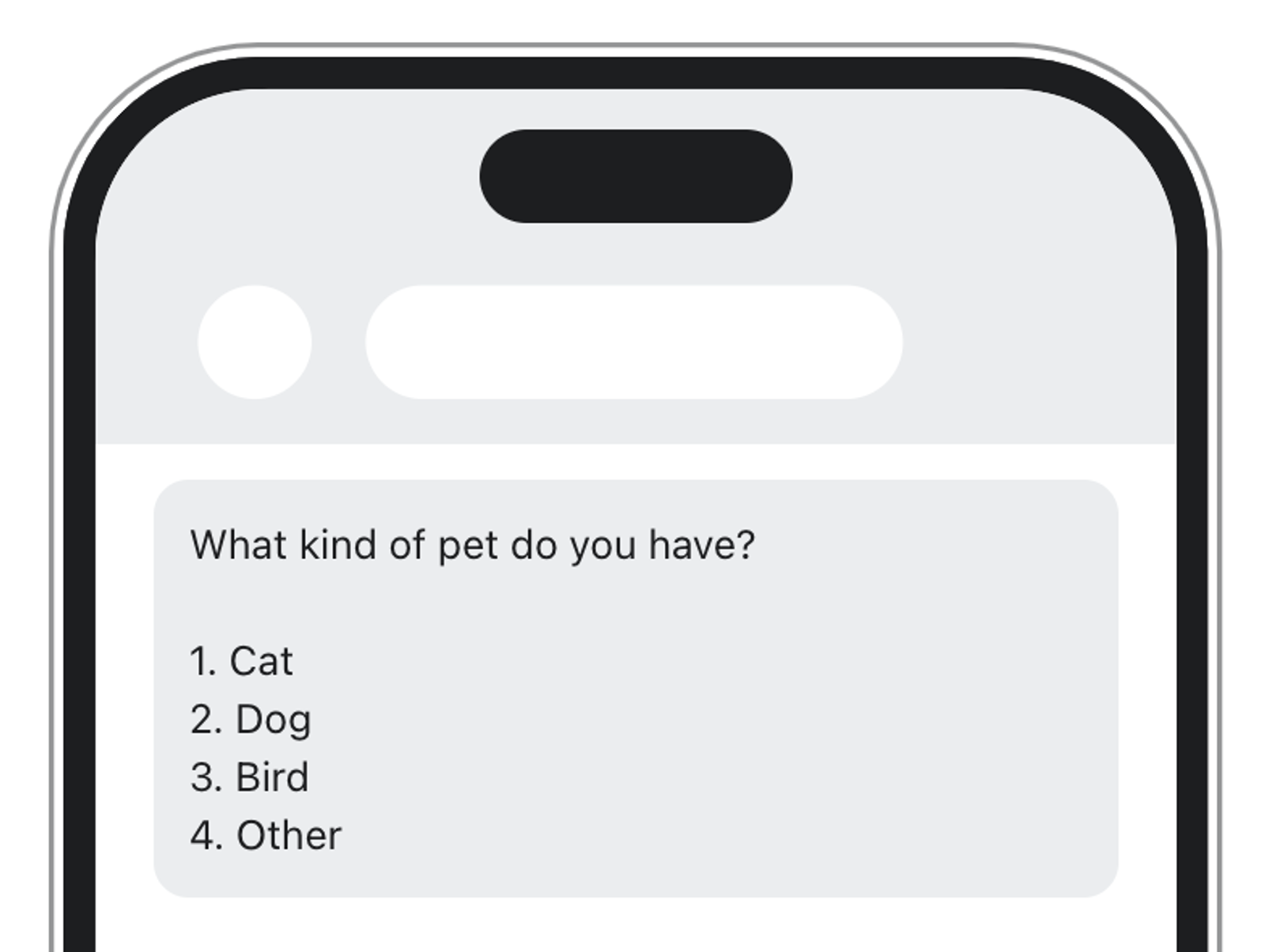
Then, you can ask what kind of pet they have (1. Cat, 2. Dog, etc.). If you want, you can ask another question (e.g., What size are they?).
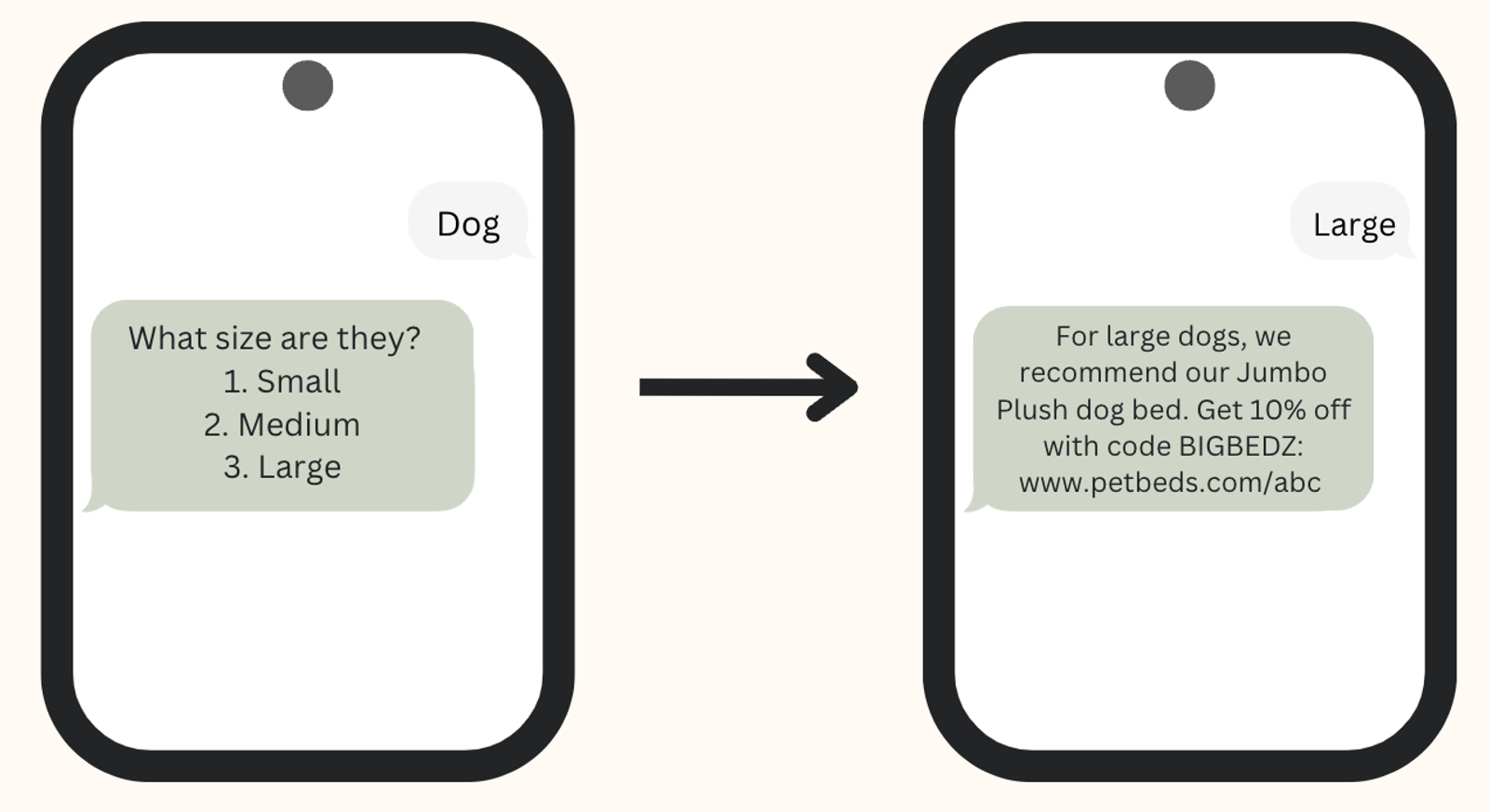
At the end of the automation, you can provide a recommendation (like for the perfect-sized bed or harness) as well as the coupon you promised.
You can also store subscribers’ answers as profile properties so that you can send more targeted messages in the future.
Key terms and settings for automations
Automation functionality
Automations use the following components. Each needs a trigger and an ending message or recommendation; questions and choices let you personalize the conversation.
- Trigger keyword(s)
Words or phrases subscribers text to enter an automation. There can be several trigger keywords for a single automation. These keywords must be unique: the same word cannot be used in multiple automations or be a compliance or subscribe keyword. - Question(s)
SMS you send within the automation, containing a question. Questions must include 2 or more choices. At minimum, you need 1 question per automation if including a recommendation. - Choice(s)
Options for how your subscribers can answer a question. Choices are always numbered, and a subscriber can text either the choice word/phrase or its corresponding number. At minimum, you must have 2 choices per question. - Message
SMS sent at the end of an automation. Sending a message does not require questions before it. - Recommendation
SMS sent at the end of an automation to recommend something based on the subscriber’s answers. You can end an automation with a message instead of a recommendation.
Automation settings
Automations have the following key settings:
- Reprompt response
This is the reply sent to subscribers if, while part of an automation, they send an inbound text that cannot be matched to a choice. See this section to learn how choices are recognized. - Fallback response
Message sent when someone either reaches the maximum number of reprompts and sends another unrecognized answer, or reaches the maximum timeout. - Maximum number of reprompts
The number of times Klaviyo tries to re-engage the user when they send an inbound SMS that does not contain a recognized choice for a message. By default, this is set to 1. If a subscriber reaches this maximum and then sends another unrecognized choice, they exit the automation and receive the fallback response. - Maximum timeout (in hours)
How long an automation waits for a subscriber to reply before ending the conversation. By default, this is set to 24 hours. The timeout starts when the automation sends its first message and resets when it sends a follow-up message. If the subscriber does not reply before the timeout, they exit the automation and receive the fallback response.
Access or change an automation’s settings
You can view session settings while an automation is on, but you must turn it off to edit them. Turning off an automation ends any in-progress conversations.
- Open the automation and click the gear icon.
- Select Session settings.
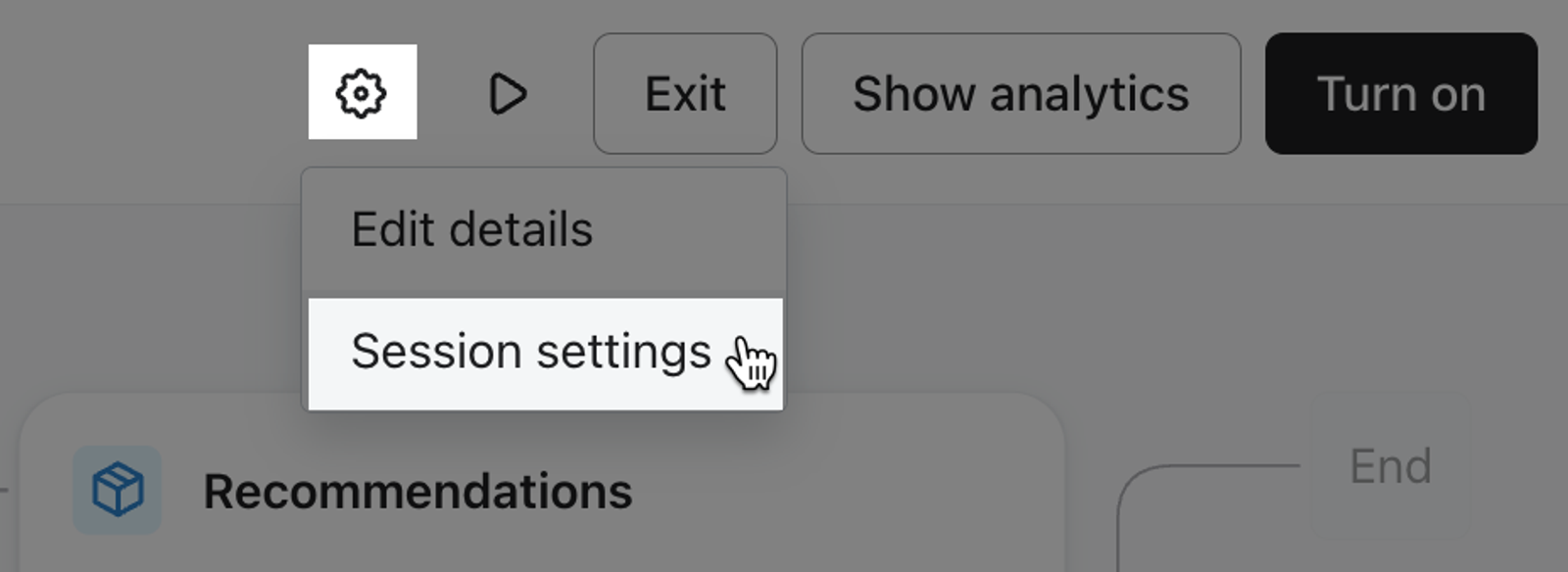
- If you want to make changes and the automation is on, close the settings panel, click Turn off, and confirm. Then reopen Session settings.
- Update the settings and click Save.
- Click Turn on when you are ready for subscribers to enter the automation again.
How automations work
Once the automation is turned on:
- Someone texts you a trigger keyword for the automation. For a Message response trigger, they must also have recently received the selected campaign or flow message.
- If they are an SMS subscriber, they receive the first message in the automation.
- Non-SMS subscribers receive the auto-responder message from your SMS settings.
- If the automation asks a question and the subscriber responds with a recognized choice, they move on to the next question, message, or recommendation.
- If the answer isn’t recognized, they receive the reprompt response. After the maximum number of reprompts, another unrecognized answer ends the automation and sends the fallback response.
- Subscribers exit the automation when any of the following occur:
- The subscriber receives a recommendation.
- The subscriber receives an ending message.
- The subscriber sends another unrecognized answer after reaching the maximum number of reprompts and receives the fallback response.
- The subscriber reaches the maximum timeout.
While someone is in an automation, they cannot enter another keyword-triggered automation until they exit.
Triggering an automation
Trigger type
There are 2 types of triggers:
- Always on
SMS subscribers can enter whenever they text a trigger keyword, as long as the automation is turned on and they are not already in another automation. - Message response
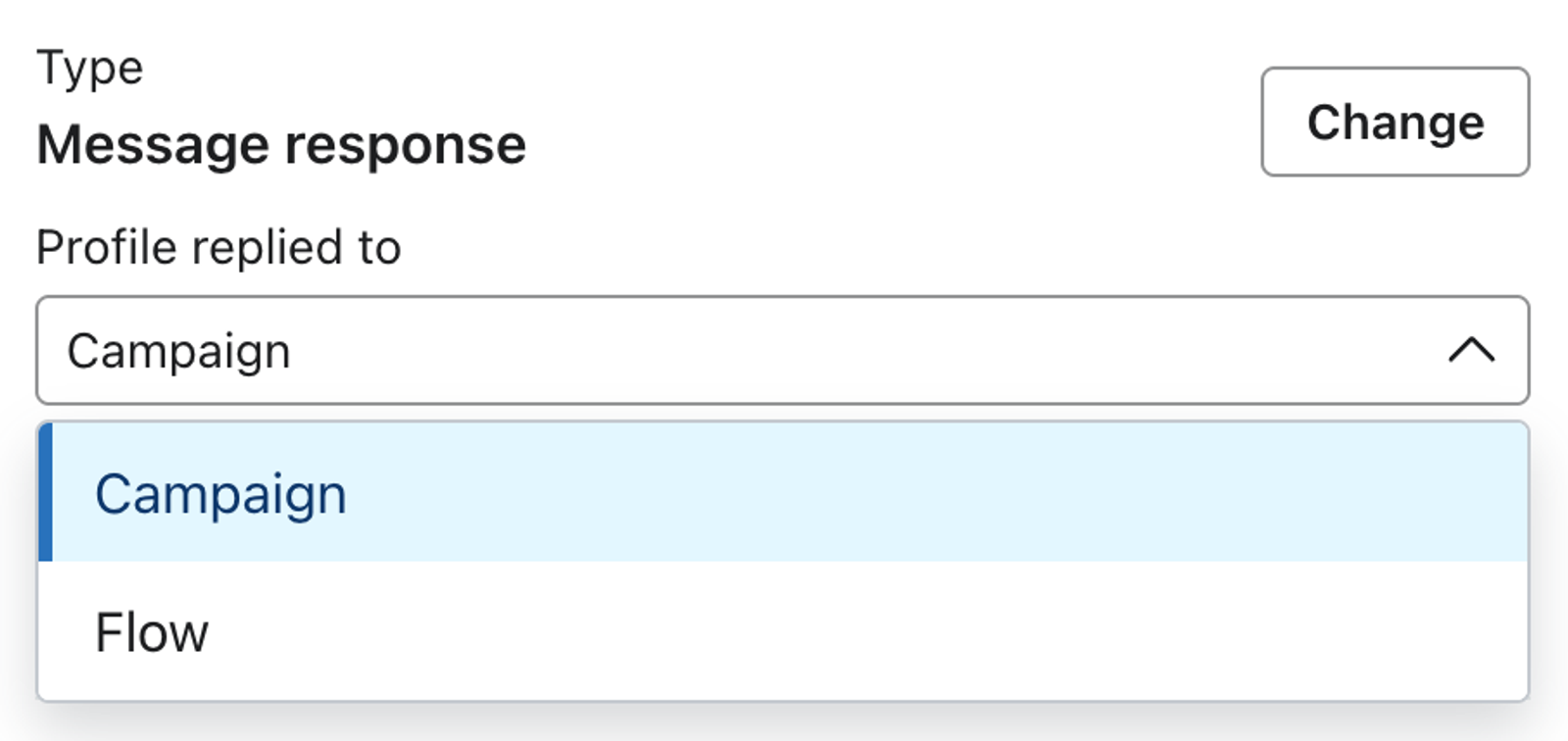
With this option, you must select a campaign or flow message. To enter an automation, an SMS subscriber must have recently received the selected message and text a recognized trigger keyword.
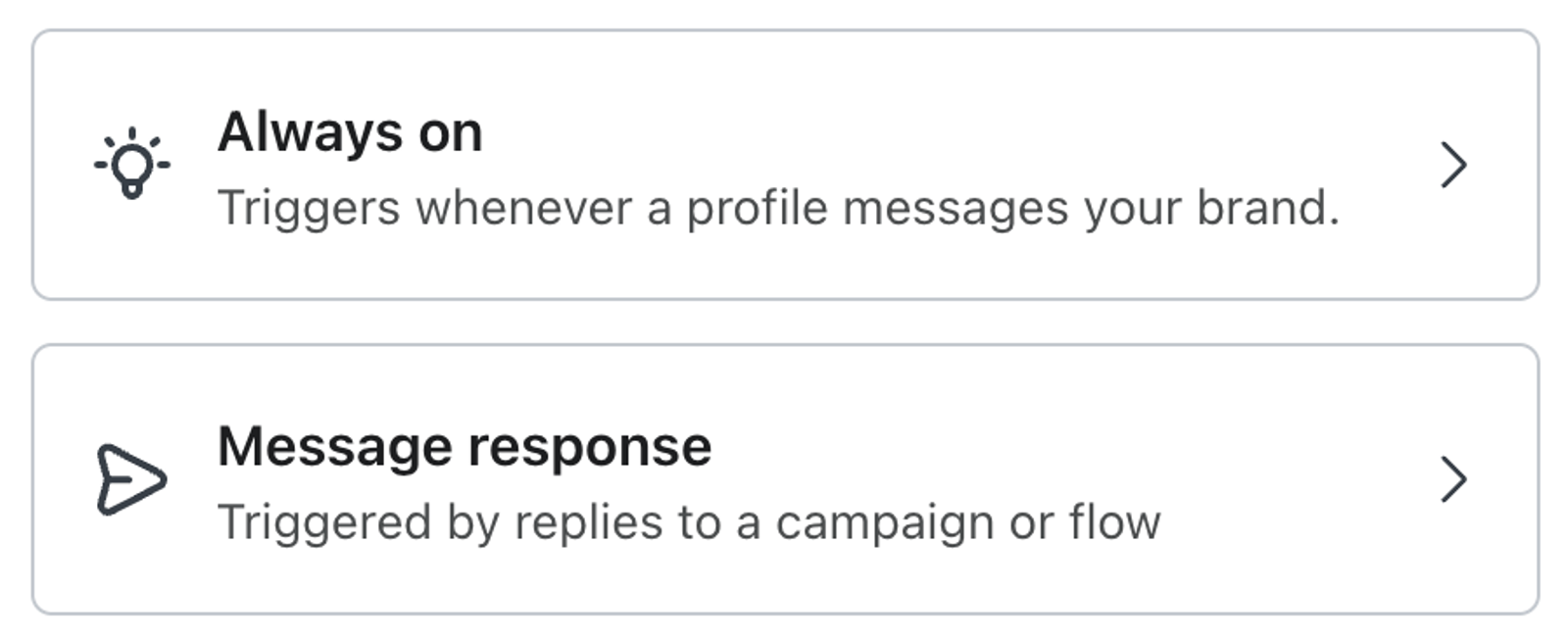
The main difference between these 2 trigger types is if someone can enter at any point in their customer journey or only once they received another, specific message. For instance, “Always on” is better when the automation acts as a support tool, ongoing quiz or survey, etc. For this case, you may trigger the keyword based on a commonly texted word or when showing the keyword on a certain form, in your store, etc.
On the other hand, message response is better when you want to drive campaign or flow recipients to an automation. Say that you only want to survey those who recently reached the second message of your welcome series. In this case, you craft the second message to include the trigger keyword, and set the automation to send to only those who recently received that message.
Trigger keywords
SMS subscribers enter an automation when they send a trigger keyword. There can be more than 1 trigger keyword per automation.
Please note that trigger keywords:
- Must be 3–20 characters for Always on triggers, or 1–20 characters for Message response triggers.
- Can include emojis. An emoji-only keyword can be a single emoji.
- Are not case sensitive.
- For Always on triggers, require an exact match to the subscriber’s inbound message.
- For Message response triggers, can be recognized within a longer message. Some typos can also be recognized through fuzzy matching.
- Can be a phrase.
- Can be a single word.
- Have to be unique for each automation (i.e., you cannot use the same keyword for multiple automations).
- Cannot be linked to a subscribe or compliance keyword (i.e., STOP, JOIN).
For our pet example, let’s say we use 2 separate keywords for an Always on trigger. This trigger does not recognize typos or abbreviations, as shown below.
Trigger keywords | Recognized | Not recognized |
Survey | SURVEY, survey | Usrvey |
Pets | Pets | Pet |
For the trigger, we recommend using short, easy-to-spell words. If you do use a phrase (like “Quiz me”) or a word with a common abbreviation, include only the first word of that phrase or the abbreviation as another trigger (e.g., use both “Quiz me” and “Quiz”).
Questions, messages, and recommendations
There are 3 options within any automation, all of which are an outbound SMS message:
- Questions
- Message
- Recommendation
All automations require at least 1 message, or 1 recommendation with questions before it.
You can use template tags (e.g., first name) or JSON within messages and recommendations, but note these tags and code are not visible in the preview. If you want to use them, make sure you test the live automation before you tell the trigger keyword to subscribers.
Questions
When you create a question, you must have:
- Question text (e.g., “What kind of pet do you have?”)
- 2 or more choices (e.g., “Cat” and “Dog”)
For instance, the first question may ask what kind of pet someone has.
Question | Preview |
What kind of pet do you have?
|  |
How many questions can I have in an automation?
The builder allows up to 20 questions in total. For a Message response automation, the trigger counts toward this limit. However, including no more than 2 questions is the best practice.
Question choices
Choices are numbered in sequential order, as shown in the example above. We recommend limiting the number of choices to 3–5 per question.
Choices can be:
- Single words or phrases
- Any case or capitalization
- Recognized:
- Within a longer word or message (i.e., the automation checks if a subscriber’s inbound message contains a choice).
- Some typos (particularly for words longer than 5 letters) may be recognized thanks to fuzzy matching.
- As either the choice text or number.
- Within a longer word or message (i.e., the automation checks if a subscriber’s inbound message contains a choice).
Continuing the pet example, the automation would attribute all of the following to the first choice (“1. Cat”):
- Cat, cat, or CAT
- 1
- I have a cat
- Catch
Recommendations
If you end the automation with recommendations, include a recommendation for every choice or use a default recommendation.
What is a default recommendation?
Default recommendations are a catch-all. If you don’t need a personalized recommendation for every choice, or you want to use the same recommendation for several answers, you can use the default to respond to any choice not picked for another recommendation.
Message
You can also choose to end the automation with a message instead of a recommendation. A message is a plaintext message that can include a URL.
Metrics
There are 3 metrics for any automation:
- Started Automation
When a profile enters an automation. - Fulfilled Automation
When a profile completes an automation through a recommendation or an ending message. - Ended Automation
When a profile exits an automation (e.g., when they time out or complete it through a recommendation or ending message).
Additional resources
- How to create a SMS and RCS automation
Learn how to build an automation, a type of text message conversation that allows you to ask questions, followup to responses, and send personalized recommendations. You can build two types of automations
- How to view analytics for an automation
See how to check the performance of an automation, including how many people entered or completed it.
- How to edit, turn off, or delete automations
Learn how to update, turn off, or delete your automations in Klaviyo. In all cases, you must have an active automation.