How to set up multi-factor authentication (MFA)
Multi-factor authentication is required for paid accounts.
You will learn
Learn how to set up multi-factor authentication (MFA) to help make your Klaviyo account or portfolio more secure. With MFA enabled, you sign in using a username and password, then verify your identity (such as by entering a code).
Looking for information on resetting MFA for your account? Contact the account’s Owner or Admin and ask them to reset MFA for you. If you are locked out for a non-MFA reason (or are the account Owner and no Admin can help), please submit a request so that we may help you.
What is multi-factor authentication (MFA)?
MFA is a simple security measure that adds a level of verification on top of your standard username and password. This extra step helps protect sensitive or confidential information that’s in the account, both for your employees and customers.
Think of MFA as locking a door. A password is similar to a standard doorknob lock: better than nothing, but it won’t stop a bad actor seriously attempting to get in.
MFA is like installing a deadbolt: it’s another step to preventing entry, more secure, and harder to get around.
What’s the difference between MFA and two-factor authentication (2FA)?
MFA and 2FA are very similar. The key difference is the number of steps required to verify the user’s identity.
- 2FA has only 2 authentication steps.
- MFA has 2 or more authentication steps.
Why use MFA?
Every day, scammers and hackers are getting more sophisticated, targeting more companies, and leaking critical user information.
While it can seem tedious to use, you should use MFA for any online account. It’s especially important to use MFA anywhere you store your business or customer information (like in Klaviyo).
MFA is a small step, and it makes a big difference in protecting against:
- Lost or stolen login information
- Phishing or smishing attempts
- Other security weaknesses
Plus, if you enable MFA for your account, you can remain logged in to Klaviyo for a longer period of time before re-entering your credentials.
Set up MFA
There are 2 options for MFA:
- Using an authenticator app (e.g., Google Authenticator or Authy)
- Receiving a text message, also known as SMS.
- Please note that SMS MFA is not available in all countries.
An authenticator app is more secure; however, SMS MFA is typically easier and more convenient. That being said, any MFA is better than no MFA.
If you prefer to verify via a text message, jump to the section on setting up SMS MFA.
Instructions for an authenticator app
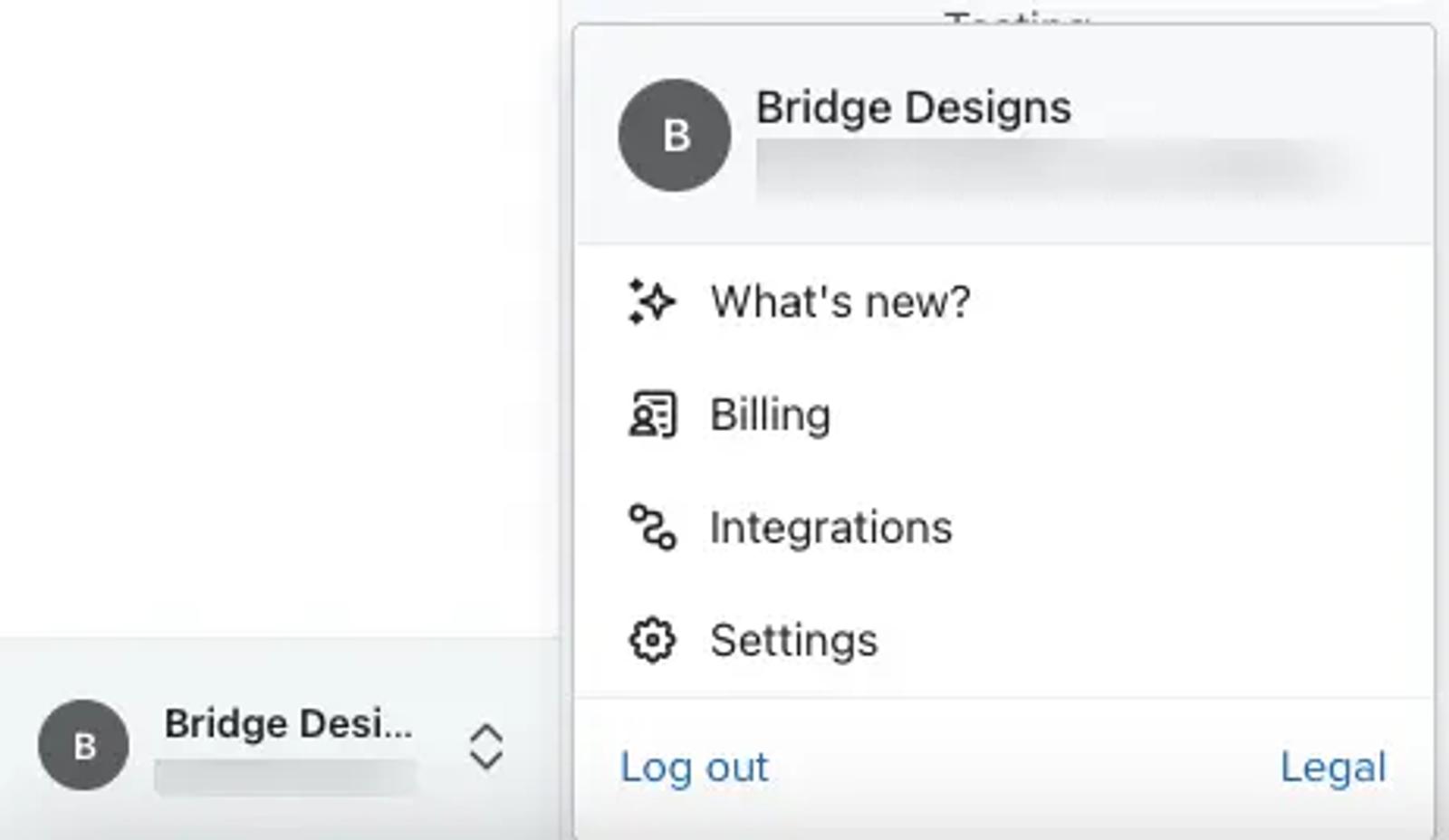
- Navigate to your account name in the bottom left corner.
- Select Settings.
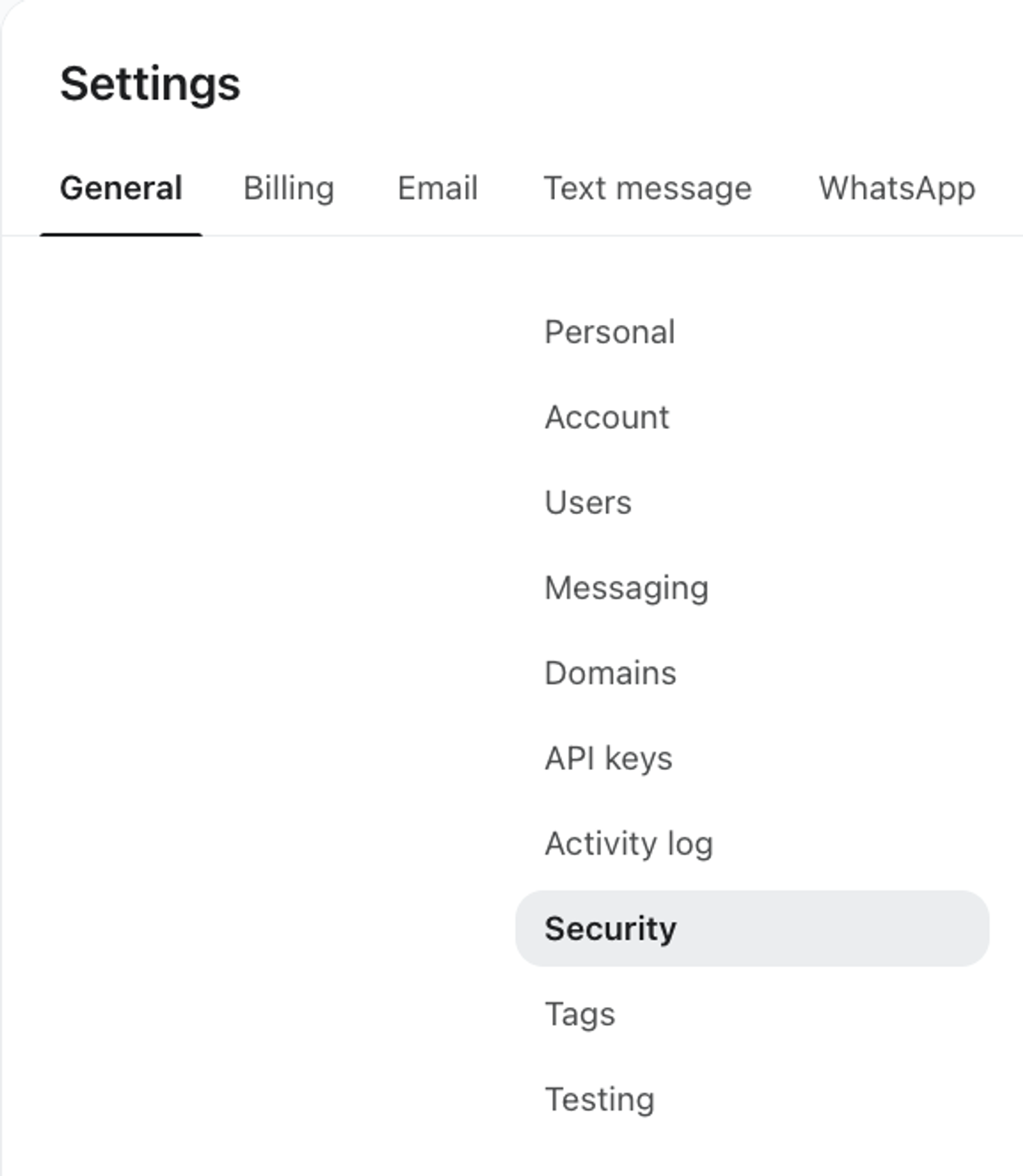
- Select Security.
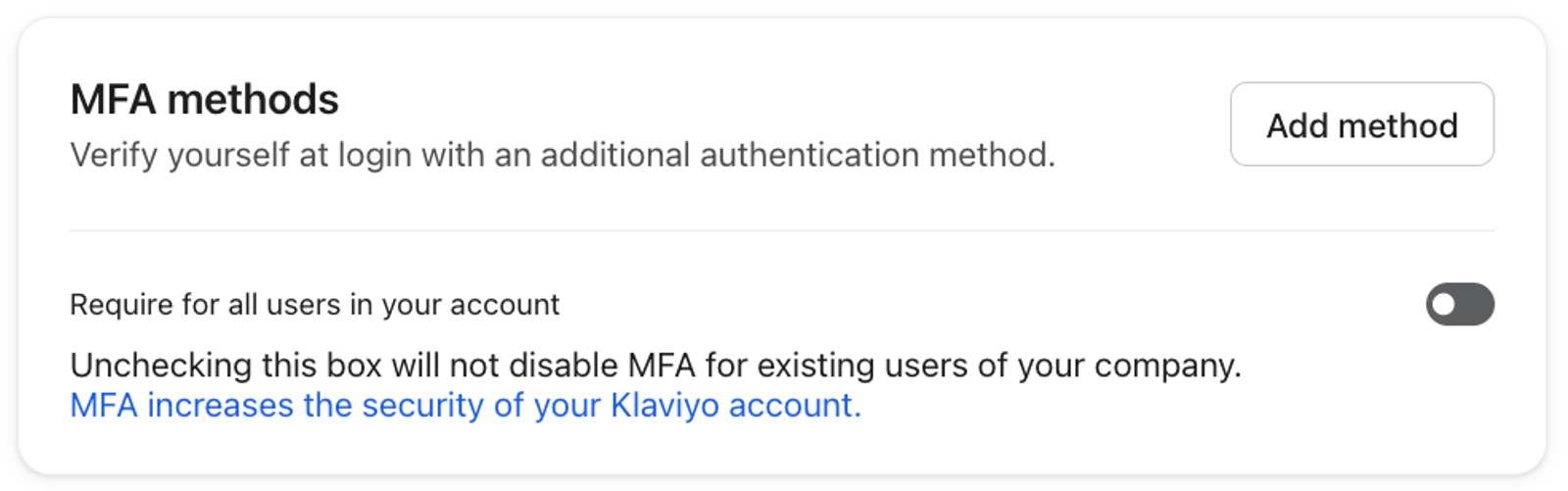
- In the MFA methods section, click Add method.
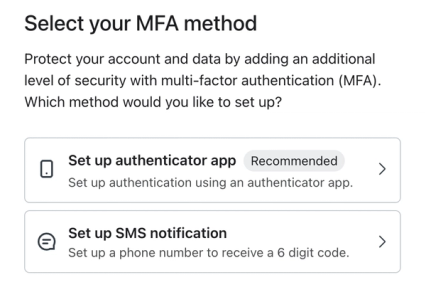
- Choose Set up authenticator app.
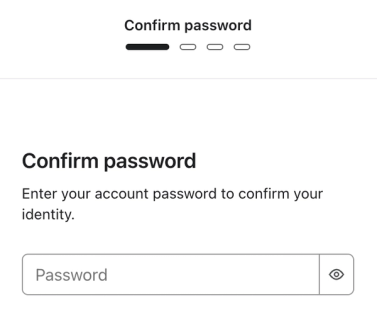
- If prompted, enter the password for your Klaviyo account and click Continue.
- In Klaviyo, you’ll see a Setup page with instructions and QR code (example shown below).
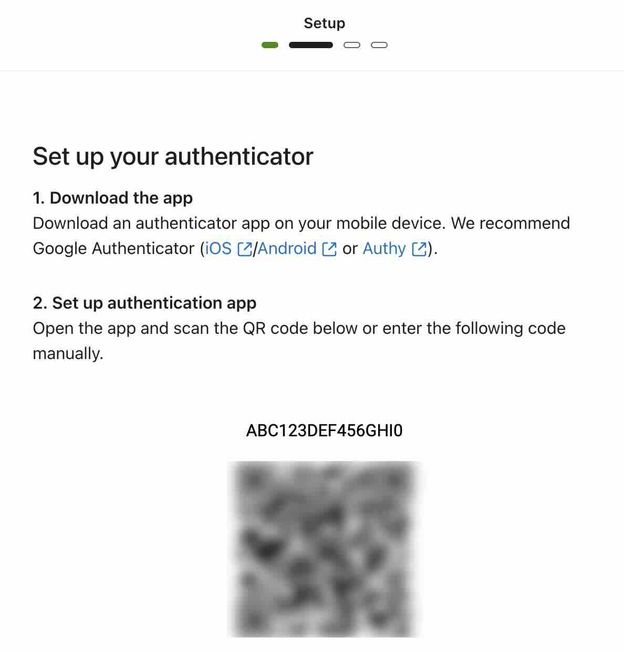
- Download or open your authenticator app.
- In your app, scan or enter the code shown in Klaviyo.
Note that the exact instructions vary by app. Please contact your authenticator app for further assistance. - Check that your authenticator app is generating authenticator codes (also called one-time passwords, PINs, authorization codes, verification codes, etc.)
- When ready, click Continue in Klaviyo.
- Enter the authenticator code from your app.
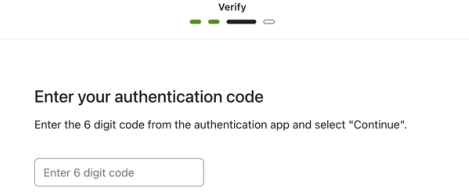
- Click Continue.
- If set up correctly, you’ll continue to the next page.
- If not, you’ll see a “The verification code you entered is incorrect” message.
- First, check if the code expired in your authenticator app. If so, copy the new code and try 1 more time.
- If the code you entered is still valid or retrying the code doesn’t work,
- Delete the current code/authorization in your authenticator app.
- In Klaviyo, click Back to return to Setup, then scan the QR code or enter the setup code in your authenticator app again. Click Continue, enter a new code from the app, then click Continue again.
- If not, you’ll see a “The verification code you entered is incorrect” message.
- On the next page, you’ll see 5 random backup codes; click either Copy codes or Download (.txt).
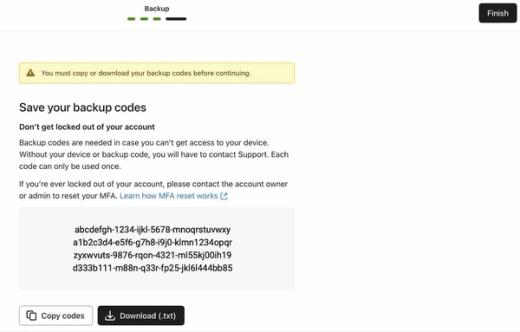
- Store the backup codes in a secure place (like an encrypted password manager or vault); note that:
- These codes will not appear after you close the modal.
- They can only be used 1 time per code.
- You cannot generate additional codes from this screen.
- If you run out of codes, you’ll need to reset your MFA and download a new set.
- Click Finish.
- If you are prompted to add a backup MFA method, either set up SMS or click Exit to finish with the authenticator app only.
You can jump ahead for details on what happens once you set up MFA.
Instructions for SMS MFA
SMS MFA is not available in all countries. For a full list of countries where SMS MFA is blocked, please open the dropdown below.
If Klaviyo says SMS verification isn’t available for your account, use an authenticator app instead.
Countries where SMS MFA is not available
- China
- Russia
- Iran
- Syria
- Cuba
- Venezuela
- North Korea
- Uzbekistan
- Kyrgyzstan
- Navigate to your account name in the bottom left corner.
- Click Settings.
- Head to the Security tab.
- In the MFA methods section, click Add method.
- Choose Set up SMS notification.
- If prompted, enter the password for your Klaviyo account and click Continue.
- Enter your phone number and click Continue.
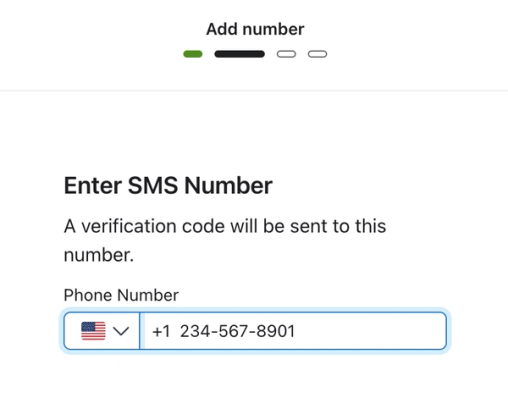
- Confirm your phone number, then click Send code.
- Wait for your phone to receive the text.
- Enter the code sent to your phone from Klaviyo. The sending number will be a random short code.
- Wait at least 30 seconds for the code to send.
- If it doesn’t, try checking that your phone has reception and, if your phone is an Android, that the message isn’t in the Spam & blocked folder.
- Then, click Resend code.
- Note that if you resend a code, it may come from a different short code than it did the first time.
- The code may be the same as the first time, depending on how much time has passed.
- Wait at least 30 seconds for the code to send.
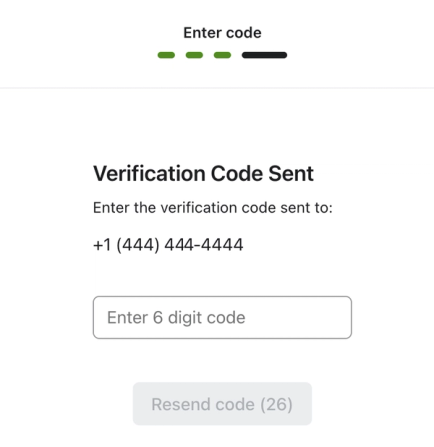
- After you enter the 6-digit code, Klaviyo verifies it and continues automatically if it is correct.
- If you see “Re-authentication required. Please try again after entering your password,” Klaviyo returns you to Confirm password. Enter your password and continue setting up SMS MFA.
- If you are prompted to add a backup MFA method, either set up an authenticator app or click Exit to finish with SMS only.
How do I change my phone number associated with MFA?
- If MFA is enforced for your account, make sure you have the authenticator app enabled. Then remove SMS MFA as an MFA method.
- Set up SMS MFA again with your new phone number.
What happens after you set up MFA
When you log in with your email and password, you will also need to verify your identity using the code sent to your phone or generated by your authenticator app.
What if someone gets locked out of an account?
If you cannot access your MFA method, try your other enabled method or an unused authenticator backup code. If neither is available, contact the Owner or Admin to reset MFA for your account.
If you are the account Owner and no Admin can help, you can reach out to Klaviyo Support to verify your identity and reset your MFA.
What if I use both types of MFA?
If you set up both methods of MFA, Klaviyo selects the method you last used successfully, as long as it is still enabled. If you have not used either method to log in yet, it selects the authenticator app.
To switch methods while logging in, click Log in with other MFA method, then choose Log in using SMS verification or Log in using authenticator app. To keep only SMS enabled, first set it up and then disable the authenticator app. Continue reading for information on disabling an MFA method.
Disable or change your MFA method
Change your MFA method (paid accounts)
Paid accounts cannot remove their last MFA method. If SSO is required on your account, signing in through SSO takes precedence over the separate Klaviyo MFA step. This does not let you remove your last MFA method, and users exempt from SSO still need MFA when signing in with their email and password.
While you can't disable MFA from paid accounts, you can choose which method to use.
Note that you can’t remove an MFA method if it’s the only method enabled in your account. If you want to switch your method, you must set up the new method before you can disable the old one.
Similarly, if you want to change the phone number you use for SMS MFA, you must temporarily set up the authenticator app so that you can disable and then re-enable SMS MFA with your new number.
- Navigate to your account name in the bottom left corner, then click Settings.
- Select Security.
- Check that you have MFA set up through both the authenticator app and SMS.
- Paid accounts cannot fully disable MFA, so to change which method to use, you need both on your account.
- In the MFA methods section, select the 3-dot menu for the method you want to disable.
- Click Remove.
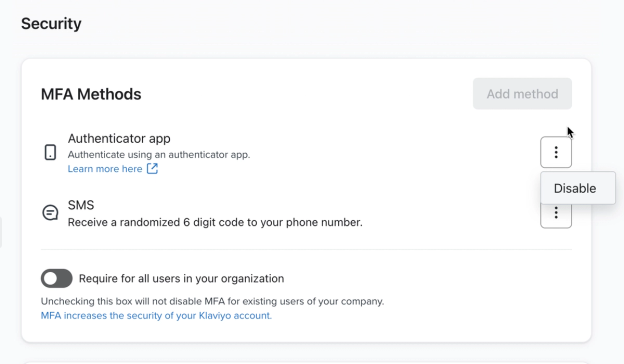
- In the resulting modal, either:
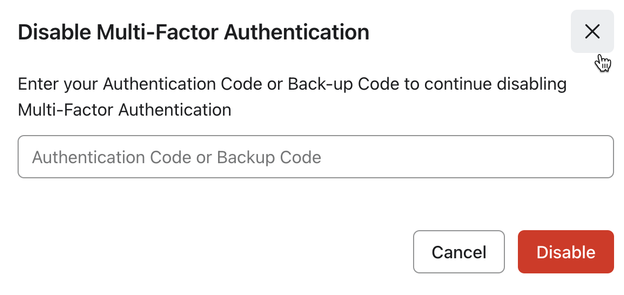
- Authentication app: enter the authorization/one-time passcode or an unused backup code.
- Authentication app: enter the authorization/one-time passcode or an unused backup code.
- SMS: click Send code, then enter the code you receive into Klaviyo.
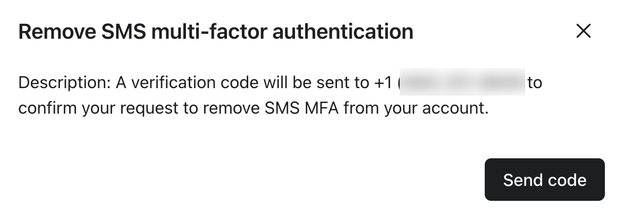
- Click Disable for an authenticator app or Remove SMS MFA for SMS.
Disable MFA (free accounts)
You can remove your last MFA method only if none of the accounts you can access requires MFA. A paid account or an MFA requirement on another account can prevent removal even while you are in a free account. If you have registered passkeys, remove them before turning off MFA.
- Navigate to your account name in the bottom left corner, then click Settings.
- Select Security.
- In the MFA methods section, select the 3-dot menu for the method you want to disable.
- Click Remove.
- In the resulting modal, either:
- Authentication app: enter the authorization/one-time passcode or an unused backup code.
- Authentication app: enter the authorization/one-time passcode or an unused backup code.
- SMS: click Send code, then enter the code you receive into Klaviyo.
- Click Disable for an authenticator app or Remove SMS MFA for SMS.
Require MFA for all users (free accounts)
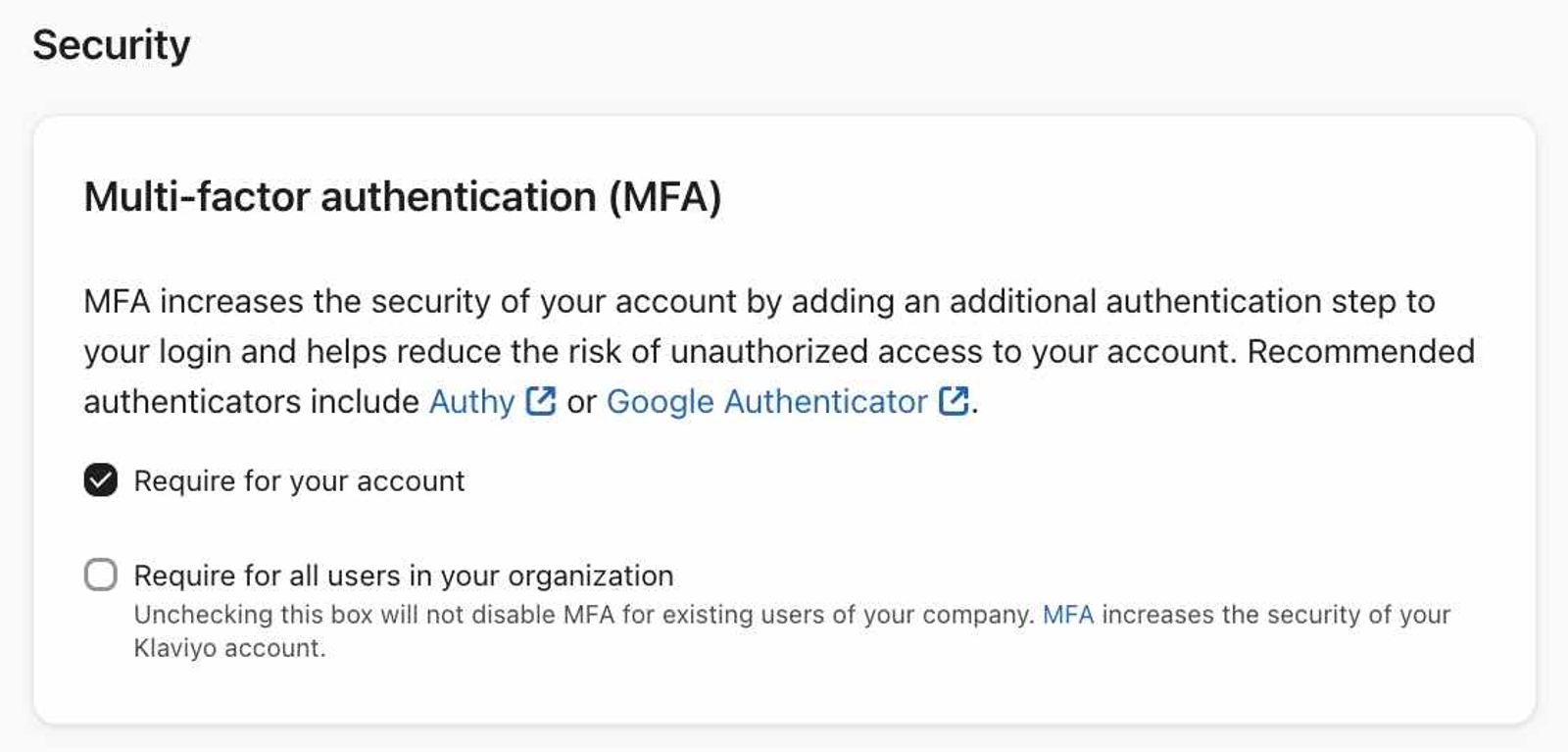
Paid accounts require MFA. Users signing in through required SSO do not need the separate Klaviyo MFA step, but users exempt from SSO still need MFA when signing in with their email and password.
For a free account, an Owner or Admin can require MFA for all users.
To turn the MFA requirement on or off for all users:
- Select your account name in the bottom left corner.
- Click Settings from the dropdown.
- Head to the Security tab.
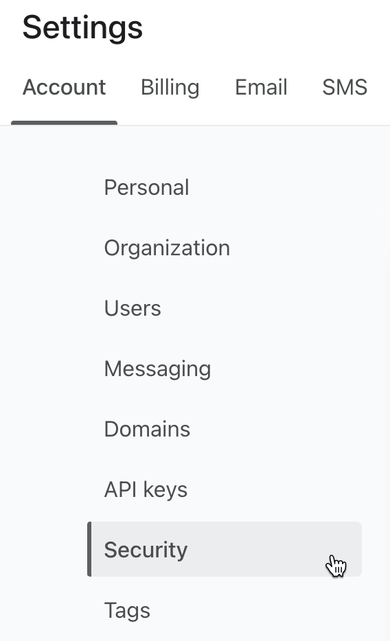
- In the MFA methods section, turn Require for all users in your account on or off. For a portfolio, use Require for all portfolio users.
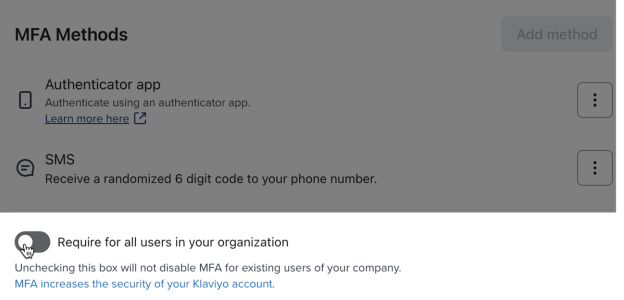
- In the confirmation dialog, click Enable to turn on the requirement or Disable to turn it off.
When you turn on the requirement, existing users without MFA must set it up the next time they log in, and new users must set it up when they register. Turning off the requirement does not remove MFA methods that users have already enabled. A portfolio’s requirement applies only to that portfolio, not to its linked accounts.
Additional resources
- How to reset multi-factor authentication for a user
Learn how to reset multi-factor authentication (MFA) for a user.
- User management and privileges reference for Static User Roles
Learn about the different Klaviyo user roles, their account permissions and access, as well as their potential restrictions inside the platform. Depending on your role, the view of Klaviyo may look different. For instance, Owners see different account setting options than Admins do.
- How to transfer account ownership
Learn how to transfer ownership of a Klaviyo account to a new Owner.