How to create an in-app form
You will learn
Learn how to show a form to users directly in your mobile app. You can use these forms to share information about new or back-in-stock products, sales, app updates, and more.
Your mobile app must use the SDK for its platform: at least v4.2.0 of the iOS SDK, v3.2.0 of the Android SDK, or v1.2.0 of the React Native SDK.
Before you begin
In-app forms are messages displayed to mobile app users while they are actively using an app.
Klaviyo supports announcement-style in-app forms that share information with app users. In-app forms:
- Are available as popups, full-page forms, and flyouts.
- Target all of your mobile app users or specific profiles in a list or segment
- Display based on triggers like opened app, opened a push notification or performed an event
You cannot use in-app forms to collect consent or profile information.
You will see the option to create an in-app form only if you have already set up push notifications in Klaviyo. For guidance, see our iOS, Android, or React Native guides.
Build an in-app form from the form library
Klaviyo provides a library of in-app form templates intended to provide design inspiration for a variety of form types and use cases. Filter the options by form style or template type to find the right template. Then easily edit the default designs to match your brand.
- From Klaviyo's main navigation, select Website > Sign-up forms.
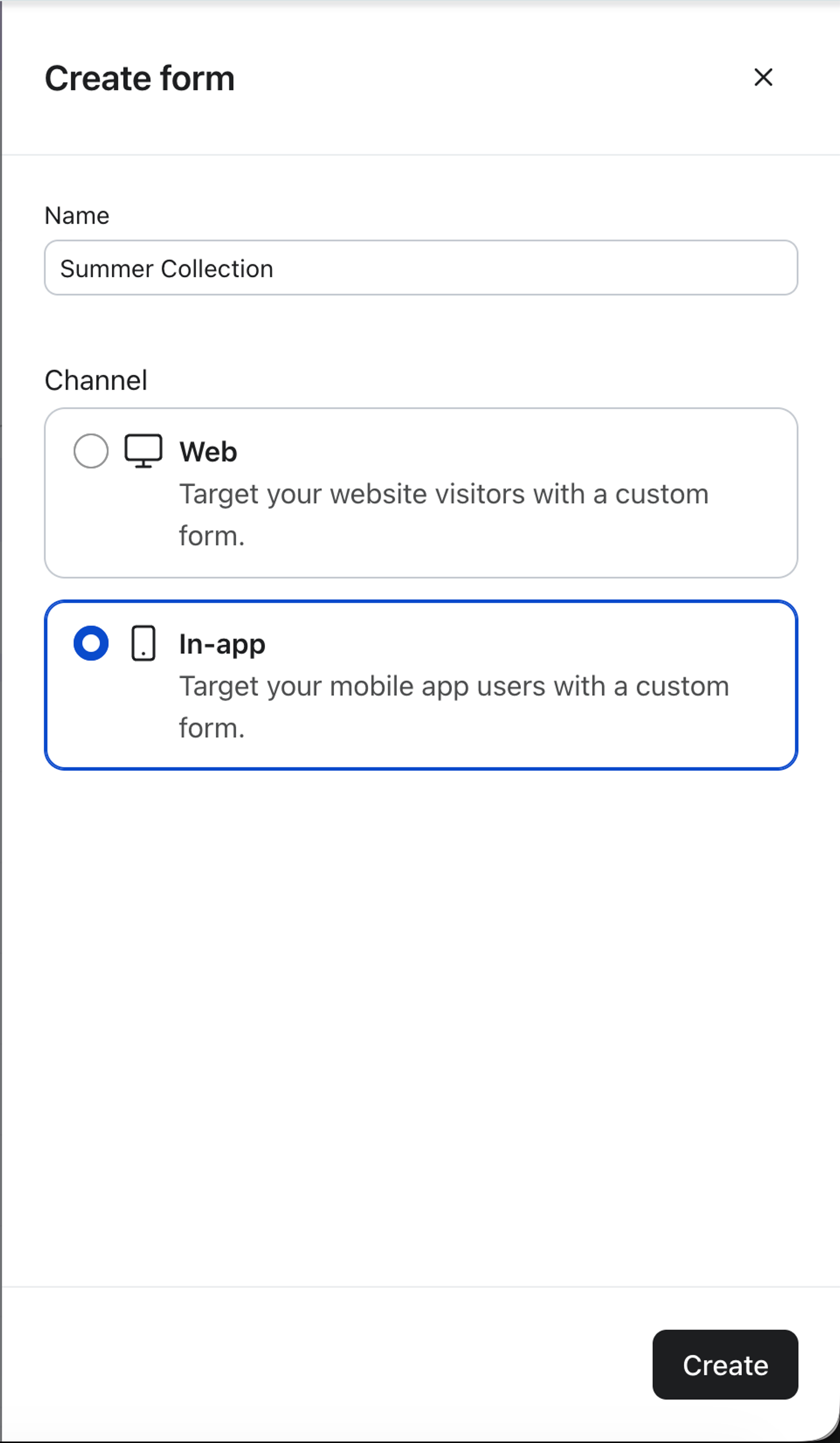
- Select Create form from the top right corner.
- In the right sidebar, name the form and select In-app. Then click Create.
- Browse the library of pre-built in-app form templates. You can also use the Form style and Template type dropdowns at the top to filter for templates by style, use case, or both.

- Select your form template.
- On the preview modal that appears, confirm or update the name of your form.
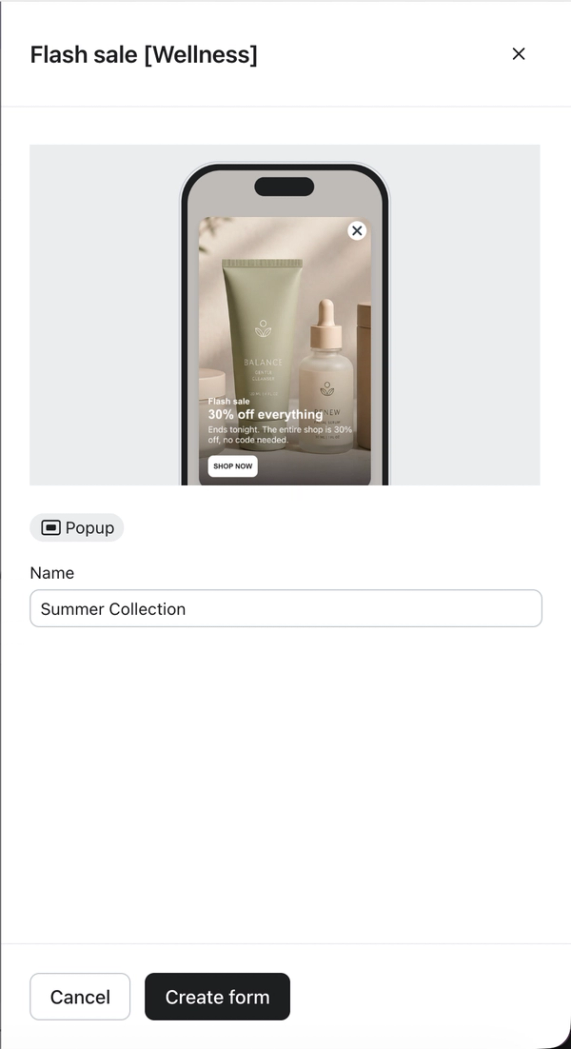
- Select Create form to enter the in-app form editor where you can edit the content and design to fit your brand.
Create a blank in-app form
To start with a basic in-app form to customize instead of a library template, follow these steps.
- Navigate to the Website > Sign-up forms tab.
- Select Create form.
- In the right sidebar, name the form and select In-app. Then click Create.
- In the top right corner, select Create blank form.
- On the details modal that appears, choose the following:
- A name for your in-app form
- The form style: popup, full page, or flyout.
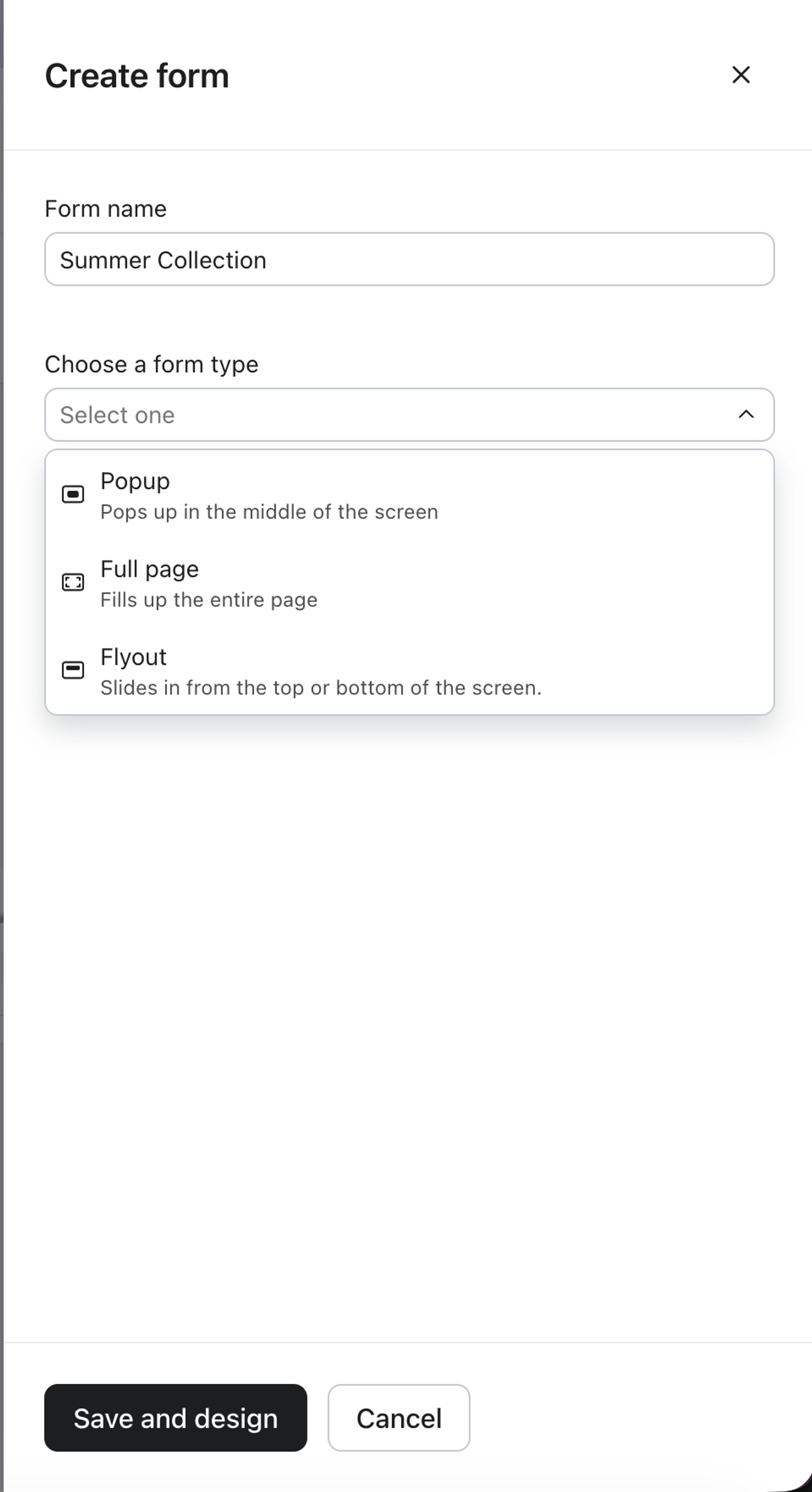
- Click Save and design to enter the form editor where you can customize your form's content and design.
Design your form
Once you've created your form, you can use the Add content and Edit styles sections in the editor to customize the design and content of your form.
Add blocks to your in-app form
Choose content blocks based on the message you want to share with app users. To add a block, select Add content in the form editor, then drag the block into the form preview.
There are a variety of content blocks that you can drag and drop into your form. These include:
Elements:
- Text block
- Button block
- To send users to a specific screen in your app, configure the button’s Go to app screen action with a deep link, such as a link to the collection you’re advertising. Deep linking must already be set up in your app; ask your developer if you are unsure. For more information, see using deep links in push notifications.
- Image block
- Coupon block (static codes only)
- Countdown timer block
- Review quote block
Style your in-app form
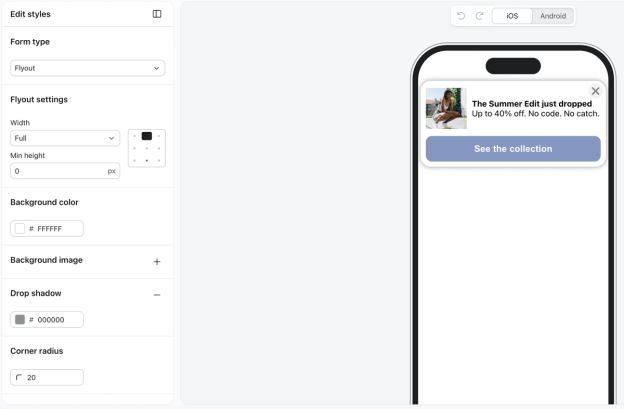
In the form editor, select the Edit styles section. Here, you can edit:
- Form type
- Popup
Appear in the middle of the app screen. Popups draw attention but can interrupt a user’s experience. - Flyout
Appear to "fly out" from the edge of the screen. Flyouts are still noticeable, but they generally allow a visitor to keep browsing without having to interact with the form. - Full page
Display over the entire app screen, capturing your shoppers’ full attention. These forms are more intrusive because shoppers must interact with the form to close it.
- Popup
- Form size
- Background colors
- Form styles
Adjust a form's display options
In the form editor, select Targeting & behavior, then Display to configure display priority, triggers, timing, and frequency.
Display priority
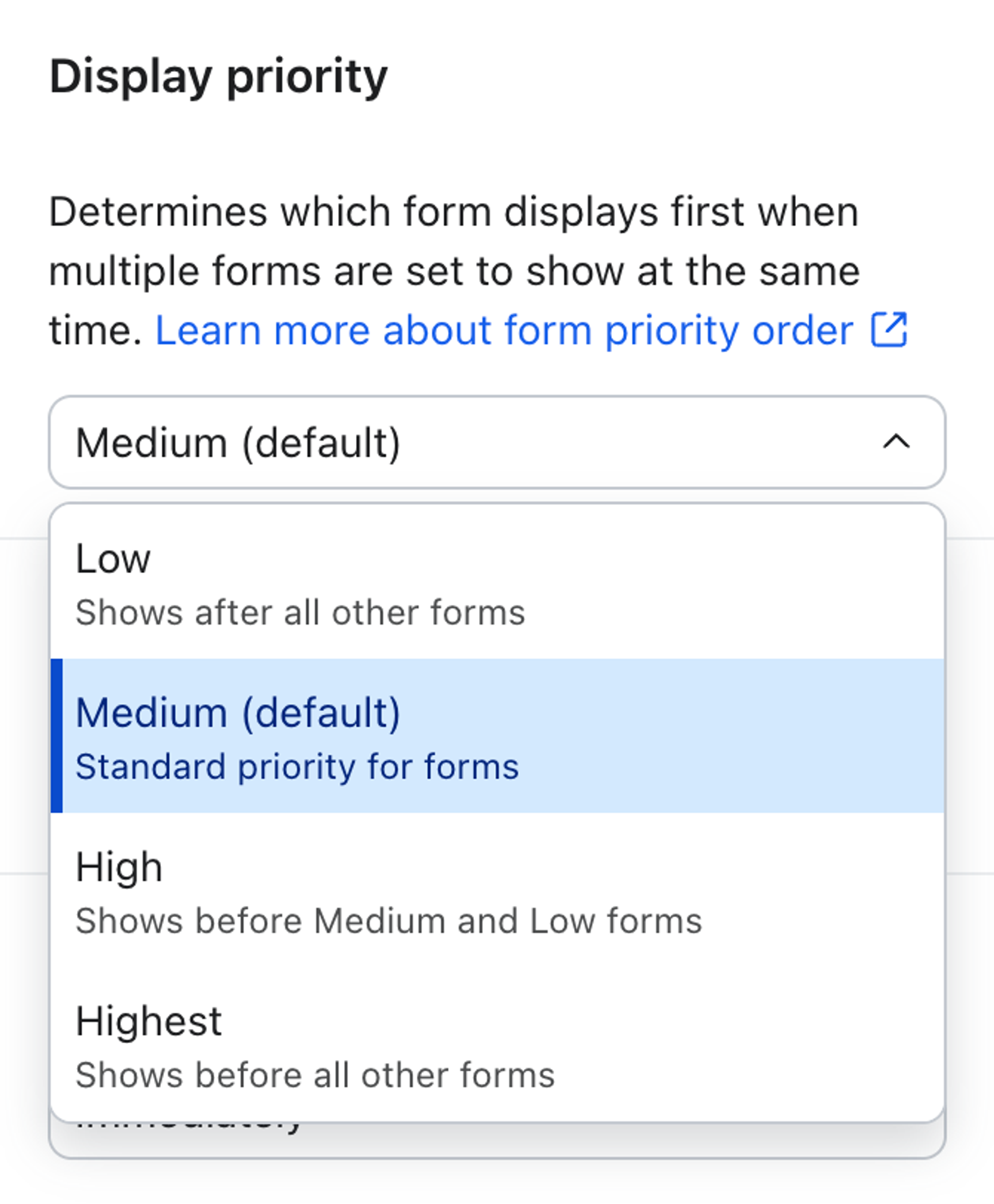
Use display priority to control which form appears first when multiple eligible forms could display for the same app user at the same time. Klaviyo compares queued forms by priority and shows the highest-priority form first.
This setting is most useful when you have overlapping forms, such as a general announcement form and a more specific promotion that can both qualify for the same user at the same time.
Choose from 4 priority levels:
- Low: The form appears after other eligible forms.
- Medium: The form follows standard behavior. This is the default.
- High: The form appears before Medium and Low forms.
- Highest: The form appears before all other eligible forms.
If multiple forms share the same priority level, Klaviyo does not guarantee the order in which they appear.
Trigger
Your mobile app must be using at least v5.1.0 of the iOS SDK, v4.1.0 of the Android SDK, or v2.1.0 of the React Native SDK to use trigger settings.
You can choose which action triggers the display of forms in your application.
- The default trigger is Opened app, meaning the form will display on app launch. You can also select Opened a push notification or Performed an event
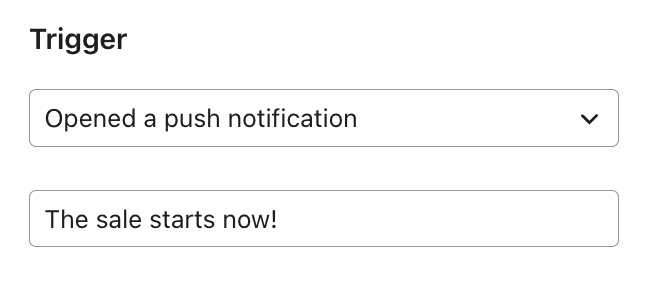
- If you select Opened a push notification:
- Enter the title of the push notification which will trigger the form when opened.
- You can also select a title from a dropdown of your recently created scheduled or draft campaigns.
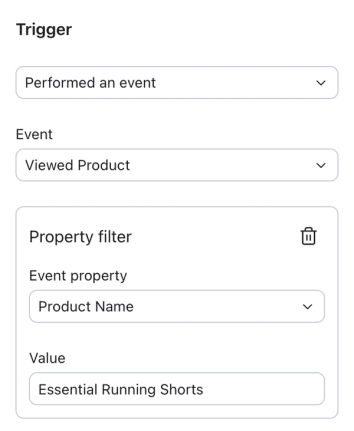
- If you select Performed an event:
- Use the dropdown to select an event from your account.
- The form will only trigger if the event was sent to Klaviyo’s mobile SDK via your mobile application. Events sent server-side will not trigger a form.
- To narrow the trigger further, you can add an event property filter. This filter causes the form to display only when the selected event occurs with a specific property value. For example, when a Viewed Product event occurs where Product Name equals Essential Running Shorts.
- Select Add property filter below the event dropdown.
- Choose an Event property from the dropdown. Then enter the Value it must equal for the form to trigger.
- The filter uses an equals operator. Matching is case-sensitive and ignores leading and trailing whitespace in text values.
- Both the event property and value fields must be filled in together. If either is empty, you will see a validation error when you try to publish the form.
- You can add 1 property filter per event trigger.
- To remove the filter, select the trash icon next to the property filter.
Timing
Your mobile app must be using at least v5.0.0 of the iOS SDK, v4.0.0 of the Android SDK, or v2.0.0 of the React Native SDK to use timing settings.
You can choose when forms are displayed in your application.
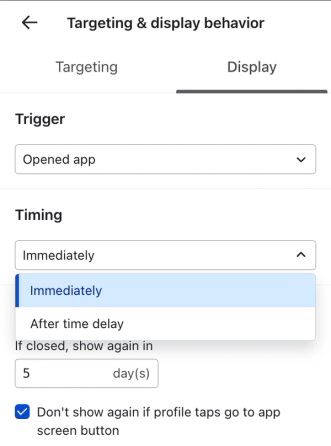
- By default, Immediately is selected, so the form can display as soon as the selected trigger occurs. With Opened app, this is when the user opens the app.
- To wait before displaying the form, select After time delay and enter a delay from 0 to 86,400 seconds (1 day).
The display timer persists across app screens. This means that when users navigate to other pages within your app, the display timer continues to count down from when the trigger criteria is met.
Note that if the app session ends before your time-delayed form is shown, the form will not be displayed during the next session. The form will be shown again based on its current settings.
Frequency
Use If closed, show again in to set how many days to wait before showing the form again after a user closes it. Set this to 0 to remove that waiting period. The form’s trigger, timing, and targeting settings still apply.
Check Don’t show again if profile taps go to app screen button if you would like to prevent the form from showing for app users who have clicked through to another app screen.
Adjust a form's targeting settings
Targeting by app users
Your mobile app must be using at least v5.0.0 of the iOS SDK, v4.0.0 of the Android SDK, or v2.0.0 of the React Native SDK to use targeting.
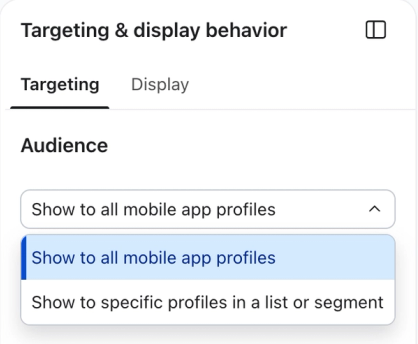
In the form editor, select Targeting & behavior, then Targeting. Under Audience, choose who is eligible to see your form:
- Show to all mobile app profiles - This form will show to all app profiles that exist in your Klaviyo account.
- Show to specific profiles in a list or segment - Select whether to include specific profiles, exclude specific profiles, or both. You can choose a single list or segment, or multiple.
If a profile belongs to both an included and an excluded list or segment, the exclusion takes precedence and the profile will not see the form.
Publish your in-app form
- When your form looks and behaves the way you want, select Publish or schedule to open the publishing panel.
- Resolve any blocking alerts. To set the form live immediately, keep Publish now selected and click Publish now.
Outcome
Once your form is published, app users who meet its targeting and display conditions can see it. The form continues to appear according to its frequency settings until you unpublish it. If you enabled the option to stop showing it after a user taps a Go to app screen button, it will stop appearing for that user after they tap the button.
Additional resources
- Understanding form blocks and fields
Learn how to use various content blocks from the form editor (i.e., elements and input fields) in your sign-up form to customize its appearance and the type of information you collect from subscribers.
- Understanding in-app forms
Learn about in-app forms and how you can use them to share important messaging with your mobile app users.
- How to use deep links in push notifications
Learn how to use deep linking in Klaviyo push notifications so that you can direct customers to a specific in-app screen. Deep links make it easy for your profiles to access the content they want with a simple tap.