Getting started with the subscriber growth report
You will learn
Learn how to use the subscriber growth report to better understand how you are acquiring and losing subscribers over time per marketing channel. Additionally, understand which of your specific forms were the most effective in gathering subscribers as well as why profiles are being suppressed.
Before you begin
Note that:
- Mobile push is not supported on this report.
- Suppressions are email-only, but there are reasons that a profile may be excluded from receiving SMS marketing.
- If you are newer to Klaviyo and have not started collecting consent on any channel yet, your report will be empty. Once you start collecting consent, revisit the report to see your subscriber data.
- The subscriber growth report may have slightly different numbers than the email deliverability hub. This is because the subscriber growth report tracks changes in whether profiles with explicit marketing consent can receive messages. It includes subscriptions, unsubscribes, and suppressions, but excludes profiles that have never opted in. For example, customer A browses a site, makes a purchase, never explicitly agrees to receive marketing emails, but a profile is still created. Meanwhile, customer B does the same actions but explicitly consents to receive emails. This means that a subscribe event will count for customer B but not customer A, and the same thing is also true should they unsubscribe. In other words, all subscribe or unsubscribe events in the subscriber growth report are only counted for those who have explicitly consented.
Accessing the report
You have 2 options for accessing the subscriber growth report, either through the Profiles section or through the Subscriber Growth card on an overview dashboard. You can find both directions below.
Via the Profiles tab
- Navigate to Audience > Profiles.
- At the top of the page, click View subscriber growth.
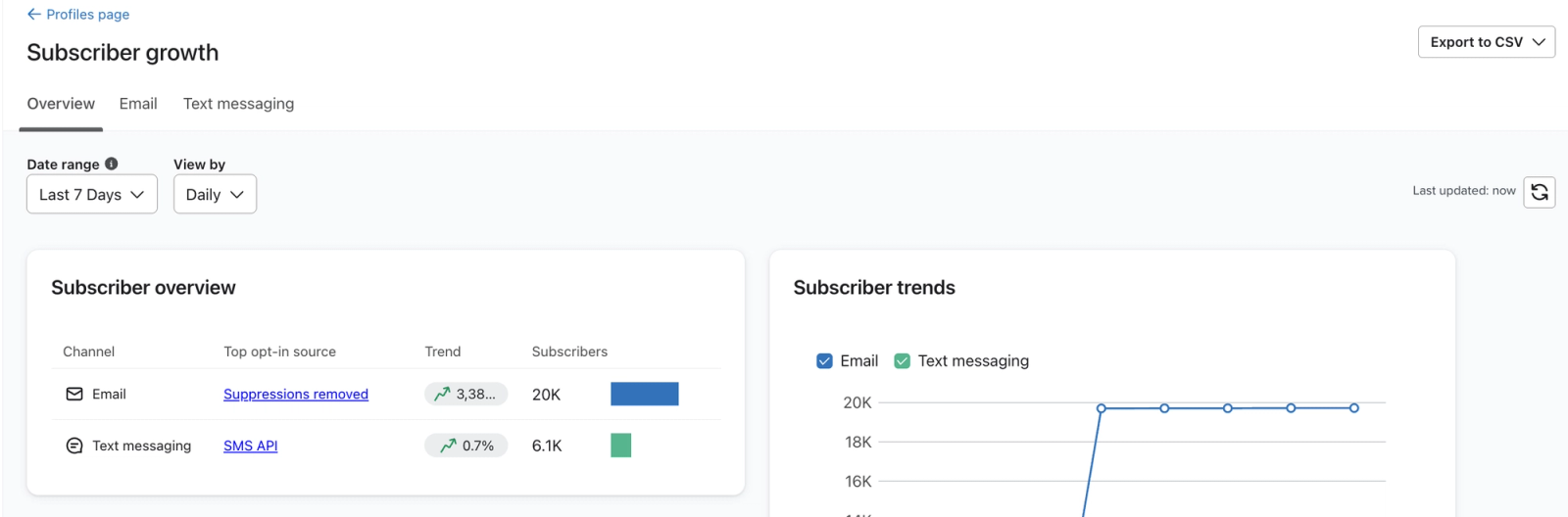
Via the Overview dashboard tab
- Navigate to Analytics > Dashboards.
- Open an existing overview dashboard from the list. To create one, select Create Dashboard, enter a Dashboard Name, and click Create Dashboard.
- Look for the Subscriber Growth card. If it is not already on your dashboard, click Add card, select Subscriber Growth in the library, and click Add Data View.
- On the card, click View Full Report.
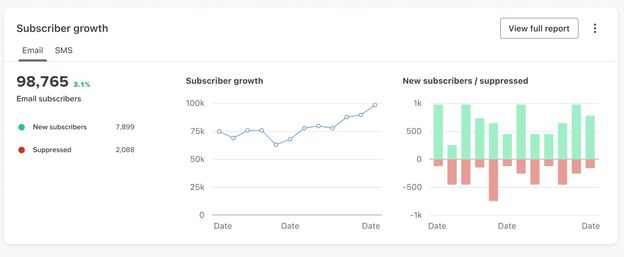
Customizing your report
At the top of your subscriber growth report, you have the option to customize how your data displays as well as the time range of the data it pulls from.
Date range
By default, the Date range is 7 days.
To change this:
- Open the dropdown.
- Choose one of the following options:
- Week-to-date
- Month-to-date
- Last 7 days
- Last 30 days
- Custom (data is available from December 13, 2023, or your account creation date, whichever is later)
- If you selected Custom, choose a start and end date. Click Apply to update the report.
Data viewing or aggregation
By default, the View by aggregation shows data by daily increments. The options depend on your date range; Last 7 days supports Daily only. To make adjustments:
- Open the dropdown.
- Choose one of the following options:
- Daily (start and end dates up to 90 days apart)
- Weekly (start and end dates 8–728 days apart)
- Monthly (start and end dates at least 31 days apart)
Refreshing the data
At the top, the report notes the timestamp of when it was last updated.
Refresh the report manually to fetch the latest available data. Values may be delayed by up to 3 hours.
Click the Refresh icon (circular arrows) in the upper right to fetch the latest available data.

Reviewing your total subscribers size by channel
On the Overview tab, you will see subscriber totals for each available channel at the end of your selected date range, along with trends and the top opt-in source. The report supports email, text messages, and WhatsApp, but not mobile push. Text message and WhatsApp tabs appear when your account has consent records for those channels. If only email is available, the report opens directly to that channel.
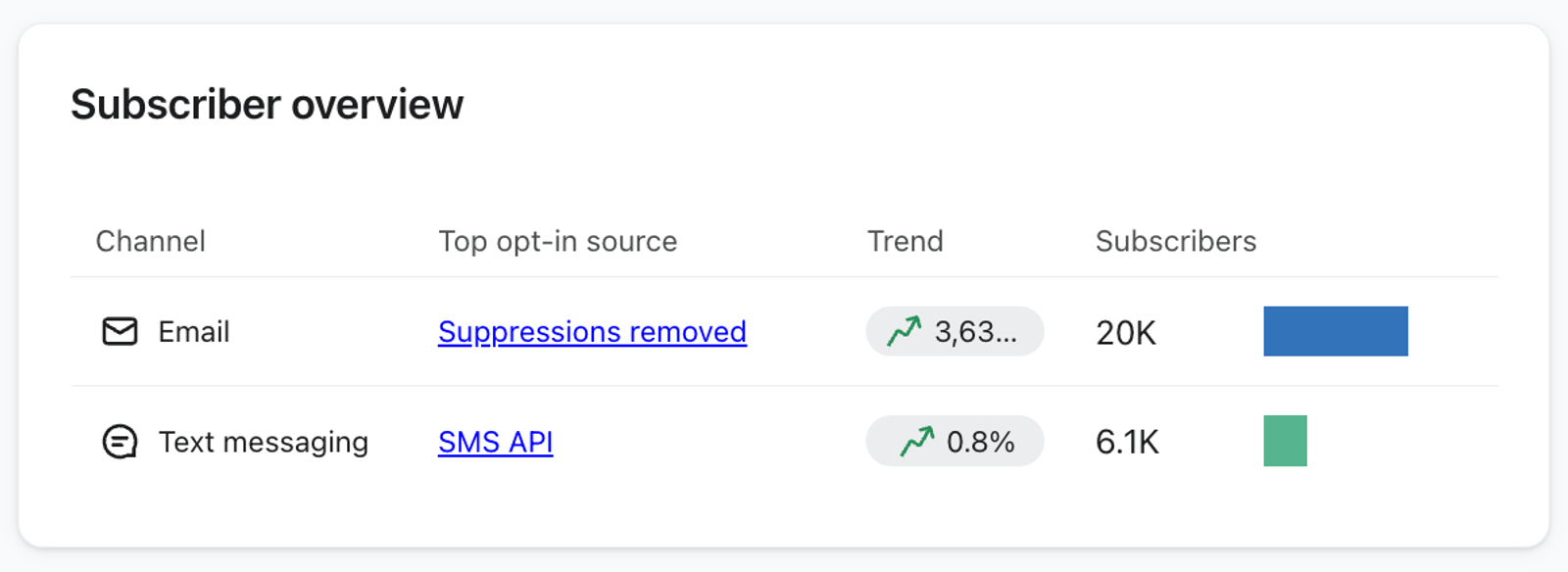
Reviewing the channel subscribers cards
If your report has channel tabs, select one to review its subscriber card, such as Email subscribers, Text message subscribers, or WhatsApp subscribers. Each card provides a snapshot of subscriber performance over your chosen time range, including:
The Text message tab reports on marketing subscribers. It does not provide a separate view of transactional subscribers.
- Overall subscriber growth
- Total number of new subscribers
- Total number of excluded subscribers and reasons for exclusion
- Sources of opt-ins, along with the total number of subscribers per source
- Top opt-in and exclusion sources
If your account is only a single marketing channel (i.e., email), you will only see that channel reflected.
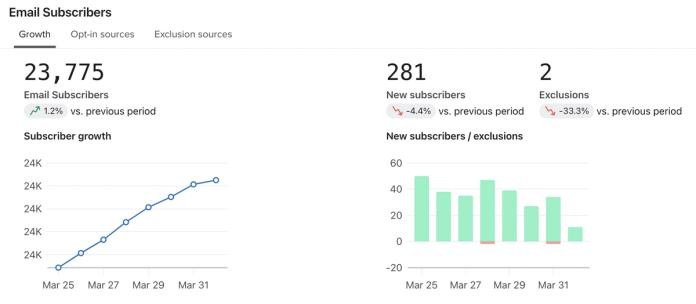
In addition, at the top of this card, there will be 3 tabs (Growth, Opt-in sources, and Exclusion sources) breaking out this data into more detailed views.
A profile suppressed for email cannot receive email marketing, even if they have provided consent. Learn more about suppressed profiles in Klaviyo.
Growth tab
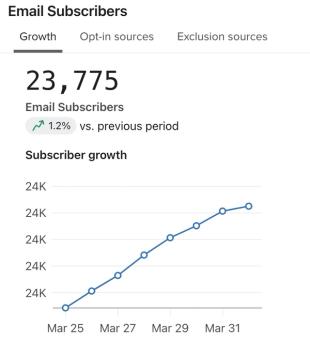
The left line chart on the Growth tab visualizes your subscriber growth across your selected time range, aggregated view, and channel. Here, you can see at each point in time how many subscribers you have.
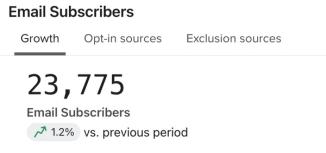
You can also review the total number of subscribers at the end of your selected date range and the percentage change from the start of that range.
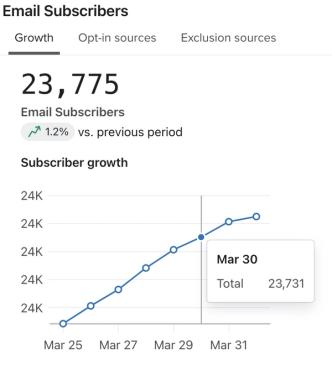
By hovering over any points in the line chart, you can also see the total number of subscribers for that point in time.
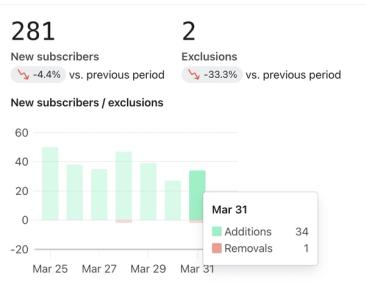
The right bar chart on the Growth tab visualizes the number of subscribed (green bar) and excluded members (red bar) across your selected time range, aggregated view, and channel. Here, you can see at each point in time how many subscribers you are adding or losing.
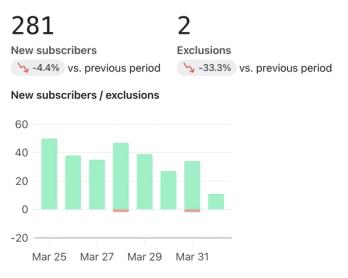
By hovering over any bars in the bar chart, you can also see the total number of added and excluded subscribers for that point in time.
Opt-in sources tab
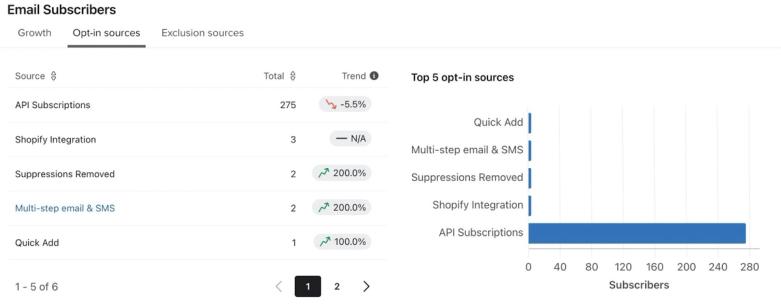
The Opt-in sources tab provides information on where and how profiles subscribed to the selected channel. You can also see details around which of these sources are currently performing the best in order to optimize the subscriber sign-up journey.
Opt-in sources details
You may note the following opt-in reasons in each of the charts, including:
Email-specific reasons
- Klaviyo form
A profile subscribed via a Klaviyo-specific form. - Klaviyo custom hosted page
A profile subscribed via a custom hosted page in Klaviyo. - Subscribe page
A profile subscribed via a standard subscribe page in Klaviyo. - Shopify integration
When a profile’s consent is passed from Shopify to Klaviyo. - Magento 2 integration
When a profile’s consent is passed from Magento 2 to Klaviyo. - Big Commerce integration
When a profile’s consent is passed from BigCommerce to Klaviyo. - Facebook integration
When a profile consent is passed from Facebook to Klaviyo. - Woo Commerce integration
When a profile’s consent is passed from Woo Commerce to Klaviyo. - NetSuite integration
When a profile’s consent is passed from NetSuite to Klaviyo. - Wix integration
When a profile’s consent is passed from Wix to Klaviyo. - Square integration
When a profile’s consent is passed from Square to Klaviyo. - Back in stock email
A profile subscribed to email marketing through a back-in-stock form. The Subscribed to Back in Stock event records a notification request; it does not by itself add a marketing subscriber. - Profile manual subscribe
Consent was manually added to a profile record in Klaviyo. - Bulk manual subscribe
When profile consent has been bulk added within Klaviyo via a list upload or import. - API subscribe
When a list of profiles' consent is passed via API. - Klaviyo account creation
A Klaviyo user subscribed to Klaviyo's own marketing during account creation. This does not represent customers subscribing to your brand. - Suppressions removed
A previously subscribed profile became reachable for email marketing after their last global suppression was removed. This appears among opt-in sources because the profile returns to the subscriber total; removing a suppression does not itself grant consent.
Note that you may see a discrepancy between the count of new subscribers in the Growth tab and the count of profiles in the Opt-in sources tab. This is because if someone unsubscribes in the same day after subscribing, they will not be considered in the new subscribers count.
Text messaging-specific reasons
SMS consent is stored on a per phone number basis. This means that if a new profile is created with an already consented number, the consent information of the original profile will apply to the new profile. Learn more about SMS consent collection.
- Text message checkout
When a profile provides consent to SMS at checkout. - Text message form
When a profile provides consent to SMS via a Klaviyo form. - Inbound message
When a profile subscribes to SMS via an opt-in keyword such as "Join." - Text message list upload
When a list of profiles' SMS consent is updated via a manual list upload. - Text message message
When consent is provided by a profile via an SMS message. - Text message API
When a list of profiles' SMS consent is passed via API. - Preference page
A profile subscribed via a preference page. - Manual suppression
When consent is manually added to a profile in Klaviyo. - Shopify integration
When a profile’s consent is passed from Shopify to Klaviyo. - Facebook integration
When a profile’s consent is passed from Facebook to Klaviyo. - SFTP import
When a list of profiles and their consent has been passed via an SFTP file import into Klaviyo.
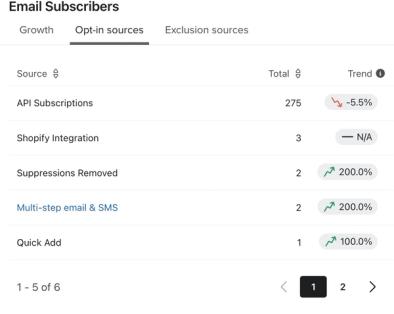
The descending list on the left shows the number of subscribers added through each source, including individual Klaviyo forms. The trend compares that count with the previous period: a green arrow indicates an increase, and a red arrow indicates a decrease. Use this list to identify which sources bring in the most subscribers and which forms may need adjustments.
Klaviyo forms will have a link and send you to the relevant forms page.
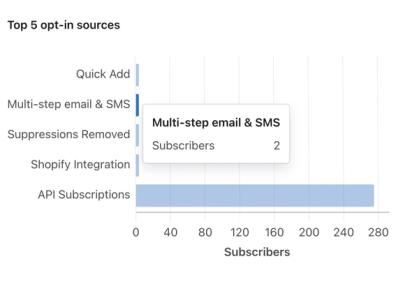
The bar chart on the right displays the top 5 sources of subscriber sign-ups during the selected time period. You can use this chart to review which sources have been recently successful in driving subscription rates.
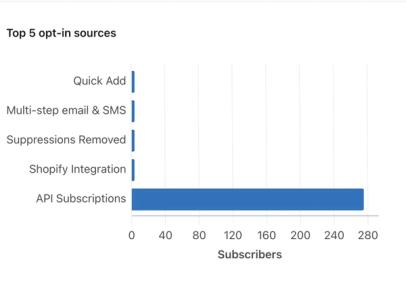
Additionally, by hovering over any of these bars, you can review the total number of subscribers that signed up via that specific source.
Exclusion sources tab
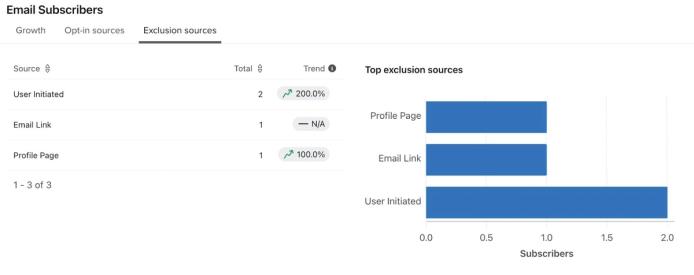
The Exclusion sources tab provides details about why your subscribers are getting excluded from receiving marketing. This tab is helpful in identifying if there are deliverability or list cleanliness issues, or even potential issues related to the types and frequency of the messages you send.
A profile globally suppressed for email cannot receive email marketing, even if they have provided consent and indicated they want to receive emails. Learn more about suppressed profiles in Klaviyo.
Exclusion reasons details
You may note the following exclusion reasons in each of the charts, including:
Email-specific reasons
- Hard bounce
Occurs when an email cannot be delivered due to a permanent reason. This can be caused by a variety of reasons, including a misspelled email address or a deliberate block by the email server. - Spam complaint
After a profile marks one or more of your emails as spam, they will be unreachable. When there's a spam complaint, the profile shows an "unsubscribed" consent status, rather than being suppressed. - Invalid email address
Email address is not valid and cannot be emailed. - Mailbox provider
When a profile directly unsubscribes via a mailbox provider. - Email link
When a profile unsubscribes via the direct link in the footer of the email. - Manual suppression
When a profile is manually suppressed via the profile record in Klaviyo. - Unsubscribe
A profile is no longer interested in receiving your email marketing and has explicitly revoked their consent. Once unsubscribed, the profile can no longer receive email marketing. - Unsubscribe page
When a profile opts out of marketing via a Klaviyo unsubscribe page. - Custom hosted page
When a profile opts out of marketing via a custom hosted page in Klaviyo. - Other
Consent status is missing and it cannot be determined how a profile subscribed or unsubscribed. - Square integration
When a profile’s unsubscribe is passed from Square to Klaviyo. - Campaign Monitor integration
When a profile’s unsubscribe is passed from Campaign Monitor to Klaviyo. - Exact Target integration
When a profile’s unsubscribe is passed from Exact Target to Klaviyo. - Constant Contact integration
When a profile’s unsubscribe is passed from Constant Contact to Klaviyo. - Mad Mimi integration
When a profile’s unsubscribe is passed from Mad Mimi to Klaviyo. - API unsubscribe
When a profile’s unsubscribe is passed via API.
Text messaging-specific reasons
- Invalid number
When a phone number is not valid or cannot accept text messages (such as a landline). - Landline detected
If anyone adds a landline number to a sign-up form or you try to import a landline number, Klaviyo will automatically remove consent. - Message blocked
This usually only applies to toll-free numbers and generally occurs after a profile opted out using "STOP," and then opted in without texting "START" or "UNSTOP." They are then blocked by wireless carriers and unsubscribed in Klaviyo. In this case, Klaviyo receives this error from the carriers, and will remove SMS consent from that profile. - Carrier deactivation
Consent has been removed on a profile because a wireless carrier informed Klaviyo that the profile changed numbers or switched providers. Note that as of September 2021, once a day, Klaviyo will automatically remove consent for any profile who was either removed from their original carrier’s list or has a new number. - Age-related data missing
Required date of birth information is missing for age-gated SMS marketing, so SMS consent is revoked. - Profile underage
Consent is revoked on a profile because their age is below the required minimum for receiving age-gated SMS marketing. - Known litigator
Profile was a known litigator and SMS consent was removed. - Text messaging bulk manual removal
Consent was removed through a bulk unsubscribe upload or a bulk removal completed by Klaviyo staff.
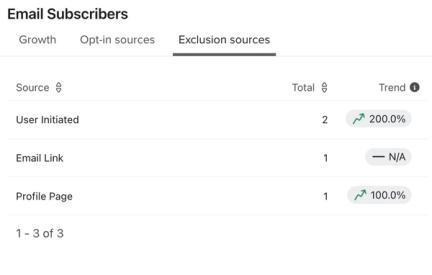
The descending list on the left shows the number of exclusions per source and the change from the previous period. An increase is shown with a red arrow, and a decrease with a green arrow. Use these counts to identify the main reasons subscribers are becoming unreachable and consider how to address them.
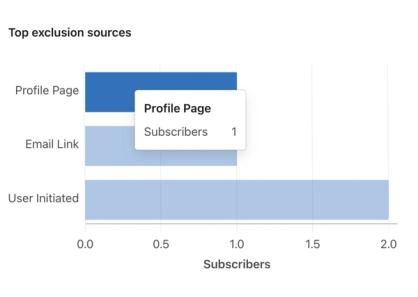
The bar chart on the right displays the top 5 exclusion sources during the selected time period. You can use this chart to review which sources have been recently driving exclusions.
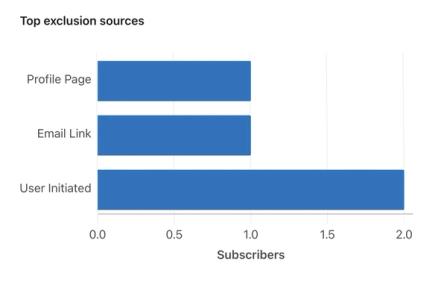
Additionally, by hovering over any of these bars, you can review the total number of subscribers that were excluded via that specific source.
Exporting the report
After you are done customizing and reviewing your report, you also have the option to download the raw data as a CSV file. Note that any downloads will not include any of the chart or list visualizations.
If Export to CSV is disabled, your user permissions do not allow report exports.
To download your report:
- Click Export to CSV.
- Choose one of these options:
- Export growth over time: subscriber totals, additions, and exclusions for each available channel over the selected date range.
- Export sources & exclusions: opt-in and exclusion sources with counts by channel for the selected date range.
- Review your downloads folder or location and find the applicable file.
Troubleshooting report and card issues
Report loading issues
If your report is continuing to build, you will see the message “Working on your report,” shown below. Note that depending on your connection, the report should load completely within a few seconds. Refresh or retry loading your report if you are continuing to have issues.
If there is no subscriber data to display, you will see No data available yet. This may be because you are a newer Klaviyo account and have not started collecting consent on any channel. Once you start collecting consent, revisit the report.
Additionally, you may see this message if there is no channel-specific subscription activity during the time period you selected. Consider adjusting your timeframe to see if the report has data and can load.
If there is a larger issue with your report or Klaviyo’s infrastructure is momentarily unreachable, you may see an error message noting “Something went wrong.” Click Try again to reload the report, or refresh the page.
Card-loading issues
If a channel or source tab has no data for the selected period, you may see No data available yet. Adjust the date range to check another period. A card with no data does not necessarily indicate a loading error.
If there is a larger issue with a particular channel’s data or Klaviyo’s infrastructure is momentarily unreachable, you may see an error message noting “Something went wrong.” Retry or refresh the page to reload the report.
Additional resources
- Understanding consent in profiles
Learn how to understand consent in profiles and best practices for email and SMS compliance.
- Understanding suppressed email profiles
Learn about suppressed email profiles, including how they differ from active profiles and how you can use these profiles to better understand your audience.
- When Klaviyo removes SMS consent automatically
Learn when Klaviyo will automatically remove consent from an SMS subscriber.
- Understanding unsubscribes and resubscribes
Learn about unsubscribes in Klaviyo, and how to manually unsubscribe contacts yourself.