Understanding the email deliverability hub in Klaviyo
You will learn
Learn about Klaviyo’s account-level email deliverability reporting. The Email tab in Klaviyo’s deliverability hub is a centralized space that allows you to analyze and diagnose your email deliverability health across all your sends.
The account deliverability hub
The Deliverability hub in Klaviyo allows you to analyze and diagnose your email and SMS deliverability health at the account level.
To access the page, navigate to Analytics > Deliverability. If your navigation shows Channel health instead, select it.
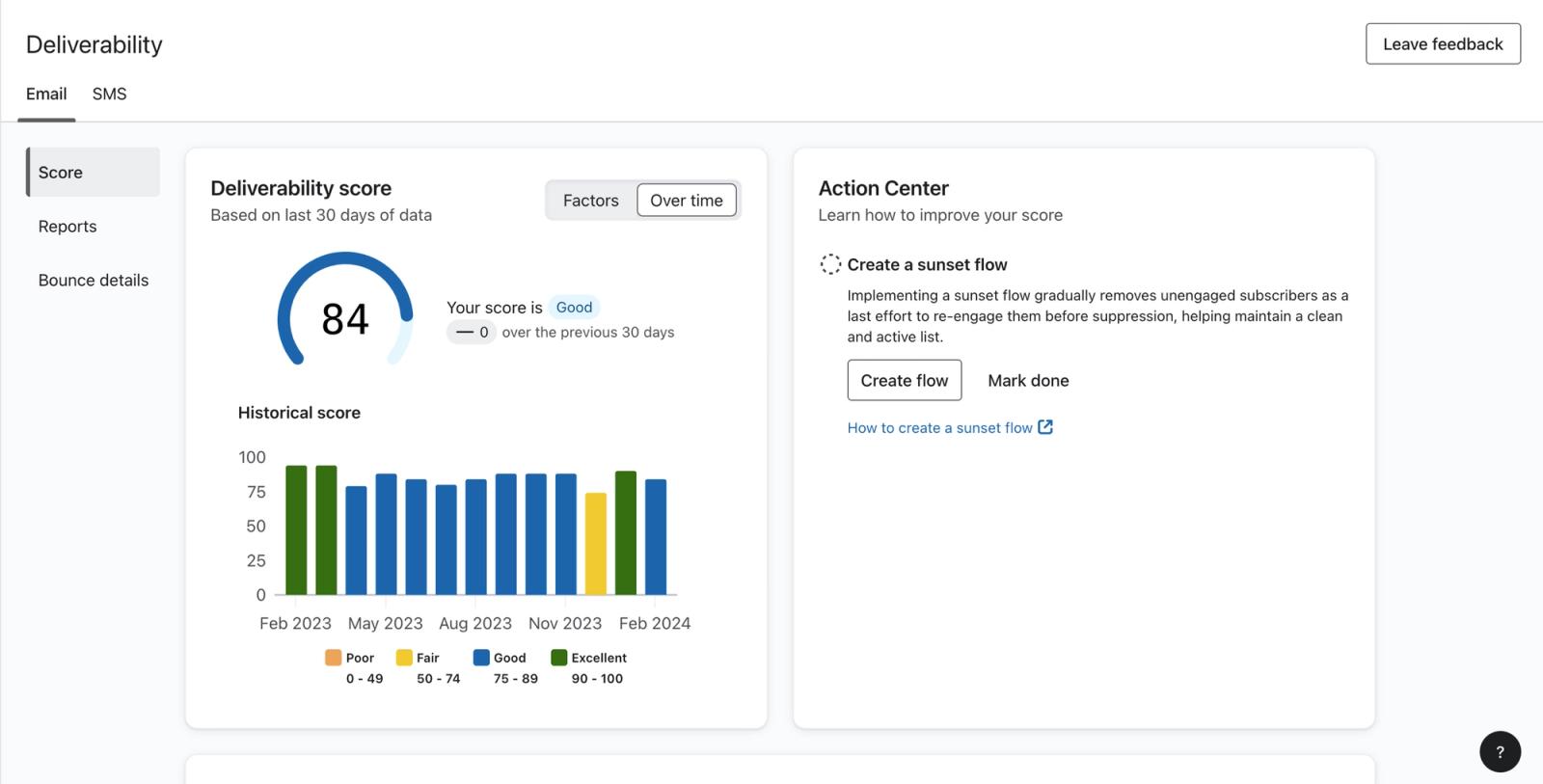
To analyze your account's email deliverability performance, select Email.
The email deliverability hub in Klaviyo has 3 main tabs:
- Score
- Reports
- Bounce details
Score
On the Deliverability score card, you’ll see a deliverability score that acts as a metric to represent your account’s deliverability health, or sender reputation. It is important to keep a high deliverability score to have the best chance of your emails reaching your subscribers’ inboxes. The lower your score the more likely email will be sent to spam or not delivered at all.
You must send at least 1,000 emails in the last 30 days for a deliverability score to be calculated and presented. Score history is retained for up to 1 year.
Deliverability scores can range from 0 to 100, and are determined based on your performance in the following deliverability metrics over the last 30 days:
- Open rate
- Click rate
- Bounce rate
- Unsubscribe rate
- Spam complaint rate
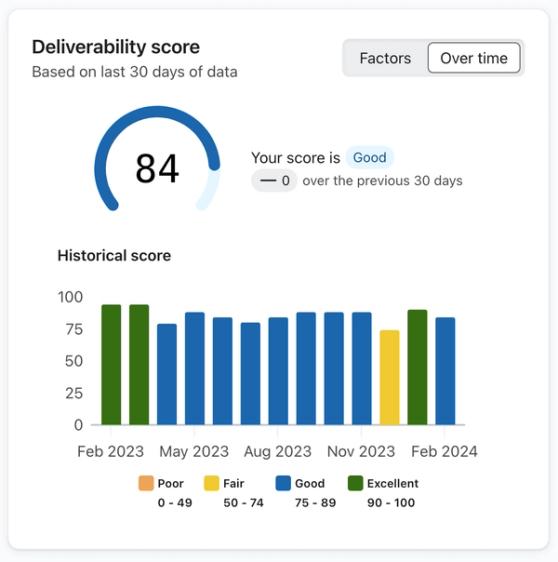
Your score is updated daily using the last 30 days of data.
Next to the score is a badge that shows how your score is trending compared to the previous 30 days, along with one of the following health statuses based on your score:
- Poor (0–49)
- Fair (50–74)
- Good (75–89)
- Excellent (90–100)
You can use the Over time option on the toggle to see more data around how your deliverability score has changed over time, or the Factors toggle to see the key deliverability metrics impacting your score and your performance with them.
You can use the deliverability score to monitor your sender reputation, and better understand how inbox providers may view your brand as a sender. To improve your score, take the recommended actions presented in the action center next to the deliverability score. Additionally, see our guide on how to repair your sender reputation.
Key metrics impacting your score
When you set the Deliverability score toggle to Factors, you’ll see an overview of the key deliverability health metrics and your performance for each one.
These metrics are:
- Open rate
- Click rate
- Bounce rate
- Unsubscribe rate
- Spam complaint rate
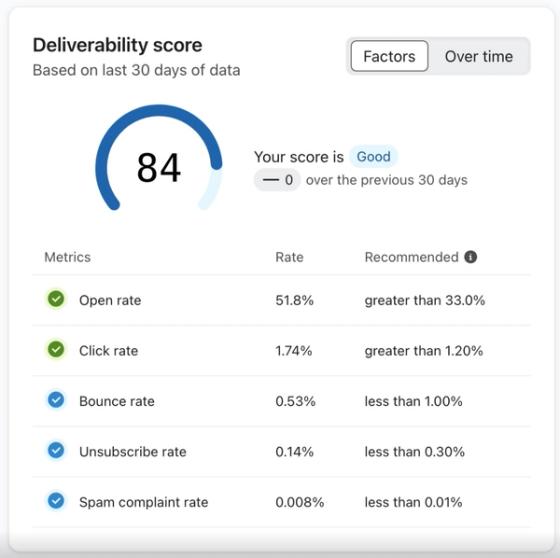
Next to each metric, you’ll see an indicator that reflects your performance (i.e., poor, fair, good, or excellent) along with Klaviyo’s recommended benchmarks.
Action center
The action center features key steps you can take to improve your sender reputation and overall deliverability.
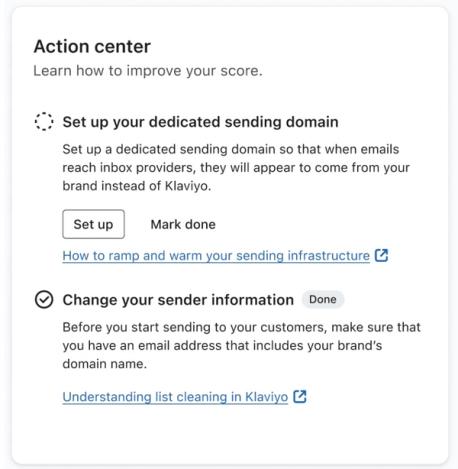
You’ll see key onboarding actions that your account should take for the best deliverability performance, that are presented in the order they should be completed. Once completed, the onboarding actions will no longer appear.
In addition to essential onboarding actions, you may also see actions appear in response to your deliverability performance with resolution steps. Actions triggered due to performance may appear multiple times after being completed if the deliverability issue appears again, and new actions will appear and disappear based on your specific Klaviyo account. Once an action is completed, you can select the Mark done button next to the task.
The action center is updated each time the page is loaded.
Campaigns performance
The Recent campaign message performance card shows recent email campaign messages and their deliverability metrics for the last 30 days.
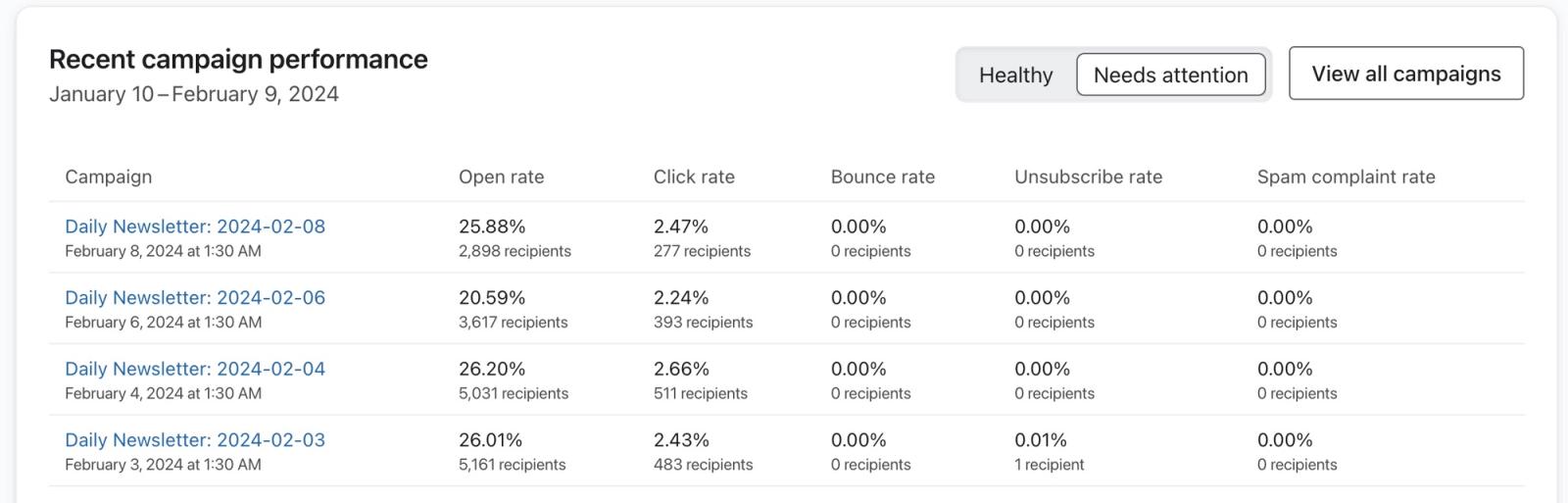
Select Healthy to see up to 5 of the most recent campaign messages with no metrics in the Needs attention range. Select Needs attention to see up to 5 of the most recent campaign messages with at least 1 metric in that range.
Flows performance
The Recent flows performance card shows flows and their email deliverability metrics for the last 30 days.
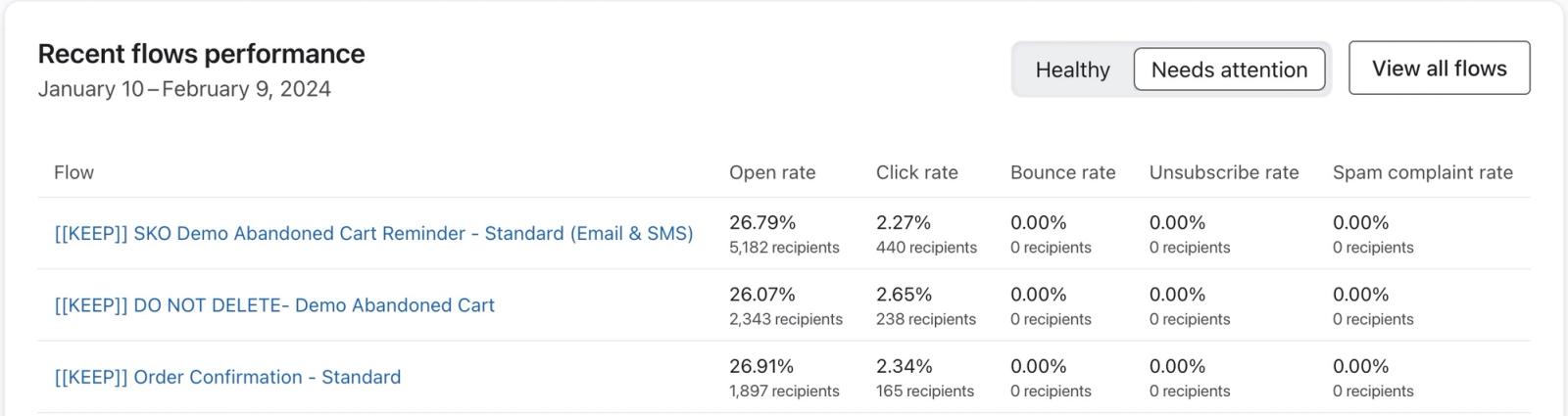
Select Healthy to see up to 5 flows with no metrics in the Needs attention range. Select Needs attention to see up to 5 flows with at least 1 metric in that range. Within each view, flows are ordered by recipient count, with the flows that have the most recipients shown first.
Deliverability alerts
Above your deliverability score is a collapsible card that appears when a deliverability alert has been triggered for your account. Alerts require at least 1,000 emails sent in the last 30 days and reflect performance during that period. Each alert provides details about the issue with a link to a troubleshooting guide for resolution steps.
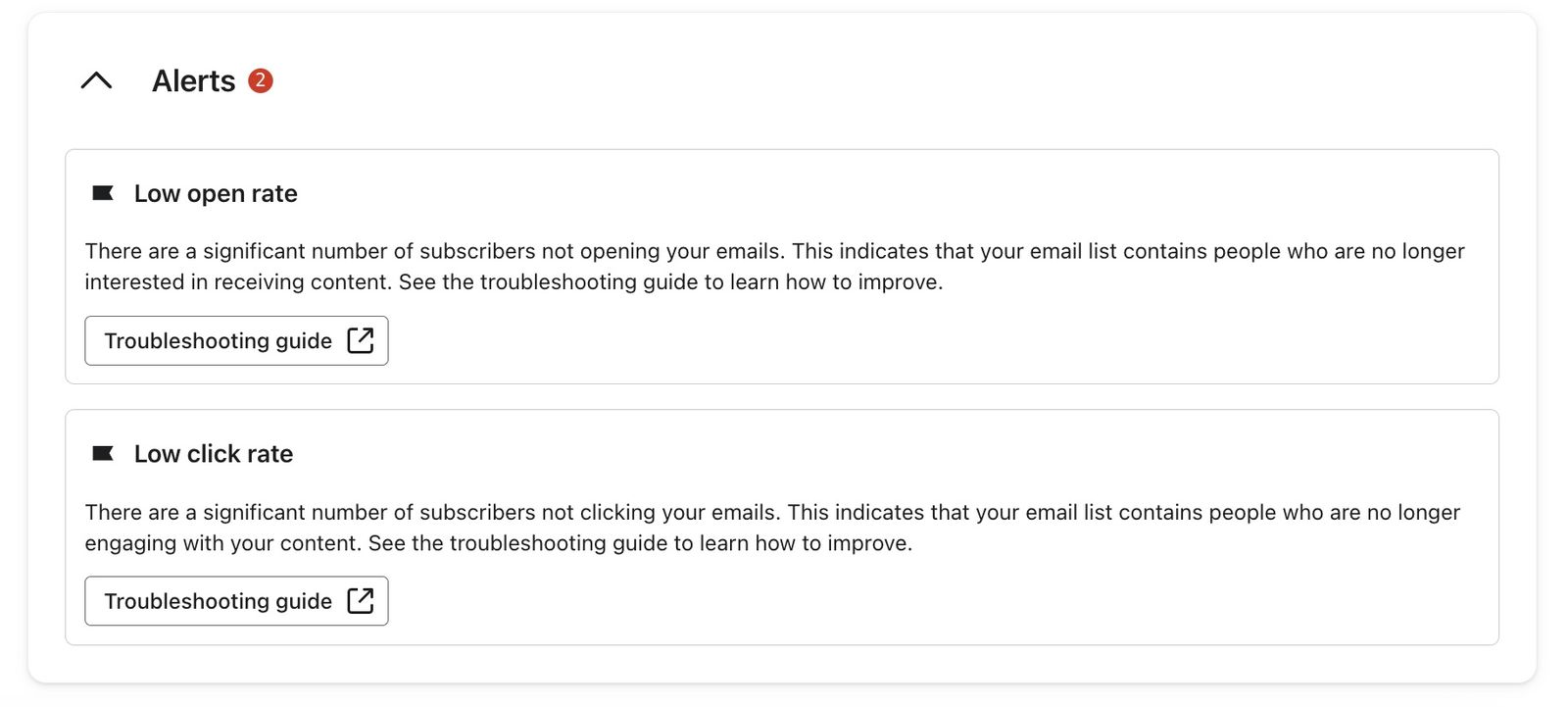
You’ll see alerts appear in the following cases:
- Low open rate
- Low click rate
- High bounce rate
- High spam complaint rate
- High unsubscribe rate
- Overall account reputation issue
Once the deliverability issue is resolved, the alert will disappear.
Reports
On the Reports page, you’ll see account-level email deliverability reports that provide insight towards your performance with different inbox providers or email domains.
At the top of the page, use Time period and Message type to filter the reports. Message category and Category value control the provider or domain breakdowns; they do not narrow the account-level summary in Key metrics.

Use the Time period dropdown to select one of these date ranges:
- Last 7 days
- Last 30 days
- Last 90 days
- Custom
Use the dropdowns at the top of the page to set the following filters. Your selections apply automatically:
- Message type
The type of email (i.e., all messages, all campaigns, or all flows). - Message category
The groups whose deliverability performance you want to analyze: Inbox Provider or Email Domain.
Klaviyo is able to determine email domain based on the recipient's email address. From the email domain, Klaviyo can map the domain to the corresponding inbox provider.
- Category value
Select up to 10 specific inbox providers or email domains to analyze. By default, the 5 with the most delivered emails in the selected time period are selected.
Key metrics
The Key metrics card shows your account-level open, click, bounce, unsubscribe, and spam complaint rates. The table below the summary compares these metrics for your selected inbox providers or email domains and flags metrics that need attention.
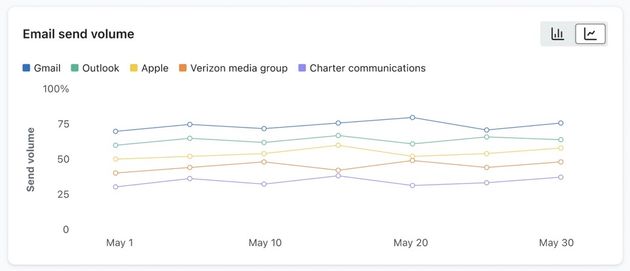
Email send volume
The Email send volume report shows a breakdown of your delivered and bounced emails across the inbox providers or email domains selected in Category value.
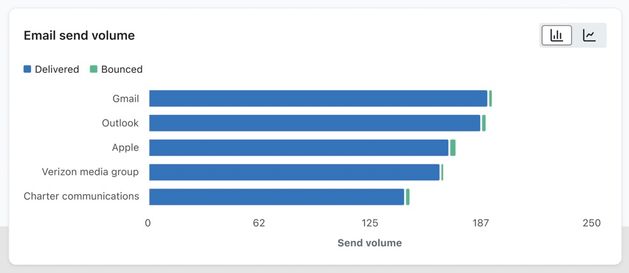
If you are seeing bounce issues here, learn how to decrease bounce rates.
To see a breakdown of your email send volume over time, select the chart toggle switching to a line graph:
Negative engagement metrics
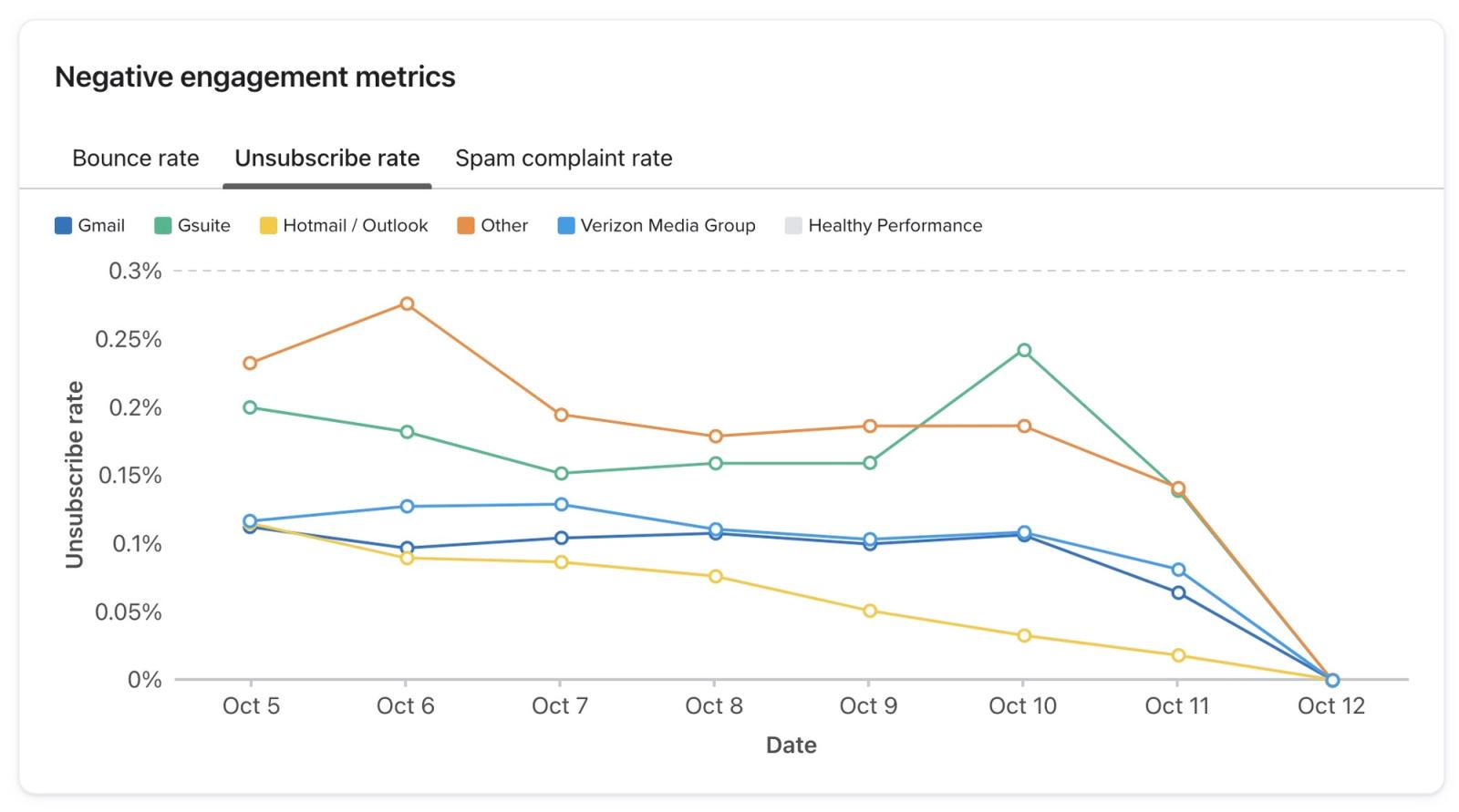
The Negative engagement metrics chart shows your negative engagement rates across the inbox providers or email domains selected in Category value.
- Bounce rate
- Unsubscribe rate
- Spam complaint rate
You can switch between the available tabs on the card to see the breakdown for each metric.
If you are seeing deliverability performance issues, learn how you can strengthen your sender reputation for a specific inbox provider or email domain.
Positive engagement metrics
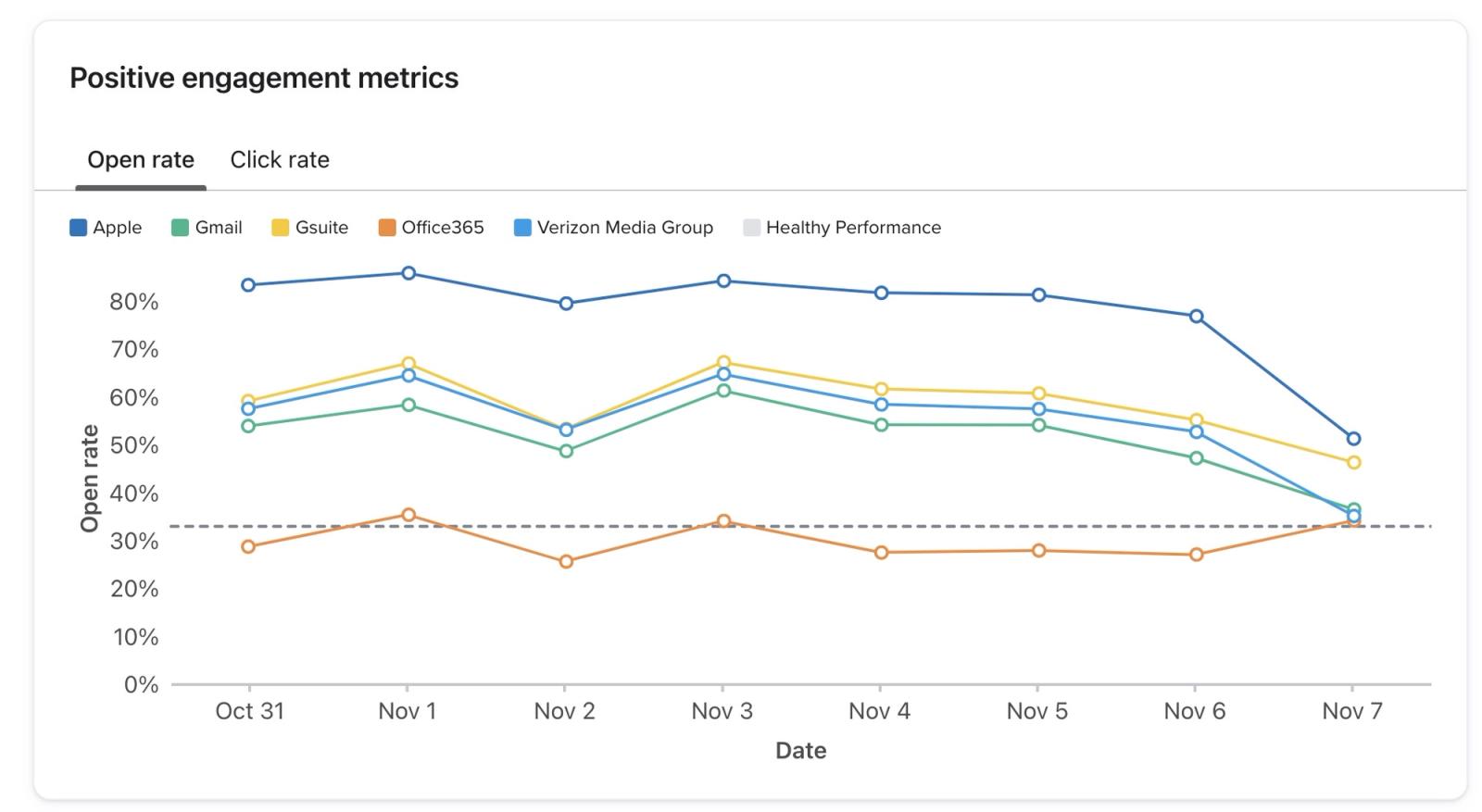
The Positive engagement metrics chart shows your positive engagement rates across the inbox providers or email domains selected in Category value.
- Open rate
- Click rate
You can switch between the available tabs on the card to see the breakdown for each metric.
If you are seeing deliverability performance issues, learn how you can strengthen your sender reputation for a specific inbox provider or email domain.
Bounce details
The Bounce details page on the deliverability hub provides information around why your sends are bouncing. If you are seeing issues with bounces, you can analyze this data to take corrective action and improve your overall email deliverability.
The Time period and Message type filters apply to bounce counts throughout the page.
Filters
At the top of the Bounce details page are filters that allow you to analyze the page data based on:
- Message type
- All messages
- All campaigns
- All flows
- Time period
- Last 7 days
- Last 30 days
- Last 90 days
- Custom
Top bounce categories
The Top bounce categories card provides information about the types of bounces you are experiencing.
The card features a heatmap that shows:
- All 11 bounce categories.
- Up to 5 inbox providers with the most bounces, excluding Other.
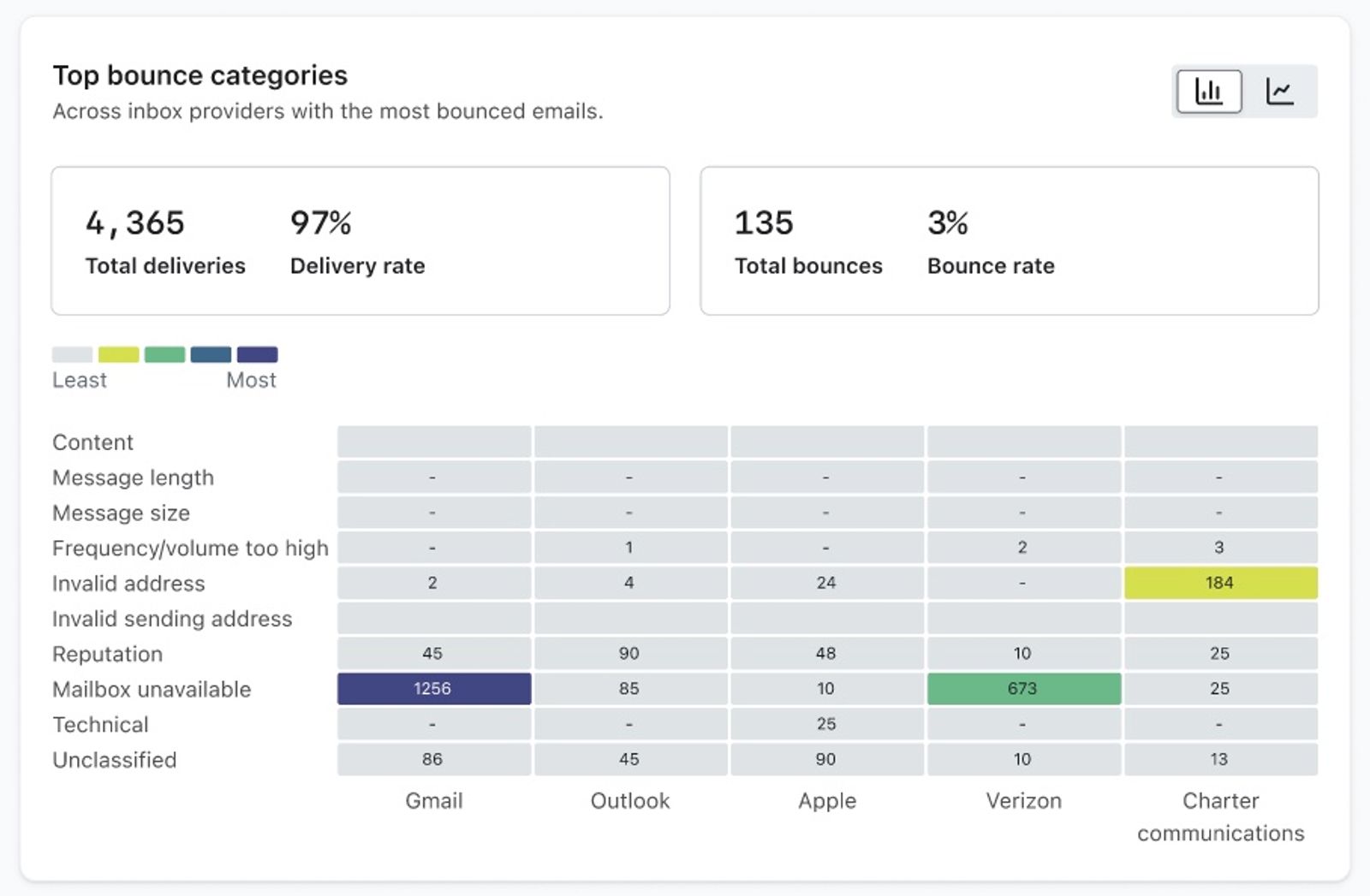
Each box on the heatmap shows the count of bounces for the corresponding category and inbox provider. Its color represents the bounce count, from lower to higher counts.
In the top right corner is a toggle between the heatmap view and the line graph view. The line graph shows the following information:
- Date range
- Bounce count
The lines represent up to 5 inbox providers with the most bounces. The line graph can include Other, so its providers can differ from those on the heatmap.
By default, Unclassified is selected. Use the category dropdown to select a different bounce category for the line graph.
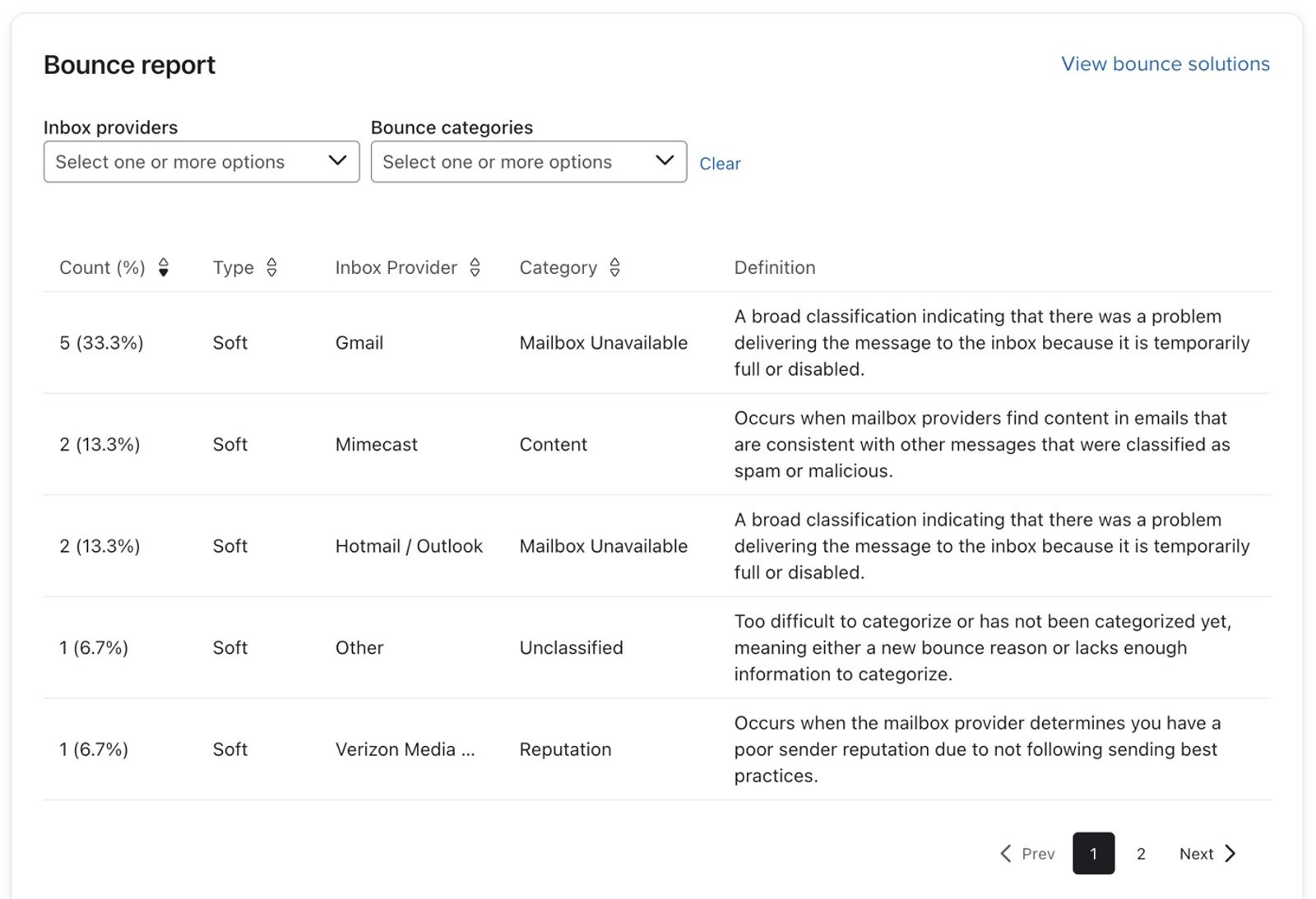
Bounce report
The Bounce report card shows a further breakdown of the bounces on your account.
The report shows the:
- Count (%)
The number of bounces for the respective category and the percentage of the total number of bounces. - Type
Hard or soft bounce. - Inbox Provider
The inbox provider experiencing the bounces. - Category
The bounce category. - Definition
A definition explaining the reason for the bounce.
Use the Inbox providers and Bounce categories filters on the card to narrow the table to the bounces you want to investigate.
To troubleshoot bounced emails, see our guide on understanding bounces.
Additional resources
- Understanding the deliverability tab in campaigns and flows
Learn about the deliverability tab in Klaviyo, that provides an overview of key deliverability performance metrics for your campaigns and flow emails. This can help you easily identify low-performing email domains and countries, so you can take action to protect your deliverability.
- Understanding sender reputation
Learn about email sender reputation, and why it is an important concept to understand for good deliverability. Maintaining a positive sender reputation is essential to maximize your emails’ likelihood of being successfully delivered.
- How to strengthen your sender reputation for a specific inbox provider or email domain
Learn best practices to strengthen your sender reputation if you are seeing deliverability issues with specific inbox providers or email domains. If your deliverability issues are not limited to specific inbox providers or domains, see our guide on repairing your sender reputation.