Segment conditions reference
You will learn
Learn more about segment conditions, including how to filter your conditions and more. When building segments in Klaviyo, conditions are the building blocks that you customize to either include or exclude certain sectors of your audience. In a nutshell, profiles will only appear in your dynamic segments when they meet the specific conditions you make when creating the segment.
New to Klaviyo and need inspiration for segmentation? Check out our guide to creating segments. For information on how to join segment conditions, head to our guide to AND vs. OR.
Segment conditions
A single segment can have a maximum of 100 conditions.
When building a segment, you can include or exclude people based on the following conditions:
- What someone has done (or not done)
You can choose from any activity tracked by Klaviyo — we call these events or metrics. To see a list of all metrics tracked in your account, head to Analytics > Metrics in your Klaviyo account. - Properties about someone
You can segment based on attributes associated with profiles in your account — custom properties can be assigned via an integration or you can add them to profiles manually. - Someone's proximity to a location
When targeting customers in the US, UK, Canada, Australia, New Zealand, or supported EU countries, this option allows you to segment based on a certain radius of a specific zip code.
For UK zip codes, we support filtering by outward code, not inward code or both outward and inward code (usually separated by a space). For example, if a person's full zip code is "SW1W 0NY", only the first piece ("SW1W") will work for these filters.
- If someone is or is not within the EU (GDPR)
This option is useful if you want to exclude people in the EU from a particular segment if you haven't collected GDPR compliant consent. This segment condition does not include people located in the UK, so an additional location-based rule should be added to your segment definition in order to comply with GDPR UK legislation. - If someone is in or not in a list
This option is great if you want to combine 2 or more lists or create a segment of a specific list, which is a best practice when sending campaigns. - If someone can or cannot receive marketing
Choose whether segment members should be able to receive marketing for a particular channel (i.e., email, SMS, or push). To include only opted-in email subscribers, click Add filter and select because person > Subscribed. - Predictive analytics about someone
Predictive analytics allow you to segment based on CLV or predicted gender, which, in turn, can help you identify customers who are likely to become repeat purchasers, who are not likely to purchase again, and more. Please note that you will only see the CLV condition if you meet the criteria outlined in this article.
In the following sections, we will go through each one of these options in more detail.
What someone has done (or not done)
This condition allows you to segment profiles based on events in Klaviyo, which represent actions profiles have taken. If you navigate to Analytics > Metrics, you will see all of the activity Klaviyo tracks through your different integrations. These metrics are available for segmentation using the What someone has done (or not done) condition.
For example, you can find all customers that have made at least 2 purchases:
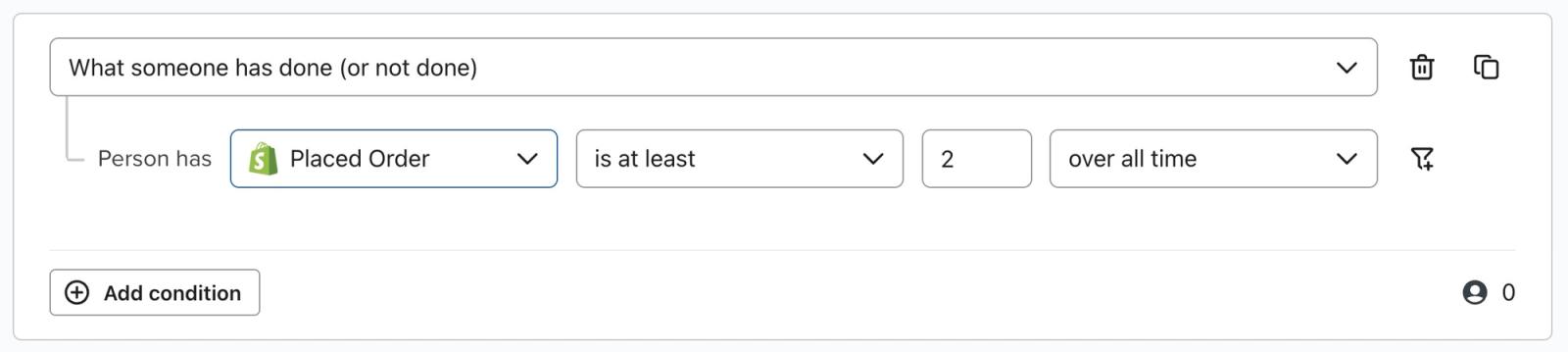
You can adjust and filter the following aspects of the metric you select:
- Frequency
After selecting an activity, you can segment based on how often (or not often) people have done the activity. The allowed operators are:- At least once
- Zero times (has not taken this action in the time period selected)
- Equals (is exactly the number specified)
- Doesn't equal (is not exactly the number specified)
- Is at least (greater than or equals)
- Is greater than
- Is less than
- Is at most (less than or equals)
- Timeframe
After choosing a frequency, you will also need to select a timeframe over which we'll count the number of events for each person. These calculations are based on UTC. The options here are: - Over all time
- In the last (within the last X hours, days, or weeks)
- Between (between 2 relative dates, i.e. between 30 - 90 days ago)
- At least (at least X hours, days, or weeks ago)
- Before (before a specific date)
- After (after a specific date)
- Between dates (between two specific dates) — note that this date range will include people from the first date specified and the end-date.
If you click the filter icon, you can further hone the types of events that are included. All metrics have a unique set of properties associated with them, and you can leverage these properties to be more specific about who you capture in your segment.
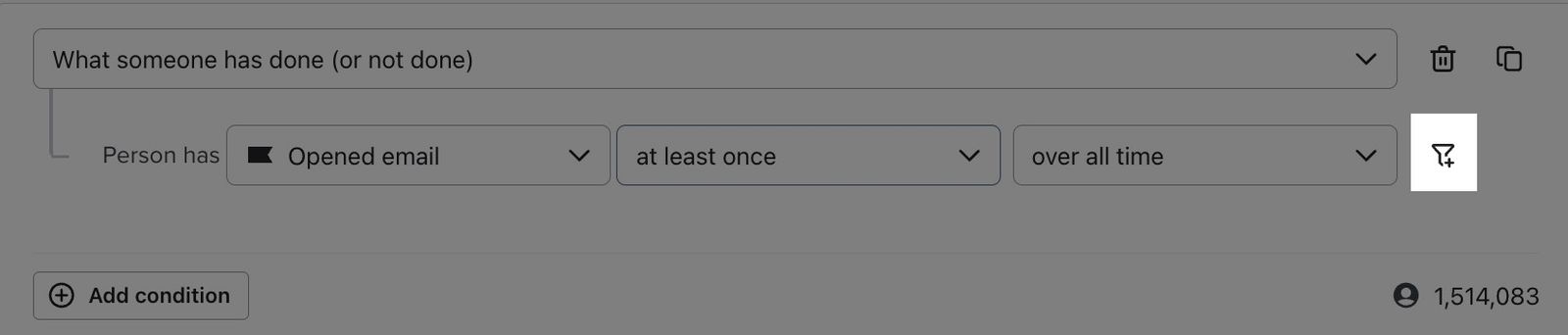
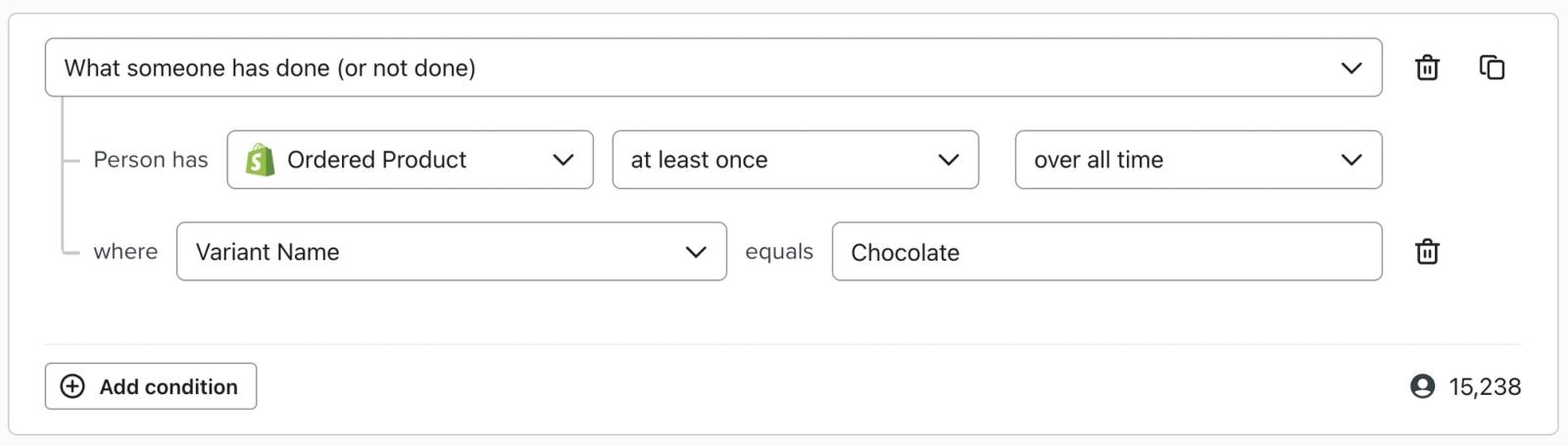
For example, if you have an Ordered Product metric that captures each time someone purchases a product, you might want to filter on the Variant Name property to find people who bought a specific product variant.
Note that the Revenue filter option is only available within segments, and is not a metric you can export on your account from the Metrics tab in Klaviyo. Revenue is based on the value of the Placed order or equivalent event synced through your integration.
The dropdown for event and profile property values may not show every value. Search for the value or enter it in full if it does not appear. Text values are case-sensitive: for example, Chocolate and chocolate are different values. Comparisons using the Email profile property are not case-sensitive.
In the example above, your desired Variant Name value (e.g., Chocolate, Vanilla, Mint chocolate chip) may not appear in the search field. If this is the case, simply type in the full property value (i.e., Chocolate, case-sensitive) and your segment will work as expected.
When setting a filter for an event condition in a segment, you will also be able to select an operator. The options available depend on the data type, which is automatically set to reflect the values for the event data. Be cautious when adjusting the Type field, as it may cause segments to evaluate in unintended ways if the wrong data type is selected.
If your segment is returning 0 profiles when you believe there should be profiles included, make sure that you've selected the right data type. For example, you may have the List data type set when the data is actually in the Text format.
To set the data type for a condition, select the desired icon in the operator field for a condition.
- Text
Represented by the “T” icon - Number
Represented by the “#” icon. - Boolean
Represented by the left and right arrows icon. - List
Represented by the bulleted list icon.
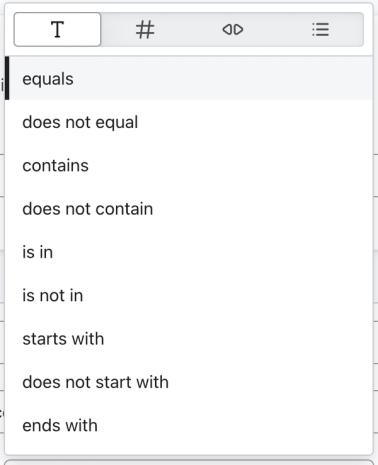
Event filters support Text, Number, Boolean, and List data types. The operators below depend on the data type. Date operators apply only to profile properties, not event properties.
Text
Text is a data type that represents plain text, and allows for the following operators.
- Equals (matches value exactly)
- Doesn't equal (does not match value exactly) — note that this will not include those without a value set. For example, if you build a segment of people whose country doesn't equal United States, this will only pull in those with a country value set to something other than United States, not those with the country value not set.
- contains the text (value contains the specified string, if the property consists of text. If the property consists of a list, using the Includes any of operator will search for list items that exactly match the dimension value you set)
- doesn't contain the text (property does not contain the string specified) — note that this will not include those without a value set. For example, if you build a segment of people whose country does not contain United States, this will only pull in those with a country value set to something other than United States, not those with the country value not set.
- includes any of (is in a set of values)
- doesn't include any of (is not in a set of values)
- Starts with (value starts with the specified string)
- Doesn't start with (value does not start with the specified string)
- Ends with (value ends with the specified string)
- Doesn't end with (value does not end with the specified string)
- Is set (value exists for the event)
- Is not set (value does not exist for the event)
Number
Number is a data type that represents a numeric value, including decimals, and allows for the following operators.
- Equals
- Doesn’t equal
- is greater than or equal to (value is greater than or equal to)
- is less than or equal to (value is less than or equal to)
- Is greater than
- Is less than
Date
Date represents a date or time value on a profile property and allows for the following operators. Date operators are not available for event properties.
- Is in the last (value is in the last X hours/days/weeks, including the selected date)
- Is at least (value is at least X hours/days/weeks ago, not including the selected date)
- Is between (value is between X and Y hours/days/weeks ago, including the start date but not the end date)
- Is in the next (value is in the next X hours/days/weeks)
- Is before (value is before X date, not including the selected date)
- Is after (value is after X date, not including the selected date)
- Is between dates (value is between X and Y dates, including the start and end date)
- Day is today (value is today’s date)
- Day is in the next (value is in the next X days)
- Day is in the last (value is in the last X days)
- Day is in this month (value is in the current month)
- Day is in the month of (value is in X month)
Learn more about segmenting with dates.
Boolean
Boolean is a data type that represents values set to either true or false, and allows for the following operators.
- Is true (boolean value is set to true)
- Is false (boolean value is set to false)
List
List is a data type that represents an array of values (e.g., ["Offer1", "Offer2"]). Note that only simple lists are segmentable; complex lists (i.e., a list within a list) are not supported in segment filters.
- includes any of (list includes any of the specified values). For example, a list containing ["Offer1", "Offer2"] matches if you select Offer1 or Offer2.
- Includes all of (list includes all of specified values)
- Contains the text (all values in a list that contain this specific text are included. For example, if you use the text “jacket,” it will search for all values that contain this word)
- Doesn’t include any of (list does not contain any of the specific values)
- Doesn’t include all of (list does not contain all of the specified values)
- Doesn’t contain the text (list does not capture any values containing this specific text)
- Is empty (list does not have any values)
- is not empty (list has at least one value set)
- Has at least (list has at least X values set)
- Has at most (list has at most X values set)
- Has more than (list has more than X values set)
- has less than (list has fewer than X values set)
When cloning a segment across accounts, review the conditions and filters mapped to the destination account. Update any conditions or filter values that could not be matched.
Until October 2024, Klaviyo only supported Contains for list types. That operator is now called Includes any of to distinguish it from the new Contains the text operator.
Limitations
When building segments using event properties, only the following data types are supported:
- Text
- Number
- Boolean
- List
Date-based operators are not supported for event properties, even if a given event property is formatted as a valid datetime.
If you need to segment on a date related to an event, we recommend:
- Persisting the date as a profile property (for example, via the Events API using
profile.data.attributes.properties) - Then building your segment using that profile date property, where date-based operators are supported.
Note: This workaround is especially relevant for custom events where you control the event schema and can choose which dates to persist on the profile.
Properties about someone
This condition allows you to filter based on profile properties (i.e., the information you've collected about your contacts in Klaviyo). Any data in the Custom properties section of a Klaviyo profile is available for segmentation using the Properties about someone option.
By default, you will have access to and can use the following Klaviyo properties to build a segment:
- City
- Country
- First Active
- First Name
- Initial Source
- Last Active
- Last Name
- Organization
- State / Region
- Unique ID
- Zip Code
- Phone number (allows for use of the Country code in filter)
As you collect additional information about your contacts (i.e. custom properties), you can use this information to build segments.
When you choose Zip Code, the segment builder defaults to includes any of, which supports multiple zip codes. You can select or bulk add up to 500 zip codes in total. To bulk add codes, click Add ZIP Code, enter codes separated by commas or new lines, then click Add. Learn more in How to create a location-based segment.
Another example is if you collect data on product preferences from newsletter subscribers, you can segment based on their responses.

After selecting a profile property for segmentation, you will also be able to select an operator. The options available will depend on the data type of the property, which automatically updates when you choose a property to reflect the values that property contains. Be cautious when adjusting the Type field, as it may cause segments to evaluate in unintended ways if the wrong data type is selected.
Below are the operators for Text properties:
- equals
- doesn't equal
- contains the text (property contains the string specified, if the property consists of text; if the property consists of a list, using the "includes any of" operator will search for list items that exactly match the dimension value you set)
- doesn't contain the text (property does not contain the string specified) — please note that this will not grab those with a value not set. For example, if you build a segment of people whose country does not contain United States, this will only pull in those with a country value set to something other than the United States, not those with the country value not set.
- includes any of (property is in a set of values)
- doesn't include any of (property is not in a set of values)
- starts with (property starts with the string specified)
- doesn't start with (property does not start with the string specified)
- ends with (property ends with the string specified)
- doesn't end with (property does not end with the string specified)
- is set (property exists for the profile)
- is not set (property does not exist for the profile)
After choosing a property and an operator, the final piece is the dimension value. When you click, this value field will populate with a dropdown menu that features suggested values given the property, operator, and data type selected.
If the property you select contains values that are numbers or dates, make sure to adjust the data type appropriately. Doing so will reveal type-specific operators and this will impact the values available for segmentation.
Below are the data types available:
- Text: plain text.
- Number: numeric value, including decimals.
- Date: date/time value.
- Boolean: true or false value.
- List: array of values (e.g. ["Offer1", "Offer2"]). Note that only simple lists are segmentable; complex lists (i.e., a list within a list) are not supported in segment filters.
The dropdown for profile property values may not show every value. If the value you need does not appear, enter the full value yourself.
In the example above, your desired Coffee type value (e.g., Whole bean, Fine ground, Coarse ground, etc.) may not appear in the search field dropdown menu. If this is the case, simply type in the full property value (i.e., Whole bean, case-sensitive) and your segment will work as expected.
Someone's proximity to a location
Use postal codes to filter a segment by the location listed in a recipient's profile. A profile needs a country and postal code that Klaviyo can locate to match a distance condition. If the country or postal code is missing, Klaviyo uses latitude and longitude coordinates instead. This enables you to send regionally specific information to people who live at a set distance away from a location.

If you have a brick-and-mortar store or an in-person event, this allows you to target your customers and brand enthusiasts who may be interested in attending.
Even if you don't have a physical store, you can use this feature to send information about regionally specific products (i.e. gloves in cold places during the winter) or send promotions to a certain area. Additionally, this allows you to use a signup form to create a popup that will display to a particular region, allowing you to personalize your recipient's experience on your website.
If someone is or is not within the EU (GDPR)
This condition can be used to identify people in the EU. This is useful if you would like to exclude these contacts from a particular segment to comply with GDPR.

If someone is in or not in a list
This condition can be used to segment if someone is a member of (or not a member of) a specific list.
Use this segment if you want to capture a cross-section of that list. For example, the following segment will identify everyone in your newsletter list from the United States:
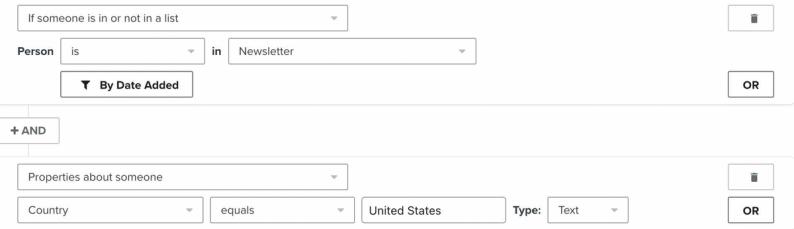
When segmenting based on someone being in a list, you can filter based on when that person was added to the list:
- in the last (within the last X hours, days, or weeks)
- between (two relative dates)
- More than (more than X hours, days, or weeks ago)
- At least (at least X hours, days, or weeks ago)
- before (a specific date)
- after (a specific date)
- between dates (two specific dates) — note that this date range will include people from the first date specified, but not the end-date. Because the last date isn't actually included in your segment, add one day past the end-date to your time range in order to include your desired end-date.
If someone is or is not suppressed
In October 2023, the condition If someone is or is not suppressed for email was replaced by the condition If someone can or cannot receive marketing. Segments were automatically updated to use the new conditions, and this change had no impact on segment membership. Learn more about the transition to the new segment criteria.
If someone is or is not consented to receive SMS
In October 2023, the condition If someone is or is not consented to receive SMS was replaced by the condition If someone can or cannot receive marketing. Segments were automatically updated to use the new conditions, and this change had no impact on segment membership.
If someone can or cannot receive marketing
Segments pull from all the profiles in your account, regardless of the marketing channels they are or are not subscribed to. When you create a segment, it likely contains some profiles that are suppressed for a certain channel (e.g., email), meaning you may not contact them via that channel.
To get an accurate picture of how many segment members you can contact, use an AND connector to add this condition: If someone can or cannot receive marketing > can receive > email marketing (or text message marketing, or mobile push marketing).
For email, can receive can include profiles who have not opted in. To include only opted-in email subscribers, click Add filter and select because person > Subscribed. For text messages, can receive > text message marketing already requires text message consent. For push, use can receive > mobile push marketing; the because person > Subscribed filter is not available.
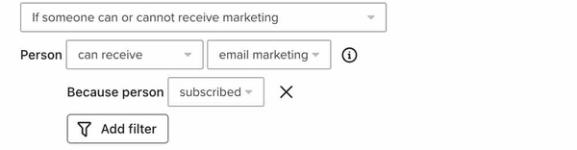
To create a segment of profiles who subscribed through any Klaviyo form, add the filter subscribe method = Klaviyo form, then leave the form ID field blank.
Predictive analytics about someone
CLV-based options require the following order history. These requirements do not apply to Predicted gender:
- At least 500 customers have placed an order. This does not refer to Active Profiles, but rather the number of people who have actually made a purchase with your business. If this section is on a profile but is blank, this means we don't have enough data on that individual to make a prediction.
- You have an ecommerce integration (e.g. Shopify, BigCommerce, Magento) or use our API to send placed orders.
- You have at least 180 days of order history and have orders within the last 90 days.
- You have at least some customers who have placed 3 or more orders.
The prediction date range is 365 days by default. If you customize it through Personalization or Advanced KDP, Predicted CLV, Total CLV, and Predicted number of orders use that range. Learn how to adjust your prediction date range.
This can be used if you would like to segment based on customer lifetime value (CLV) or on their predicted gender. When using the Predictive analytics about someone condition, options include:
- Predicted gender
Klaviyo’s gender prediction algorithm uses a customer’s first name along with census data to make a gender prediction of either likely male, likely female, or uncertain. - Historic CLV
This is the sum of all the previous purchases an individual has made. - Predicted CLV
This is a prediction of how much money a customer will spend over the prediction date range. - Total CLV
This is the sum of the Historic CLV and Predicted CLV of a customer. - Predicted number of orders
This is the predicted number of orders a customer will place over the prediction date range. It's not an exact prediction, so in some cases, you may see an impossible number of predicted orders. For example, you may see 1.43 as the number of predicted orders for a particular customer. This means we expect them to make 1 or 2 orders, but there’s a chance they'll make more or fewer. These expectations start to make sense when you group multiple customers together because you can predict the total number of orders or spend for the group. If we have 5 customers with a predicted number of purchases of 1.43, 0.25, 3.12, 0.78, and 2.97, we can expect approximately 9 purchases across this group. - Average time between purchases
This is an average of the number of days that have elapsed between each of a customer's purchases.

For numeric predictions, choose an operator and enter a value:
- is
- is not
- is at least
- is at most
- is greater than
- is less than
For Predicted gender, select likely male, likely female, or uncertain.
Filtering a segment condition
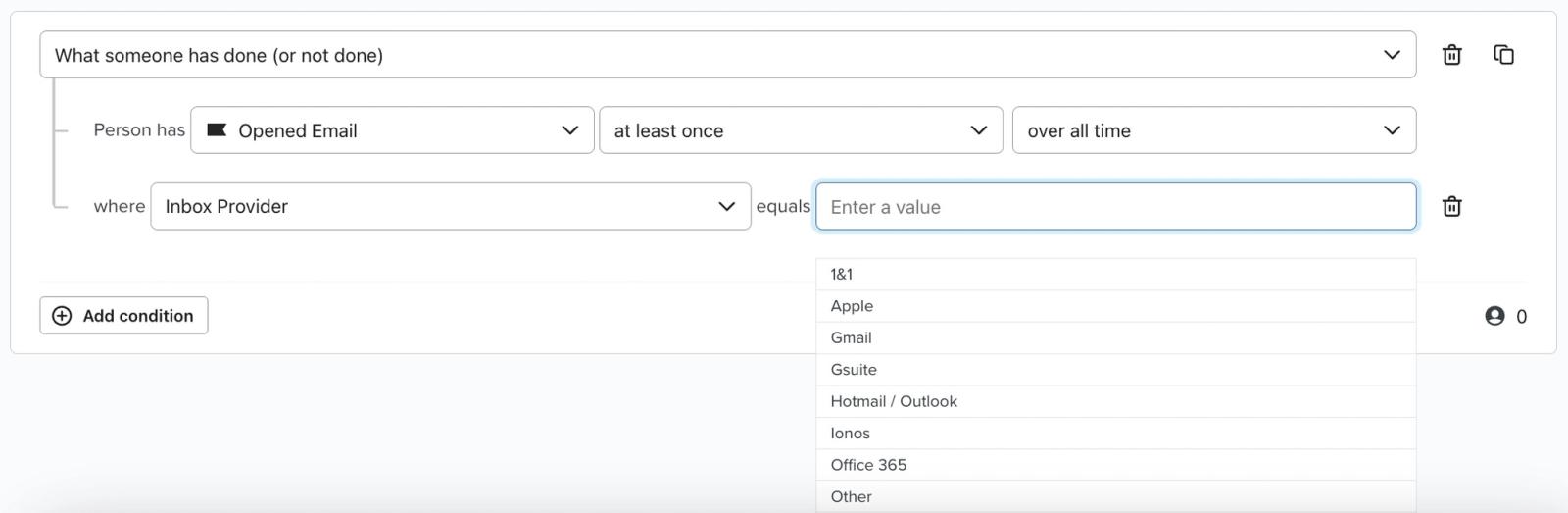
When building segment conditions, you have the opportunity to use filters to refine your segment. You can do this by choosing a segment condition, and then selecting the filter icon.
You will then see an input where you can select a property to filter on. After choosing your property, select a value for that property. A dropdown menu will also populate here with available values. The options in the dropdown are only those that have synced to your Klaviyo account.
You can also include multiple filters on a single event condition. For example, you can include profiles that placed an order with a certain number of items, and one of those items is from a particular brand. To include multiple filters for an event condition, select the filter icon again.
When cloning a segment with multiple filters across accounts, review each mapped condition and filter. Update any conditions or filter values that could not be matched to the destination account.
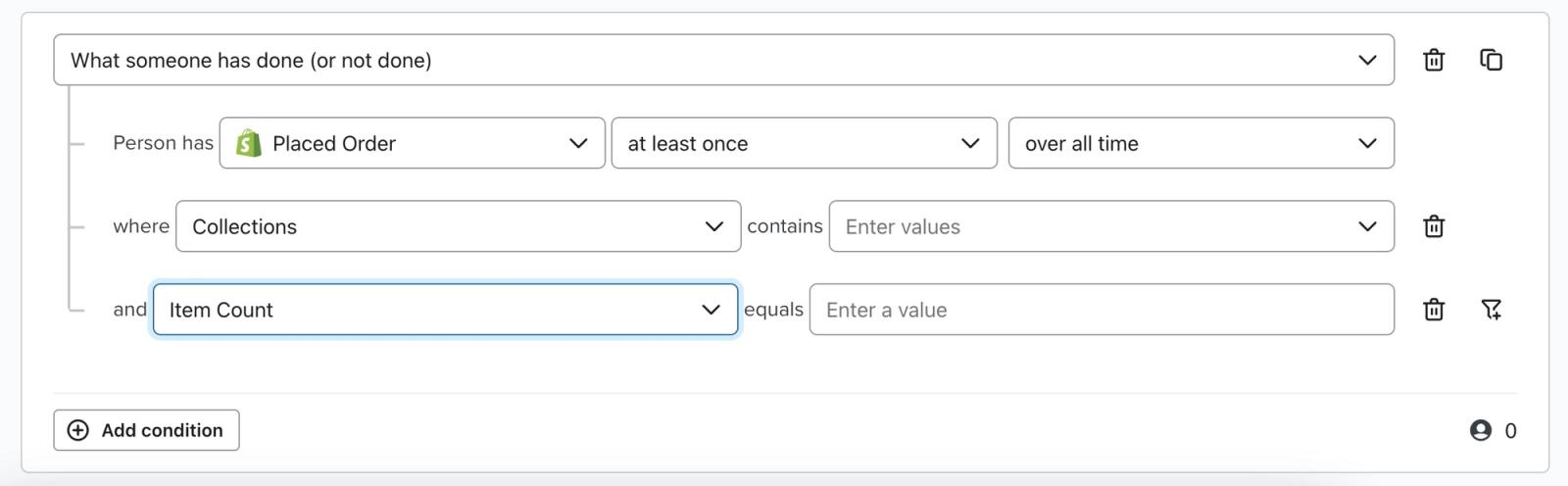
You can have a maximum of 10 filters for each event condition. Once you meet the maximum number of filters, the filter icon will no longer be present for the event condition.
For purchase events, Klaviyo pre-populates product values from purchases that have synced to your account. If you're building a segment around a property value that does not yet exist in Klaviyo — for example, a new product in your store that nobody has purchased yet — you can copy and paste the value into the value box. If the property value you paste is identical to the value that will eventually sync to Klaviyo, the segment will work as expected.
While Klaviyo may sync many details about a given metric, not all synced properties are available for segmentation. For data management purposes, only the primary details of an event are synced as top-level properties, and you can segment only these top-level properties.
If you view the raw data Klaviyo syncs for an event, you will see key data points for the event. For a Placed Order event, for example, you may see the following top-level properties:
- Value
- Collections / Categories
- Item Count
- Items
- Source Name
You will see an array labeled "Extra" or "Details." While the data within an "Extra" or "Details" array is available to insert within an email template, you cannot segment based on properties nested within this array.
Custom integrations & segmentation
If you're building your own custom integration and deciding how to structure the data that you're sending to Klaviyo, make sure that all properties you want to segment on are sent as top-level properties (and are not nested).
For example, if you create a Placed Order metric where an event will track whenever someone completes a purchase on your site, you may want to filter events based on what item(s) someone purchased.
In order to do this, there has to be a top-level "ItemNames" array that includes all purchased product names — this would be in addition to a nested array with details for each item. Below, you can see the ItemNames array in the payload for this Placed Order event in addition to the Items array that contains detailed information about each product:
{
  "token" : "API_KEY",
  "event" : "Placed Order",
  "customer_properties" : {
    "$email" : "john.smith@gmail.com",
    "$first_name" : "John",
    "$last_name" : "Smith"
  },
  "$event_id" : "1234",
  "$value" : 29.98,
  "Categories" : ["Fiction", "Classics", "Children"],
  "ItemNames" : ["Winnie the Pooh", "A Tale of Two Cities"],
  "Brands" : ["Kids Books", "Harcourt Classics"],
  "Items" : [
    {
      "SKU" : "WINNIEPOOH",
      "Name" : "Winnie the Pooh",
      "Quantity" : 1,
      "ItemPrice" : 9.99,
      "RowTotal" : 9.99,
      "ProductURL" : "http://www.example.com/path/to/product",
      "ImageURL" : "http://www.example.com/path/to/product/image.png",
      "Categories" : ["Fiction", "Children"],
      "Brand" : "Kids Books"
      },
    {
      "SKU" : "TALEOFTWO",
      "Name" : "A Tale of Two Cities",
      "Quantity" : 1,
      "ItemPrice" : 19.99,
      "RowTotal" : 19.99,
      "ProductURL" : "http://www.example.com/path/to/product2",
      "ImageURL" : "http://www.example.com/path/to/product/image2.png",
      "Categories" : ["Fiction", "Classics"],
      "Brand" : "Harcourt Classics"
    }
  ],
  "time" : 1387302423
}
For more information on Custom Integrations, check out our article on manually importing historical event data.
Additional resources
- AND vs. OR reference
Learn more about AND and OR connectors and how they are critical to setting up segments and flows in Klaviyo. These connectors define who will be grouped within your segments as well as when someone will receive flow messages. In this guide, we will go over what differentiates the 2 conditions and when to use each to target the right audience.
- Getting started with segments
Learn how to create and use segments in Klaviyo, which are a powerful tool for understanding your audience and sending targeted messages.