Segmenting with dates reference
You will learn
Learn how date-based segment conditions work in Klaviyo. Date-based segments are powerful tools to develop a better understanding of your subscribers. You can create segments of recent purchasers or site visitors, subscribers who have a birthday this month, and more.
How to select dates in segments
When building a segment in Klaviyo, you can use the calendar feature to select specific dates.
To select a specific set of dates to include in your segment, set the time frame to before, after, or between dates. Click the date field to open the calendar. For between dates, choose both a start date and an end date. Use the left and right arrows to move between months.
The selected date is highlighted in blue in the calendar view.
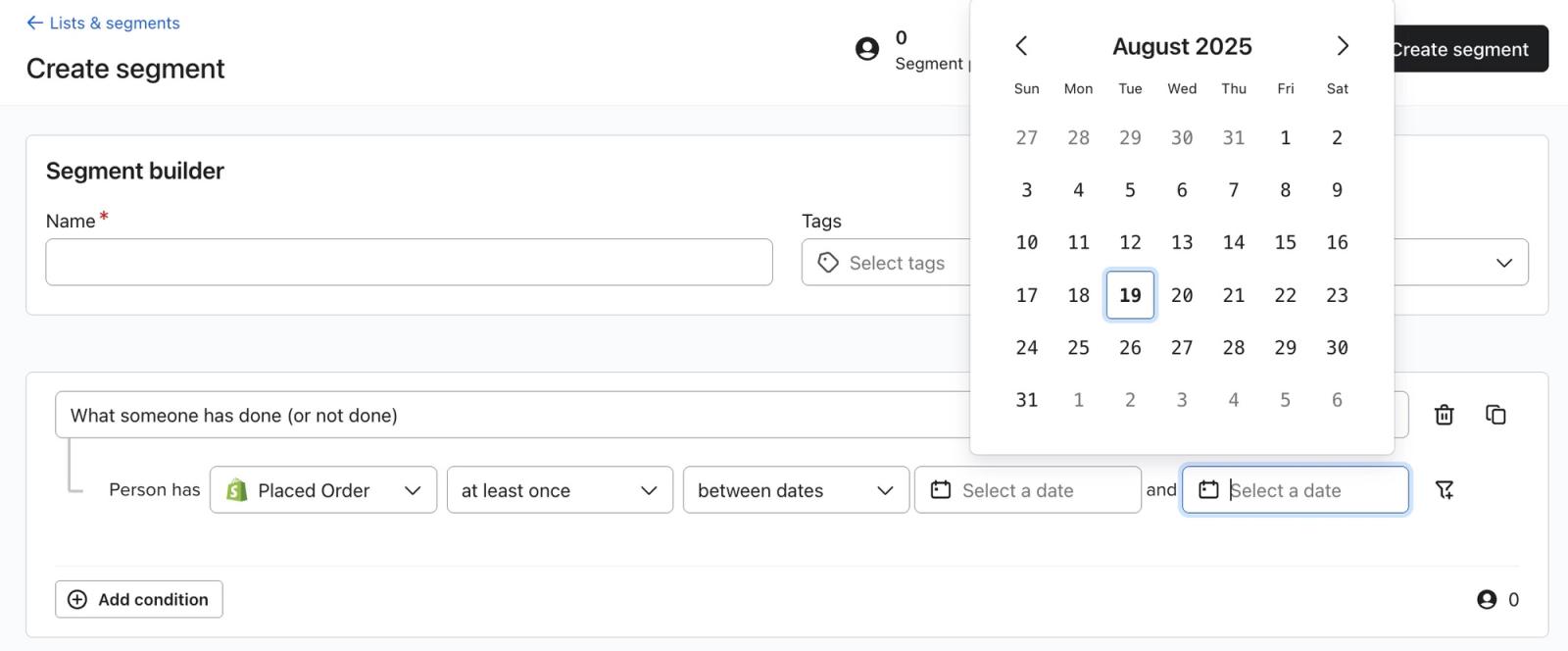
After setting all your segment conditions, click Create segment for a new segment or Update segment when editing an existing segment.
General guidelines for building date-based segments
Date properties that do not have a timestamp set assume the default timestamp of 00:00:00. This means that segment options that look backward from today (e.g., “is in the last,” “day is in the last”) include profiles with today’s date, as long as no timestamp is specified. Segment options that look forward from today (e.g., “is in the next,” “day is in the next”) exclude profiles with today’s date if no timestamp is specified, because they look forward from the date and time the segment is evaluated.
If the date property includes a timestamp, profiles are evaluated for the segment based on whether the date and time fall within the segment definition.
Review the criteria below carefully to determine whether a date will be included in your segment.
- If an example says a condition includes dates that are “on or after” a timestamp, dates with the specified date and time are included.
- If an example says a condition includes dates that are “before” a timestamp, dates with the specified date and time are excluded.
The segment builder uses the UTC timezone, regardless of the timezone set in your Klaviyo account or on your device.
Segments with relative time conditions
Most segments update in close to real time as activity is processed. Segments with relative time conditions also need updates when time passes without new activity.
If a profile takes an action that causes them to qualify for, or no longer qualify for, a segment with relative time conditions, they will be added or removed as that activity is processed. Profiles that qualify for a segment by taking an action at a specific time in the past, or those who no longer qualify for a segment based on relative time conditions, will be added or removed once every 24 hours.
For example, if you have a segment containing profiles that have made at least 1 purchase in the last 30 days, anyone who makes a purchase will be added as that activity is processed. If a profile doesn’t purchase again within 30 days, they will be removed during the next daily update after their purchase falls outside the 30-day window. Because there's no event triggered by not purchasing, profiles that no longer qualify for the segment will be removed once per day.
Learn more about segments with relative time conditions.
Segmentation options for profile properties
Date-based profile properties, like a profile’s creation date or birthday, can be accessed and used in the segment builder by selecting the rule Properties about someone and choosing a date property. Set Type to Date, then select a date condition and enter the dates or time period you want to use.
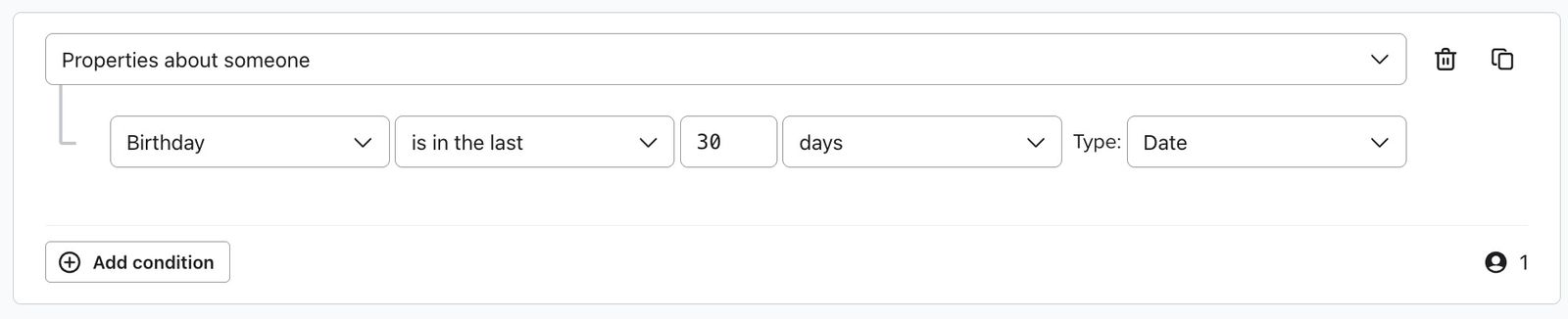
Conditions based on a specific date
These conditions look for a specific date or time, or a specific range of dates or times. With these definitions, the year of the date is taken into consideration (along with the month, day, and timestamp).
The list below includes examples and specifies what dates will be included in your segment. In these examples, “today” is June 17, 2023.
- Is in the last
Includes all profiles with a date in the last X hours, days, or weeks. Includes today and the date that is the selected number of days in the past. If you use the condition “is in the last 3 days,” your segment includes anyone with the date on or after 6/14/2023 0:00:00 UTC. - At least
Includes all profiles whose date is at least X hours, days, or weeks in the past. If you use the condition “at least 3 days ago,” your segment includes anyone with a date earlier than 6/14/2023 0:00:00 UTC. Properties with a timestamp of exactly 6/14/2023 0:00:00 UTC are not included. - Between
Includes profiles whose date property falls between X and Y hours, days, or weeks ago. For the purpose of this segment, days start and end at midnight UTC, and the segment includes the start date, end date, and any days between.
If you use the condition “between 3 and 5 days ago,” your segment includes anyone with a date on or after 6/12/2023 0:00:00 UTC and before 6/15/2023 0:00:00 UTC. - Is in the next
Includes profiles with a date in the next X hours, days, or weeks. If a profile contains today’s date without a timestamp, that profile is not included in the segment, because the assumed timestamp (0:00:00, or midnight) is in the past at the time the segment is run.
For example, “is in the next 3 days” excludes a profile whose date property is 6/17/2023 without a timestamp when the segment is evaluated later that day. - Before
Includes profiles with a date prior to a selected date. If you use the condition “before 6/10/2023,” your segment includes any dates before 6/10/2023 0:00:00 UTC. Properties with a timestamp of exactly 6/10/2023 0:00:00 UTC are not included. - After
Includes profiles with a date after a selected date, excluding the date itself. If you use the condition “after 6/10/2023,” your segment includes any dates on or after 6/11/2023 0:00:00 UTC. - Between dates
Includes profiles with a date between a set of dates, inclusive of the start date and end date. If you use the condition “between dates 6/10/2023 and 6/15/2023,” your segment includes any dates on or after 6/10/2023 0:00:00 UTC and before 6/16/2023 0:00:00 UTC.
Conditions that ignore a date’s year
These conditions consider a date’s month, day, and time, but not the date’s year. Use these conditions for segments based on birthdays, anniversaries, or other milestones that recur annually.
The list below includes examples and specifies what dates are included in your segment. In these examples, “today” is June 17, 2023 15:00:00 UTC.
- Day is today
Includes profiles with a date that matches today, regardless of year. If you use this condition, your segment includes dates on or after 6/17 0:00:00 UTC and before 6/18 0:00:00 UTC. - Day is in the next
Includes profiles with a date in the next X hours, days, or weeks, regardless of year. A date-only value for today is excluded, but a timestamp later today can fall within the window. If you use the condition “day is in the next 3 days,” your segment includes dates between 6/17 15:00:00 UTC and 6/21 0:00:00 UTC. - Day is in the last
Includes profiles with a date in the last X hours, days, or weeks, including today, regardless of year. If you use the condition “Day is in the last 3 days,” your segment includes dates between 6/14 0:00:00 UTC and 6/17 15:00:00 UTC. - Day is in this month
Includes profiles with a date in the current month, regardless of year. If you use this condition, your segment includes dates on or after 6/1 0:00:00 UTC and before 7/1 0:00:00 UTC. - Day is in the month of
Includes profiles with a date in the selected month, regardless of year. If you use the condition “day is in the month of August,” your segment includes dates on or after 8/1 0:00:00 UTC and before 9/1 0:00:00 UTC.
Segmentation options for metrics (events)
Each event on a profile includes a timestamp indicating when it occurred. To build a segment based on events during a specific period, select What someone has done (or not done), choose your metric, and set how often the event must have occurred. New conditions use in the last 30 days. Use the time frame dropdown to change this period, or select over all time to check the full event history.

The list below includes examples and specifies what dates will be included in your segment. In these examples, “today” is June 17, 2023, and the event-count condition is at least once. If you select zero times, the segment instead includes profiles with no matching events during the selected period.
- Over all time
Includes all profiles with events that meet your segment criteria, regardless of when the event occurred. - In the last
Includes all profiles with events timestamped in the last X hours, days, or weeks. Includes today and the date that is the selected number of days in the past. If you use the condition “in the last 3 days,” your segment includes anyone with the date on or after 6/14/2023 0:00:00 UTC. - Between
Includes profiles that took the designated action between X and Y hours, days, or weeks ago. For the purpose of this segment, days start and end at midnight UTC.
If you use the condition “between 3 and 5 days ago,” your segment includes anyone with a date on or after 6/12/2023 0:00:00 UTC and before 6/15/2023 0:00:00 UTC.
If you want to segment for an event occurring “between 0 and x days ago,” use “in the last” instead. For example, "between 0 and 30 days" ago should be “in the last 30 days.”
- Before
Includes profiles who took an action prior to a specific date, not including the date itself. If you use the condition “before 6/10/2023,” your segment includes any dates before 6/10/2023 0:00:00 UTC. Events with a timestamp of exactly 6/10/2023 0:00:00 UTC will not be included. - After
Includes profiles who took an action after a specific date, not including the date itself. If you use the condition “after 6/10/2023,” your segment includes any dates on or after 6/11/2023 0:00:00 UTC. - Between dates
Includes profiles that took an action between a set of dates, including both selected dates. If you use the condition “between dates 6/10/2023 and 6/15/2023,” your segment includes any dates on or after 6/10/2023 0:00:00 UTC and before 6/16/2023 0:00:00 UTC.
Segmentation options for list membership dates
To create a segment of profiles who were added to a list on a specific date or within a date range, use a list membership condition. This checks the date they were added to the list, which can differ from the date they consented to marketing.
- Select If someone is in or not in a list, choose is, and select your list.
- Click the Add filter icon to add and was added. Choose a time frame and enter the dates or time period.
The list below includes examples and specifies what dates will be included in your segment. In these examples, “today” is June 17, 2023.
The date options available in this segment are:
- In the last
Includes profiles who joined the list in the last X hours, days, or weeks, including the selected date. If you use the condition “in the last 3 days,” your segment includes anyone with the date on or after 6/14/2023 0:00:00 UTC. - More than
Includes profiles who were added to your list more than X hours, days, or weeks ago, not including the selected date. If you use the condition “more than 3 days ago,” your segment includes anyone with a date earlier than 6/14/2023 0:00:00 UTC. List members with a timestamp of exactly 6/14/2023 0:00:00 UTC will not be included. - At least
Includes profiles who were added to your list more than X hours, days, or weeks ago, not including the selected date. If you use the condition “at least 3 days ago,” your segment includes anyone with a date earlier than 6/14/2023 0:00:00 UTC. List members with a timestamp of exactly 6/14/2023 0:00:00 UTC will not be included. - Between
Includes profiles who were added between X and Y hours, days, or weeks ago. If you use the condition “between 3 and 5 days ago,” your segment includes anyone with a date on or after 6/12/2023 0:00:00 UTC and before 6/15/2023 0:00:00 UTC. - Before
Includes profiles who were added before a specific date, not including the date itself. If you use the condition “before 6/10/2023,” your segment includes any dates before 6/10/2023 0:00:00 UTC. List members with a timestamp of exactly 6/10/2023 0:00:00 UTC will not be included. - After
Includes profiles who were added after a specific date, not including the date itself. If you use the condition “after 6/10/2023,” your segment includes any dates on or after 6/11/2023 0:00:00 UTC. - Between dates
Anyone who joined the list between the dates you select (inclusive of the start date and end date). If you use the condition “between dates 6/10/2023 and 6/15/2023,” your segment includes any dates on or after 6/10/2023 0:00:00 UTC and before 6/16/2023 0:00:00 UTC.
Leap days
If a profile contains a leap day as the value of a date property, the profile is only included in segments where it exactly matches the criteria. For example, if your segment contains the condition Properties about someone > [Date Property] > is in the last 10 days, profiles with a leap day date only qualify in leap years.
If the condition does not specify a specific date or number of days (e.g., Properties about someone > [Date property] > day is in the month of > February), leap days are included.
Additional resources
- Acceptable date and timestamp formats for profile and event properties reference
Learn which date and time formats Klaviyo recognizes in event and profile data sent through our APIs or in a CSV upload. Note that this does not apply to an event timestamp sent via the Track API, which must be unix time in seconds.
- Advanced segmentation reference
Learn effective advanced segmentation strategies that provide insights into your customer base and create highly personalized experiences for your subscribers.
- Understanding how date-based flows schedule recipients
Learn how profiles enter date-based flows and what happens when a date is added or changed. For instance, what happens if someone is about to enter the flow, but the date is suddenly changed or deleted altogether? This article runs through what happens for date property-triggered flows when dates are added, updated, or deleted from a profile.