FAQ: 8/3 Billing Dashboard Update
The redesigned Billing section of your Klaviyo account was announced for August 3, 2026, with a transition window through September 1, 2026. The changes below describe the redesigned experience. If your account still offers layout switching, use the controls described under “How do I switch between the new and classic billing layout?”
What is changing?
We've redesigned the Settings > Billing space to make it easier to see what you're using, what it costs, and what to do next, all in one place. This is a redesign of the Billing experience itself. It does not change your plan, your pricing, or how much you're charged.
A couple changes to note:
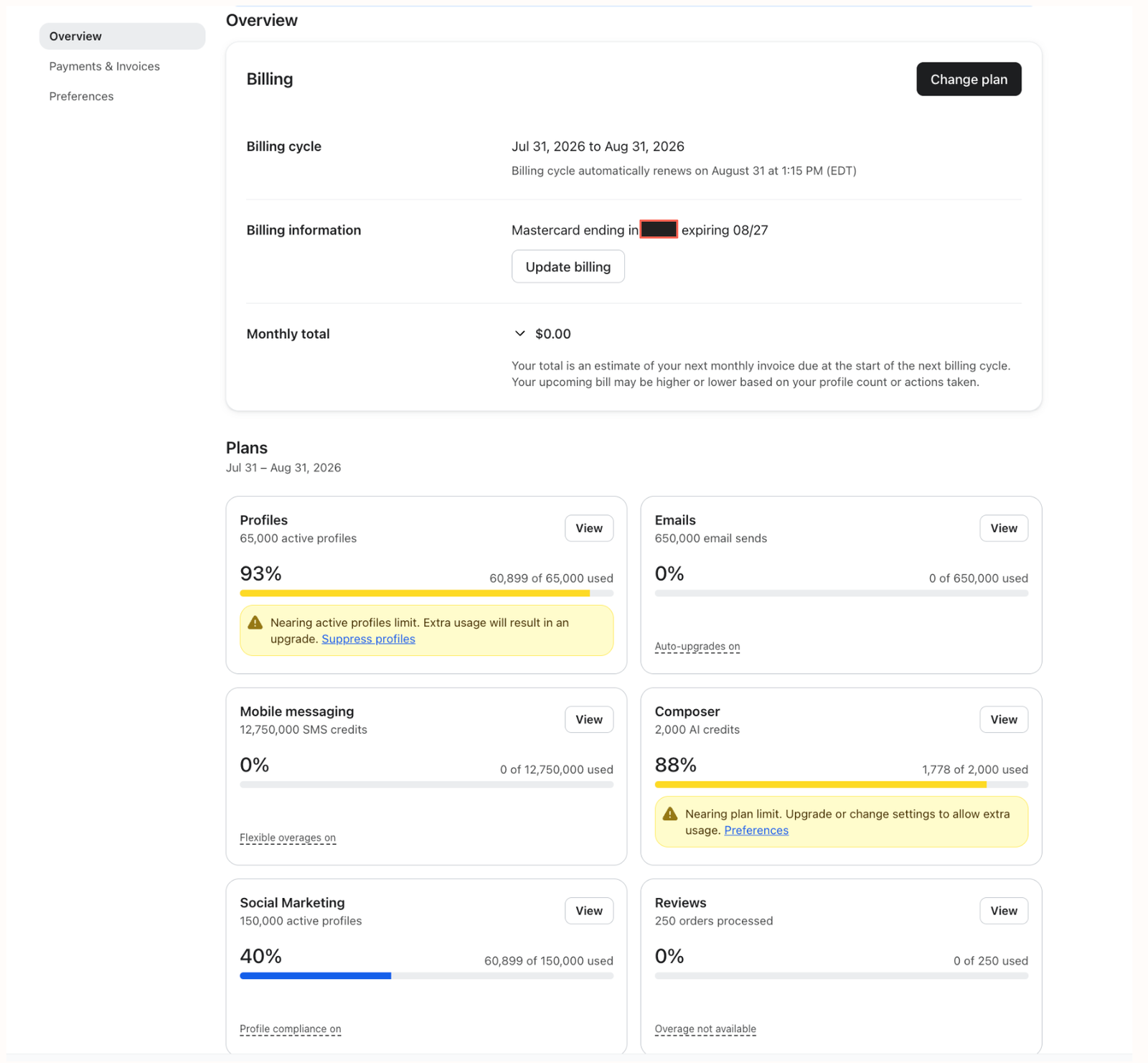
- The Overview tab now shows separate usage cards for Profiles and Emails, along with cards for products such as Mobile messaging and Reviews. Each card shows current usage, a color-coded progress bar, and any relevant status badges.
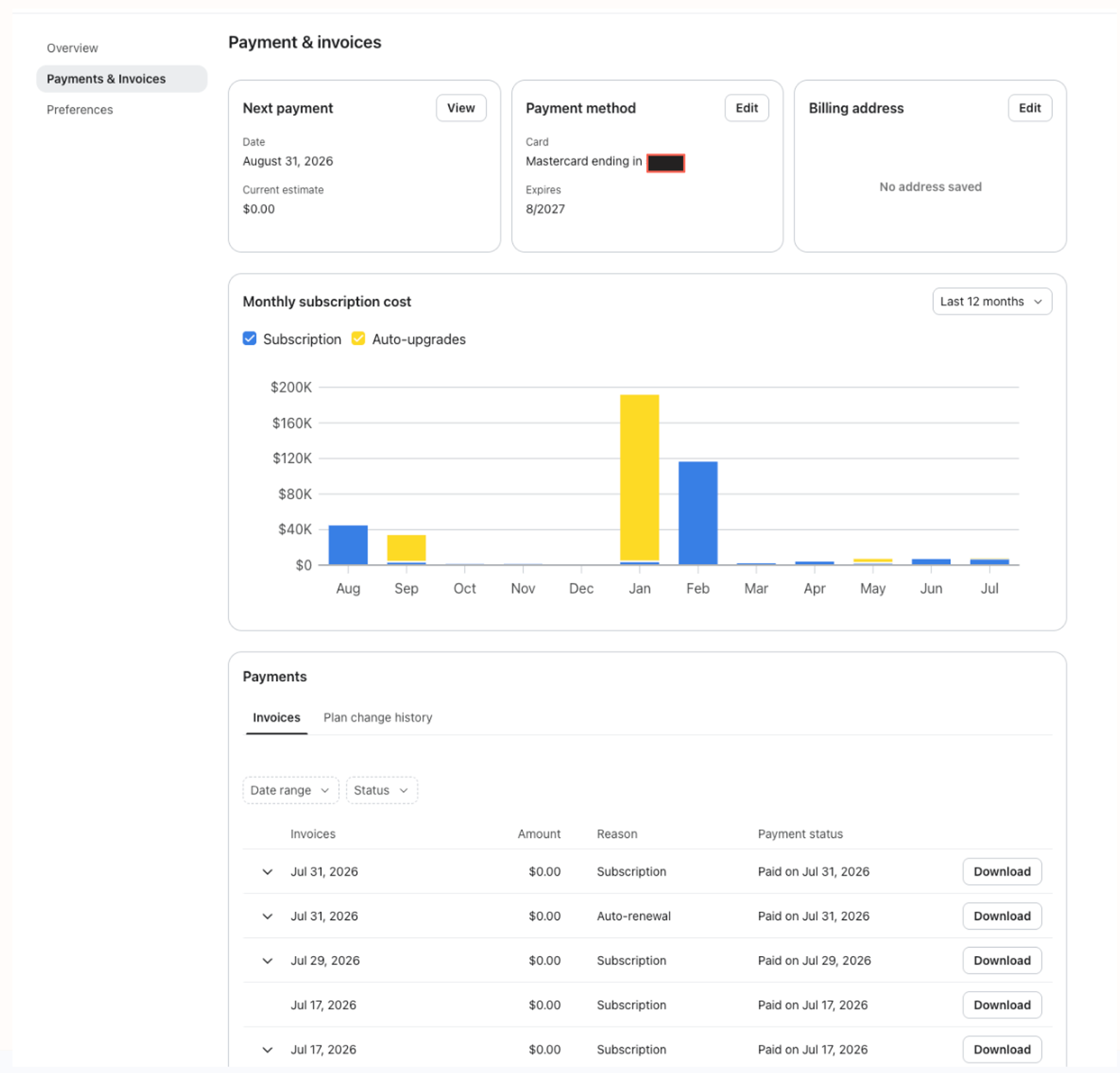
- The Payment history tab is now called Payments & Invoices. For self-serve accounts, it adds Next Invoice, Payment Method, and Billing Address cards plus a Monthly Subscription Cost chart alongside your existing invoice history. Contracted accounts see contract terms and overage estimates instead.
- A new Account family tab shows the accounts linked in your account family (if you’re on shared billing), their status, and child accounts’ link/unlink history.
- When you change a self-serve plan, checkout shows a summary of your selected plans, including applicable discounts and tax, before you confirm the change. Plan options show a Recommended plan badge when a recommendation is available. If the expanded checkout summary is available for your account, it also shows the difference between your current and selected plans and a preview of your monthly total.
- Usage cards now show your overage/upgrade preference directly (for example, “Auto-upgrades on” or “Flexible overages on”), so you don't have to open Preferences to check what's set.
The Billing beta features card shows whether you can change layouts. See “Can I opt out?” below for restrictions.
Overview tab
What’s not changing?
- Your plan, your pricing, and how you're billed are not changing. This is a UI and navigation update, not a pricing change.
- Your usage history, invoices, and payment methods are all carried over. Nothing is reset or deleted.
- How you request shared billing, manual billing (contracts), or a premium success and support package is not changing.
Why are we making this change?
The previous Billing experience split your plan, your usage, and your invoices across several plainly-styled tabs, which made it hard to answer a simple question like “Am I about to hit a limit?” or “What am I about to be charged?” without clicking around.
This update brings usage, cost, and account-family information together in one place, with clearer visual indicators (colors, badges, and status text) so you can tell what's happening at a glance.
Can I opt out?
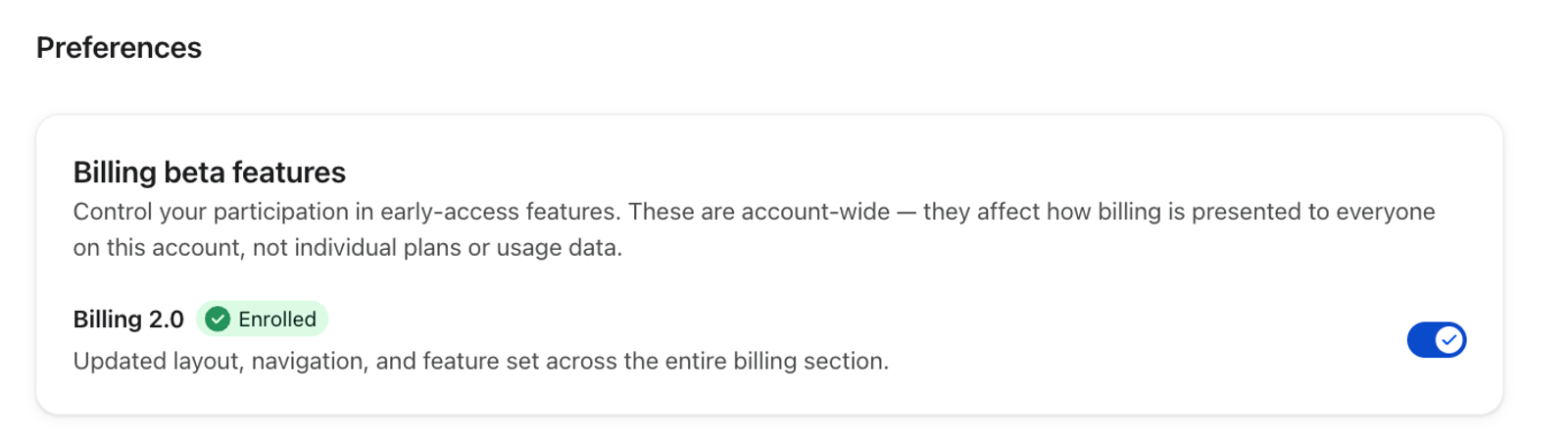
The announced transition window ended September 1, 2026. If your account still shows an enabled Billing 2.0 beta toggle under Billing beta features, you can switch between layouts. If the card shows “Managed by your organization.”, the new layout is required and the toggle is disabled.
Switching layouts changes how Billing looks for everyone on the account. It doesn’t change your plan, usage, invoices, or payment methods. In an account family, child accounts inherit the parent account’s layout preference.
How do I switch between the new and classic billing layout?
You need permission to edit billing to change layouts. In an account family, only the parent account can change this preference. If the Billing 2.0 beta toggle is disabled because the layout is managed by your organization, you can’t opt out.
- Click your account name in the bottom left corner.
- Click Billing, then select Preferences.
- In Billing beta features, switch the Billing 2.0 beta toggle on for the redesigned experience or off for the classic layout. The change saves automatically and returns you to Overview.

To return to the classic layout from the redesigned experience, you can also click Revert to classic in the Billing banner, then click Opt out in the confirmation dialog. You’ll return to Overview. To rejoin, use the Billing 2.0 beta toggle in Preferences.
Do I need to do anything?
No action is required. Your account, plan, usage, and billing information all carry over automatically, regardless of which layout you’re viewing. In the redesigned experience, your plans and current usage remain under Overview, and Payment history is called Payments & Invoices. Existing Billing bookmarks redirect to the corresponding page.
Feature-specific updates
What happened to the Account usage tab?
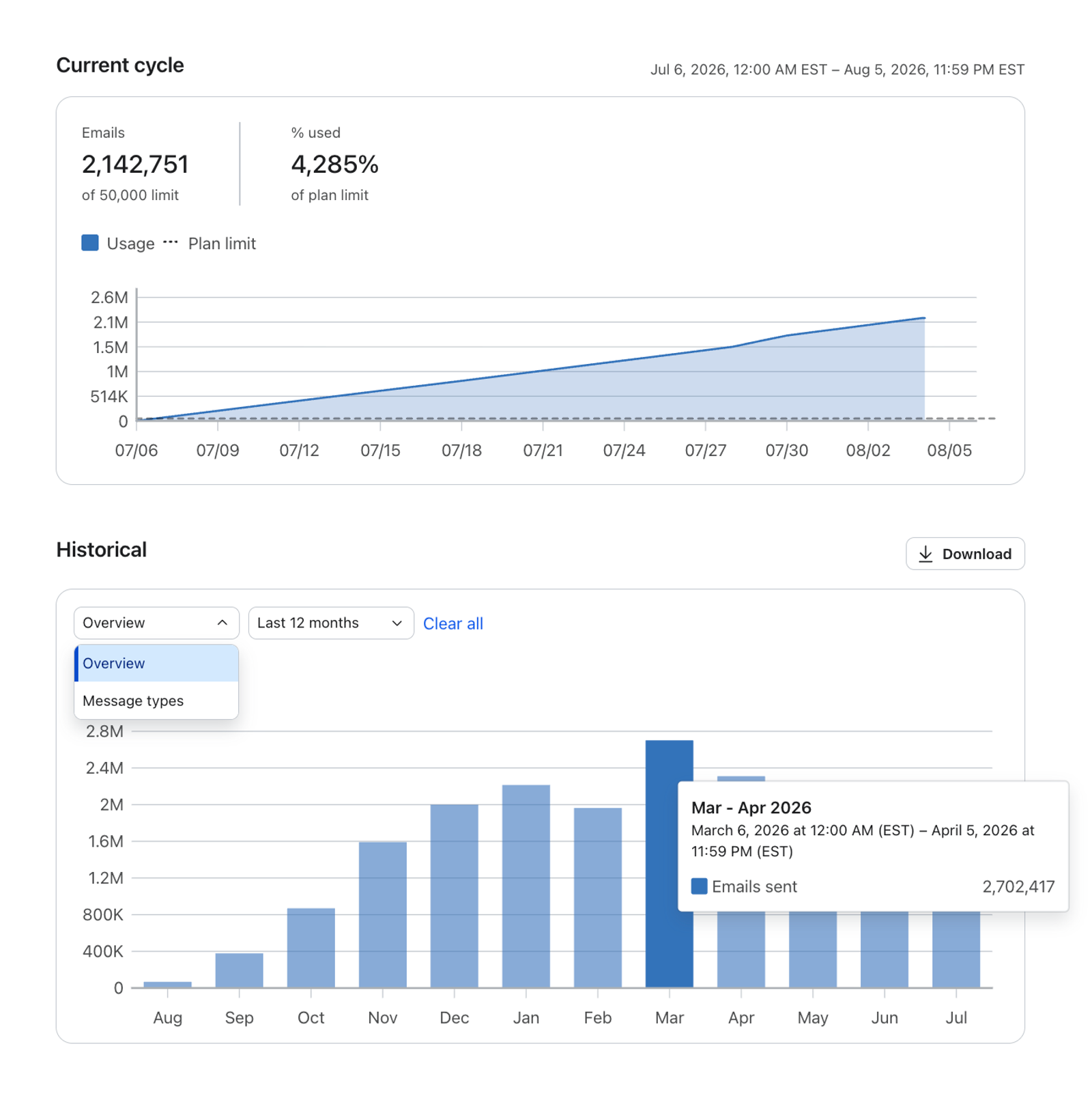
In the redesigned experience, the standalone Account usage tab has been folded into Overview. Current usage appears on each usage card. Click View on a card to open its usage detail page, which includes a daily chart for the current cycle and a Historical section for previous usage cycles.
See Understanding your account usage for a full walkthrough.
What happened to the Payment history tab?
Payment history has been renamed Payments & Invoices and expanded. For self-serve accounts, it includes your next invoice, payment method, billing address, and a Monthly Subscription Cost chart alongside your invoice history. The chart shows subscription costs by billing cycle, including auto-upgrades; it doesn’t include flexible overage purchases. Contracted accounts see contract terms, overage estimates, and invoice history instead.
See How to view your account's payments and invoices for details.
Will my usage data, invoices, or payment methods be affected?
No. All of your historical usage, invoice history, and saved payment methods carry over as-is. This update only changes how that information is organized and displayed.
What is the new Account Family Dashboard?
If you’re part of a shared billing account family and have permission to view billing, the Account family tab is available when enabled for your account. It lists the parent and currently linked child accounts. To see a child account’s link/unlink history, open its row’s action menu and select Show history. Both parent and child accounts can view the dashboard.
See How to use the Account Family Dashboard for a full walkthrough.
Where can I get more help?
If anything on your account doesn't match what's described here, or you have questions specific to your plan or contract, reach out to Klaviyo Support.