How to sign in, switch organizations, and log out
You sign in to Composer from Klaviyo with the same login you use for Klaviyo web. If your login has access to more than one Klaviyo account, you can switch between them in the app. This article explains each step.
You will learn
- How to sign in with email, SSO, or multi-factor authentication
- How to switch between your Klaviyo accounts
- How to log out
Before you begin
- Your login and its permissions come from Klaviyo. Your user role in each account decides what Composer can do for you there.
- If your account uses multi-factor authentication (MFA), keep your authenticator app or phone nearby.
- If your company uses single sign-on (SSO), have your SSO login ready.
Sign in
- Open the app and tap Sign in.
- On the Sign in to Klaviyo page, enter your email address and tap Continue with email.
- Enter your password, or finish your company's SSO sign-in.
- If your account uses MFA, enter the code from your authenticator app or text message.
Once you're signed in, the Chat tab opens.
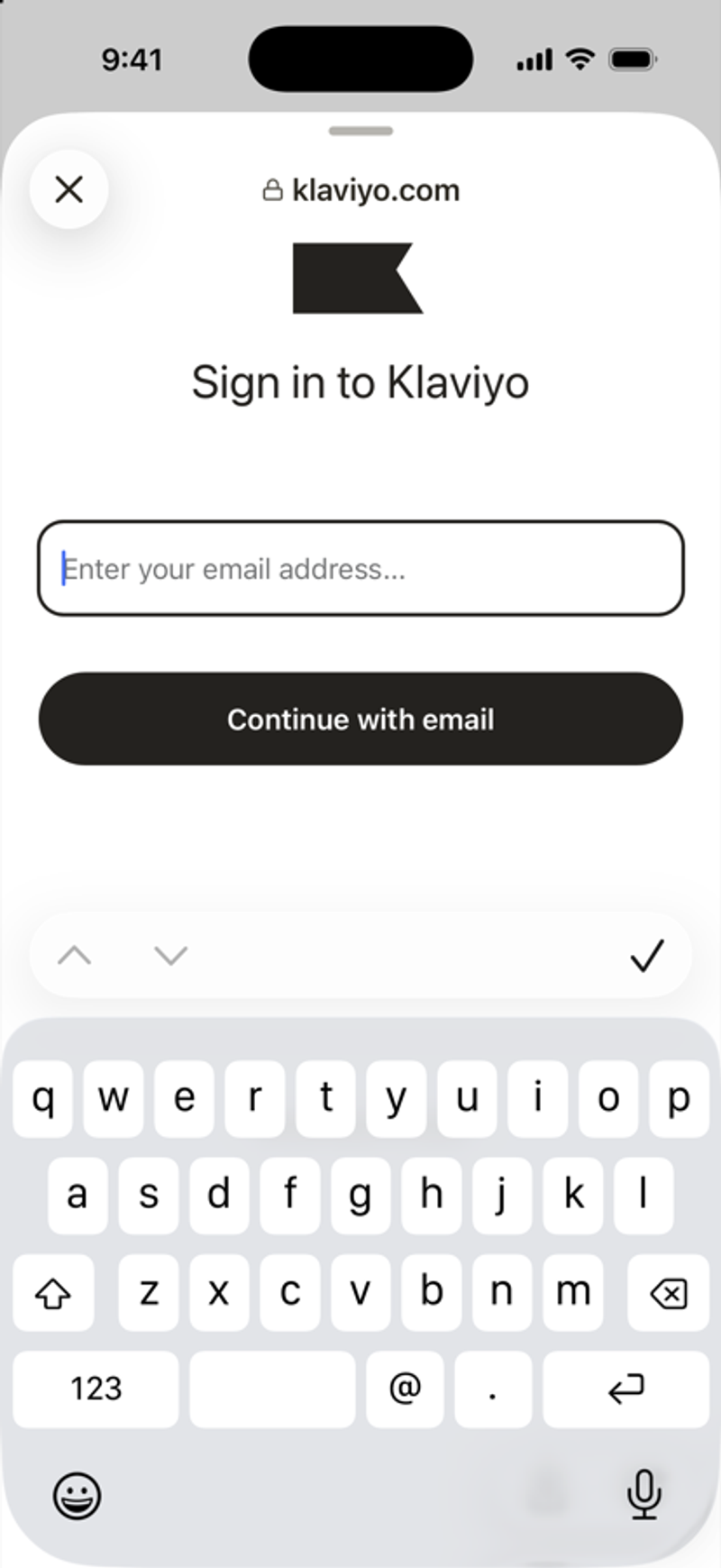
Note: The sign-in page is Klaviyo's own page. The app doesn't read or store your password.
If you see Your Klaviyo session ended, sign in again. Your chats and tasks are saved in your Klaviyo account, so nothing is lost.
Switch organizations
- Tap the menu icon in the top left, then tap the gear icon to open Account.
- Tap Switch accounts.
- Under Organizations, tap the organization you want. A check mark shows the one you're in now.
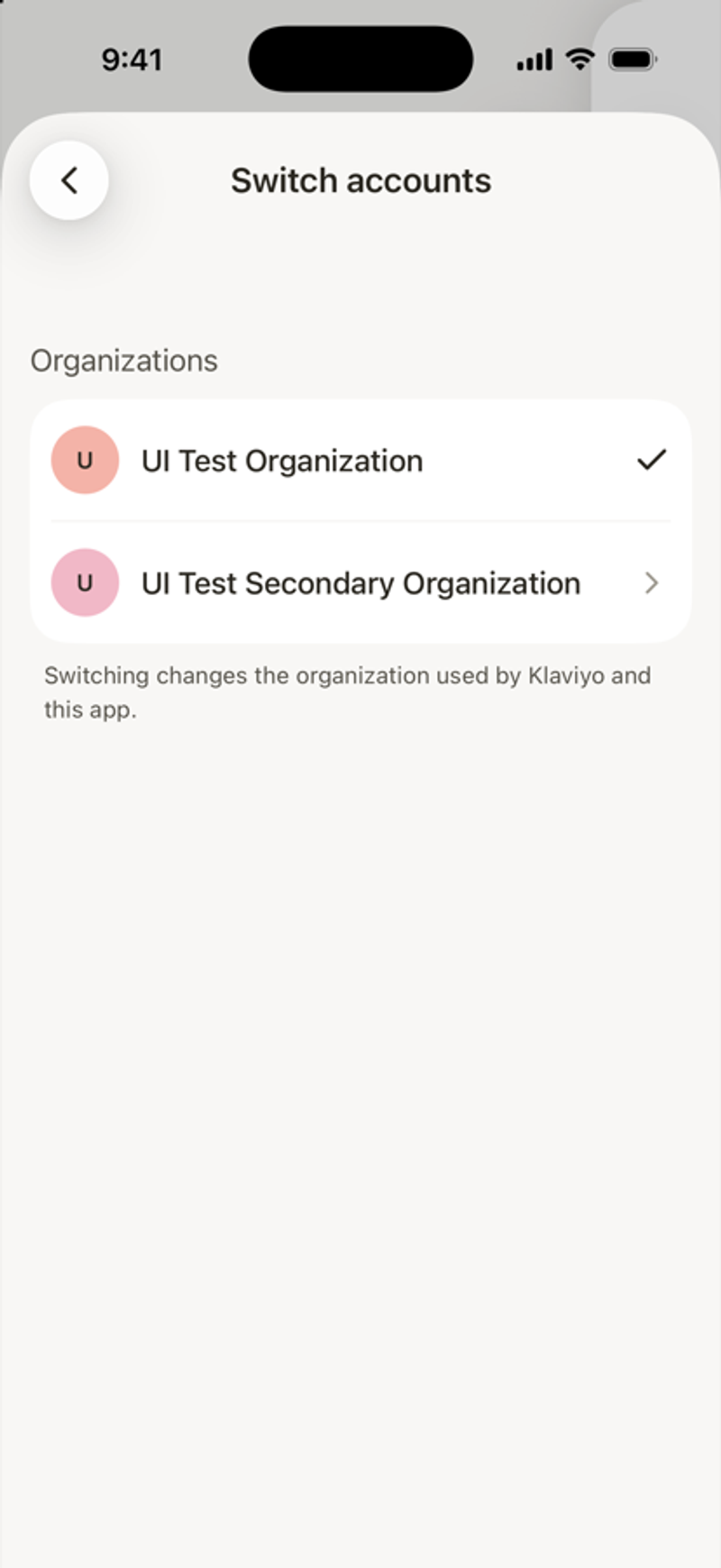
Switching changes the organization for your Klaviyo login, not only for the app. You can switch only between accounts that share your login email. If the app asks you to sign in again to finish switching, sign in. If an organization can't be opened from the app, switch to it on Klaviyo web.
Log out
- Tap the menu icon, then tap the gear icon to open Account.
- Scroll to the bottom and tap Log out.