How to set up coupons for Customer Hub
Learn how to enable unique coupons and add static coupons so they are visible for shoppers in Customer Hub.
Customer Hub for Shopify currently supports standard storefronts and Shopify Headless. For WooCommerce, navigate to https://help.klaviyo.com/hc/en-us/articles/47792369863451
For feedback about Customer Hub functionality, email customerhub@klaviyo.com.
Before you begin
To set up coupons for Customer Hub, you must have Customer Hub enabled, access to its paid features through a paid plan or free trial, and permission to edit Customer Hub.
If Customer Hub is not live yet, you can configure coupons now and set it live when you're ready for shoppers to see them. See Getting started with Customer Hub on Shopify.
For a detailed explanation of how Klaviyo determines which coupons are available to shoppers, see Understanding how coupons work in Customer Hub.
Types of coupons in Customer Hub
Klaviyo supports 2 types of coupons for your customers:
- Unique coupons: one-time, one-per-person discount codes created in Klaviyo and delivered individually (e.g., through flows, campaigns, or forms).
- Static coupons: general-use discount codes created in Shopify that can be shared across a broad audience.
Add static coupons to Customer Hub
Static coupons must be created in Shopify first, then added manually to Customer Hub. You can target static coupons to specific lists or segments when you add them.
To add a static coupon:
- In Klaviyo, navigate to Service > Customer Hub.
- Click Design.
- Click Edit your Hub.
- Select Coupons from the page dropdown.
- Click Add coupon to add a static coupon.
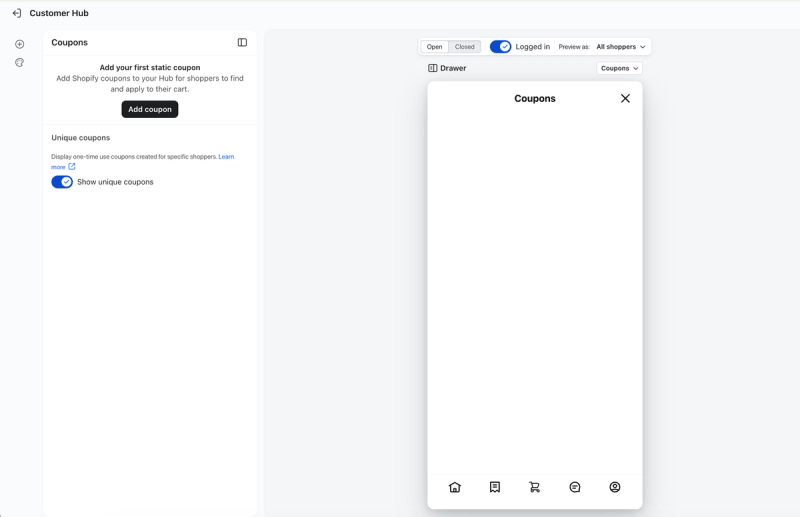
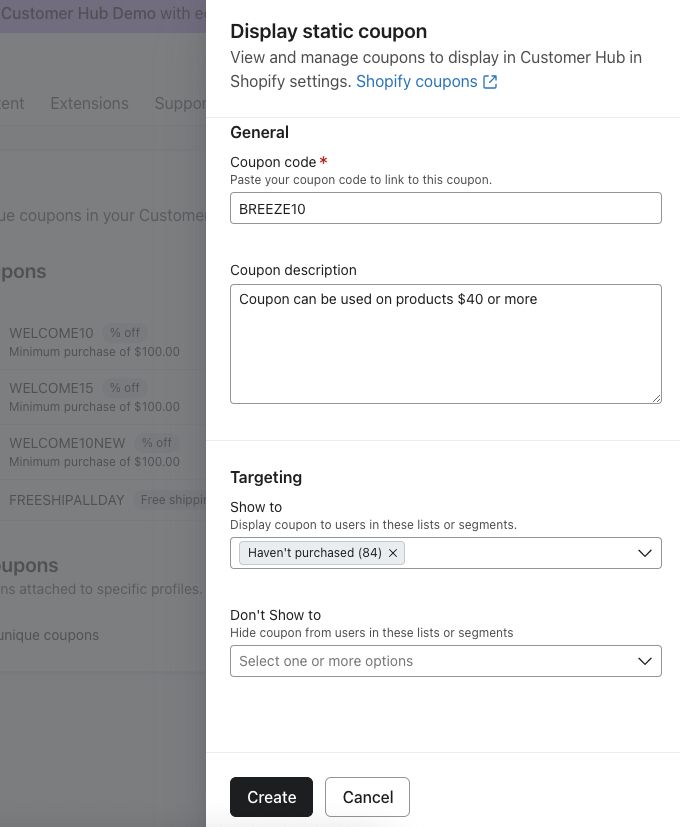
- Fill in the coupon details:
- Coupon code: Paste the exact code you created in Shopify.
- Description (optional): Add details about the offer or eligibility.
- Targeting (optional): Use the Show to and Don't Show to dropdowns to specify which lists or segments see the coupon. Leave both dropdowns blank to show it to everyone.
- Click Create.
- Click Publish to save your changes.
Your static coupon now appears in Customer Hub for eligible customers, under the Available coupons section.
Unique coupons in Customer Hub
Unique coupons are enabled for Customer Hub by default; you don’t need to set anything up.
This means that if a profile has received a unique coupon from you, it automatically appears on their Coupons page in the Customer Hub interface if it’s active and available.
To re-enable unique coupons (if you previously disabled them):
- In Klaviyo, navigate to Service > Customer Hub.
- Click Design.
- Click Edit your Hub.
- Select Coupons from the page dropdown.
- Turn on Show unique coupons.
- Click Publish to save your changes.
Show coupons on the For you page
Display the Coupons block on the For you page so shoppers can open the Coupons page from it.
- In the hub editor, select For you from the page dropdown.
- Select Coupons in the Template content panel.
- Under Visibility, choose who can see the block, such as All shoppers. Choose Hidden if you want to hide it.
- Click Publish to save your changes.
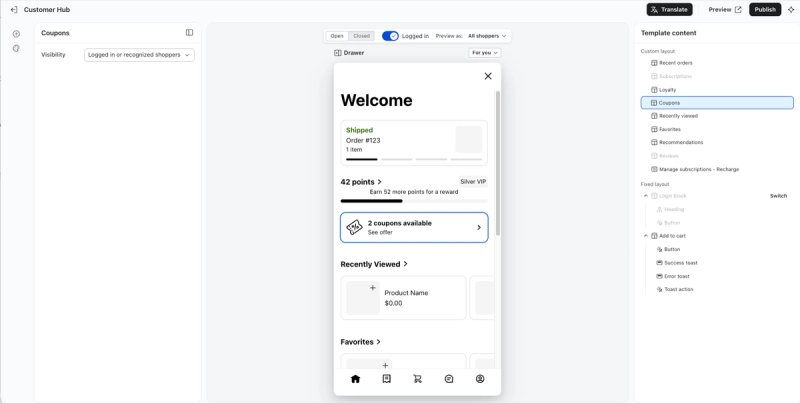
The Coupons block appears only when the shopper has active coupons to display.
Hide unique and static coupons in Customer Hub
To hide unique and static coupons in Customer Hub, disable unique coupons and either deactivate or delete each static coupon you've added.
To hide unique and static coupons in Customer Hub:
- In Klaviyo, navigate to Service > Customer Hub.
- Click Design.
- Click Edit your Hub.
- Select Coupons from the page dropdown.
- Set the Show unique coupons switch to Off (grey).
- For static coupons either:
- Set the toggle next to each coupon to Off (grey).
- Set the toggle next to each coupon to Off (grey).
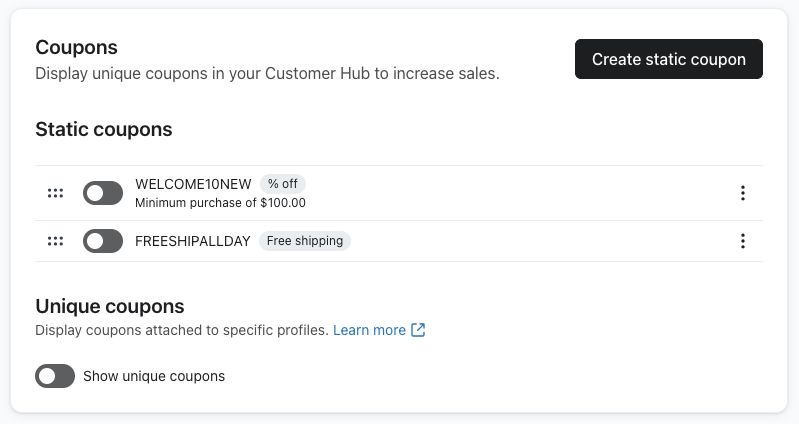
- Delete each static coupon by clicking the three-dot menu next to it, selecting Delete coupon, and clicking Delete to confirm.
- Click Publish to save your changes.
After you publish, unique coupons and the static coupons you disabled or deleted will no longer be shown in Customer Hub. Coupons from an enabled loyalty integration can still appear.
Next steps
Track how often shoppers apply coupons using Coupons applied in the Interactions summary table on the Customer Hub overview dashboard. This is an event count, not a count of unique customers or completed purchases. Learn more about the Customer Hub overview dashboard.
Additional resources
- Understanding how coupons work for Customer Hub
Learn which types of coupons display in Customer Hub and how shoppers can view and use their available discounts.
- Getting started with Customer Hub on Shopify
Learn about Customer Hub, a unique personalized experience for online store visitors that guides them from product discovery through purchase and post-purchase support.
- How to use product feeds and recommendations
Learn how to create a product feed in Klaviyo in order to use product recommendations in your messaging. Product feeds take in data from your product catalog and customer behavior (e.g., the products they’ve viewed or purchased in the past) and use this information to provide custom product recommendations for your subscribers.