Understanding why form submissions and list sizes differ
You will learn
Learn why the number of profiles in your Klaviyo list doesn't match the number of submissions in your form, as well as how to find each of these numbers.
The number of form submissions may not match the number of profiles on your list. Sign-up form analytics count submit events during the selected date range, while your list size represents its current number of unique profiles. Your list can include profiles added before that date range or through other sources, such as another form or a manual addition. List membership alone does not indicate marketing consent. In this article, you'll learn how to find your list size and form submission count, and how to interpret these 2 different numbers.
How to find form submission counts and list sizes
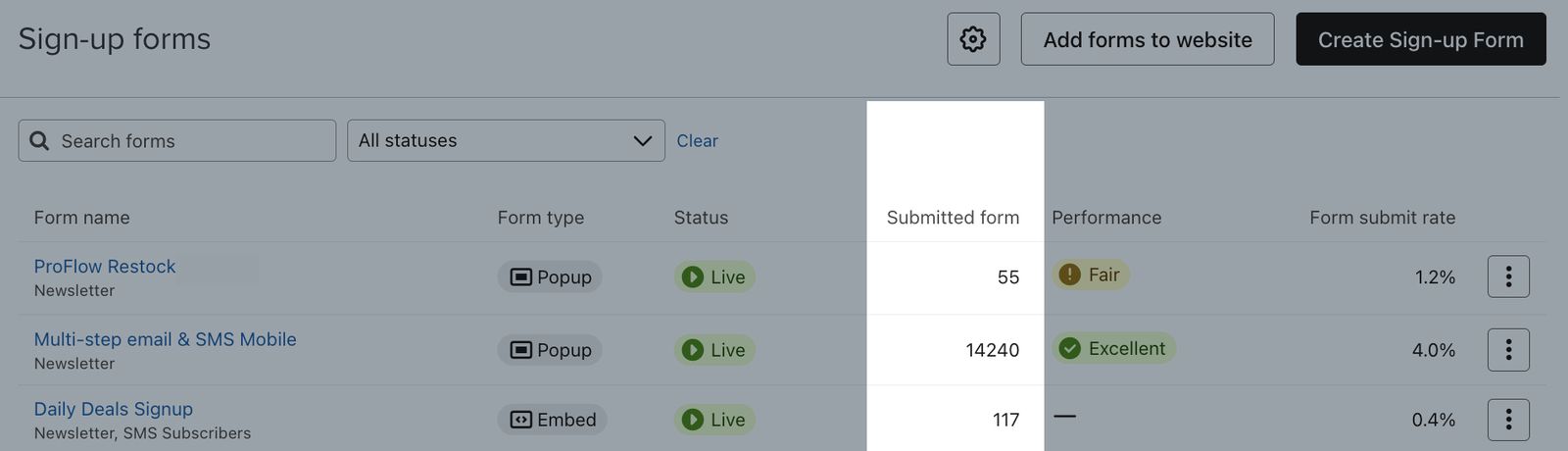
To find the number of submissions for a form, navigate to the Sign-up forms tab and review each form’s submission count in the Submitted column. Note that this view shows the last 30 days of data.
Analytics is available for forms that have been live, if you have permission to view form analytics. To view data for a different time frame, open the 3-dot Actions menu beside your form and select Analytics. On the Overview tab, adjust the date range as needed. The Submits count indicates the total number of form submissions.
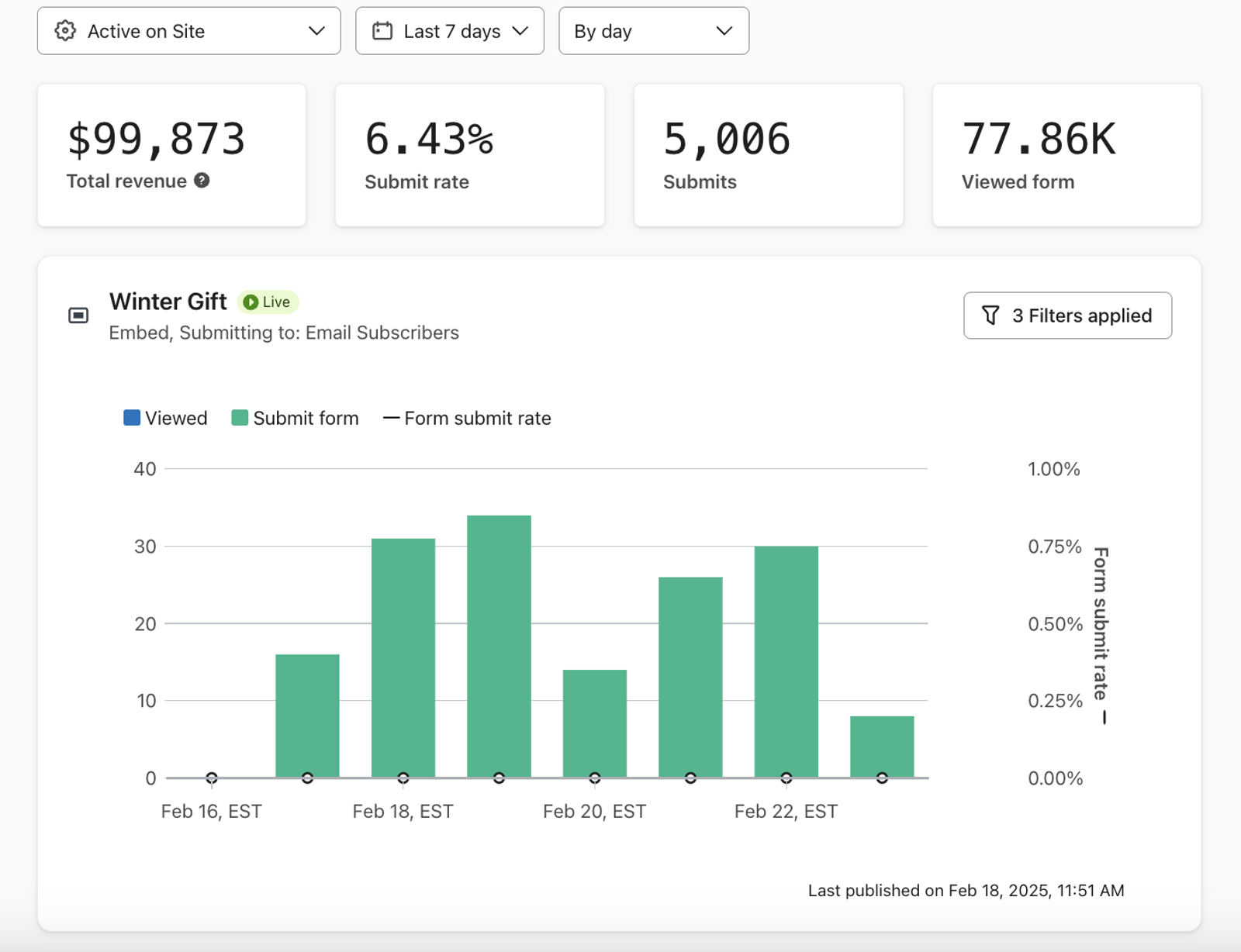
In either view, the number represents the total number of submissions for your form, so it may include duplicate submissions or submissions from non-legitimate site visitors (e.g., list bombers).
To see a list’s size, navigate to the Lists & segments tab, then search for your list. The number of list members can be found in the Members column.

Why form submissions differ from list size
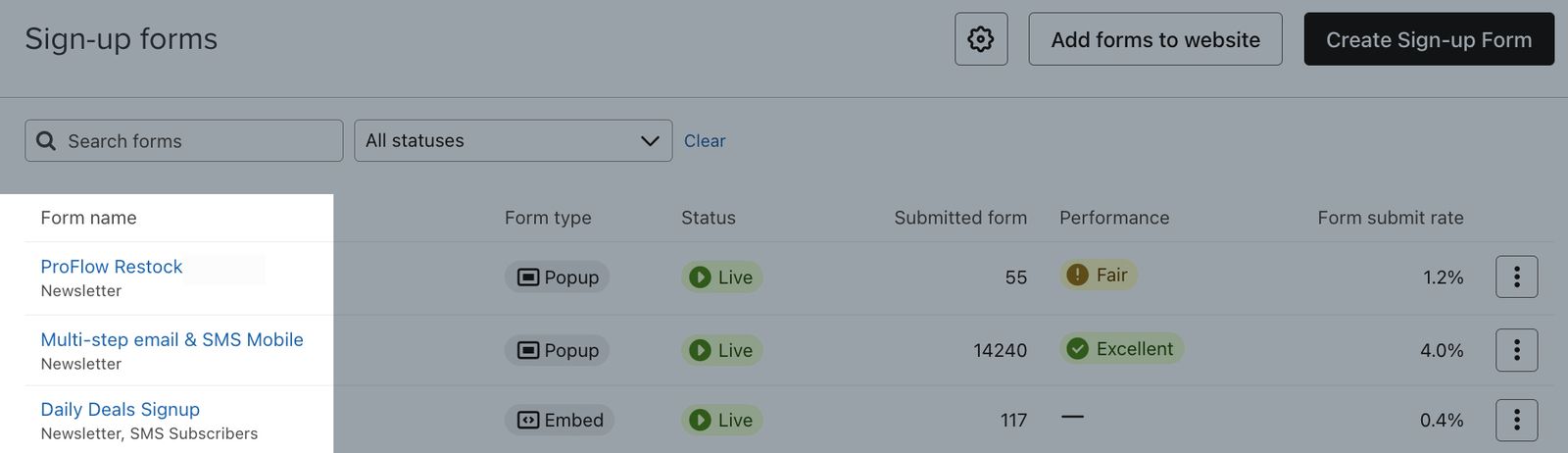
Form submissions may differ from a list’s size for a variety of reasons. Before troubleshooting, make sure that you are checking a list connected to your sign-up form. Visit Sign-up forms and review the list names beneath your form’s name. A form can submit to different lists on different steps.
Double opt-in
When double opt-in is required, a person must confirm their subscription before being added to the list, for example by clicking a link in a confirmation email or replying to a confirmation SMS with the confirmation keyword.
Someone who submits the form but still needs to complete the required opt-in confirmation is counted in your form’s submissions, but is not added to the list until they confirm.
Duplicate submissions
If a site visitor fills out a sign-up form more than once with the same email address or phone number, each form submission will be counted in the form’s submission count. However, the person will only appear in the list once.
Multi-step forms
If your form collects email and phone numbers on separate steps, submitting the first of those steps counts as a form submission. A visitor can leave before completing the later step. If that later step submits to a different list, the form can have a submission without adding the visitor to that list.
Spam/list bombing
Klaviyo has list bombing protections in place to help prevent suspicious submissions from adding profiles to your lists. These protections help maintain strong deliverability so you can continue contacting legitimate subscribers who want to hear from you. If Klaviyo blocks a suspicious subscription, you may see the submission in form analytics without a new list member.
Changes to form settings
If the list connected to your sign-up form is changed at any time, those subscribers who filled out the form before the change occurred will appear on the original list. Only those who fill out the form after a change to the form’s list will be added to the new list.
Identifying form submitters who are not in the list
To find profiles associated with your form that are not members of the connected list, use a segment. This segment checks the profile’s current $consent_form_id value, which can be overwritten by a later form submission. Profiles without a saved value, including some people who have not confirmed double opt-in, will not appear. Once you’ve created this segment, you can individually review the matching profiles to troubleshoot.
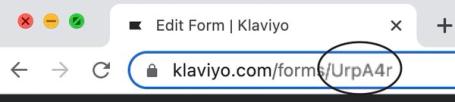
Open your sign-up form and copy the form ID from its URL.
- Open Lists & segments and select Create > Segment. Enter a name for your segment. If a name panel opens first, click Create segment to continue to the builder.
- Add the following conditions, joined by AND:
Properties about someone > $consent_form_id > equals > [form ID]
AND
If someone is in or not in a list > is not > in [your list] - Click Create segment to save the segment.
This segment contains profiles whose current form ID matches your form and who are not in the connected list. It does not tell you whether those profiles are subscribed to email or SMS.
Additional resources
- Troubleshooting sign-up forms
Learn troubleshooting tips for when a sign-up form in your Klaviyo account is not working as expected by reviewing common issues and solutions to these issues.
- Understanding sign-up form analytics
Learn how to analyze your sign-up forms' performance so you can iterate and optimize based on knowledge of areas you excel in and areas where you can improve. This guide will help you gain a better understanding of your sign-up form analytics and each of the available reporting pages (i.e., Overview tab and A/B test results tab).
- How to view sign-up form responses
Learn how sign-up form responses are stored in Klaviyo, where to access a person’s form responses, and how to export a CSV of these responses from a group of profiles.