How to create a personalized campaign plan
Learn how to use Klaviyo’s campaign planner to create a personalized campaign plan. The campaign planner will populate your campaign calendar with placeholders after you provide information about your brand.
Placeholders on the calendar are not actual draft campaigns. They are informational guides to inspire campaign creation.
You can use a campaign plan to help determine:
- The type of content to send
- How frequently you send to subscribers
- What channels to use for different content (Email/SMS)
Create a campaign plan
You need permission to create and edit campaigns to use the planner. If your account has no campaigns yet, create your first campaign before following these steps.
- Navigate to the Campaigns tab.
- Click the calendar icon in the top right to access the campaign calendar.
- Click Plan campaigns above the calendar.
- On the first step of the planner, answer the questions about your business.
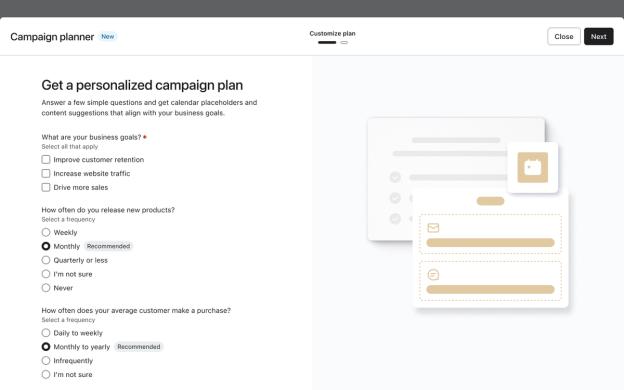
- Click Next to generate a plan preview based on your answers.
- View the preview calendar with the newly added campaign placeholders. Here you can edit the types of campaigns you want on your calendar and the frequency at which you’ll send them.
- If you’re satisfied with the planner calendar, click Add to calendar at the top.
You’ll now see the placeholders added to your calendar alongside any actual campaigns you have.
Edit a campaign plan
To return to an existing plan, open the campaign calendar and click Edit campaign plan above the calendar. If the button still says Plan campaigns, click that instead.
The campaign planner preview shows 3 types of campaigns in the Content types section:
- Customer education
Content that shares tips or guides with customers. - Product feature
Content that highlights new releases or features. - Promotion
Content that provides details on an upcoming deal.
Editing a plan regenerates its placeholders. Placeholders you previously deleted or used to create campaigns can reappear, so check your calendar after saving.
To edit the content types:
- In the Content types section, click the edit (pencil) icon.
- Change one or more of the following:
- The date you want placeholders of this content type to start appearing on the calendar.
- How frequently you want placeholders of this content type to appear.
- Which channels you want to include (Email, Text message, or both).
- Click Save.
You can add or delete content types from your plan:
- Click the plus icon next to a content type, choose its start date, frequency, and channels, then click Save to add it to the plan.
- Click the trash can icon to delete a content type from the plan.
Show or hide all placeholders
After creating the placeholder calendar, placeholders will automatically show on your calendar view.
To hide the placeholders:
- Click the action icon (3 dots) above the campaign calendar.
- Select Show calendars.
- Click the X next to Campaign Planner. This will hide the placeholders from your calendar view, but won’t delete them.
- Click Save.
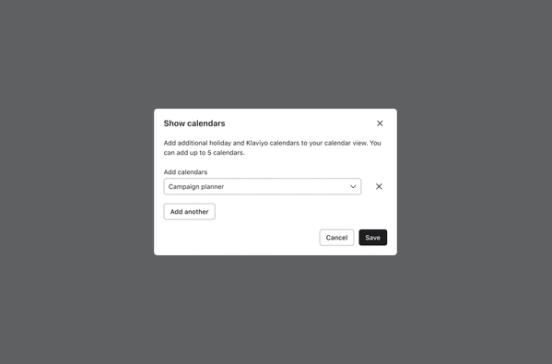
To show the placeholders again:
- Click the action icon (3 dots) above the campaign calendar.
- Select Show calendars.
- From the dropdown, choose Campaign Planner. Click Add first if you need another dropdown.
- Click Save.
Create a campaign from a placeholder
For SMS placeholders, you must have text messaging set up. If the placeholder shows Set up text messaging, click it and complete setup before creating the campaign.
To create a campaign using a placeholder:
- Click a placeholder on the calendar to preview its suggested content and audience.
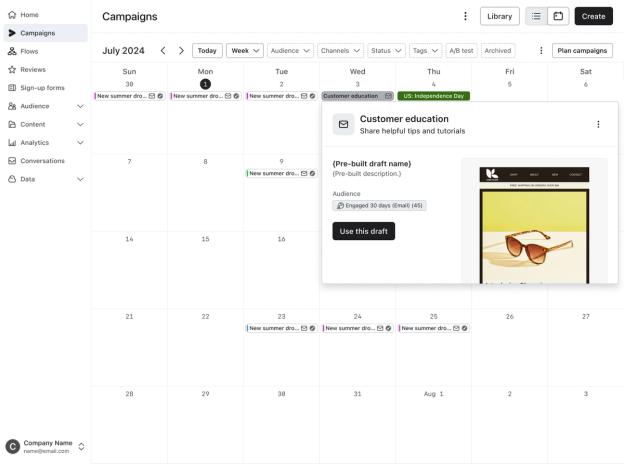
- Review the suggested name, description, and audience. Click Use template to create a draft campaign and open it for editing.
Instead of using the suggested template, you can click the action icon (3 dots) and select one of the following:
- Browse the library
Choose a pre-built campaign from the campaigns library, then click Create & customize. - Build your own
Build a campaign from scratch. - Delete placeholder
Remove the selected placeholder from the calendar.
After creating a draft, review its audience and content, then schedule or send it when you’re ready. A placeholder date does not schedule a send automatically.
Follow these guides for more information on creating campaigns:
Additional resources
- How to use the campaign calendar
Learn about Klaviyo’s calendar view for your campaigns, including filtering options and how to schedule email, SMS, and push notification campaigns from within the calendar.
- Understanding campaign calendar options
Learn about the options available in your campaign calendar, including how to view, filter, and preview your campaigns.