Understanding campaign schedule and send options
Learn what sending options are available for campaigns and how you can use them. When you schedule or send a campaign, you can choose things like your send time, send strategy, timezone, and other details.
Schedule vs. Send now
After building a single-channel campaign, go to Review and click Schedule or send.
Select Send now and click Send now to begin sending the campaign immediately. This process may take several minutes or more.
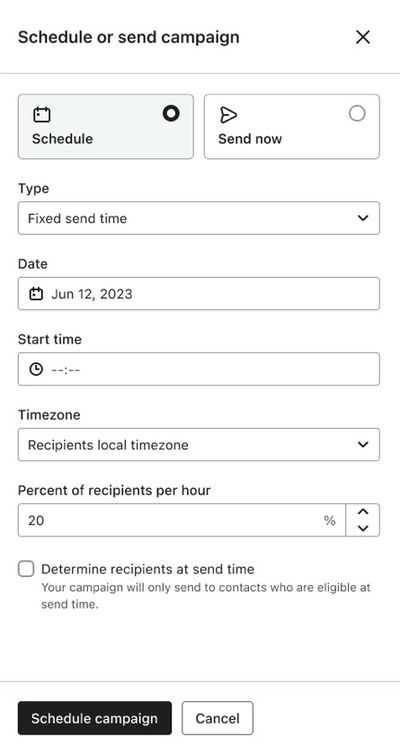
Alternatively, choose Schedule to select a time in the future for the campaign to send. When scheduling a campaign, you have a few send strategy options, outlined below. After choosing your settings, click Schedule message.
Send strategies
When scheduling a campaign, choose a send strategy in the Scheduling options menu. The available options depend on your campaign and account.
- Fixed send time
Select this option to send at the date and time you choose, either in each recipient’s local timezone or in a specific timezone. Available for all channels. Sending times may be slightly slower during peak times (e.g., on the hour, on the half hour). For faster sending, choose off-peak times (e.g., 3:04 p.m. instead of 3:00 p.m.) by typing in a minute value rather than selecting a 15-minute interval.
Note that there is required processing time when sending emails, so there may be a few minutes between your scheduled send time and email delivery, even during off-peak times. - Gradual send
Select this option to send your campaign in batches, delivering to a percentage of your recipients at a time. Choose from the available percentages, ranging from 1% to 50%. If the Send every menu appears, choose Hour or Minute; otherwise, batches send hourly. Lower percentages spread your campaign over a longer window. For example, sending to 1% of recipients each minute sends the campaign in 100 batches over roughly 100 minutes. This is useful for avoiding a spike in website traffic as recipients click through, and for pacing your sending to support deliverability. You cannot use this strategy when you’re A/B testing a campaign or when a follow-up campaign is enabled. Gradual send uses a specific timezone, not each recipient’s local timezone. Available for all channels. - Smart send time
This option is only available to senders who meet certain criteria. Use Klaviyo’s AI tools to determine the ideal send time for your audience(s), then send at that time. You cannot use this strategy with a content A/B test or a follow-up campaign. Avoid using it for time-sensitive offers, sales, or coupons. Learn how to use the smart send time feature. Available for email. - Personalized send time
For eligible campaigns, use this option to send at each recipient’s predicted best time within a delivery window you choose. This feature is included with Personalization or Advanced KDP. Choose a future date starting tomorrow and set a delivery window in recipients’ local time. Avoid using it for time-sensitive offers. Learn more about Personalized Send Time and its eligibility requirements.
Prevent a local-time campaign from sending before a promotion starts
Use Do not send before a specific time for a promotion that starts at one fixed moment. Recipients in earlier timezones then do not get your campaign before the promotion is live.
Each timezone sends at whichever time is later:
- The scheduled send time in that timezone
- The date and time that you enter in Do not send before a specific time
The Do not send before a specific time fields use your account’s timezone.
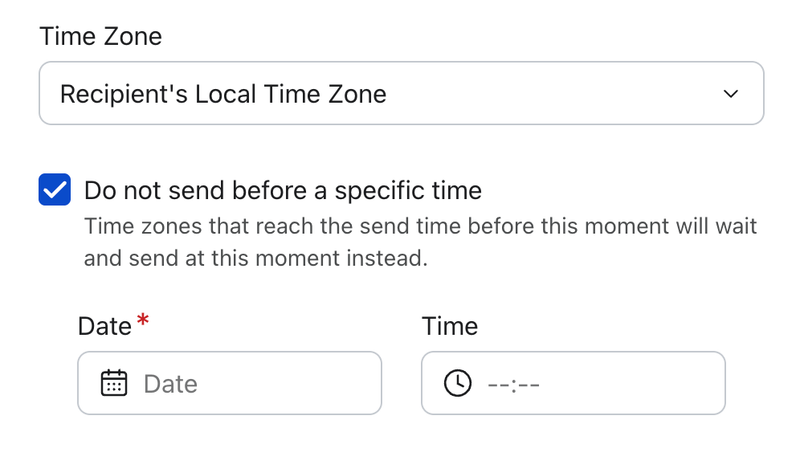
Example
Your account timezone is Eastern Time. Your sale starts at 9 a.m. ET. You schedule your campaign for 9 a.m. in each recipient’s local timezone. You set Do not send before a specific time to 9 a.m. ET on the same date.
- Recipients in Sydney reach 9 a.m. local time hours before the sale starts. They get the campaign at 9 a.m. ET.
- Recipients in New York get the campaign at 9 a.m. ET.
- Recipients in California get the campaign at 9 a.m. PT. That time is after the sale starts.
Set a do not send before time
- In the scheduling form, select Schedule
- Select Fixed send time.
- In the Time Zone menu, select Recipient’s Local Time Zone.
- Choose the send date and the local send time for your campaign.
- Select Do not send before a specific time
- Enter the Date and Time when your campaign can start to send. Use your account’s timezone.
- Review your settings, then select Schedule message.
To remove the restriction before you schedule, clear the Do not send before a specific time checkbox.
When the option does not show
The Do not send before a specific time option shows only when it can change your send times. In these cases, the option does not show:
- Your campaign uses a specific timezone, not each recipient’s local timezone.
- Your send time is less than 24 hours away.
- Every timezone reaches your send time after the time that you want to enter.
Choose a valid time
In these cases, you see an error and cannot schedule the campaign:
- You select the checkbox, but you do not enter a date and a time.
- The date and time are in the past.
- The date and time are after your campaign sends in every timezone. Choose an earlier time.
- The time does not exist in your account’s timezone because of a daylight saving change. Choose a different time.
How timezones that already passed the send time work
With Do not send before a specific time, some timezones can pass the local send time before the campaign starts. Those timezones send at the do not send before time. The options to send them immediately or the following day do not apply.
Where you can view the do not send before time
After you schedule the campaign, the send time includes the do not send before time. For example: “9:00 AM recipient local time, not before 9:00 AM EST.” This text shows on these pages:
- The campaign list
- The campaign calendar
- The campaign overview
- The scheduled campaign details
Make sure that the time and the timezone are correct before you leave the campaign.
SMS quiet hours still apply. If the do not send before time is inside quiet hours for a recipient, that recipient gets the SMS when quiet hours end.
Determine recipients at send time
When Determine recipients at send time is enabled, Klaviyo takes a fresh snapshot of your target list or segment as close to send time as possible to ensure you’re reaching the most up-to-date audience.
When used with:
- Specific timezone: Klaviyo prepares the recipient snapshot ahead of the scheduled send time to allow time for processing.
- Recipient's Local Time Zone: Klaviyo prepares a single snapshot before sending can begin in the earliest timezone. That snapshot is then used for all subsequent timezone sends, so new recipients are not added separately before each local send time.
This option is available for:
- SMS
- Mobile push notification
By default, determine recipients at send time is turned off. Learn how to change when campaigns determine recipients.
In the campaign canvas, recipients are determined near send time automatically, so this checkbox does not appear.
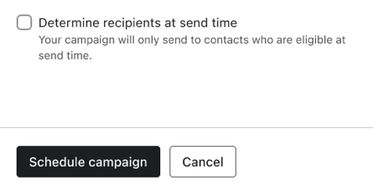
When this option is not checked, Klaviyo prepares a snapshot of your target list or segment after you click Schedule message. Later list or segment membership changes will not be reflected in the send list. Unsubscribe handling is described below.
For email campaigns, unsubscribes are checked when recipients are prepared. Someone who unsubscribes after that point may still receive that campaign, including a later recipient-local send, but will be excluded from future marketing sends.
Timezone options
Depending on your send strategy, you may have 2 timezone options: recipient’s local timezone or a specific timezone you choose. Gradual send requires a specific timezone.
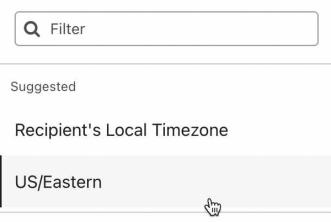
Recipient’s local timezone
Select this option to send the campaign at a specific time in each recipient’s local timezone.
To use the recipient’s local timezone with a content A/B test, set the test size to 100%. For example, if you have 2 equally weighted variations, each variation goes to 50% of recipients, and no recipients are held back for a winner.
For example, if you send at 3 p.m. and select the recipient’s local timezone, a subscriber who lives in California will receive the email at 3 p.m. PT, while the UK subscriber will receive it at 3 p.m. GMT. If a recipient’s timezone is unknown, they will receive the message in your account’s timezone.
For text messaging, Klaviyo can use a phone number’s country and area code to determine a profile’s location and timezone. See Understanding when and how Klaviyo sets a profile’s location for more information about profile location for text messaging.
If the scheduled send time has already passed in a recipient’s timezone and you have not selected Do not send before a specific time (described above), you have 2 options:
- Send the campaign to those recipients immediately.
- Wait until the scheduled time on the following day to send to those recipients.
If you choose to send immediately, sending can begin as soon as you schedule the campaign. Once sending begins, you cannot change the send time.
If you use the recipient’s local timezone with Determine recipients at send time, Klaviyo prepares your audience once before sending begins. New recipients are not added before each later timezone send.
Specific timezone
When a specific timezone is selected, the message will be sent to everyone at that time. For example, if you send a message at 3 p.m. PT, the message will be sent to all subscribers at 3 p.m. PT, regardless of their location.
Additional resources
- How to change when a campaign's recipients are determined
Learn how to adjust the account-level settings for when campaigns determine recipients. There are 2 options for when a campaign determines recipients:
- How to cancel a scheduled or sending campaign
Learn how to cancel a campaign that has been scheduled or partially sent. Campaigns that have already been fully sent cannot be cancelled. If you don't see the option to cancel a campaign by following the steps below, then sending is already complete and it can no longer be cancelled.