How to target contest entrants with flows
You will learn
Learn how to identify contest entrants with a profile property, welcome them with a separate flow, and identify entrants who engage with that flow.
Contests, sweepstakes, and giveaways attract a lot of sign-ups and can be a quick way to grow your list. However, many of those who opt in expect to only receive information about these events, and might not be interested in being part of your general list. It’s important to keep these subscribers separated from your main list until they confirm their interest.
SMS marketing for sweepstakes is only permitted on US and Canadian short codes. Learn more about compliance requirements around sweepstakes and contests.
Identify contest entrants with a profile property
To identify contest entrants, add a custom profile property when they sign up, then send them to a separate list that triggers a contest welcome flow. You can use this approach with a Klaviyo sign-up form or a third-party form that can submit identifying properties to Klaviyo.
A separate list and flow also let you send a contest welcome series to someone who has already received your regular welcome series. List-triggered flows default to No re-entry, so someone who joins the same list again won't enter that flow again unless you change its Re-entry criteria. For example, if someone joined your email list before entering the contest, a separate contest list and flow can welcome them to the contest without repeating your regular welcome series.
Add contest entrants to a new list
To add entrants to a new list:
- Navigate to Audience > Lists & segments, then click Create > List.
- Name the list something descriptive (e.g., Contest Participants), then click Create list.
- Set your sign-up form to send entrants to this list.
Tag contest entrants using a sign-up form
The steps below apply to Klaviyo sign-up forms. If you are using a third-party sign-up form, follow their documentation to add identifying or hidden properties.
You can design a sign-up form from scratch or use a template from the Sign-up Form Library, but either way, you can customize the content to suit your brand and contest. When creating a sign-up form, consider how you want to contact entrants and include a text input for an email address and/or phone number.
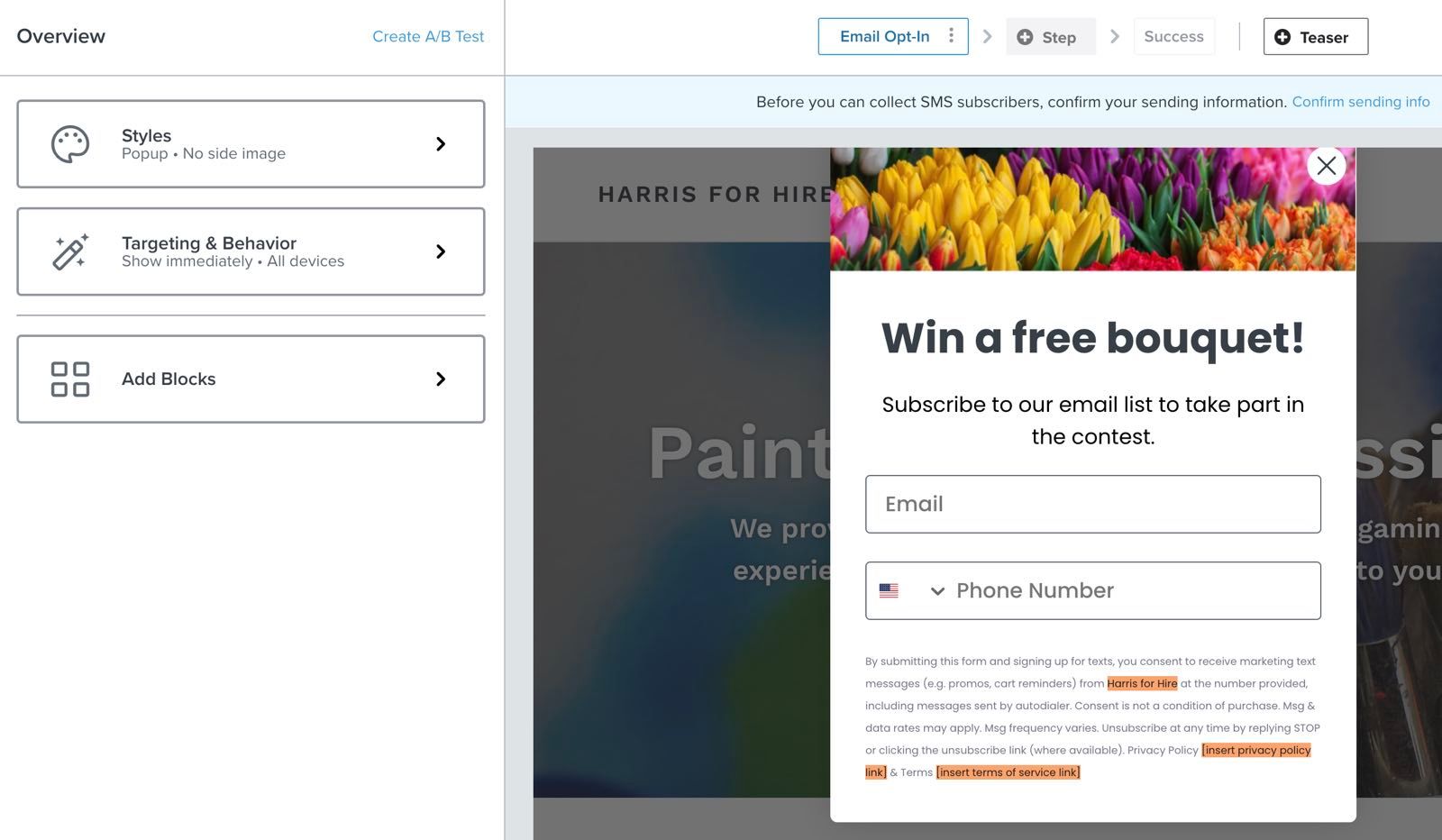
In addition, you need a button to submit the form and tag the entrants.
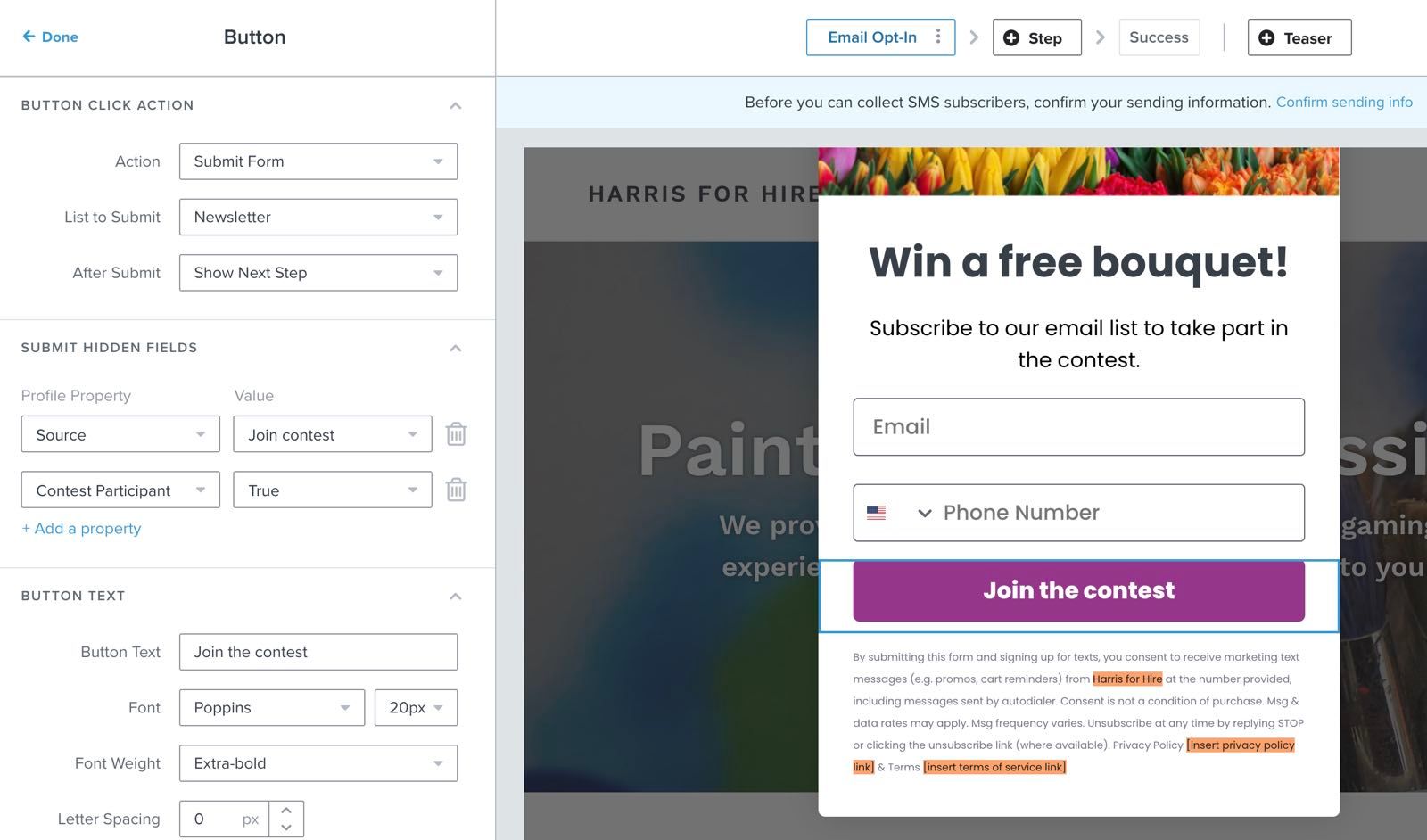
- From the form builder overview, click Add Blocks.
- Drag a button onto the form in the form builder.
- Under Button click action, set Action to Submit form.
- Under List to Submit, choose the contest list you created. This list will trigger your contest welcome flow.
- Under Submit hidden fields, click Add a property to create or select a profile property and enter a value that identifies contest entrants. For example, use the property Contest with the value Contest Entrant. Use the same property and value if you later segment entrants by their sign-up source.
Save the contest source as a profile property so you can still identify entrants if they later unsubscribe from the contest list.
If you plan to add entrants to your general marketing list later, make the general marketing opt-in clear on the form and only add people who agreed to receive it. A note alone should not be treated as proof that every entrant has opted in to ongoing marketing. When your form is ready, click Publish and test it on your site before inviting people to enter the contest.
Create a flow for contest entrants only
Next, create a welcome series flow triggered by your contest list. You can build a flow from scratch, choose a template from the Flow Library, or clone an existing list-triggered welcome flow. To clone one, go to Flows, click the 3 dots next to that flow, and select Clone. Choose to clone it to your current account, give it a descriptive name, select your contest list as the trigger, and complete the clone. If your existing welcome flow uses a different trigger type, create a list-triggered flow instead; cloning does not let you change the trigger type.
Create or change the content and timing of the messages by following the best practices mentioned at the top of this article.
Before entrants sign up, review the flow's messages and set them to Live so the contest welcome series can send.
Best practices for crafting content for contest entrants
Keep in mind that these subscribers originally signed up for information about a specific contest, giveaway, or sweepstakes, so not everyone will be as invested as someone who signed up for your general list. To help prevent those who are less engaged from hurting your deliverability, there are a few best practices you can follow:
- Reduce the number of messages in your welcome series (to avoid overloading these subscribers)
- Send messages that offer high-quality content and avoid those that sell products/services
- Include a noticeable unsubscribe link in all emails
- Remind recipients why they are receiving these messages (e.g., because they signed up for a certain contest)
For the first message in this series, it is a good idea to say “thank you”, and to include details about the contest, giveaway, or sweepstakes. Doing so can not only serve as a reminder about why the recipient has received this message (so they know it's not spam) but also help manage their expectations about when they will receive more information.
In addition, remember that many contest entrants might have already gone through your regular welcome series. Adjust your content so that it is different enough to still provide value to those who received similar messages from your regular flow.
Add engaged entrants to your list
After this series nurtures contest entrants, you can segment them and add engaged entrants to your main list. A best practice is to wait until the contest is over, before setting up the segment.
- Navigate to Audience > Lists & segments.
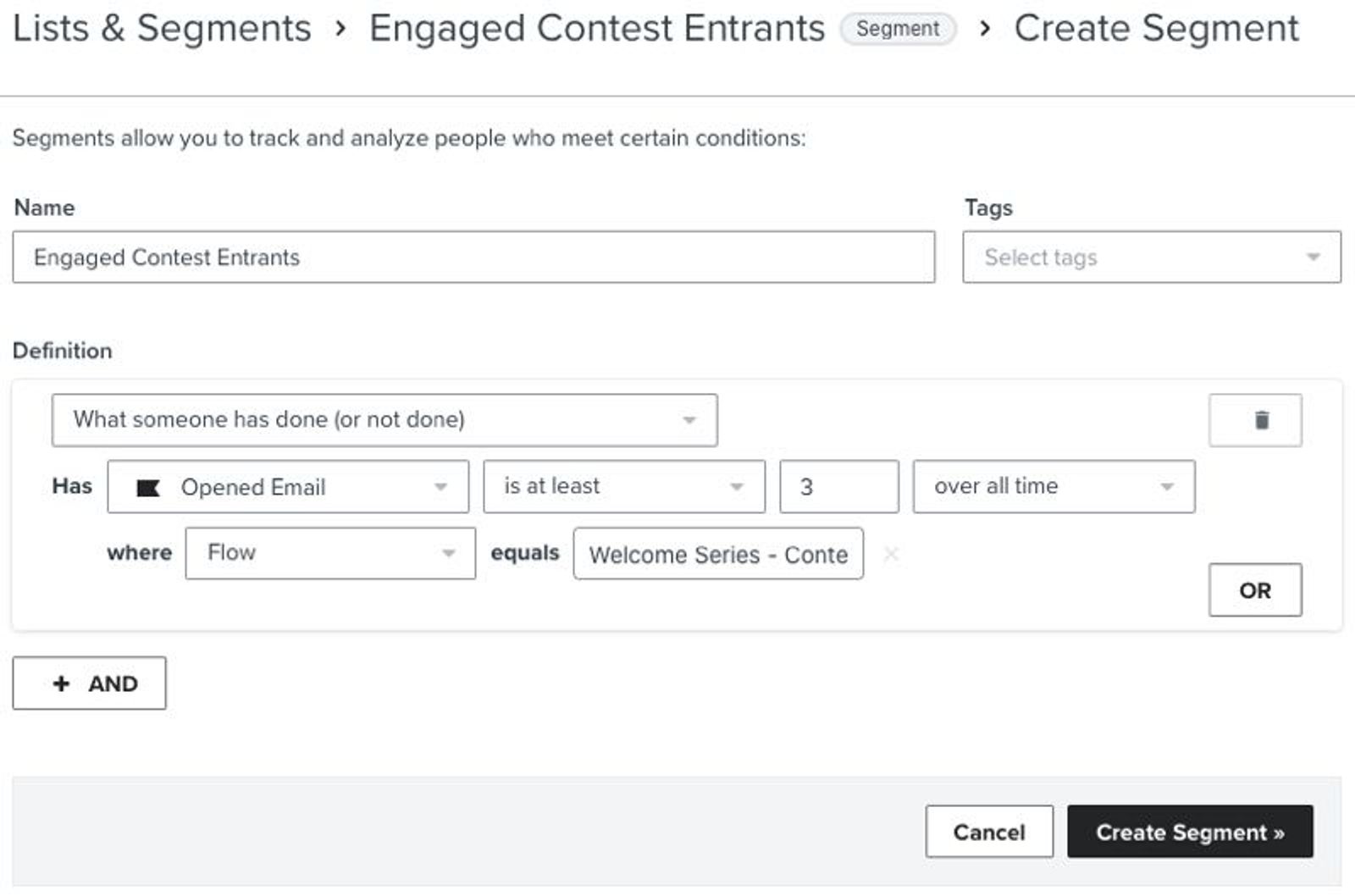
- Click Create > Segment.
- Add an Opened Email condition for at least 3 opens over all time, then filter the condition to emails where Flow equals your contest welcome flow. In this example, that is 50% of the 6 emails in the contest series. Without the flow filter, opens from other emails would count too.
- Export the segment, then import it into your main list only if those entrants agreed to general marketing. Before importing, review any flows triggered by the main list: importing subscribers can enroll them in those flows. Selecting engaged entrants helps you target people interested in the contest, but engagement alone is not marketing consent.
- To identify less engaged entrants separately, create another segment with Opened Email fewer than 3 times over all time and filter Flow to your contest welcome series.
Additional resources
- How to A/B test a flow email
Learn how to use Klaviyo’s A/B testing experience to test individual emails in a flow, including things like subject line, discounts, and email content, etc. You can even use A/B tests to determine if plain-text emails perform better than image-heavy HTML emails.
- How to manage messages within a flow
Learn how to build out an automated series with as many emails and SMS messages as you'd like.
- Understanding tags in Klaviyo
Learn how to use tags to streamline your workflow and make it easier for different teams to work together in Klaviyo.