Understanding your Text message settings
Klaviyo text messaging can only be set up by account Owners, Admins, and Managers.
You will learn
Learn about your Text message settings and how to edit them to fit your business needs.
Please note that Text messaging is available only in certain countries. See the list of countries where Klaviyo SMS is available.
Before you begin
Before you can get started, you need to have set up SMS. Once done, the SMS settings page will populate.
For information about rates per country, see Understand Klaviyo's mobile messaging pricing.
Review the Text message settings page
- Click your account name in the bottom left corner.
- From the dropdown, click Settings.
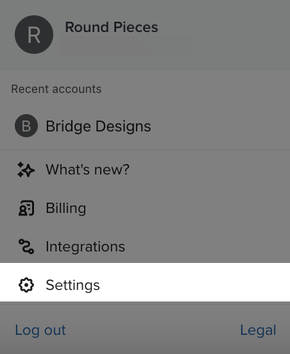
- Click Text message.
Here, you'll be able to access the following tabs:
- Sender information
- Sender preferences
- Keyword responses
- Subscribe links
- Terms of Service
To find or change your text message attribution settings, head to the Attribution tab instead.
Sender information
Countries
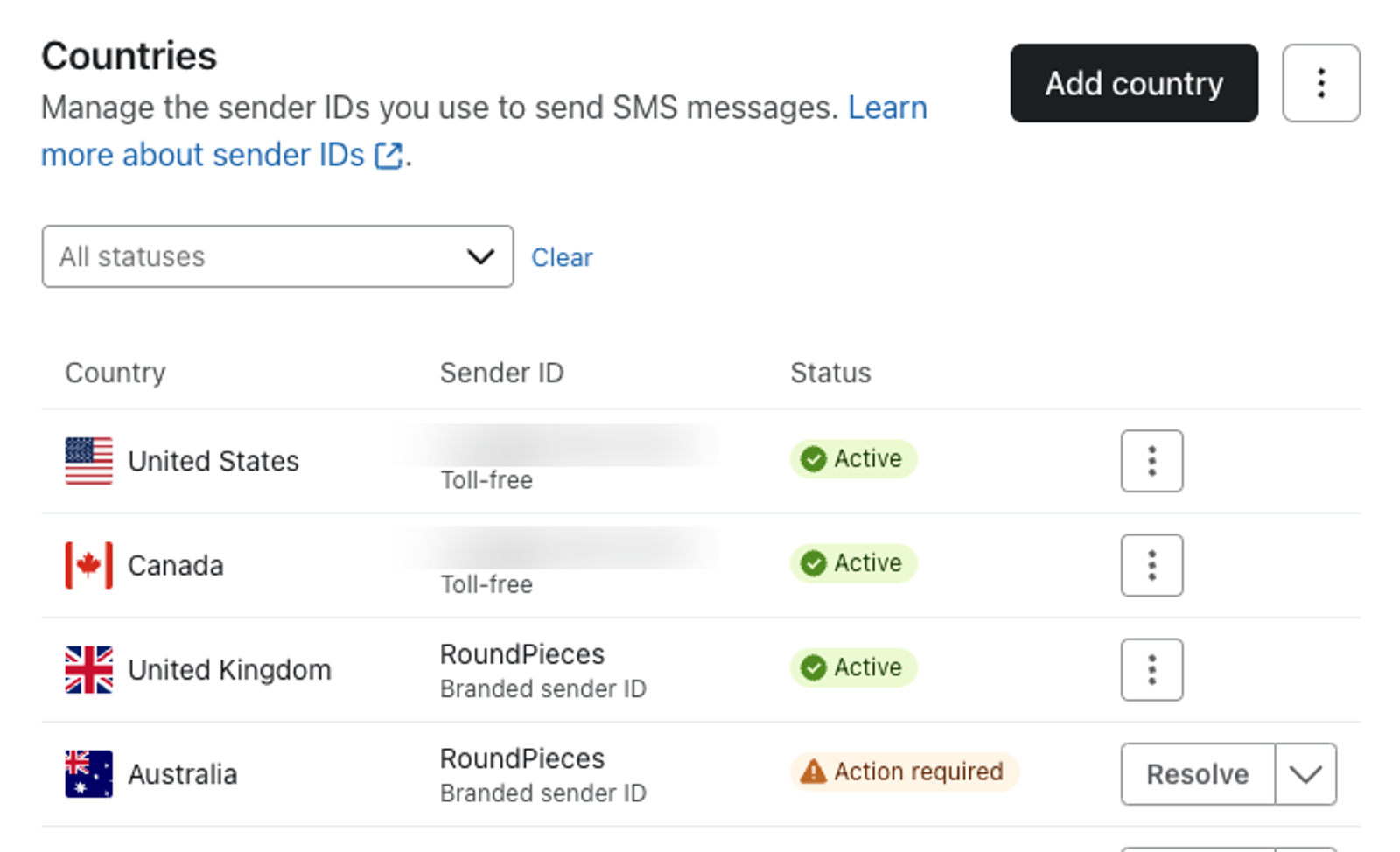
Your SMS numbers are listed in the Countries section. This section includes information on the region, specific number currently used, the status, or if the regional number still needs to be added or activated.
For details about these numbers, check out this article on SMS sending numbers.
Company information
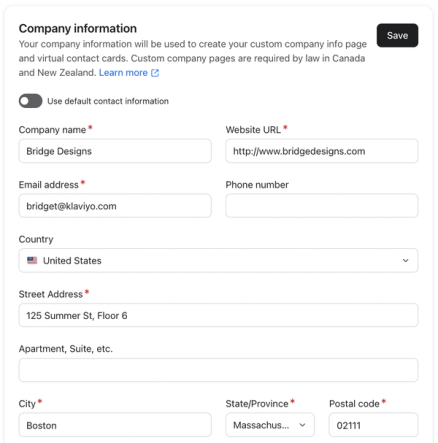
The Company information section contains the details used in your virtual contact cards:
- Company name
- URL for your website
- Company email address
- Company phone number
- Address
- Company image / logo
- To edit these details, turn off Use default contact information.
- Update your details, then click Save.
Text message add-ons
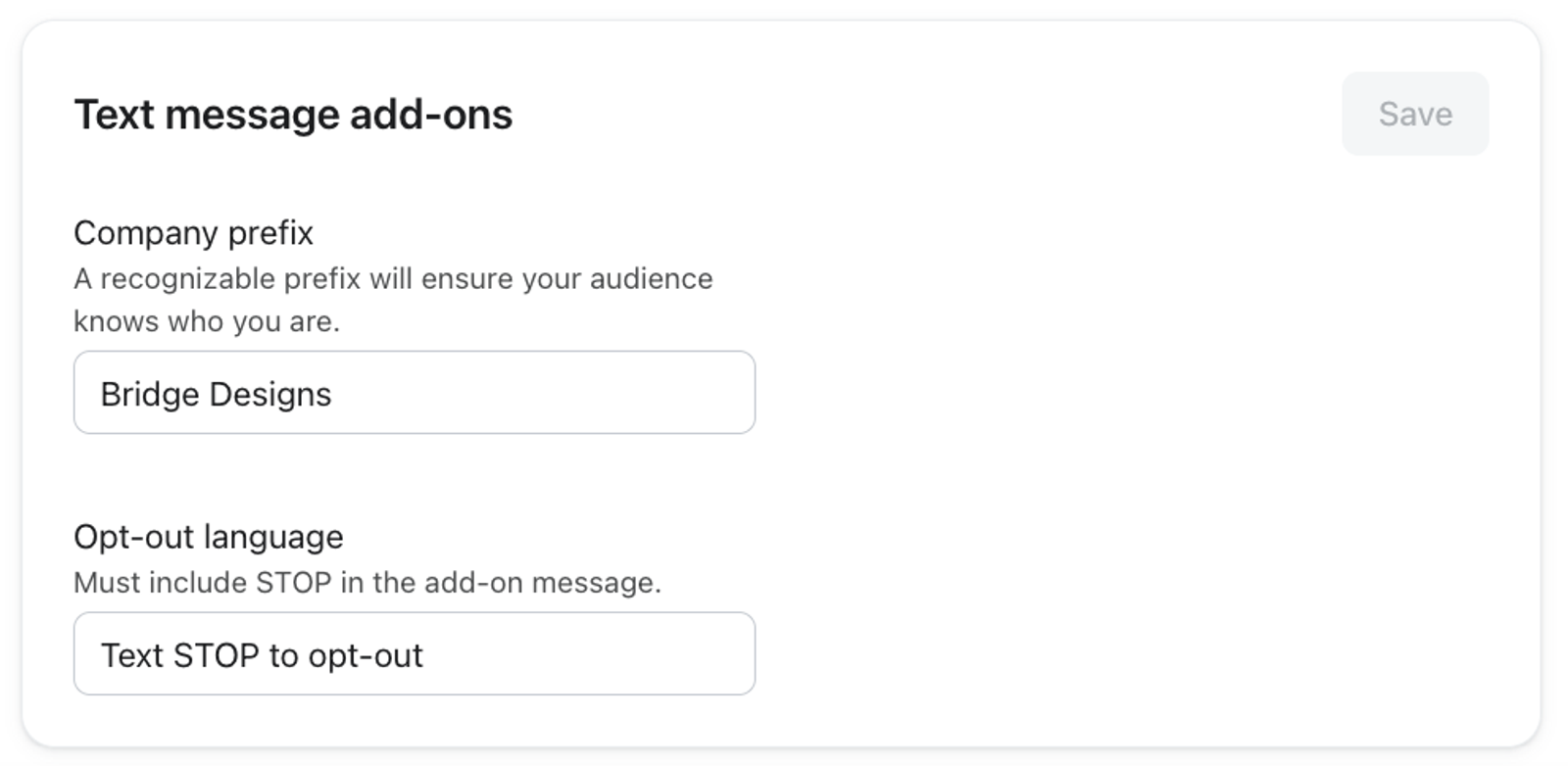
There are 2 sections that you can edit within Text message add-ons: company prefix and opt-out language. These are added to the beginning or end of your SMS messages, respectively.
- Company prefix: The company prefix is your business name. It should be the word or phrase customers recognize as your business title. Whether a prefix is required depends on the country and sending number type. In France, it is required even when you use a branded sender ID. Where optional, prefixes are highly recommended because, unlike emails, text messages don't have a built-in way to identify the sender. This prefix allows customers to understand that this text came directly from your store.
- Opt-out language: Opt-out language is the phrase added to the end of a message that gives customers the option to opt out of further SMS communication. This is similar to the unsubscribe language in emails, which helps to limit negative customer experiences and make sure you don't get marked as spam.
The Opt-out language field must include STOP and is used for sending numbers that can receive replies. Branded sender IDs use an unsubscribe link instead. Opt-out instructions are required in some jurisdictions.
After editing your add-ons, click Save.
Sender preferences
There are a few aspects to the settings for SMS sending:
- Smart Sending
- Quiet hours
- Unsubscribe known text message litigators
- Call forwarding
- Pause text message sends in Texas
- State law frequency limits
Klaviyo warns you if your campaign will potentially violate quiet hours.
Smart Sending
Smart Sending allows you to limit the number of SMS messages someone will receive in a given period of time.
Klaviyo sets the default window of time to 24 hours, although you can adjust this.
If you see a notice that Smart Sending has moved, follow the Personalization settings link to adjust it. Otherwise, use the fields in Sender preferences:
- Enter the number of hours in Campaigns and, if shown, Flows.
- Click Save.

It is best practice to enable Smart Sending to ensure that customers are not overwhelmed with messages from your business, especially if you're sending emails in addition to text messages.
SMS Smart Sending and email Smart Sending are treated separately. For instance, after you send an email, you can still send an SMS the same day when Smart Sending is on. The SMS Smart Sending window only applies to SMS, and the email window only applies to emails. If you are looking to learn more, check out our article on understanding Smart Sending.
Quiet hours
Klaviyo's quiet hours limit which times of day flow and campaign text messages are sent to recipients.

This is beneficial for 2 key reasons:
- Providing a better customer experience
Text messages actively ping the recipient's phone, so they're more intrusive than email or social media messages. Quiet hours help you avoid texting subscribers at odd hours of the day, leading to more positive customer interactions. - Supporting compliant sending
Quiet hours is also a key part of SMS compliance. In the US, for example, the TCPA forbids sending anytime before 8 a.m. and after 9 p.m., and in Florida, it is further restricted to between 8 a.m. and 8 p.m. Review the rules that apply to your recipients when choosing quiet hours. A phone number’s area code may not match the recipient’s current location, so the default window does not guarantee compliance everywhere.
Klaviyo’s standard quiet-hours window is 8 p.m. to 11 a.m., with country and state rules that can override it. For flows, the default time-zone preference uses phone number area codes in the US and Canada, and a country-based time zone elsewhere. You can choose Eastern time zone instead.
When Enforce state-level quiet hours (US only) is selected, your custom stop and resume times do not apply to US recipients. Mandatory regional quiet hours still apply when you change your settings.
- In the quiet-hours section, choose your time-zone preference and set Stop sending and Resume sending.
- Click Save. If a compliance warning appears, review it. To proceed, select the acknowledgment checkbox and click Confirm; otherwise, click Cancel and adjust your hours.
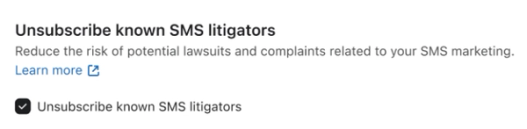
Unsubscribe known text message litigators
By default, you will not collect SMS consent from a known litigator, reducing the risk of complaints or lawsuits for your brand. Anyone who is a known SMS litigator is automatically unsubscribed by Klaviyo.
Turning off this setting and collecting consent from known SMS litigators is not recommended.
Tracking
If the Tracking tab is available, select Exclude bot clicks from reporting data and click Save to filter SMS reporting. You can also manage bot-click exclusion for email and SMS under Settings > Attribution. If Tracking is not shown, use Attribution.
Enabling this setting will exclude bot clicks in calculations of click rate, total clicks, and unique clicks across most reporting surfaces. Learn more about excluding and monitoring bot clicks in your account.
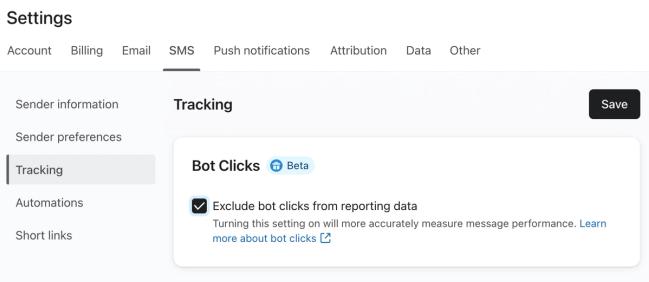
Note that any A/B tests created after this setting is enabled will use a click rate that excludes bot clicks, which may impact the winning variant. For this reason, we recommend not enabling this setting during an ongoing A/B test that uses click rate as a metric.
Keyword responses
Compliance keywords
Compliance keyword responses are automatic SMS replies sent when someone texts a keyword such as HELP or STOP to your sending number. Note that:
- Keyword responses do not apply to branded sender IDs.
- You cannot add links to opt-in confirmation or subscribe and resubscribe responses. Editable HELP responses can include links.
- Keywords and their responses are available in a variety of languages.
The table gives examples of English responses. Available keywords, default text, and editing options depend on the country and sending number type. Canada’s INFO response is bilingual.
Keyword(s) | Example default response | Can you edit the response? | Details |
YES, Y | [Organization name]: You have successfully subscribed to text updates. Text HELP for help or STOP to opt-out. Msg & data rates may apply & frequency may vary. | Yes | Only applies with double opt-in after someone confirms they want to subscribe. This message does not apply to branded sender IDs. |
HELP | [Organization name]: For help reach us at [your email]. Msg & data rates may apply & frequency may vary. Reply STOP to opt out. | Yes | This message sends when someone requests more information or help from you via text. |
INFO (Canada) | [Organization name]: Help at [your email]. StdMsg&DataRatesMayApply. Aide à [your email]. FraisStdDeMsgs&DonnéesPeuv.S'appl. | No | Sends a fixed bilingual help response in English and French. |
STOP, STOPALL, UNSUBSCRIBE, CANCEL, END, and QUIT | NETWORK MSG: You replied with the word "stop" which blocks all texts sent from this number. Text back "unstop" or "start" to receive messages again. | Not in the US or Canada; editable in other supported countries. You can also configure when opt-out keywords result in an unsubscribe | This network response applies to toll-free numbers in the US and Canada. Short codes use a Klaviyo opt-out confirmation. |
START, UNSTOP | NETWORK MSG: You have replied "UNSTOP" and will begin receiving messages again from this number. | Not in the US or Canada; editable in other supported countries. | This network response applies when someone resubscribes to a toll-free number in the US or Canada. Short codes use a Klaviyo subscription confirmation. |
Certain keyword responses can be edited to fit your brand and desired content.
Subscribe keywords
A subscribe keyword is any keyword that allows someone to opt in to your SMS marketing program (e.g., JOIN).
Subscribe keywords are different from compliance keywords (e.g., HELP, STOP, START). Subscribe keywords are an opt-in method, while compliance keywords must, by law, provide certain information or perform a certain action (such as removing SMS consent).
You can create custom subscribe keywords that match your branding. These custom keywords:
- Must be between 3 and 20 characters
- Include only alphanumeric characters (A–Z and 0–9)
- Do not use any other special symbols.
- Should not be words:
- Related to sex, hate, *alcohol, *firearms, or tobacco (SHAFT).
*Alcohol and firearms may be allowed with age-gating in certain countries. - That are too common (i.e., could be used in a normal text conversation), such as “the,” "that," "are," "can," "here," "about," or “and.”
- Related to sex, hate, *alcohol, *firearms, or tobacco (SHAFT).
Short links
Custom links
Custom links allow you to brand shortened links in your SMS messages, either by adding the brand as a prefix to Klaviyo's link (i.e., a branded Klaviyo link) or by branding the entire link (i.e., branded custom link).
Manage these links under Settings > Domains > Branded short links.
Link type | Example company: James Black |
Branded Klaviyo link | jblck.klv3.io/382aNpW5 |
Branded custom link | sms.jamesblack.com/382aNpW5 |
Learn how to brand shortened links for SMS.
Subscribe links
Subscribe links require a sending number that can receive SMS replies. Branded sender IDs do not support tap-to-text opt-in.
After you post an SMS subscribe link, anyone who clicks on it can easily opt in to your text message program. Those on mobile devices can opt in with tap-to-text, while those on desktop are directed to a subscribe page.
Learn how to create an SMS subscribe link.
Terms of service
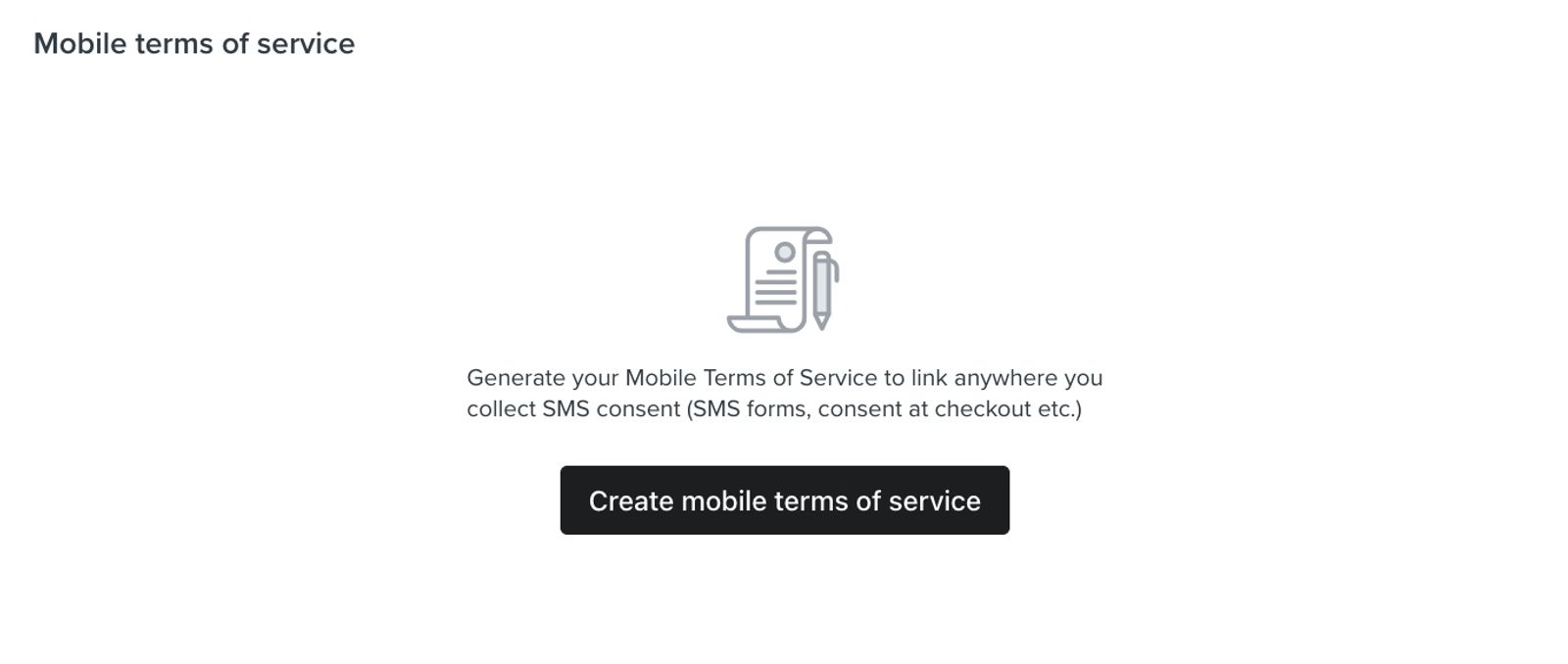
Whenever you collect SMS consent, you should link to your mobile terms of service (TOS). You can use Klaviyo to:
- Generate a mobile TOS that you can customize to fit your needs.
- Either:
- Host the TOS for you and add a link to your TOS anywhere (like forms where you collect SMS consent)
Or - Copy the text in the TOS and paste into another page, like your existing TOS page.
- Host the TOS for you and add a link to your TOS anywhere (like forms where you collect SMS consent)
SMS opt-in disclosure
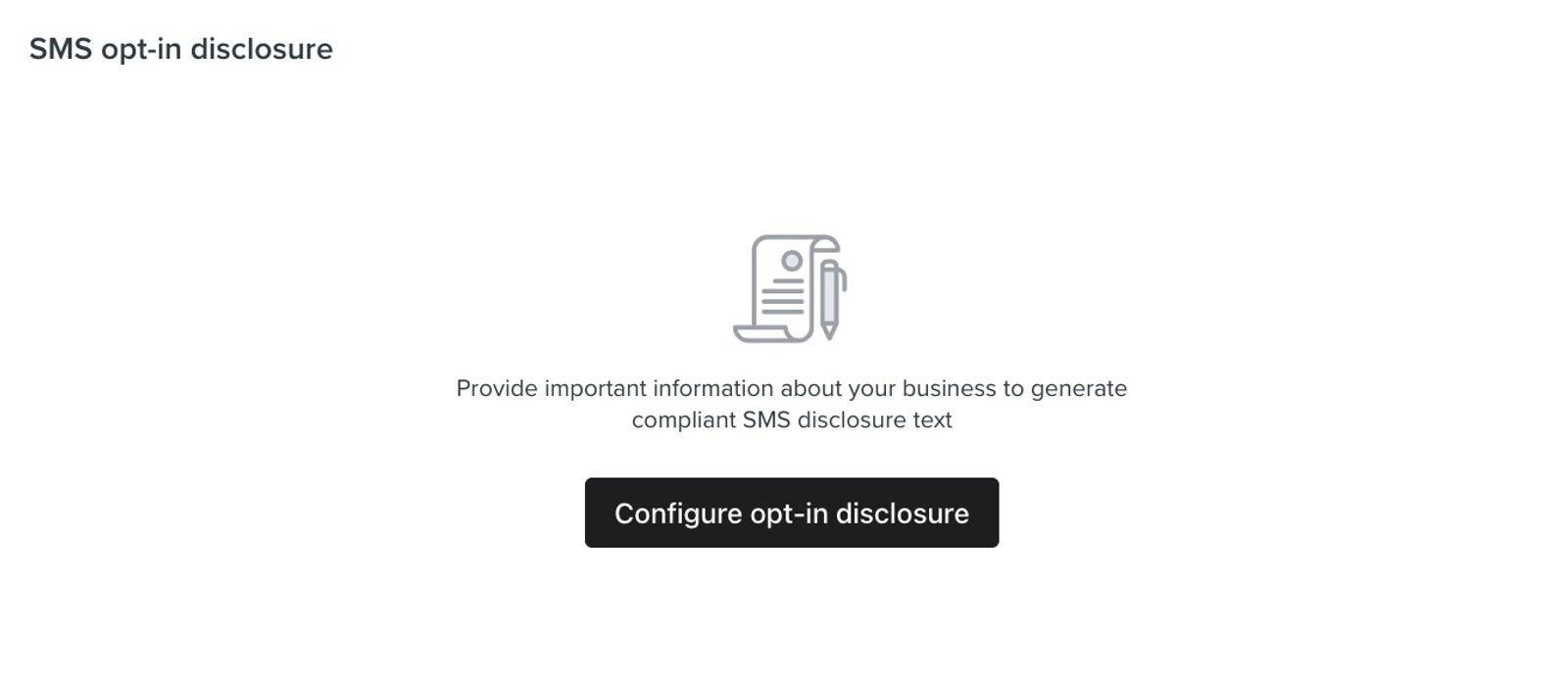
Including SMS disclosure language on your popups, website, and any other consent-collection method is extremely important. Many countries require that companies inform potential SMS subscribers of exactly what they are agreeing to if they opt in to SMS marketing.
In Klaviyo, you can create default disclosure language to add to your sign-up forms and subscribe pages.
Import SMS unsubscribes
You can bulk unsubscribe people from SMS by uploading a CSV file. This is useful when cleaning your SMS list, as it's better to unsubscribe someone than delete their profile.
This is not located within the SMS settings, but rather under Settings > Other > Profile maintenance.
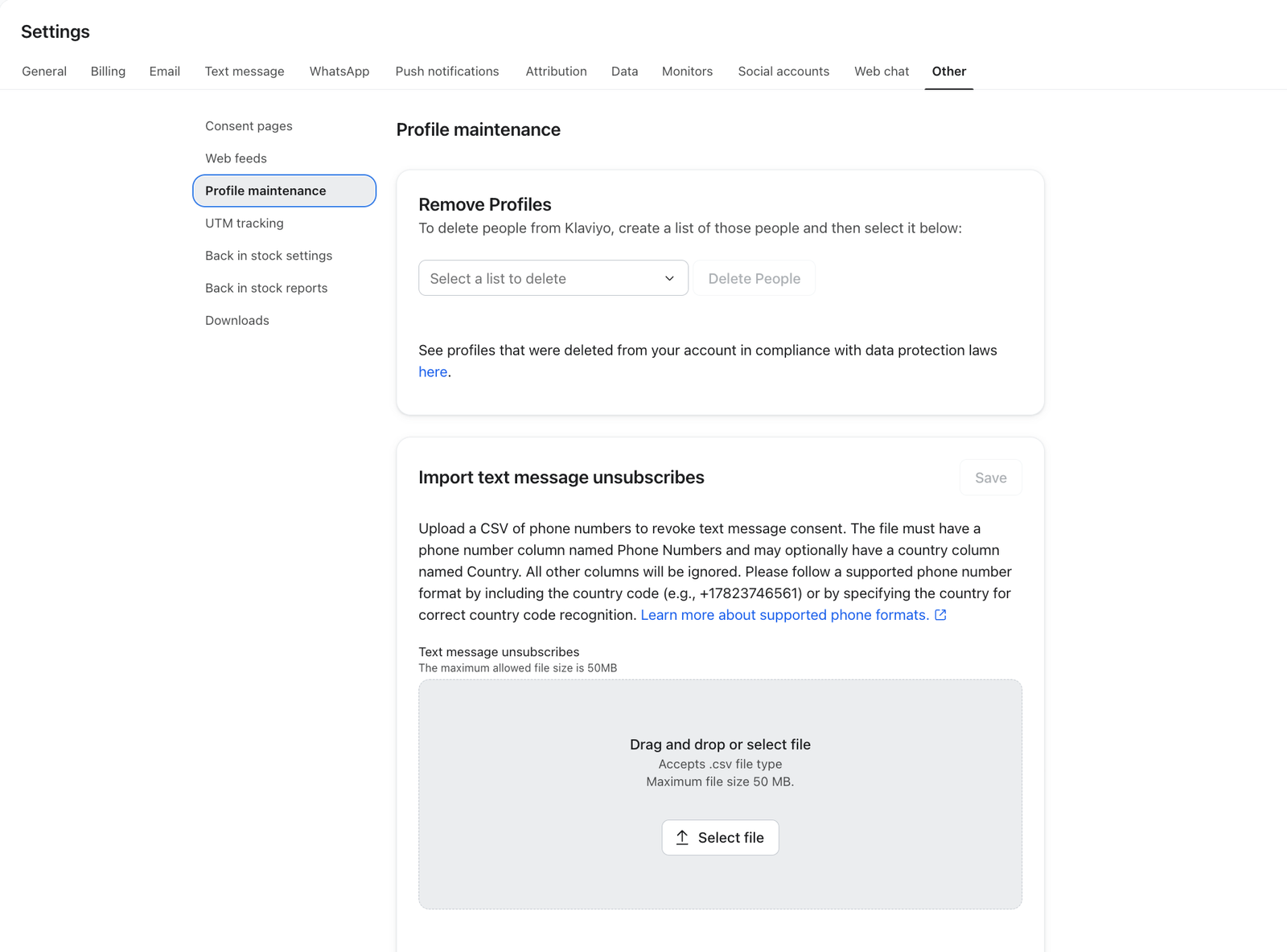
Read this article on how to bulk unsubscribe SMS profiles.
Tip: target by country
With both branded sender IDs and toll-free numbers, the same number is used to collect consent and send to multiple countries. They do so automatically too, so if you don't want to collect consent or send to a certain country, target your forms and campaigns by country, and add location-based splits in your flows.
Separating by country is also key if you want to know where to use your Mobile Messaging spend. Since rates vary by country, targeting based on location helps you track how much you spent, who engaged, and your ROI on a per-message basis. This way, you'll know where and to whom to send SMS messages.
The table below lists the countries these sending number types support. Mexico requires registration of your branded sender ID before you can send.
Branded sender ID | Toll-free number |
Australia | United States |
Austria | Canada |
Denmark | |
Finland | |
France | |
Germany | |
Ireland | |
Italy | |
Luxembourg | |
Mexico | |
Netherlands | |
Norway | |
Poland | |
Portugal | |
Spain | |
Sweden | |
Switzerland | |
United Kingdom |
Additional resources
- Understanding SMS sending numbers
Learn about the SMS sending numbers for every country that Klaviyo can send to, including what each number type can do.
- Understand Klaviyo's mobile messaging system
Learn about Klaviyo’s billing system for text messages, such as why countries and channels have different credit values and what’s included in these credits.
- Basics: multinational SMS sending with Klaviyo
Learn tips for using Klaviyo to send SMS in multiple different countries.