How to create espresso shot segments
You will learn
Learn how to create espresso shot segments for email, SMS, and mobile push.
Espresso shot campaigns help you follow up with people who recently engaged with your messages but haven’t purchased in the last 72 hours. Using these segments, you can resend a campaign or send a similar message to encourage a purchase.
Before you begin
Here, we discuss 3 segments you can create:
- SMS
- Push notifications
We also include some strategies for when and how to use these segments.
These recipes use your store’s Placed Order metric and engagement data from the channel you choose. Make sure purchase data is syncing to Klaviyo before using the order condition to exclude recent buyers.
Can I use flows to send to those in my espresso shot segment?
You can use a flow, but campaigns are easier to tailor to the message you’re following up on:
- By default, profiles enter a segment-triggered flow only once. You can change Re-entry criteria to allow re-entry whenever profiles newly qualify or after a time period. To trigger the flow again, a profile must leave the segment and then rejoin it as their data changes.
- Re-targeting via espresso shot segments works best when the content is similar to that of the original message.
For instance, if you sent a campaign about a new product, the espresso shot campaign should also be about that new product. While it’s possible to do this with flows, it would be difficult and time consuming to set up.
Create your segment
- Navigate to Audience > Lists & segments.
- Click Create > Segment. If you haven’t created any lists or segments yet, select the Segment card.
- Enter a name for your segment. If a Create segment panel opens, click Create segment after entering the name to continue to the builder.
- Add the conditions for your channel from the sections below, keeping the AND and OR connectors as shown.
- Once the definition is complete, click Create segment. Wait for the segment to finish populating before using it for a campaign.
The engagement conditions below include any message on the selected channel. Someone in the segment may have engaged with a different message from the campaign you plan to resend.
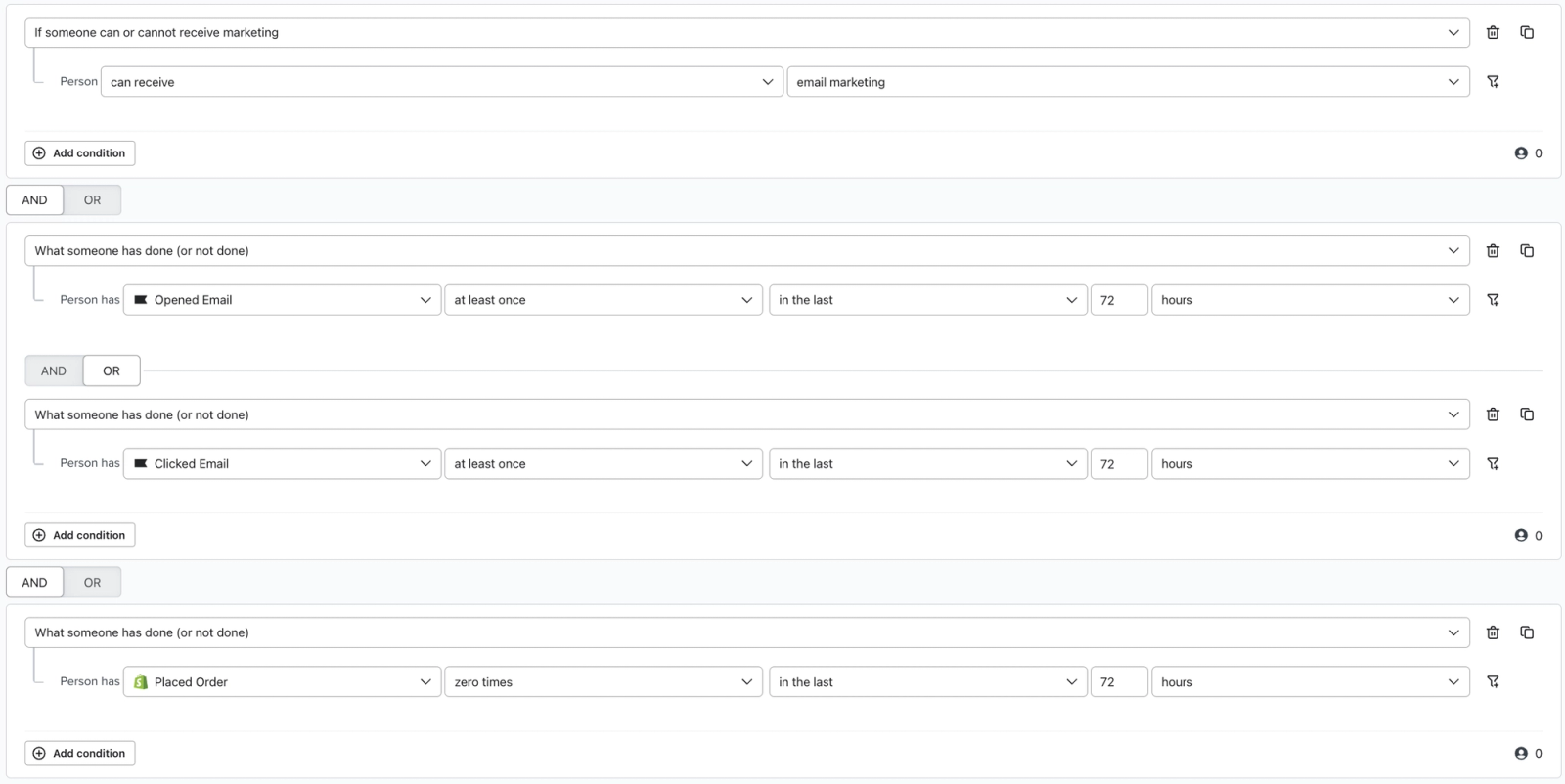
Email espresso shot segment
Include the following conditions. Use AND to require email consent and no recent orders, and OR between the open and click conditions so either type of engagement qualifies.
- If someone can or cannot receive marketing > can receive > email marketing > because person > Subscribed
AND - What someone has done (or not done) > Opened Email is at least once in the last 72 hours, where Apple Privacy Open equals false
OR - What someone has done (or not done) > Clicked Email is at least once in the last 72 hours
AND - What someone has done (or not done) > Placed Order > zero times in the last 72 hours
On the Opened Email condition, use the filter icon to add Apple Privacy Open and set it to false. This excludes opens generated by Apple Mail Privacy Protection from that condition.
Use cases
After creating this segment, we recommend doing one of the following:
- Re-send your most recent email campaign after making a few tweaks (e.g., changing the subject line).
- Create a similar campaign and offer an incentive (e.g., free shipping).
- Target this segment via SMS or push.
- Add an AND condition: If someone can or cannot receive marketing > can receive, then choose text message marketing or mobile push marketing for the channel you plan to use.
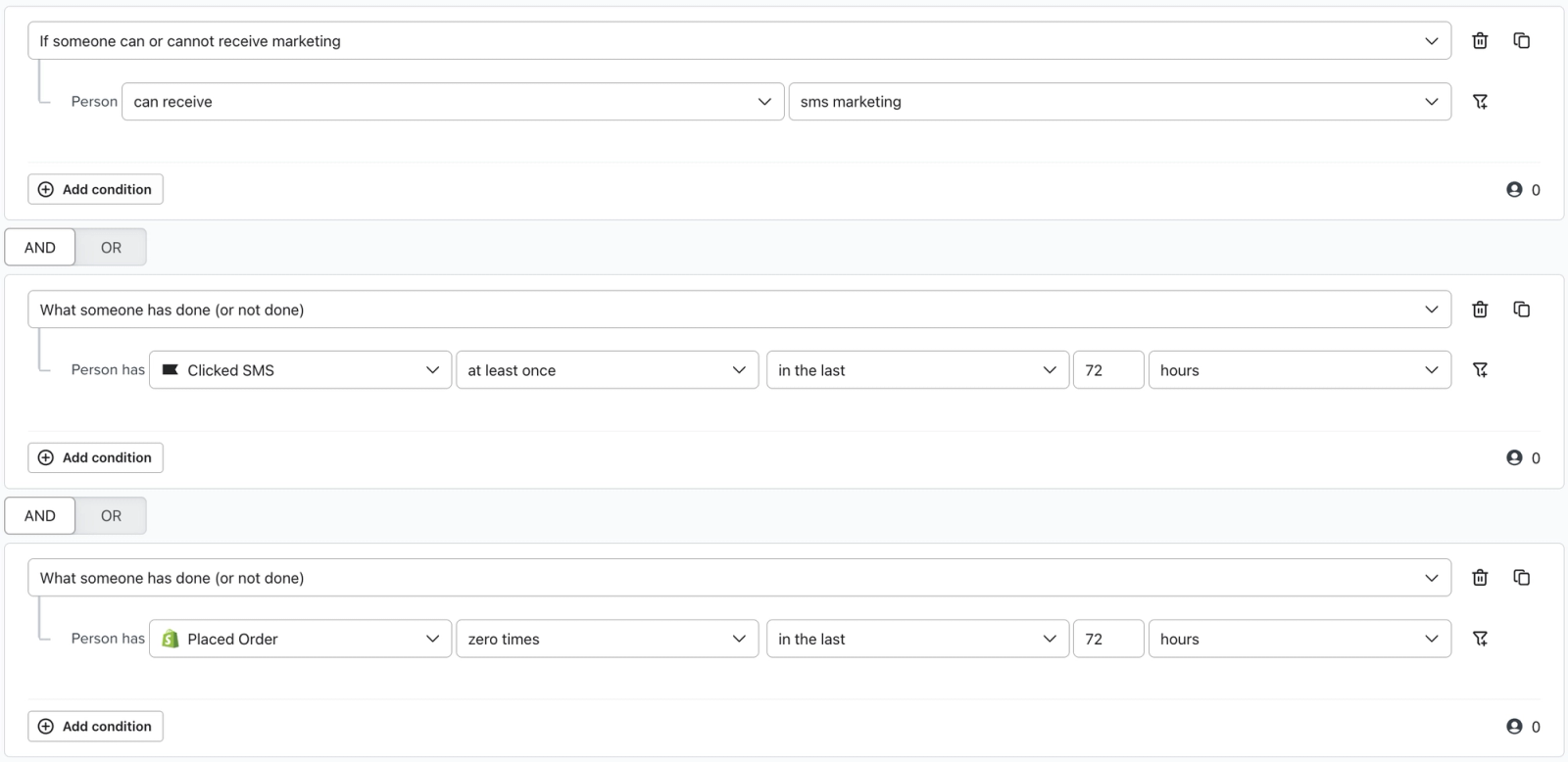
SMS espresso shot segment
For the SMS segment, add the following conditions:
- If someone can or cannot receive marketing > can receive > text message marketing
AND - What someone has done (or not done) > Clicked SMS is at least once in the last 72 hours
AND - What someone has done (or not done) > Placed Order > zero times in the last 72 hours
Use cases
You can use this segment to:
- Target this segment via an ad.
- Text an offer (such as free shipping) to incentivize them to purchase.
- Send them a similar email or push notification to follow up.
- Add an AND condition: If someone can or cannot receive marketing > can receive, then choose email marketing or mobile push marketing for the channel you plan to use. For email, also add the because person > Subscribed filter.
Unlike email and mobile push, we don’t recommend resending an SMS. As a channel, SMS is considered more intrusive, so texting the exact same message may be seen as too much.
Push espresso shot segment
As for push, add these conditions:
- If someone can or cannot receive marketing > can receive > mobile push marketing
AND - What someone has done (or not done) > Opened Push is at least once in the last 72 hours
AND - What someone has done (or not done) > Placed Order > zero times in the last 72 hours
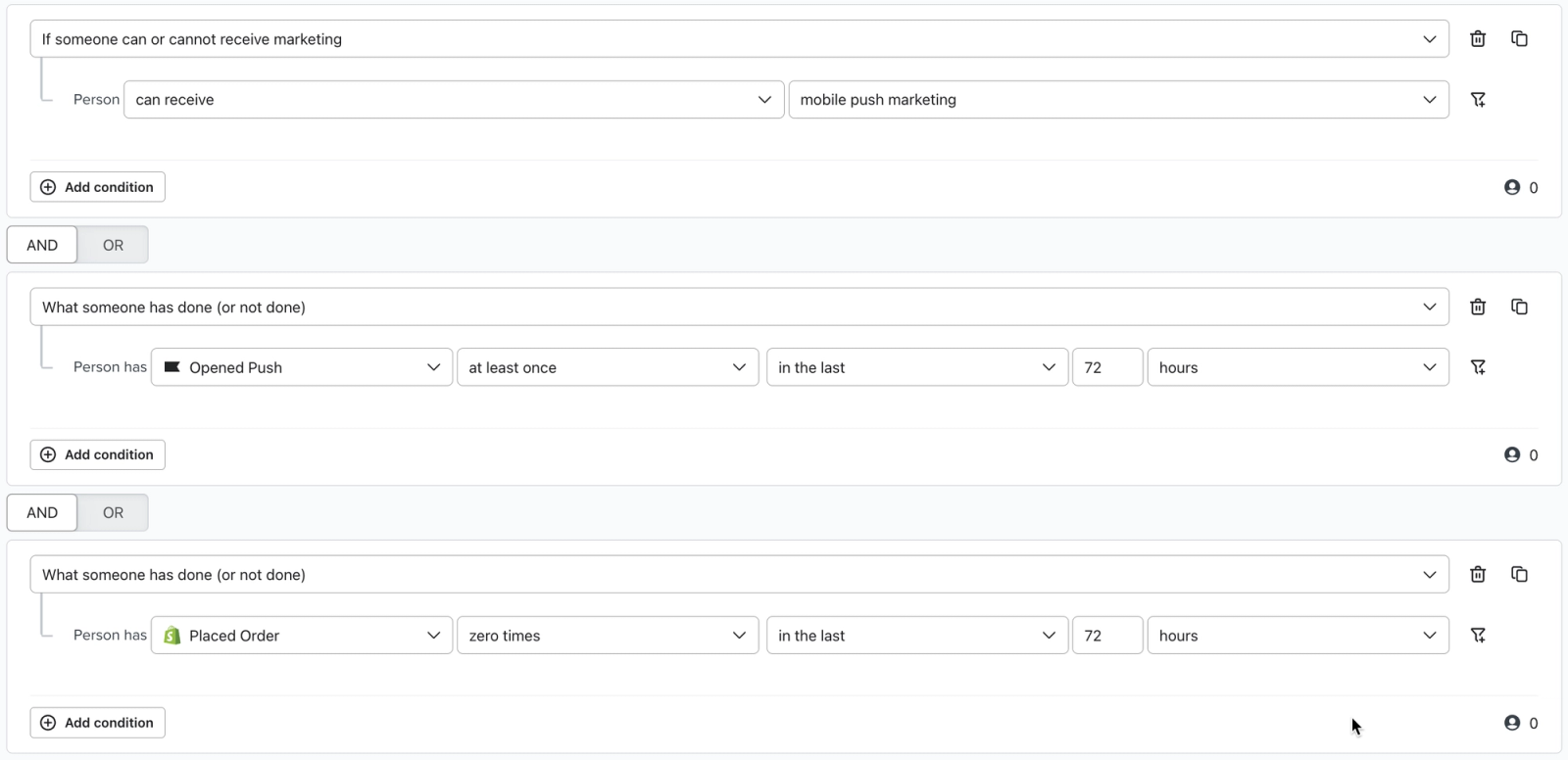
If available, we also recommend including an app-related condition (e.g., AND What someone has done (or not done) > Opened app at least once in the last 72 hours).
Use cases
- Resend the push campaign to this segment.
- Send a similar push campaign that creates a sense of urgency, includes an incentive, or otherwise encourages recipients to buy.
- Follow up via email or SMS to direct users to your website.
- Add an AND condition: If someone can or cannot receive marketing > can receive, then choose text message marketing or email marketing for the channel you plan to use. For email, also add the because person > Subscribed filter.
- Target an ad or banner in your app to this segment.
Outcome
These segments identify people who recently engaged with your messages and haven’t purchased in the same 72-hour period. You can resend emails to these segments or follow up with a similar message to encourage people to buy.
You can also adapt these segments to your needs, such as by:
- Temporarily shortening the timing for special holidays and events.
- Checking if someone consented to another channel.
- Filtering by which collections someone browsed.
- Only including those active on your app (for push notifications).
Additional resources
- AND vs. OR reference
Learn more about AND and OR connectors and how they are critical to setting up segments and flows in Klaviyo. These connectors define who will be grouped within your segments as well as when someone will receive flow messages. In this guide, we will go over what differentiates the 2 conditions and when to use each to target the right audience.
- Advanced segmentation reference
Learn effective advanced segmentation strategies that provide insights into your customer base and create highly personalized experiences for your subscribers.
- Recommended SMS segments reference
Learn how to create segments that will level up your SMS marketing strategy. Segmentation allows you to better understand your audience and send targeted messages in Klaviyo.