How to do A/B Testing in WhatsApp Flow
You will learn
Learn how to use Klaviyo’s A/B testing experience to test individual WhatsApp messages in a flow.
About flows and A/B testing
Flow WhatsApp A/B testing includes the processes of:
- Creating a single flow WhatsApp message as part of a Flow.
- Configuring two or more WhatsApp templates variations for the flow, using pre-existing templates.
- Selecting the weight of each variation to establish the percentage of recipients that will receive each template.
- Having a winning template variation chosen automatically after a probability threshold of 95% is reached, after a specific date, or after manually choosing a winner based on the highest open rate or highest click rate amongst variations.
Perform a flow WhatsApp A/B test
Creating an A/B test can be easily done through the flow builder.
Create a new A/B test
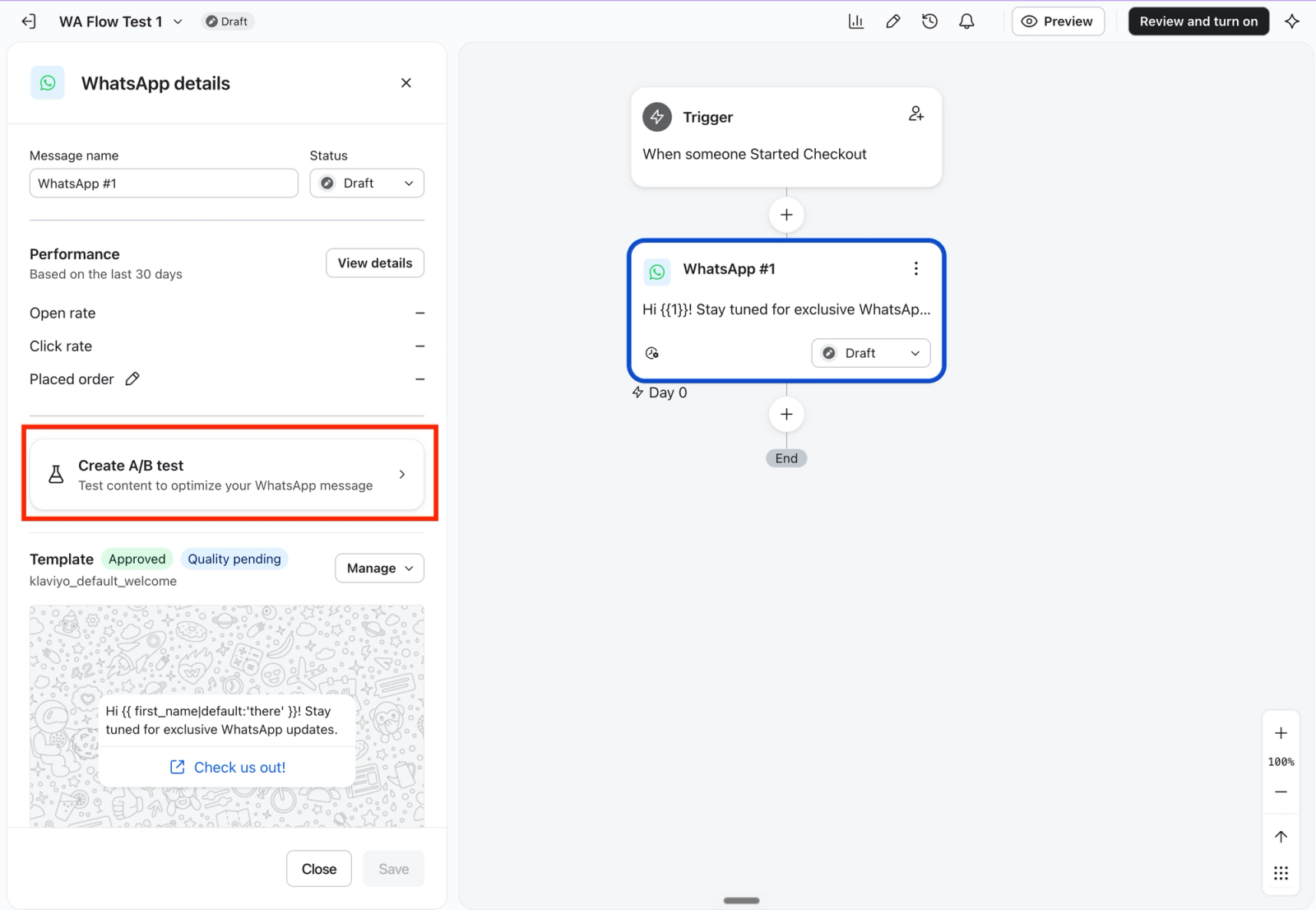
- To set up A/B testing for an individual WhatsApp template in any flow, click on the initial WhatsApp message within the flow builder.
- Click “Create A/B test” in the WhatsApp details panel.
Edit variations
After creating a new test, you will be taken directly to the A/B Test configuration window. Every test will automatically include the initial template as Variation A, and a copy of the initial template for Variation B. Choose a new Variation B template.
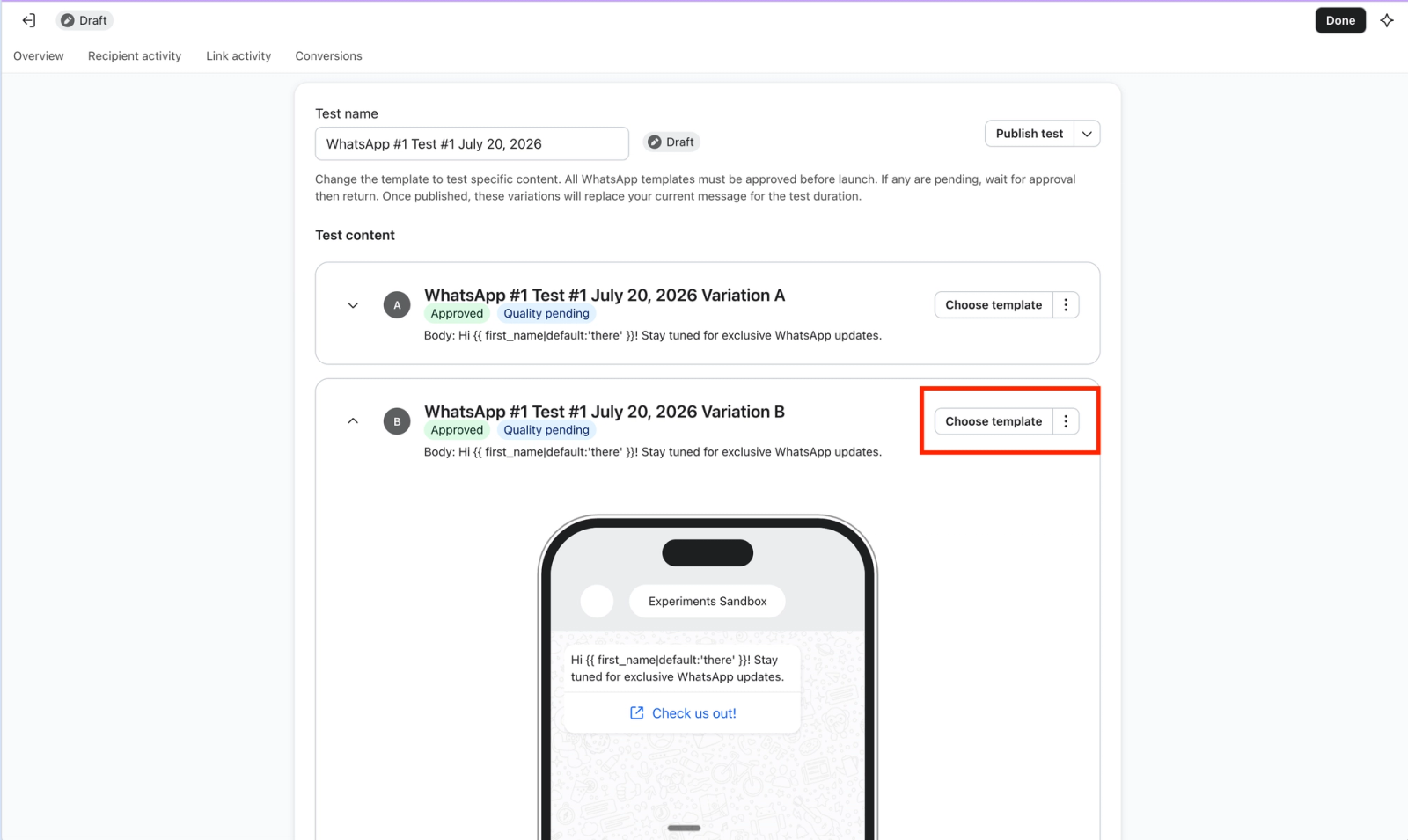
Only 2 variations are currently supported for WhatsApp Flow A/B test.
- To select your variant template, click “Choose template” next to Variation B
- You will be directed to your WhatsApp template gallery. Select your variant template from your pre-existing templates
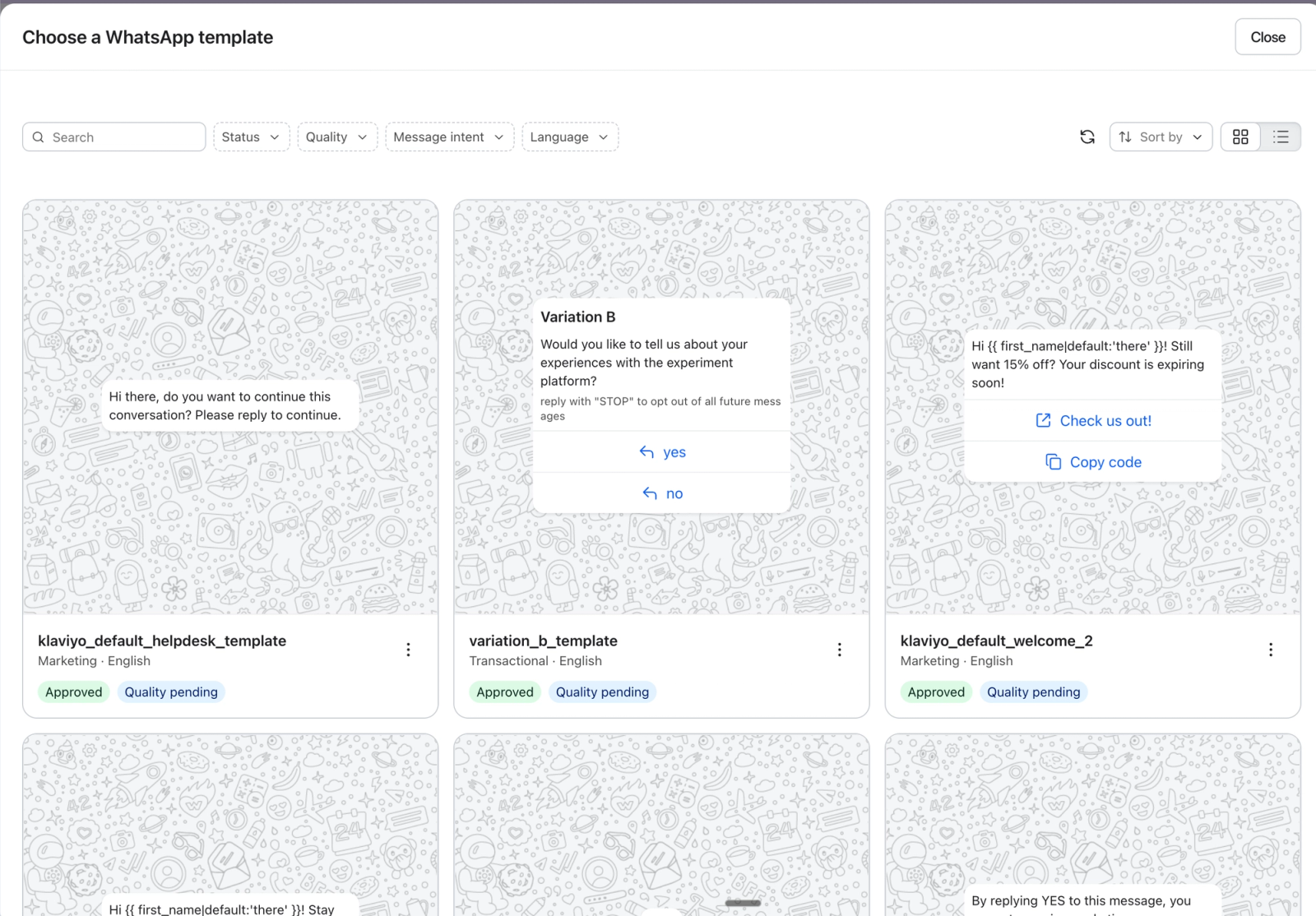
Note: Only pre-existing templates can be used as a variant template.
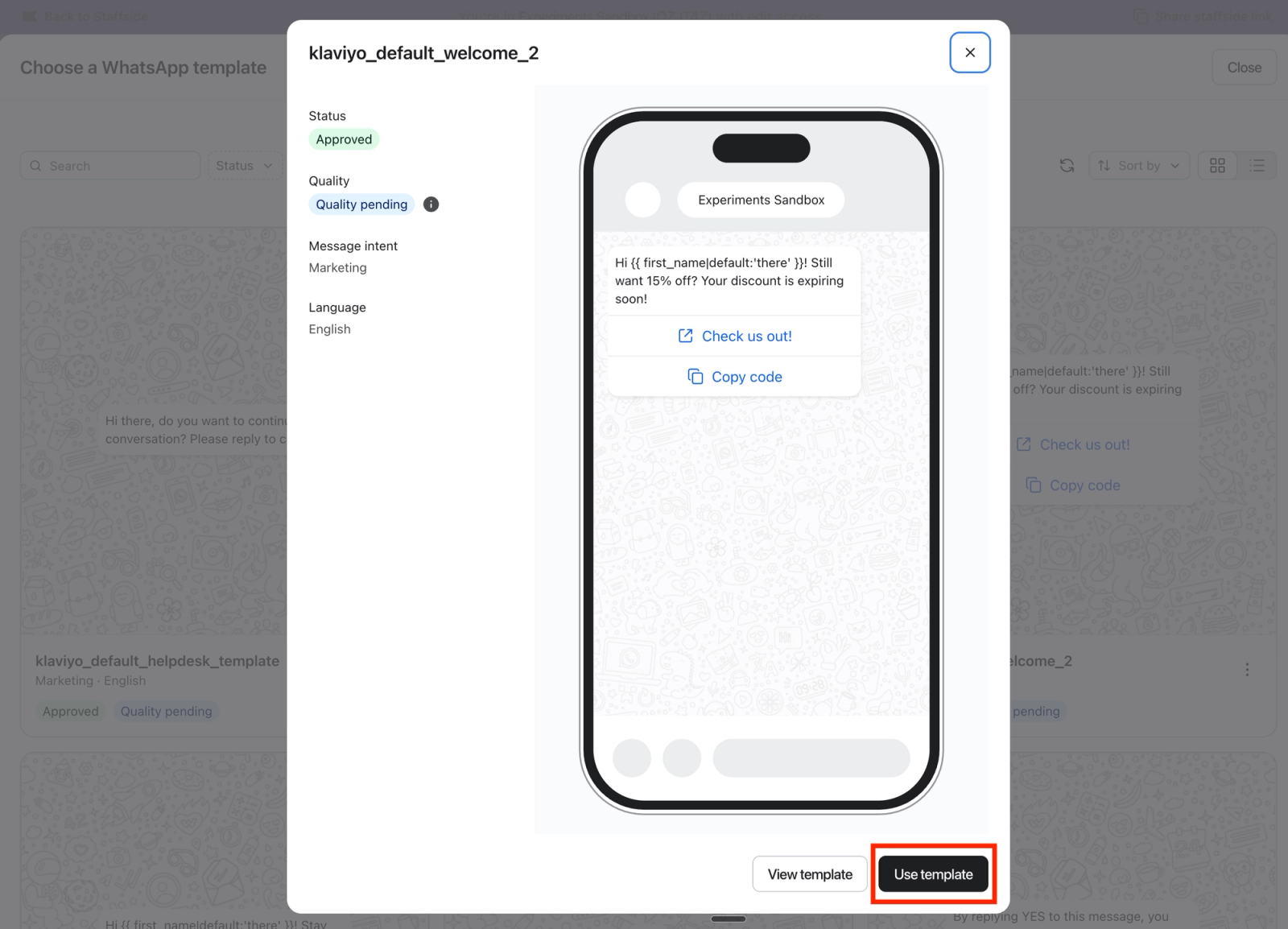
Confirm template selection by clicking “Use template”
Adjust test settings
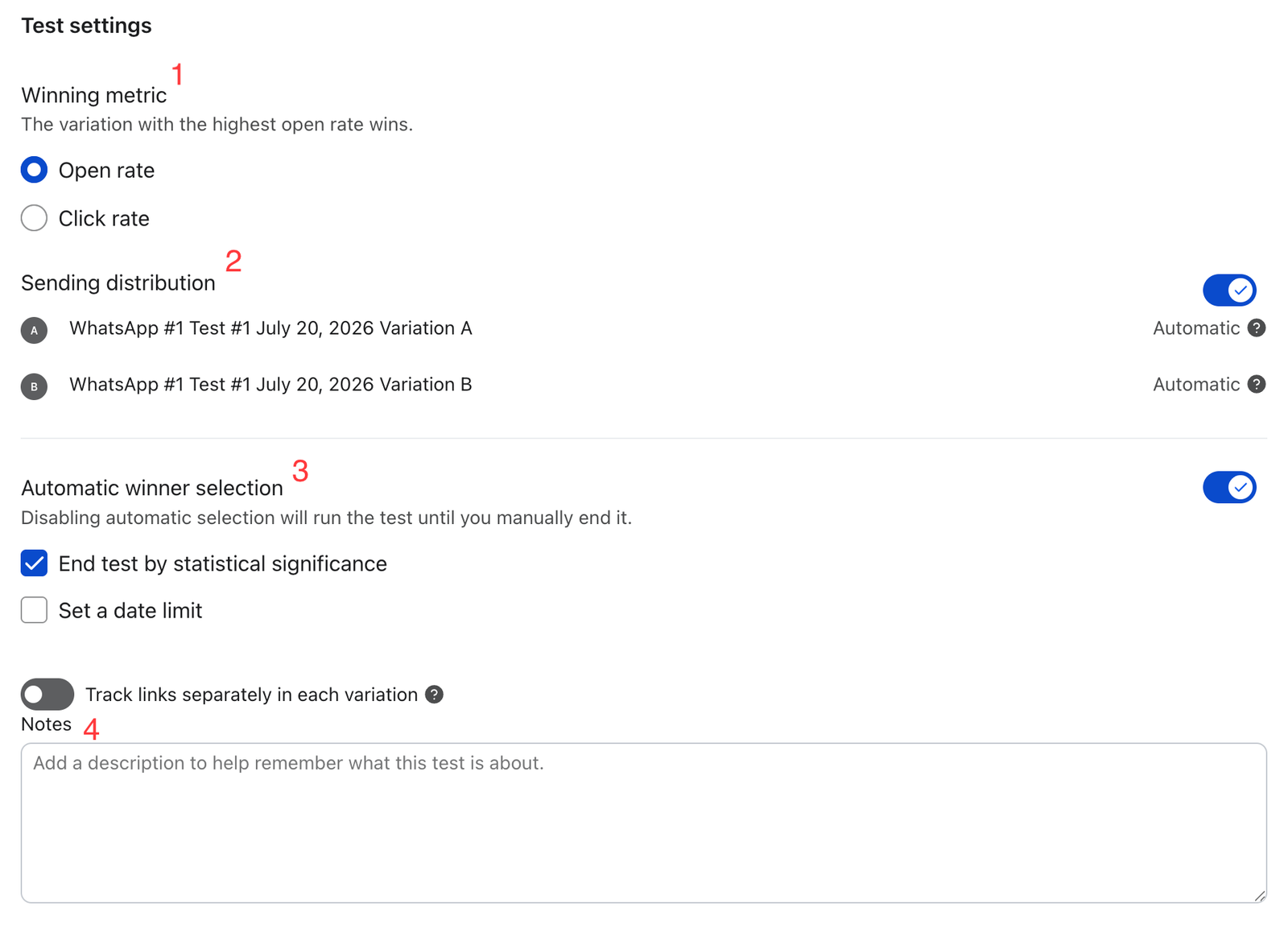
In the Test Settings section at the bottom of the configuration window, you can configure the winning metric, variant traffic allocation, and test ending criteria.
- Winning metric
- Select which metric will be measured to determine the best performing template. Choose between Open rate and Click rate
- Traffic allocation
- Choose between a fixed traffic percentage or dynamic allocation.
- Ending criteria
- Deselect “Automatic winner selection” to keep the test running until you manually end it.
- Choose “Automatic winner selection” to automatically end the test based on a defined criteria
- “End test by statistical significance” will end the test once a template reaches a 95% probability of being the better performing template
- “Set a date limit” ends the test by a specific date
- If both are selected, the test will end when the earliest of the two criteria are met
- Add notes to track your hypothesis and experiment design reasoning.
If you’re using UTM links, toggle the “Track links separately in each variation” to track UTMs individually.
Publish the test
Publish your test by clicking “Publish test” at the top of the page and following the prompts.
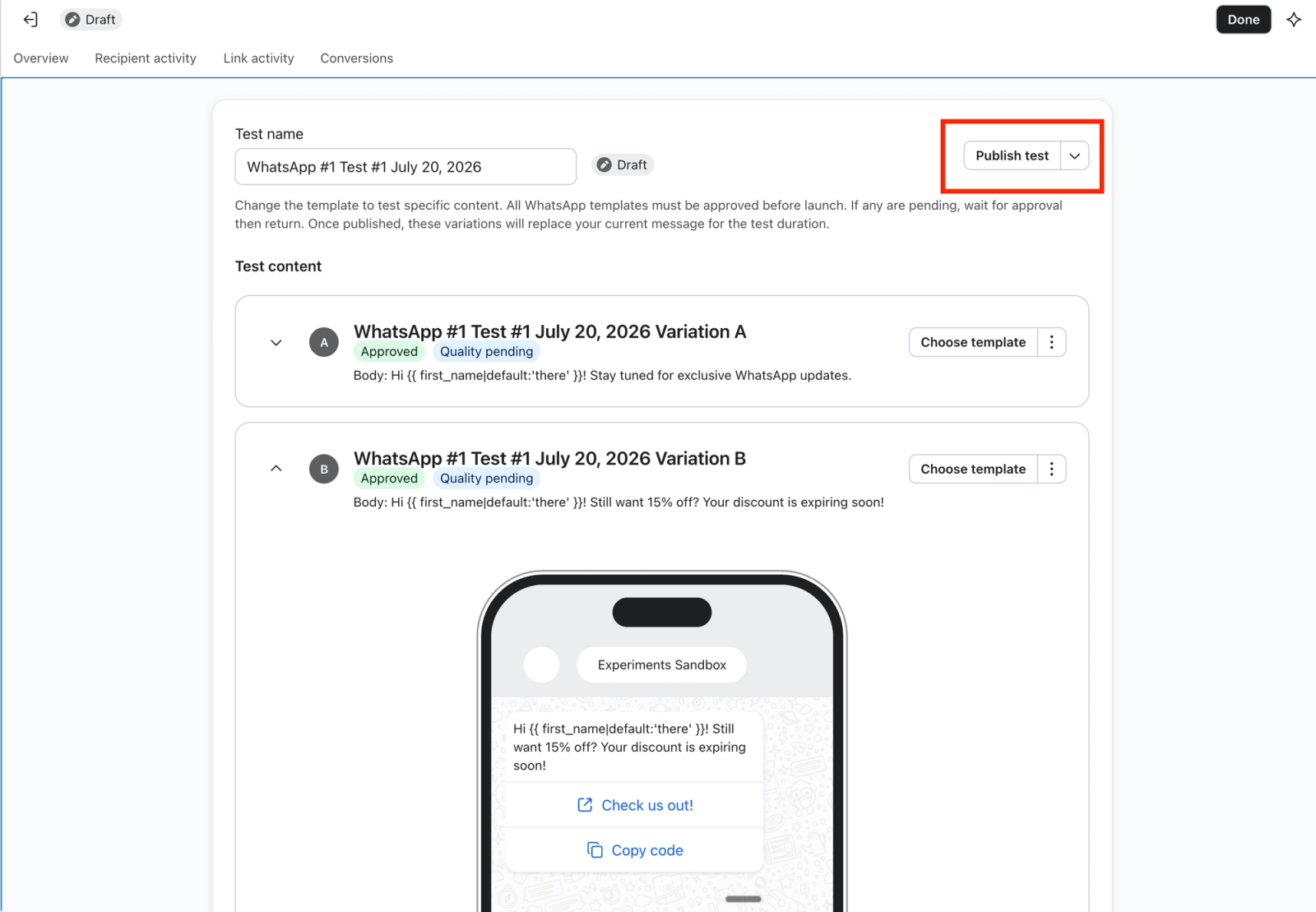
Note: A test can only be published once both templates have been approved.
View live test results
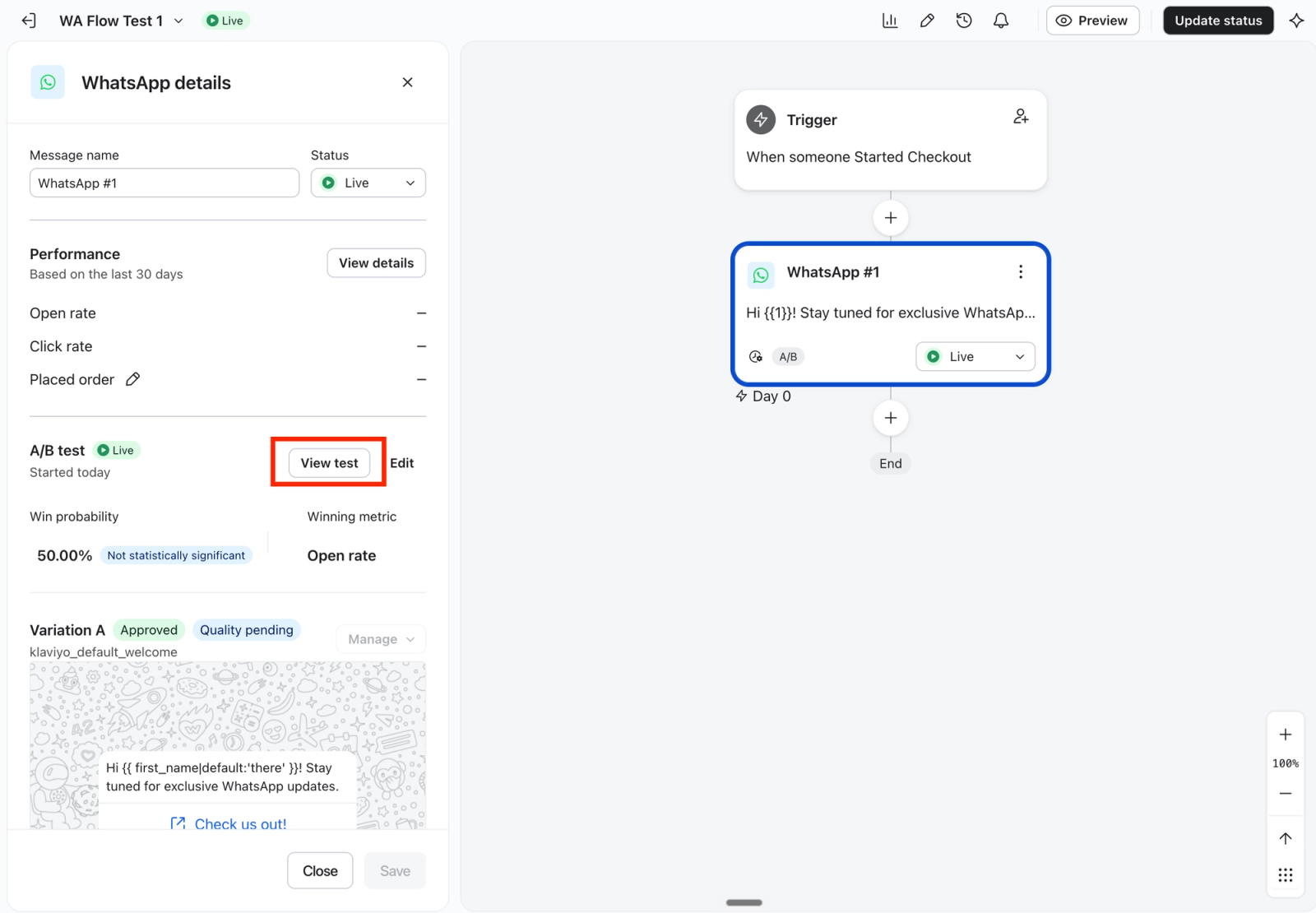
To view the results of a live test, navigate to the Flow builder, click on the WhatsApp message, and click “View test” in the WhatsApp detail side pane.
Manually choose a winner
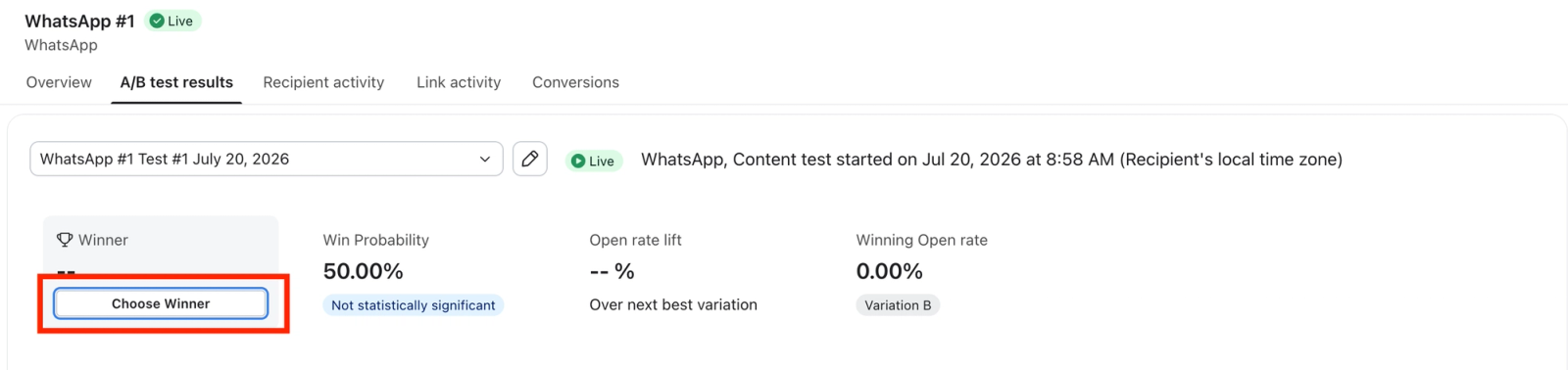
To end the test and manually declare a winning variation, click “Choose a winner” and follow the prompts. This will make the winning variant the message that everyone gets moving forward
View results
To view the results of a completed A/B test, see How to review email A/B test results for flows
Additional resources
- Best practices for A/B testing reference
Learn best practices for using Klaviyo's A/B testing features to help optimize your communication with customers.