Troubleshooting added to cart tracking
Before you begin
For some ecommerce platforms, Added to Cart events are tracked automatically. For other ecommerce platforms, a code snippet must be manually added to your site.
Before consulting this guide, make sure you:
- Enable Added to Cart tracking, if it was not added automatically through your integration.
- Enable Klaviyo’s onsite JavaScript, known as Klaviyo.js, if your Added to Cart tracking uses a JavaScript snippet. Learn how in the troubleshooting scenarios below. Shopify pixel tracking uses the separate setting described below.
If you are using BigCommerce, make sure to enable Viewed Product tracking, which is required in order for Added to Cart tracking to function properly. Guidance around enabling Viewed Product tracking is given in the setup guides linked below. If you are experiencing issues with Viewed Product tracking, please see our guide on troubleshooting Viewed Product tracking.
The following ecommerce integrations support Added to Cart tracking, and it works as follows:
- Shopify
Enabled via a Shopify pixel when you check the Track behavioral events setting - BigCommerce
Requires a manually installed code snippet - Magento 2
Automatically added by Klaviyo - WooCommerce
Automatically added by Klaviyo - PrestaShop
Automatically added by Klaviyo - Salesforce Commerce Cloud
Automatically added by Klaviyo - only tracked for logged-in users
If you’re using an ecommerce platform without a pre-built Klaviyo integration, or a custom platform, learn about how to enable Viewed Product and Added to Cart tracking on our Developer site.
Test Added to Cart tracking
To test that your Added to Cart tracking is set up properly, follow these steps:
If your Shopify store requires consent for onsite tracking, provide that consent before testing.
- Navigate to your website
- Identify yourself using the method for your platform:
- Shopify: Log in to a customer account on your store using an email address that already has a Klaviyo profile. For other ways to identify yourself, see testing Shopify pixel tracking.
- Salesforce Commerce Cloud: Log in to your store account using your test email address.
- Other platforms: On your homepage, add the following to the end of the URL, replacing example@gmail.com with your email address:
?utm_email=example@gmail.com

- Reload the page
- Navigate to a product page on your site with a product that is in stock
- Click the “Add to Cart” button on the page
- Search in Klaviyo for the email address you used in step 2, then open the matching profile.
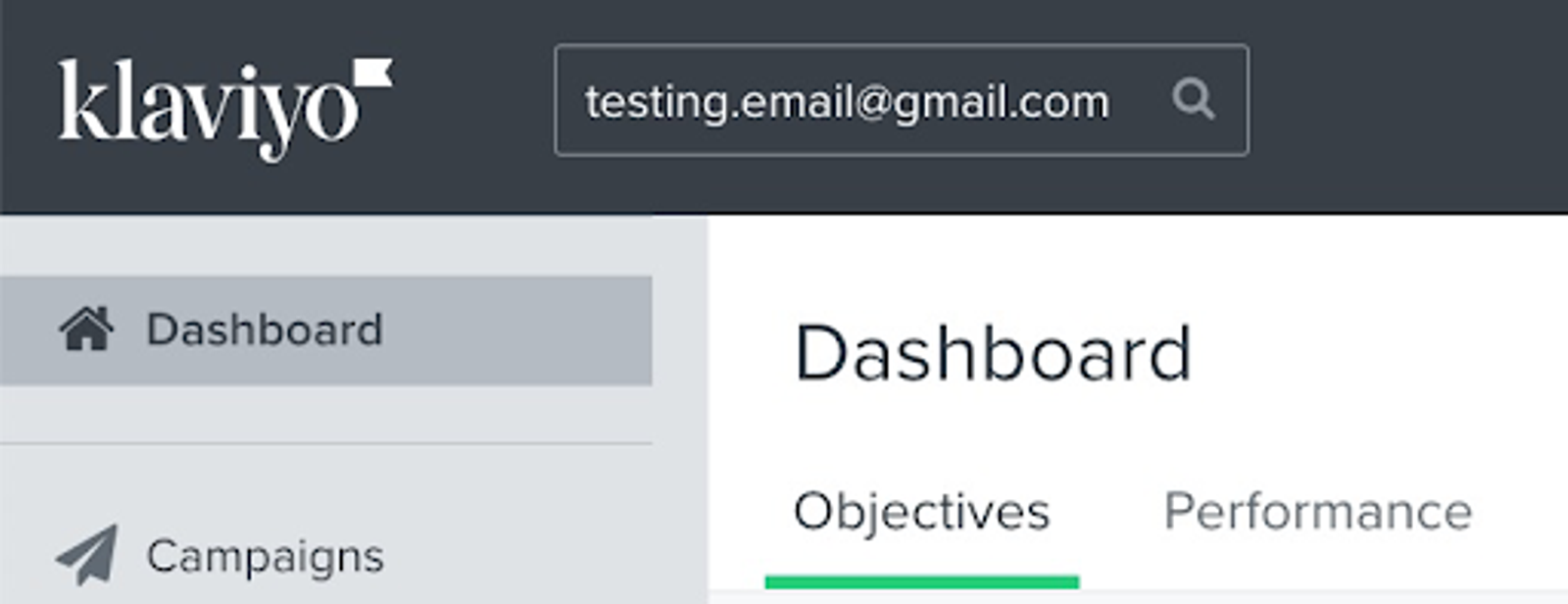
You should see that a Klaviyo profile has been created for you (if one didn't exist already) and that an Added to Cart event has been tracked on your activity feed.
To see a feed of all Added to Cart events over time:
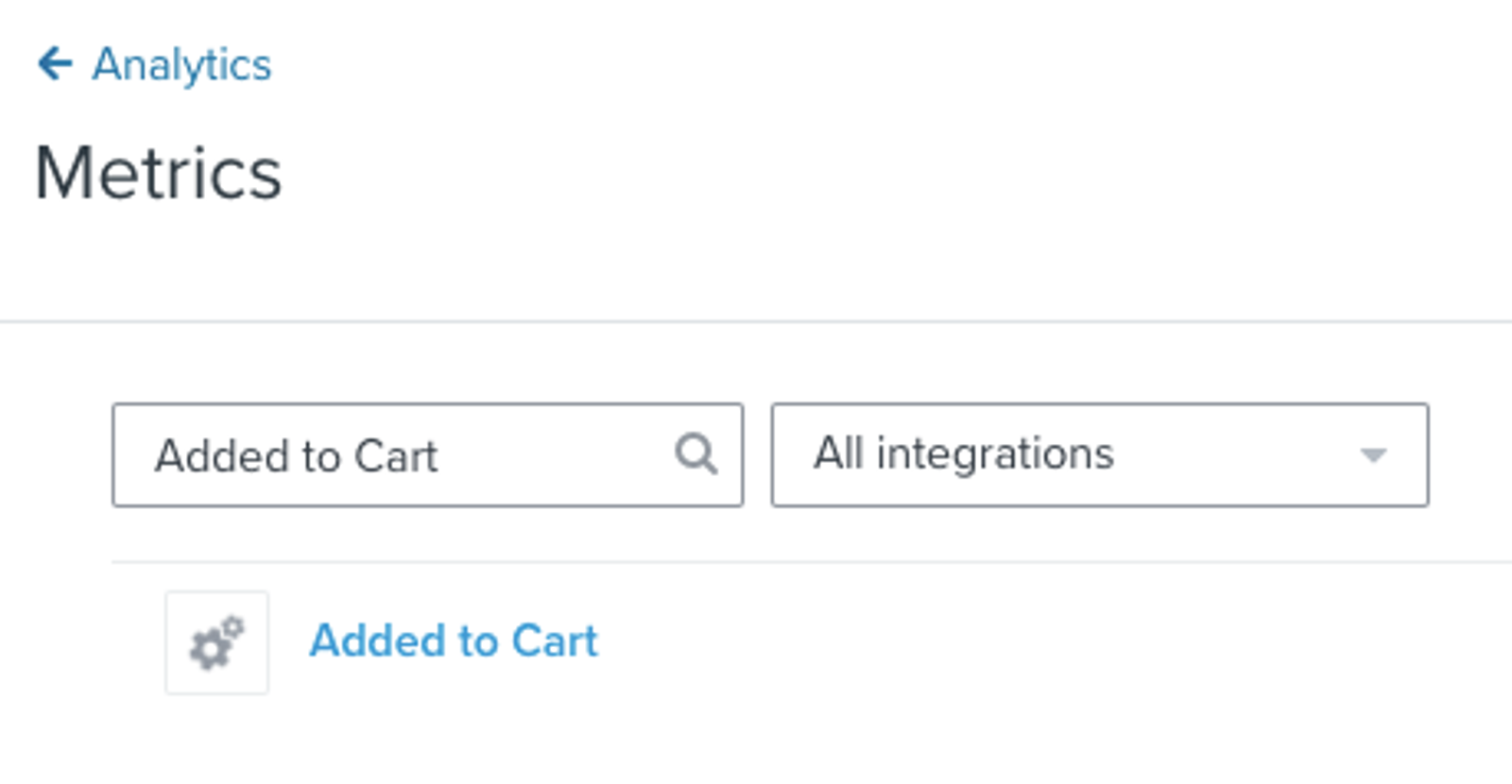
- Navigate to Analytics > Metrics in Klaviyo.
- Search for Added to Cart, click the metric name, then select Activity feed to view the events. You can also use Chart, Activity map, Best people, and Cohorts to explore the data. Shopify pixel events have a Shopify icon; events sent through Klaviyo.js have a gear icon. If you have more than 1 Added to Cart metric, choose the one for your current tracking setup.
Once you’ve reviewed the troubleshooting scenarios below and made changes, you should test your tracking again to make sure it’s working correctly.
Troubleshooting scenarios
Review the following questions in order to diagnose the cause of your Added to Cart issues. Note that some steps are general, and others depend on what ecommerce platform you are using.
Have you enabled Klaviyo’s Active on Site tracking?
For Added to Cart tracking that uses a JavaScript snippet, Klaviyo.js must be installed so Klaviyo can identify visitors and record their activity. Klaviyo.js also enables Active on Site tracking. For Shopify pixel tracking, check the behavioral event settings in the Shopify section below.
Klaviyo adds Klaviyo.js automatically during the integration, though some integrations require that you check a setting to enable it. Learn about your specific ecommerce platform and how to test that Klaviyo.js is working:
- Shopify
Klaviyo.js is added automatically through the integration or through the Klaviyo app embed in Shopify, if you enable it. Learn more about the app embed and onsite tracking for Shopify. - WooCommerce
Klaviyo.js is added automatically when you integrate with WooCommerce, and you can make sure that you’ve completed all steps by reading our WooCommerce integration guide. To test your onsite JavaScript, select the Integrations tab, then click Manage data > Set up web tracking. Then, find the step where you can enter your site URL in the box, and follow the instructions to test your tracking. - BigCommerce
Make sure you’ve checked the option on your integration settings page to Automatically add Klaviyo onsite JavaScript. Then, follow the steps to test your onsite JavaScript. - Magento 2
Klaviyo.js is added automatically when you integrate with Magento 2, and you can make sure that you’ve completed all steps by reading our Magento 2 integration guide. To test your onsite JavaScript, select the Integrations tab, then click Manage data > Set up web tracking. Then, find the step where you can enter your site URL in the box, and follow the instructions to test your tracking. - PrestaShop
Klaviyo.js is added automatically when you integrate with PrestaShop, and you can make sure that you’ve completed all steps by reading our PrestaShop integration guide. To test your onsite JavaScript, select the Integrations tab, then click Manage data > Set up web tracking. Then, find the step where you can enter your site URL in the box, and follow the instructions to test your tracking.
For Shopify users: have you enabled behavioral event tracking?
- In Klaviyo, select Integrations, then select Shopify.
- In the Onsite Tracking section, find Additional tracking features and use the option shown:
- Track behavioral events: Check the box, then click Update Settings. Complete any authorization prompts, then return to Klaviyo.
- Get started: Click Get started and select Behavioral events. Click Next if prompted, review the profile sync options, and click Save. Complete any authorization prompts, then return to Klaviyo.
The Klaviyo app embed adds Klaviyo.js for Active on Site and Viewed Product tracking. If you changed your Shopify theme, check that the app embed is enabled for the new theme. Follow the guide to enabling the Klaviyo app embed in Shopify.
Have you recently switched ecommerce platforms?
If you’ve recently switched ecommerce platforms, you’ll need to add both Viewed Product and Added to Cart tracking to your new site. Consult the information in the Before you begin section above to learn about Viewed Product and Added to Cart tracking for your new platform.
Have you recently updated your store’s theme, or made any other updates to your ecommerce platform?
If you’ve recently updated your store’s theme, you may need to reinstall Klaviyo.js, the Viewed Product snippet, and the Added to Cart snippet (for BigCommerce) on your new theme depending on the platform. Making other updates to your ecommerce platform may also affect the snippets previously added to your site.
To reinstall the Viewed Product snippet for BigCommerce, follow the instructions in the BigCommerce integration setup guide, and for the Added to Cart snippet follow the guide to creating an "Added to Cart" event for BigCommerce.
If you’re using WooCommerce or Magento, or are using the Klaviyo app embed in Shopify, but you’ve made changes to your site and now the event isn’t tracking, you should contact Klaviyo support to help diagnose the problem.
For BigCommerce users: Is your ecommerce store connected to multiple Klaviyo accounts?
If you have one store connected to multiple Klaviyo accounts, this can cause problems with Active on Site, Viewed Product, and Added to Cart tracking. Duplicate Klaviyo.js can cause onsite tracking to break.
To check if you have duplicate Klaviyo.js:
- View your storefront page source and search for
klaviyo.js. A Klaviyo.js script tag may look like this:
<script type="text/javascript" async="" src="https://static.klaviyo.com/onsite/js/klaviyo.js?company_id=API_KEY"></script>- If you find more than 1 Klaviyo.js script tag, compare the public API keys in their URLs. The key may appear after
company_id=or in the URL path before/klaviyo.js. Different keys indicate that scripts from different Klaviyo accounts are present. - To make sure the duplicate is removed correctly from your site, please contact Klaviyo support.
For BigCommerce users: Are you using the correct code snippet for your Add to Cart button?
BigCommerce requires a manually installed code snippet to use Added to Cart tracking. There are 2 different snippets that can be installed into your theme depending on if your “Add to Cart” button has an ID or not. Please see our guide on how to create an "Added to Cart" event for BigCommerce for more information on how to check this.
For WooCommerce and Magento users: Are you using the most recent version of your integration plugin?
If you are using WooCommerce or Magento, problems with Added to Cart tracking might be related to other issues with your platform’s Klaviyo plugin.
- If Added to Cart events aren’t tracking, check to see if the Started Checkout event is tracking by searching for Started Checkout within Analytics > Metrics in Klaviyo.
- If both Added to Cart and Started Checkout aren’t tracking, there may be an issue with your plugin.
- Check to see if you are using the most up-to-date version of the plugin for your integration. If needed, update to the latest version within WooCommerce or Magento, or you can download the latest version from the relevant platform’s listing.
For Shopify users: Do you require cookie consent for visitors in the EU, EEA, UK and Switzerland prior to permitting onsite tracking?
Based on your Customer Privacy settings in Shopify, Klaviyo may not track onsite events for visitors to your Shopify store in the EU, EEA, UK and Switzerland, unless they have provided consent.
Contact Klaviyo support
If you are still encountering issues after consulting this list and testing your tracking, please reach out in our Community or to our Support Team.
Additional resources
Learn how to troubleshoot other metrics:
- Troubleshooting viewed product tracking
Learn how to troubleshoot issues with your Viewed Product tracking, which is used to track when visitors view products on your site. For some ecommerce platforms, Viewed Product is tracked automatically when you integrate with Klaviyo. For other ecommerce platforms, a snippet must be manually added to your product page template.
- Troubleshooting placed order tracking
Placed Order tracking is included with ecommerce integrations and does not require any additional setup. Before consulting this guide, make sure you have properly set up, configured, and enabled your ecommerce integration.
- Troubleshooting started checkout tracking
Started Checkout tracking is included with many ecommerce integrations and does not require any additional setup. Before consulting this guide, make sure you have properly set up, configured, and enabled your ecommerce integration.
Other resources:
- Getting started with Klaviyo onsite tracking
Learn about the different ways that Klaviyo can support onsite tracking on your ecommerce site. There are 2 key types of onsite tracking:
- Troubleshooting your Shopify integration
Learn how to solve issues with your Shopify integration setup by following the relevant troubleshooting scenario described below. If you are encountering issues not on this list, please reach out on our Community or to our Support Team.