How to create and manage scheduled tasks
A scheduled task is a request Composer runs for you on a repeating schedule, like a weekly revenue report every Monday at 9 a.m.. Each run's answer is saved with the task, and the app can notify you when it's ready.
You will learn
- How to create a scheduled task
- How to run, pause, edit, or delete a task
- How to read the results of past runs
Before you begin
- Each run is a Composer request, so it uses Composer credits.
- To get an alert when a run finishes, turn on Scheduled task completed. See How to manage notifications and account settings.
Create a task
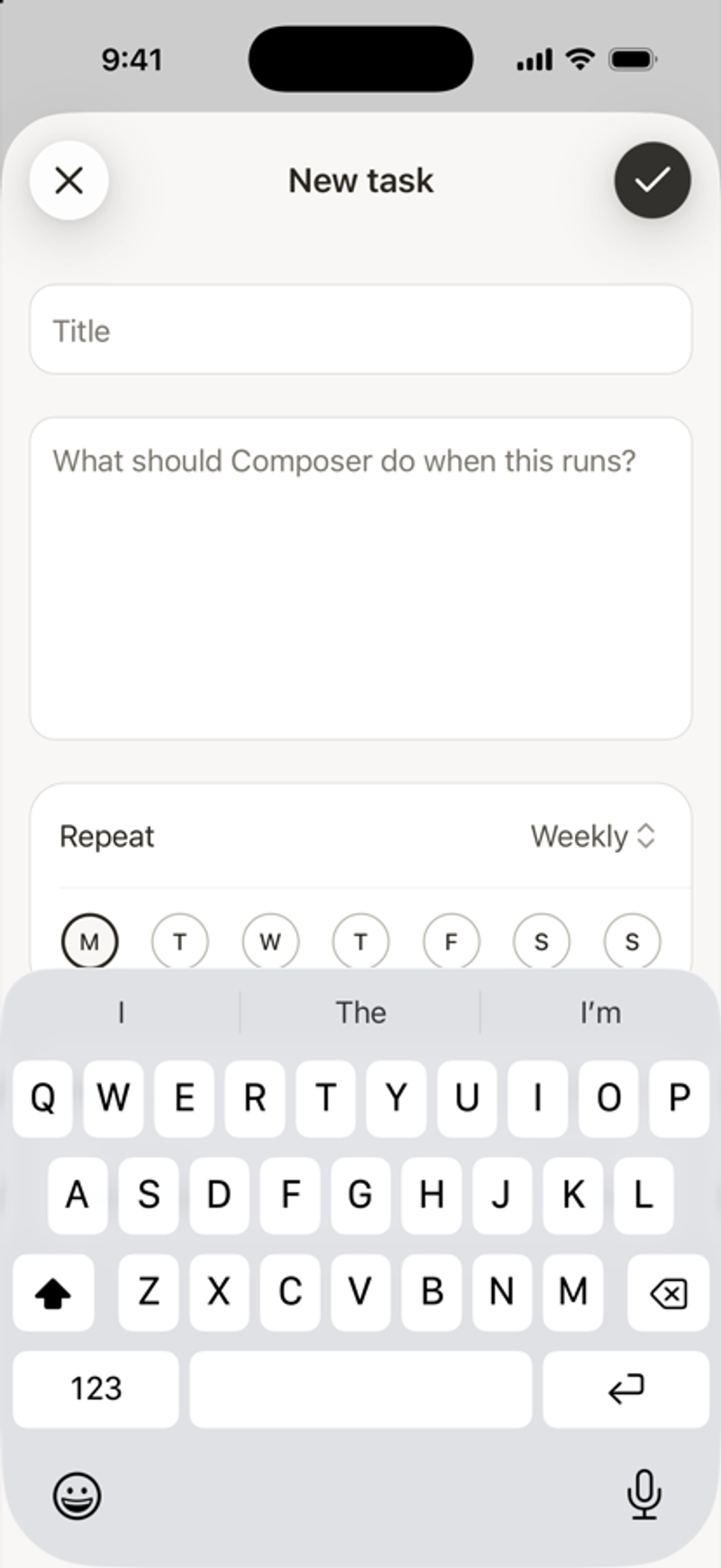
- Tap the menu icon in the top left, then tap Scheduled.
- Tap + in the top right.
- Enter a Title.
- In What should Composer do when this runs?, describe the job. For example: Summarize last week's campaign revenue and call out the top 3 sends.
- Under Repeat, choose Daily, Weekly, or Monthly. For Weekly, select the days of the week. For Monthly, enter a Day of month from 1 to 31.
- Set the Time and Time zone.
- Tap the check mark to save.
You can also ask in any chat, for example: Every Monday, send me last week's campaign revenue. Composer sets up the task for you.
Manage a task
Tap a task on the Scheduled page to open Task details. Tap the ••• button at the top to:
- Run it now, outside its schedule.
- Pause it, then Resume it later.
- Edit its title, request, or schedule.
- Delete it. The task stops running and is removed from Composer.
Read past runs
Task details shows each run's answer in order, with its date and status: Succeeded, Failed, Running, Waiting for input, or Ended. After a task has run, you can ask follow-up questions about it right there. Scroll up and tap Load earlier runs to see older ones.
If a run shows Failed, open the task’s ••• menu and tap Run to try again. A new run uses Composer credits.