How to chat with Composer in the app
Composer answers questions about your Klaviyo account and builds things for you, like campaigns, flows, and segments. You chat with it in plain words, the same way you would on Klaviyo web. Your chats are saved to your Klaviyo account, so you can pick them up on either.
You will learn
- How to ask Composer a question
- How to add photos, files, and designs to a chat
- How to review and approve what Composer builds
- How to find and manage your chats
Before you begin
The Composer mobile app is available only in the United States and Canada.
- Composer is AI and can make mistakes. Check numbers, offers, and links before you act on them.
- Composer works only with the data and tools your Klaviyo role can reach.
- Credit usage depends on the task. Larger jobs, such as building a flow, can use more credits; some requests, such as support questions, are free. See How your Composer plan works.
Ask a question
- Tap the Chat tab.
- Tap Ask anything and type your question, or tap a suggestion such as What needs attention?
- Tap the send arrow.
While Composer works, it shows the steps it's taking, like reviewing campaigns or running an analytics query. Tap Worked for above an answer to see those steps. To stop a reply partway, tap the stop button.
Answers can include tables, charts, and links. Tap a linked campaign or flow to open its details.
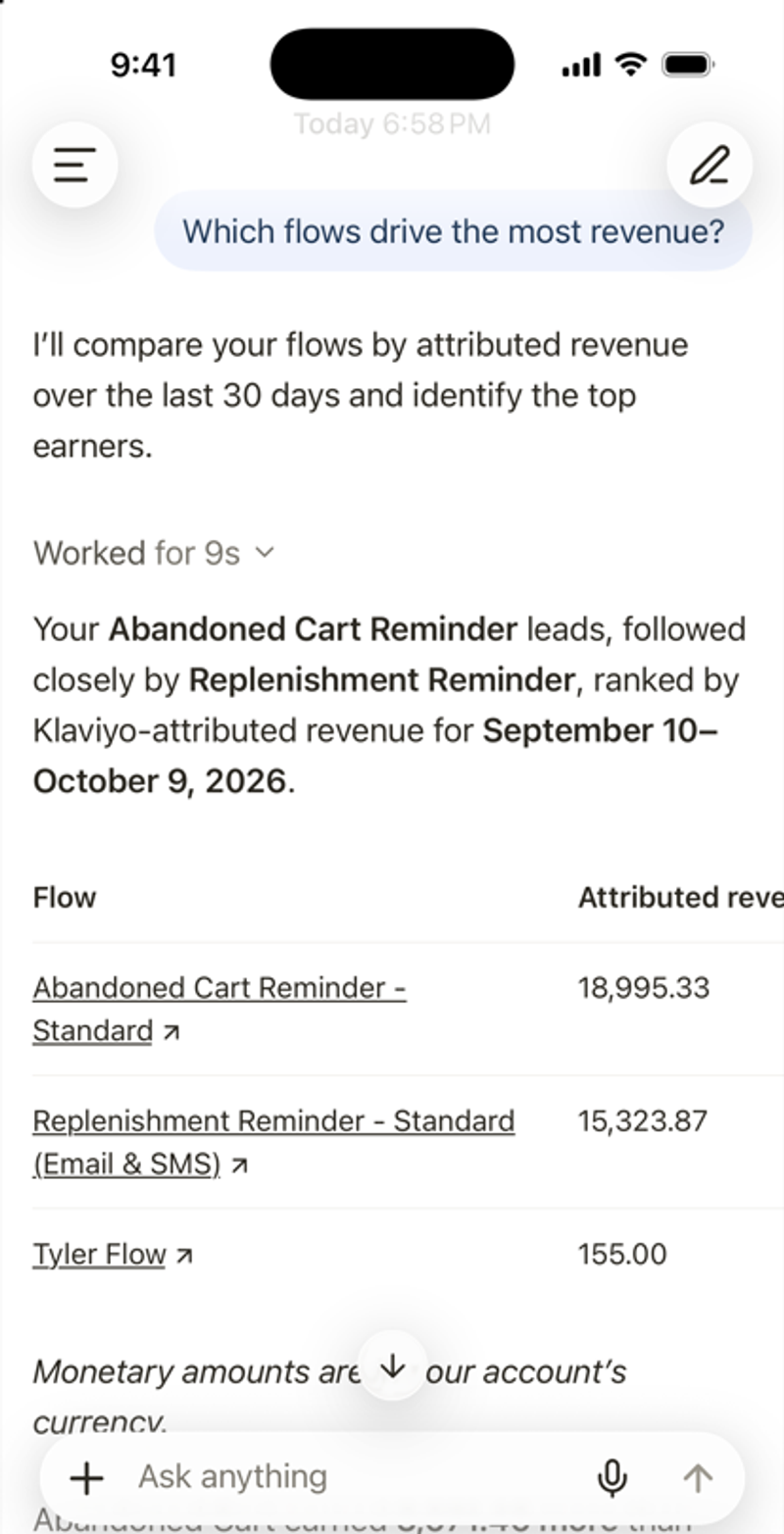
Tip: Say what you want, who it's for, and when. For example: Draft a campaign for VIP customers announcing early access to our fall sale on Friday. For more, see Prompt best practices for Composer.
Add photos, files, or designs
- Tap + next to Ask anything.
- Choose Camera, Photos, Files, or Templates. If Canva or Figma is turned on for your account, you can also choose Canva or Figma.
- Type what you want Composer to do with it, then tap send.
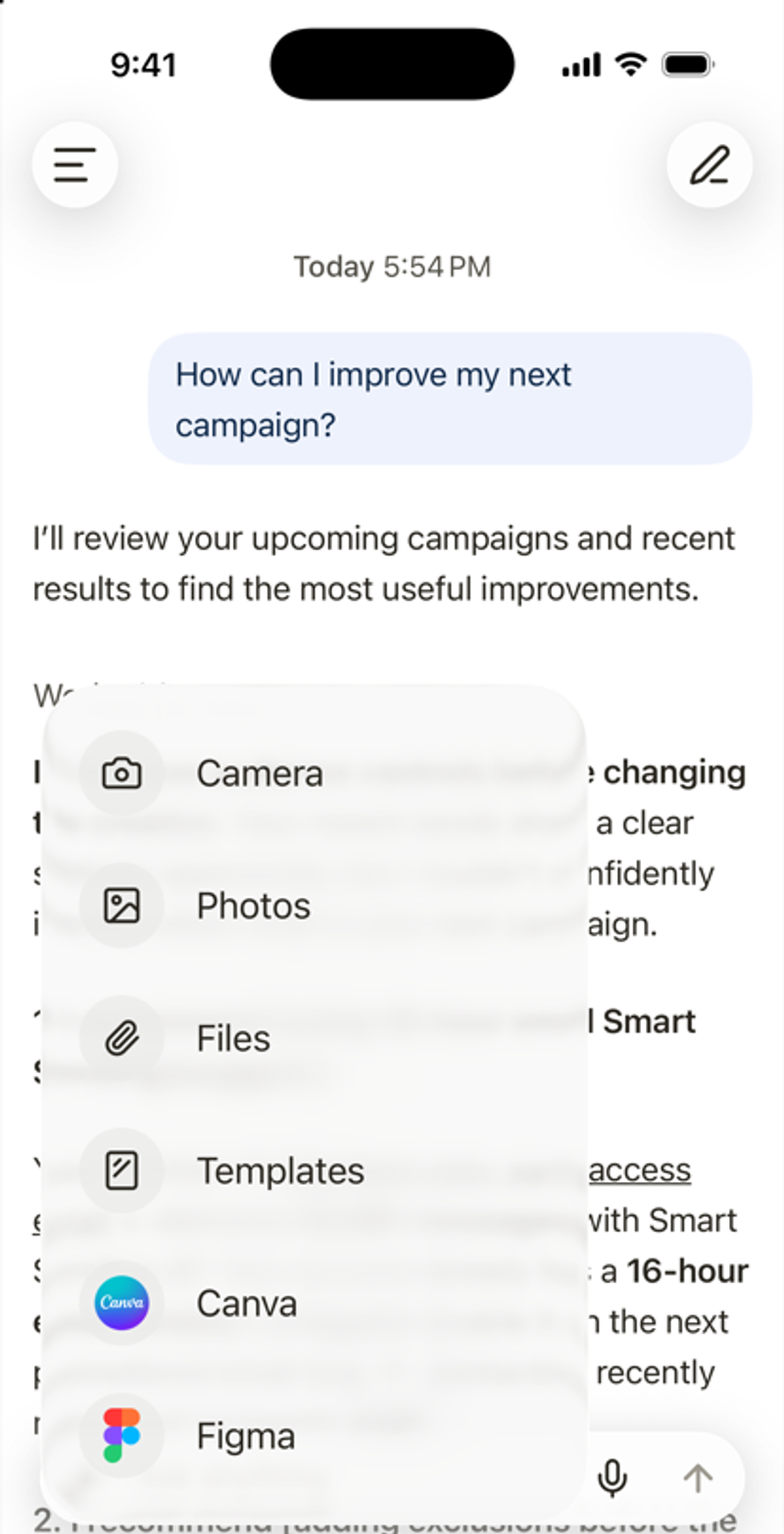
To use a connector or a skill in a message, type @ and pick it from the list.
Speak instead of typing
Tap the microphone icon and speak. The first time, iOS asks to allow the microphone and speech recognition. Speech is turned into text on your iPhone, and only the text is sent.
Review and approve changes
Composer shows proposed changes in a preview marked Awaiting approval. Review the content, audience, offers, and links before you approve a change.
- Tap the preview to look it over.
- To go ahead, tap the approval button, such as Create or Yes, proceed.
- To stop, tap No or Decline. You can add feedback to tell Composer what to change.
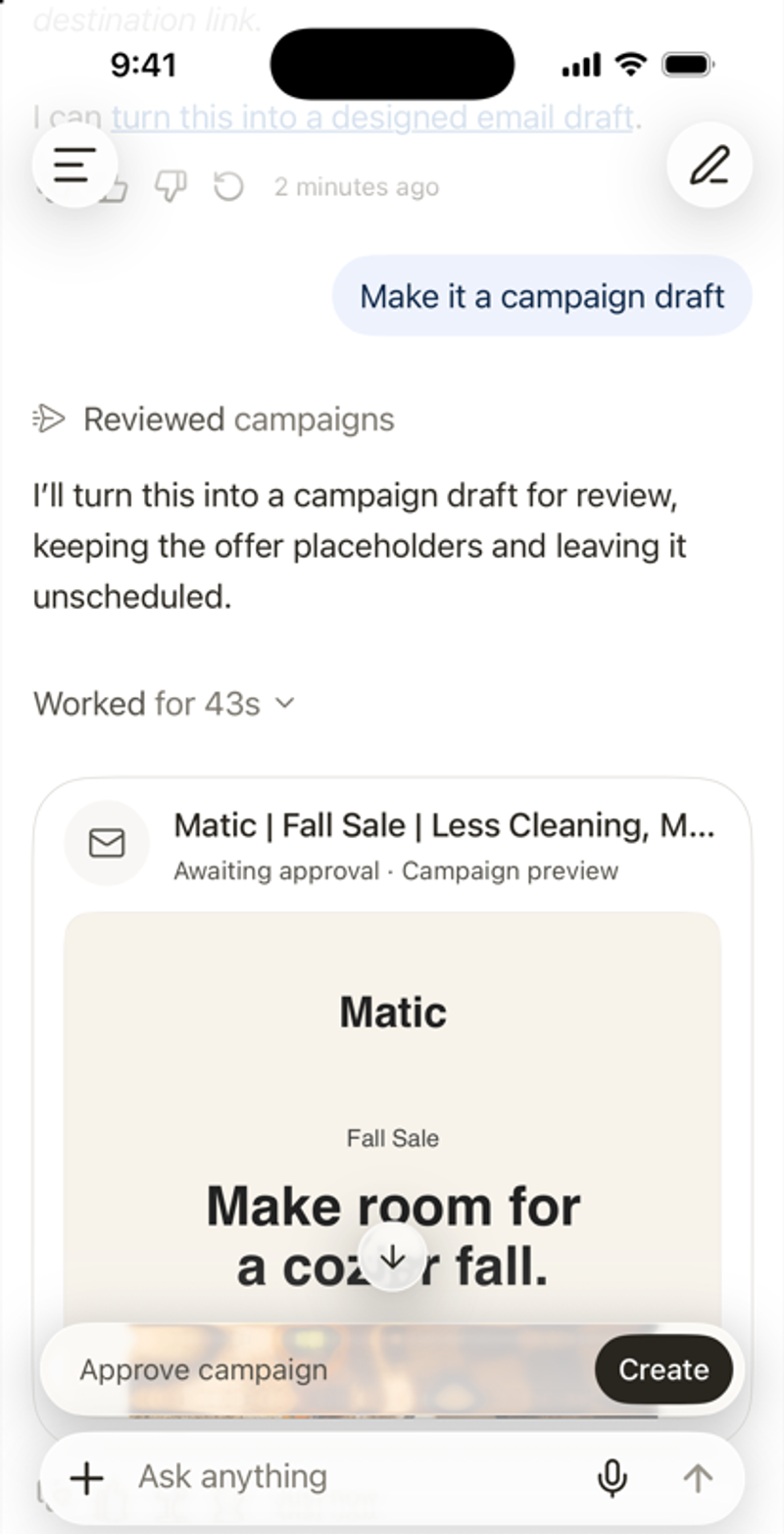
Some approvals can only be finished on Klaviyo web. The app tells you when that happens.
Manage your chats
- Start a new chat: tap the pencil icon in the top right, or New chat in the side menu.
- Find an old chat: open the side menu and tap the search icon.
- Copy an answer: tap the copy icon under it.
- Rate an answer: tap thumbs up or thumbs down. Your feedback helps improve future answers. It doesn't change this one.