How to manage notifications and account settings
Composer from Klaviyo can alert you when Composer finishes a reply, when a scheduled task runs, and when a campaign message crosses a limit you set. You manage these alerts, your name, and how the app looks from Account.
You will learn
- Which alerts the app can send you
- How to turn each alert on or off
- How to change your name and the app's look
- Where to find your organization's details
Before you begin
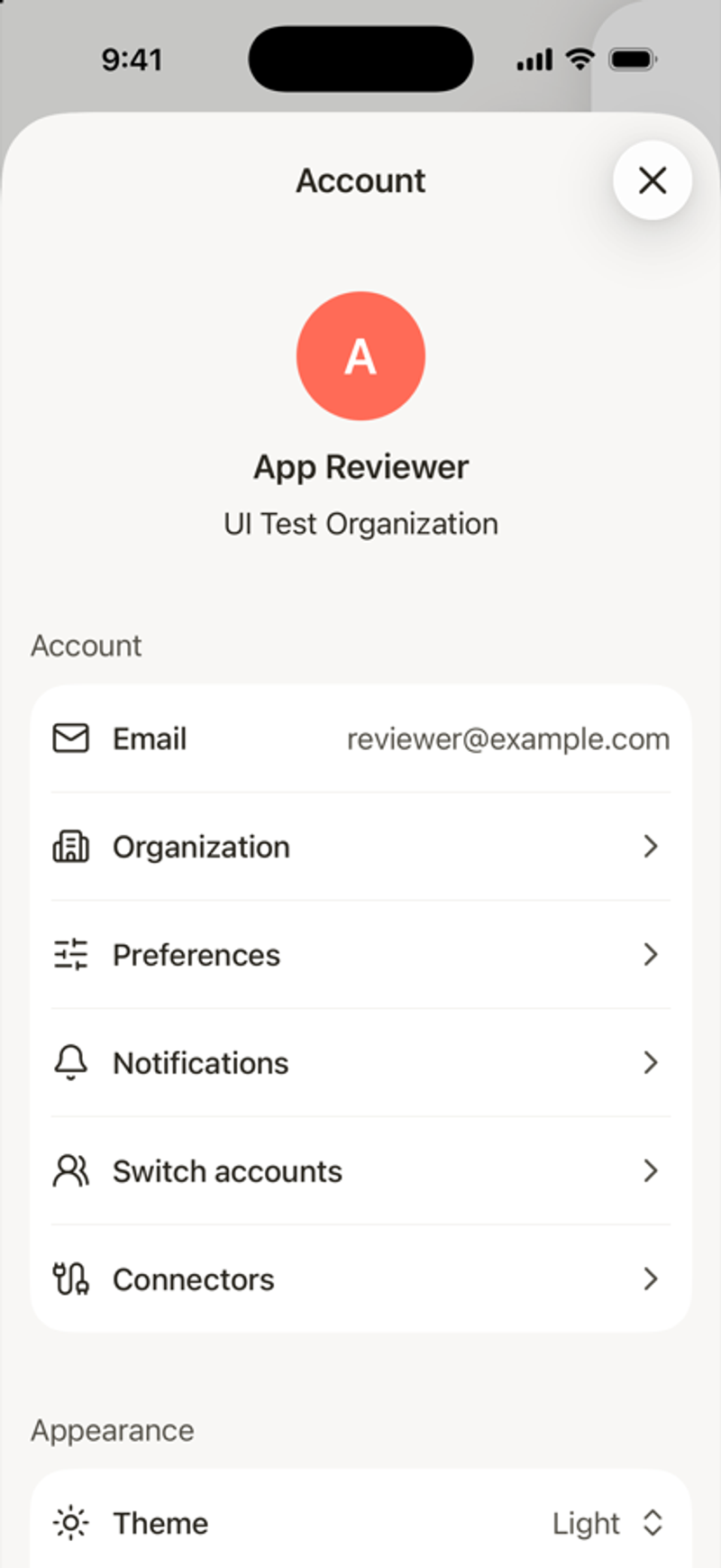
- To open Account, tap the menu icon in the top left, then tap the gear icon.
- Notifications must be allowed for Composer in iOS Settings.
Turn notifications on or off
- In Account, tap Notifications.
- If you see Notifications are off for Composer, tap Turn on, or tap Open Settings and allow them in iOS Settings.
- Turn each alert on or off.
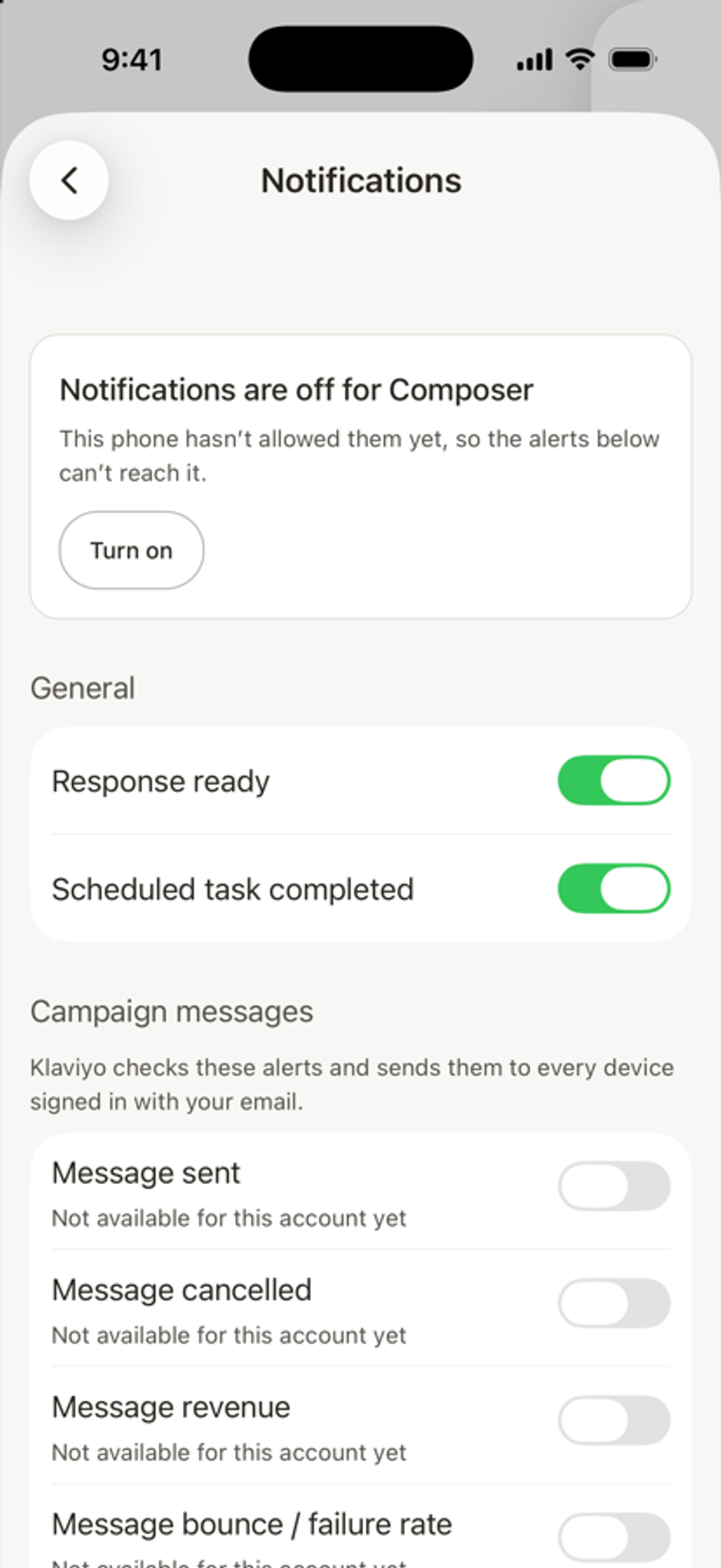
Alert | When you get it |
|---|---|
Response ready | Composer finishes a reply while you're away from the chat. |
Scheduled task completed | One of your scheduled tasks finishes a run. |
Message sent | A campaign message sends. |
Message cancelled | A campaign message is canceled. |
Message revenue | A message's attributed revenue reaches the amount you enter. You also pick the conversion metric. |
Message bounce / failure rate | A message's bounce or failure rate reaches the percent you enter. |
Message spam rate | A message's spam rate reaches the percent you enter. |
Message unsubscribe rate | A message's unsubscribe rate reaches the percent you enter. |
Klaviyo sends campaign message alerts to every device logged in with your email. If an alert says Not available for this account yet, it can't be turned on for that account right now.
Tap a notification to open the chat or task it's about.
Change your name
- At the top of Account, tap your profile picture.
- Enter your First name and Last name.
- Tap Save profile.
If your company manages names through SSO, you can't change your name here.
Change how the app looks
Under Appearance in Account:
- Theme: choose System, Light, or Dark.
- Accent color: choose the color of your own messages in chat.
See your organization's details
In Account, tap Organization to see details like company name, account ID, website, and sending identity. Tap Preferences to see settings like time zone and currency. To change these, use Klaviyo web.
Deactivate your account
Deactivating an account affects everyone in the organization. To review cancellation or closure options, open Account and tap Deactivate account.
- Cancel account stops all plans at the end of the billing cycle. Only an owner or admin can do this.
- Close account requests permanent deletion of the organization’s data. Only the owner can do this.
Accounts billed under a contract, or part of a billing family, must contact Klaviyo support instead.